> ## Documentation Index
> Fetch the complete documentation index at: https://notes.kodekloud.com/llms.txt
> Use this file to discover all available pages before exploring further.
# Installing and Running Vault Server
> This guide covers the installation and operation of HashiCorp Vault across various platforms and environments.
In this guide, we’ll walk through the essential components and steps required to install and run HashiCorp Vault. You’ll learn how to:
* Prepare your system and environment
* Create and manage configuration files
* Initialize, seal, and unseal the Vault
* Choose storage backends and interfaces
Vault is intentionally platform-agnostic, supporting a wide range of deployment scenarios.
## Supported Platforms
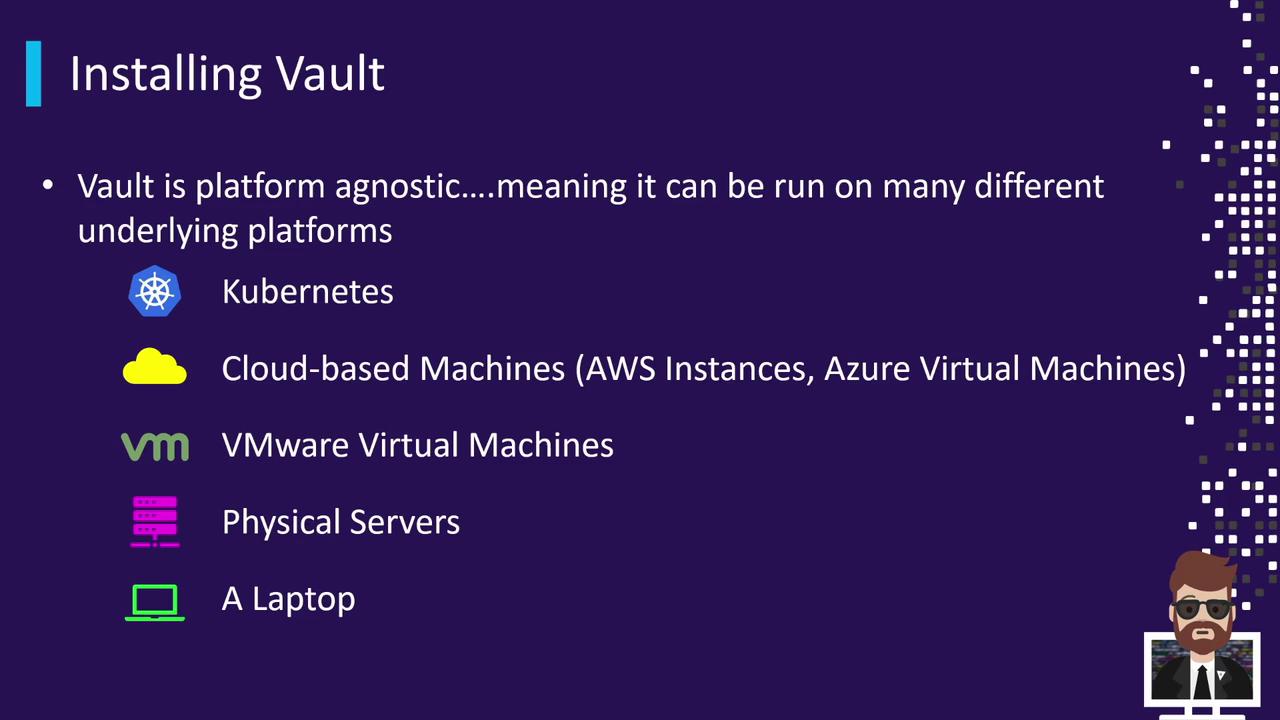
Vault can run anywhere you need it:
* **Kubernetes** (self-hosted or managed services such as AKS, EKS)
* **Cloud-based VMs** (AWS EC2, Azure VM, Google Compute Engine)
* **VMware virtual machines**
* **Physical servers** (for isolated CPU and memory)
* **Local workstations** (laptops and desktops for development)
Some security-conscious teams opt for physical servers to isolate Vault’s cryptographic operations.
## Supported Operating Systems

Vault binaries are distributed for multiple OS platforms:
| Operating System | Typical Use Case |
| ------------------------------ | --------------------------------------- |
| Linux | Production servers (Ubuntu, RHEL, etc.) |
| macOS | Local development on Apple hardware |
| Windows | Development or Windows-based servers |
| FreeBSD/NetBSD/OpenBSD/Solaris | Specialized or legacy environments |
Enterprises typically deploy Vault on Linux distributions such as Ubuntu, Amazon Linux, CentOS, or Red Hat.
## Installation Workflow
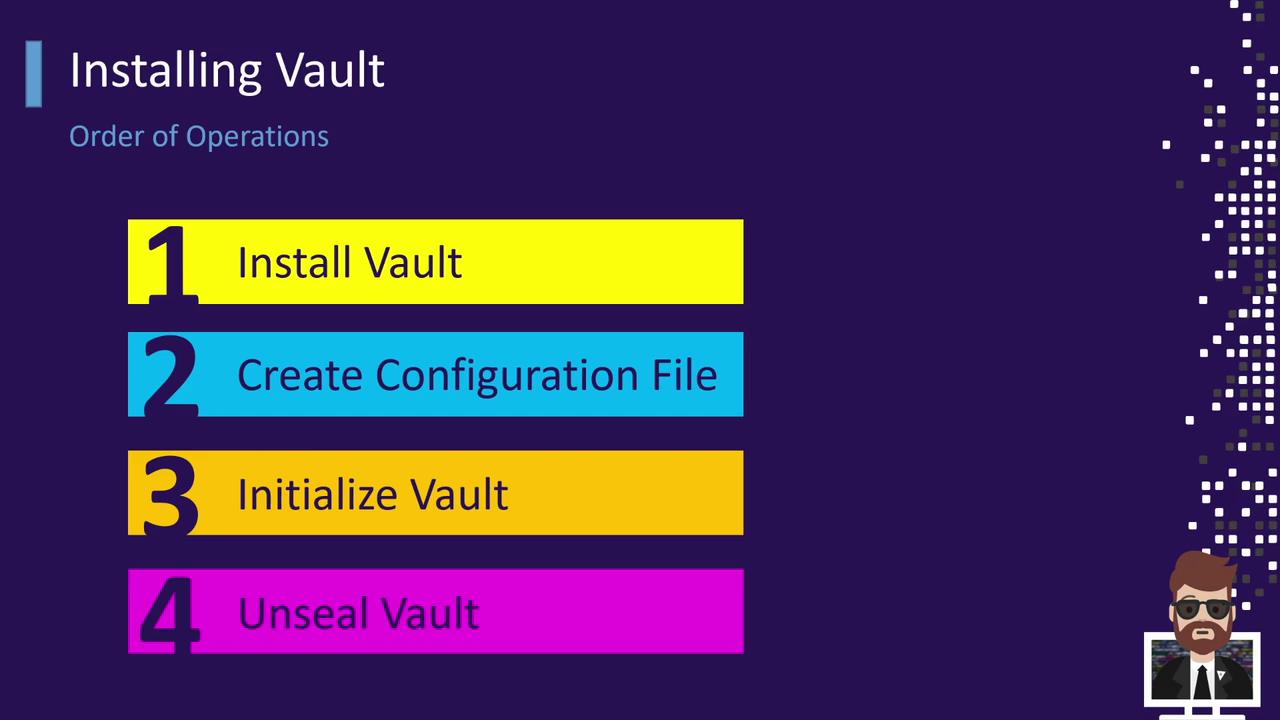
Follow this sequence for a manual deployment or when scripting an automated install:
1. Install the Vault binary
2. Create or update the Vault configuration file
3. Start the Vault server process
4. Initialize the Vault (generates root tokens and unseal keys)
5. Unseal Vault (use unseal keys to decrypt the storage)
After unsealing, your Vault instance is ready to store secrets or issue dynamic credentials.
Automating these steps with tools like Terraform, Ansible, or Helm can ensure consistency across environments.
## Installing Vault
You can install Vault in several ways: via system packages, Helm charts, or manual download. Choose the method that fits your environment.
### Using APT on Debian/Ubuntu
```bash theme={null}
curl -fsSL https://apt.releases.hashicorp.com/gpg | sudo apt-key add -
sudo apt-add-repository "deb [arch=amd64] https://apt.releases.hashicorp.com $(lsb_release -cs) main"
sudo apt-get update
sudo apt-get install vault
```
This will add the HashiCorp APT repository, refresh your package index, and install the `vault` CLI into your system `PATH`.
### Using Helm on Kubernetes
```bash theme={null}
helm repo add hashicorp https://helm.releases.hashicorp.com
helm repo update
helm install vault hashicorp/vault --namespace vault --create-namespace
```
Deploy Vault as a Kubernetes Deployment with a Service and StatefulSet backing the storage layer.
### Manual Download and Installation
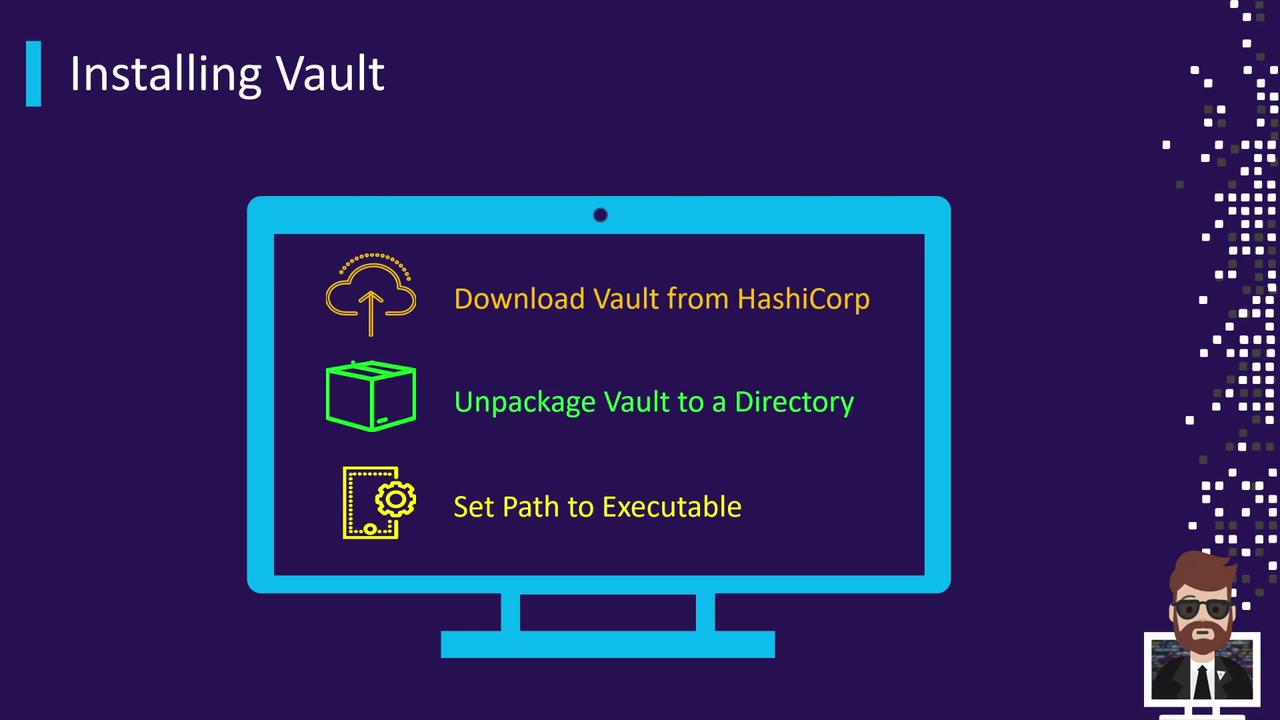
```bash theme={null}
# 1. Download the Vault ZIP archive
curl -O https://releases.hashicorp.com/vault/1.12.3/vault_1.12.3_linux_amd64.zip
# 2. Unzip the archive
unzip vault_1.12.3_linux_amd64.zip
# 3. Move the binary to a system PATH location
sudo mv vault /usr/local/bin/
```
After installation, verify with:
```bash theme={null}
vault --version
```
## Next Steps
1. Create a Vault configuration file (`vault.hcl`)
2. Start the Vault server: `vault server -config=vault.hcl`
3. Initialize: `vault operator init`
4. Unseal: `vault operator unseal`
## Links and References
* [Vault Documentation](https://www.vaultproject.io/docs)
* [HashiCorp Releases](https://releases.hashicorp.com/vault/)
* [Helm Charts](https://github.com/hashicorp/vault-helm)
* [APT Package Repository](https://apt.releases.hashicorp.com)