> ## Documentation Index
> Fetch the complete documentation index at: https://notes.kodekloud.com/llms.txt
> Use this file to discover all available pages before exploring further.
# Configure Replication using the Vault UI
> Learn to set up Disaster Recovery replication using HashiCorp Vault’s web interface for robust disaster recovery between primary and secondary clusters.
In this guide, you’ll learn how to set up Disaster Recovery (DR) replication using HashiCorp Vault’s web interface. While you can configure replication via the CLI or API, the UI offers an intuitive workflow for most users. By the end, you’ll have a primary cluster replicating to a secondary for robust disaster recovery.
* Vault Enterprise license (1.5+)
* Admin-level token with `replication` capabilities
* Two Vault clusters (primary and secondary) with network connectivity
## 1. Enable DR Replication on the Primary Cluster
1. Log in to your **primary** Vault cluster through the UI.
2. In the sidebar, click **Status**, then select **Replication**.
3. Click **Enable Replication**.
4. From the **Type** dropdown, choose **Disaster Recovery (DR) Replication**.
5. Set **Cluster Mode** to **Primary**, then confirm by clicking **Enable Replication**.
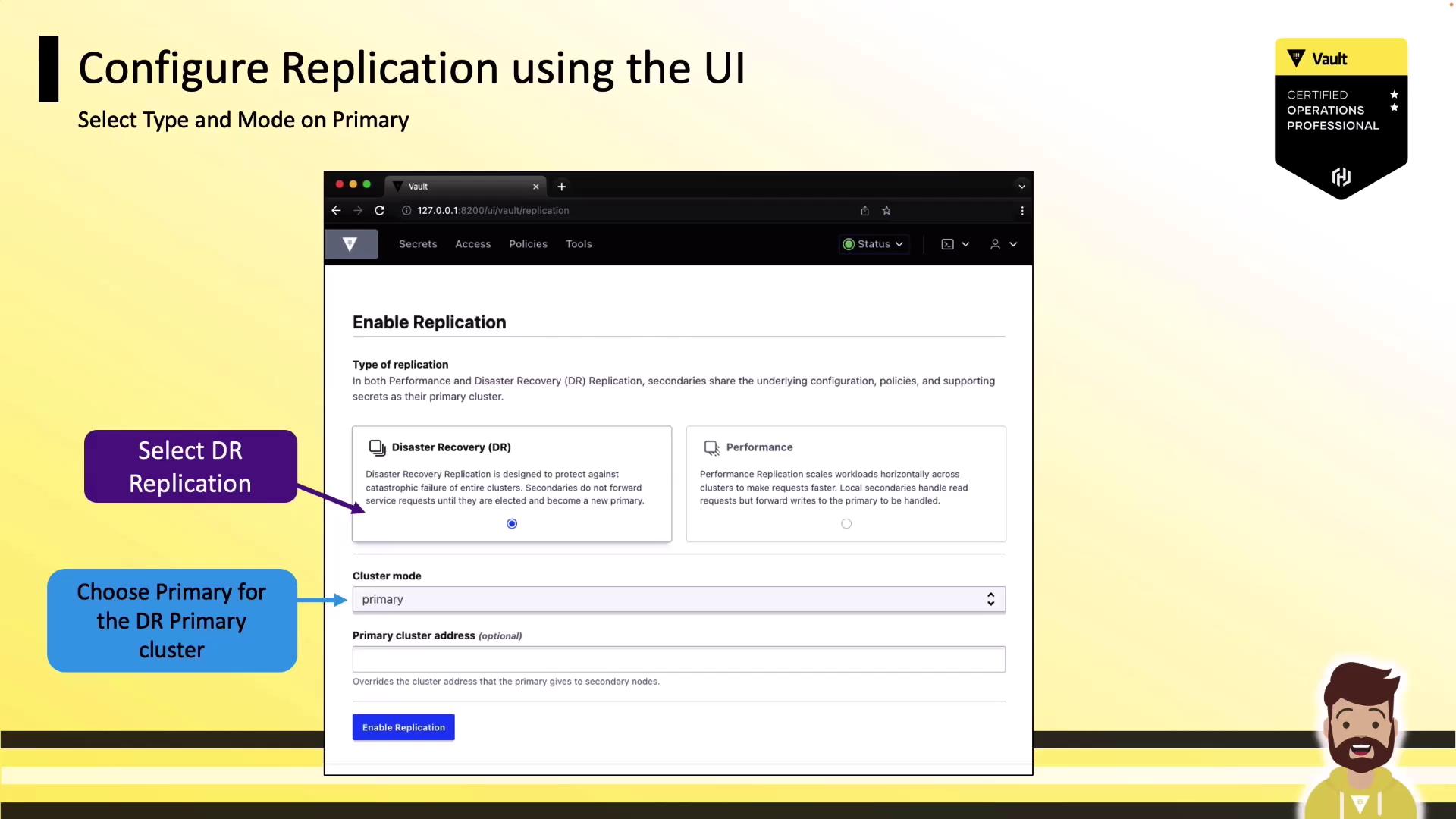
Vault will initialize DR replication in seconds and show the status panel, which initially displays **No known secondaries**.
## 2. Register a Secondary Cluster
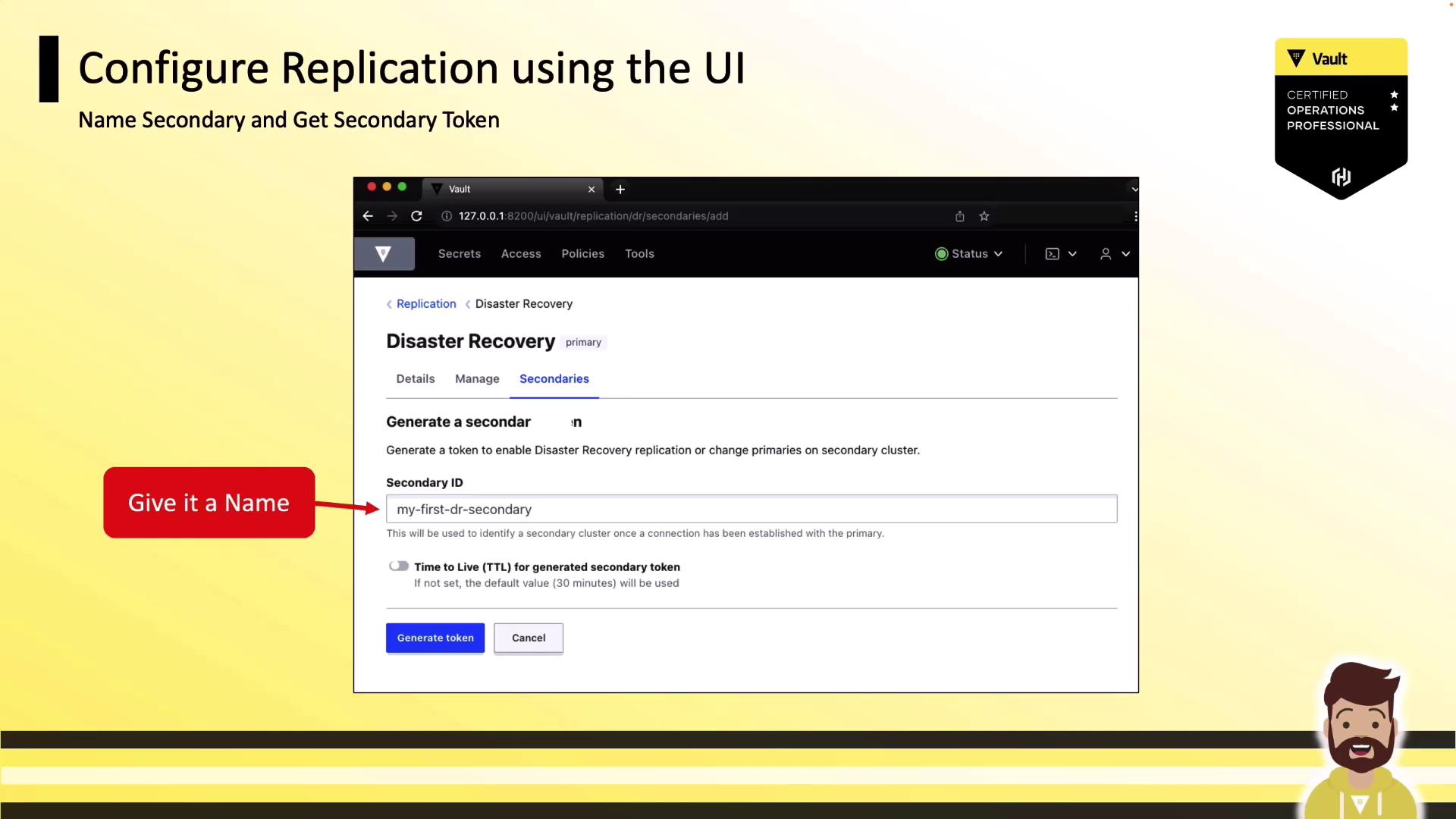
1. In the **Replication** panel, click **Add a Secondary**.
2. Provide a descriptive **Name** for your secondary cluster.
3. (Optional) Adjust the **Token TTL** to control how long the secondary activation token remains valid.
4. Click **Generate Token** and **Copy** the output.
```text theme={null}
eyJhbGciOiJFUzUxMlsInR5c6IkpXVCJ9.eyJhY2Nlc3Nlc3NfdHlwZSI6ImFkZGl0aW9uIiwic2Vjb25kYXJ5X3Rva2VuIjoiJodHRwOitYrR1hY2J2stcHJgyMDAiLCJleHBpcmF0aW9uIjoxMjM0NTY3ODkwMH19
```
Keep the generated token secure. It grants replication activation rights on the secondary cluster.
## 3. Activate DR Replication on the Secondary Cluster
1. Log in to your **secondary** Vault cluster.
2. Navigate to **Status** → **Replication** → **Enable Replication**.
3. Select **Disaster Recovery (DR) Replication**.
4. Choose **Secondary** for **Cluster Mode**.
5. Paste the token you copied from the primary.
6. Click **Enable Replication** to start synchronization.
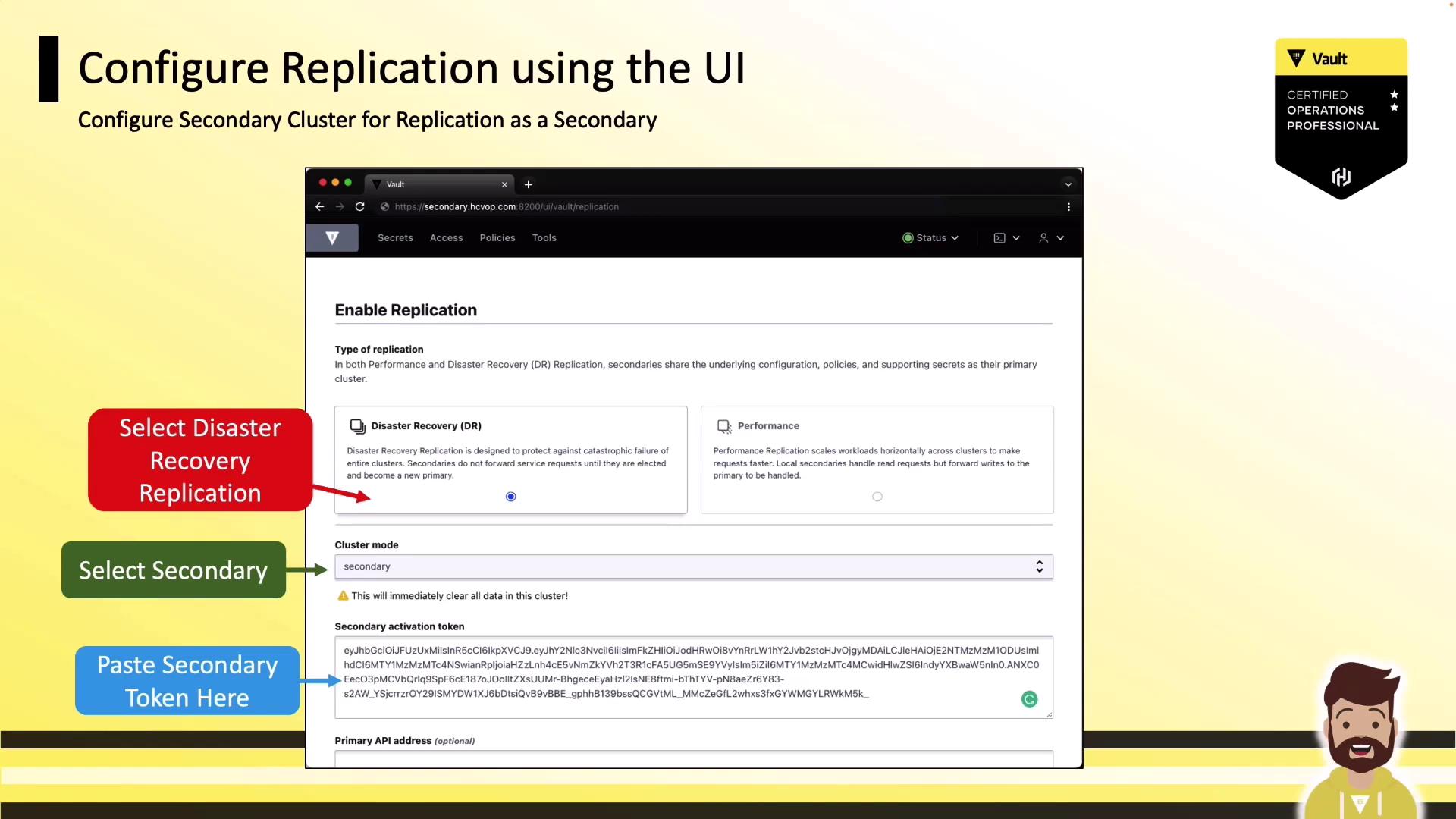
Vault will now synchronize changes from the primary to the secondary, completing your DR setup.
## DR vs. Performance Replication
| Replication Type | Use Case | Data Direction |
| ----------------------- | --------------------------------- | ------------------- |
| Disaster Recovery (DR) | Failover during outages | Primary → Secondary |
| Performance Replication | Read-scaling and geo-distribution | Bidirectional |
## Next Steps & References
* [Vault Replication Overview](https://www.vaultproject.io/docs/enterprise/replication)
* [Vault UI Guide](https://www.vaultproject.io/docs/platform/ui)
* [Vault CLI Commands](https://www.vaultproject.io/docs/commands)
Your Vault clusters are now configured for DR replication via the UI. Regularly monitor the **Replication** status page to ensure health and sync progress.