> ## Documentation Index
> Fetch the complete documentation index at: https://notes.kodekloud.com/llms.txt
> Use this file to discover all available pages before exploring further.
# How Do We Set All of this Up
> This article explains how to set up Disaster Recovery replication in HashiCorp Vault through a series of configuration steps.
Disaster Recovery (DR) replication in HashiCorp Vault isn’t enabled by default. Follow these four steps to set up a DR replica set:
1. Enable DR replication on the primary cluster
2. Generate a wrapped secondary token
3. *(Optional)* Inspect the token’s contents
4. Activate DR replication on the secondary cluster
***
## 1. Enable DR Replication on the Primary Cluster
On your primary Vault cluster, enable DR replication. Vault will automatically:
* Provision an internal root CA
* Issue a root certificate and a client certificate for mutual TLS
* Prepare to generate secondary tokens
These internal certificates are separate from the TLS certificates you configure for your Vault listener.
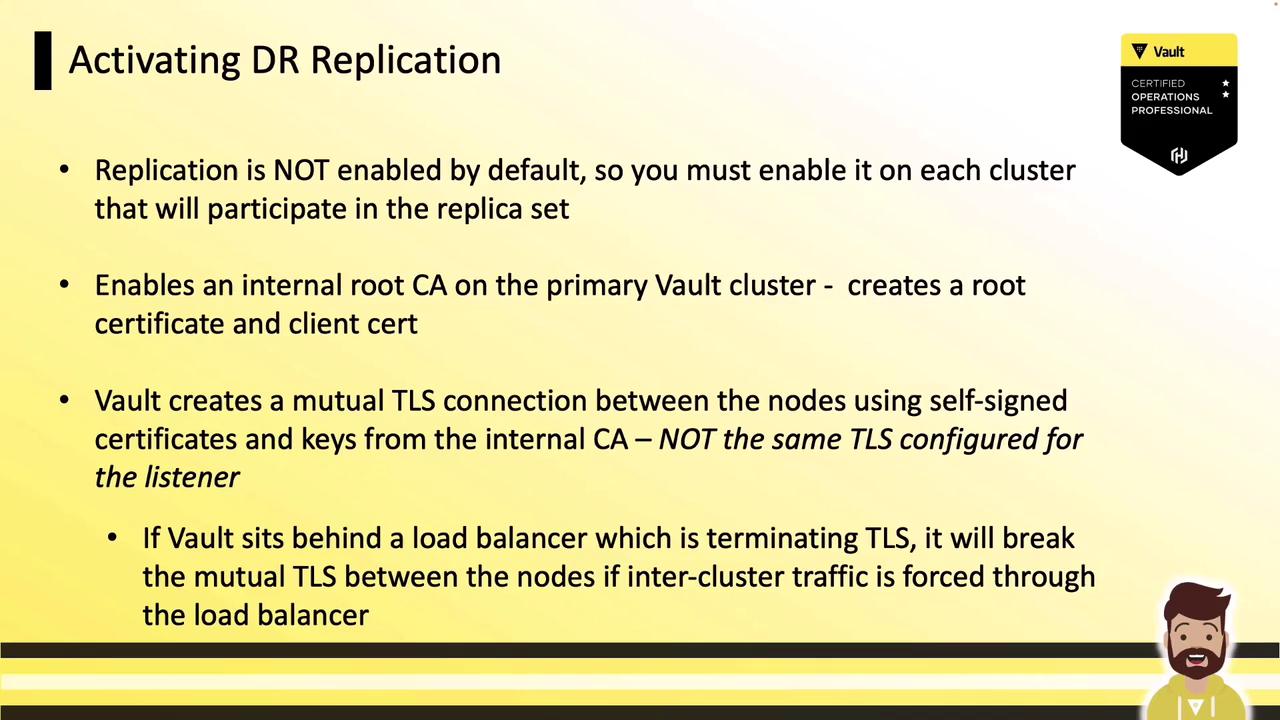
If your Vault nodes sit behind a load balancer that terminates TLS, ensure mTLS traffic on port 8201 is passed through end-to-end. Either disable TLS termination or configure a TCP passthrough.
```bash theme={null}
# Example: Enable DR replication on primary
vault write -f sys/replication/dr/primary/enable
```
***
## 2. Generate the Wrapped Secondary Token
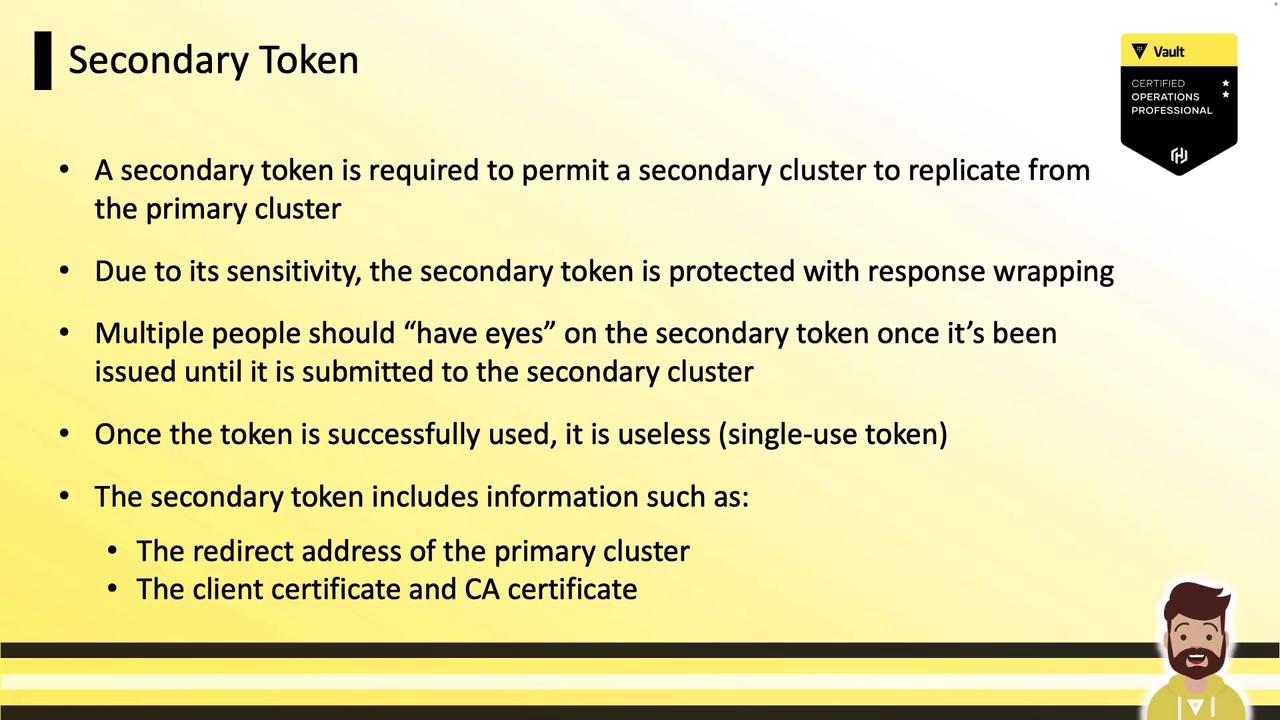
Next, create a DR secondary token on the primary. This wrapped, single-use token contains:
* The primary’s unwrapping address
* The CA certificate for mTLS
* A client certificate and key
```bash theme={null}
vault write -wrap-ttl=5m -f sys/replication/dr/secondary-token
```
***
## 3. (Optional) Inspect the Wrapped Token
Typically you hand this wrapped token directly to the secondary without unwrapping. For demonstration, here’s the JSON after unwrapping:
```json theme={null}
{
"request_id": "98d4c7a5-0f00-4872-1cad-6ab8fa35694c",
"data": {
"ca_cert": "MIIC/fCCAd ...",
"client_cert": "MIICjCCAjgAwIBAgIIK4vDI ...",
"client_key": {
"type": "p521",
"d": "...",
"x": "...",
"y": "..."
}
},
"cluster_id": "0d12790a-996e-152f-0113-3b016812d64d",
"id": "secondary"
}
```
You can skip this step in production—Vault handles unwrapping automatically on the secondary.
***
## 4. Activate DR Replication on the Secondary Cluster
On your secondary cluster, supply the wrapped token when enabling DR replication. Vault will:
1. Call back to the primary’s API on port 8200 to unwrap the token
2. Extract mTLS credentials and primary address
3. Establish inter-cluster connections on port 8201
4. Begin streaming data from primary to secondary
```bash theme={null}
vault write sys/replication/dr/secondary/enable \
token=""
```
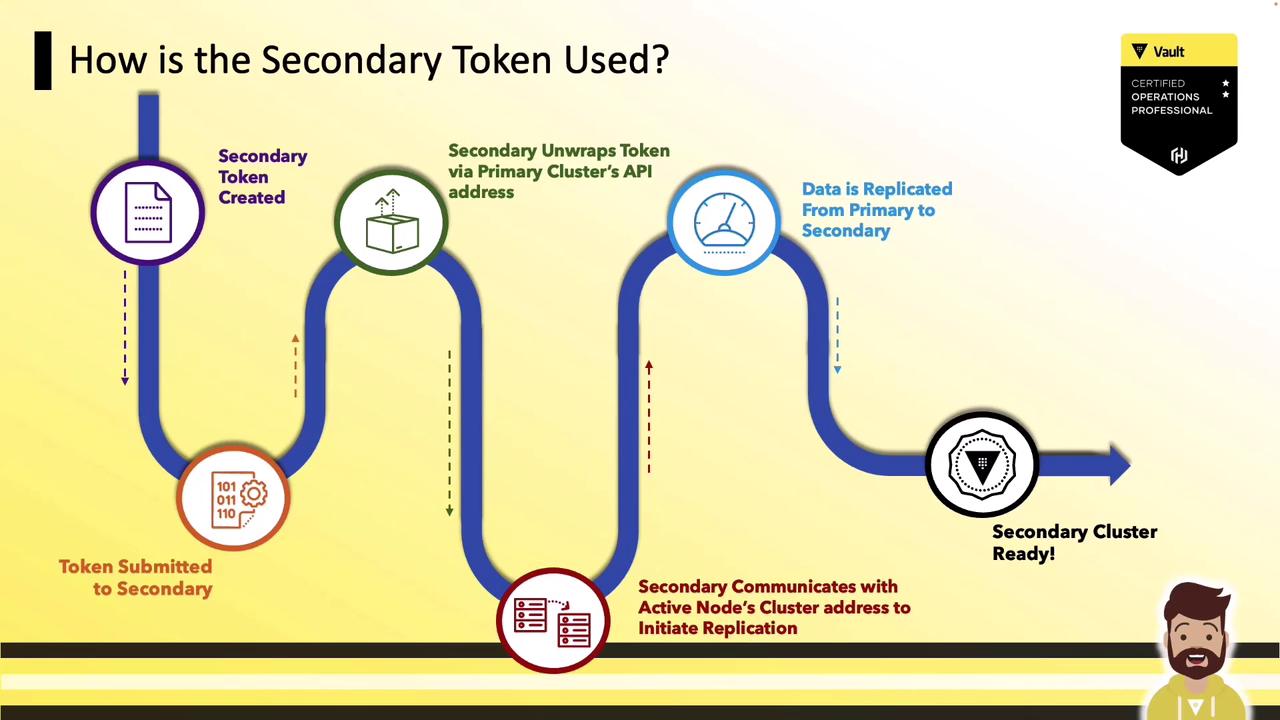
Once complete, your secondary cluster is fully synchronized and ready for disaster recovery.
***
## Further Reading
* [Vault DR Replication Documentation](https://www.vaultproject.io/docs/enterprise/replication/dr)
* [Mutual TLS in Vault](https://www.vaultproject.io/docs/concepts/tls)
* [Vault Enterprise Features](https://www.vaultproject.io/docs/enterprise)