> ## Documentation Index
> Fetch the complete documentation index at: https://notes.kodekloud.com/llms.txt
> Use this file to discover all available pages before exploring further.
# Demo Build an HA Cluster Using Auto Join
> This guide explains how to configure a Vault high-availability cluster using the auto-join feature for automatic node discovery.
In this guide, we’ll walk through configuring a Vault high-availability (HA) cluster using the **auto-join** feature. With auto-join, Vault nodes automatically discover and join each other by querying cloud metadata—tags in AWS, labels in GCP, or VM properties in VMware. By the end, you’ll have a fault-tolerant Raft cluster without manual peer configuration.
## Environment Overview
We’re using three Amazon Linux EC2 instances in AWS, all tagged to enable discovery:
* Tag Key: `cluster`
* Tag Value: `us-east-1`
These tags ensure Vault nodes in the **us-east-1** region locate each other and form a cluster.
Make sure each EC2 instance has the `cluster=us-east-1` tag applied before starting Vault.
## Vault Configuration
On **each** node, update `/etc/vault.d/vault.hcl` to use Raft storage with auto-join in AWS:
```hcl theme={null}
storage "raft" {
path = "/opt/vault"
node_id = "vault-1" # Change per node: vault-1, vault-2, vault-3
retry_join = ["provider=aws region=us-east-1 tag_key=cluster tag_value=us-east-1"]
auto_join_scheme = "http" # default is https; http is for non-production labs
}
listener "tcp" {
address = "0.0.0.0:8200"
cluster_address = "0.0.0.0:8201"
tls_disable = true
}
seal "awskms" {
region = "us-east-1"
kms_key_id = "arn:aws:kms:us-east-1:003674902126:key/8bc6b2ba-840a-4eef-8f2d-5616a3e67900"
}
api_addr = "http://:8200"
cluster_addr = "http://:8201"
cluster_name = "vault"
ui = true
log_level = "INFO"
```
* `retry_join` tells Vault to query AWS EC2 instances with the `cluster=us-east-1` tag.
* `auto_join_scheme` defaults to `https`; we use `http` here since TLS is disabled.
Never disable TLS in production. This example uses `tls_disable = true` for simplicity in a lab environment.
## IAM Role for Auto-Join
Attach an IAM role to each EC2 instance with permissions to describe instances and access KMS:
```json theme={null}
{
"Version": "2012-10-17",
"Statement": [
{
"Effect": "Allow",
"Action": [
"kms:Encrypt",
"kms:Decrypt",
"kms:DescribeKey"
],
"Resource": "arn:aws:kms:us-east-1:003674902126:key/8bc6b2ba-840a-4eef-8f2d-5616a3e67900"
},
{
"Sid": "PermitEC2ApiAccessForCloudAutoJoin",
"Effect": "Allow",
"Action": [
"ec2:DescribeInstances"
],
"Resource": "*",
"Condition": {
"StringEquals": {
"aws:RequestedRegion": "us-east-1"
}
}
}
]
}
```
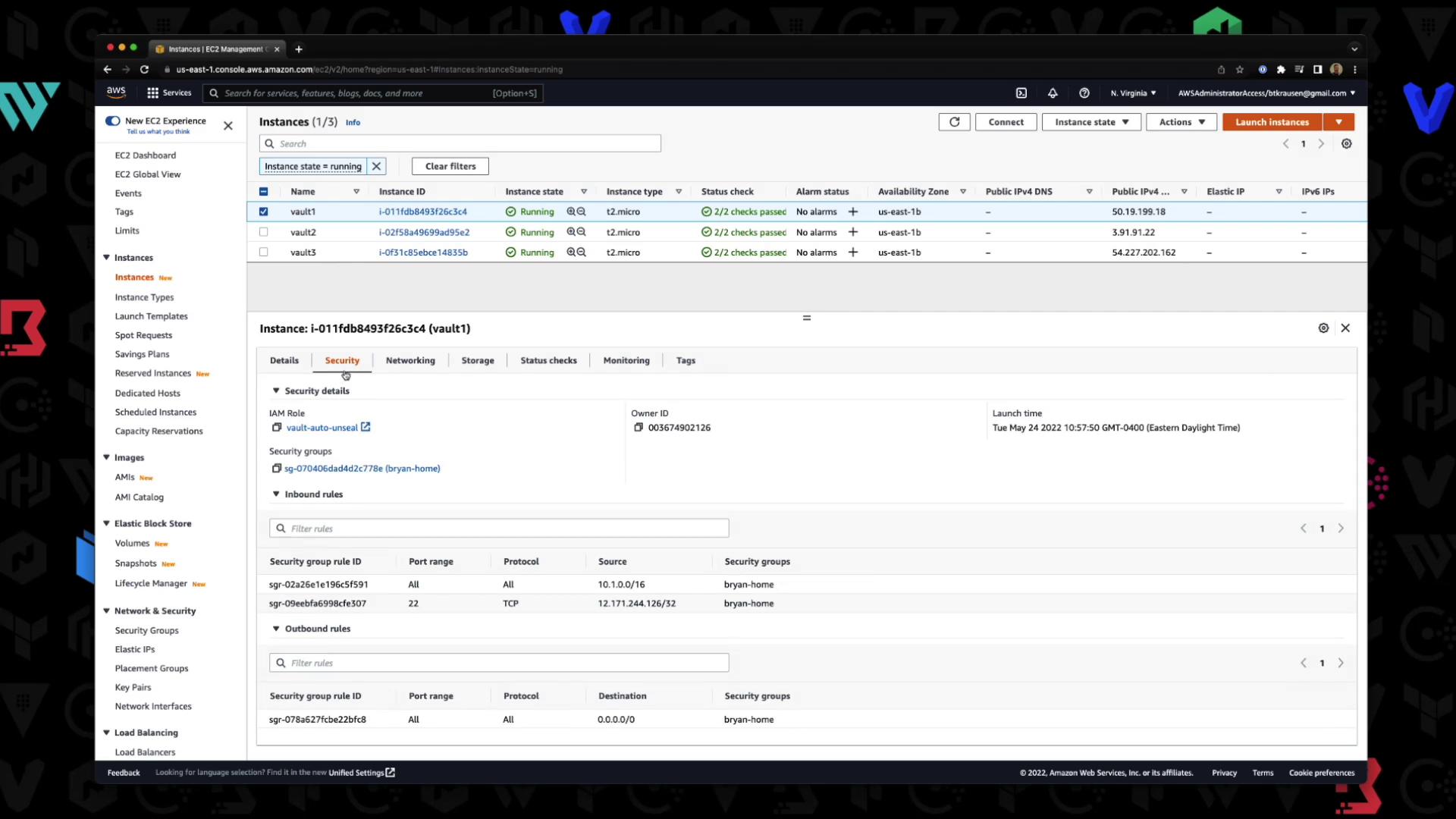
In the AWS console, confirm that each instance has this IAM role attached:
## Initializing the Cluster
On the **first** node:
1. Start Vault:
```bash theme={null}
sudo systemctl start vault
```
2. Verify service status:
```bash theme={null}
vault status
```
3. Initialize Vault to generate recovery keys and a root token:
```bash theme={null}
vault operator init
```
Sample output:
```plaintext theme={null}
Recovery Key 1: AvXqLmtQ3JjHrMkboSx8+d1xlUuilntB9WeqWUrSk
…
Initial Root Token: hvs.S9xE9tx4Ydk8p2mVfjid2d
Success! Vault is initialized
```
## Cluster Auto-Join Logs
Watch Vault logs to confirm auto-join behavior:
```bash theme={null}
journalctl -u vault -f
```
Key excerpts:
```plaintext theme={null}
2022-05-24T15:47:28.772Z [DEBUG] discover-aws: Using provider "aws"
2022-05-24T15:47:28.772Z [DEBUG] discover-aws: Using region=us-east-1 tag_key=cluster tag_value=us-east-1
2022-05-24T15:47:28.894Z [INFO] discover-aws: Found 1 reservation=024e0889d9df9a73 with 3 instances
2022-05-24T15:47:28.897Z [DEBUG] discover-aws: Instance i-011dfb843f26c3c4 has private ip 10.1.101.199
2022-05-24T15:47:28.898Z [DEBUG] discover-aws: attempting to join leader at http://10.1.101.199:8200
```
## Verify Cluster Status
Run `vault status` on each node. You should see one **active** leader and two **standbys**:
| Node IP | HA Mode | Active Node Address |
| ------------ | ------- | ---------------------------------------------------- |
| 10.1.101.199 | active | [http://10.1.101.199:8201](http://10.1.101.199:8201) |
| 10.1.101.25 | standby | [http://10.1.101.199:8201](http://10.1.101.199:8201) |
| 10.1.101.108 | standby | [http://10.1.101.199:8201](http://10.1.101.199:8201) |
## Summary
You’ve successfully built a Vault HA cluster that automatically joins via AWS metadata tags. This pattern works on AWS, Azure, GCP, and VMware (where supported). To scale out, launch new nodes with the same tags and Vault will auto-join the Raft cluster.
For more details, see:
* [Vault Auto-Join Documentation](https://www.vaultproject.io/docs/concepts/auto-join)
* [AWS Provider Plugin](https://www.vaultproject.io/docs/configuration/storage/raft#retry_join)