> ## Documentation Index
> Fetch the complete documentation index at: https://notes.kodekloud.com/llms.txt
> Use this file to discover all available pages before exploring further.
# Demo Auto Unseal Vault
> This guide explains how to configure Vault with AWS KMS for auto-unseal and migrate from Shamir sealing.
In this guide, you’ll learn how to start a Vault server locally, initialize it with Raft storage, configure AWS KMS for auto-unseal, migrate from Shamir sealing to AWS KMS, and validate the auto-unseal workflow. This is ideal for test environments and hands-on practice toward certification.
* Vault v1.10.0-ent or later
* AWS CLI v2 configured with sufficient IAM permissions
* A customer-managed AWS KMS key in the desired region
* Basic knowledge of Vault CLI and AWS IAM
***
## Table of Contents
1. [Initial Vault Configuration](#1-initial-vault-configuration)
2. [Start Vault Server](#2-start-vault-server)
3. [Initialize & Unseal Vault](#3-initialize--unseal-vault)
4. [Enable KV Secrets Engine](#4-enable-kv-secrets-engine)
5. [Configure AWS KMS Auto-Unseal](#5-configure-aws-kms-auto-unseal)
6. [Grant AWS IAM Permissions](#6-grant-aws-iam-permissions)
7. [Set AWS Credentials](#7-set-aws-credentials)
8. [Restart & Migrate Seal](#8-restart--migrate-seal)
9. [Validate Auto-Unseal](#9-validate-auto-unseal)
***
## 1. Initial Vault Configuration
Create a `vault.hcl` with Raft storage and default Shamir sealing (no `seal` stanza yet):
```hcl theme={null}
storage "raft" {
path = "/Users/bk/vault/data"
node_id = "btk-macbook-pro"
}
listener "tcp" {
address = "0.0.0.0:8200"
cluster_address = "0.0.0.0:8201"
tls_disable = true
}
api_addr = "http://btk-macbook-pro:8200"
cluster_addr = "http://btk-macbook-pro:8201"
cluster_name = "btk-macbook-pro"
ui = true
log_level = "INFO"
license_path = "/Users/bk/vault/vault.hclic"
```
***
## 2. Start Vault Server
Launch Vault with the above configuration:
```bash theme={null}
vault server -config=vault.hcl
```
Look for:
```plaintext theme={null}
Version: Vault v1.10.0-ent
Storage: raft (HA available)
Api Address: http://btk-macbook-pro:8200
Cluster Address: https://btk-macbook-pro:8201
==> Vault server started! Log data will stream in below:
```
In a new shell, set:
```bash theme={null}
export VAULT_ADDR="http://127.0.0.1:8200"
```
***
## 3. Initialize & Unseal Vault
1. Check status:
```bash theme={null}
vault status
```
Expected output:
```plaintext theme={null}
Seal Type shamir
Initialized false
Sealed true
Storage Type raft
HA Enabled true
```
2. Initialize Vault with 1 key share and threshold:
```bash theme={null}
vault operator init -key-shares=1 -key-threshold=1
```
Save the **Unseal Key** and **Initial Root Token**.
3. Unseal Vault:
```bash theme={null}
vault operator unseal
```
4. Login:
```bash theme={null}
vault login
```
5. Verify unseal:
```bash theme={null}
vault status
```
***
## 4. Enable KV Secrets Engine
Enable the KV (Key/Value) secrets engine and add a sample secret:
```bash theme={null}
vault secrets enable kv
vault kv put kv/hcvop certification=fun
```
***
## 5. Configure AWS KMS Auto-Unseal
Edit `vault.hcl` to include the `seal` stanza for AWS KMS:
```hcl theme={null}
seal "awskms" {
region = "us-east-1"
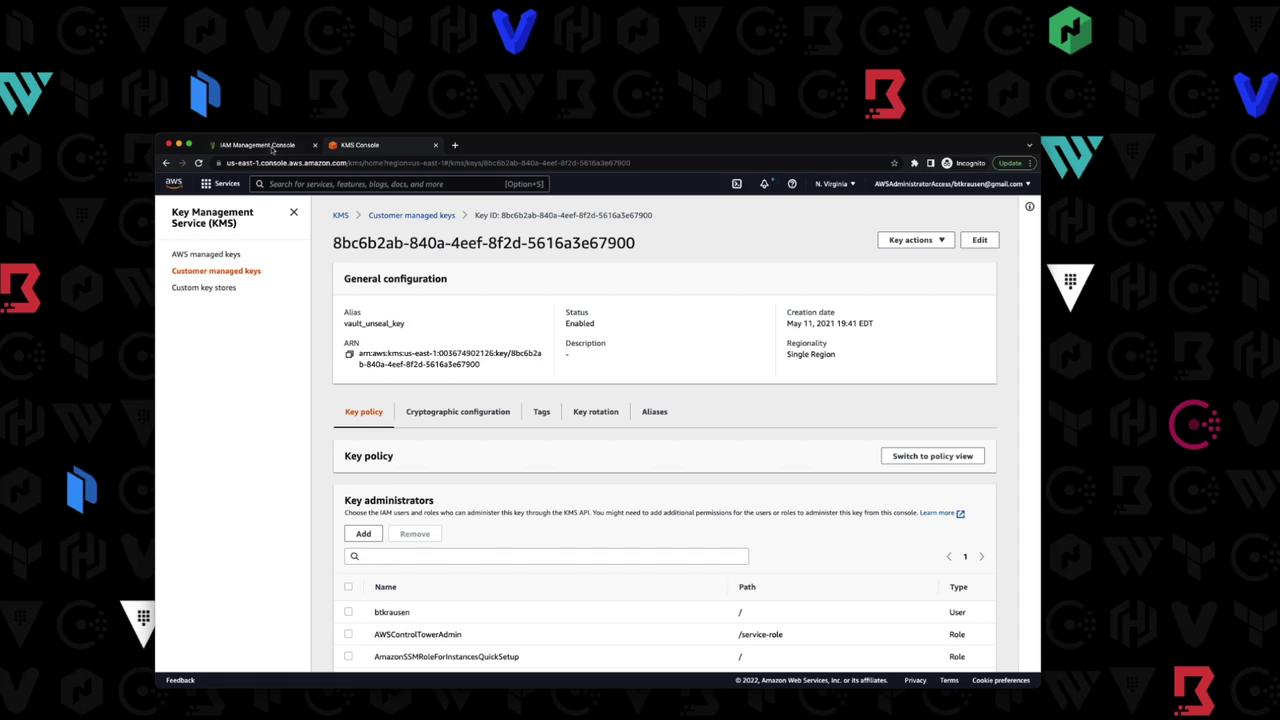
kms_key_id = "arn:aws:kms:us-east-1:003674902126:key/8bc6b2ab-840a-4eef-8f2d-5616a3e67900"
}
storage "raft" {
path = "/Users/bk/vault/data"
node_id = "btk-macbook-pro"
}
listener "tcp" {
address = "0.0.0.0:8200"
cluster_address = "0.0.0.0:8201"
tls_disable = true
}
api_addr = "http://btk-macbook-pro:8200"
cluster_addr = "http://btk-macbook-pro:8201"
cluster_name = "btk-macbook-pro"
ui = true
log_level = "INFO"
license_path = "/Users/bk/vault/vault.hclic"
```
### 5.1 Retrieve KMS Key ARN
In the AWS KMS console, copy your customer-managed key ARN:
***
## 6. Grant AWS IAM Permissions
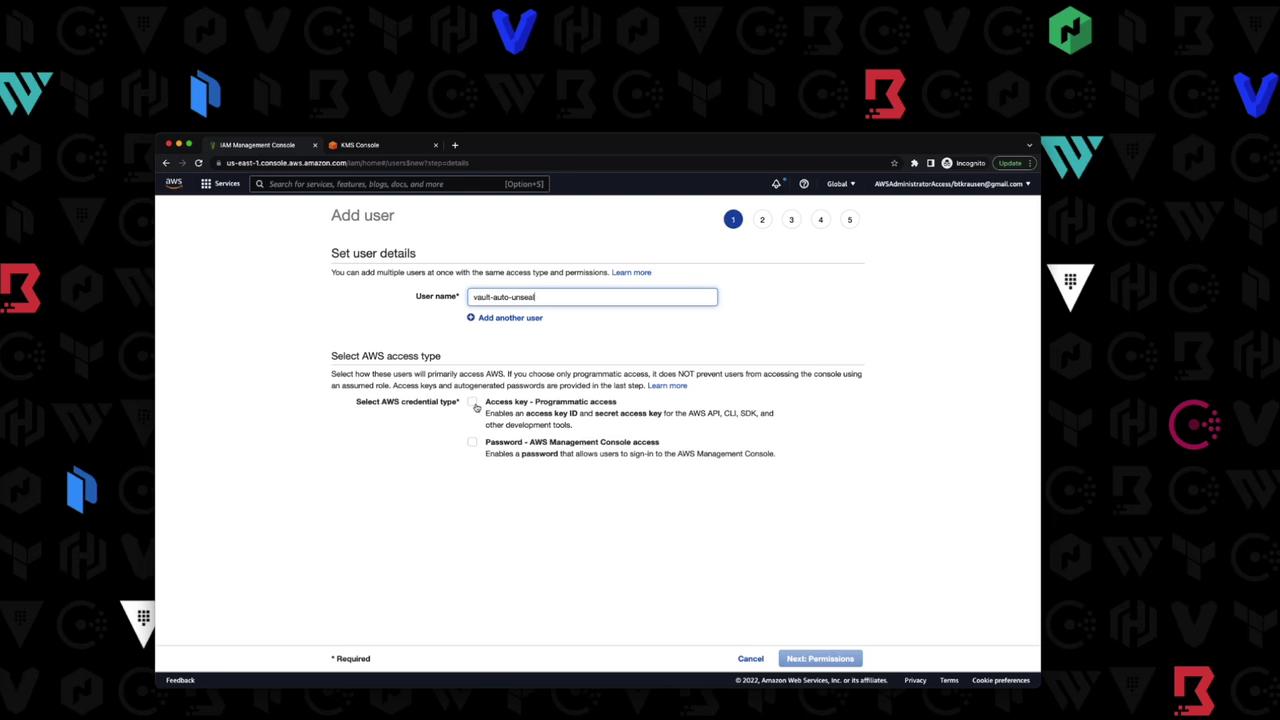
Create an IAM user with programmatic access and attach a policy allowing Vault to use the KMS key.
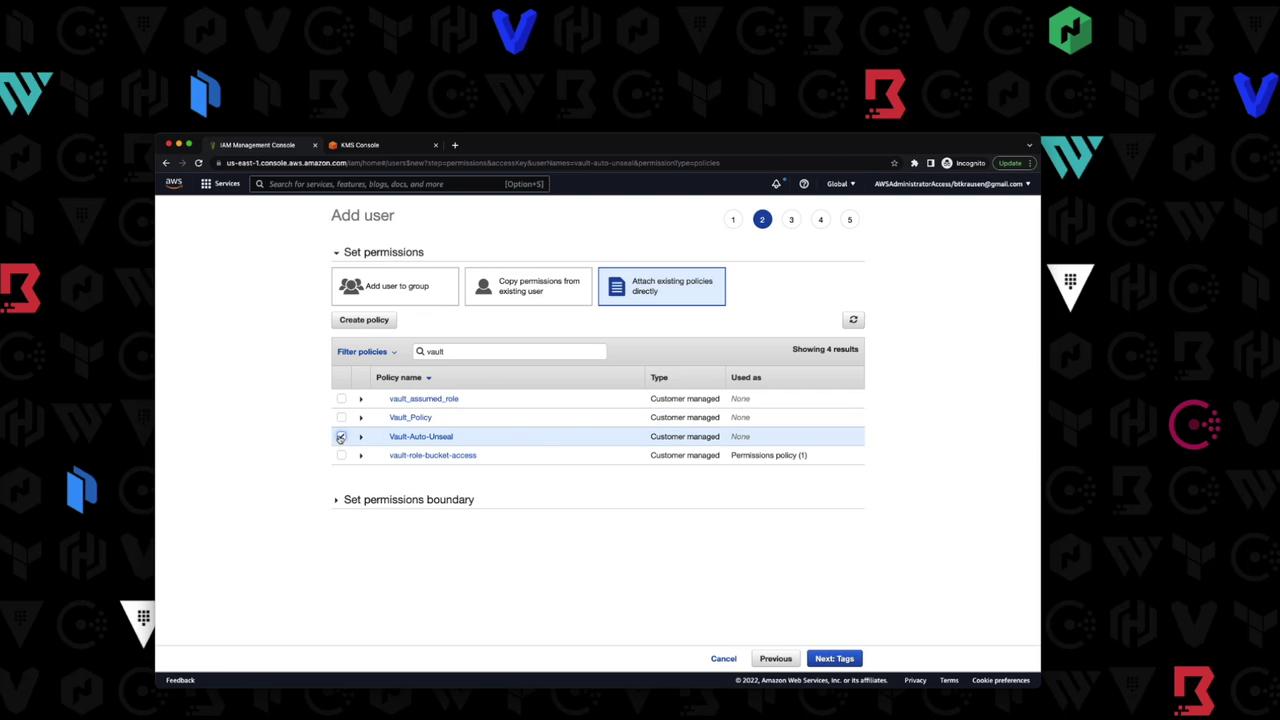
Example IAM policy:
```json theme={null}
{
"Version": "2012-10-17",
"Statement": [
{
"Effect": "Allow",
"Action": [
"kms:Encrypt",
"kms:Decrypt",
"kms:DescribeKey"
],
"Resource": "arn:aws:kms:us-east-1:003574902126:key/88cbe20f-848a-4eef-87d4-561636729908"
}
]
}
```
| IAM Action | Description |
| --------------- | ---------------------------- |
| kms:Encrypt | Allows encryption operations |
| kms:Decrypt | Allows decryption operations |
| kms:DescribeKey | Allows viewing key metadata |
***
## 7. Set AWS Credentials
In your shell, export the IAM user credentials and region:
```bash theme={null}
export AWS_ACCESS_KEY_ID="AKIAQBWYKRZAXUEDIHZ"
export AWS_SECRET_ACCESS_KEY="srKLi5zFuJRj8E23mRoY5w5FgLzts23cb52K"
export AWS_REGION="us-east-1"
```
***
Perform seal migration only in a non-production environment first. Ensure you have backups of your unseal keys before proceeding.
## 8. Restart & Migrate Seal
1. Stop the Vault process (`Ctrl+C`).
2. Restart with the updated `vault.hcl`:
```bash theme={null}
vault server -config=vault.hcl
```
3. You’ll see:
```plaintext theme={null}
[WARN] core: entering seal migration mode; Vault will not automatically unseal even if using an autoseal: from_barrier_type=shamir
```
4. Migrate the seal:
```bash theme={null}
vault operator unseal -migrate
```
Successful output:
```plaintext theme={null}
[INFO] core: migrating from shamir to auto-unseal: to=awskms
[INFO] core: seal migration complete
```
***
## 9. Validate Auto-Unseal
1. Stop and start Vault again:
```bash theme={null}
vault server -config=vault.hcl
```
2. Look for:
```plaintext theme={null}
[INFO] core: vault is unsealed
[INFO] core: unsealed with stored key
```
3. Confirm seal type:
```bash theme={null}
vault status
```
The `Seal Type` should be `awskms` and `Sealed` should be `false`.
***
You have now configured Vault with AWS KMS auto-unseal, migrated from Shamir, and verified the process. For more details, see:
* [Vault Auto-Unseal Documentation](https://www.vaultproject.io/docs/configuration/seal/awskms)
* [AWS KMS Developer Guide](https://docs.aws.amazon.com/kms/latest/developerguide/)
* [HashiCorp Vault Docs](https://www.vaultproject.io/docs)