> ## Documentation Index
> Fetch the complete documentation index at: https://notes.kodekloud.com/llms.txt
> Use this file to discover all available pages before exploring further.

# Demo Drift Detection

> Terraform Clouds Drift Detection feature monitors infrastructure for changes, ensuring environments remain in sync with version-controlled Terraform code.

Terraform Cloud’s Drift Detection feature, introduced in mid-2022, continuously monitors your infrastructure for out-of-band changes. By comparing your deployed resources against your version-controlled Terraform code, it helps ensure your environments stay in sync.

## Prerequisites and Licensing

<Callout icon="triangle-alert" color="#FF6B6B">
  Terraform Cloud Drift Detection requires a **Business Tier** license. If you’re evaluating this feature, ensure your organization has the correct plan.
</Callout>

## Overview of Workspaces and Health Status

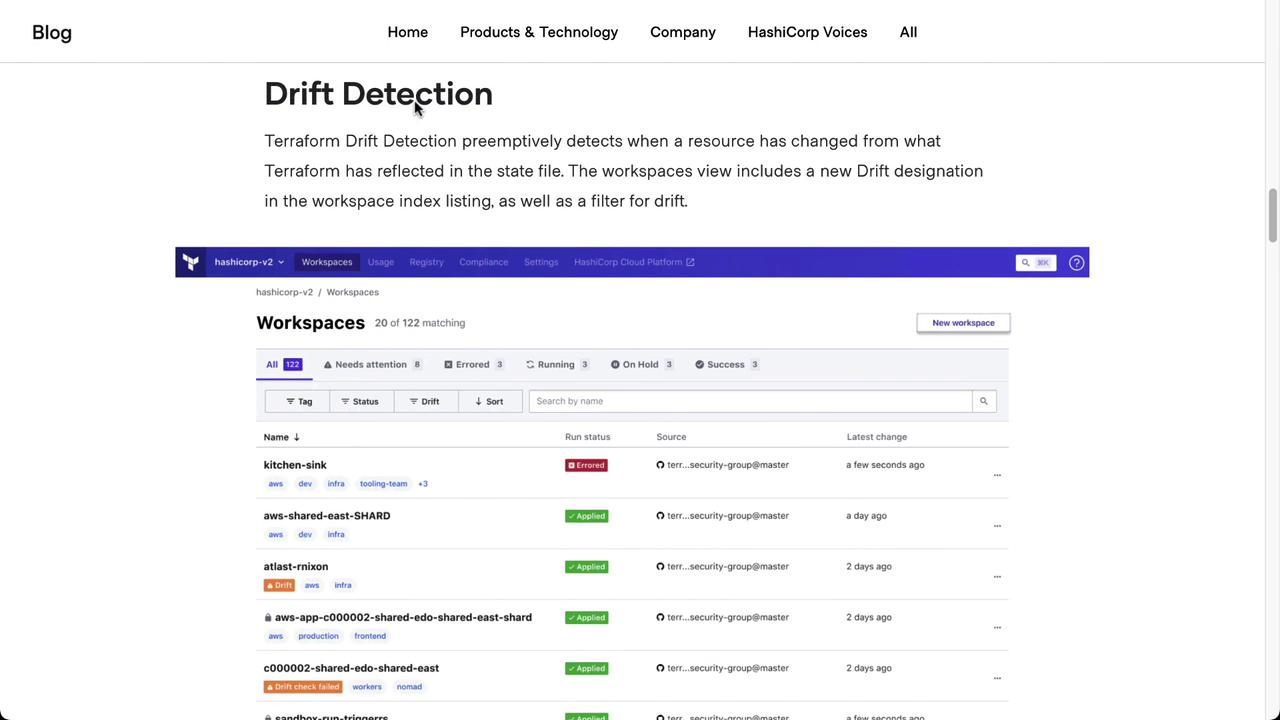
From the Terraform Cloud UI, you can quickly see which workspaces are “Errored,” “Applied,” or have drift:
<Frame>
  ![The image shows a webpage about "Drift Detection" in Terraform, featuring a list of workspaces with their statuses, such as "Errored" and "Applied." The interface includes options for filtering and sorting the workspaces.](https://kodekloud.com/kk-media/image/upload/v1752878651/notes-assets/images/HashiCorp-Terraform-Cloud-Demo-Drift-Detection/drift-detection-terraform-workspaces-statuses.jpg)
</Frame>

## Enable Drift Detection

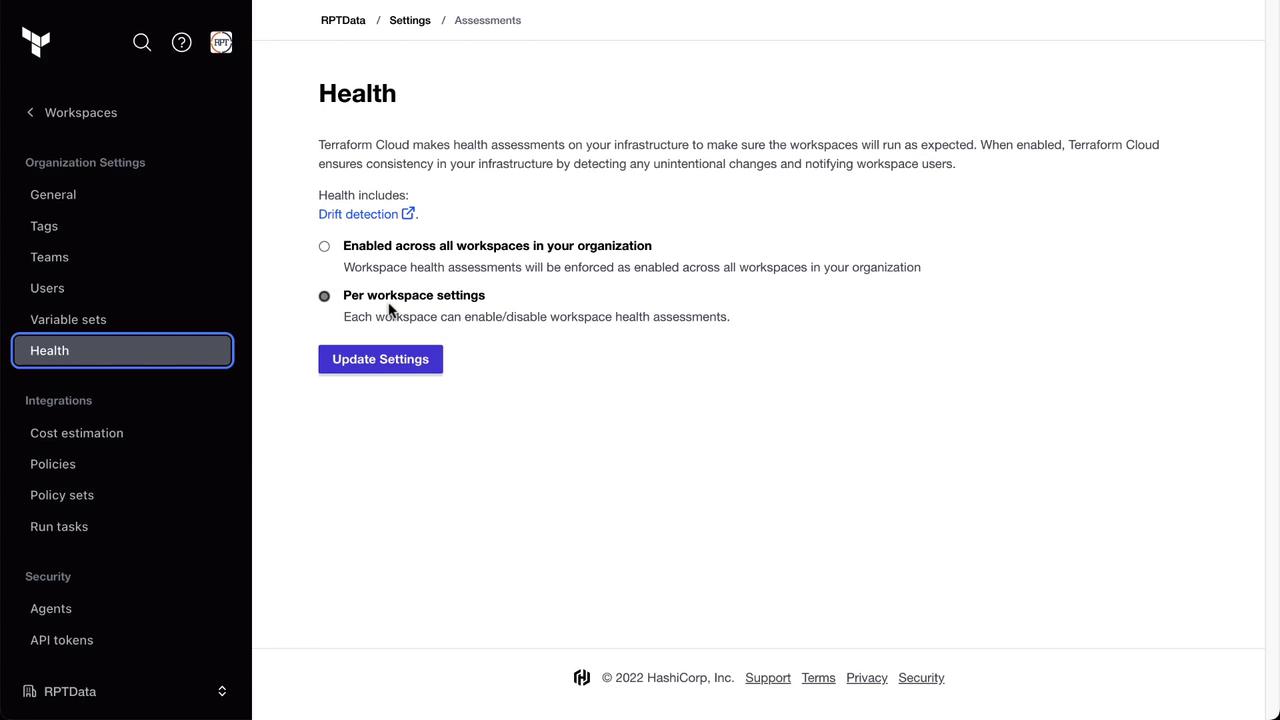
You can enable health assessments — including drift detection — either globally or per workspace.

1. Navigate to **Settings** in your organization.
2. Select **Health** and choose your preferred scope.
<Frame>
  ![The image shows a settings page for "Health" in Terraform Cloud, where users can enable health assessments across all workspaces or set them per workspace. There is a button to update settings and a navigation menu on the left.](https://kodekloud.com/kk-media/image/upload/v1752878651/notes-assets/images/HashiCorp-Terraform-Cloud-Demo-Drift-Detection/terraform-cloud-health-settings-page.jpg)
</Frame>

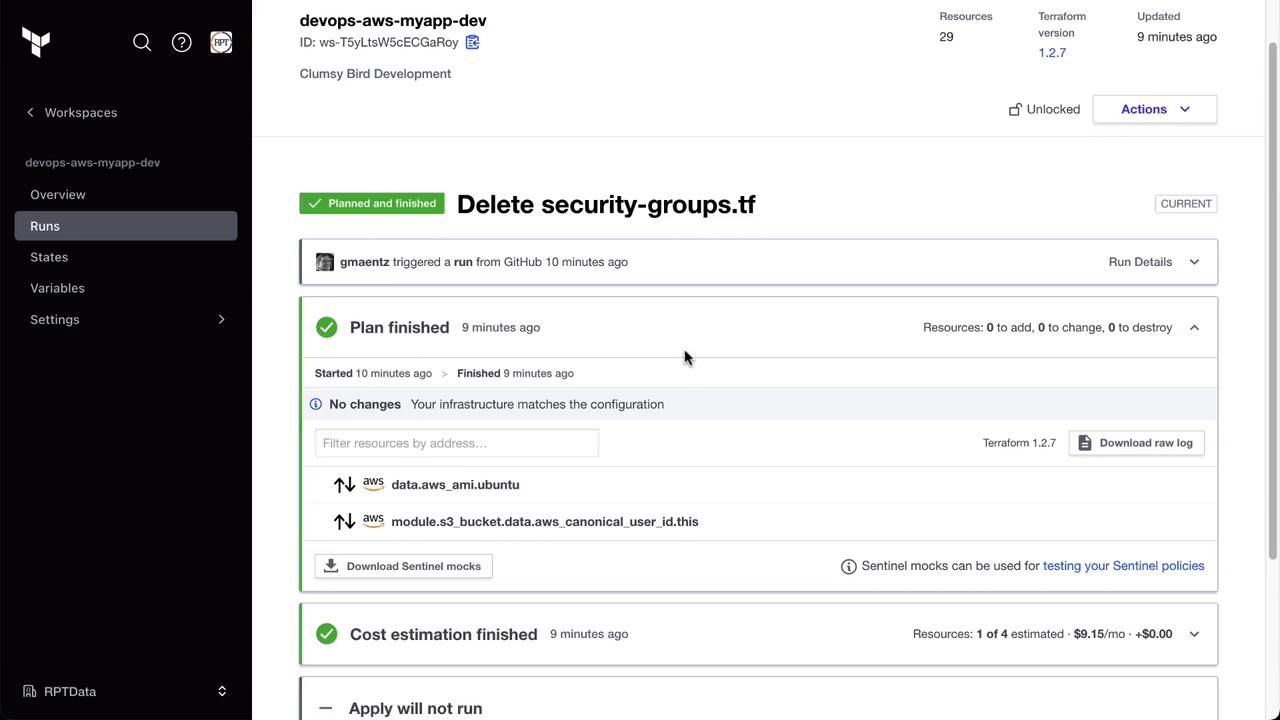
In this demo, we’ve enabled health checks at the **workspace** level. Open the **Clumsy Bird** workspace to confirm its current status. A recent plan and apply completed with no drift:
<Frame>
  ![The image shows a Terraform Cloud workspace interface with a completed run for deleting a file named "security-groups.tf." The plan finished with no changes needed, and the infrastructure matches the configuration.](https://kodekloud.com/kk-media/image/upload/v1752878653/notes-assets/images/HashiCorp-Terraform-Cloud-Demo-Drift-Detection/terraform-cloud-workspace-delete-file.jpg)
</Frame>

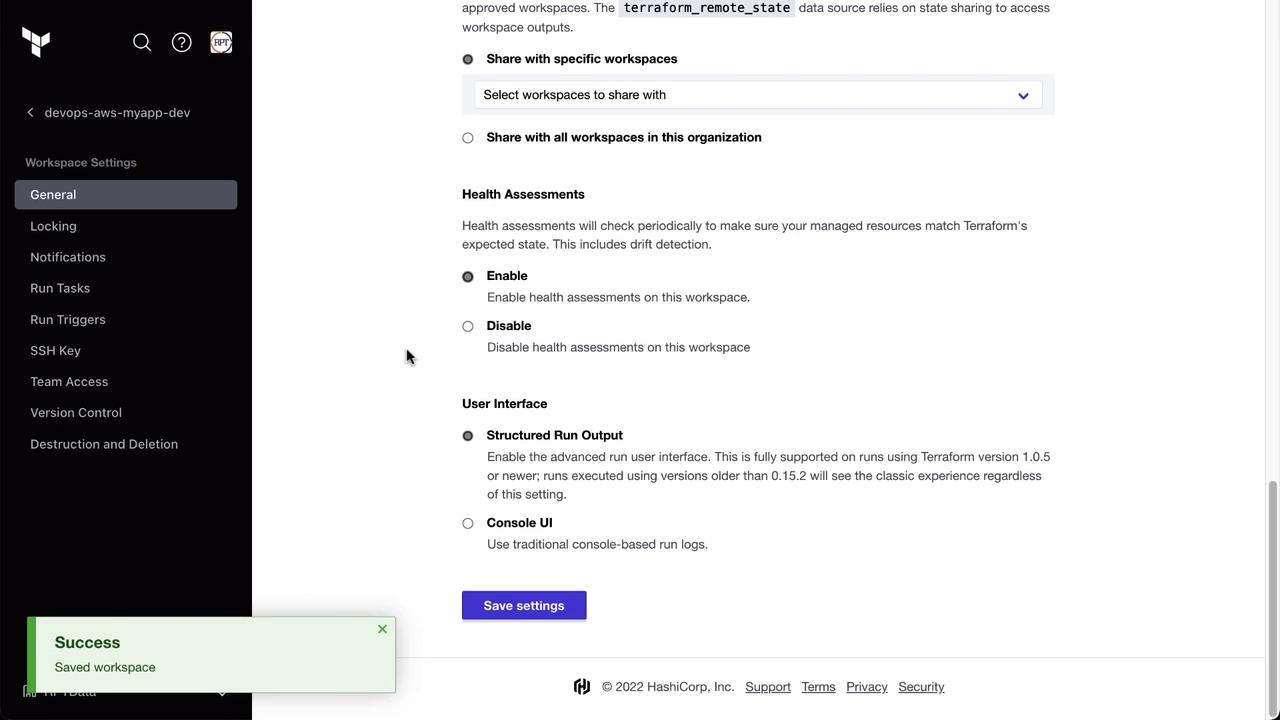
Once enabled, you’ll see a new **Drift** section in the workspace sidebar:
<Frame>
  ![The image shows a settings page for a Terraform workspace, with options for sharing, health assessments, and user interface preferences. A success message indicates the workspace settings have been saved.](https://kodekloud.com/kk-media/image/upload/v1752878654/notes-assets/images/HashiCorp-Terraform-Cloud-Demo-Drift-Detection/terraform-workspace-settings-page-options.jpg)
</Frame>

## Verifying the Baseline State

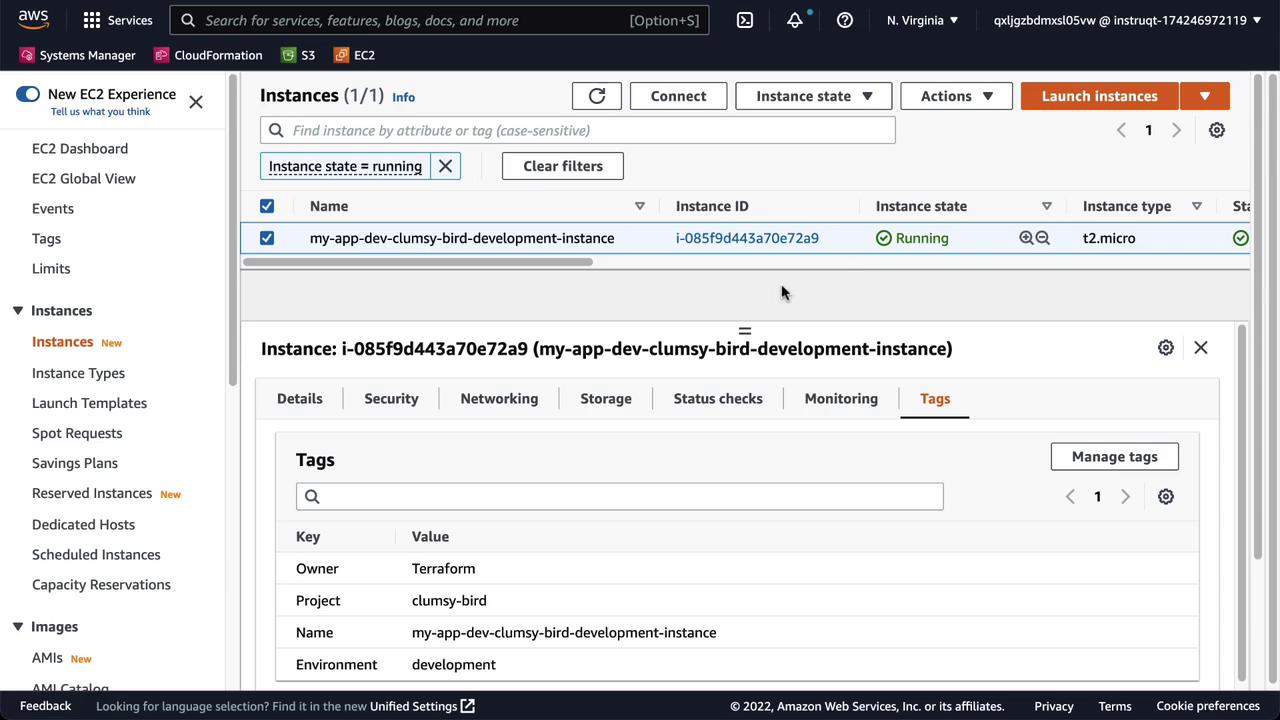
Before simulating drift, confirm that your deployed infrastructure matches code. For example, check your AWS EC2 dashboard for the **Clumsy Bird** instance:
<Frame>
  ![The image shows an AWS EC2 dashboard with a running instance named "my-app-dev-clumsy-bird-development-instance." The instance details and tags are displayed, including information like owner, project, and environment.](https://kodekloud.com/kk-media/image/upload/v1752878656/notes-assets/images/HashiCorp-Terraform-Cloud-Demo-Drift-Detection/aws-ec2-dashboard-my-app-dev-instance.jpg)
</Frame>

## Simulate Drift

In the AWS Console, modify the **Environment** tag from `development` to `production`:

<Frame>
  ![The image shows an AWS EC2 management interface where tags are being assigned to an instance, with fields for "Owner," "Project," "Name," and "Environment."](https://kodekloud.com/kk-media/image/upload/v1752878657/notes-assets/images/HashiCorp-Terraform-Cloud-Demo-Drift-Detection/aws-ec2-management-tags-interface.jpg)
</Frame>

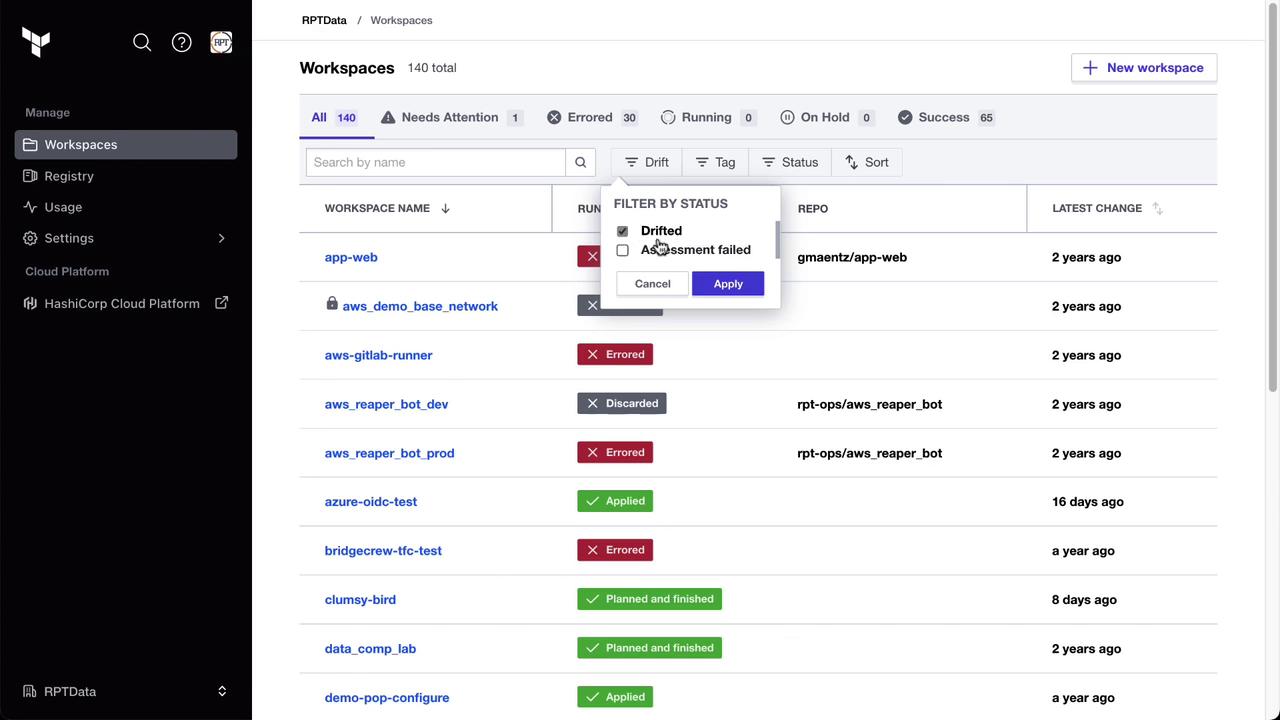
After saving, Terraform Cloud’s periodic health assessment will detect this change. You can filter by **Drift** on the workspace dashboard:
<Frame>
  ![The image shows a dashboard interface for managing workspaces, with options to filter by status and a list of workspaces with their current status, repository, and latest change information.](https://kodekloud.com/kk-media/image/upload/v1752878658/notes-assets/images/HashiCorp-Terraform-Cloud-Demo-Drift-Detection/workspace-management-dashboard-interface.jpg)
</Frame>

<Callout icon="lightbulb" color="#1CB2FE">
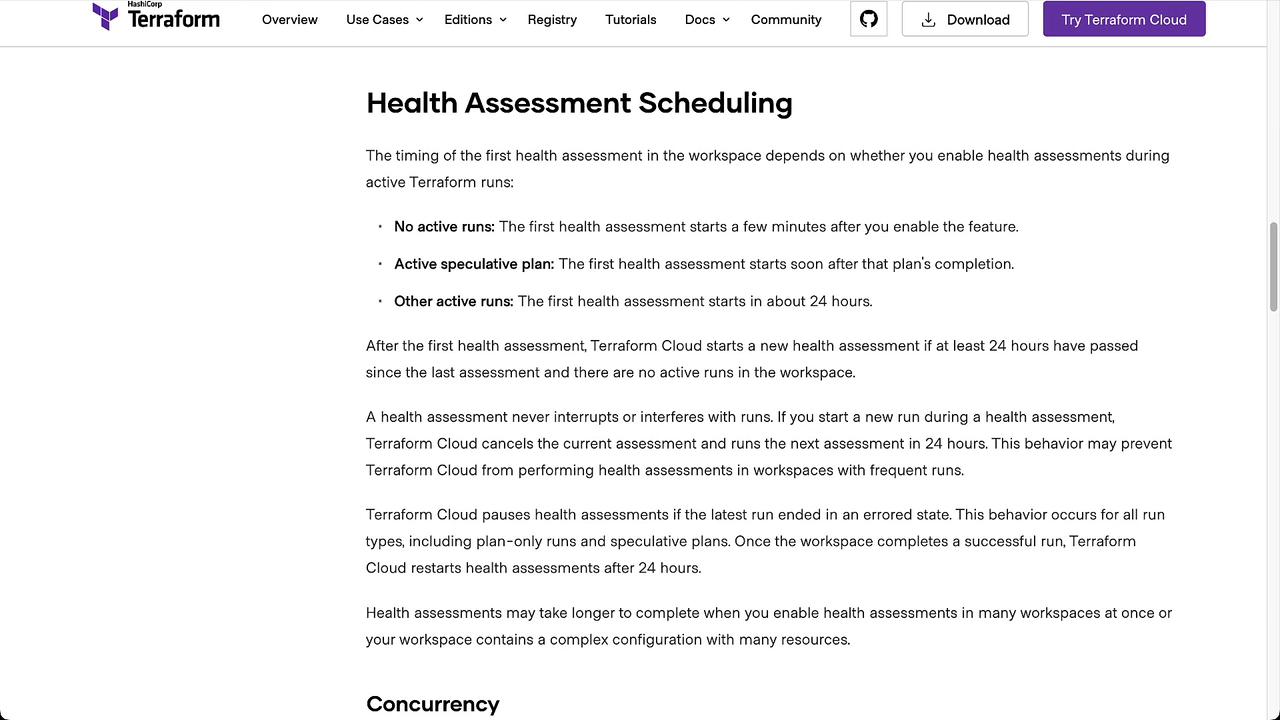
  The first health assessment typically runs **24 hours** after your last active Terraform run. Learn more in the [Health Assessment Scheduling documentation](https://www.terraform.io/cloud-docs/health-assessment-scheduling).
</Callout>

<Frame>
  ![The image is a webpage from HashiCorp Terraform discussing "Health Assessment Scheduling," detailing how the timing of health assessments in a workspace depends on active Terraform runs. It explains different scenarios for scheduling and the behavior of Terraform Cloud during health assessments.](https://kodekloud.com/kk-media/image/upload/v1752878659/notes-assets/images/HashiCorp-Terraform-Cloud-Demo-Drift-Detection/health-assessment-scheduling-terraform.jpg)
</Frame>

## Detecting and Reviewing Drift

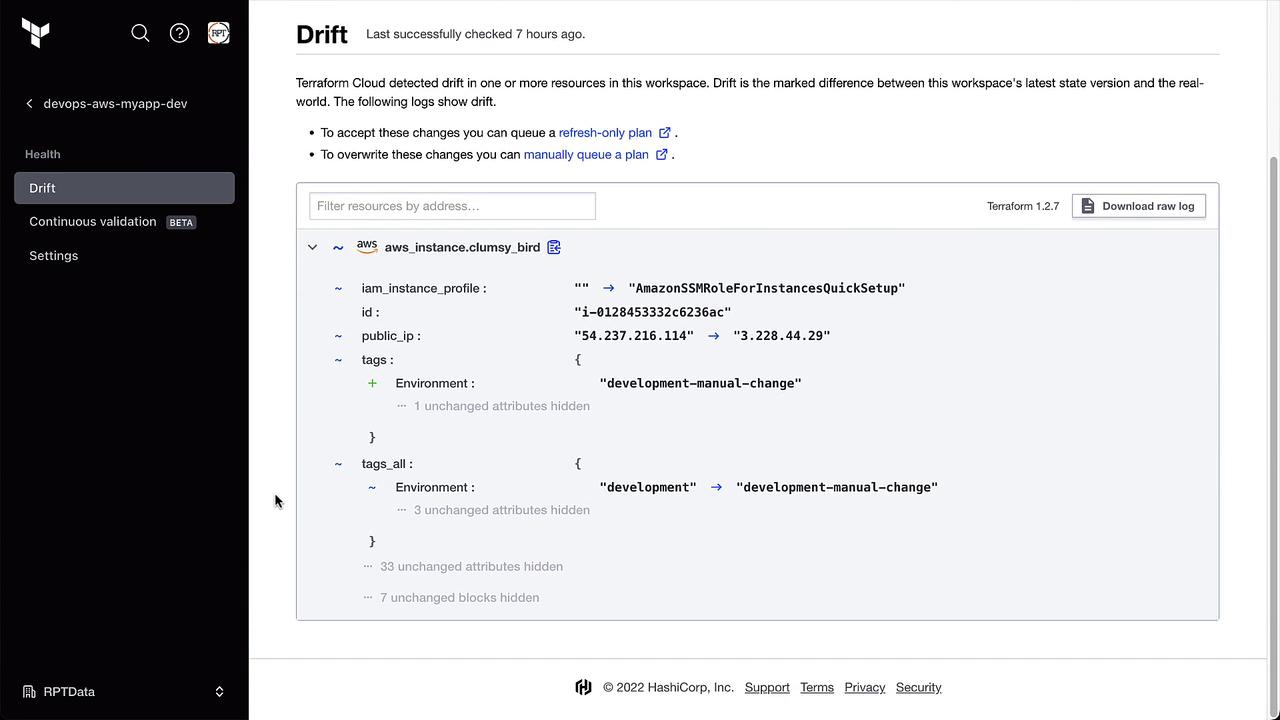
Once the assessment completes, Terraform Cloud will highlight any discrepancies. In the **Clumsy Bird** workspace, drift is detected and detailed under the **Health** tab:
<Frame>
  ![The image shows a Terraform Cloud interface indicating a drift detection in a workspace, with details of changes in an AWS instance's configuration, such as IAM instance profile and public IP.](https://kodekloud.com/kk-media/image/upload/v1752878660/notes-assets/images/HashiCorp-Terraform-Cloud-Demo-Drift-Detection/terraform-cloud-drift-detection-aws.jpg)
</Frame>

## Handling Detected Drift

Terraform Cloud offers two primary options:

| Method             | Description                                                                                 |
| ------------------ | ------------------------------------------------------------------------------------------- |
| Accept the drift   | Run a **Refresh State** plan to update Terraform’s state file without changing code.        |
| Override the drift | Execute a standard **Plan and Apply** to revert the infrastructure back to match your code. |

Example of a detected drift diff:

```plaintext theme={null}
aws aws_instance.clumsy_bird :
  iam_instance_profile :
    id : 
    public_ip : 
  tags :
    Environment : "development-manual-change"
  tags.all :
    Environment :
      "development" : "development-manual-change"
```

### Accepting the Drift

Click **Start New Run** and select **Refresh State**. This updates the Terraform state to reflect the manual change.

### Overriding the Drift

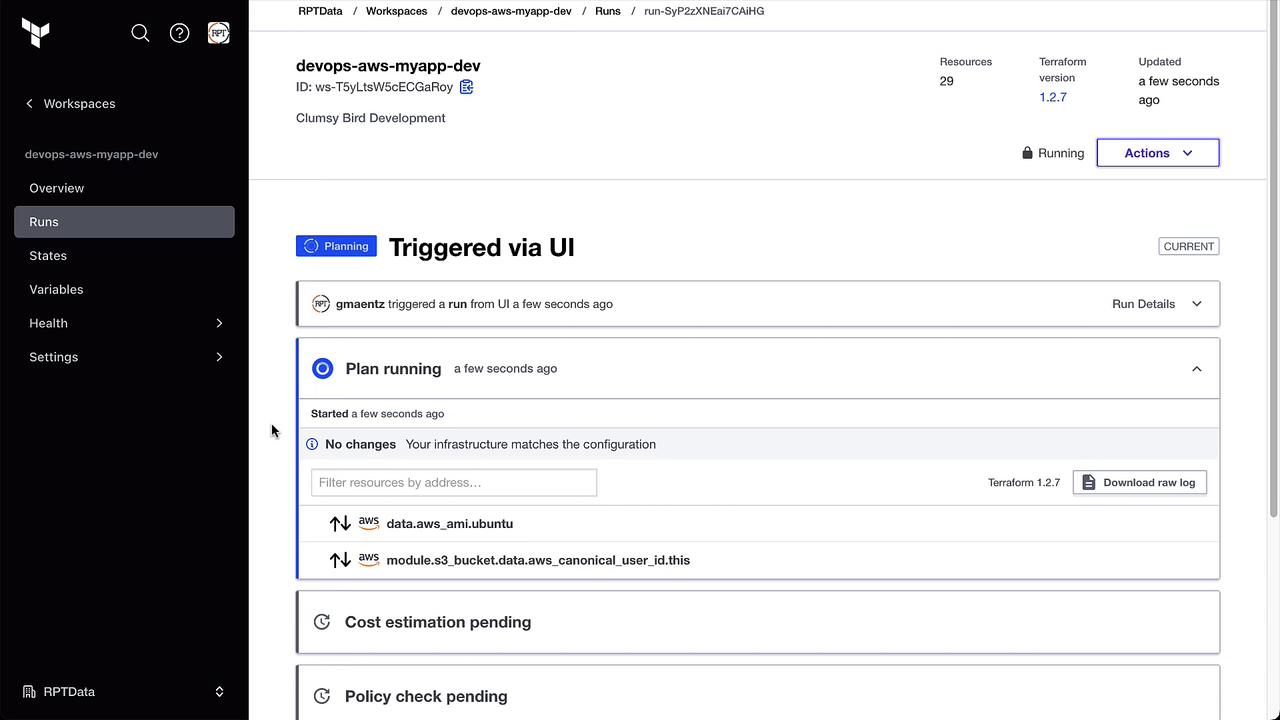
Select the usual **Plan and Apply** workflow to revert the tag back to `development`:
<Frame>
  ![The image shows a Terraform Cloud workspace interface where a plan is currently running, indicating that the infrastructure matches the configuration. The sidebar includes options like Overview, Runs, States, Variables, Health, and Settings.](https://kodekloud.com/kk-media/image/upload/v1752878662/notes-assets/images/HashiCorp-Terraform-Cloud-Demo-Drift-Detection/terraform-cloud-workspace-plan-running.jpg)
</Frame>

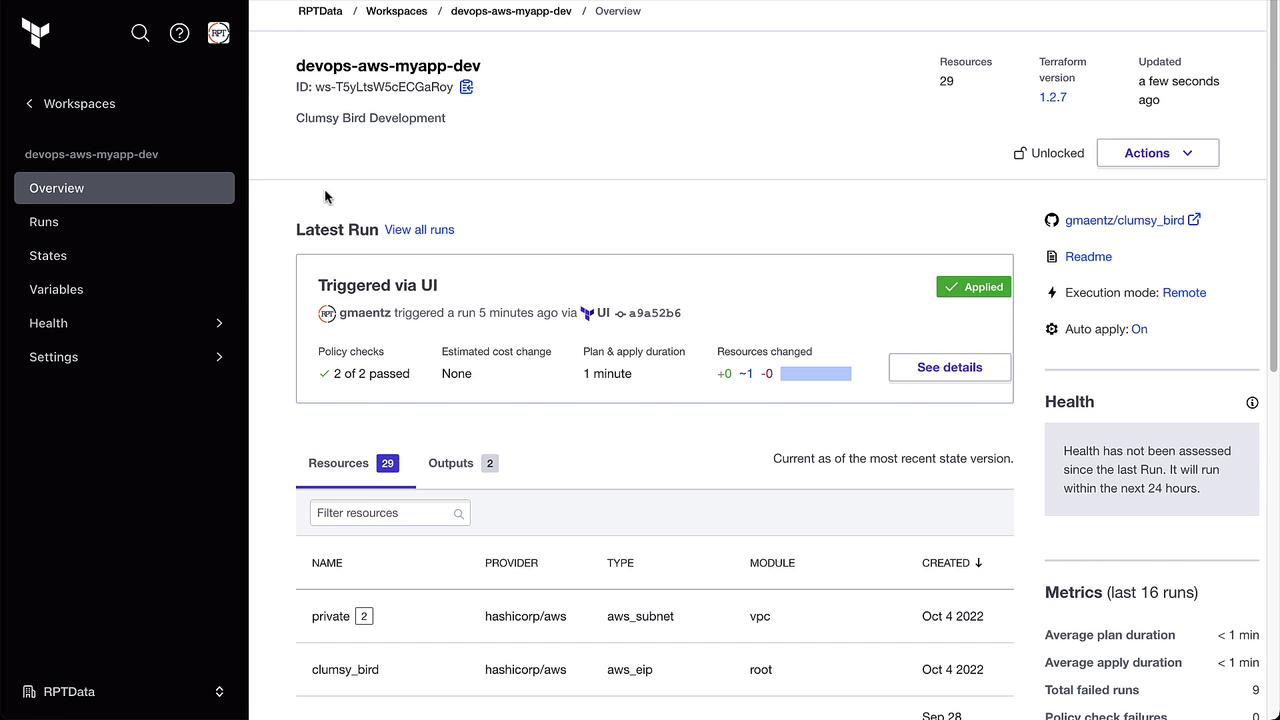
After completion, verify in the AWS Console that the **Environment** tag is back to `development`. The Health tab will now show **No drift detected**.

## Configuring Drift Notifications

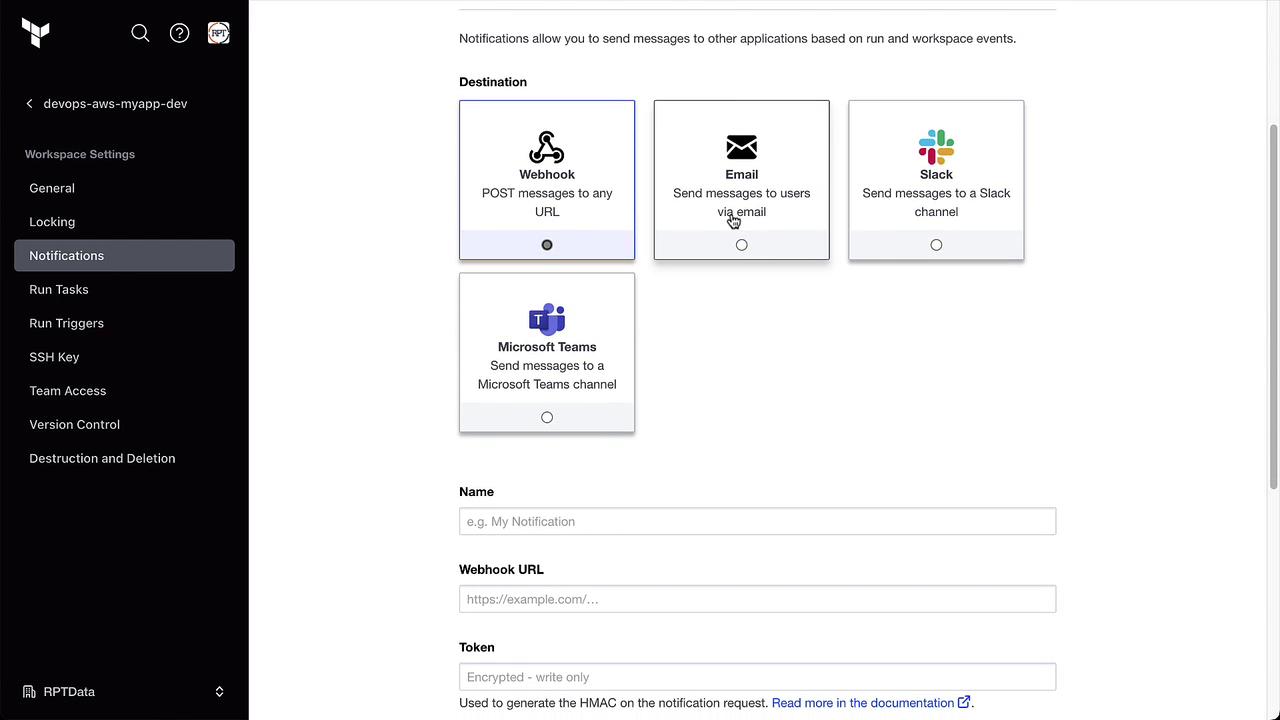
Stay informed by setting up notifications under **Notifications**. For example, send an email or Slack message whenever drift is detected:
<Frame>
  ![The image shows a Terraform Cloud workspace overview for "devops-aws-myapp-dev," displaying details of the latest run, including resources, outputs, and health metrics. The run was triggered via the UI, with policy checks passed and no estimated cost change.](https://kodekloud.com/kk-media/image/upload/v1752878663/notes-assets/images/HashiCorp-Terraform-Cloud-Demo-Drift-Detection/terraform-cloud-workspace-devops-aws.jpg)
</Frame>

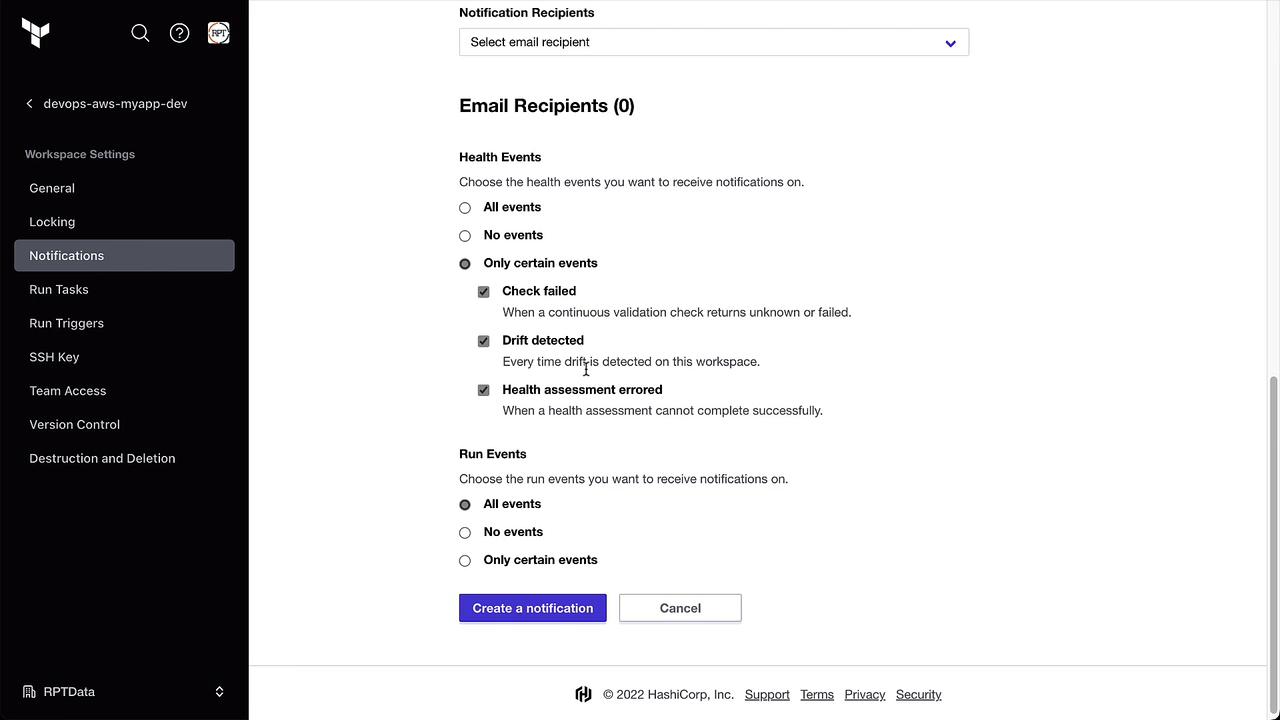
Choose **Health events** and enable **Drift detected**:
<Frame>
  ![The image shows a user interface for setting up notifications, with options to send messages via Webhook, Email, Slack, or Microsoft Teams. It includes fields for entering a name, webhook URL, and token.](https://kodekloud.com/kk-media/image/upload/v1752878663/notes-assets/images/HashiCorp-Terraform-Cloud-Demo-Drift-Detection/notification-setup-user-interface-webhook-email-slack-teams.jpg)
</Frame>

Specify your email recipients or Slack channel:
<Frame>
  ![The image shows a notification settings page for a workspace, allowing users to select email recipients and choose specific health and run events for which they want to receive notifications. Options include "Check failed," "Drift detected," and "Health assessment errored."](https://kodekloud.com/kk-media/image/upload/v1752878664/notes-assets/images/HashiCorp-Terraform-Cloud-Demo-Drift-Detection/notification-settings-workspace-email-options.jpg)
</Frame>

## Summary

Terraform Cloud Drift Detection (Business Tier) ensures your infrastructure matches your code by:

* Continuously checking for out-of-band changes

* Highlighting drift under the **Health** tab

* Providing options to accept or override detected drift

* Allowing notifications to alert your team immediately

* [Terraform Cloud Health Assessment Scheduling](https://www.terraform.io/cloud-docs/health-assessment-scheduling)

* [Terraform Cloud Overview](https://www.terraform.io/cloud)

* [AWS EC2 Documentation](https://docs.aws.amazon.com/ec2/)

<CardGroup>
  <Card title="Watch Video" icon="video" cta="Learn more" href="https://learn.kodekloud.com/user/courses/hashicorp-terraform-cloud/module/f7d08e72-e35f-436f-8d42-d0d7364d2532/lesson/02899d10-6428-4b2f-aabc-01c5d508b6a7" />

  <Card title="Practice Lab" icon="installation" cta="Learn more" href="https://learn.kodekloud.com/user/courses/hashicorp-terraform-cloud/module/f7d08e72-e35f-436f-8d42-d0d7364d2532/lesson/5a97f72e-9b62-420c-9f2c-a7bfe32ace62" />
</CardGroup>
