> ## Documentation Index
> Fetch the complete documentation index at: https://notes.kodekloud.com/llms.txt
> Use this file to discover all available pages before exploring further.
# Lab Solution Automating Terraform Cloud
> Automate Terraform Cloud workflows by codifying tasks typically done in the UI using the TFC provider.
Automate your Terraform Cloud workflows—workspaces, variables, team access, and more—by codifying everything you’d normally click through in the Terraform Cloud UI. In this lab, we’ll use the official [hashicorp/tfe](https://registry.terraform.io/providers/hashicorp/tfe/latest) provider to:
* Initialize the TFC provider
* Query and inspect existing workspaces
* Create new workspaces
* Manage workspace variables
* Specify Terraform versions
* Dynamically generate multiple workspaces
* Assign team permissions
* Clean up resources
***
## Prerequisites
1. Terraform CLI v1.x installed
2. A Terraform Cloud account
3. A Terraform API token with appropriate permissions
Keep your `TFE_TOKEN` secure. **Do not** commit API tokens to version control.
Set your Terraform Cloud API token in the shell:
```bash theme={null}
export TFE_TOKEN=YOUR_TERRAFORM_CLOUD_TOKEN
```
***
## 1. Initialize the Terraform Cloud Provider
Create a directory named `workspace_automation` and inside it, add a `main.tf` file:
```terraform theme={null}
terraform {
required_providers {
tfe = {
source = "hashicorp/tfe"
version = "~> 0.31"
}
}
}
provider "tfe" {
token = var.tfe_token
}
variable "tfe_token" {
type = string
description = "Terraform Cloud API token"
}
variable "organization" {
type = string
description = "Terraform Cloud organization name"
}
variable "workspace_name" {
type = string
description = "Existing workspace name to query"
}
```
Initialize the provider:
```bash theme={null}
terraform init
```
***
## 2. Query an Existing Workspace
Add a **data source** block to `main.tf` to fetch a workspace by name:
```terraform theme={null}
data "tfe_workspace" "existing" {
name = var.workspace_name
organization = var.organization
}
output "workspace_id" {
value = data.tfe_workspace.existing.id
}
output "workspace_terraform_version" {
value = data.tfe_workspace.existing.terraform_version
}
```
Apply the configuration:
```bash theme={null}
terraform apply \
-var "organization=YOUR-ORG" \
-var "workspace_name=devops-aws-myapp-dev"
```
Sample output:
```plaintext theme={null}
data.tfe_workspace.existing: Reading...
data.tfe_workspace.existing: Read complete after 2s [id=ws-pj5yrEcvvrdxjYji]
Outputs:
workspace_id = "ws-pj5yrEcvvrdxjYji"
workspace_terraform_version = "1.2.7"
```
Inspect the state:
```bash theme={null}
terraform state list
terraform state show data.tfe_workspace.existing
```
***
## 3. Create a New Workspace
Extend `main.tf` with a resource block to provision a workspace:
```terraform theme={null}
variable "workspace_name_new" {
type = string
description = "Name of the new workspace to create"
}
resource "tfe_workspace" "new" {
name = var.workspace_name_new
organization = var.organization
}
output "workspace_new_id" {
value = tfe_workspace.new.id
}
output "workspace_new_terraform_version" {
value = tfe_workspace.new.terraform_version
}
```
Format and apply:
```bash theme={null}
terraform fmt
terraform apply \
-var "organization=YOUR-ORG" \
-var "workspace_name=devops-aws-myapp-dev" \
-var "workspace_name_new=webserver-aws-stage"
```
Preview plan:
```plaintext theme={null}
# tfe_workspace.new will be created
resource "tfe_workspace" "new" {
name = "webserver-aws-stage"
organization = "YOUR-ORG"
terraform_version = (known after apply)
}
Plan: 1 to add, 0 to change, 0 to destroy.
```
After successful apply, verify the new workspace in Terraform Cloud.

***
## 4. Manage Workspace Variables
Use `tfe_variable` resources to define standard, sensitive, and HCL variables:
```terraform theme={null}
resource "tfe_variable" "standard" {
key = "variable_name"
value = "variable_value"
category = "terraform"
workspace_id = tfe_workspace.new.id
description = "A standard variable"
}
resource "tfe_variable" "sensitive" {
key = "my_variable_sensitive"
value = "my_sensitive_value"
category = "terraform"
workspace_id = tfe_workspace.new.id
sensitive = true
}
resource "tfe_variable" "hcl" {
key = "my_variable_hcl"
value = "[hcl_variable_value]"
category = "terraform"
workspace_id = tfe_workspace.new.id
description = "An HCL variable example"
}
```
Apply the changes:
```bash theme={null}
terraform apply \
-var "organization=YOUR-ORG" \
-var "workspace_name_new=webserver-aws-stage"
```
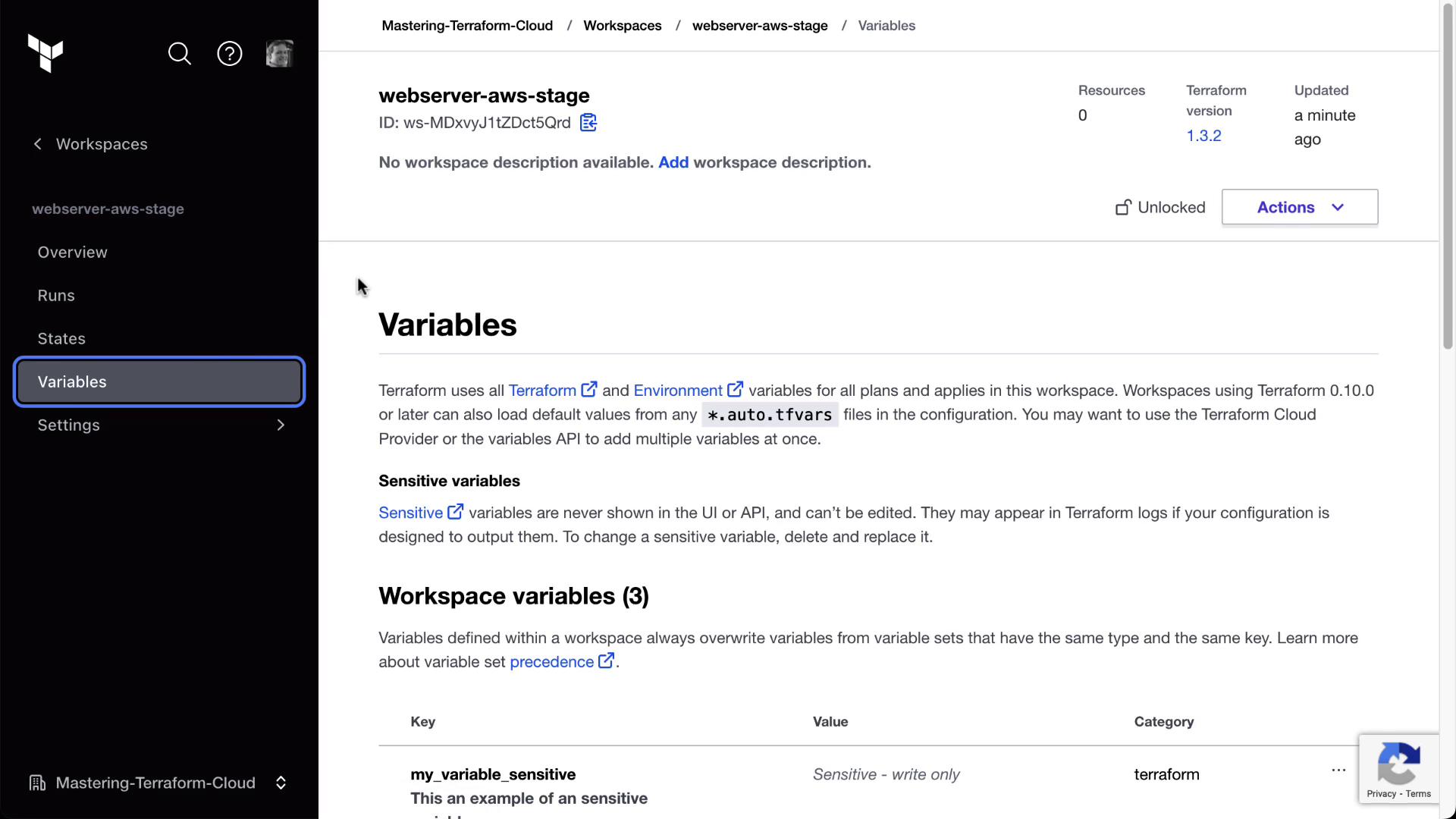
Confirm in the Terraform Cloud UI under **Variables** that all variables appear correctly.
***
## 5. Specify Terraform Version per Workspace
Control the Terraform version used by the workspace:
```terraform theme={null}
variable "tf_version" {
type = string
default = "1.2.7"
}
resource "tfe_workspace" "new" {
name = var.workspace_name_new
organization = var.organization
terraform_version = var.tf_version
}
```
Reapply:
```bash theme={null}
terraform apply \
-var "organization=YOUR-ORG" \
-var "workspace_name_new=webserver-aws-stage"
```
Verify the Terraform version update in the workspace settings.
***
## 6. Dynamically Create Multiple Workspaces
Define apps and environments, then loop to create all combinations:
```terraform theme={null}
variable "apps" {
description = "Map of applications with Terraform versions"
type = map(object({ terraform_version = string }))
default = {
appA = { terraform_version = "1.2.7" }
appB = { terraform_version = "1.2.8" }
}
}
variable "environments" {
description = "List of environments"
type = list(string)
default = ["sandbox", "development", "production"]
}
locals {
app_envs = flatten([
for app_key, app in var.apps : [
for env in var.environments : {
name = "${app_key}-${env}"
terraform_version = app.terraform_version
}
]
])
}
resource "tfe_workspace" "all" {
for_each = { for env in local.app_envs : env.name => env }
name = each.value.name
organization = var.organization
terraform_version = each.value.terraform_version
}
```
Apply all at once:
```bash theme={null}
terraform apply -var "organization=YOUR-ORG"
```
You’ll see six workspaces created (appA/appB × sandbox/development/production).
***
## 7. Assign Team Access to Workspaces
Ensure your TFC plan supports Teams & Governance. Create a `teams.tf`:
```terraform theme={null}
data "tfe_team" "classmates" {
name = "classmates"
organization = var.organization
}
data "tfe_workspace_ids" "all" {
names = ["*"]
organization = var.organization
}
resource "tfe_team_access" "classmates_all" {
for_each = toset(data.tfe_workspace_ids.all.ids)
access = "read"
team_id = data.tfe_team.classmates.id
workspace_id = each.value
}
```
Apply:
```bash theme={null}
terraform apply -var "organization=YOUR-ORG"
```
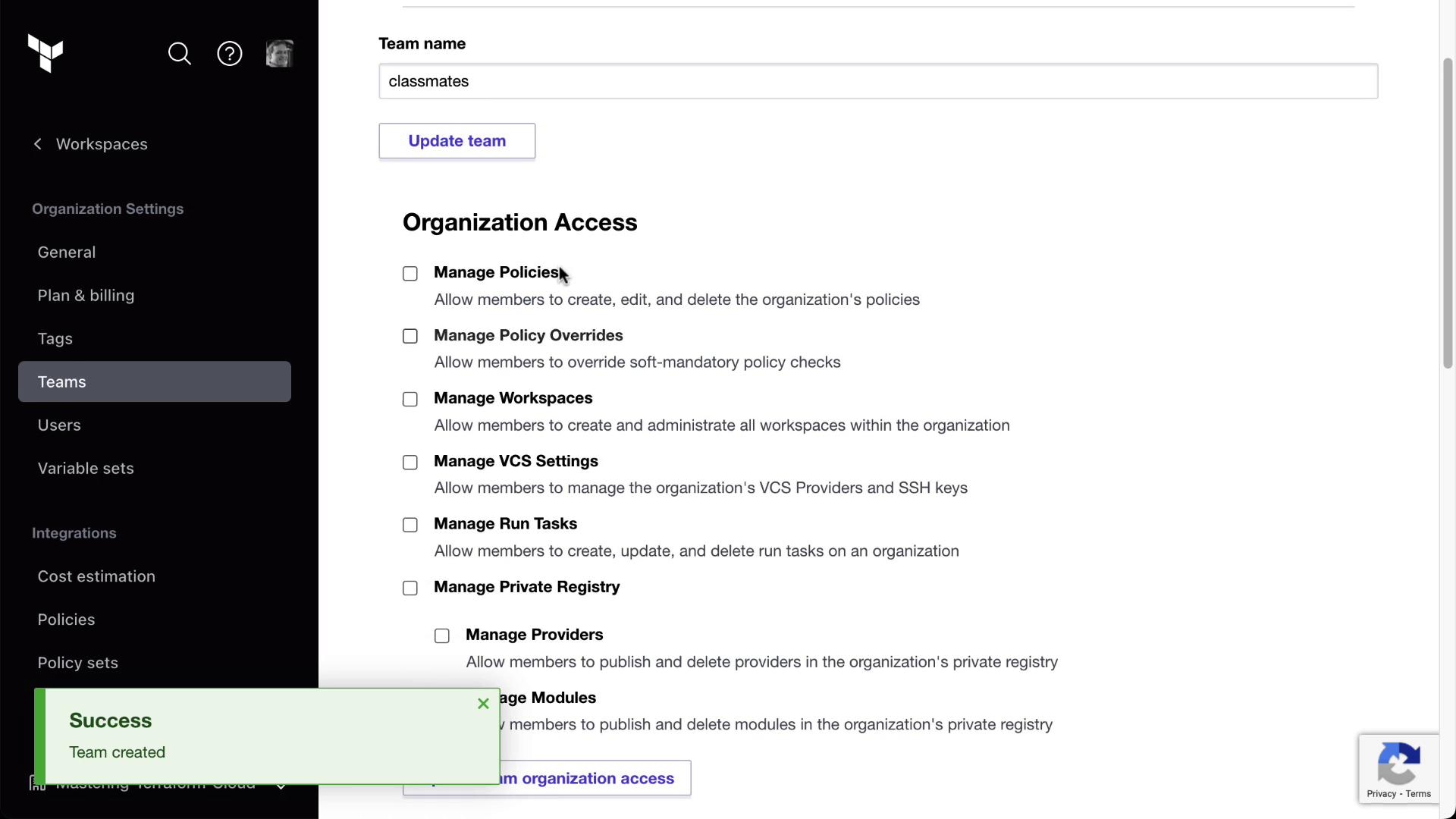
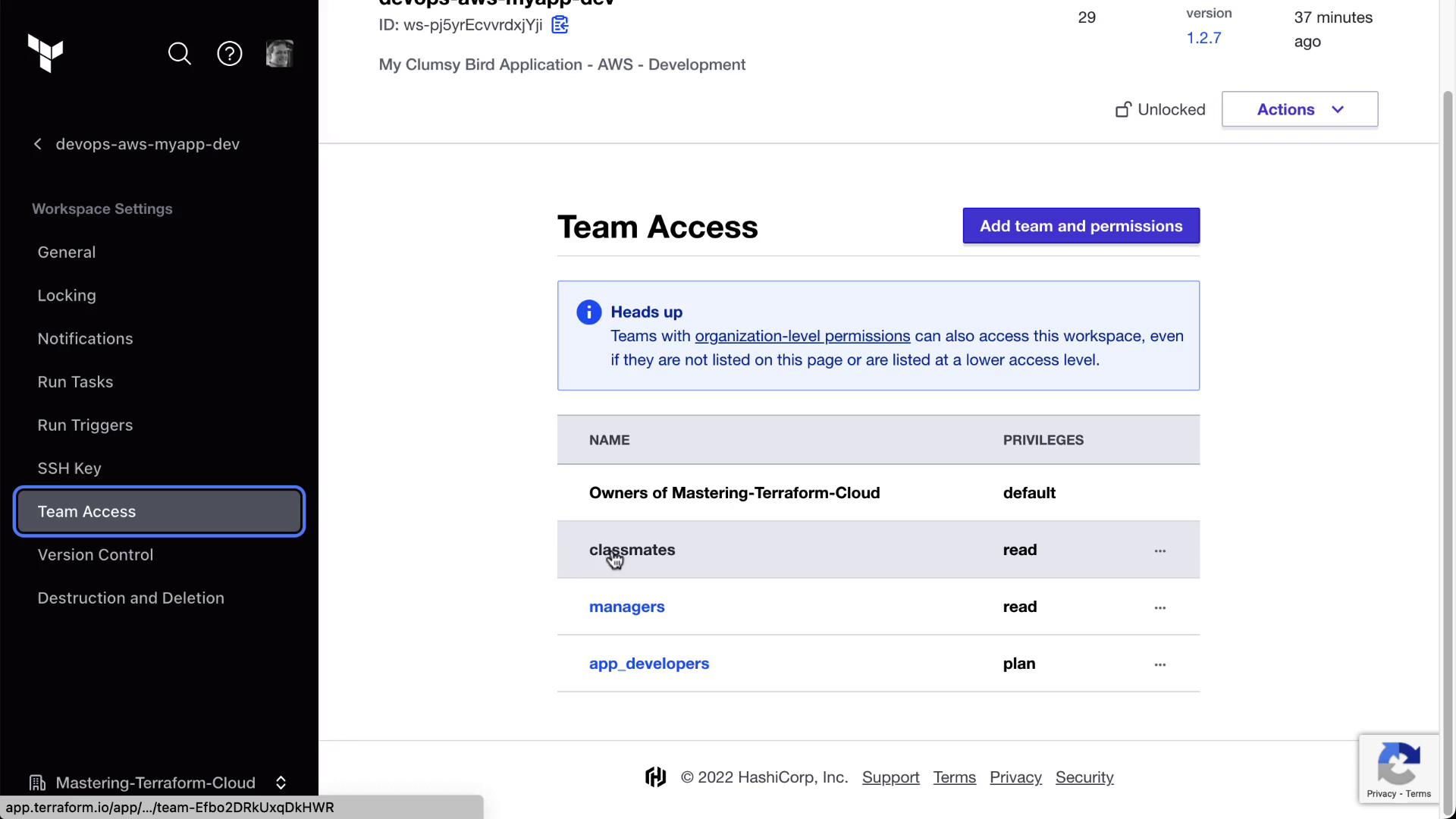
Verify in the Terraform Cloud UI under **Organization → Teams → classmates** and in each workspace’s Team Access page.
Browse to any workspace’s Team Access settings to confirm the “classmates” team has **read** privileges.
***
## 8. Cleanup
When you’re done, destroy all created resources:
```bash theme={null}
terraform destroy \
-var "organization=YOUR-ORG" \
-var "workspace_name=devops-aws-myapp-dev" \
-var "workspace_name_new=webserver-aws-stage"
```
***
## Resource Overview
| Resource Type | Description | Terraform Block |
| ----------------- | -------------------------------------------------- | ---------------------- |
| tfe\_workspace | Manages Terraform Cloud workspaces | resource / data source |
| tfe\_variable | Defines workspace-level variables (sensitive, HCL) | resource |
| tfe\_team\_access | Grants teams specific access to workspaces | resource |
***
## Links and References
* Terraform Cloud Provider Documentation: [https://registry.terraform.io/providers/hashicorp/tfe/latest](https://registry.terraform.io/providers/hashicorp/tfe/latest)
* Terraform Cloud UI Guide: [https://www.terraform.io/cloud-docs](https://www.terraform.io/cloud-docs)
* Terraform CLI Docs: [https://www.terraform.io/cli](https://www.terraform.io/cli)
* Terraform Cloud API: [https://www.terraform.io/cloud-docs/api](https://www.terraform.io/cloud-docs/api)