> ## Documentation Index
> Fetch the complete documentation index at: https://notes.kodekloud.com/llms.txt
> Use this file to discover all available pages before exploring further.
# Lab Solution Notifications
> This article explains how to configure notifications in Terraform Cloud for tracking workspace events through various platforms.
Terraform Cloud notifications let you track workspace events—such as runs completing, errors, or drift detection—in real time. By integrating email, Slack, Microsoft Teams, or generic webhooks, you can keep your team informed and responsive throughout the Terraform workflow.
## Step 1: Enable Workspace Notifications
1. Log in to Terraform Cloud and select the **DevOps AWS MyApp Dev** workspace.
2. Navigate to **Settings > Notifications**.
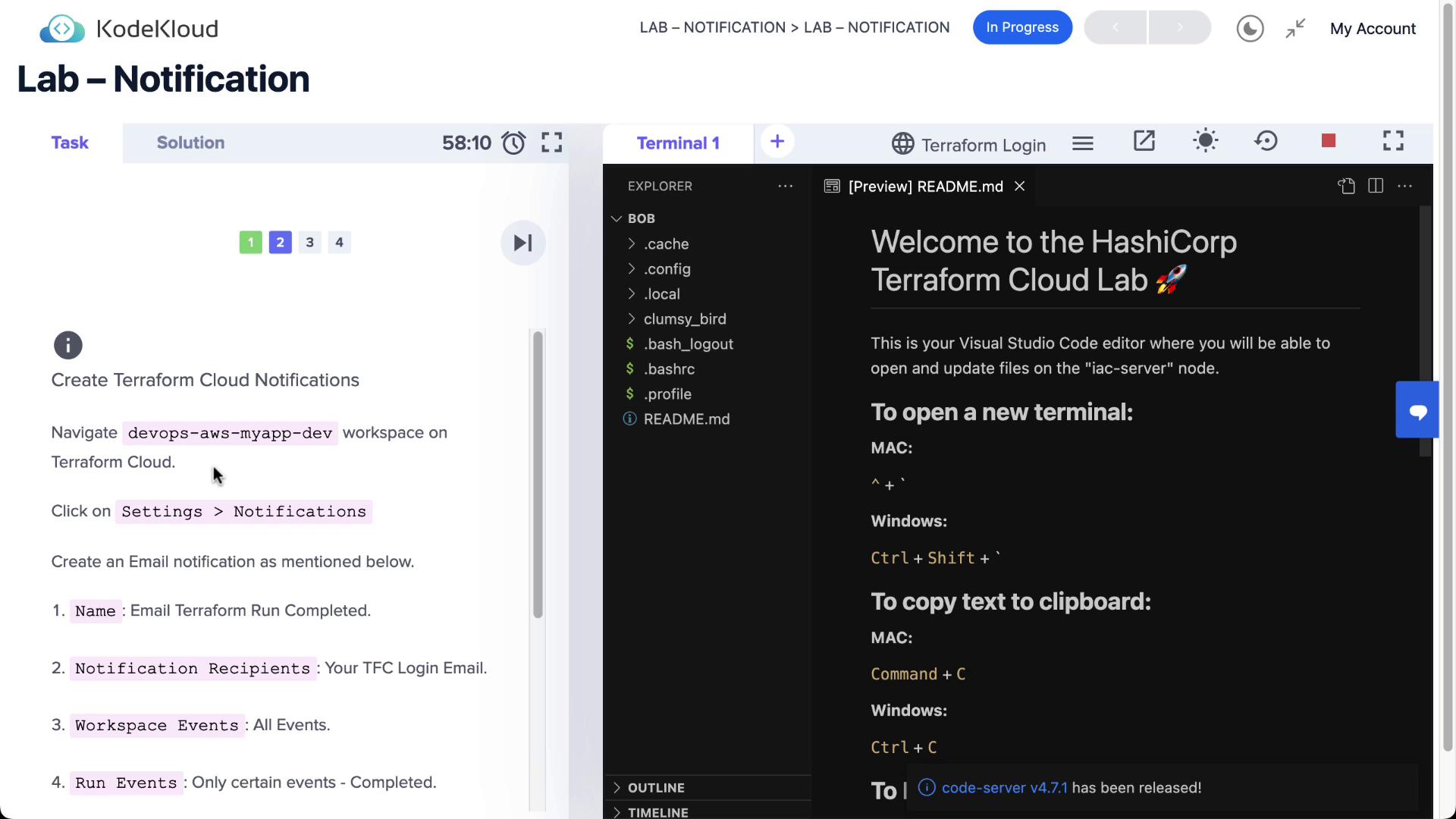
If this workspace has no notifications configured, the list will be empty:

Click **Create notification** to begin.
## Step 2: Create an Email Notification
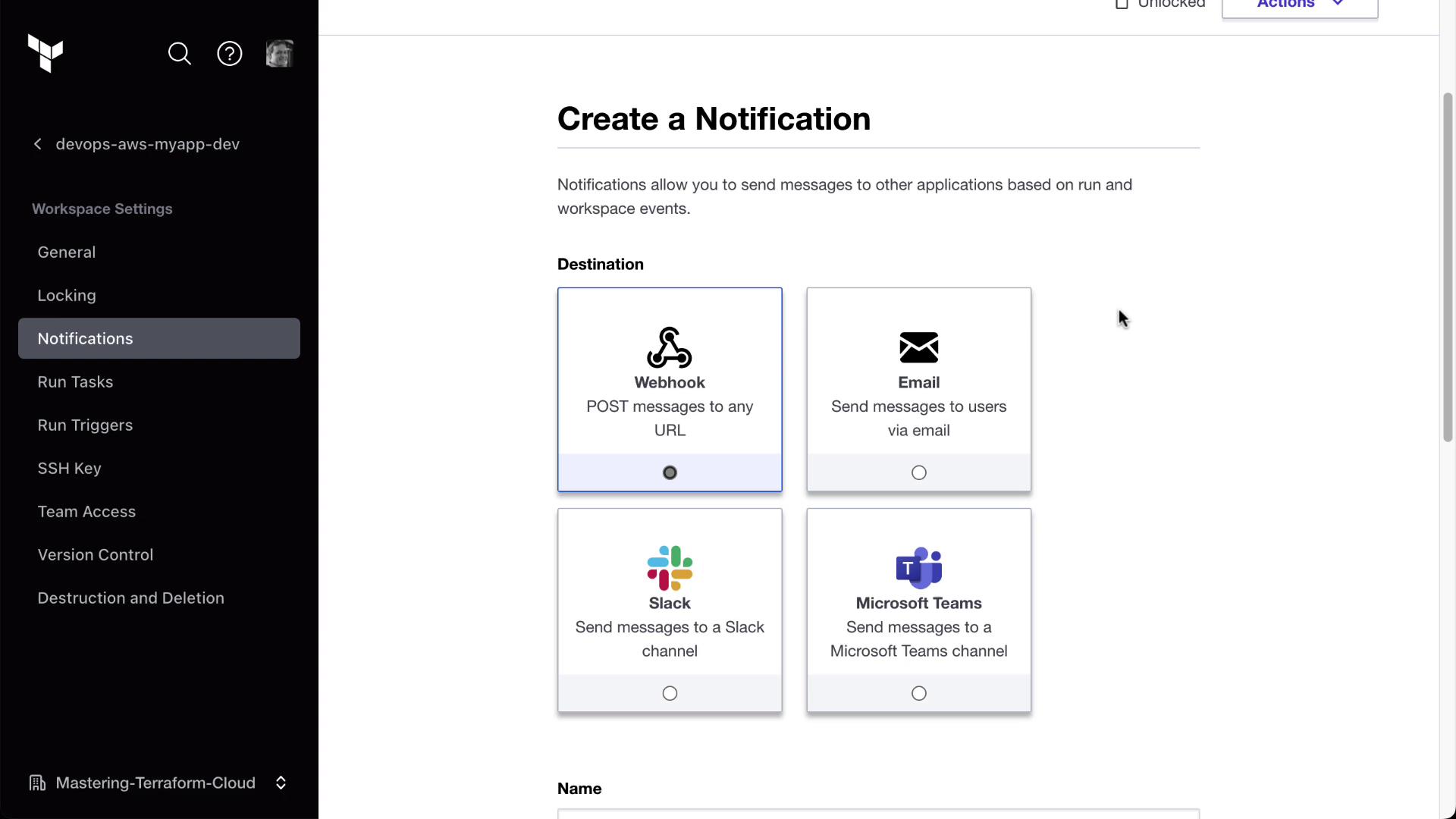
Terraform Cloud supports four notification destinations:
* Email
* Slack
* Microsoft Teams
* Generic Webhook
### 2.1 Configure Email Settings
1. Select **Email** as the destination.
2. Enter **Terraform run completed** as the notification name.
3. From **Recipient**, choose your Terraform Cloud login email.
4. Under **Events**, uncheck **All events**, then select only **Completed**.
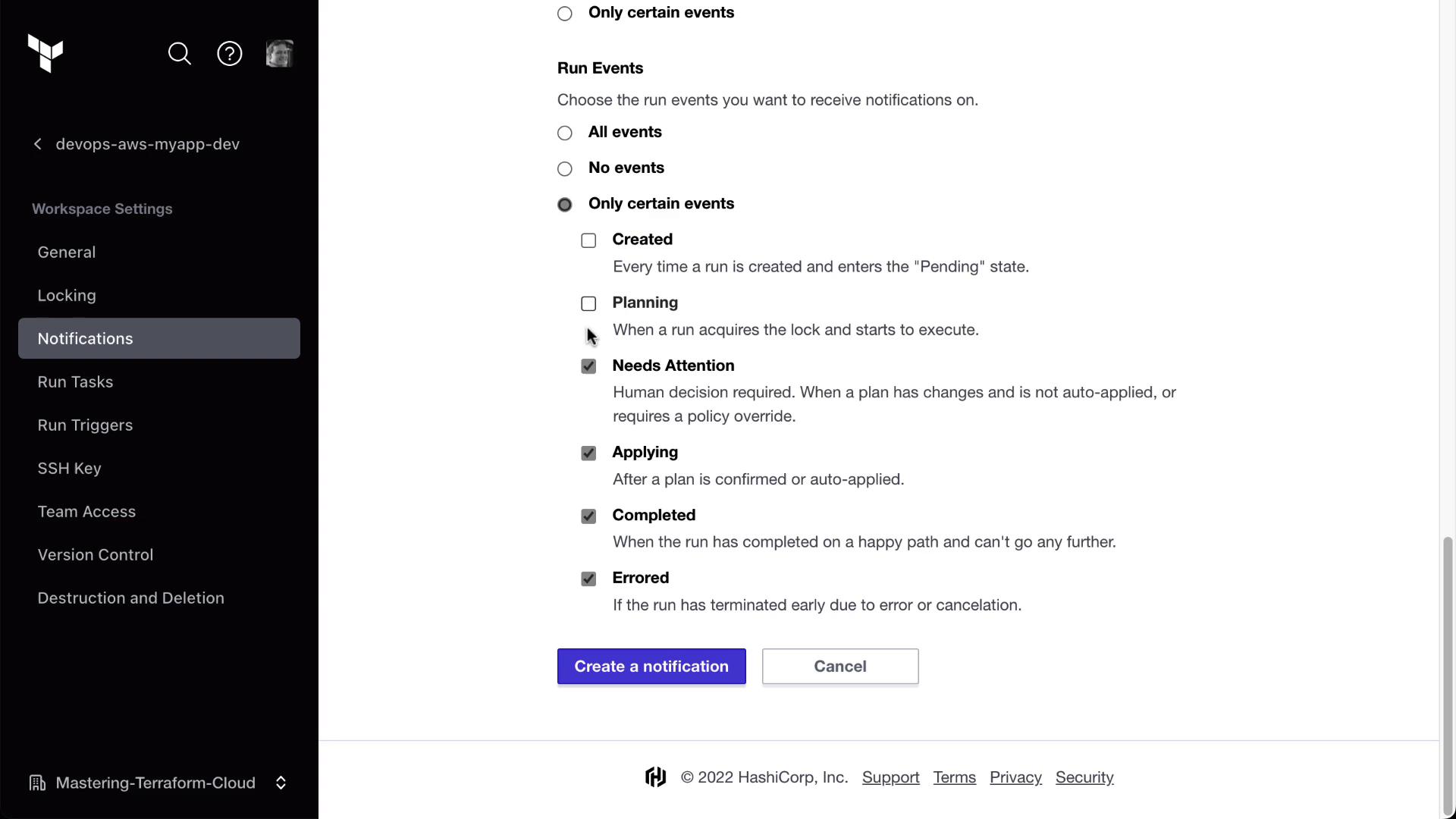
Click **Create notification**. You will see the new email alert listed and enabled:
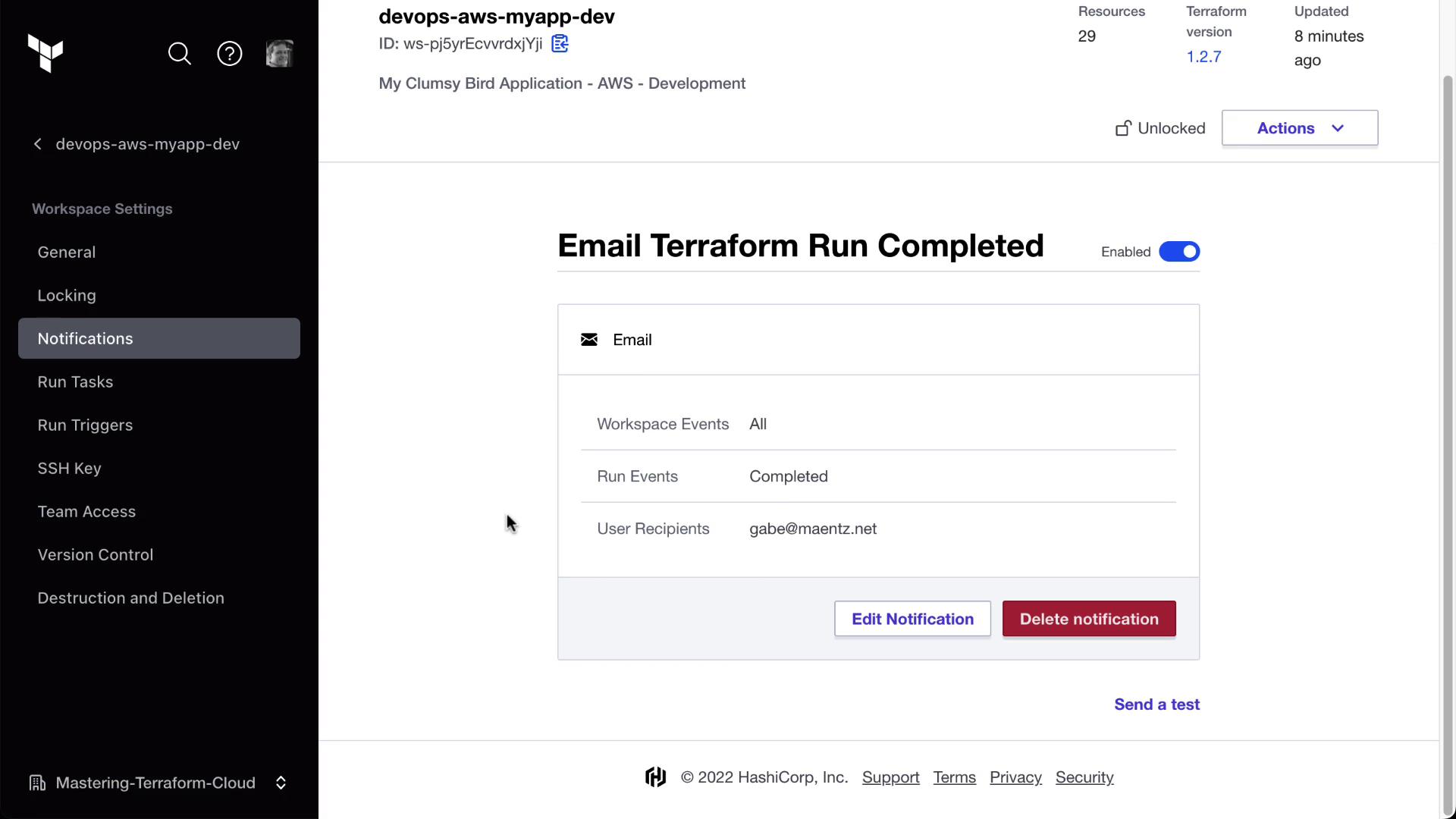
Use the **Send test** link next to any notification to verify delivery before you rely on real run events.
## Step 3: Test and Trigger a Terraform Run
1. Click **Send test** on your email notification.
2. Check your inbox for a message titled **Terraform run completed**—it should include workspace details and a test-run ID.
Next, trigger an actual Terraform run:
```bash theme={null}
terraform apply
```
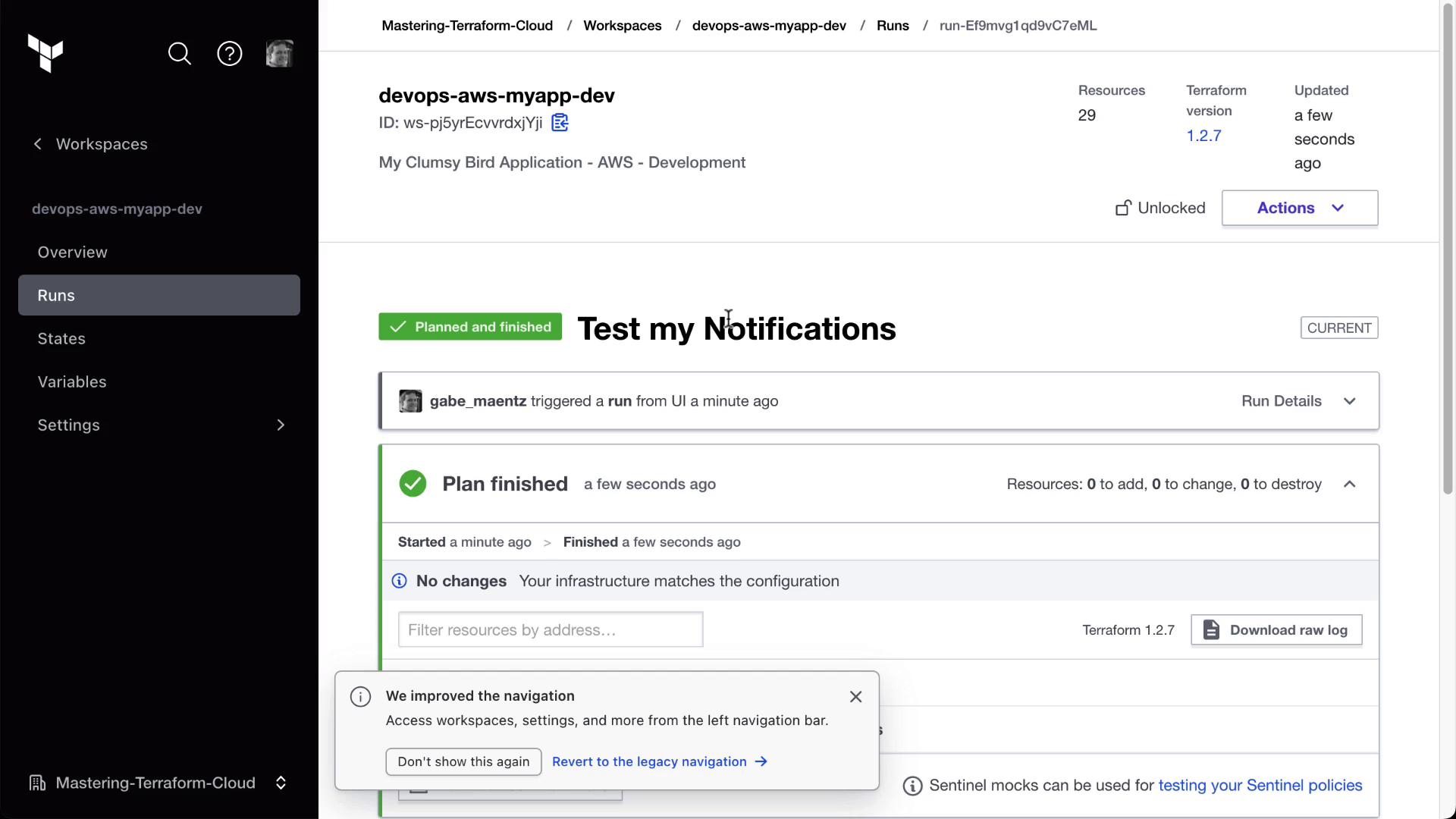
Once the run finishes, you’ll receive a live email with a direct link to the run details in your **DevOps AWS MyApp Dev** workspace:
## Additional Notification Destinations
You can extend alerts to other platforms:
| Destination | Description | Setup Method |
| --------------- | ----------------------------------------------- | ----------------------------------- |
| Email | Direct inbox alerts for run lifecycle events | Workspace UI > Notifications |
| Slack | Post events to any channel via incoming webhook | Provide Slack Webhook URL |
| Microsoft Teams | Send updates into a Teams channel connector | Configure Teams incoming webhook |
| Generic Webhook | Forward payloads to custom HTTP endpoints | Enter target URL and authentication |
Ensure your webhook endpoints are publicly reachable, and secure them with authentication or IP allowlists to prevent unauthorized requests.
You can also subscribe to **health events** (for drift detection) or additional run statuses like **Errored** and **Needs Attention**. Tailor notifications to align with your team’s monitoring and incident response processes.
## References
* [Terraform Cloud Notifications Guide](https://www.terraform.io/docs/cloud/notifications/index.html)
* [Terraform Cloud API Overview](https://www.terraform.io/docs/cloud/api/index.html)
* [Incoming Webhooks for Slack](https://api.slack.com/messaging/webhooks)
* [Microsoft Teams Incoming Webhook Connectors](https://docs.microsoft.com/microsoftteams/platform/webhooks-and-connectors/how-to/add-incoming-webhook)