> ## Documentation Index
> Fetch the complete documentation index at: https://notes.kodekloud.com/llms.txt
> Use this file to discover all available pages before exploring further.
# Lab Solution State Isolation and Run Triggers
> This guide demonstrates isolating Terraform state across workspaces and configuring run triggers for automated downstream applies in Terraform Cloud.
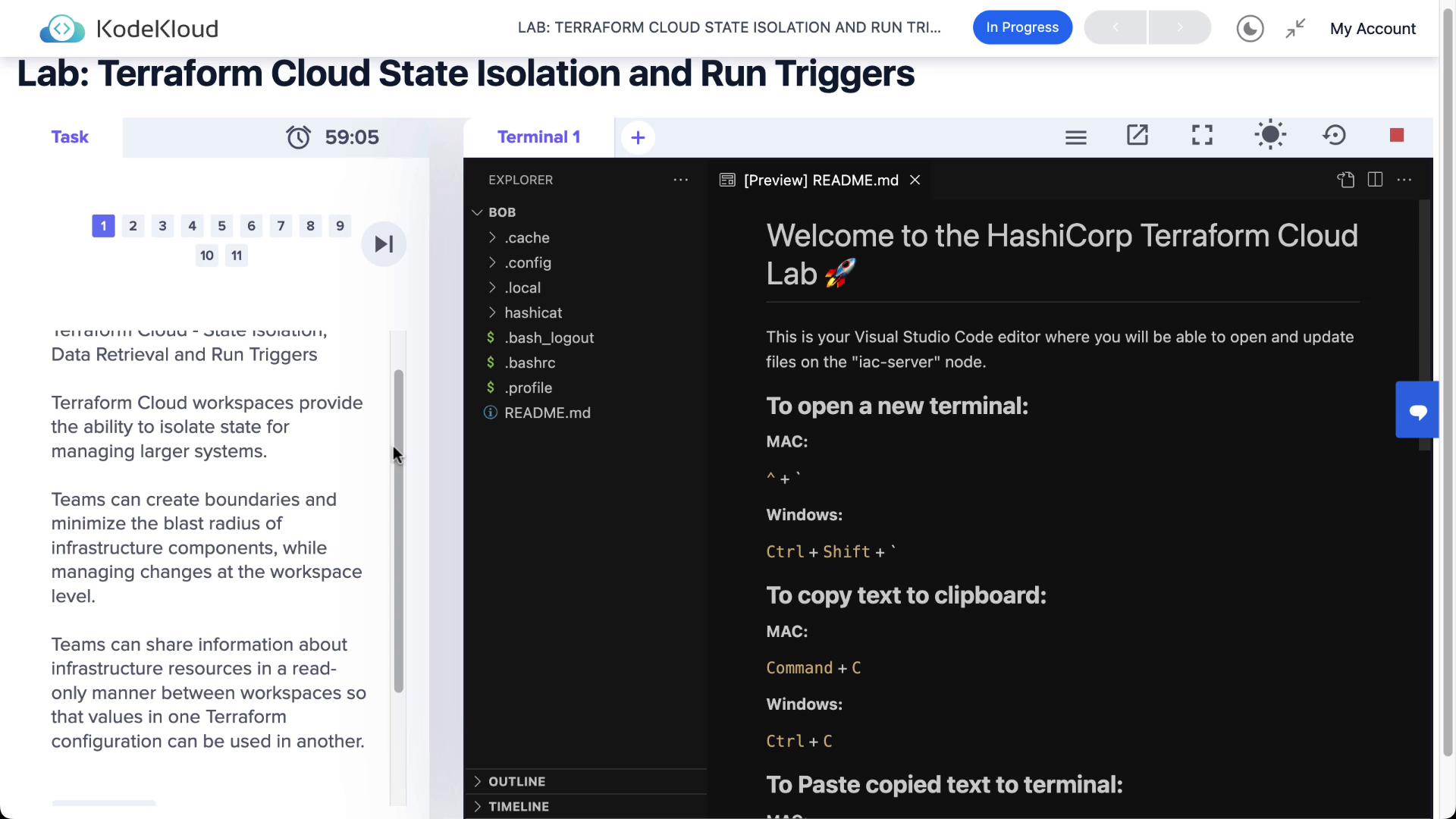
In this guide, we’ll demonstrate how to isolate Terraform state across multiple Terraform Cloud workspaces and configure run triggers to automate downstream applies. Workspace boundaries reduce risk and help teams maintain clear separation between services.
## 1. Workspace Isolation
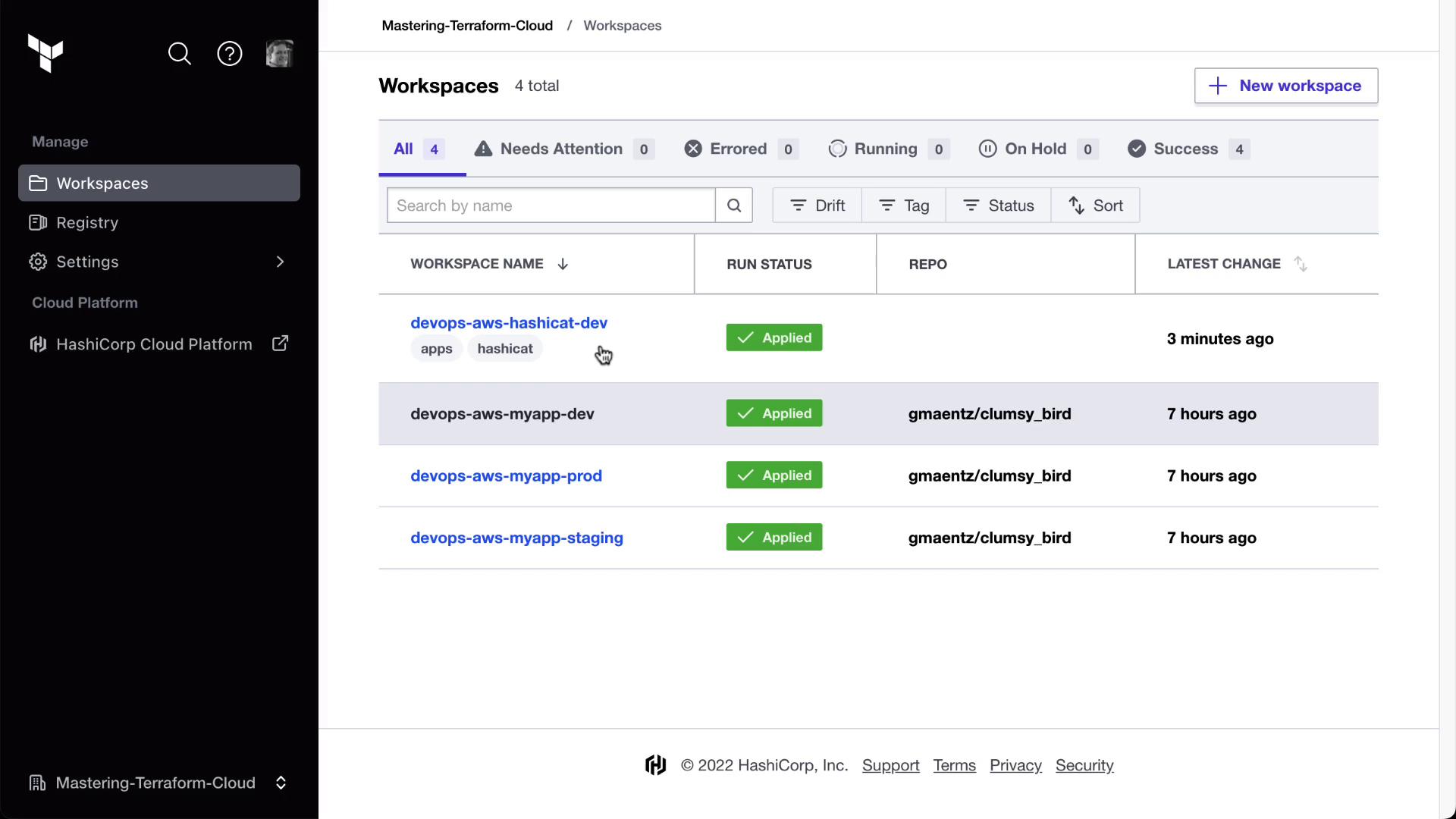
Terraform Cloud workspaces each manage their own state, ensuring changes in one environment don’t affect another. In our example, **HashiCat** and **Clumsy Bird** are deployed in separate workspaces.
### 1.1 Sharing Outputs with `tfe_outputs`
To consume outputs from one workspace in another, use the `tfe_outputs` data source. Below is an example of pulling the Clumsy Bird URL into the HashiCat workspace.
```hcl theme={null}
locals {
private_key_filename = "${var.prefix}-ssh-key.pem"
}
resource "aws_key_pair" "hashicat" {
key_name = local.private_key_filename
public_key = tls_private_key.hashicat.public_key_openssh
}
data "tfe_outputs" "clumsy_bird_dev" {
organization = "Mastering-Terraform-Cloud"
workspace = "devops-aws-myapp-dev"
}
output "clumsy_bird_dev_url" {
value = nonsensitive(data.tfe_outputs.clumsy_bird_dev.outputs["clumsy_bird_url"])
}
```
Next, configure Terraform Cloud as your backend in `backend.tf`:
```hcl theme={null}
terraform {
cloud {
organization = "Mastering-Terraform-Cloud"
workspaces {
tags = ["hashicat", "apps"]
}
}
}
```
## 2. Authenticate and Setup
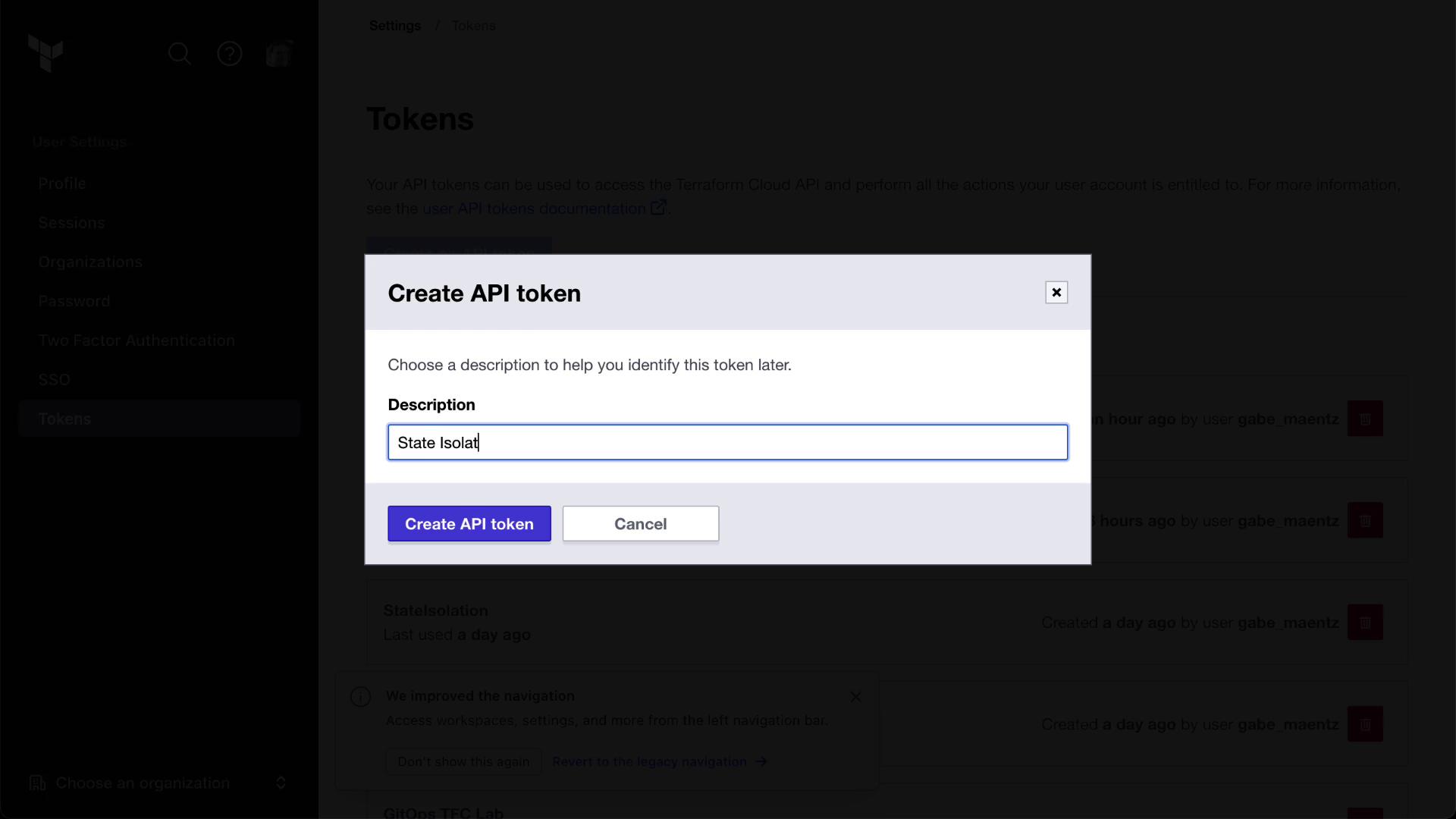
First, log in to Terraform Cloud from your CLI:
```bash theme={null}
terraform login
Terraform will request an API token for app.terraform.io using your browser.
Enter a value: yes
Open the following URL to access the tokens page for app.terraform.io:
https://app.terraform.io/app/settings/tokens?source=terraform-login
Generate a token and paste it when prompted.
Token for app.terraform.io:
> [YOUR_TOKEN]
```
Clone the sample repository and run the setup script:
```bash theme={null}
git clone https://github.com/hashicorp/tfc-getting-started.git
cd tfc-getting-started
scripts/setup.sh
```
## 3. Enabling Remote State Sharing
Allow downstream workspaces to read the state of an upstream workspace by enabling **Remote State Sharing**:
1. Navigate to the **devops-aws-myapp-dev** (Clumsy Bird) workspace.
2. Go to **Settings** → **General**.
3. Toggle **Remote State Sharing** on.
4. Specify which workspaces (e.g., HashiCat) can access the state.
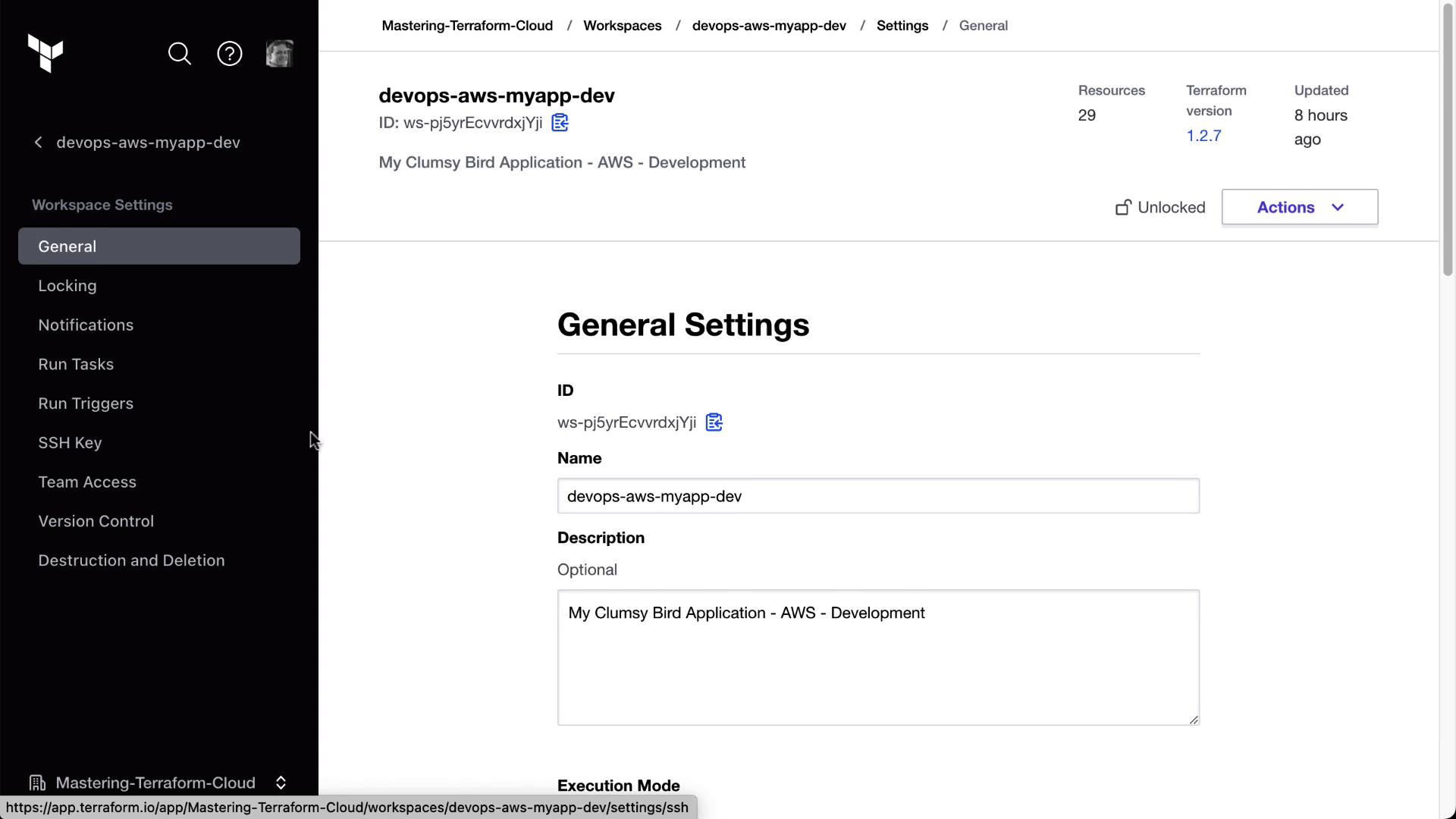
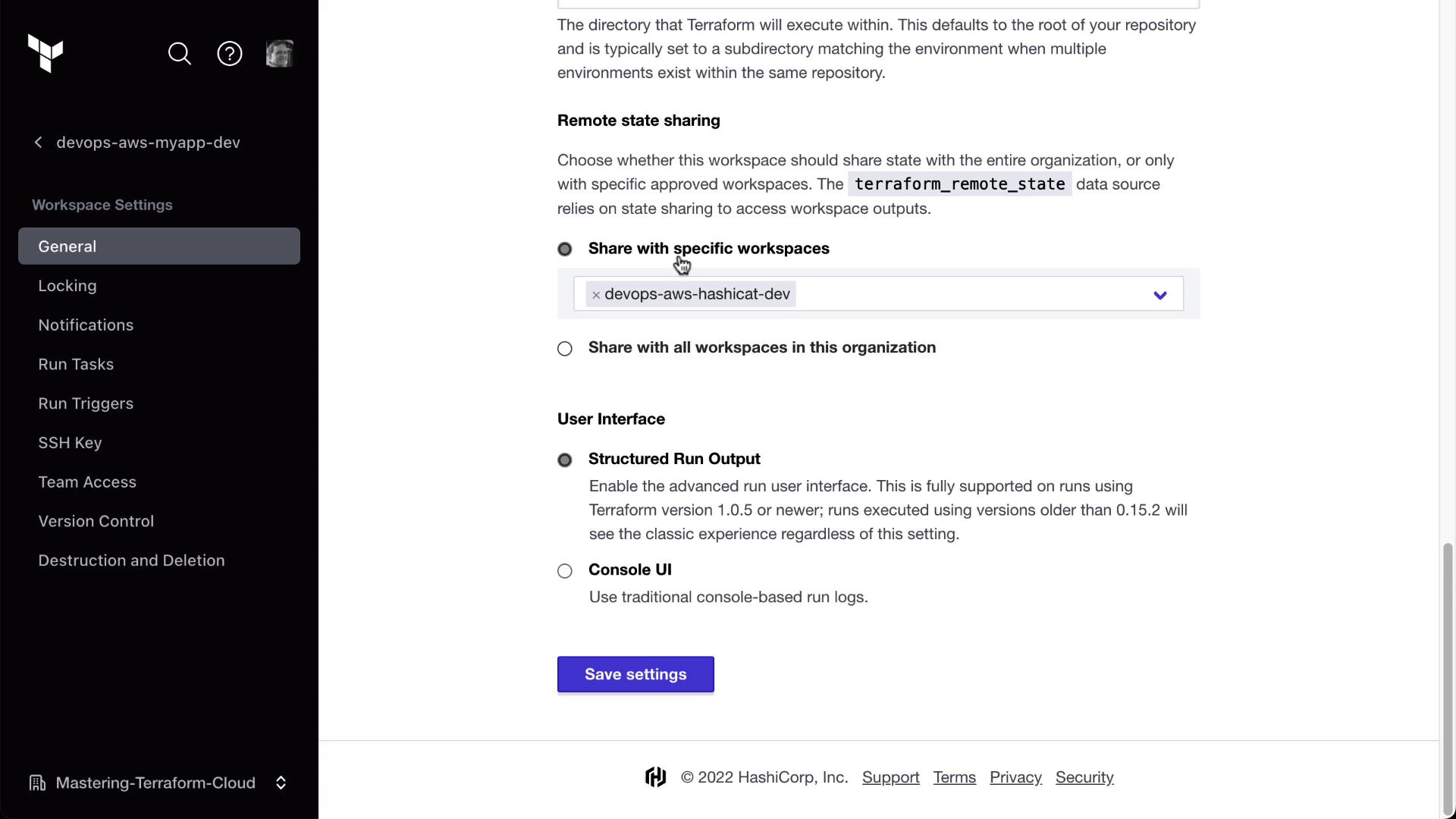
Only workspaces with **Remote State Sharing** enabled can be referenced by `tfe_outputs`. Ensure you have the right permissions before sharing state.
## 4. Configuring Run Triggers
Run triggers automatically queue a run in a downstream workspace after a successful apply in an upstream workspace.
1. In the **HashiCat** workspace, go to **Settings** → **Run Triggers**.
2. Click **Add Trigger**, then select the **devops-aws-myapp-dev** workspace.
| Upstream Workspace | Downstream Workspace | Trigger Type |
| -------------------- | -------------------- | ------------------- |
| devops-aws-myapp-dev | HashiCat | On successful apply |
Now, any time Clumsy Bird’s workspace finishes an apply, Terraform Cloud will auto-queue a plan in HashiCat.
## 5. Demonstrating a Triggered Run
Follow these steps to see run triggers in action:
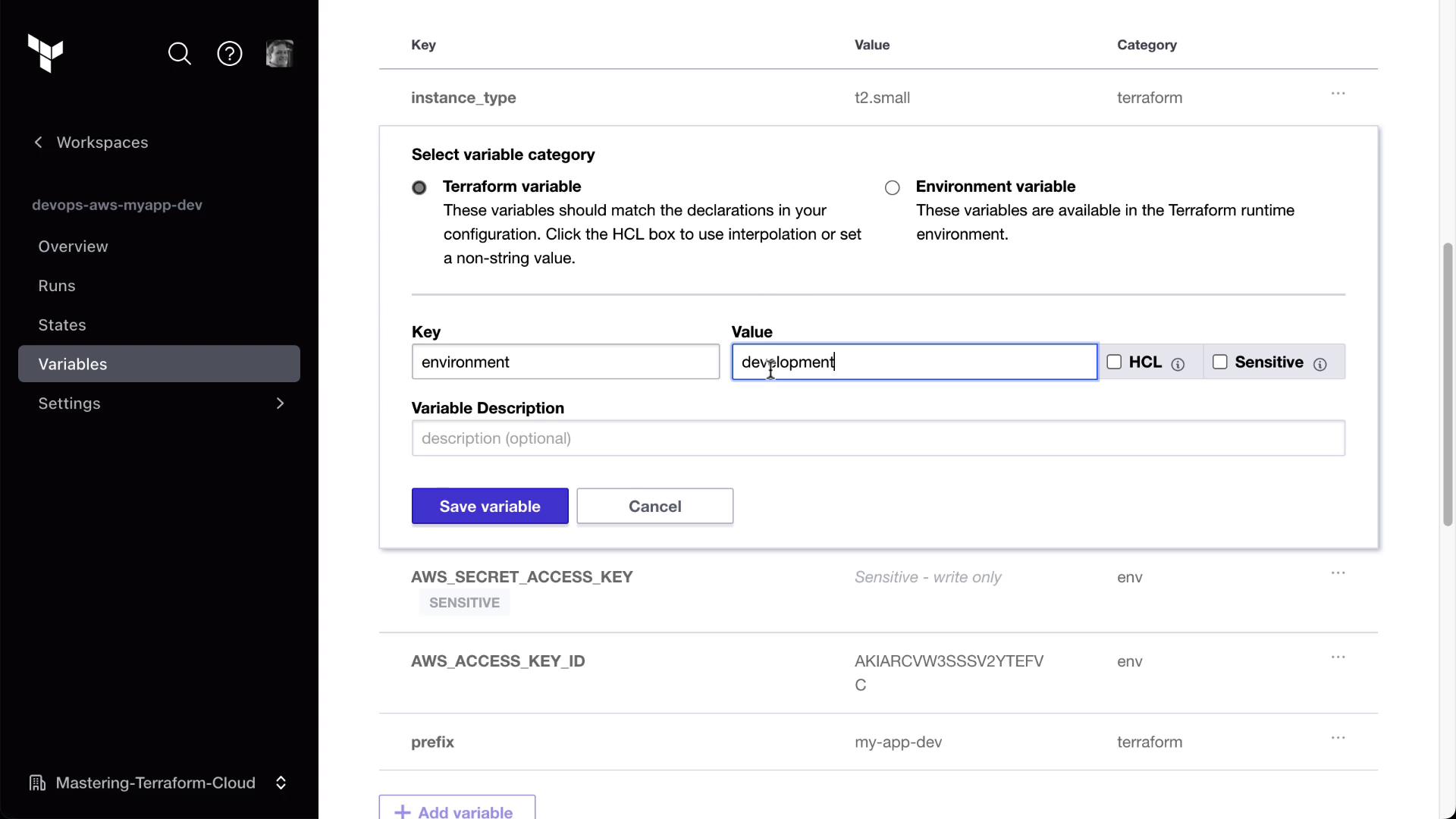
1. **Update a Variable in Clumsy Bird**\
Modify any environment variable (e.g., `environment = "development-hashiCat2"`).
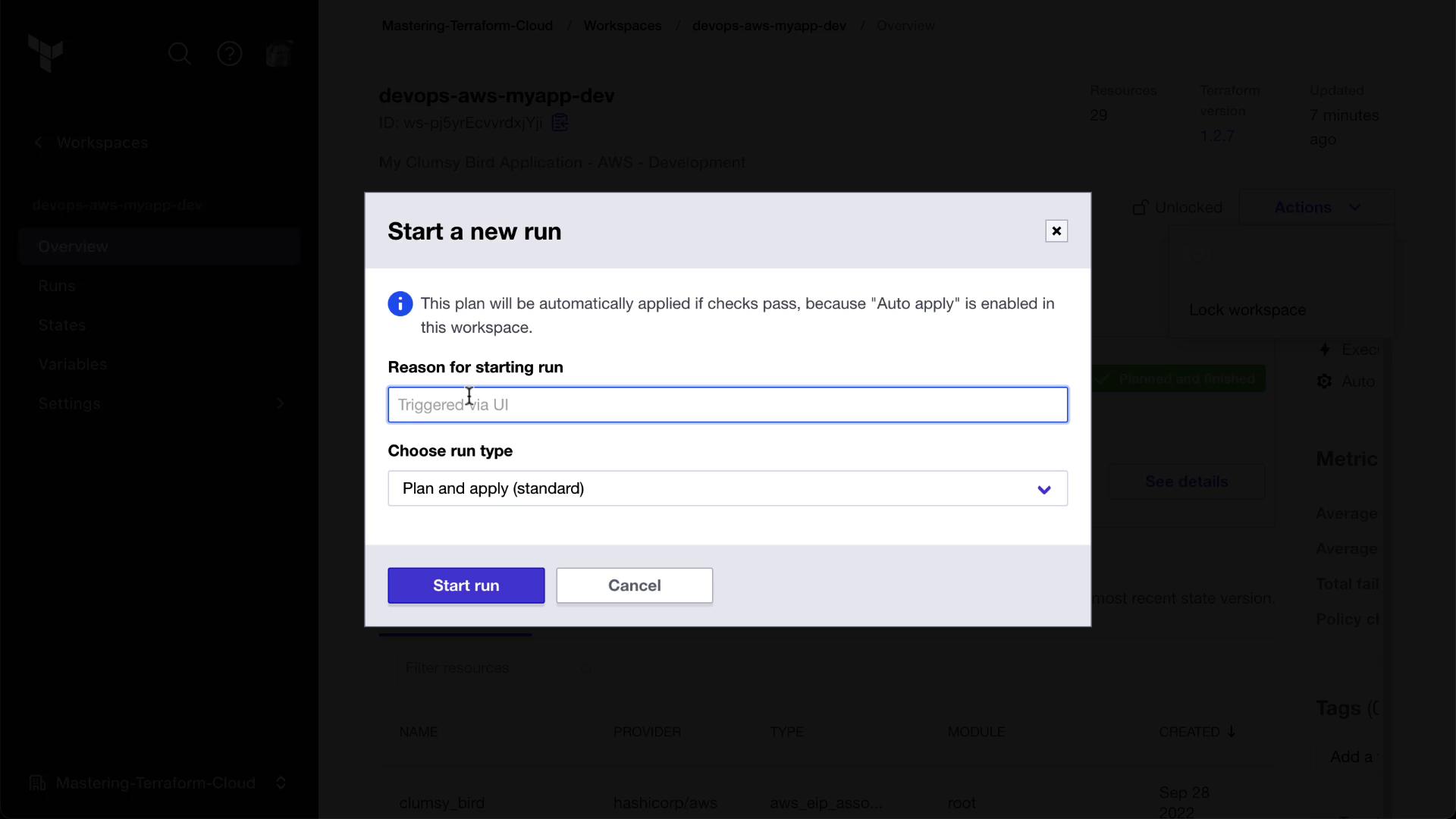
2. **Start a New Run Manually**\
Trigger the change in Clumsy Bird.
```bash theme={null}
# In the Clumsy Bird workspace:
terraform plan
terraform apply
```
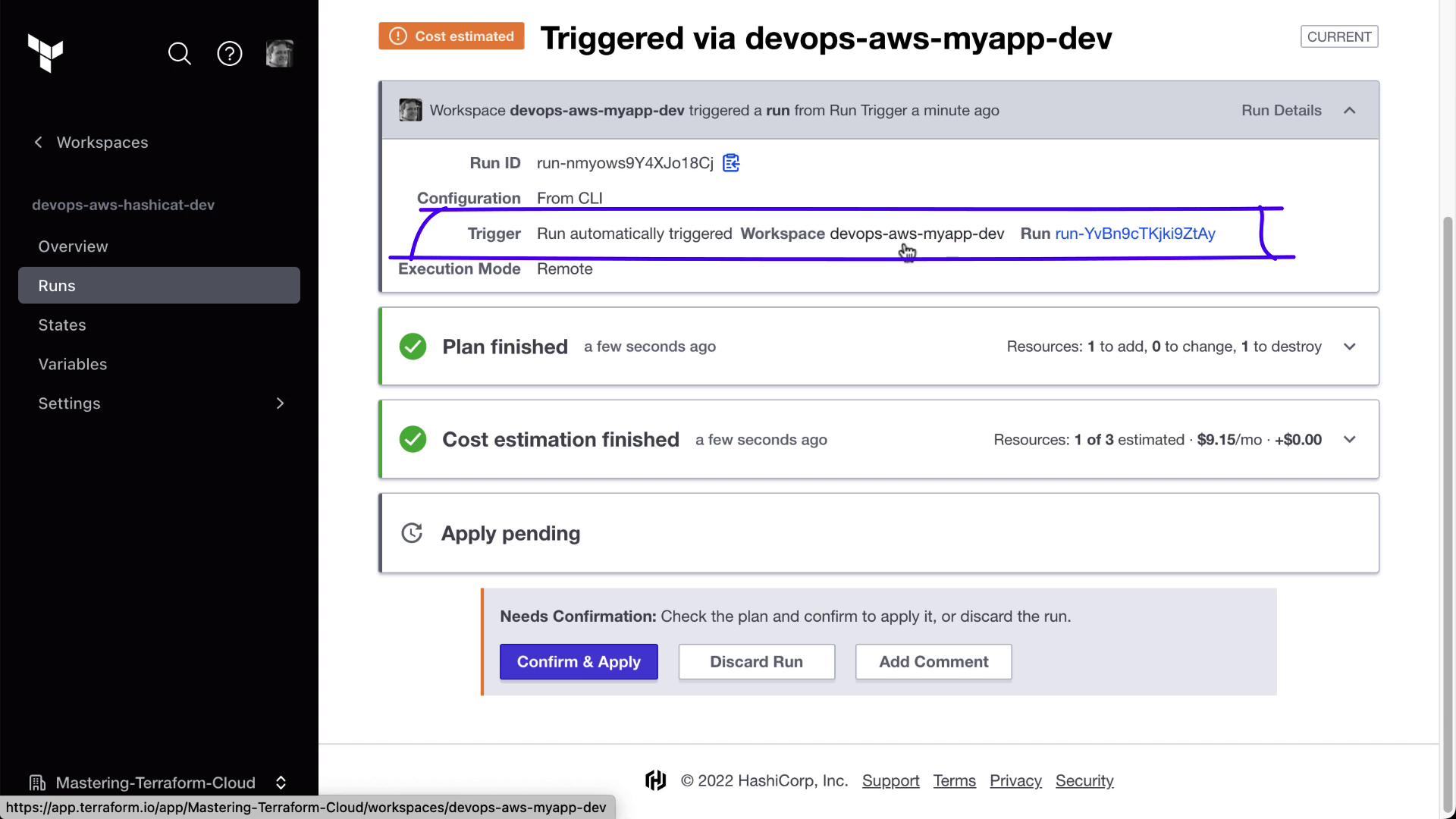
3. **Observe the Triggered Plan in HashiCat**\
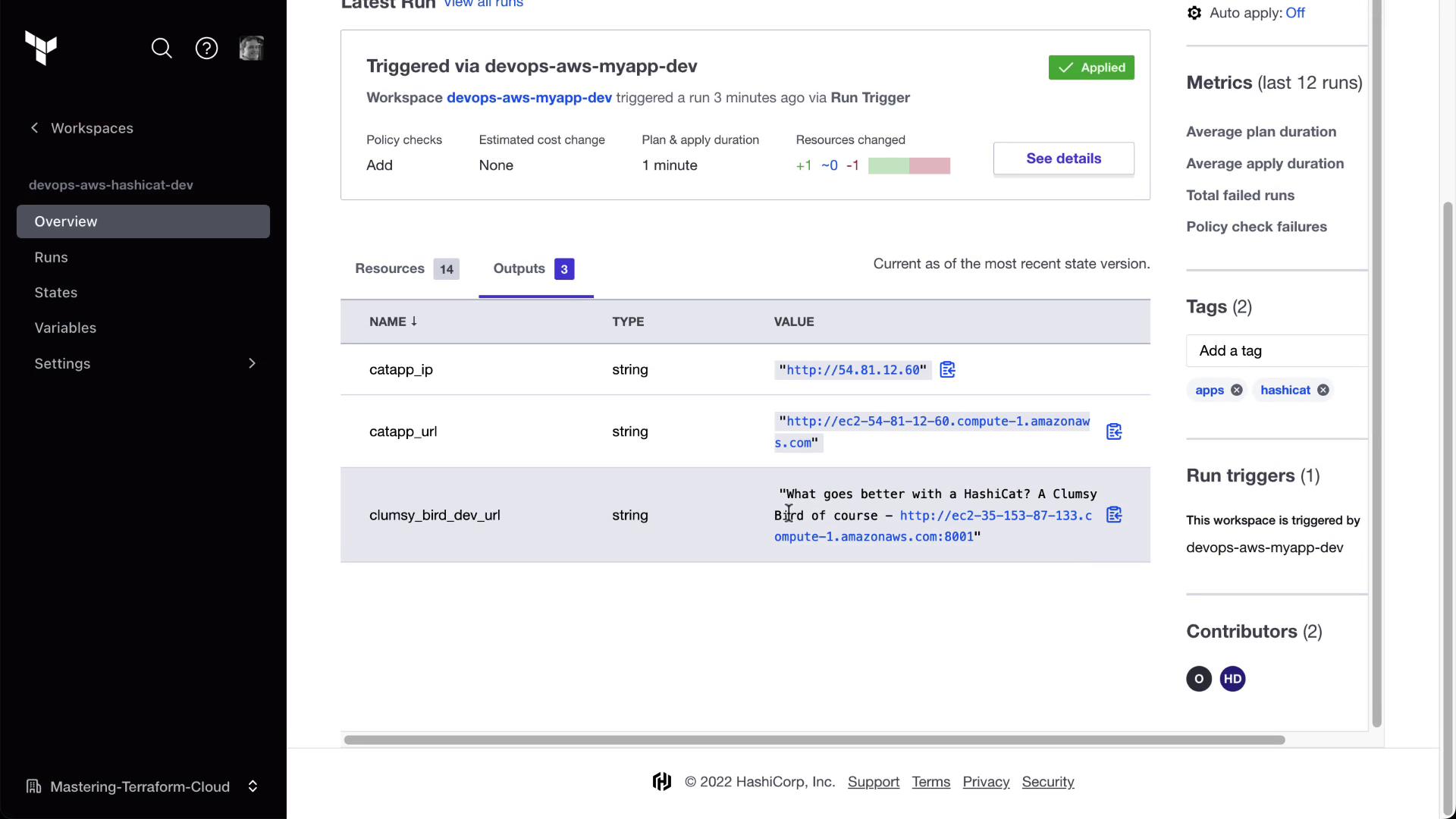
After Clumsy Bird applies, HashiCat will queue a run automatically. Check the **Runs** tab for a trigger entry.
4. **Approve and Review Outputs**\
Approve the plan in HashiCat. You’ll now see the Clumsy Bird URL retrieved from the other workspace.
***
By isolating state and chaining workspaces with run triggers, you can build modular, resilient infrastructure pipelines in Terraform Cloud.
## Links and References
* [Terraform Cloud Documentation](https://www.terraform.io/cloud)
* [tfe\_outputs Data Source](https://registry.terraform.io/providers/hashicorp/tfe/latest/docs/data-sources/outputs)
* [Remote State Sharing](https://www.terraform.io/docs/cloud/workspaces/remote-state-sharing.html)
* [Terraform Login Command](https://developer.hashicorp.com/terraform/cli/commands/login)