> ## Documentation Index
> Fetch the complete documentation index at: https://notes.kodekloud.com/llms.txt
> Use this file to discover all available pages before exploring further.
# Lab Solution Terraform Cloud API
> This article covers using Terraform Clouds API for automating infrastructure provisioning through workflows like CI/CD integration and variable management.
Terraform Cloud’s REST API enables robust automation and integration for infrastructure provisioning. Teams can use it to:
| API Workflow | Description |
| --------------------- | ----------------------------------------------------- |
| CI/CD Integration | Trigger Terraform runs from pipelines |
| State & Data Query | Programmatically retrieve Terraform state and outputs |
| Self-Service Portals | Build user-facing interfaces for provisioning |
| Custom CLI Automation | Enhance scripts with API-driven capabilities |
In this lab you will:
1. Authenticate via the CLI
2. Configure workspace variables
3. Initiate a Terraform run using the API

***
## 1. Authenticate and Prepare
Log in to Terraform Cloud via CLI to obtain your API credentials:
```bash theme={null}
terraform login
```
`terraform login` opens a browser for authentication and saves your token in `~/.terraform.d/credentials.tfrc.json`.
Clone the sample repository and run the setup script:
```bash theme={null}
git clone https://github.com/hashicorp/tfc-getting-started.git
cd tfc-getting-started
scripts/setup.sh
```
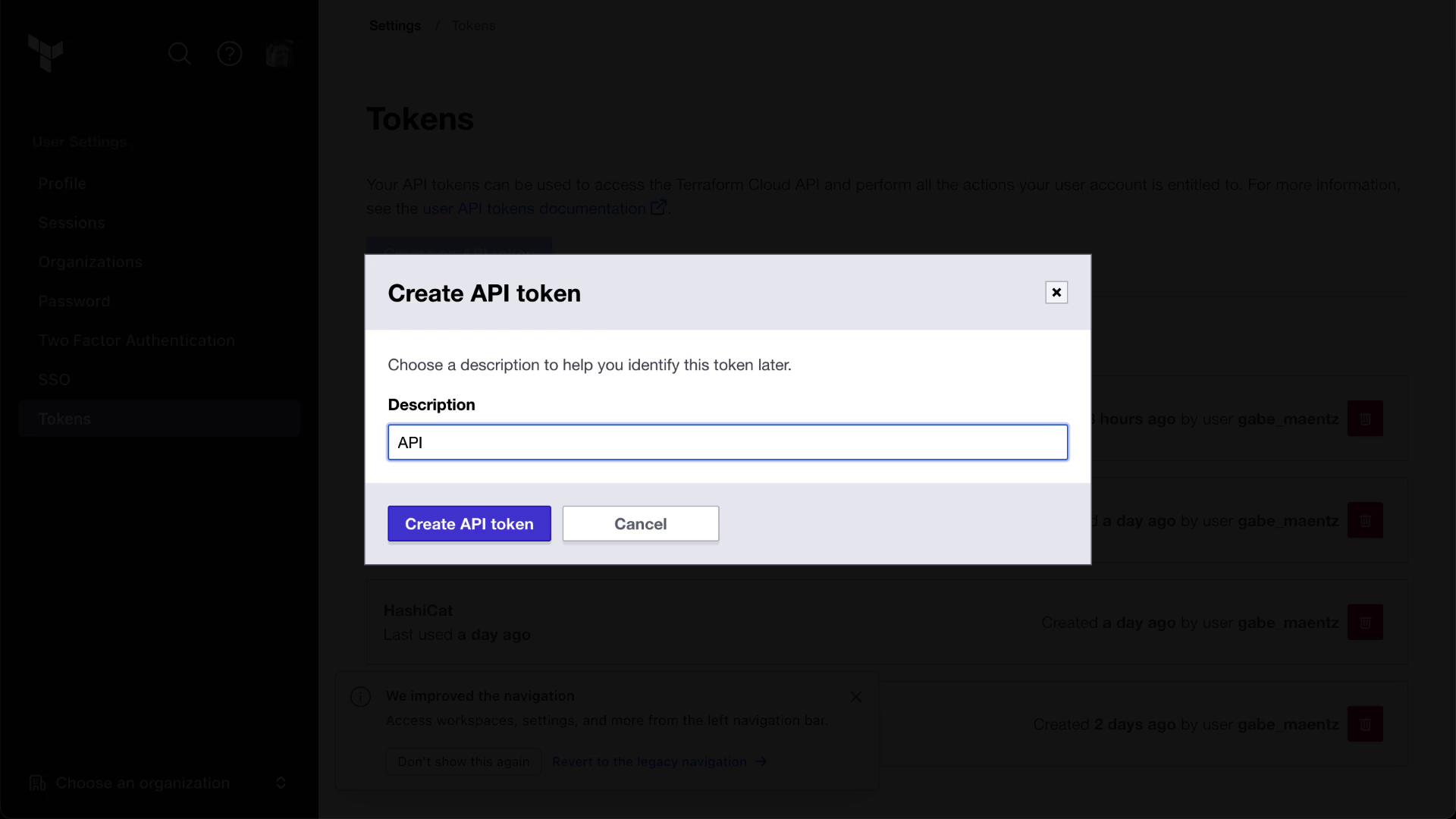
In the Terraform Cloud UI, navigate to **User Settings → Tokens** and create a new API token:
Export your token and organization name as environment variables (replace `MYORGNAME` with your org):
```bash theme={null}
export TOKEN=$(grep token ~/.terraform.d/credentials.tfrc.json | cut -d '"' -f4)
export ORG="MYORGNAME"
```
Keep your `TOKEN` secure. Do not commit it to source control or share it publicly.
***
## 2. Retrieve the Workspace ID
Every Terraform Cloud workspace has a unique ID. Store it in an environment variable:
```bash theme={null}
export WORKSPACE_ID=$(
curl -s \
--header "Authorization: Bearer $TOKEN" \
https://app.terraform.io/api/v2/organizations/$ORG/workspaces/$WORKSPACE_NAME \
| jq -r '.data.id'
)
```
You can also copy the workspace ID from the Terraform Cloud UI under your workspace name:

Validate that your environment variables are set correctly:
```bash theme={null}
printenv | grep -E 'TOKEN|ORG|WORKSPACE_ID'
```
***
## 3. Define Variable Payloads
Create three JSON payloads in the `json/` directory to configure workspace variables:
| File | Key | Value | Category | Sensitive | HCL |
| ------------------ | ----------- | ------------ | --------- | --------- | ----- |
| `placeholder.json` | placeholder | placedog.net | terraform | false | false |
| `width.json` | width | 800 | terraform | false | false |
| `height.json` | height | 600 | terraform | false | false |
```json theme={null}
// json/placeholder.json
{
"data": {
"type": "vars",
"attributes": {
"key": "placeholder",
"value": "placedog.net",
"category": "terraform",
"hcl": false
}
}
}
```
```json theme={null}
// json/width.json
{
"data": {
"type": "vars",
"attributes": {
"key": "width",
"value": "800",
"category": "terraform",
"hcl": false,
"sensitive": false
}
}
}
```
```json theme={null}
// json/height.json
{
"data": {
"type": "vars",
"attributes": {
"key": "height",
"value": "600",
"category": "terraform",
"hcl": false
}
}
}
```
Refer to the [Workspace Variables API documentation](https://www.terraform.io/cloud-docs/api-docs/workspaces-variables) for details on the `POST /workspaces/:id/vars` endpoint:

***
## 4. Create Workspace Variables via API
Switch into the JSON directory and run the following `curl` commands:
```bash theme={null}
cd tfc-getting-started/json
curl \
--header "Authorization: Bearer $TOKEN" \
--header "Content-Type: application/vnd.api+json" \
--request POST \
--data @placeholder.json \
https://app.terraform.io/api/v2/workspaces/$WORKSPACE_ID/vars | jq
curl \
--header "Authorization: Bearer $TOKEN" \
--header "Content-Type: application/vnd.api+json" \
--request POST \
--data @width.json \
https://app.terraform.io/api/v2/workspaces/$WORKSPACE_ID/vars | jq
curl \
--header "Authorization: Bearer $TOKEN" \
--header "Content-Type: application/vnd.api+json" \
--request POST \
--data @height.json \
https://app.terraform.io/api/v2/workspaces/$WORKSPACE_ID/vars | jq
```
Refresh the **Variables** page in the Terraform Cloud UI to confirm the new variables:

***
## 5. Trigger a Terraform Run via API
Prepare the `apply.json` payload to create a run:
```json theme={null}
// apply.json
{
"data": {
"attributes": {
"is-destroy": false,
"message": "Terraform Cloud API is Magic!"
},
"type": "runs",
"relationships": {
"workspace": {
"data": {
"type": "workspaces",
"id": "REPLACEME"
}
}
}
}
}
```
Replace `REPLACEME` with your `$WORKSPACE_ID`:
```bash theme={null}
sed -i "s/REPLACEME/$WORKSPACE_ID/" apply.json
```
On macOS, use `sed -i ''` for inline replacements.
Using the [Runs API documentation](https://www.terraform.io/cloud-docs/api-docs/runs), execute:
```bash theme={null}
curl \
--header "Authorization: Bearer $TOKEN" \
--header "Content-Type: application/vnd.api+json" \
--request POST \
--data @apply.json \
https://app.terraform.io/api/v2/runs | jq
```
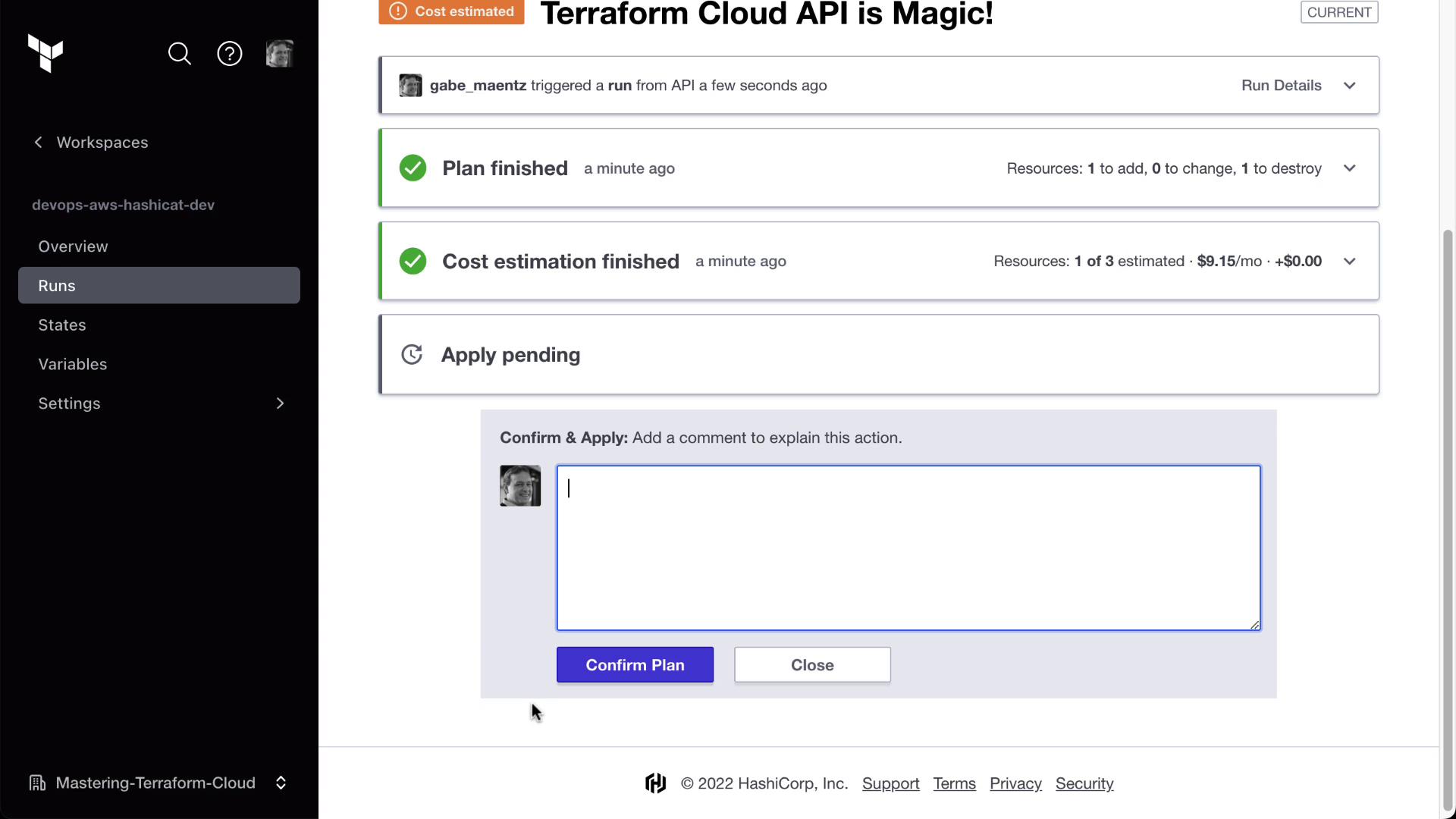
Monitor the run status (pending, planned, applied) in the Terraform Cloud UI:
***
## Conclusion
You have successfully:
* Authenticated to Terraform Cloud via CLI
* Used the Workspace Variables API to set variables
* Triggered a Terraform run through the Runs API
Next steps: explore additional API endpoints for run cancellation, policy checks, cost estimation, and more.
## Links and References
* [Terraform Cloud API Reference](https://www.terraform.io/cloud-docs/api-docs)
* [Workspace Variables API](https://www.terraform.io/cloud-docs/api-docs/workspaces-variables)
* [Runs API](https://www.terraform.io/cloud-docs/api-docs/runs)