> ## Documentation Index
> Fetch the complete documentation index at: https://notes.kodekloud.com/llms.txt
> Use this file to discover all available pages before exploring further.
# Authenticate to Terraform Cloud
> This guide explains how to authenticate with Terraform Cloud using the web interface, CLI, and API, along with token types and security policies.
Terraform Cloud requires secure authentication for all users and automation workflows. In this guide, you’ll learn how to authenticate with Terraform Cloud using:
* Web interface
* Terraform CLI
* Terraform Cloud API
We’ll also review the three types of API tokens and organizational policies for enforcing security.
***
## Web Interface
A Terraform Cloud account gives you full access to the web UI. After logging in:
1. Select your Organization.
2. Navigate to **Workspaces** to view or manage configurations.
3. Use the **Settings** menu to configure access controls and policies.
Terraform Cloud’s web UI provides an intuitive way to manage infrastructure without installing additional tools.
***
## Command Line Interface (CLI)
Authenticate your local Terraform CLI to Terraform Cloud or Enterprise by generating and storing an API token.
```bash theme={null}
# Log in to Terraform Cloud or Enterprise
terraform login [hostname]
# Log out and remove your local credentials
terraform logout [hostname]
```
When you run `terraform login`, the CLI opens your browser to generate a user API token. Paste the token back into the terminal. Credentials are saved to `~/.terraform.d/credentials.tfrc.json`.
To fully revoke a token, delete it from **User Settings** in the Terraform Cloud web UI. Running `terraform logout` only removes the token locally.
CLI authentication is required for commands like `terraform plan` and `terraform apply` when your state and configurations live in Terraform Cloud.
For more details, see [Terraform CLI Authentication](https://www.terraform.io/internals/terraform-cli#authentication).
***
## Terraform Cloud API
Use Terraform Cloud’s REST API for programmatic access. Every request must include a valid bearer token:
```bash theme={null}
curl \
--header "Authorization: Bearer $TOKEN" \
--header "Content-Type: application/vnd.api+json" \
--request GET \
https://app.terraform.io/api/v2/organizations?page[number]=1&page[size]=20
```
Replace `$TOKEN` with your user, team, or organization token. Ensure `Content-Type` is set to `application/vnd.api+json`.
All API endpoints require authentication and follow the [JSON:API](https://jsonapi.org/) specification.
***
## Token Types
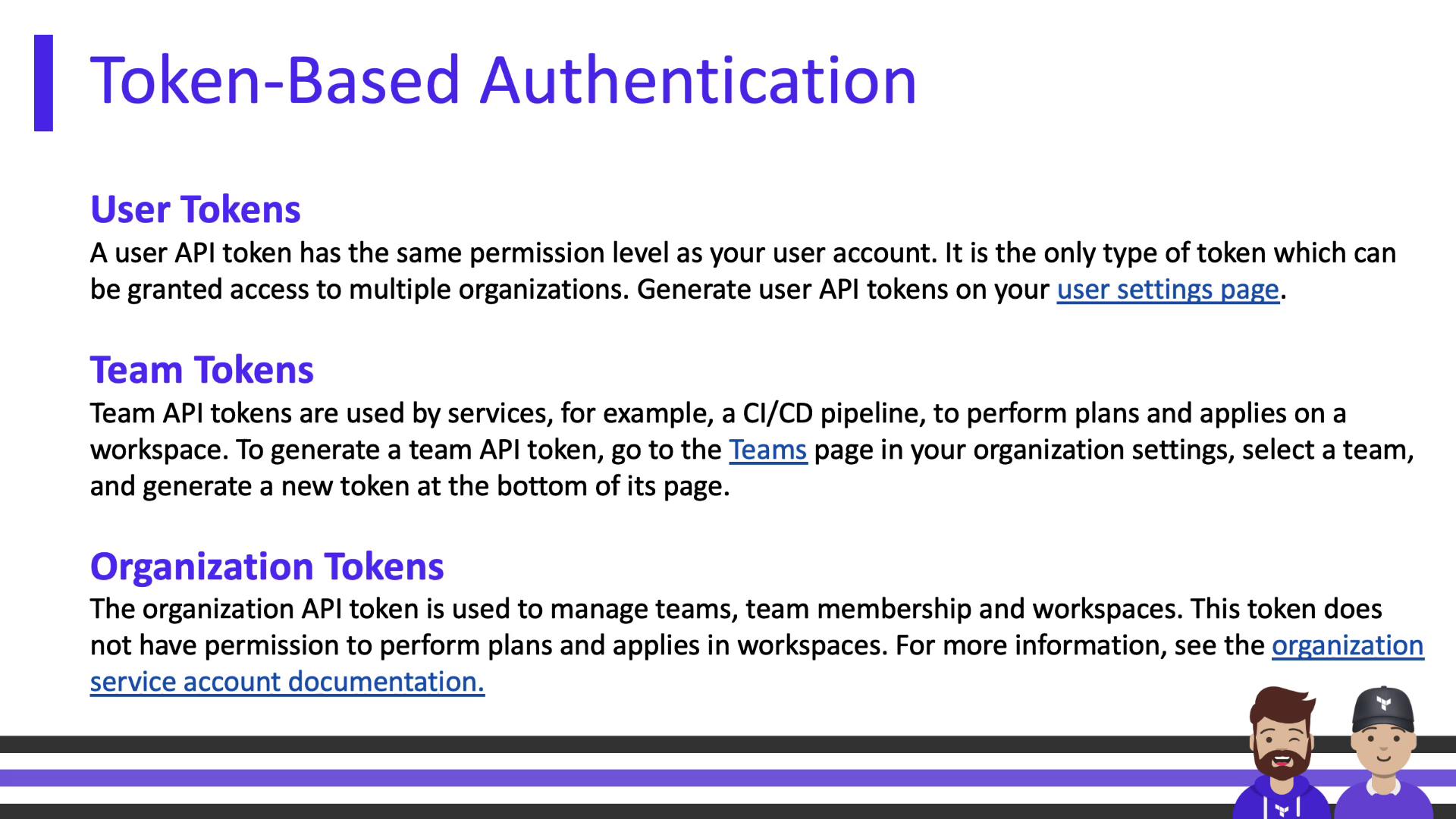
Choose the appropriate token for your workflow:
| Token Type | Permissions | Use Case | Management Location |
| ------------------ | --------------------------------------- | ---------------------------- | --------------------- |
| User Token | Matches your personal account | Interactive CLI tasks | User Settings |
| Team Token | Inherits team-level permissions | Automated CI/CD pipelines | Teams Page |
| Organization Token | Full org management (teams, workspaces) | Organization-wide automation | Organization Settings |
***
## Managing Authentication
Organization owners can enforce additional security policies:
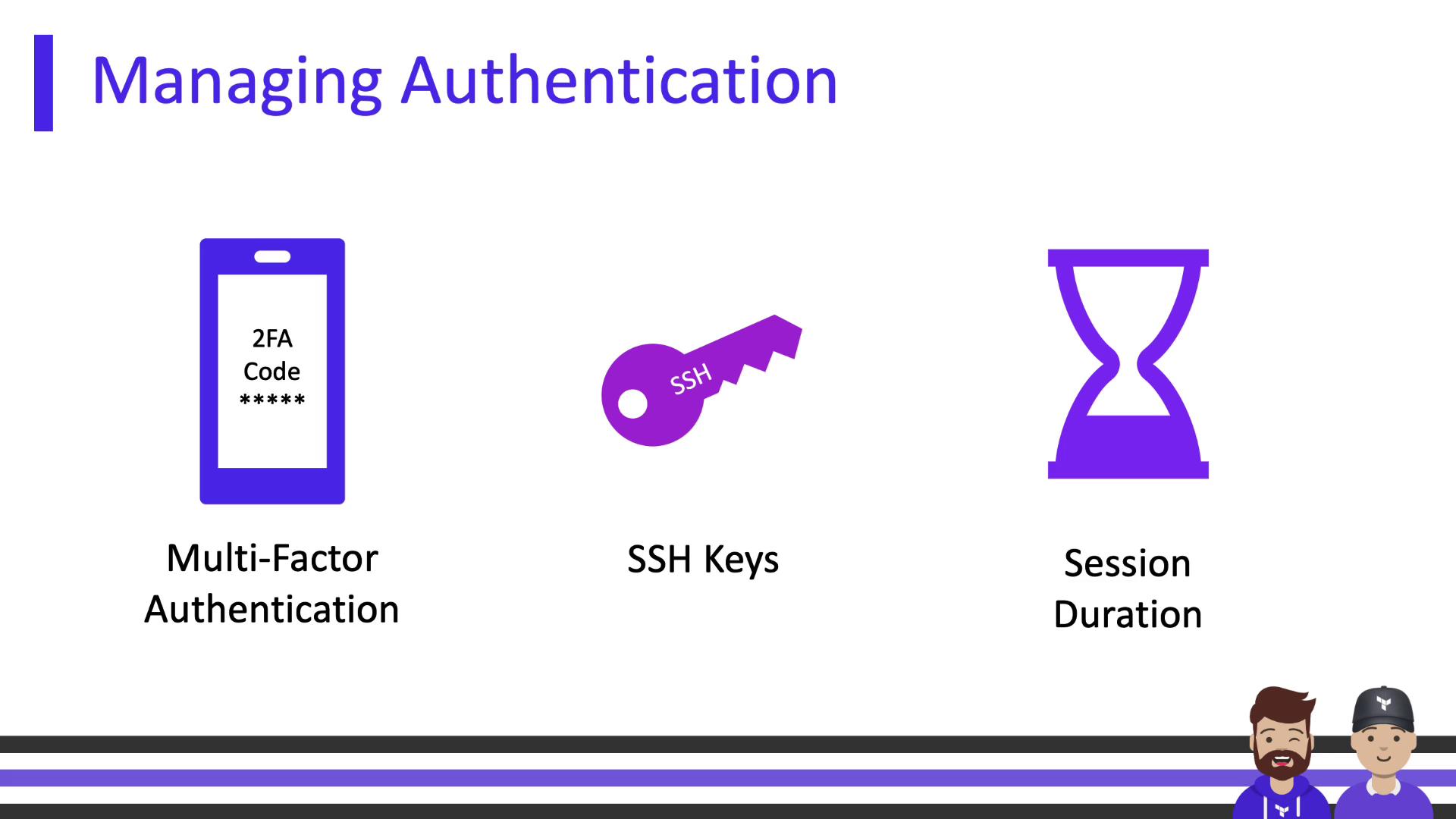
* **Multi-Factor Authentication (MFA)**\
Enforce two-factor authentication for all members.
* **Single Sign-On (SSO)**\
Integrate with external identity providers (Business tier only).
* **SSH Keys**\
Add private keys at the org level for workspaces that need access to private Git repositories.
* **Session Duration**\
Configure inactivity timeouts and maximum session lengths to require periodic reauthentication.
SSO is only available on the Business tier. Ensure your organization plan supports it before configuring.
***
In this module, we covered:
* Accessing Terraform Cloud via the web interface
* Authenticating with the Terraform CLI
* Using the Terraform Cloud REST API
* Understanding user, team, and organization tokens
* Enforcing organizational security policies (MFA, SSO, SSH keys, session timeouts)
With these authentication methods and policies in place, you can securely manage infrastructure at scale.
## Links and References
* [Terraform Cloud Authentication](https://www.terraform.io/cloud-docs/users-teams-organizations/authentication)
* [Terraform CLI Documentation](https://www.terraform.io/cli)
* [Terraform Cloud API Reference](https://www.terraform.io/cloud-docs/api)
* [JSON:API Specification](https://jsonapi.org/)