> ## Documentation Index
> Fetch the complete documentation index at: https://notes.kodekloud.com/llms.txt
> Use this file to discover all available pages before exploring further.

# Demo Interacting with Terraform Cloud

> Learn to authenticate with Terraform Cloud using web UI, CLI, and API, covering security settings, SSH key management, and token types.

In this lesson, you’ll learn how to sign in and interact with Terraform Cloud through the web UI, CLI, and API. We’ll cover user and organization-level security settings, SSH key management, and token types.

## 1. Logging into Terraform Cloud Web UI

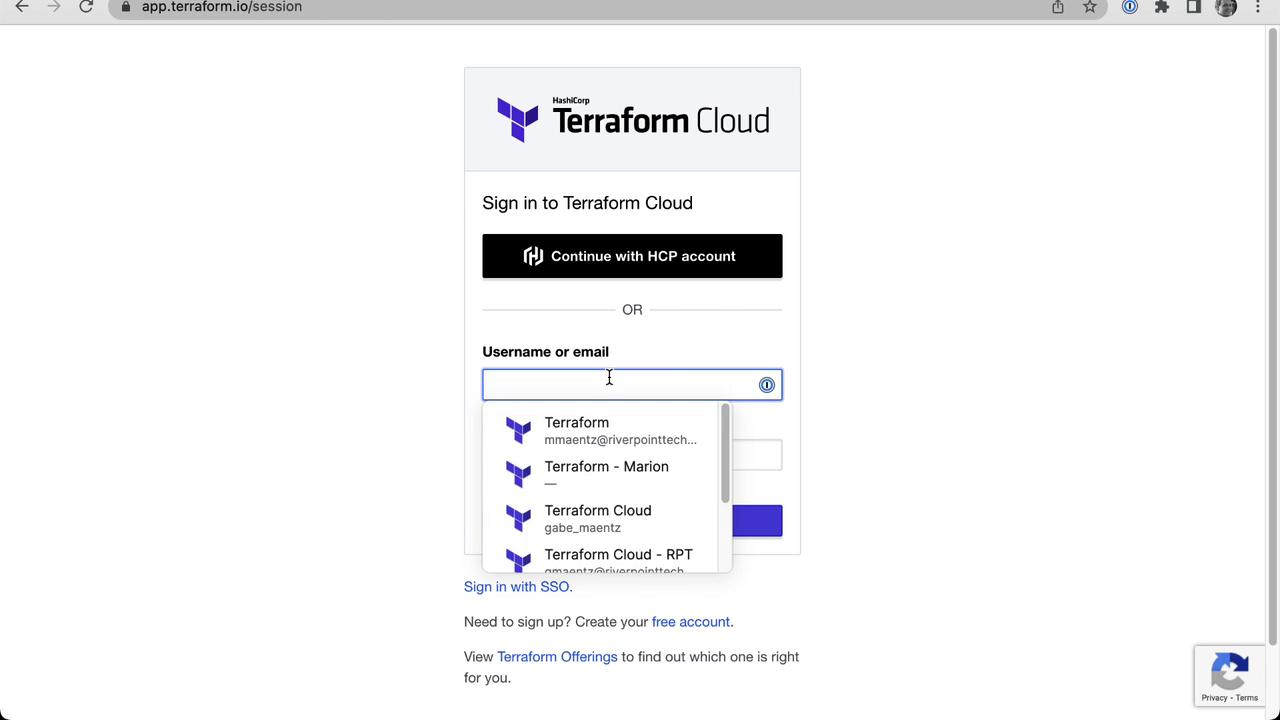
1. Navigate to the Terraform Cloud login page and enter your HCP account or username/email credentials.
<Frame>
  ![The image shows a login page for HashiCorp Terraform Cloud, with options to sign in using an HCP account or by entering a username or email. A dropdown menu suggests different email options for login.](https://kodekloud.com/kk-media/image/upload/v1752878827/notes-assets/images/HashiCorp-Terraform-Cloud-Demo-Interacting-with-Terraform-Cloud/terraform-cloud-login-page-options.jpg)
</Frame>

2. If you belong to multiple organizations, select the one you want to access.

<Frame>
  ![The image shows a webpage from Terraform Cloud where a user can choose from a list of organizations to access, including "Enterprise-Cloud," "Enterprise-DataCenter," and "Mastering-Terraform-Cloud."](https://kodekloud.com/kk-media/image/upload/v1752878829/notes-assets/images/HashiCorp-Terraform-Cloud-Demo-Interacting-with-Terraform-Cloud/terraform-cloud-organizations-selection-page.jpg)
</Frame>

## 2. Configuring User-Level Authentication

1. Click your user avatar and select **User Settings** → **Account Settings**.

<Frame>
  ![The image shows a Terraform Cloud interface with no workspaces created yet, and a user menu open displaying options like "User settings" and "Sign out."](https://kodekloud.com/kk-media/image/upload/v1752878830/notes-assets/images/HashiCorp-Terraform-Cloud-Demo-Interacting-with-Terraform-Cloud/terraform-cloud-interface-no-workspaces.jpg)
</Frame>

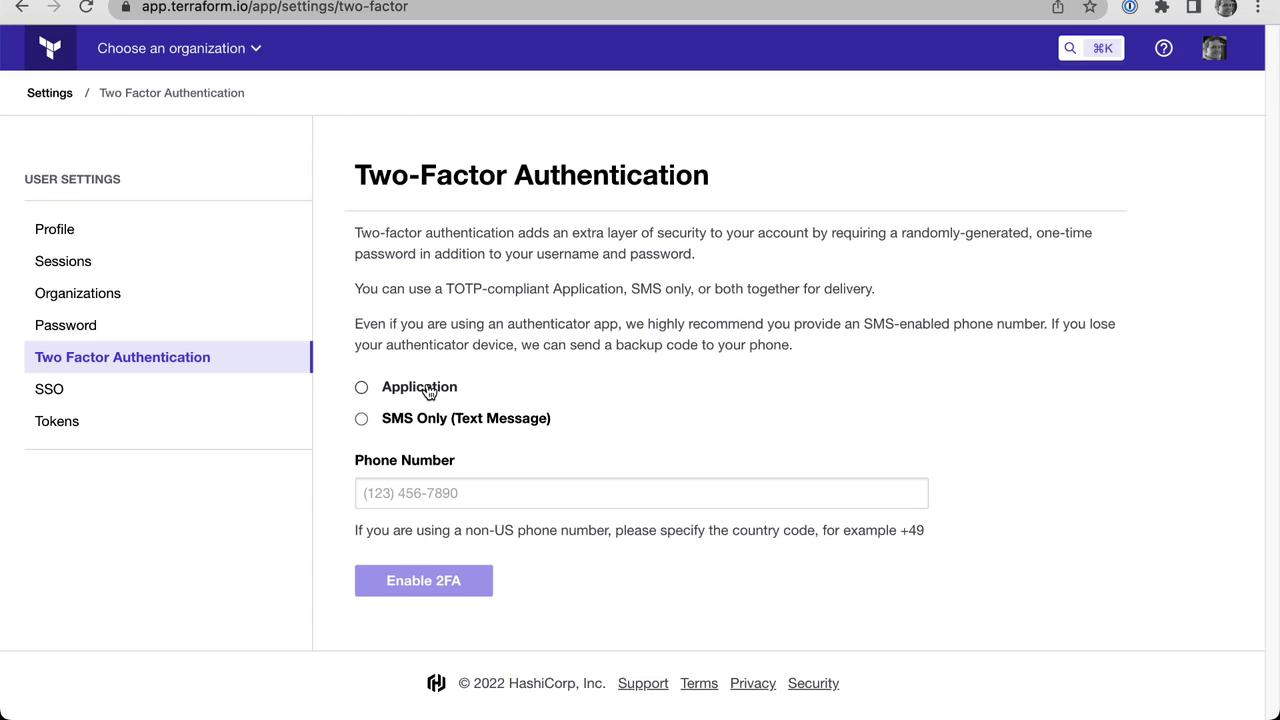
2. Under **Authentication**, enable Two-Factor Authentication (2FA). You can choose an authentication app or SMS.
<Frame>
  ![The image shows a webpage for setting up two-factor authentication, offering options for using an application or SMS for verification. It includes a field for entering a phone number and a button to enable 2FA.](https://kodekloud.com/kk-media/image/upload/v1752878832/notes-assets/images/HashiCorp-Terraform-Cloud-Demo-Interacting-with-Terraform-Cloud/two-factor-authentication-setup-webpage.jpg)
</Frame>

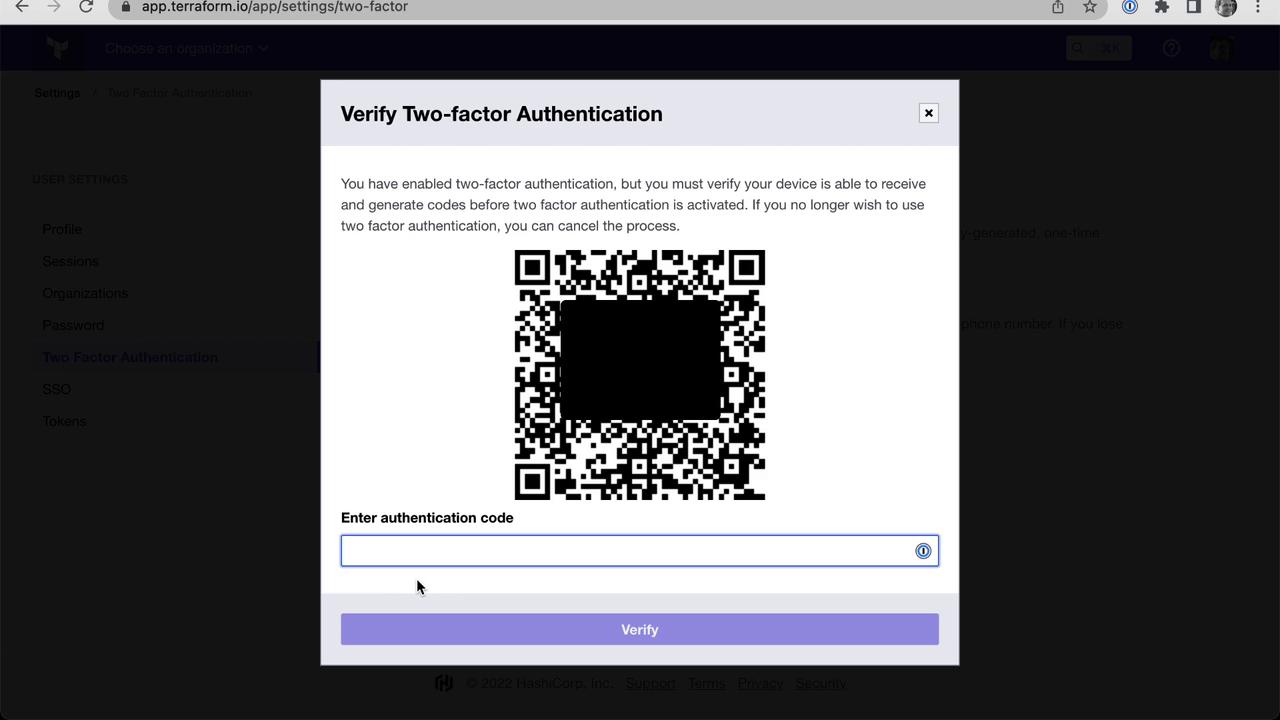
3. For app-based 2FA, scan the QR code and enter the generated one-time password.
<Frame>
  ![The image shows a webpage for verifying two-factor authentication, featuring a QR code and a field to enter an authentication code.](https://kodekloud.com/kk-media/image/upload/v1752878833/notes-assets/images/HashiCorp-Terraform-Cloud-Demo-Interacting-with-Terraform-Cloud/two-factor-authentication-verification-qr-code.jpg)
</Frame>

<Callout icon="triangle-alert" color="#FF6B6B">
  Always save your backup codes in a secure location. Losing access to your 2FA device can lock you out of Terraform Cloud.
</Callout>

Once verified, 2FA is active on your account.

## 3. Organization-Level Security Policies

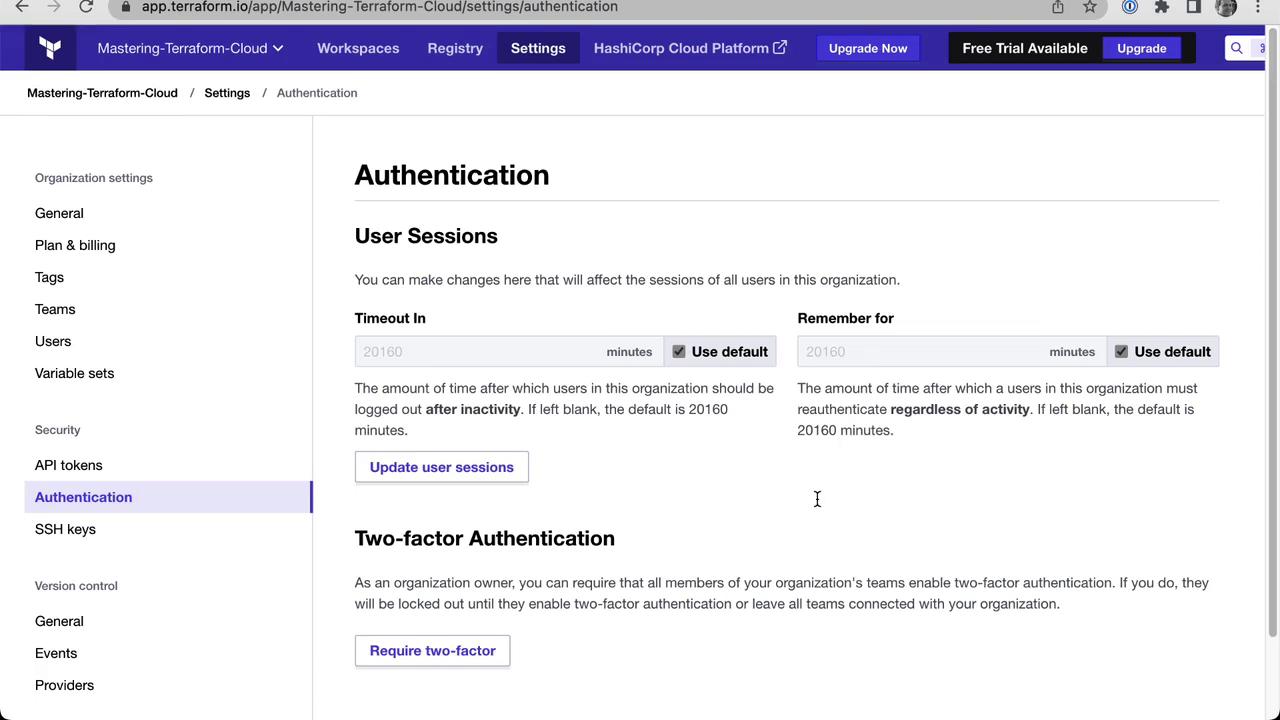
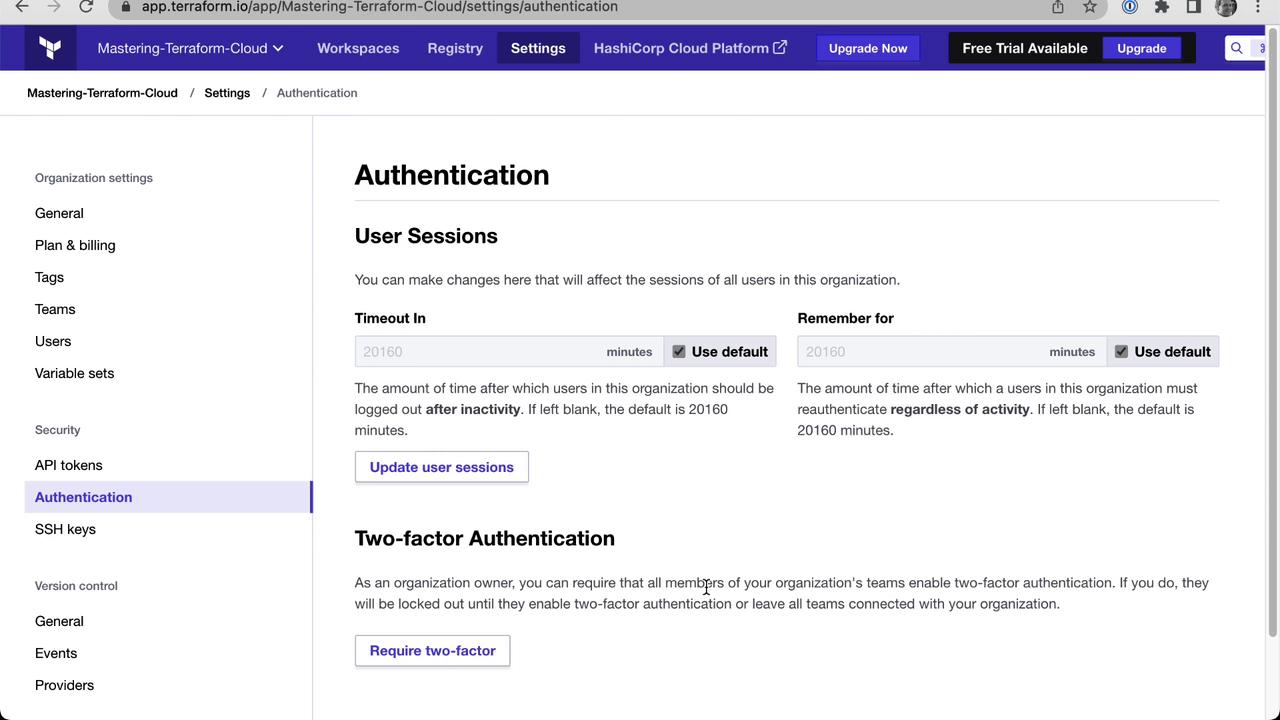
Switch to your organization (e.g., **Mastering Terraform Cloud**), then go to **Settings** → **Authentication**. Here you can:

* Require that all members enable 2FA
* Configure session inactivity timeouts
* Set reauthentication intervals

<Frame>
  ![The image shows a web interface for managing two-factor authentication settings, with options to disable 2FA and reveal backup codes. It includes a dropdown menu for selecting an organization.](https://kodekloud.com/kk-media/image/upload/v1752878834/notes-assets/images/HashiCorp-Terraform-Cloud-Demo-Interacting-with-Terraform-Cloud/two-factor-authentication-settings-interface.jpg)
</Frame>

<Frame>
  ![The image shows a settings page for authentication in Terraform Cloud, detailing user session timeout and two-factor authentication options. It includes fields for setting session timeout and reauthentication intervals, with options to update user sessions and require two-factor authentication.](https://kodekloud.com/kk-media/image/upload/v1752878835/notes-assets/images/HashiCorp-Terraform-Cloud-Demo-Interacting-with-Terraform-Cloud/terraform-cloud-authentication-settings-page.jpg)
</Frame>

<Callout icon="lightbulb" color="#1CB2FE">
  Customizing session timeouts helps balance security and usability across your organization.
</Callout>

## 4. Managing SSH Keys for Git Operations

At the organization level, upload SSH private keys to enable Git-based operations. To generate an RSA key in PEM format:

```bash theme={null}
ssh-keygen -t rsa -m PEM
```

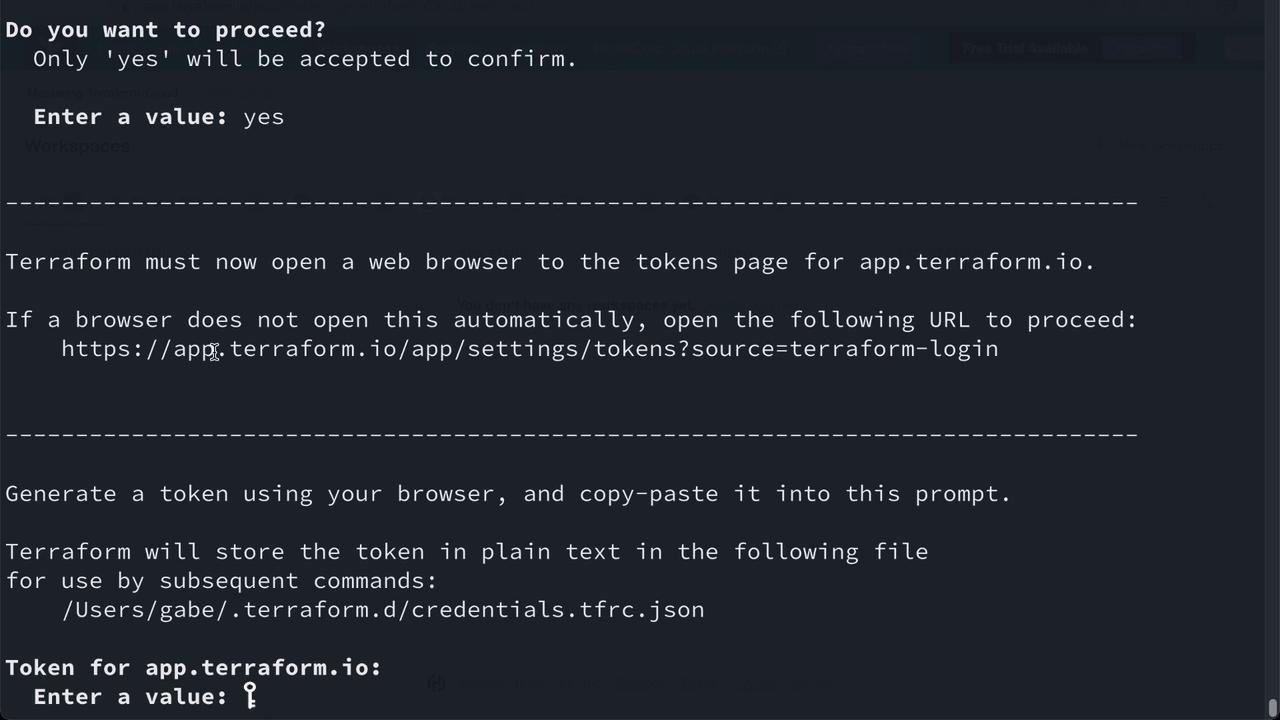
## 5. Authenticating with Terraform CLI

On your local machine with Terraform installed, run:

```bash theme={null}
terraform login
```

This command will open your browser to generate an API token, then return you to the CLI.
<Frame>
  ![The image shows a command-line interface prompting the user to generate and enter a token for Terraform, with instructions to open a web browser to obtain the token.](https://kodekloud.com/kk-media/image/upload/v1752878836/notes-assets/images/HashiCorp-Terraform-Cloud-Demo-Interacting-with-Terraform-Cloud/terraform-token-generation-command-line.jpg)
</Frame>

When prompted, paste your token (input is hidden):

```bash theme={null}
# (Paste your token here)
```

Terraform will store the credentials for subsequent CLI operations.

## 6. Interacting with Terraform Cloud via API

First, export your token as an environment variable:

```bash theme={null}
export TERRAFORM_TOKEN="YOUR_TOKEN"
```

Then request your organization’s details:

```bash theme={null}
curl \
  --header "Authorization: Bearer $TERRAFORM_TOKEN" \
  --header "Content-Type: application/vnd.api+json" \
  https://app.terraform.io/api/v2/organizations/Mastering-Terraform-Cloud
```

A successful response returns your organization’s metadata in JSON:

```json theme={null}
{
  "data": {
    "id": "Mastering-Terraform-Cloud",
    "type": "organizations",
    "attributes": {
      "external-id": "org-tsVGG3U6yVQPMxxJ",
      "created-at": "2022-08-18T16:34:58.952Z",
      "email": "gabe@maentz.net",
      "session-timeout": null,
      "session-remember": null,
      "collaborator-auth-policy": "password",
      "plan-identifier": "free",
      "allow-force-delete-workspaces": true,
      "name": "Mastering-Terraform-Cloud",
      "permissions": {
        "can-update": true,
        "can-destroy": true,
        "can-access-via-teams": true
      }
    }
  }
}
```

For full API details, see the [Terraform Cloud API Reference](https://developer.hashicorp.com/terraform/cloud/api-docs).

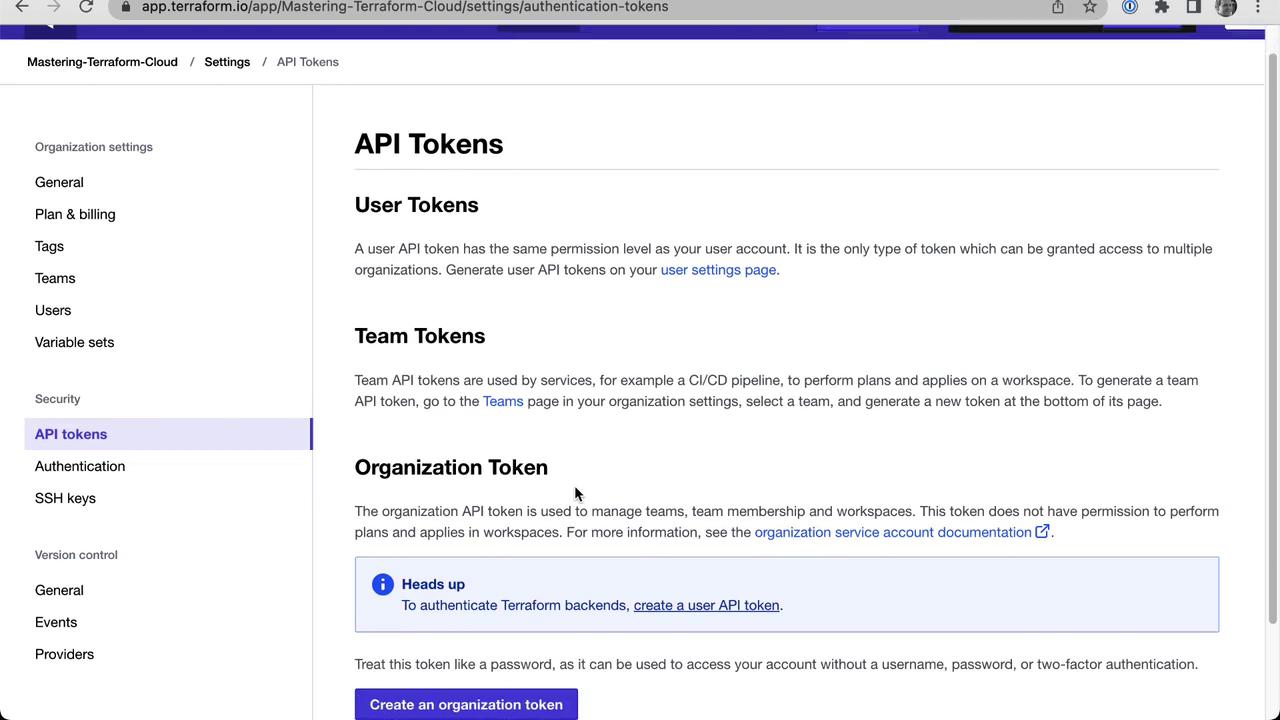
## 7. Terraform Cloud API Token Types

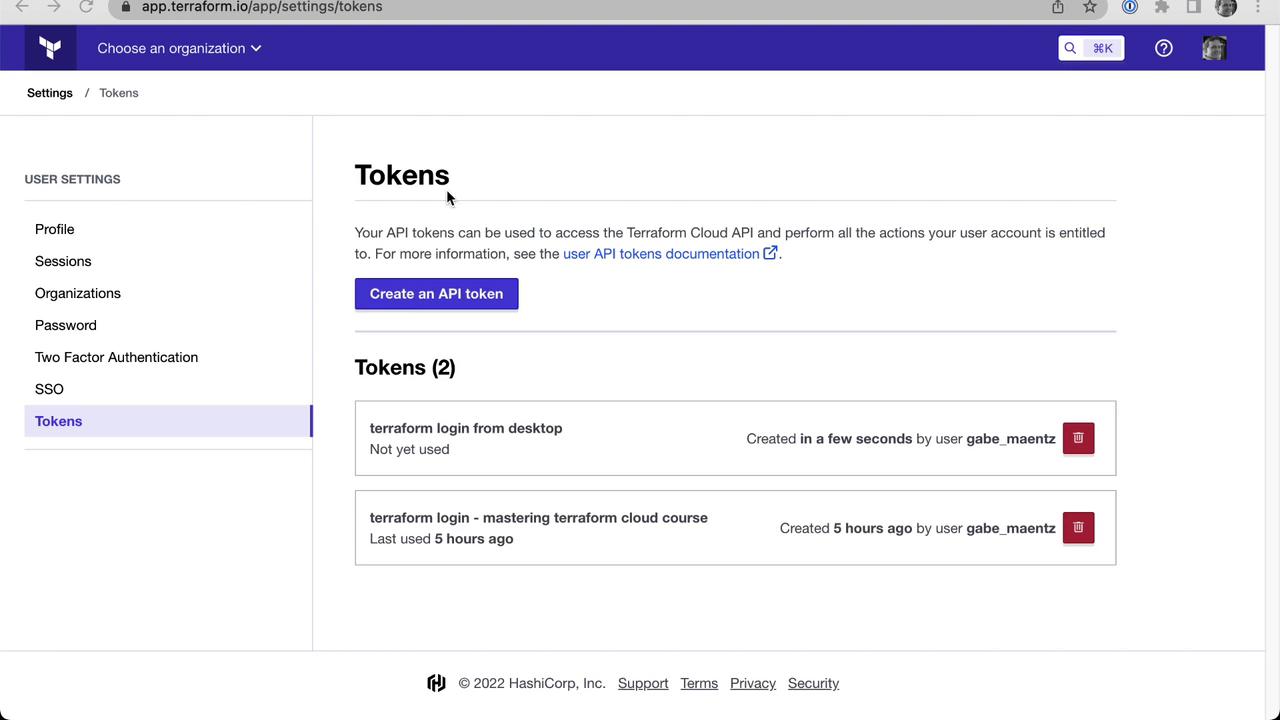
Terraform Cloud supports these token types:

| Token Type         | Scope                                            | Use Case                          |
| ------------------ | ------------------------------------------------ | --------------------------------- |
| User Token         | Individual user permissions                      | Personal CLI & API access         |
| Team Token         | Specific team privileges                         | Automation with team-level access |
| Organization Token | Organization-wide management (teams, workspaces) | Scripts managing org resources    |
<Frame>
  ![The image shows a web interface for managing API tokens in Terraform Cloud, with options to create a new token and a list of existing tokens.](https://kodekloud.com/kk-media/image/upload/v1752878838/notes-assets/images/HashiCorp-Terraform-Cloud-Demo-Interacting-with-Terraform-Cloud/terraform-cloud-api-tokens-management.jpg)
</Frame>

<Frame>
  ![The image shows a webpage from Terraform Cloud's settings, specifically the API Tokens section, detailing user, team, and organization tokens. It includes navigation options on the left and a button to create an organization token.](https://kodekloud.com/kk-media/image/upload/v1752878839/notes-assets/images/HashiCorp-Terraform-Cloud-Demo-Interacting-with-Terraform-Cloud/terraform-cloud-api-tokens-settings.jpg)
</Frame>

***

This concludes our demonstration of web UI, CLI, and API authentication with Terraform Cloud.
<Frame>
  ![The image shows a settings page for authentication in a web application, detailing user session timeout and two-factor authentication options. It includes fields for setting session timeout and reauthentication intervals, with an option to require two-factor authentication for organization members.](https://kodekloud.com/kk-media/image/upload/v1752878840/notes-assets/images/HashiCorp-Terraform-Cloud-Demo-Interacting-with-Terraform-Cloud/authentication-settings-page-user-session-timeout.jpg)
</Frame>

## Links and References

* [Terraform Cloud Documentation](https://developer.hashicorp.com/terraform/cloud)
* [Terraform CLI Guide](https://developer.hashicorp.com/terraform/cli)
* [Terraform Cloud API Reference](https://developer.hashicorp.com/terraform/cloud/api-docs)

<CardGroup>
  <Card title="Watch Video" icon="video" cta="Learn more" href="https://learn.kodekloud.com/user/courses/hashicorp-terraform-cloud/module/f0c13760-a79c-42c2-a089-44f1c0a59bee/lesson/afdfcd55-1df4-4678-a4ba-2ce1b91a2837" />

  <Card title="Practice Lab" icon="installation" cta="Learn more" href="https://learn.kodekloud.com/user/courses/hashicorp-terraform-cloud/module/f0c13760-a79c-42c2-a089-44f1c0a59bee/lesson/a3ac255f-5847-4bee-9737-9cfb17072145" />
</CardGroup>