> ## Documentation Index
> Fetch the complete documentation index at: https://notes.kodekloud.com/llms.txt
> Use this file to discover all available pages before exploring further.
# Lab Solution Sign Up Setup
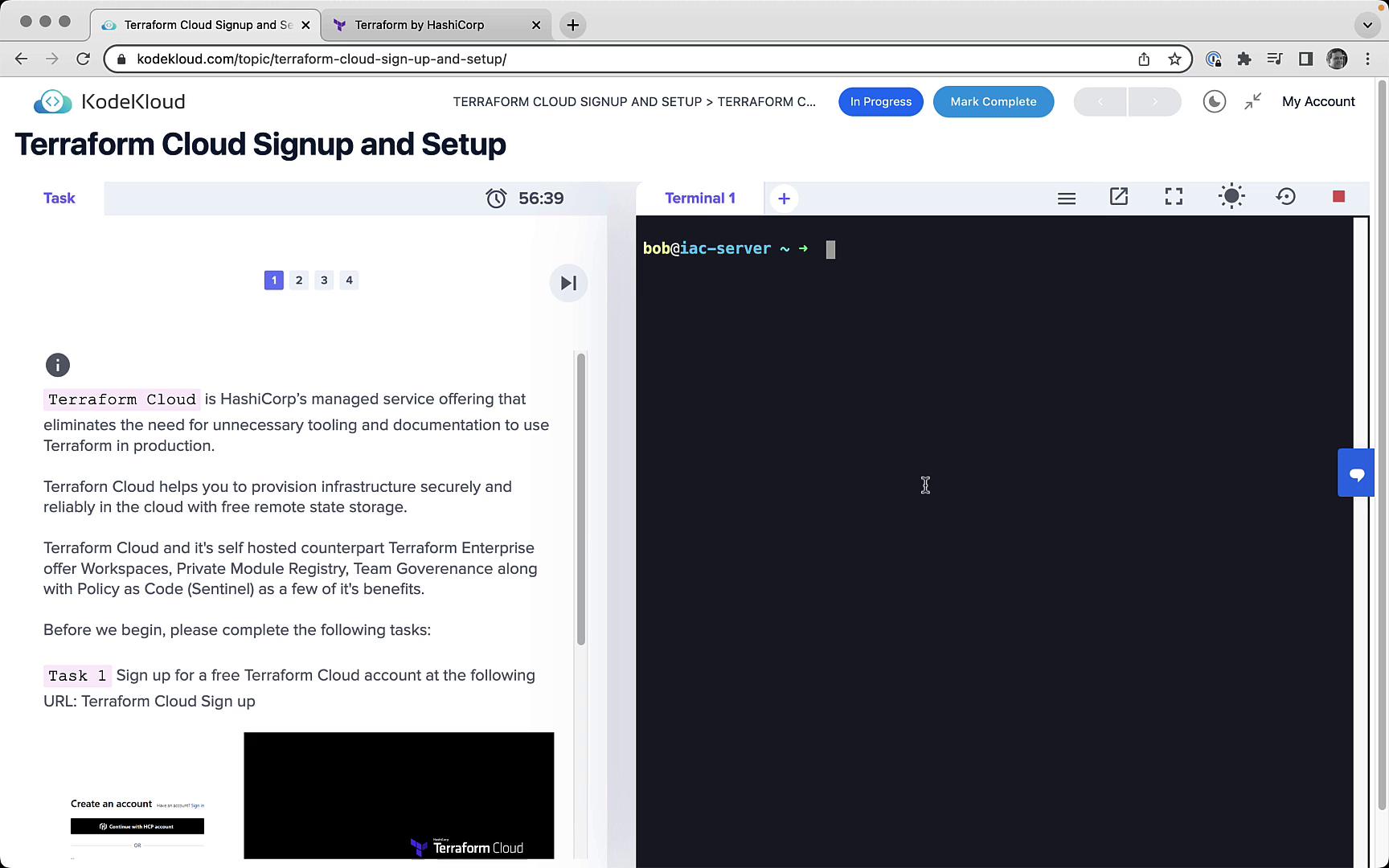
> This hands-on lab guides you through signing up for Terraform Cloud and integrating it with the Terraform CLI.
Welcome to this hands-on lab. In this guide, you’ll sign up for Terraform Cloud, create your first organization, and integrate the Terraform CLI with Terraform Cloud. By the end, you’ll be ready to manage infrastructure seamlessly across any cloud.
***
## Table of Contents
* [Task 1: Sign Up for Terraform Cloud](#task-1-sign-up-for-terraform-cloud)
* [Task 2: Create a Terraform Cloud Organization](#task-2-create-a-terraform-cloud-organization)
* [Task 3: Authenticate via the CLI](#task-3-authenticate-via-the-cli)
* [Summary of Tasks](#summary-of-tasks)
* [Links and References](#links-and-references)
***
## Task 1: Sign Up for Terraform Cloud
Begin by navigating to the Terraform website:
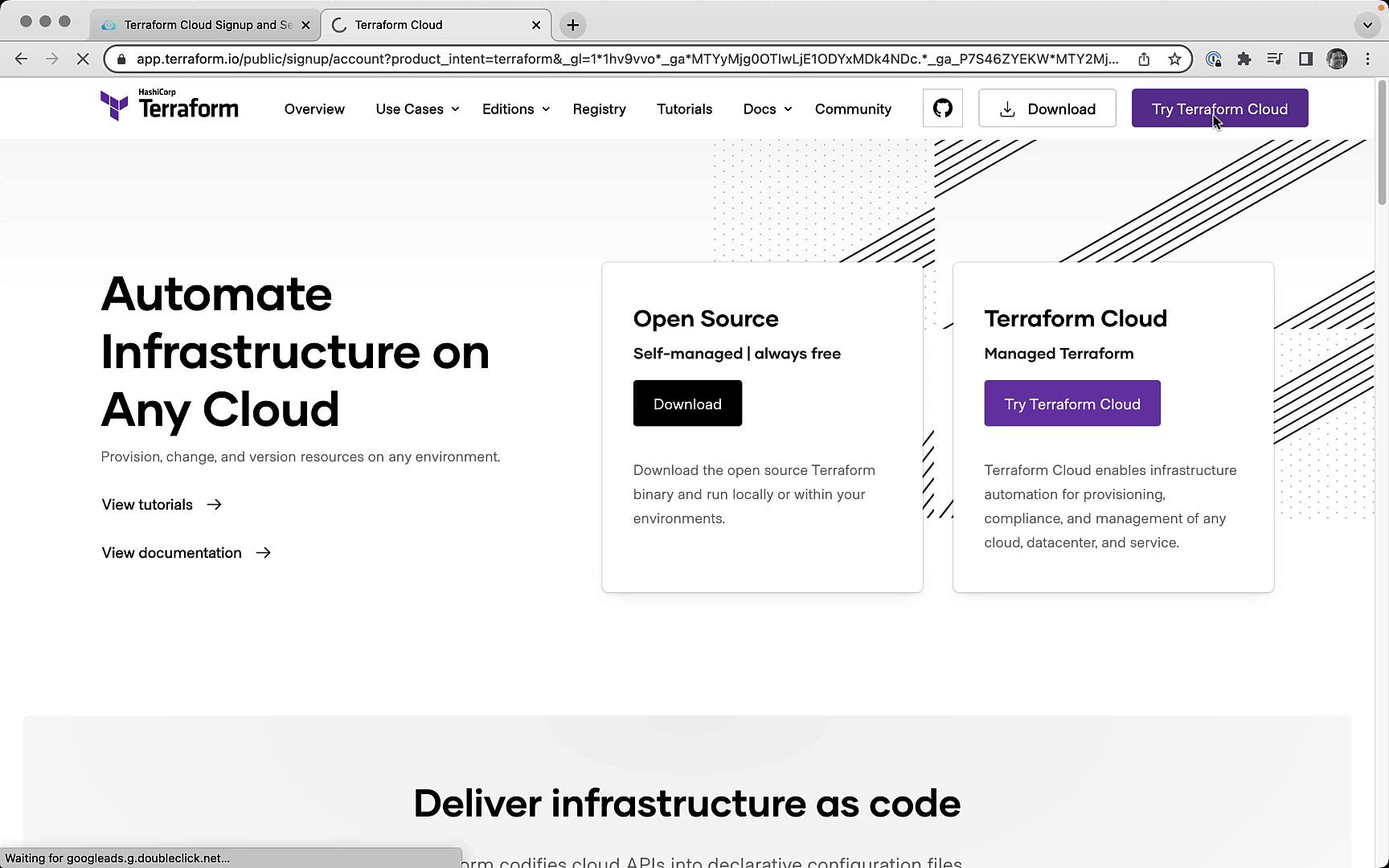
1. Go to terraform.io and click **Try Terraform Cloud**.
2. On the signup form, enter your desired **Username**, **Email**, and **Password**, then submit.
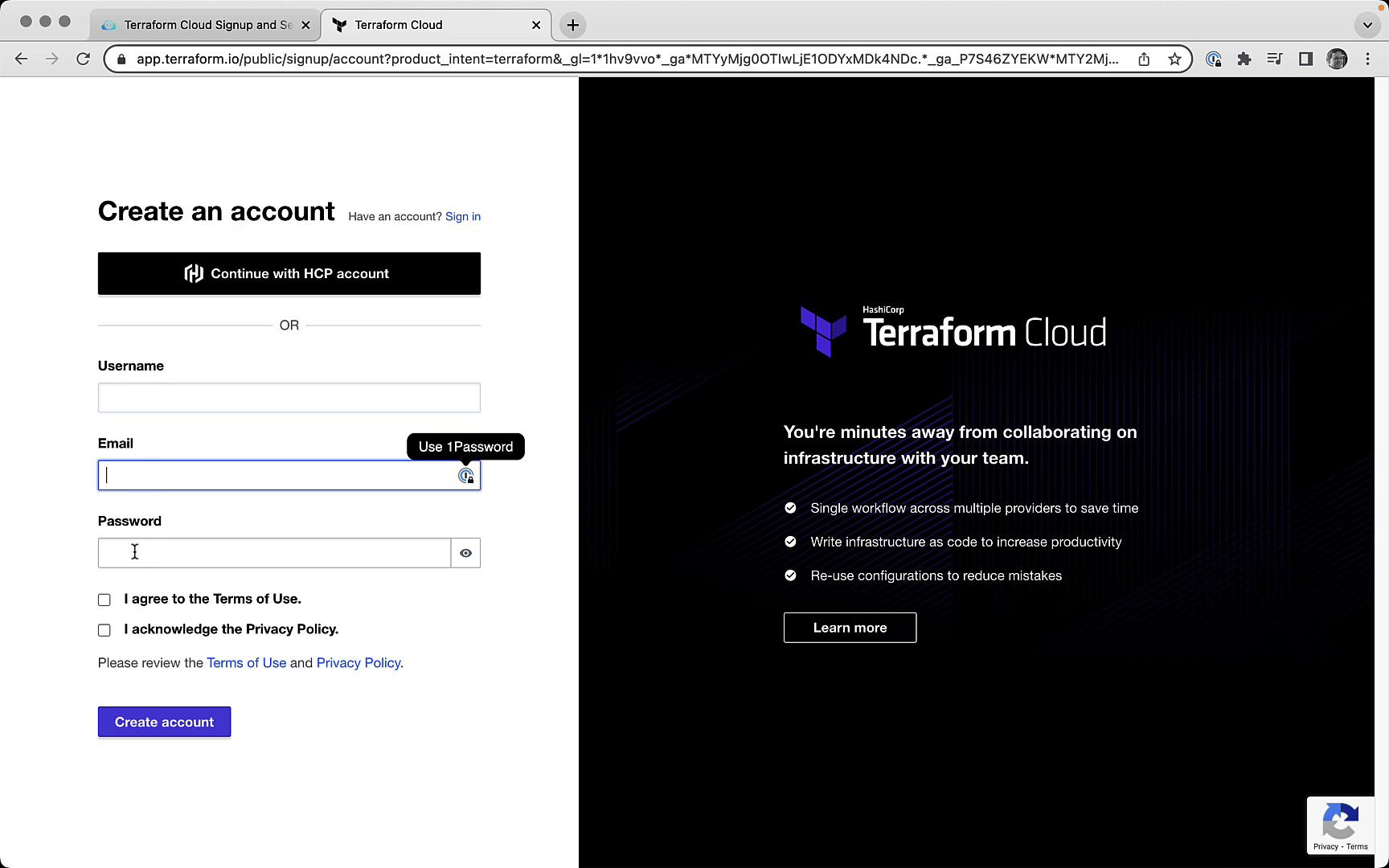
If you already have an account, click **Sign In** instead of creating a new one.
***
## Task 2: Create a Terraform Cloud Organization
Once you’re logged in, Terraform Cloud prompts you to create a new organization if none exists. Organization names must be unique across all Terraform Cloud users.
1. Enter a globally unique **Organization Name**.
2. Confirm your email address.
3. Click **Create organization**.
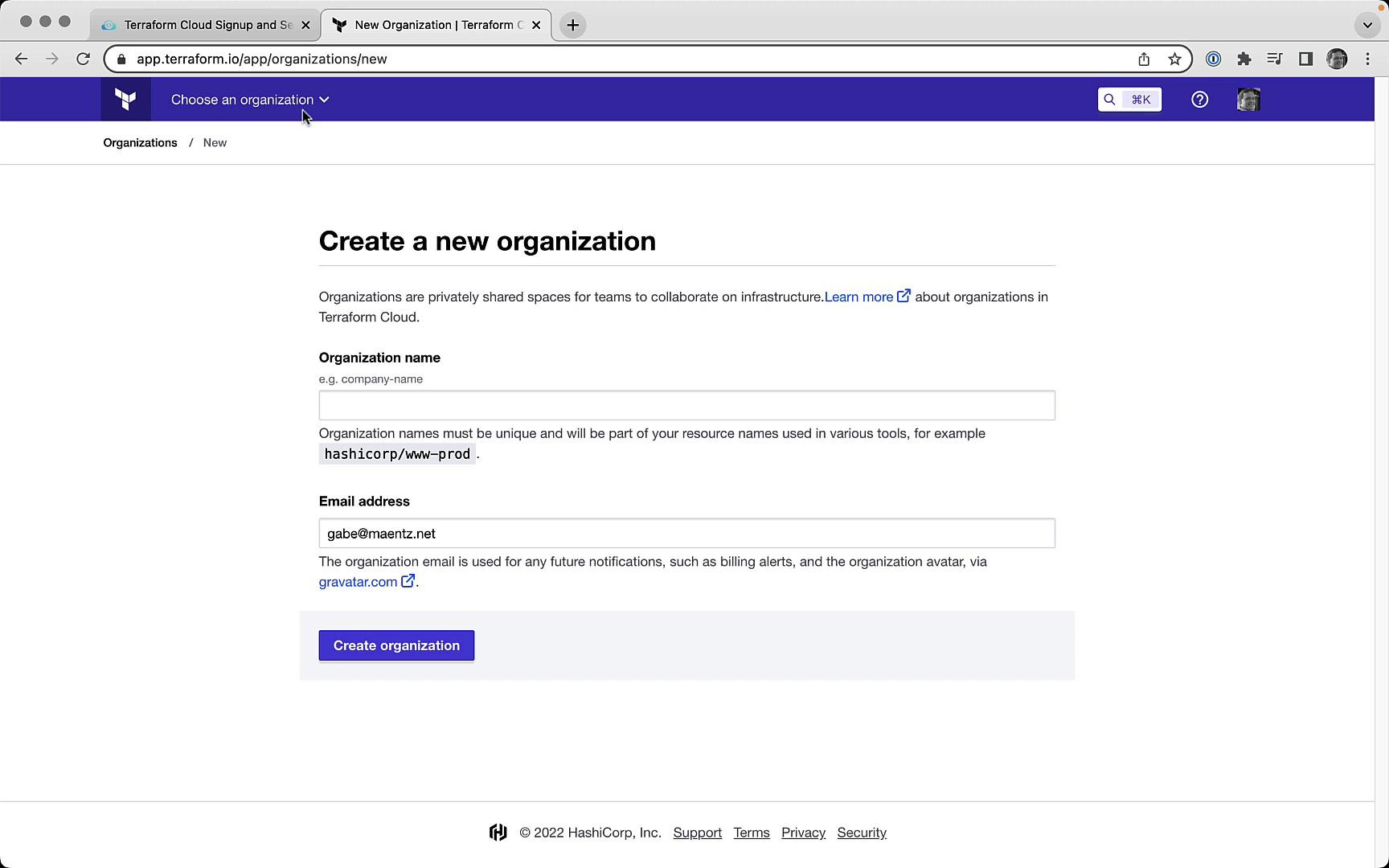
In this lab, our example org is named **Mastering Terraform Cloud**. You’ll see the new organization dashboard, ready for workspace and settings configuration.
***
## Task 3: Authenticate via the CLI
To link your local Terraform CLI to Terraform Cloud, generate an API token:
1. Run the login command in your terminal:
```bash theme={null}
terraform login
```
2. When prompted, confirm by typing `yes`:
```text theme={null}
Do you want to proceed?
Only 'yes' will be accepted to confirm.
Enter a value: yes
```
3. Terraform opens a browser window to the tokens page:
```text theme={null}
Open the following URL to access the tokens page for app.terraform.io:
https://app.terraform.io/app/settings/tokens?source=terraform-login
```
4. On the Terraform Cloud website, create a new token (e.g., **Terraform login – Mastering Terraform Cloud**) and copy it.
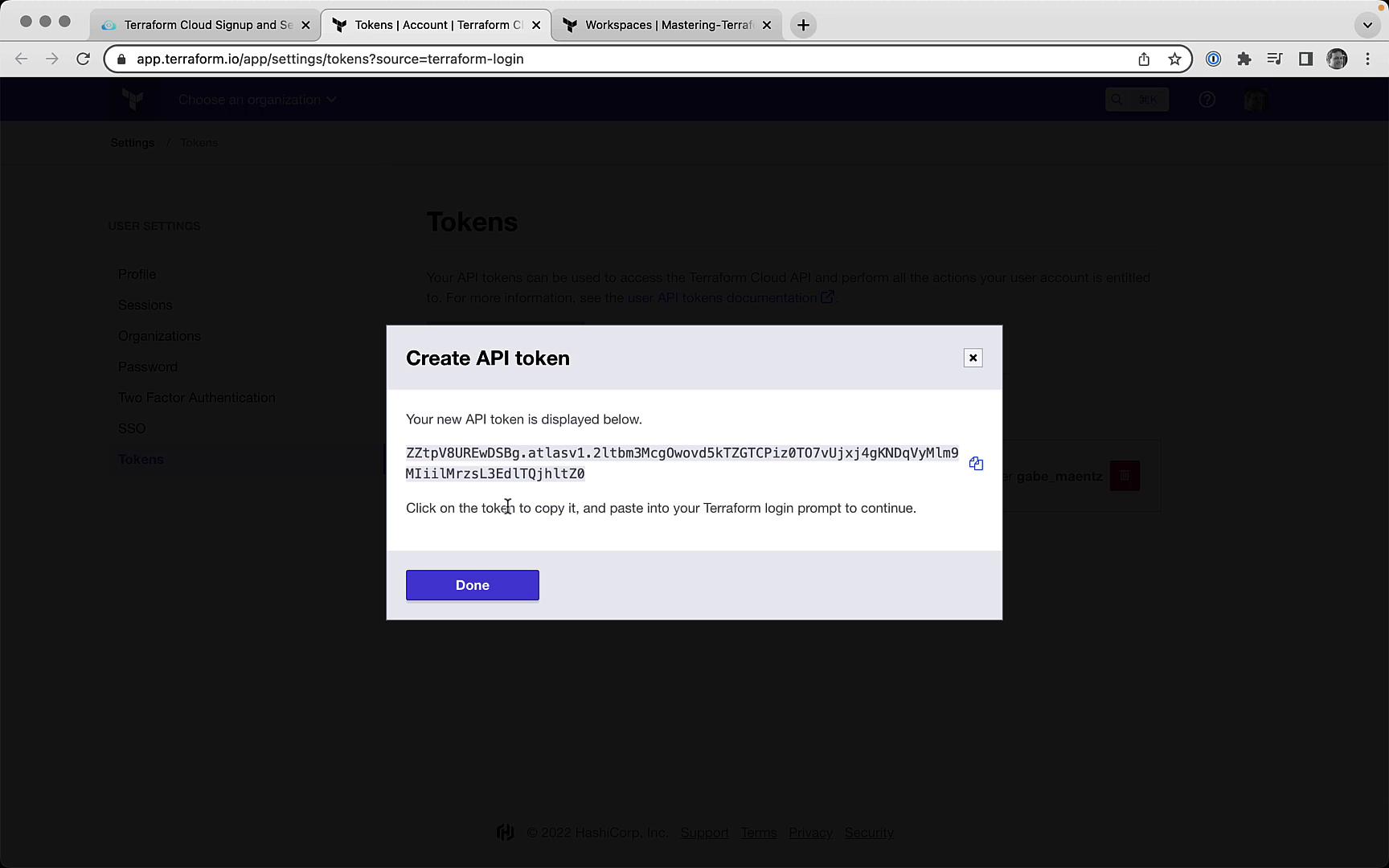
5. Paste the token back into the CLI (it will be hidden as you type):
```bash theme={null}
Token for app.terraform.io:
Enter a value:
```
Upon successful authentication, you’ll see a confirmation message:
```plaintext theme={null}
Retrieved token for user
Welcome to Terraform Cloud!
Documentation: terraform.io/docs/cloud
New to TFC? Follow these steps to instantly apply an example configuration:
$ git clone https://github.com/hashicorp/tfc-getting-started.git
$ cd tfc-getting-started
$ scripts/setup.sh
```
Your API token is stored in plain text at `~/.terraform.d/credentials.tfrc.json`. To remove it, run:
```bash theme={null}
terraform logout
```
***
## Summary of Tasks
| Task | Description |
| ------------------------------- | ------------------------------------------------------ |
| 1. Sign Up for Terraform Cloud | Create your free Terraform Cloud account |
| 2. Create a Terraform Cloud Org | Choose a unique name and confirm your email |
| 3. Authenticate via the CLI | Generate and store an API token for `app.terraform.io` |
***
## Links and References
* [Terraform Cloud Documentation](https://www.terraform.io/docs/cloud)
* [Terraform CLI Reference](https://www.terraform.io/docs/cli)
* [Terraform Getting Started Examples](https://github.com/hashicorp/tfc-getting-started)