> ## Documentation Index
> Fetch the complete documentation index at: https://notes.kodekloud.com/llms.txt
> Use this file to discover all available pages before exploring further.

# Lab Solution Teams

> Learn to implement role-based access control using Terraform Cloud Teams, including team creation, user invitations, and workspace permissions.

Welcome back! In this lab, you’ll learn how to implement role-based access control (RBAC) using Terraform Cloud Teams. By the end of this walkthrough, you will be able to:

* Upgrade your Terraform Cloud plan to Team & Governance
* Create and configure teams (`org_admins`, `app_developers`, `managers`)
* Invite users and assign them to the correct teams
* Grant workspace permissions across development, staging, and production

Let’s dive in.

## 1. Upgrade to Team & Governance Plan

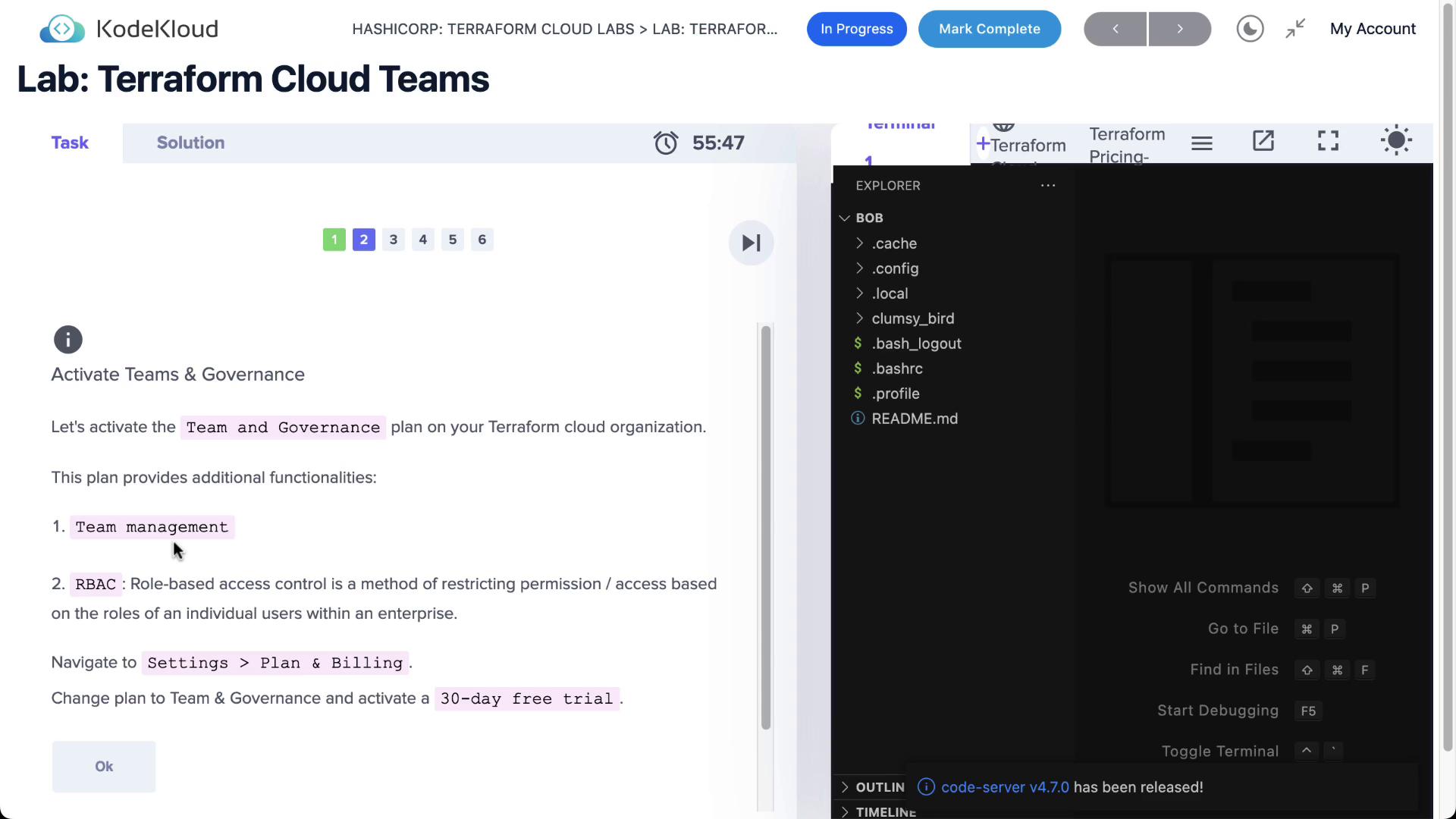
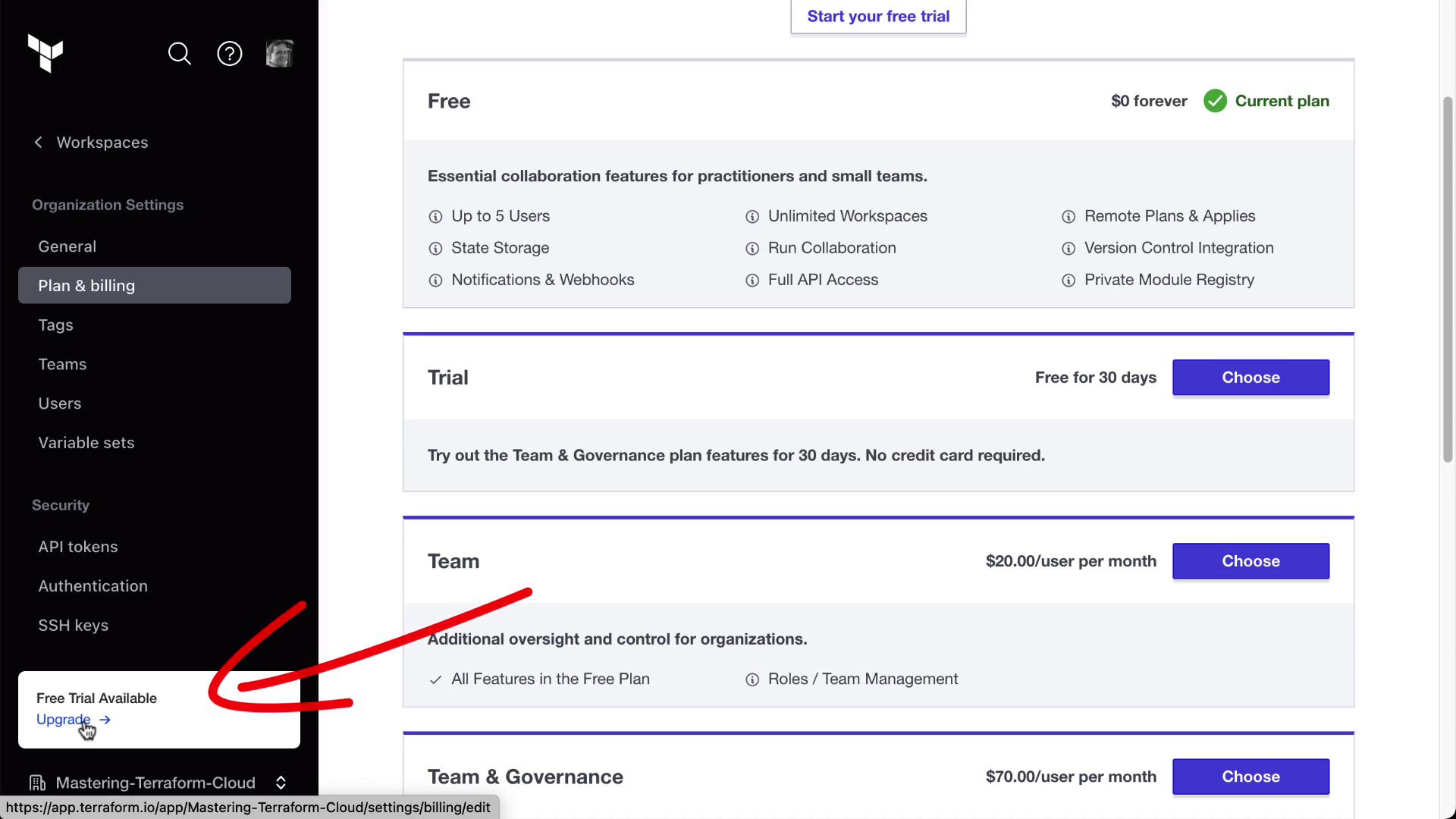
Terraform Cloud’s free tier does not support teams. To enable Teams & Governance features:

1. Go to your Terraform Cloud organization.
2. Navigate to **Organization Settings > Plan & billing**.
3. Select **Team & Governance** and click **Start free trial**.
<Frame>
  ![The image shows a KodeKloud lab interface for Terraform Cloud Teams, with instructions on activating the "Team and Governance" plan and a file explorer on the right.](https://kodekloud.com/kk-media/image/upload/v1752878851/notes-assets/images/HashiCorp-Terraform-Cloud-Lab-Solution-Teams/kodekloud-terraform-cloud-teams-lab.jpg)
</Frame>

<Frame>
  ![The image shows a pricing plan page for a software service, detailing different subscription options including Free, Trial, Team, and Team & Governance plans. The sidebar highlights the "Plan & billing" section, and there's an arrow pointing to a "Free Trial Available" upgrade option.](https://kodekloud.com/kk-media/image/upload/v1752878853/notes-assets/images/HashiCorp-Terraform-Cloud-Lab-Solution-Teams/pricing-plan-software-service-options.jpg)
</Frame>

<Callout icon="lightbulb" color="#1CB2FE">
  HashiCorp offers a 30-day trial for Team & Governance. Once activated, you can create and manage teams under **Organization Settings > Teams**.
</Callout>

## 2. Create Your Teams

Terraform Cloud ships with a default **owners** team. We’ll add three more:

| Team            | Org-Level Access                               | Purpose                        |
| --------------- | ---------------------------------------------- | ------------------------------ |
| org\_admins     | Full (policies, workspaces, VCS, SSO, billing) | Organization administrators    |
| app\_developers | None                                           | Application development        |
| managers        | None                                           | Oversight and read-only review |

### Steps to Add Teams

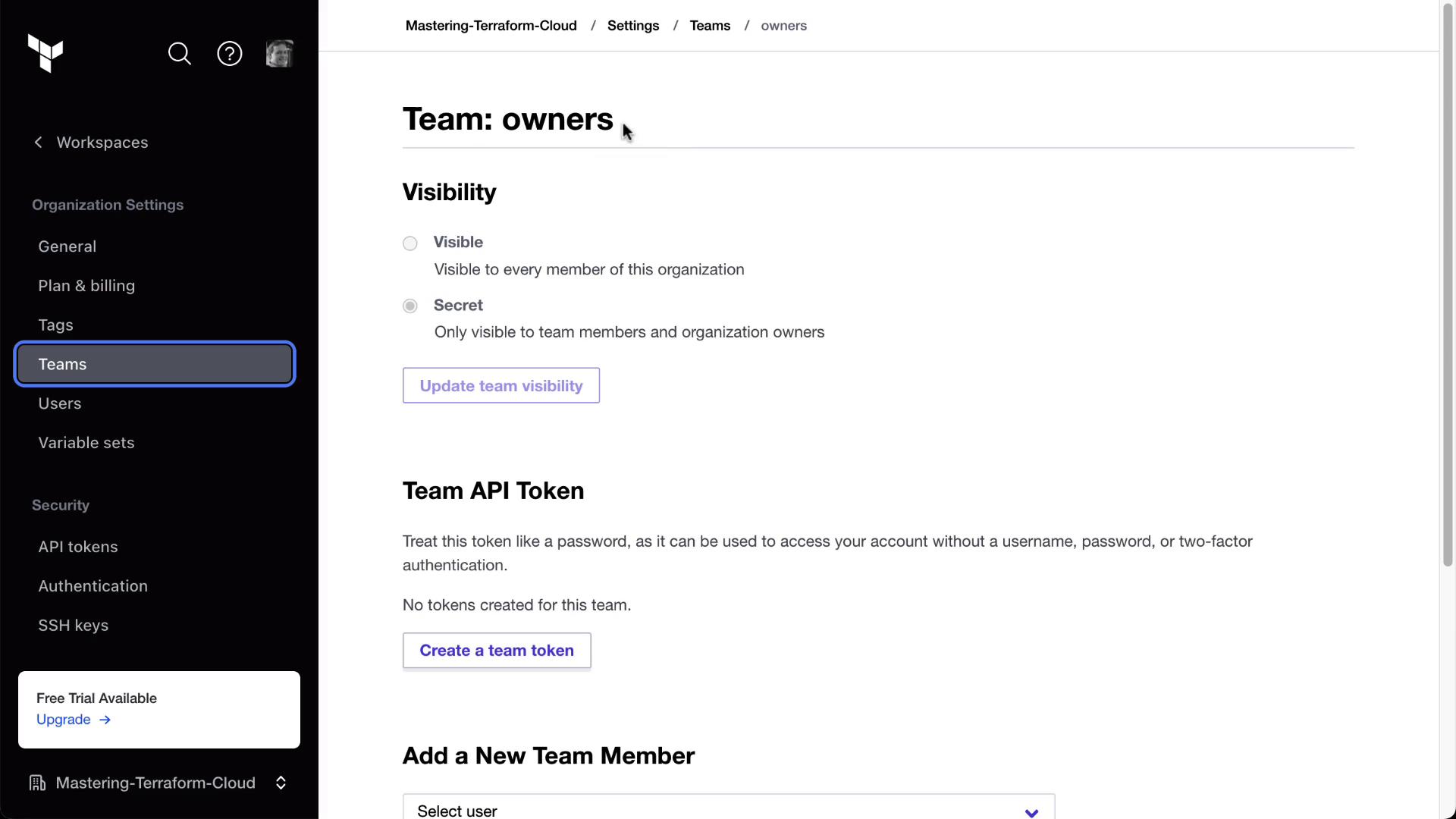
1. In Terraform Cloud, go to **Organization Settings > Teams**.
<Frame>
  ![The image shows a settings page for a team named "owners" in a cloud management interface, with options for visibility, API token creation, and adding new team members. The sidebar includes navigation options like Workspaces, Organization Settings, and Security.](https://kodekloud.com/kk-media/image/upload/v1752878854/notes-assets/images/HashiCorp-Terraform-Cloud-Lab-Solution-Teams/owners-team-settings-cloud-management.jpg)
</Frame>

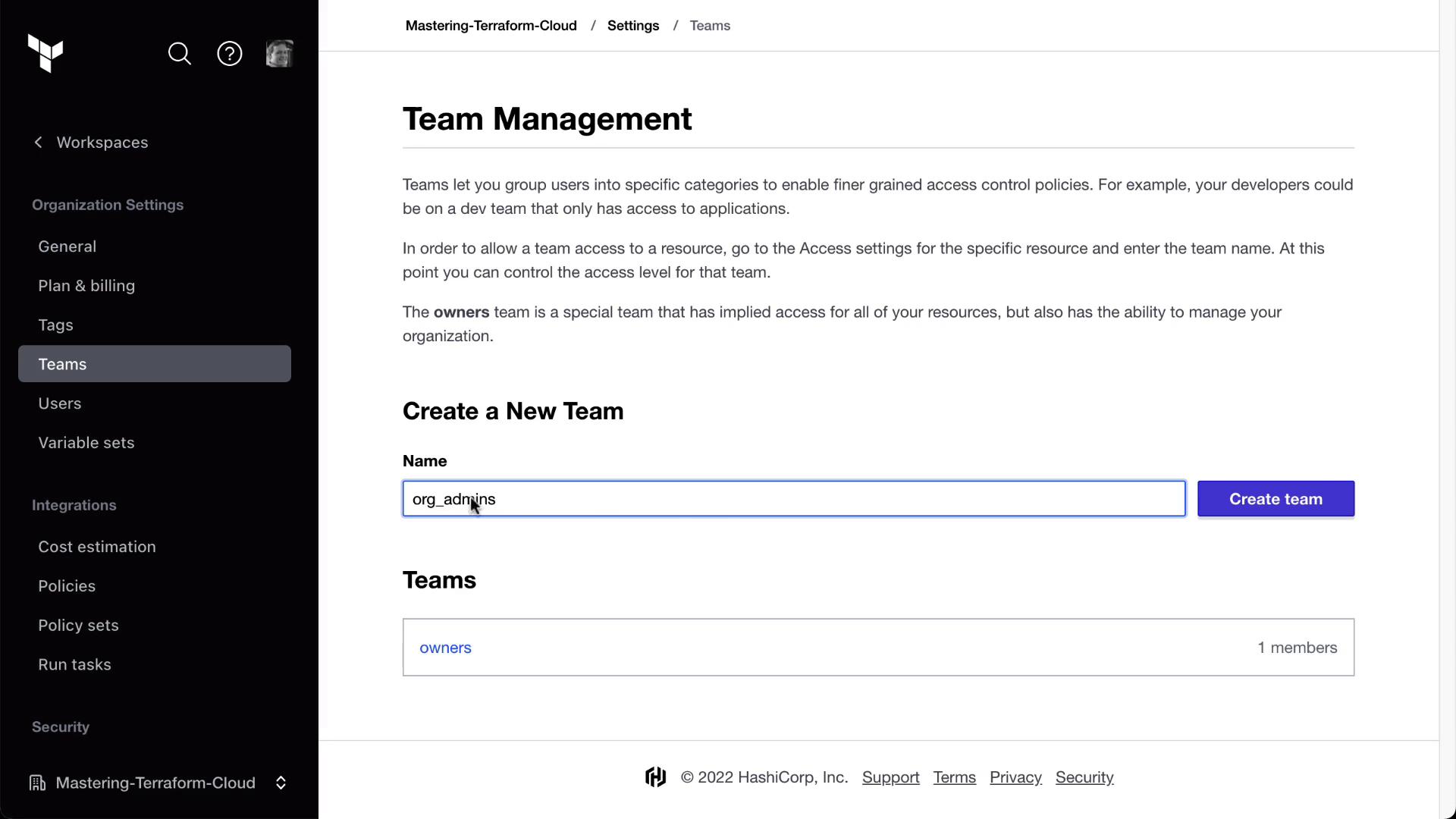
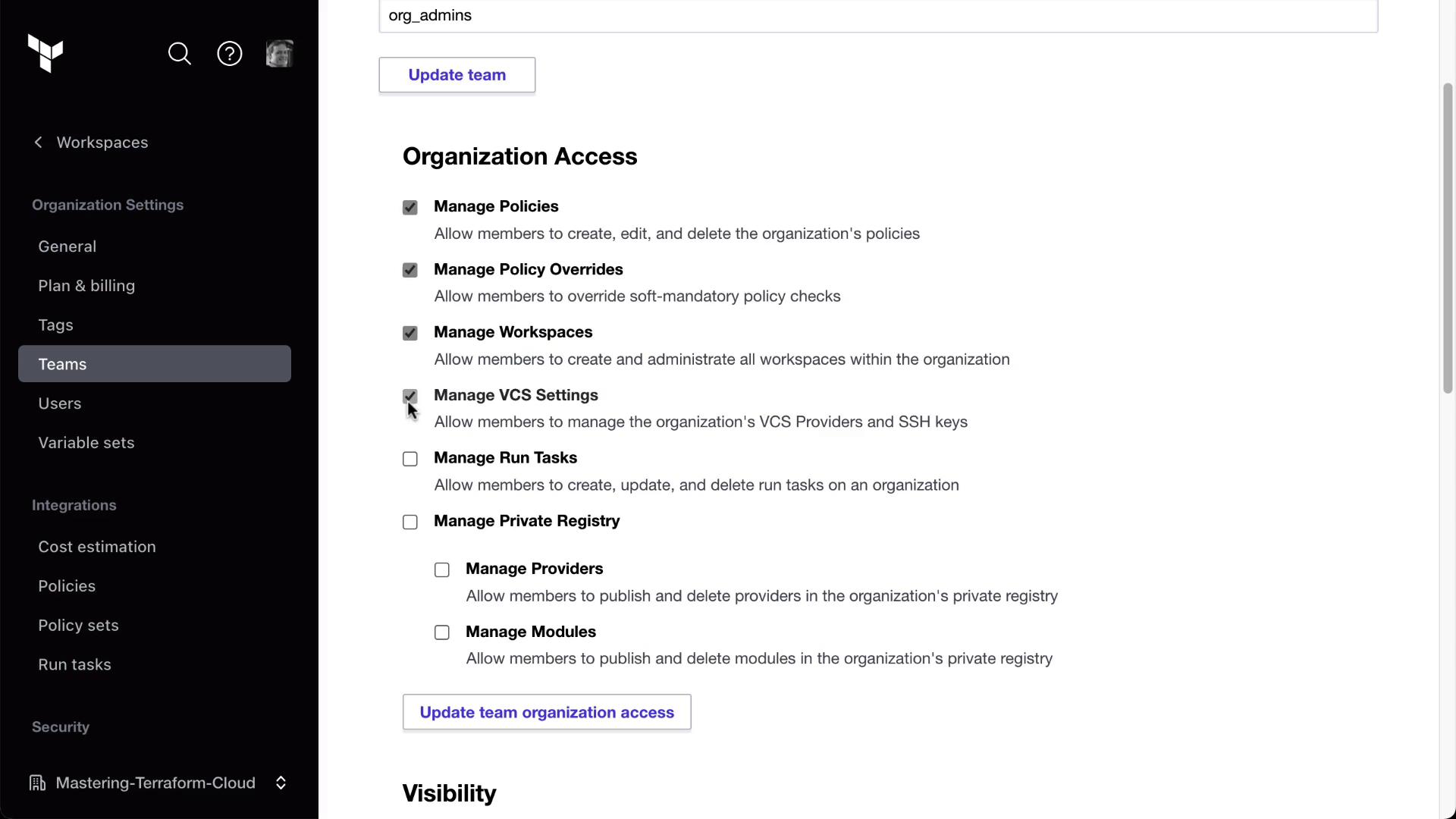
2. Click **New Team**, name it **org\_admins**, and grant the permissions shown here:
<Frame>
  ![The image shows a "Team Management" interface in a software application, where a new team named "org\_admins" is being created. The sidebar includes options like Workspaces, Organization Settings, and Integrations.](https://kodekloud.com/kk-media/image/upload/v1752878856/notes-assets/images/HashiCorp-Terraform-Cloud-Lab-Solution-Teams/team-management-org-admins-interface.jpg)
</Frame>

3. Under **Organization Access**, enable all checkboxes for policies, workspaces, VCS, SSO, and billing:
<Frame>
  ![The image shows a user interface for managing organization access settings, with options to manage policies, workspaces, VCS settings, and more. The left sidebar includes navigation options like Workspaces, Teams, and Users.](https://kodekloud.com/kk-media/image/upload/v1752878856/notes-assets/images/HashiCorp-Terraform-Cloud-Lab-Solution-Teams/organization-access-settings-ui-navigation.jpg)
</Frame>

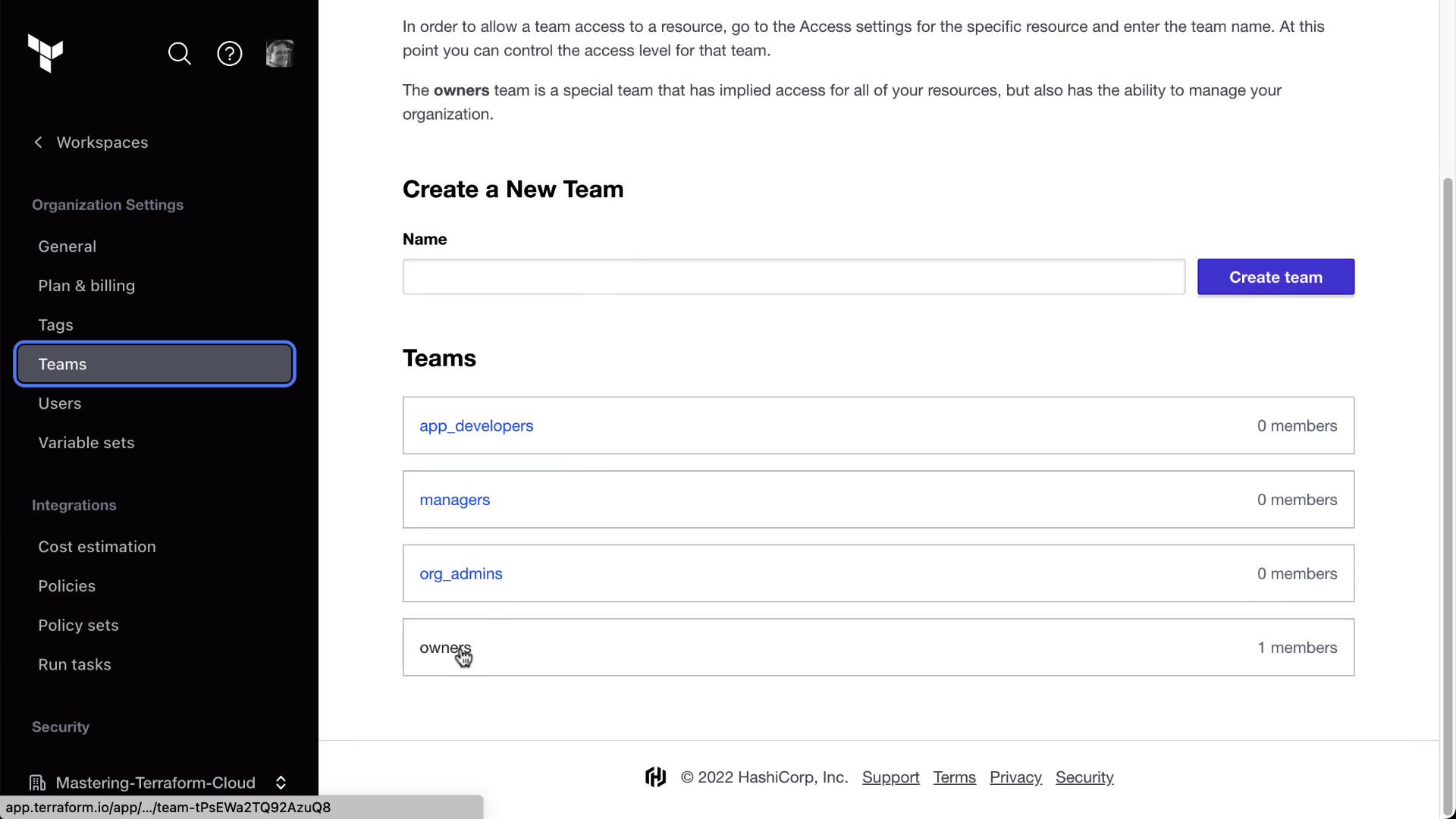
4. Repeat to create:
   * **app\_developers** (no org-level access)
   * **managers** (no org-level access)
<Frame>
  ![The image shows a user interface for managing teams in an application, with options to create a new team and a list of existing teams such as "app\_developers," "managers," "org\_admins," and "owners." The sidebar includes navigation options like "Workspaces," "Users," and "Integrations."](https://kodekloud.com/kk-media/image/upload/v1752878858/notes-assets/images/HashiCorp-Terraform-Cloud-Lab-Solution-Teams/team-management-user-interface-sidebar.jpg)
</Frame>

Your organization now has four teams: **owners**, **org\_admins**, **app\_developers**, and **managers**.

## 3. Invite Users

Add teammates by sending invites via email:

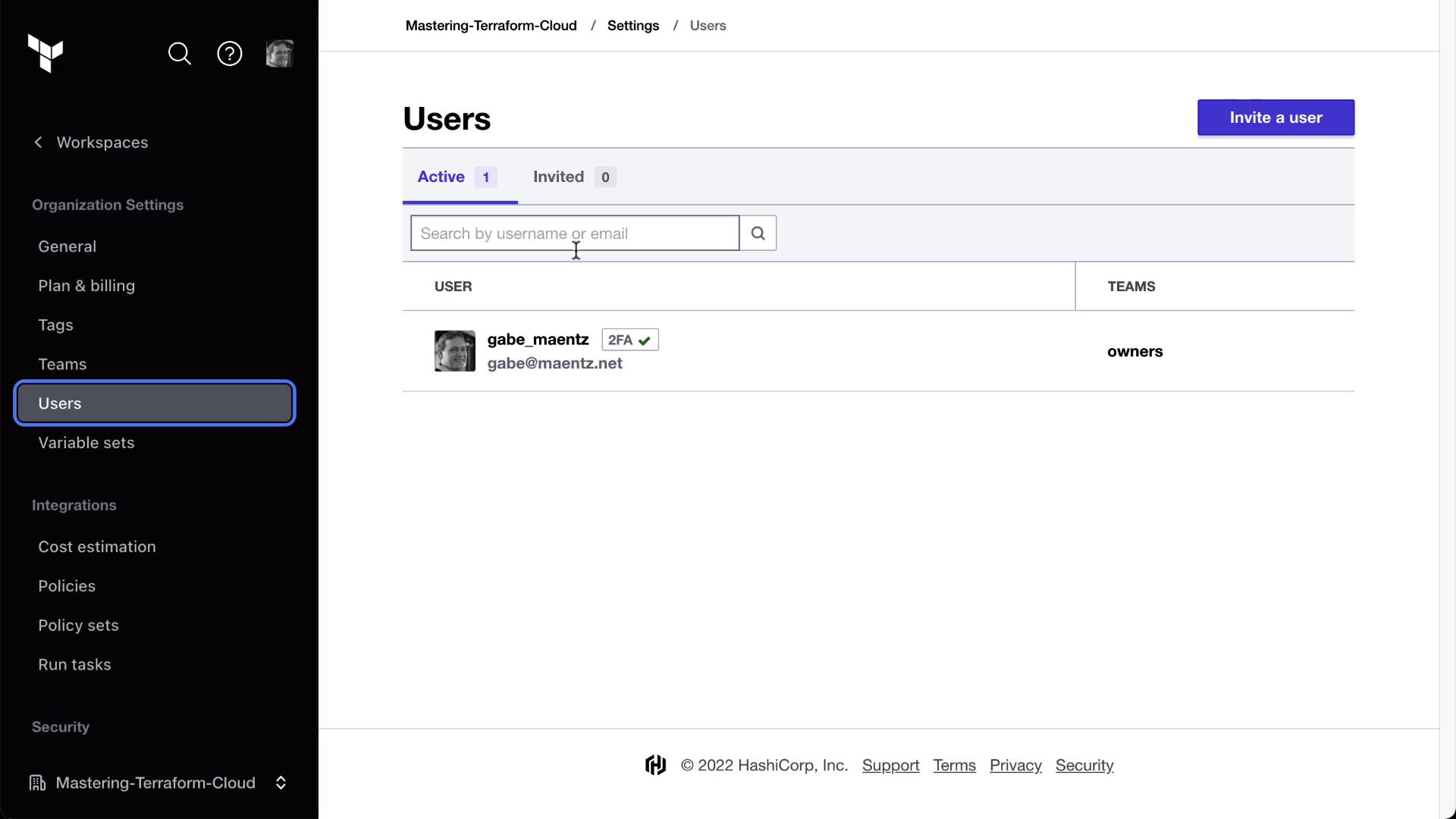
1. Go to **Organization Settings > Users** and click **Invite users**.
2. Enter the email (e.g., `bryan@example.com`) and assign the **app\_developers** team.
<Frame>
  ![The image shows a user management interface for "Mastering-Terraform-Cloud," displaying one active user with options to search, invite, and manage users. The sidebar includes navigation options like Workspaces, Organization Settings, and Security.](https://kodekloud.com/kk-media/image/upload/v1752878859/notes-assets/images/HashiCorp-Terraform-Cloud-Lab-Solution-Teams/mastering-terraform-cloud-user-management-interface.jpg)
</Frame>

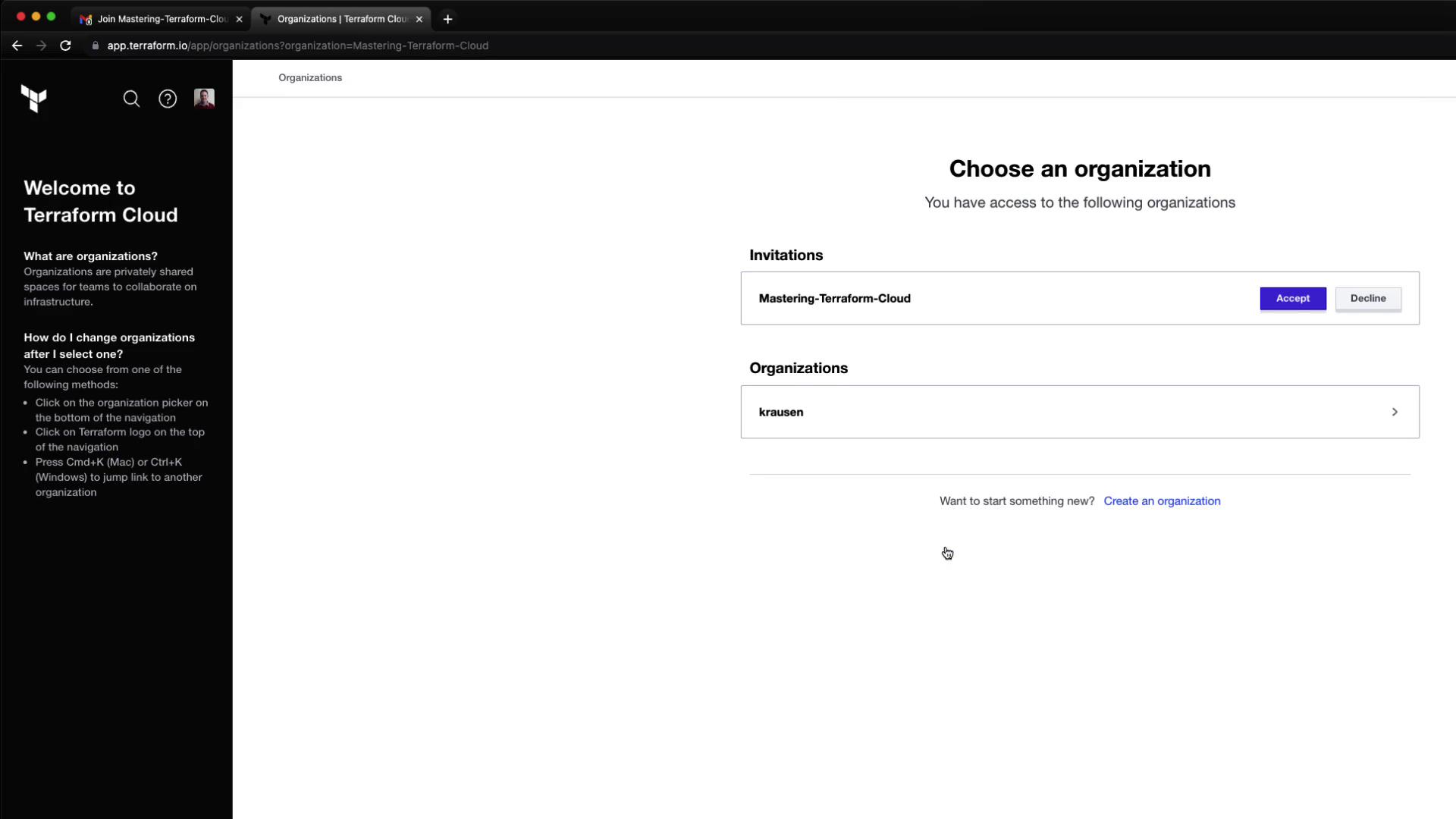
3. After Bryan accepts the email invitation, he’ll select your organization:
<Frame>
  ![The image shows a Terraform Cloud interface where a user can choose an organization, with options to accept or decline an invitation to "Mastering-Terraform-Cloud" and access the organization "krausen."](https://kodekloud.com/kk-media/image/upload/v1752878860/notes-assets/images/HashiCorp-Terraform-Cloud-Lab-Solution-Teams/terraform-cloud-interface-organization-options.jpg)
</Frame>

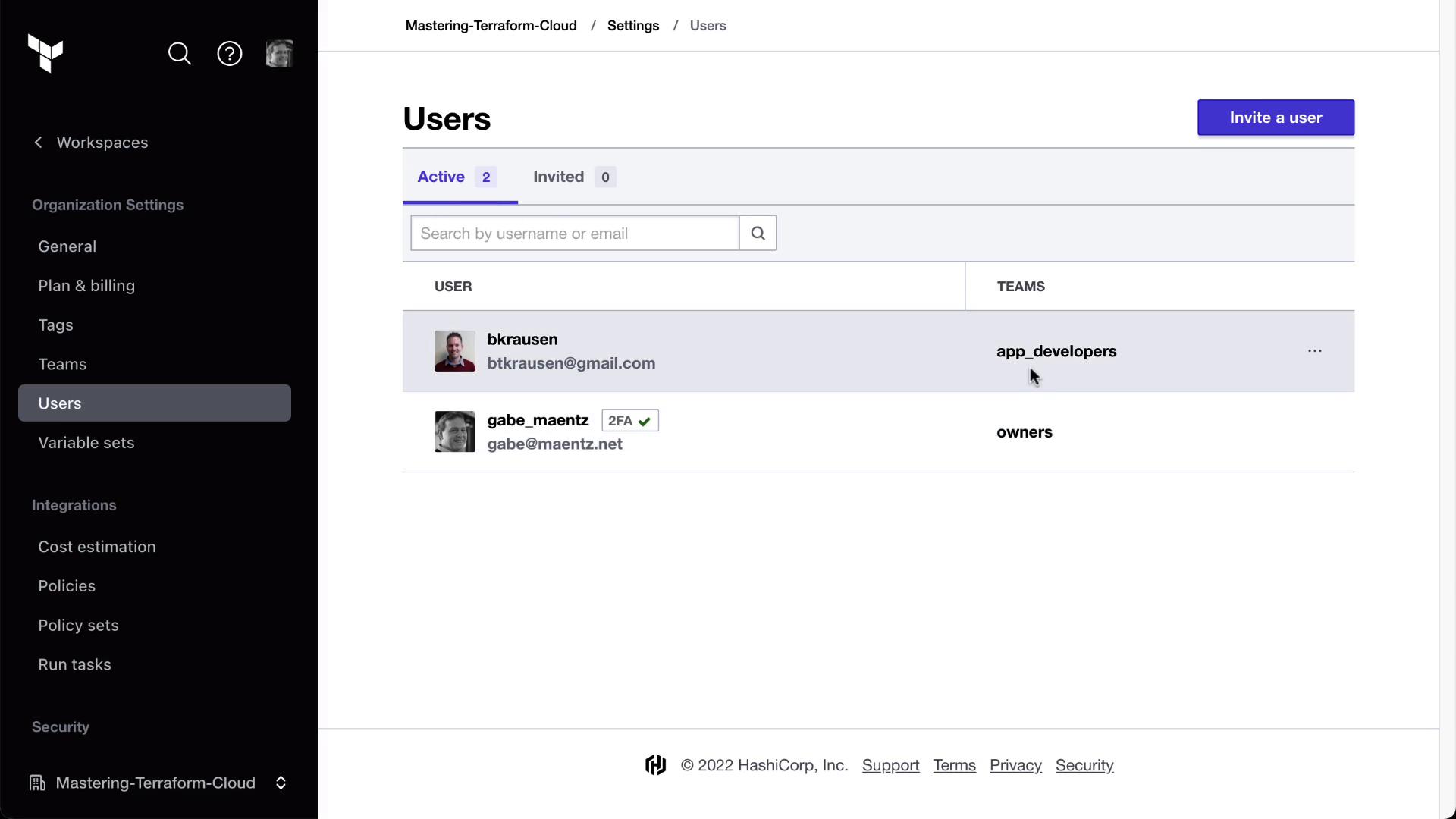
4. Confirm his membership under **Users**:
<Frame>
  ![The image shows a user management interface from a software application, listing active users and their associated teams. The sidebar includes options for workspaces, organization settings, integrations, and security.](https://kodekloud.com/kk-media/image/upload/v1752878861/notes-assets/images/HashiCorp-Terraform-Cloud-Lab-Solution-Teams/user-management-interface-active-users.jpg)
</Frame>

## 4. Configure Workspace Permissions

We’ll set up three workspaces—**MyAppDev**, **MyAppStaging**, and **MyAppProd**—with different roles for each team.

### 4.1. Development Workspace

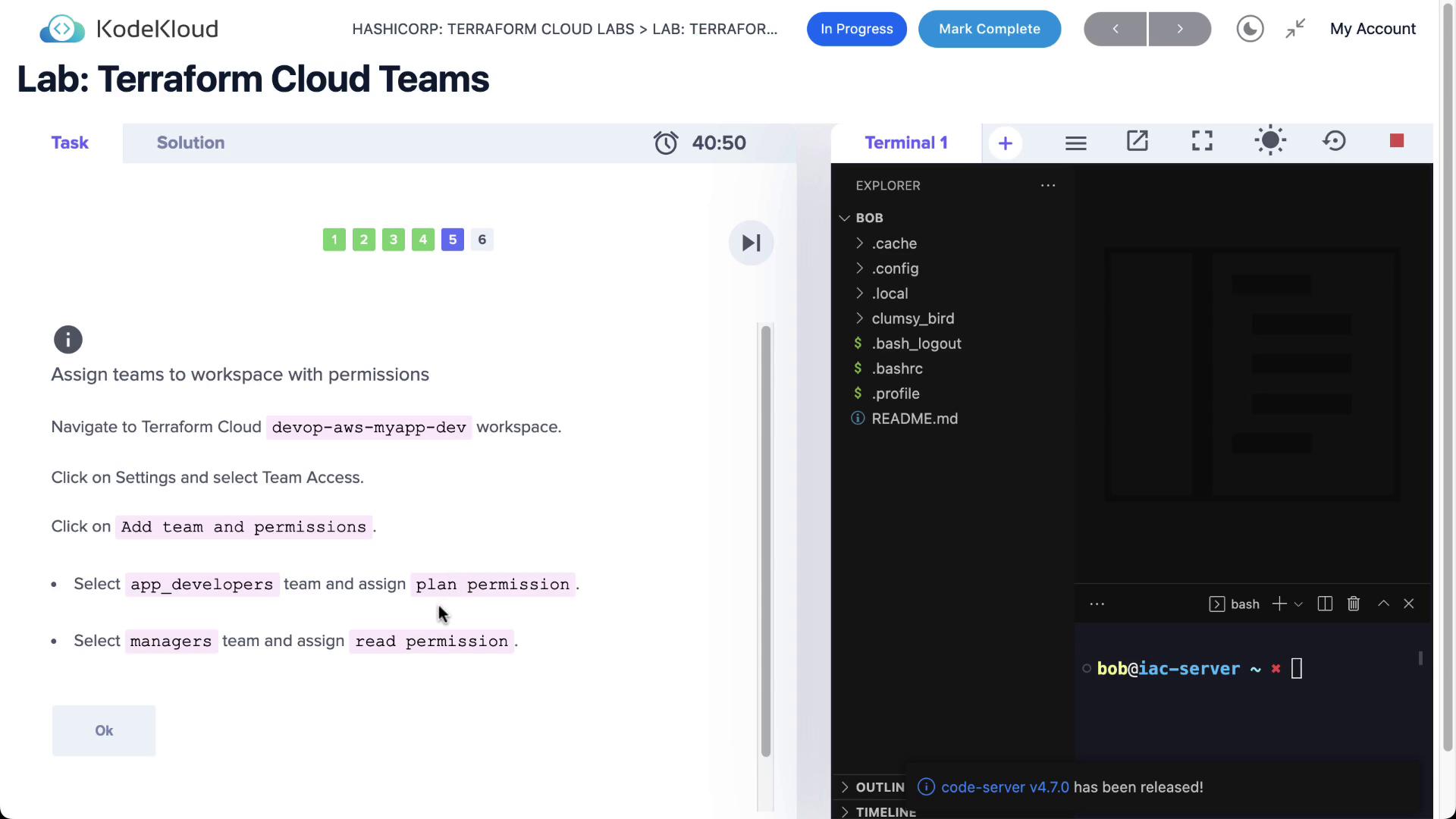
1. Open **MyAppDev > Settings > Team Access**.
<Frame>
  ![The image shows a KodeKloud lab interface for Terraform Cloud Teams, with instructions on assigning teams to a workspace with permissions. On the right, there's a terminal window displaying a file explorer and command line.](https://kodekloud.com/kk-media/image/upload/v1752878862/notes-assets/images/HashiCorp-Terraform-Cloud-Lab-Solution-Teams/kodekloud-terraform-cloud-teams-lab-3.jpg)
</Frame>

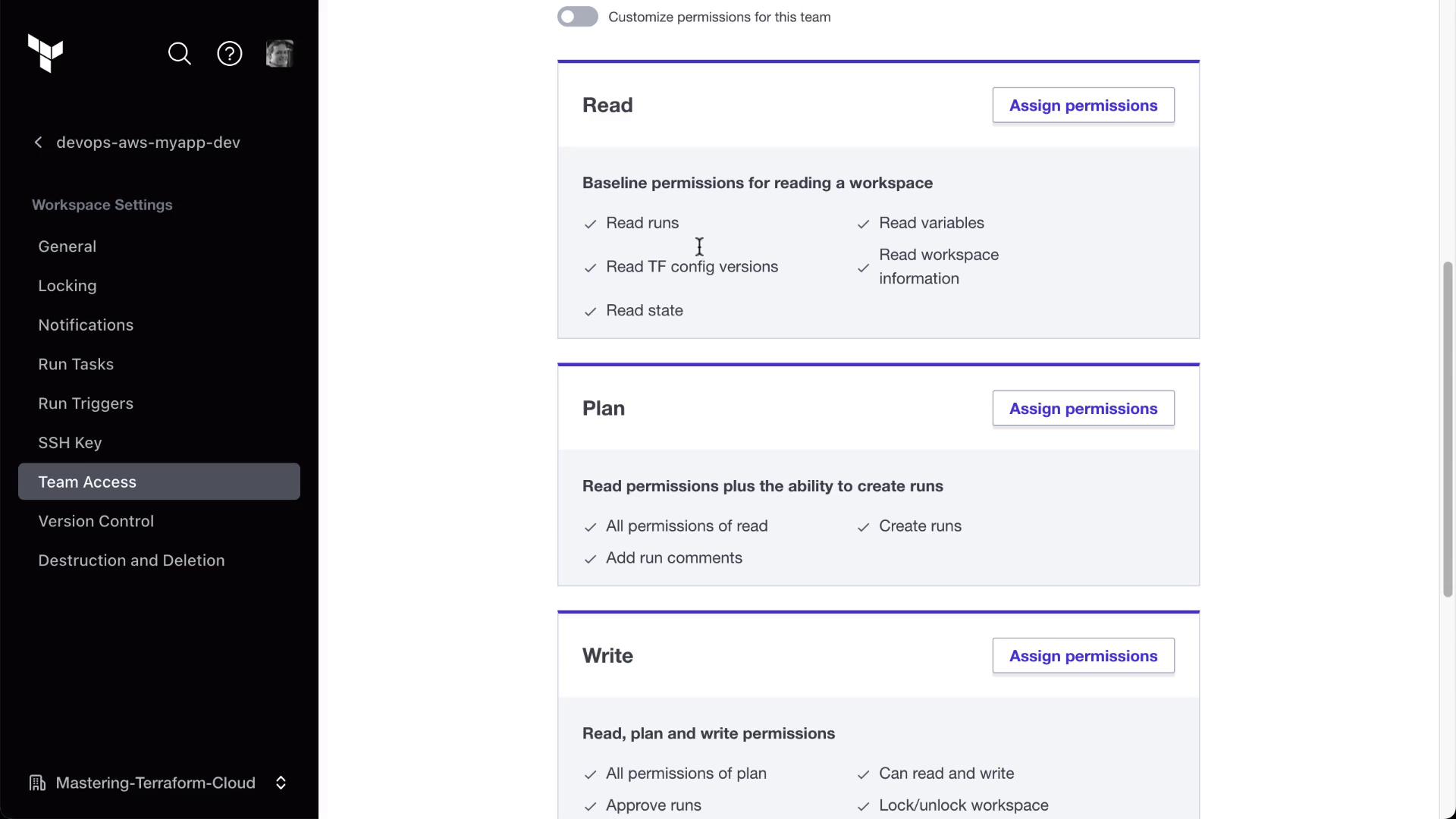
2. Assign:
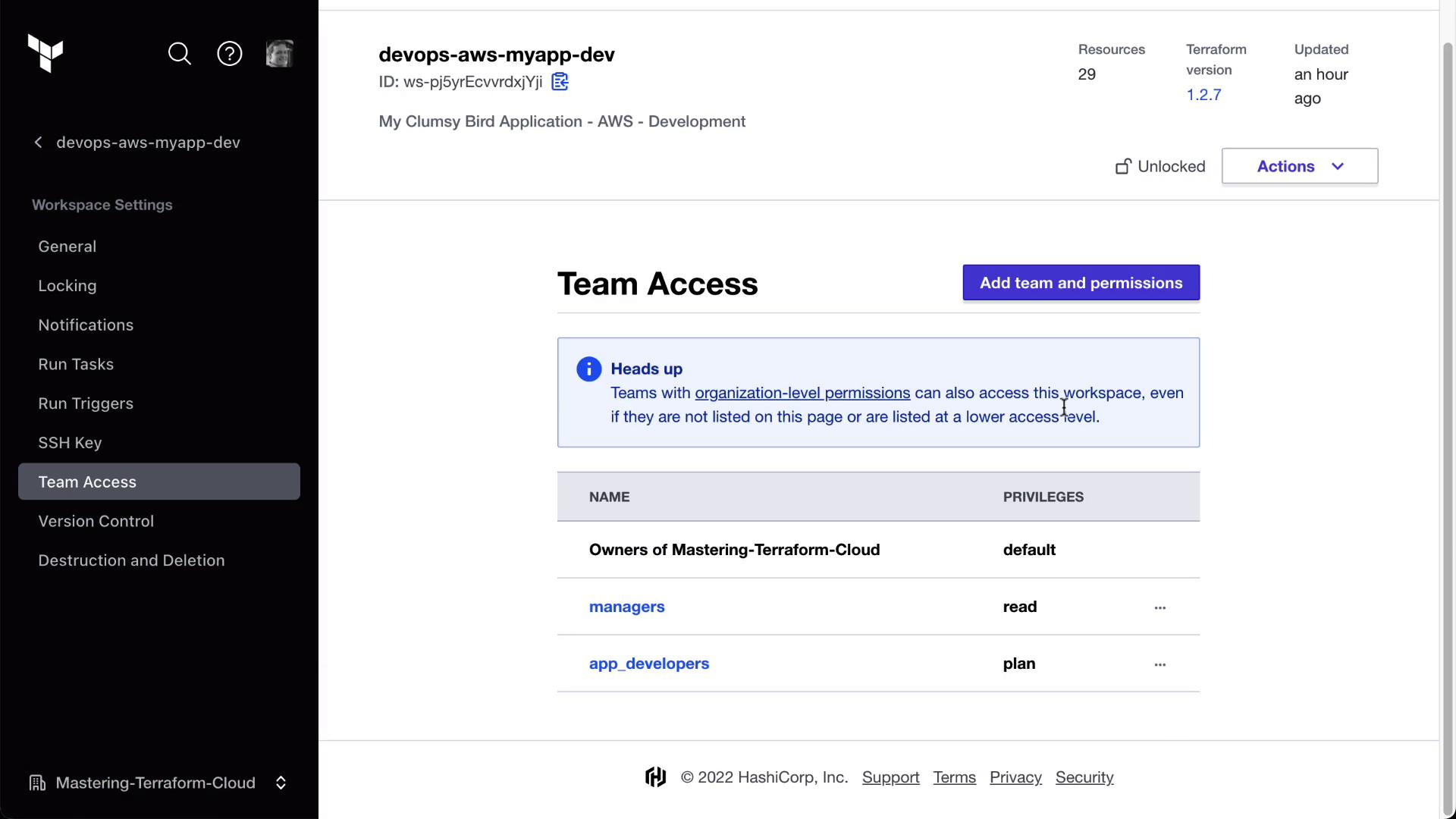
   * **app\_developers**: **plan** (read + run)
   * **managers**: **read**
<Frame>
  ![The image shows a user interface for managing team access permissions in a workspace, with options for reading, planning, and writing permissions. The sidebar includes various workspace settings like general, locking, notifications, and version control.](https://kodekloud.com/kk-media/image/upload/v1752878863/notes-assets/images/HashiCorp-Terraform-Cloud-Lab-Solution-Teams/team-access-permissions-ui-workspace.jpg)
</Frame>

3. Verify both teams appear with the correct roles:
<Frame>
  ![The image shows a "Team Access" page from a Terraform Cloud workspace, displaying team names and their access privileges. It includes a sidebar with various workspace settings options.](https://kodekloud.com/kk-media/image/upload/v1752878864/notes-assets/images/HashiCorp-Terraform-Cloud-Lab-Solution-Teams/team-access-terraform-cloud-workspace.jpg)
</Frame>

### 4.2. Staging Workspace

Repeat the same steps for **MyAppStaging**:

* **app\_developers**: plan
* **managers**: read

### 4.3. Production Workspace

For **MyAppProd**, assign read-only access to both teams:

1. **app\_developers**: **read**
2. **managers**: **read**
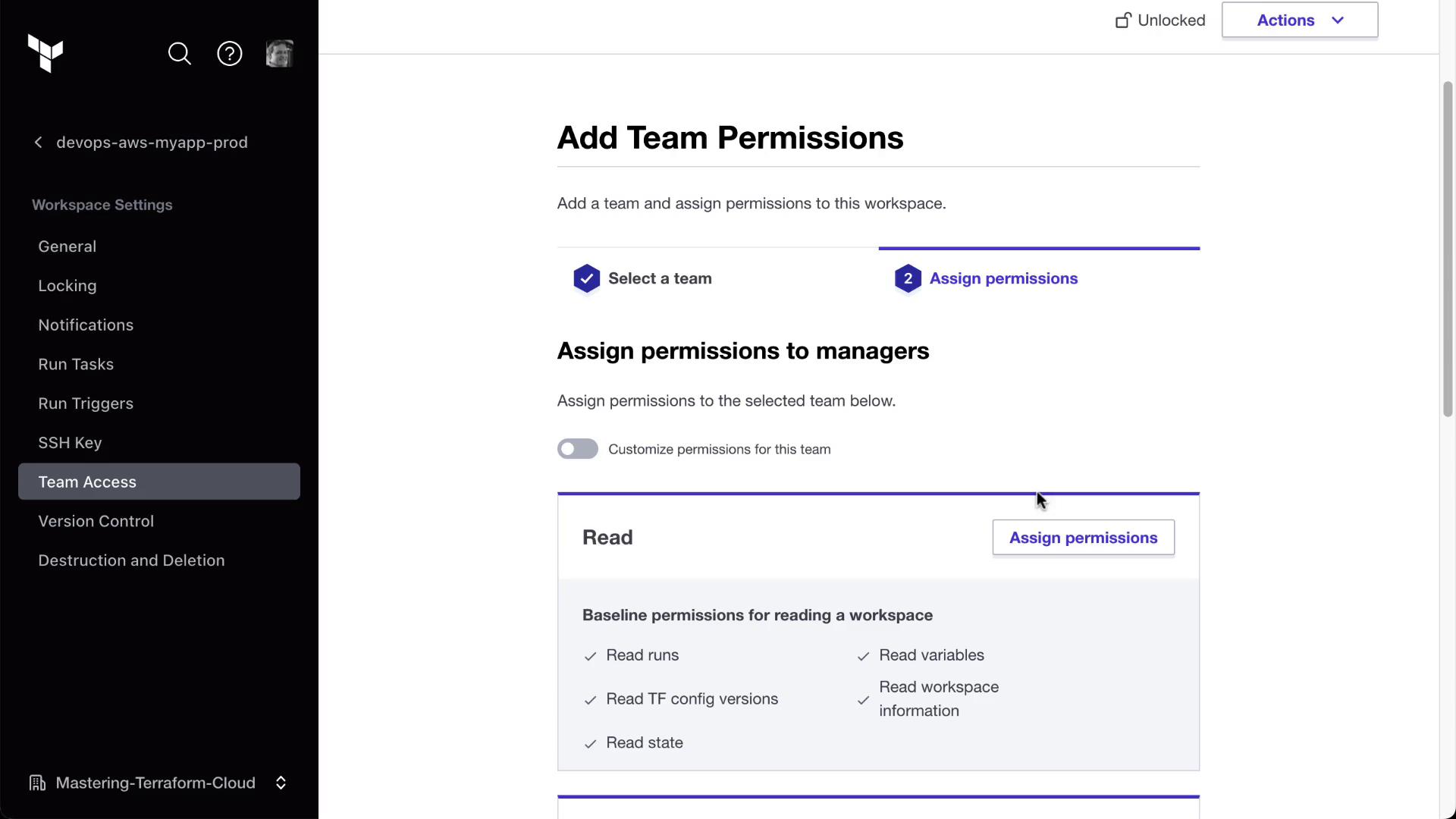
<Frame>
  ![The image shows a user interface for adding team permissions in a workspace, with options to assign permissions to managers and a list of baseline permissions for reading a workspace.](https://kodekloud.com/kk-media/image/upload/v1752878866/notes-assets/images/HashiCorp-Terraform-Cloud-Lab-Solution-Teams/team-permissions-workspace-ui-diagram.jpg)
</Frame>

3. Confirm on the **Team Access** page:
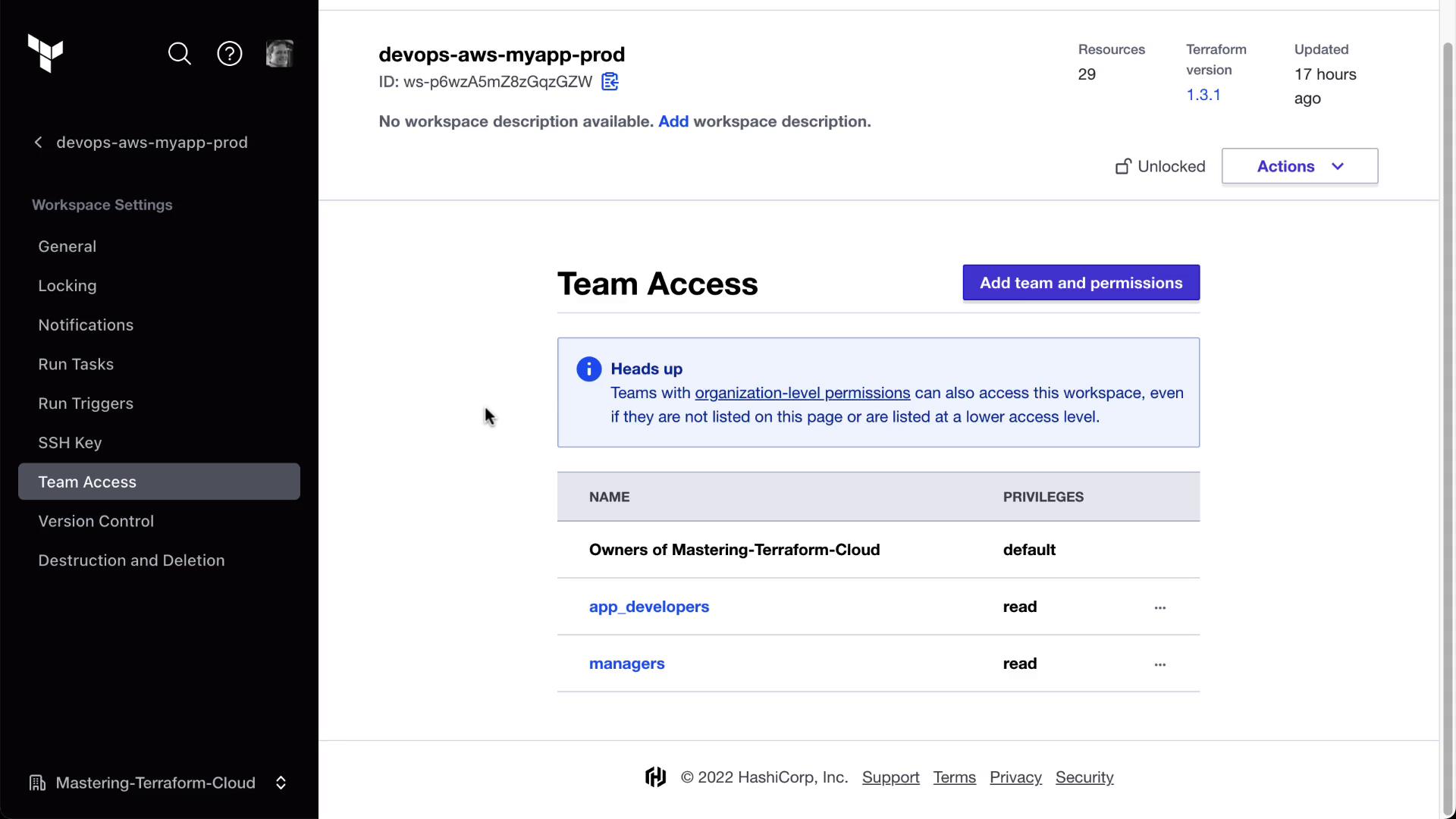
<Frame>
  ![The image shows a Terraform Cloud workspace interface with a focus on "Team Access" settings, listing teams and their access privileges. The sidebar includes options like General, Locking, Notifications, and more.](https://kodekloud.com/kk-media/image/upload/v1752878867/notes-assets/images/HashiCorp-Terraform-Cloud-Lab-Solution-Teams/terraform-cloud-workspace-team-access.jpg)
</Frame>

#### Workspace Permissions Overview

| Workspace   | app\_developers | managers |
| ----------- | --------------- | -------- |
| Development | plan            | read     |
| Staging     | plan            | read     |
| Production  | read            | read     |

<Callout icon="triangle-alert" color="#FF6B6B">
  Ensure you save permissions after each change. Unsaved changes will not apply to runs.
</Callout>

## 5. Verify as a Team Member

When Bryan logs in:

* **MyAppDev**: he can view state, variables, settings, and queue new plans.
* **MyAppStaging**: same plan/run capabilities.
* **MyAppProd**: only read access—no Queue plan or settings controls.
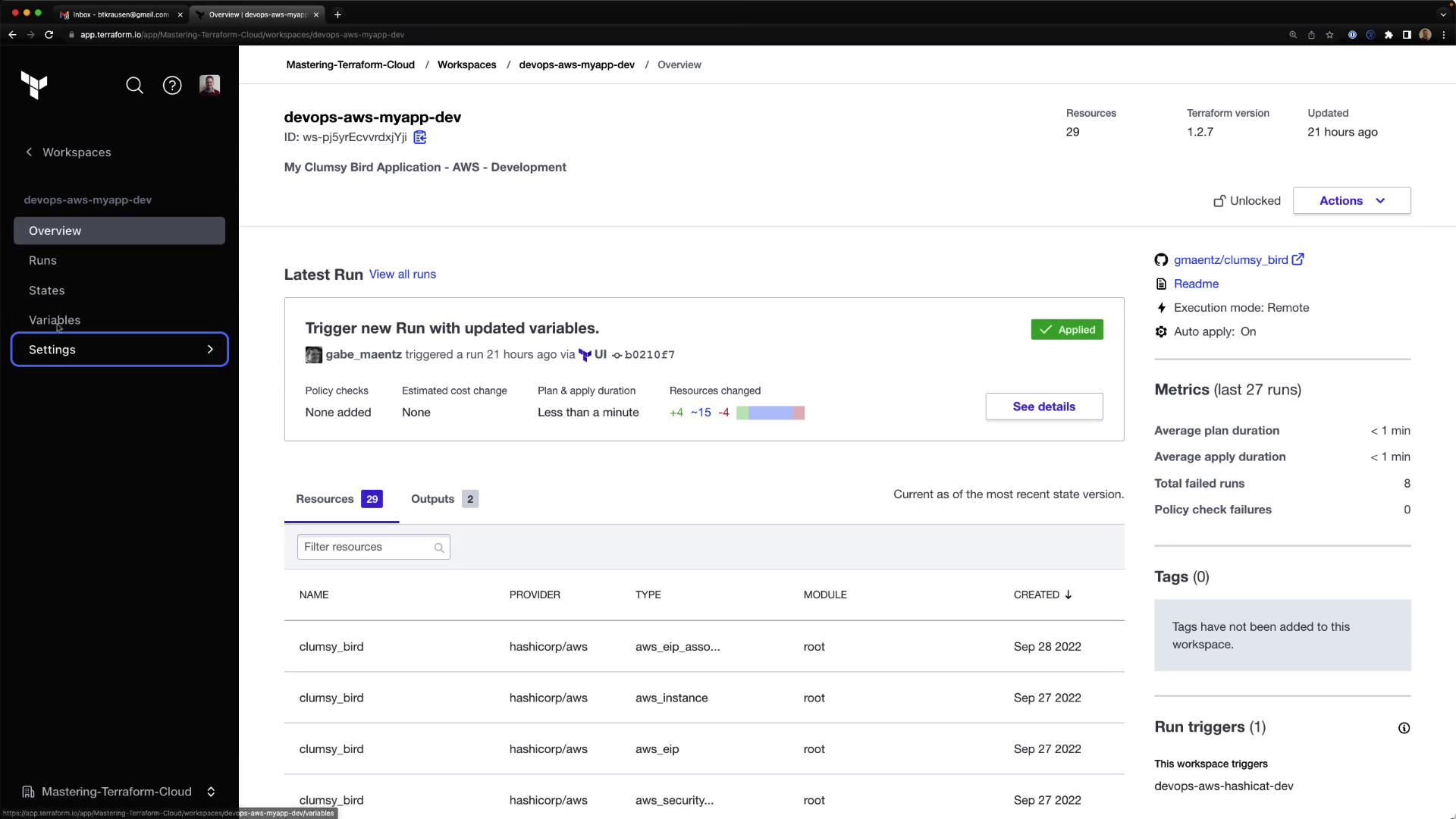
<Frame>
  ![The image shows a Terraform Cloud workspace dashboard for "devops-aws-myapp-dev," displaying details of the latest run, including resources, metrics, and settings options.](https://kodekloud.com/kk-media/image/upload/v1752878869/notes-assets/images/HashiCorp-Terraform-Cloud-Lab-Solution-Teams/terraform-cloud-workspace-devops-dashboard.jpg)
</Frame>

This confirms our RBAC setup is working as intended.

## Summary

In this lab, you have:

* Upgraded to the Team & Governance plan
* Created `org_admins`, `app_developers`, and `managers` teams
* Invited users and assigned them to the correct teams
* Set workspace-level permissions for development, staging, and production

Your Terraform Cloud organization now follows a secure, role-based access model.

## References

* [Terraform Cloud Teams & Governance](https://www.terraform.io/cloud/teams)
* [Terraform Cloud RBAC Documentation](https://www.terraform.io/docs/cloud/users-teams-organizations)
* [Terraform Cloud Workspace Permissions](https://www.terraform.io/docs/cloud/workspaces/access-controls)

<CardGroup>
  <Card title="Watch Video" icon="video" cta="Learn more" href="https://learn.kodekloud.com/user/courses/hashicorp-terraform-cloud/module/67f17e5e-a146-4781-9e8c-41ff866be20d/lesson/1a7eec2d-ed9b-40de-8742-e6e1d2248bec" />

  <Card title="Practice Lab" icon="installation" cta="Learn more" href="https://learn.kodekloud.com/user/courses/hashicorp-terraform-cloud/module/3b42de3b-671c-45be-9757-aff04c4af092/lesson/c07aee6c-8f5a-4473-af64-751cce236908" />
</CardGroup>
