> ## Documentation Index
> Fetch the complete documentation index at: https://notes.kodekloud.com/llms.txt
> Use this file to discover all available pages before exploring further.

# Lab Solution Version Control Branching and Workspaces

> This guide explains integrating Terraform Cloud with GitHub for managing infrastructure across development, staging, and production environments.

In this guide, you’ll learn how to integrate Terraform Cloud with GitHub to manage infrastructure across **development**, **staging**, and **production** environments. You will:

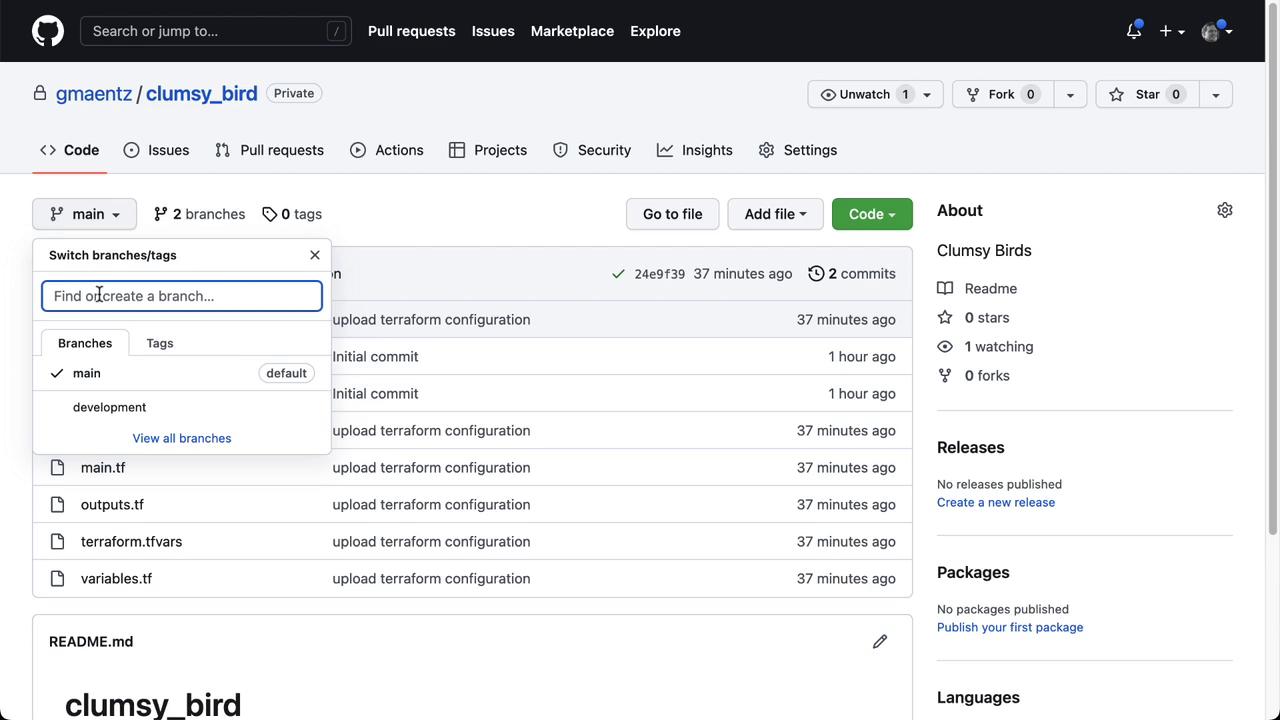
1. Create `development` and `staging` branches in GitHub
2. Configure a shared Terraform Cloud variable set for AWS credentials
3. Point the development workspace to the `development` branch
4. Provision a staging workspace on the `staging` branch
5. Trigger and verify runs in each workspace
6. Create a production workspace on the `main` branch
7. Confirm all workspaces and their run statuses

<Callout icon="lightbulb" color="#1CB2FE">
  * A Terraform Cloud organization and [Terraform CLI installed](https://developer.hashicorp.com/terraform/tutorials/aws-get-started/install-cli).
  * A GitHub repository (`clumsy_bird`) containing your Terraform configurations.
</Callout>

***

## 1. Create Development and Staging Branches

Clone your GitHub repository, then create and push the feature branches:

```bash theme={null}
git clone https://github.com/your-org/clumsy_bird.git
cd clumsy_bird
git checkout -b development
git push -u origin development
git checkout main
git checkout -b staging
git push -u origin staging
```

Alternatively, use the GitHub UI to add the `development` and `staging` branches.
<Frame>
  ![The image shows a GitHub repository page with a branch selection dropdown open, displaying branches "main" and "development." The repository is named "clumsy\_bird" and contains several Terraform configuration files.](https://kodekloud.com/kk-media/image/upload/v1752878912/notes-assets/images/HashiCorp-Terraform-Cloud-Lab-Solution-Version-Control-Branching-and-Workspaces/github-repo-clumsy-bird-branches-dropdown.jpg)
</Frame>

***

## 2. Configure a Terraform Cloud Variable Set

In Terraform Cloud, navigate to **Organization Settings → Variable Sets** and create or verify a set containing:

| Variable Name           | Category             | Description         |
| ----------------------- | -------------------- | ------------------- |
| `AWS_ACCESS_KEY_ID`     | Environment Variable | Your AWS access key |
| `AWS_SECRET_ACCESS_KEY` | Environment Variable | Your AWS secret key |

This centralizes AWS credentials for all workspaces in your organization.

<Callout icon="triangle-alert" color="#FF6B6B">
  Never commit AWS credentials to Git. Always use Terraform Cloud variable sets or [Vault](https://www.vaultproject.io/) for secret management.
</Callout>

***

## 3. Update the Development Workspace

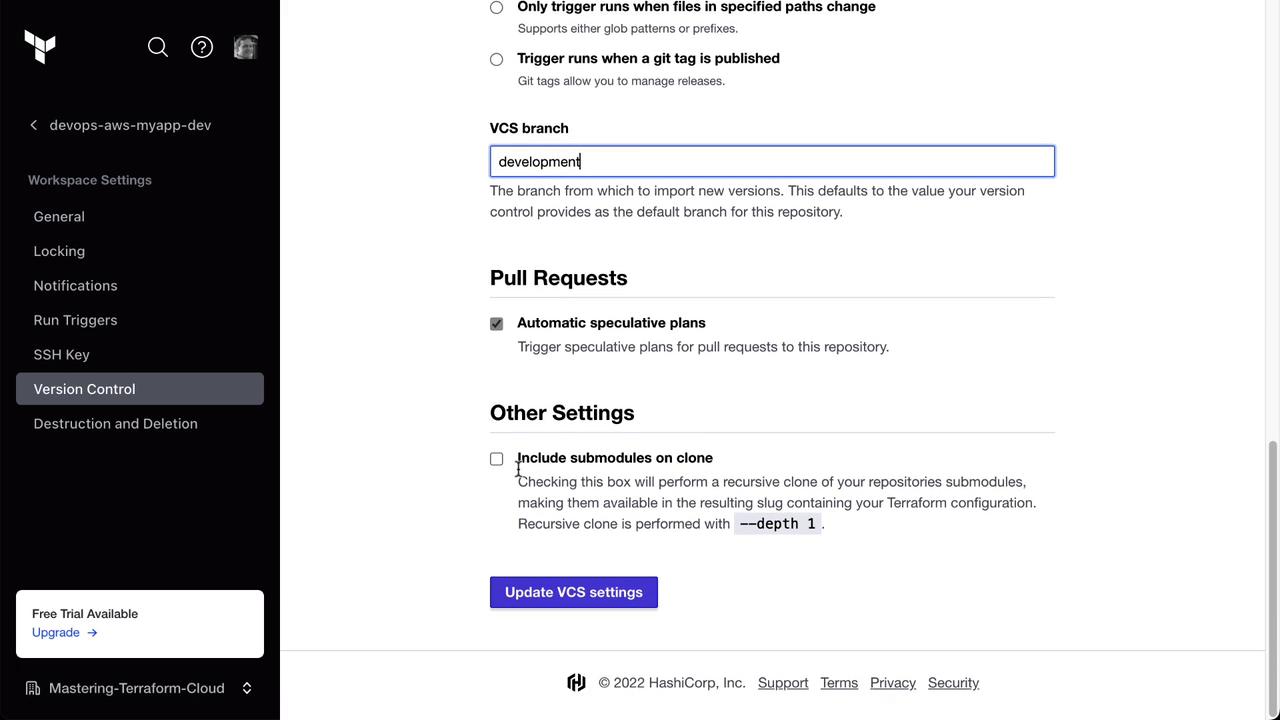
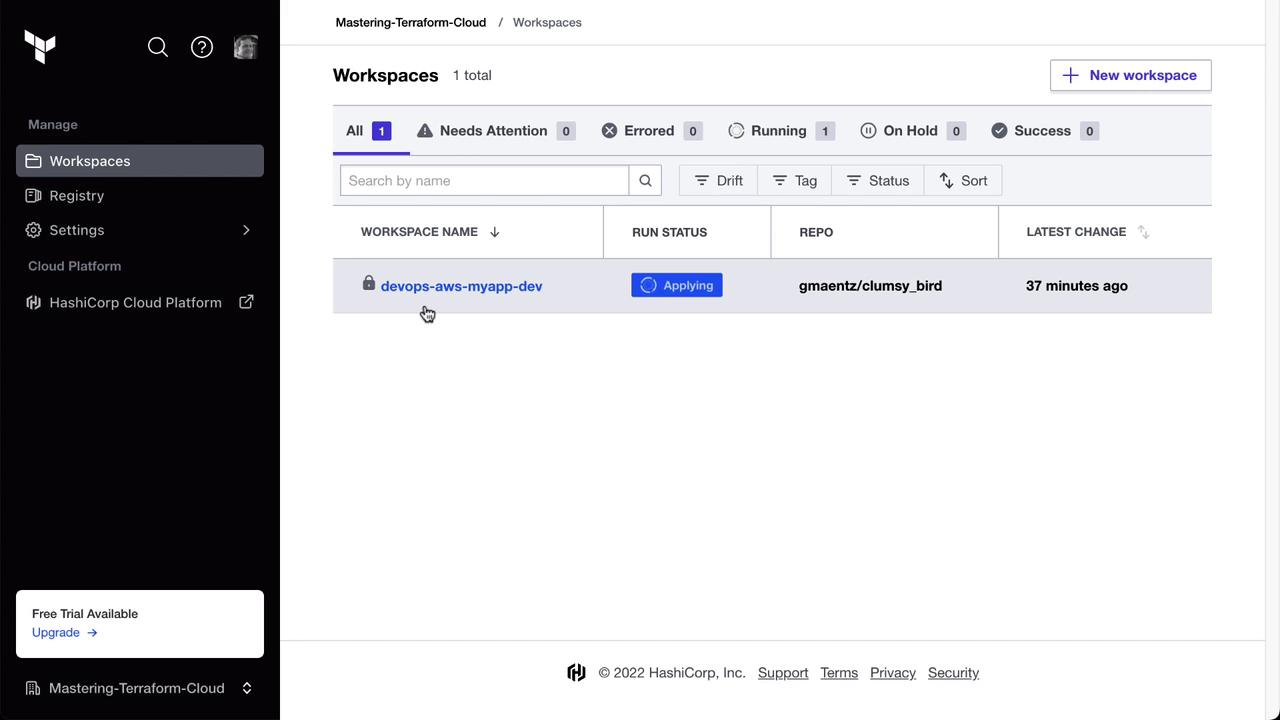
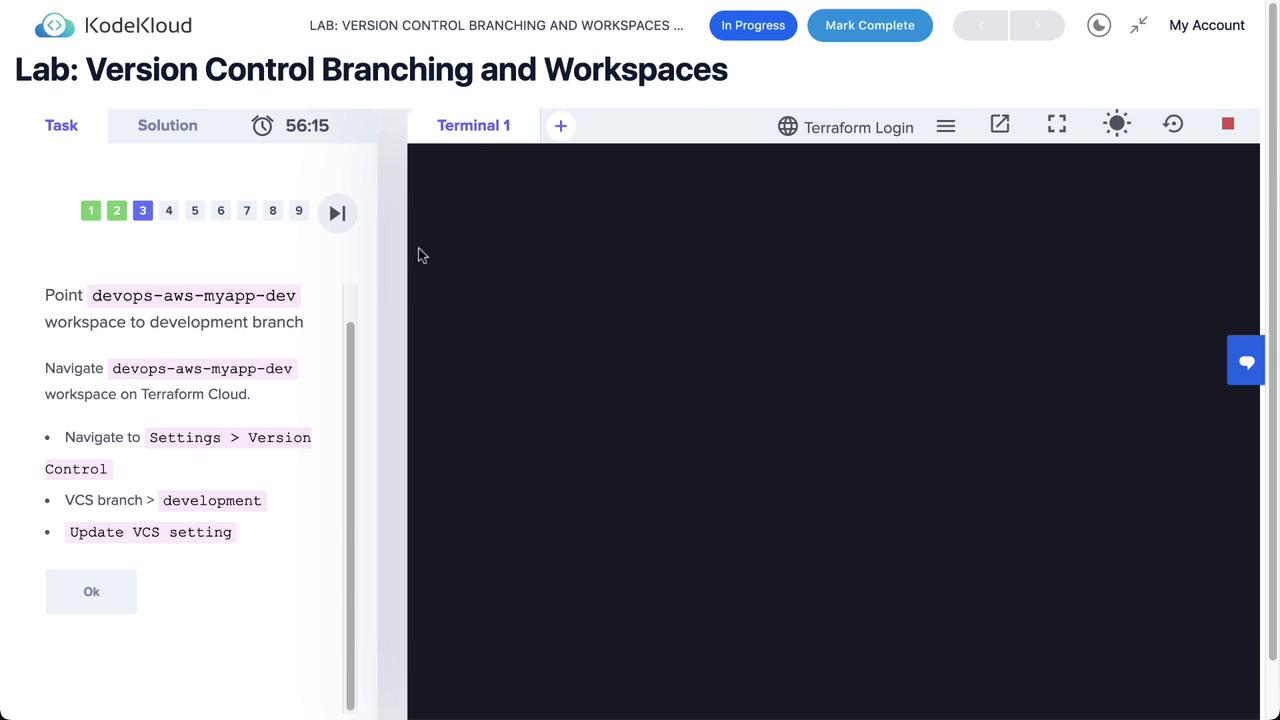
1. Open the **devops-aws-myapp-dev** workspace in Terraform Cloud.
2. Go to **Settings → Version Control**.
3. Change **VCS Branch** to `development` and **Save**.

Terraform Cloud will automatically queue and apply a run on the `development` branch:
<Frame>
  ![The image shows a KodeKloud lab interface for version control branching and workspaces, with instructions to navigate a workspace on Terraform Cloud. The left side displays task steps, while the right side features a terminal window.](https://kodekloud.com/kk-media/image/upload/v1752878914/notes-assets/images/HashiCorp-Terraform-Cloud-Lab-Solution-Version-Control-Branching-and-Workspaces/kodekloud-lab-version-control-terraform.jpg)
</Frame>

<Frame>
  ![The image shows a Terraform Cloud workspace settings page, specifically the Version Control section, indicating a connection to a GitHub repository named "gmaentz/clumsy\_bird."](https://kodekloud.com/kk-media/image/upload/v1752878914/notes-assets/images/HashiCorp-Terraform-Cloud-Lab-Solution-Version-Control-Branching-and-Workspaces/terraform-cloud-workspace-github-connection.jpg)
</Frame>

<Frame>
  ![The image shows a version control settings page for a Terraform Cloud workspace, with options for configuring VCS branch, pull requests, and other settings like including submodules on clone.](https://kodekloud.com/kk-media/image/upload/v1752878916/notes-assets/images/HashiCorp-Terraform-Cloud-Lab-Solution-Version-Control-Branching-and-Workspaces/terraform-cloud-vcs-settings-page.jpg)
</Frame>

<Frame>
  ![The image shows a Terraform Cloud interface with a workspace named "devops-aws-myapp-dev" that is currently in the "Applying" status. The interface includes options for managing workspaces, registry, and settings.](https://kodekloud.com/kk-media/image/upload/v1752878916/notes-assets/images/HashiCorp-Terraform-Cloud-Lab-Solution-Version-Control-Branching-and-Workspaces/terraform-cloud-devops-aws-app-applying.jpg)
</Frame>

***

## 4. Create the Staging Workspace

1. In Terraform Cloud, select **Workspaces → New Workspace**.
2. Choose **Version Control Workflow** and connect to `gmaentz/clumsy_bird`.
3. Configure the workspace:

| Setting                     | Value                    |
| --------------------------- | ------------------------ |
| Name                        | devops-aws-myapp-staging |
| VCS Branch                  | staging                  |
| Auto Apply                  | Enabled                  |
| Automatic Speculative Plans | Enabled                  |

4. (Optional) Add Terraform variables for environment context:

```hcl theme={null}
prefix      = "clumsy"
project     = "Clumsy Bird"
environment = "staging"
```

<Frame>
  ![The image shows a Terraform Cloud interface for creating a new workspace, with options to choose a workflow type such as version control, CLI-driven, or API-driven. The sidebar includes navigation options like Workspaces, Registry, and Settings.](https://kodekloud.com/kk-media/image/upload/v1752878918/notes-assets/images/HashiCorp-Terraform-Cloud-Lab-Solution-Version-Control-Branching-and-Workspaces/terraform-cloud-workspace-creation-interface.jpg)
</Frame>

<Frame>
  ![The image shows a Terraform Cloud interface where a user is choosing a repository from a list, with "gmaentz/clumsy\_bird" highlighted. The interface includes navigation options and a filter for repositories.](https://kodekloud.com/kk-media/image/upload/v1752878919/notes-assets/images/HashiCorp-Terraform-Cloud-Lab-Solution-Version-Control-Branching-and-Workspaces/terraform-cloud-repository-selection-interface.jpg)
</Frame>

<Frame>
  ![The image shows a Terraform Cloud interface for creating a workspace, with options for triggering runs, specifying a VCS branch, and configuring pull requests and other settings. A "Create workspace" button is highlighted.](https://kodekloud.com/kk-media/image/upload/v1752878920/notes-assets/images/HashiCorp-Terraform-Cloud-Lab-Solution-Version-Control-Branching-and-Workspaces/terraform-cloud-workspace-creation-interface-2.jpg)
</Frame>

<Frame>
  ![The image shows a HashiCorp Cloud Platform interface where a workspace has been created, prompting the user to configure Terraform variables such as prefix, project, and environment.](https://kodekloud.com/kk-media/image/upload/v1752878922/notes-assets/images/HashiCorp-Terraform-Cloud-Lab-Solution-Version-Control-Branching-and-Workspaces/hashicorp-cloud-platform-terraform-variables.jpg)
</Frame>

Save and monitor the initial plan/apply run.

***

## 5. Trigger Manual Runs

To validate both environments:

* **Development**: Open **devops-aws-myapp-dev** and click **Start new run**.
* **Staging**: Open **devops-aws-myapp-staging** and click **Start new run**.

<Callout icon="lightbulb" color="#1CB2FE">
  Auto Apply simplifies continuous delivery, but manual runs offer more control for production-critical changes.
</Callout>

***

## 6. Create the Production Workspace

Repeat the workspace creation steps for production:

| Setting             | Value                          |
| ------------------- | ------------------------------ |
| Name                | devops-aws-myapp-prod          |
| VCS Branch          | main                           |
| Auto Apply          | Enabled (or Manual per policy) |
| Always Trigger Runs | Enabled                        |

1. **Workspaces → New Workspace → Version Control**
2. Select `gmaentz/clumsy_bird` and set **VCS Branch** to `main`.
3. Add the same Terraform variables (`prefix`, `project`, `environment = "production"`).
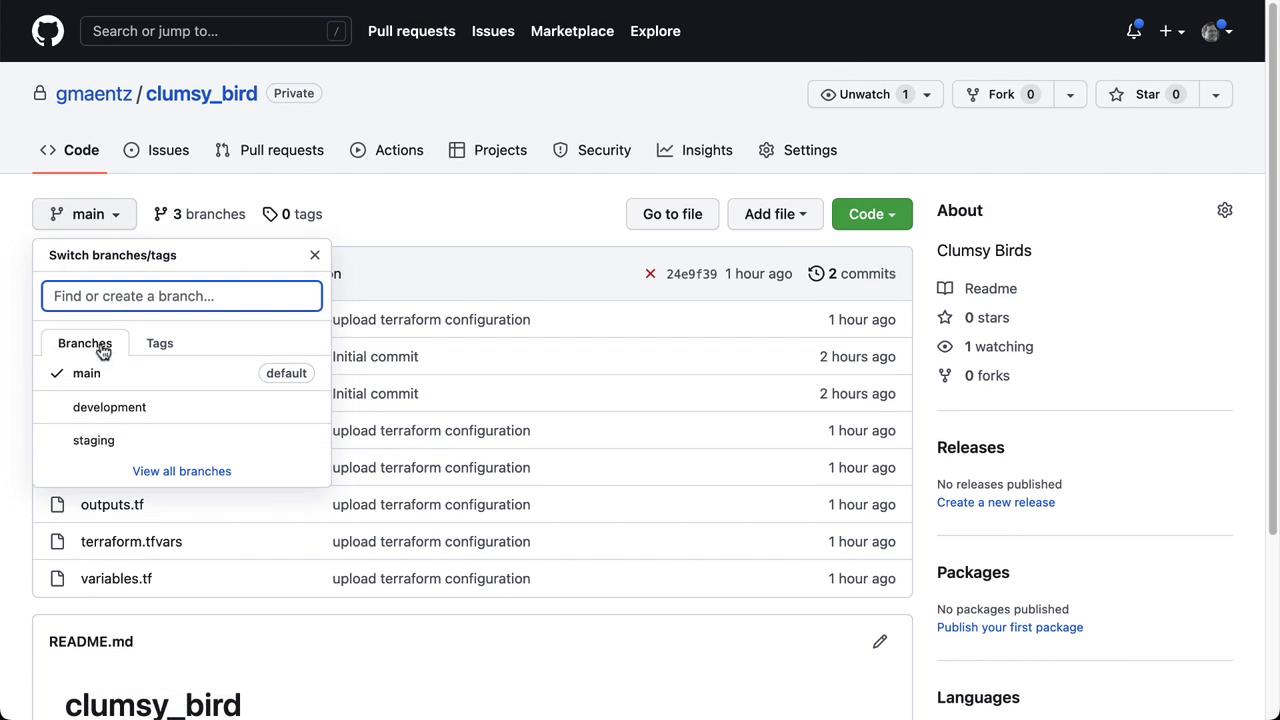
<Frame>
  ![The image shows a GitHub repository page for a project named "clumsy\_bird," with a dropdown menu for switching branches, displaying "main," "development," and "staging" branches. The repository contains files related to Terraform configuration.](https://kodekloud.com/kk-media/image/upload/v1752878923/notes-assets/images/HashiCorp-Terraform-Cloud-Lab-Solution-Version-Control-Branching-and-Workspaces/github-repo-clumsy-bird-branches.jpg)
</Frame>

Save the workspace to kick off the initial production run.

***

## 7. Verify All Workspaces

Head to **Workspaces** overview. You should see all three environments configured:

| Workspace Name           | Branch      | Status            |
| ------------------------ | ----------- | ----------------- |
| devops-aws-myapp-dev     | development | Applied           |
| devops-aws-myapp-staging | staging     | Applied           |
| devops-aws-myapp-prod    | main        | Pending / Applied |

<Frame>
  ![The image shows a Terraform Cloud interface displaying a list of workspaces with their names, run statuses, repositories, and the time of the latest changes. Two workspaces have the status "Applied."](https://kodekloud.com/kk-media/image/upload/v1752878925/notes-assets/images/HashiCorp-Terraform-Cloud-Lab-Solution-Version-Control-Branching-and-Workspaces/terraform-cloud-workspaces-status-list.jpg)
</Frame>

Congratulations! You’ve successfully implemented version control branching strategies and workspace management in Terraform Cloud. Next, explore GitOps-native workflows with Terraform Enterprise or integrate policy as code using Sentinel.

***

## References

* [Terraform Cloud Version Control Workflow](https://developer.hashicorp.com/terraform/cloud-docs/workspaces/vcs)
* [Git Branching Strategies](https://www.atlassian.com/git/tutorials/using-branches)
* [Managing Variables in Terraform Cloud](https://developer.hashicorp.com/terraform/cloud-docs/variables)

<CardGroup>
  <Card title="Watch Video" icon="video" cta="Learn more" href="https://learn.kodekloud.com/user/courses/hashicorp-terraform-cloud/module/8dc830bd-1e70-4a76-bc45-b417ff7c1771/lesson/b2e16417-4958-4667-87d2-c13d808a04d0" />

  <Card title="Practice Lab" icon="installation" cta="Learn more" href="https://learn.kodekloud.com/user/courses/hashicorp-terraform-cloud/module/8dc830bd-1e70-4a76-bc45-b417ff7c1771/lesson/90da0b84-dc16-4c28-84c0-7606196e8151" />
</CardGroup>