> ## Documentation Index
> Fetch the complete documentation index at: https://notes.kodekloud.com/llms.txt
> Use this file to discover all available pages before exploring further.
# Lab Solution Remote Execution
> This guide explains how to convert a Terraform Cloud workspace from local to remote execution while managing AWS credentials securely.
In this guide, we’ll convert an existing Terraform Cloud workspace (`devops-aws-myapp-dev`) from local to remote execution. You’ll learn how to rename variable files, configure the remote backend, authenticate, and manage runs in Terraform Cloud—all while securely handling AWS credentials.
## 1. Log in and Select Your Workspace
1. Navigate to [https://app.terraform.io/](https://app.terraform.io/) and log in.
2. Choose your organization **Mastering-Terraform-Cloud**.
3. Under **Workspaces**, click **devops-aws-myapp-dev**.

## 2. Enable Remote Execution
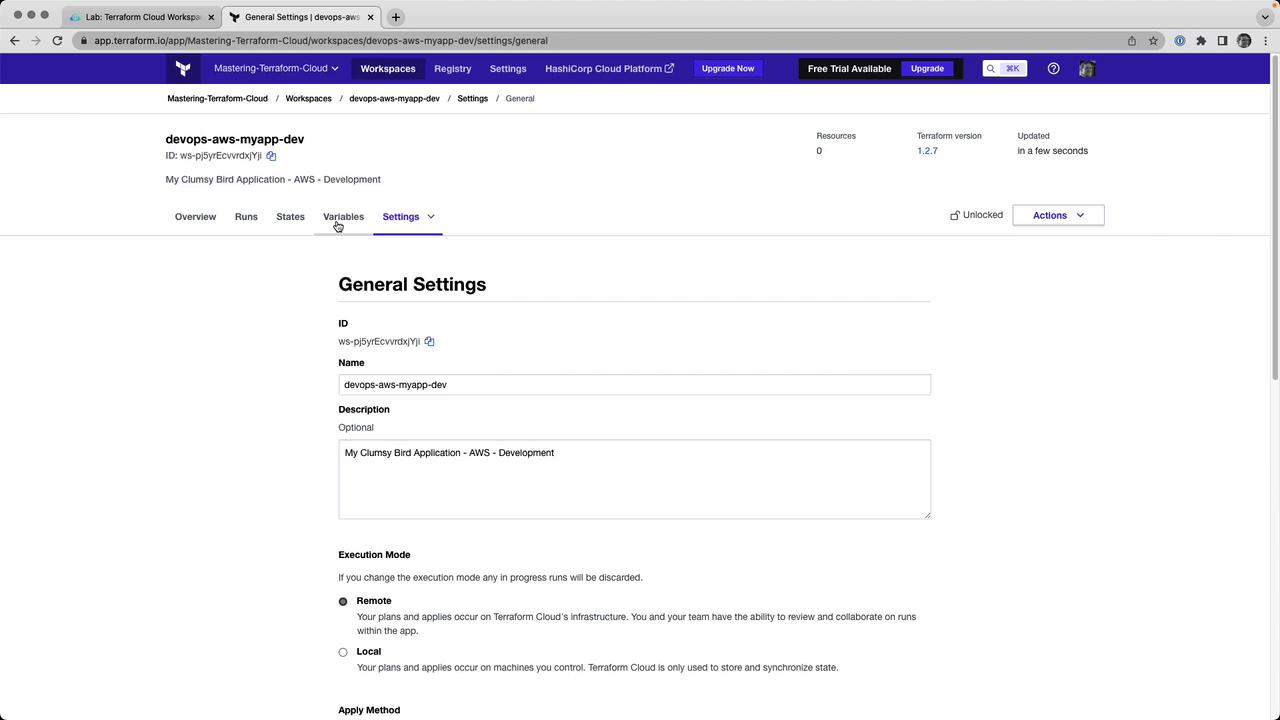
1. Go to **Settings** → **General**.
2. Change **Execution Mode** from **Local** to **Remote**.
3. Click **Save settings**.
## 3. Rename Your Variables File
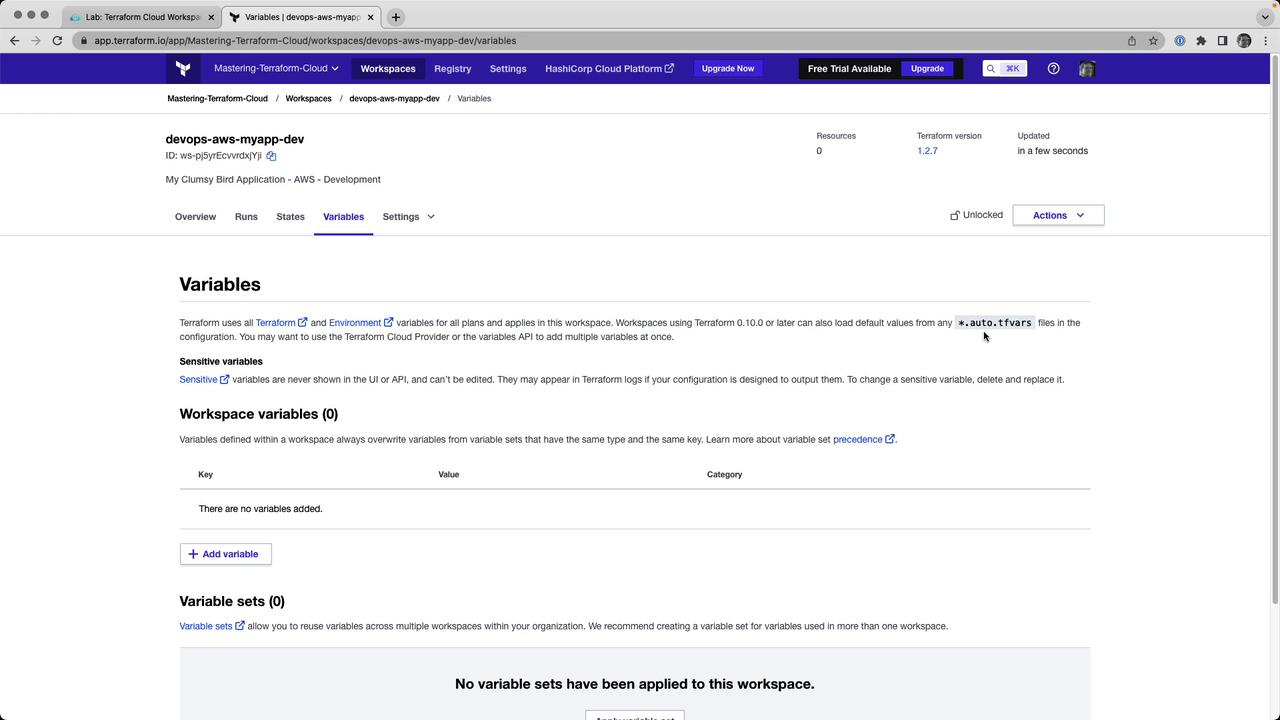
Terraform Cloud automatically loads any file ending in `.auto.tfvars`. Rename your local `terraform.tfvars` to:
```bash theme={null}
mv terraform.tfvars terraform.auto.tfvars
```
Example contents of `terraform.auto.tfvars`:
```hcl theme={null}
prefix = "app"
project = "clumsy-bird"
environment = "development"
instance_type = "t2.micro"
```
Files with the `*.auto.tfvars` suffix are auto-loaded by Terraform Cloud—no manual variable uploads required.
## 4. Configure the Remote Backend
In your Terraform configuration (e.g., `backend.tf`), point to your Terraform Cloud organization and workspace:
```hcl theme={null}
terraform {
cloud {
organization = "Mastering-Terraform-Cloud"
workspaces {
name = "devops-aws-myapp-dev"
}
}
}
```
## 5. Authenticate with Terraform Cloud
Run the login command to link your CLI to Terraform Cloud:
```bash theme={null}
terraform login
```
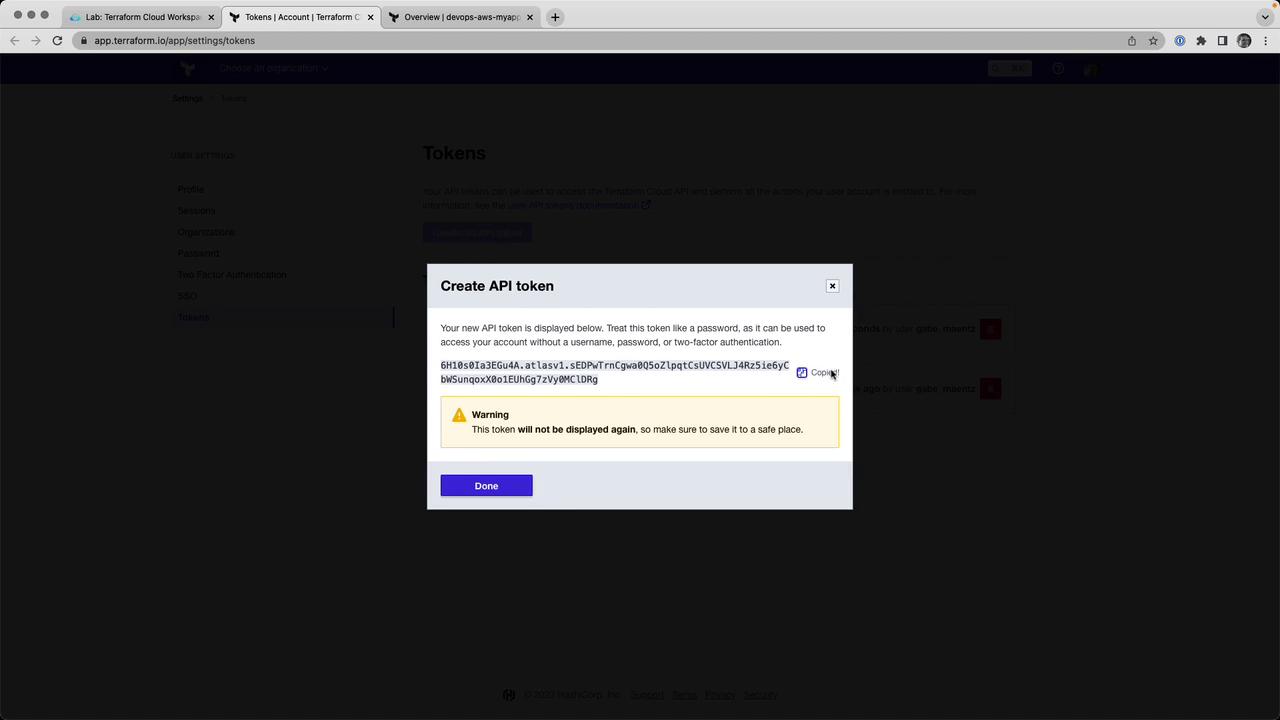
When prompted, paste your API token. Generate or copy it from **User Settings** → **Tokens** in the web UI.
## 6. Initialize Terraform
Initialize the backend, providers, and modules. This will register your workspace with Terraform Cloud:
```bash theme={null}
terraform init
```
Example output:
```bash theme={null}
Initializing modules...
Downloading registry.terraform.io/terraform-aws-modules/vpc/aws 3.14.4 for vpc...
...
Terraform Cloud has been successfully initialized!
```
## 7. Set Environment Variables in the Workspace
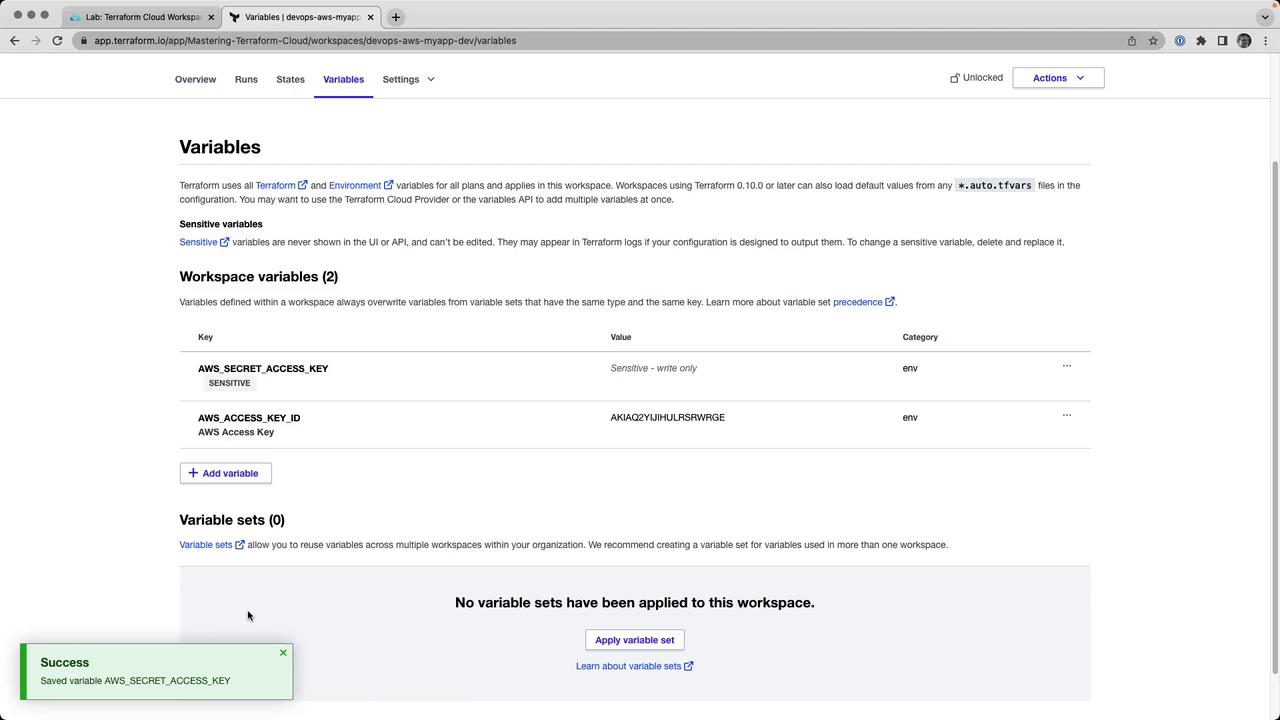
In the Terraform Cloud UI, go to **Variables** and add:
| Variable Name | Category | Sensitive |
| ------------------------ | ----------- | --------- |
| AWS\_ACCESS\_KEY\_ID | Environment | No |
| AWS\_SECRET\_ACCESS\_KEY | Environment | Yes |
Mark `AWS_SECRET_ACCESS_KEY` as **Sensitive** to prevent it from being exposed in logs or state files.
## 8. Run a Remote Plan
From your CLI, execute:
```bash theme={null}
terraform plan
```
The plan will run remotely in Terraform Cloud and stream logs back to your terminal:
```bash theme={null}
Running plan in Terraform Cloud. Output will stream here...
Preparing the remote plan...
To view this run in a browser, visit:
https://app.terraform.io/app/Mastering-Terraform-Cloud/devops-aws-myapp-dev/runs/run-HCZ7HSw
...
```
You can also watch progress in the UI:

At the end, you’ll see:
```hcl theme={null}
Plan: 23 to add, 0 to change, 0 to destroy.
Changes to Outputs:
clumsy-bird-ip = (known after apply)
clumsy-bird-url = (known after apply)
```
## 9. Apply the Run
Approve and apply your plan:
* **CLI**:
```bash theme={null}
terraform apply
```
Type `yes` when prompted.
* **UI**: Click **Confirm & Apply** in the **Runs** tab.
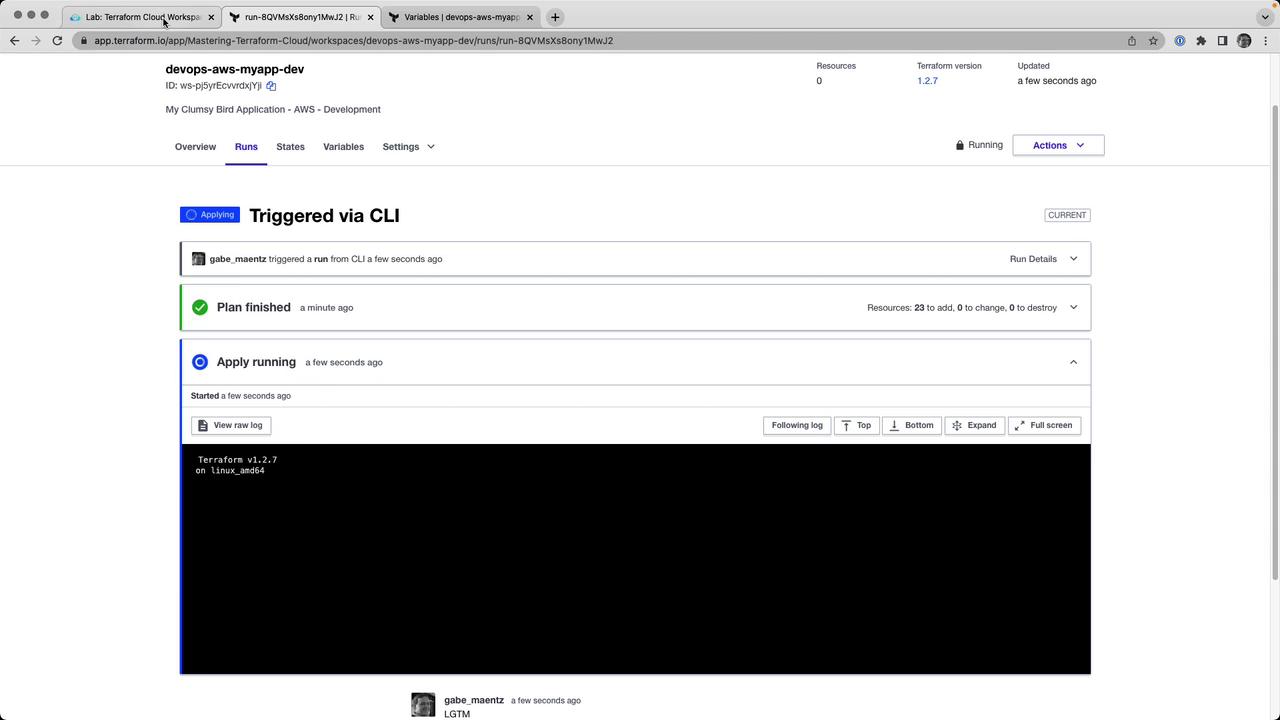
Once complete, outputs appear:
```plaintext theme={null}
clumsy-bird-ip = "http://50.16.35.225:8001"
clumsy-bird-url = "http://ec2-50-16-35-225.compute-1.amazonaws.com:8001"
```
## 10. Inspect State Versions
Terraform Cloud automatically versions your state. Under **States**, you can browse previous versions or view the latest state JSON:
```json theme={null}
{
"version": 4,
"terraform_version": "1.2.7",
"serial": 2,
"outputs": {
"clumsy_bird_ip": {
"value": "http://50.16.35.225:8001",
"type": "string"
},
"clumsy_bird_url": {
"value": "http://ec2-50-16-35-225.compute-1.amazonaws.com:8001",
"type": "string"
}
},
"resources": []
}
```
## 11. Teardown (Optional)
To destroy all resources managed by this workspace:
```bash theme={null}
terraform destroy
```
You can confirm via CLI or by clicking **Confirm & Apply** in the **Runs** tab of Terraform Cloud.
***
Congratulations! You’ve successfully switched your Terraform Cloud workspace to remote execution, centralized state and runs, and managed sensitive variables securely.
## Links and References
* [Terraform Cloud Remote Operations](https://www.terraform.io/cloud/run)
* [Terraform Cloud Workspaces](https://www.terraform.io/cloud/workspaces)
* [Managing Variables in Terraform Cloud](https://www.terraform.io/cloud/workspaces/variables)
* [AWS CLI Documentation](https://docs.aws.amazon.com/cli/latest/)