> ## Documentation Index
> Fetch the complete documentation index at: https://notes.kodekloud.com/llms.txt
> Use this file to discover all available pages before exploring further.
# AWS RDS Demo
> Step-by-step guide to deploying, configuring, and connecting to a managed PostgreSQL instance on Amazon RDS, covering instance creation, storage, networking, security, backups, and client connections.
In this lesson you'll learn how to deploy a managed PostgreSQL instance using Amazon RDS. RDS removes the need to provision and operate the underlying database server by handling instance provisioning, storage management, automated backups, and other operational tasks.
## 1. Create Database (Standard vs Easy)
Open the AWS Management Console, search for **RDS**, and choose **Create database**. You can pick:
* **Easy (Simple) create** — applies opinionated defaults and speeds up creation.
* **Standard create** — exposes all configuration options for full control.
For this walkthrough we use **Standard create** so you can see the available configuration settings.
 ## 2. Engine selection and version
Select the database engine you want — choose **PostgreSQL** for a Postgres instance. Then select the engine version; the default is suitable in most cases unless you need a specific release for compatibility or features.
## 3. Templates and intended use
RDS offers templates that preconfigure many settings:
| Template | Use case | Key differences |
| ---------- | --------------------------------------- | ------------------------------------------------------------------- |
| Production | Critical workloads | Enables Multi-AZ, higher availability and resilience |
| Dev/Test | Development and experimentation | Balanced defaults for cost and function |
| Free tier | New accounts / cost-constrained testing | Uses settings that may qualify for the AWS Free Tier (if available) |
Select the template that matches your workload — we used **Dev/Test** for this lesson.
## 4. Instance configuration (compute)
RDS instances run on instance classes that resemble EC2 types. Pick an instance class that matches your CPU, memory, and network requirements — the console shows vCPU, RAM, and network throughput for each option.
## 2. Engine selection and version
Select the database engine you want — choose **PostgreSQL** for a Postgres instance. Then select the engine version; the default is suitable in most cases unless you need a specific release for compatibility or features.
## 3. Templates and intended use
RDS offers templates that preconfigure many settings:
| Template | Use case | Key differences |
| ---------- | --------------------------------------- | ------------------------------------------------------------------- |
| Production | Critical workloads | Enables Multi-AZ, higher availability and resilience |
| Dev/Test | Development and experimentation | Balanced defaults for cost and function |
| Free tier | New accounts / cost-constrained testing | Uses settings that may qualify for the AWS Free Tier (if available) |
Select the template that matches your workload — we used **Dev/Test** for this lesson.
## 4. Instance configuration (compute)
RDS instances run on instance classes that resemble EC2 types. Pick an instance class that matches your CPU, memory, and network requirements — the console shows vCPU, RAM, and network throughput for each option.
 ## 5. Storage
Choose a storage type and the initial size. You can enable storage autoscaling so RDS grows storage as required up to a maximum you define. Storage options (General Purpose SSD, Provisioned IOPS, etc.) vary by cost and performance.
| Storage type | Best for |
| -------------------------- | ---------------------------------- |
| General Purpose (gp2/gp3) | General workloads, cost-effective |
| Provisioned IOPS (io1/io2) | I/O-intensive production databases |
## 5. Storage
Choose a storage type and the initial size. You can enable storage autoscaling so RDS grows storage as required up to a maximum you define. Storage options (General Purpose SSD, Provisioned IOPS, etc.) vary by cost and performance.
| Storage type | Best for |
| -------------------------- | ---------------------------------- |
| General Purpose (gp2/gp3) | General workloads, cost-effective |
| Provisioned IOPS (io1/io2) | I/O-intensive production databases |
 Tip: For workloads with unpredictable growth, enable storage autoscaling and set a sensible maximum to avoid unexpected costs.
## 6. Connectivity, networking, and optional compute helper
Decide whether to provision an associated compute resource for quick connectivity tests (optional). Choose the VPC and subnets where the DB instance should run — you can use the default VPC or supply a custom network.
Tip: For workloads with unpredictable growth, enable storage autoscaling and set a sensible maximum to avoid unexpected costs.
## 6. Connectivity, networking, and optional compute helper
Decide whether to provision an associated compute resource for quick connectivity tests (optional). Choose the VPC and subnets where the DB instance should run — you can use the default VPC or supply a custom network.
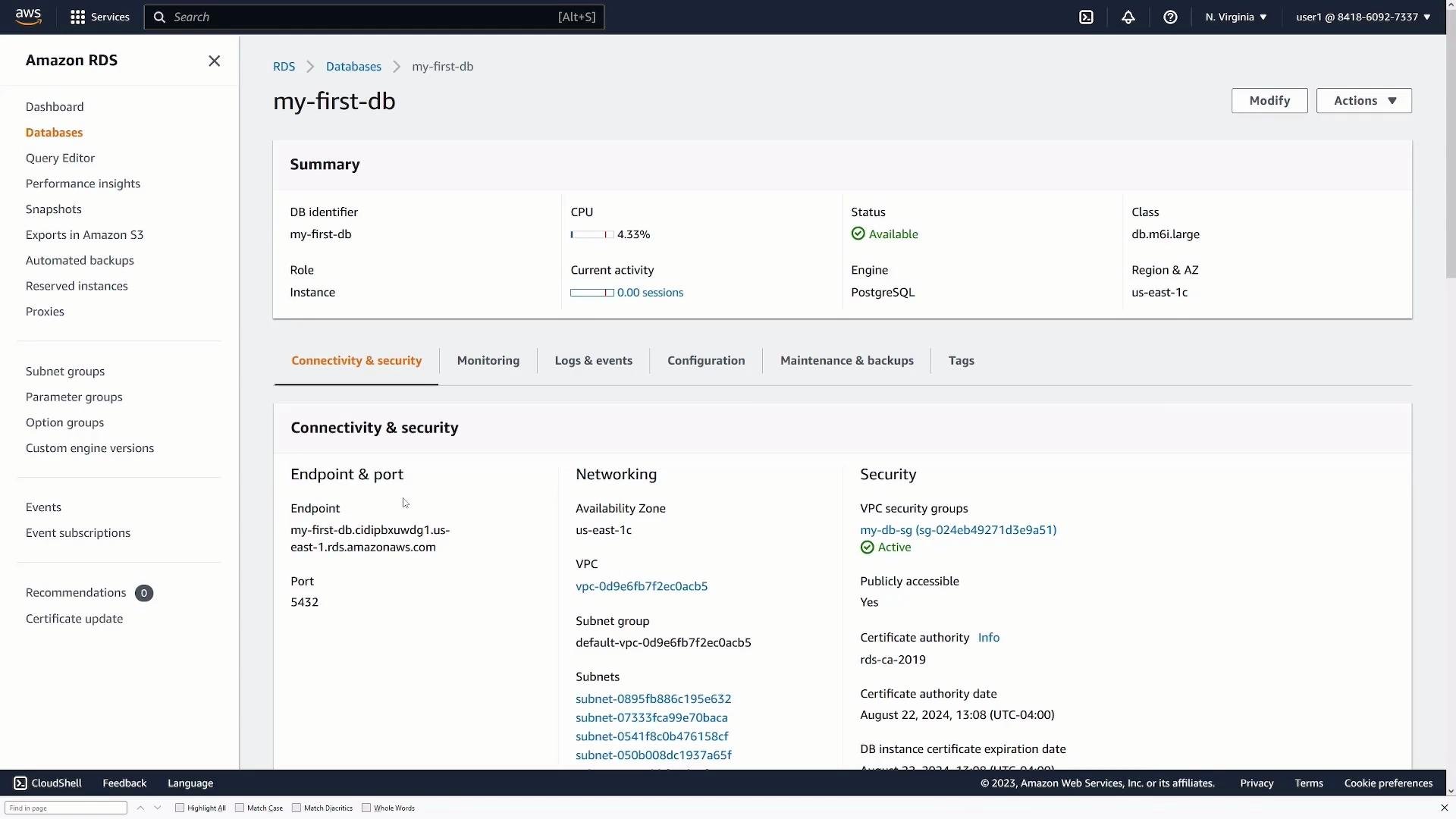
 * Set **Public access** to `No` for production (keeps the instance in private subnets). Set to `Yes` only for temporary testing and ensure strong security rules.
* Choose a DB subnet group and optionally specify an Availability Zone or leave it as **No preference** for AWS to pick.
## 7. Security groups and public access
Create or reuse a security group to control inbound traffic. For local testing, add a rule to allow your client IP on the PostgreSQL port (`5432` by default). For production, restrict access to known application subnets or a bastion host.
## 8. Additional configuration
Under Additional configuration you can:
* Change the default port (`5432`).
* Select authentication methods (password, `IAM` authentication).
* Enable enhanced monitoring, performance insights, backups, encryption, and set backup retention windows.
RDS automated backups and point-in-time recovery simplify restores.
When ready, click **Create database**. Provisioning typically takes several minutes while AWS provisions compute, storage, and networking.
## 9. Instance available — find connectivity details
After the instance status changes to **Available**, open the DB instance details. Note the `Endpoint` (host) and `Port` — you'll use these, together with the master username and password, to connect from a client.
* Set **Public access** to `No` for production (keeps the instance in private subnets). Set to `Yes` only for temporary testing and ensure strong security rules.
* Choose a DB subnet group and optionally specify an Availability Zone or leave it as **No preference** for AWS to pick.
## 7. Security groups and public access
Create or reuse a security group to control inbound traffic. For local testing, add a rule to allow your client IP on the PostgreSQL port (`5432` by default). For production, restrict access to known application subnets or a bastion host.
## 8. Additional configuration
Under Additional configuration you can:
* Change the default port (`5432`).
* Select authentication methods (password, `IAM` authentication).
* Enable enhanced monitoring, performance insights, backups, encryption, and set backup retention windows.
RDS automated backups and point-in-time recovery simplify restores.
When ready, click **Create database**. Provisioning typically takes several minutes while AWS provisions compute, storage, and networking.
## 9. Instance available — find connectivity details
After the instance status changes to **Available**, open the DB instance details. Note the `Endpoint` (host) and `Port` — you'll use these, together with the master username and password, to connect from a client.
 Example connection using psql:
* `psql -h -U postgres -p 5432 -d postgres`
Replace `` with the value shown in the console.
## 10. Connect using pgAdmin
You can connect with GUI tools such as pgAdmin. Create a new server entry and supply:
* Host: the RDS endpoint (paste from the console)
* Port: `5432` (or your custom port)
* Maintenance DB: typically `postgres`
* Username: the master username (e.g., `postgres`)
* Password: the password you set
Example connection using psql:
* `psql -h -U postgres -p 5432 -d postgres`
Replace `` with the value shown in the console.
## 10. Connect using pgAdmin
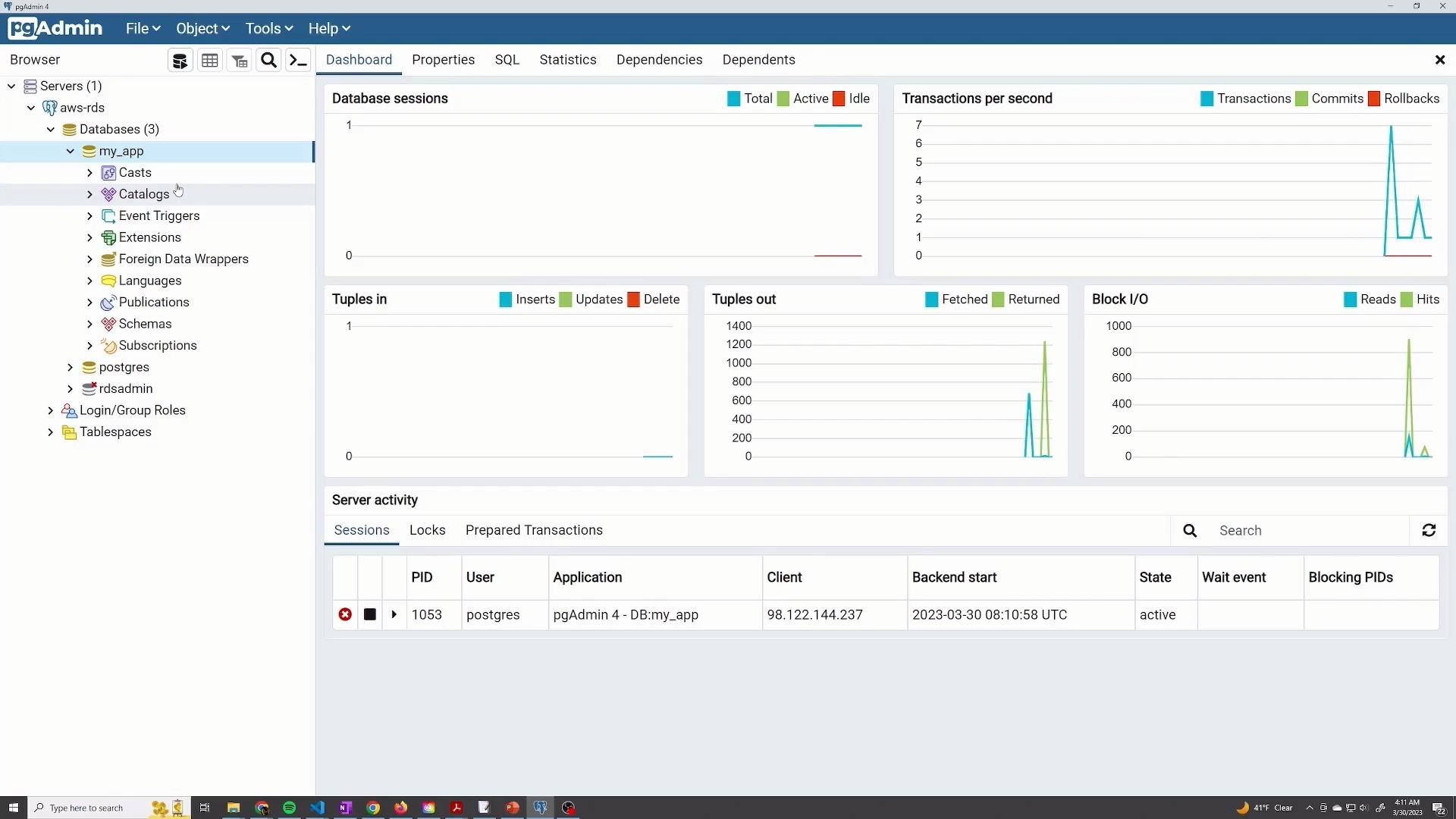
You can connect with GUI tools such as pgAdmin. Create a new server entry and supply:
* Host: the RDS endpoint (paste from the console)
* Port: `5432` (or your custom port)
* Maintenance DB: typically `postgres`
* Username: the master username (e.g., `postgres`)
* Password: the password you set
 After you save, pgAdmin will show the server and default database. You can create new databases, schemas, tables, and run queries as usual.
 Do not use the master account credentials for application connections. Create an application-specific database user with the minimum required privileges. For production, use `IAM` authentication or a secrets manager such as [AWS Secrets Manager](https://aws.amazon.com/secrets-manager/) to store and rotate credentials securely.
## 11. Modify or delete the instance
* To change instance settings later, choose **Modify** in the RDS console to update instance class, storage, backup windows, maintenance windows, and more.
* To remove the instance, choose **Delete**. The console will prompt whether to create a final snapshot and whether to retain automated backups — for production systems, create and retain snapshots or export data before deletion.
Do not use the master account credentials for application connections. Create an application-specific database user with the minimum required privileges. For production, use `IAM` authentication or a secrets manager such as [AWS Secrets Manager](https://aws.amazon.com/secrets-manager/) to store and rotate credentials securely.
## 11. Modify or delete the instance
* To change instance settings later, choose **Modify** in the RDS console to update instance class, storage, backup windows, maintenance windows, and more.
* To remove the instance, choose **Delete**. The console will prompt whether to create a final snapshot and whether to retain automated backups — for production systems, create and retain snapshots or export data before deletion.
 If you enable public access, ensure your security group only allows trusted IP addresses on the database port. Exposing a database to the public internet without strict controls increases the risk of unauthorized access.
If you choose **Delete**, confirm the deletion checkbox(s) and acknowledge the prompt to remove the instance and any retained snapshots (depending on your choices).
If you enable public access, ensure your security group only allows trusted IP addresses on the database port. Exposing a database to the public internet without strict controls increases the risk of unauthorized access.
If you choose **Delete**, confirm the deletion checkbox(s) and acknowledge the prompt to remove the instance and any retained snapshots (depending on your choices).
 That concludes this lesson on deploying and connecting to a PostgreSQL instance on Amazon RDS.
## References
* [Amazon RDS Documentation](https://docs.aws.amazon.com/rds/)
* [PostgreSQL Official Site](https://www.postgresql.org/)
* [pgAdmin](https://www.pgadmin.org/)
That concludes this lesson on deploying and connecting to a PostgreSQL instance on Amazon RDS.
## References
* [Amazon RDS Documentation](https://docs.aws.amazon.com/rds/)
* [PostgreSQL Official Site](https://www.postgresql.org/)
* [pgAdmin](https://www.pgadmin.org/)