> ## Documentation Index
> Fetch the complete documentation index at: https://notes.kodekloud.com/llms.txt
> Use this file to discover all available pages before exploring further.
# JSON Path Use case Kubernetes
> Guide to using JSONPath with kubectl to extract, filter, and format Kubernetes JSON for automation, reporting, and scripting with examples of ranges, custom columns, and sorting
Hello, and welcome to this lesson.
 My name is Mumshad Mannambeth.
In this lesson we'll cover how to use JSONPath with kubectl to extract, filter, and format Kubernetes API output. You'll learn why JSONPath is useful in production environments, how to inspect raw JSON from kubectl, how to build JSONPath queries (including `range` loops), and how to use `custom-columns` and `--sort-by` for clean, sorted output. At the end are practice resources to reinforce the concepts.
Prerequisites
My name is Mumshad Mannambeth.
In this lesson we'll cover how to use JSONPath with kubectl to extract, filter, and format Kubernetes API output. You'll learn why JSONPath is useful in production environments, how to inspect raw JSON from kubectl, how to build JSONPath queries (including `range` loops), and how to use `custom-columns` and `--sort-by` for clean, sorted output. At the end are practice resources to reinforce the concepts.
Prerequisites
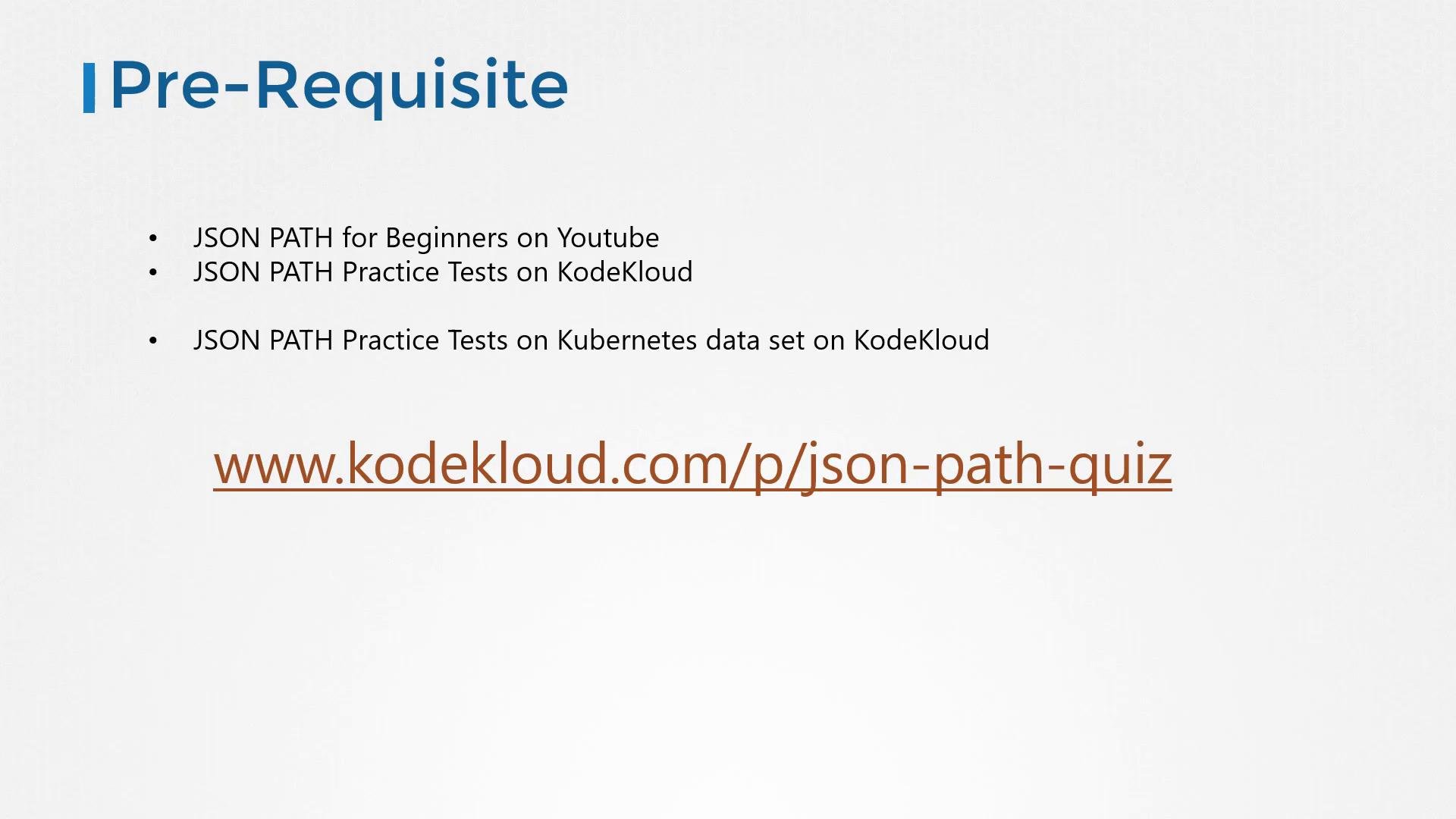 Before you begin:
* You should already be familiar with JSONPath basics. If not, complete the JSON Path lessons and practice tests in the [JSON Path Test - Free Course](https://learn.kodekloud.com/user/courses/json-path-test-free-course).
* Practice inspecting Kubernetes JSON documents locally so you can design JSONPath expressions against the actual structure.
Why JSONPath?
When managing production Kubernetes clusters you often deal with hundreds of nodes and thousands of objects (Pods, Deployments, ReplicaSets, Services, Secrets, etc.). The default kubectl table output is helpful, but the API returns much more detail in JSON. JSONPath lets you extract specific fields (node names, CPU capacity, container images, taints, architecture, etc.) and format them into concise, script-friendly output — ideal for automation, reporting, and quick audits.
Before you begin:
* You should already be familiar with JSONPath basics. If not, complete the JSON Path lessons and practice tests in the [JSON Path Test - Free Course](https://learn.kodekloud.com/user/courses/json-path-test-free-course).
* Practice inspecting Kubernetes JSON documents locally so you can design JSONPath expressions against the actual structure.
Why JSONPath?
When managing production Kubernetes clusters you often deal with hundreds of nodes and thousands of objects (Pods, Deployments, ReplicaSets, Services, Secrets, etc.). The default kubectl table output is helpful, but the API returns much more detail in JSON. JSONPath lets you extract specific fields (node names, CPU capacity, container images, taints, architecture, etc.) and format them into concise, script-friendly output — ideal for automation, reporting, and quick audits.
 How kubectl works (high level)
* kubectl communicates with the Kubernetes API server (kube-apiserver), which returns objects as JSON.
* kubectl by default formats that JSON into a human-friendly table.
* The raw JSON contains many more fields than shown in the default table.
Example: default table output vs raw JSON
Default table output (kubectl get nodes):
```bash theme={null}
$ kubectl get nodes
NAME STATUS ROLES AGE VERSION
master Ready master 40m v1.11.3
node01 Ready 40m v1.11.3
```
Raw JSON (kubectl get nodes -o json) — abbreviated:
```json theme={null}
{
"apiVersion": "v1",
"items": [
{
"apiVersion": "v1",
"kind": "Node",
"metadata": {
"creationTimestamp": "2019-06-21T09:01:56Z",
"name": "master",
"labels": {
"beta.kubernetes.io/arch": "amd64",
"beta.kubernetes.io/os": "linux",
"kubernetes.io/hostname": "master",
"node-role.kubernetes.io/master": ""
},
"annotations": {
"node.alpha.kubernetes.io/ttl": "0"
}
},
"status": {
"capacity": {
"cpu": "4",
"memory": "16384Mi"
},
"nodeInfo": {
"architecture": "amd64"
}
}
}
]
}
```
When you need fields not shown by default (CPU capacity, taints, images, architecture), you can either use `kubectl describe` for an expanded human-readable view, or use JSONPath to extract exactly the fields you need for scripts and reports.
Common output patterns (examples)
You might commonly want outputs such as:
| Desired Output | Example goal |
| - | - |
| Node name and CPU | `master 4` |
| Node name and taints | `master node-role.kubernetes.io/master` |
| Node name and architecture | `master amd64` |
| Pod name and image | `nginx-pod nginx:latest` |
Four-step approach to using JSONPath with kubectl
1. Identify the kubectl command to fetch the target resources:
* Nodes: `kubectl get nodes`
* Pods: `kubectl get pods`
* Deployments: `kubectl get deployments`
2. Inspect the raw JSON:
```bash theme={null}
kubectl get nodes -o json
kubectl get pods -o json
```
3. Examine the JSON structure and design the JSONPath expression that selects the desired field(s). Example to get the first pod container image:
```text theme={null}
.items[0].spec.containers[0].image
```
4. Apply the JSONPath query with kubectl:
```bash theme={null}
kubectl get pods -o=jsonpath='{.items[0].spec.containers[0].image}'
```
Tip: Beginner workflow
* Run `kubectl get -o json`.
* Paste the JSON into a JSONPath tester or experiment locally.
* Build and validate the JSONPath expression.
* Use that expression with `kubectl -o=jsonpath='{...}'`.
Mapping common resources to commands
| Resource | kubectl command |
| - | - |
| Nodes | `kubectl get nodes` |
| Pods | `kubectl get pods` |
| Deployments | `kubectl get deployments` |
Common JSONPath examples with kubectl
* Node names:
```bash theme={null}
kubectl get nodes -o=jsonpath='{.items[*].metadata.name}'
# Output:
# master node01
```
* Node architecture:
```bash theme={null}
kubectl get nodes -o=jsonpath='{.items[*].status.nodeInfo.architecture}'
# Output:
# amd64 amd64
```
* Node CPU capacity:
```bash theme={null}
kubectl get nodes -o=jsonpath='{.items[*].status.capacity.cpu}'
# Output:
# 4 4
```
Combining queries
Concatenating queries without separators produces space-separated values:
```bash theme={null}
kubectl get nodes -o=jsonpath='{.items[*].metadata.name}{.items[*].status.capacity.cpu}'
# Output:
# master node01 4 4
```
Add separators (newlines or tabs) to format output:
```bash theme={null}
kubectl get nodes -o=jsonpath='{.items[*].metadata.name}{"\n"}{.items[*].status.capacity.cpu}'
# Output:
# master node01
# 4 4
```
Using loops with `range` (per-item formatting)
For per-item tabular output (one node per line), use `range`:
Desired logical steps:
* For each item in `.items`:
* print `.metadata.name`
* print a tab `\t`
* print `.status.capacity.cpu`
* print a newline `\n`
* end range
JSONPath template with range:
```bash theme={null}
kubectl get nodes -o=jsonpath='{range .items[*]}{.metadata.name}{"\t"}{.status.capacity.cpu}{"\n"}{end}'
# Output:
# master 4
# node01 4
```
This prints neatly tab-separated rows, one node per line — ideal for scripting or piping into other tools.
Custom columns (clean, aligned column output)
When you want a fixed, column-aligned view, `-o custom-columns` is easier. Note: `custom-columns` applies the column paths to each item, so you omit the `.items` prefix.
Example:
```bash theme={null}
kubectl get nodes -o=custom-columns=NODE:.metadata.name,CPU:.status.capacity.cpu
# Output:
# NODE CPU
# master 4
# node01 4
```
Sorting with `--sort-by`
kubectl supports `--sort-by=` to sort listed items by a property. Provide a JSONPath expression beginning with a dot:
Sort by name:
```bash theme={null}
kubectl get nodes --sort-by=.metadata.name
```
Sort by CPU capacity:
```bash theme={null}
kubectl get nodes --sort-by=.status.capacity.cpu
```
Quoting and shell considerations
Be careful with quoting in shells (especially when using braces, quotes, and backslashes). Use single quotes around the entire `-o=jsonpath='...'` expression to avoid shell expansion. On some shells you may need to escape special characters or use different quoting strategies.
Putting it all together — useful commands recap
* Inspect raw JSON:
```bash theme={null}
kubectl get nodes -o json
kubectl get pods -o json
```
* Get all node names:
```bash theme={null}
kubectl get nodes -o=jsonpath='{.items[*].metadata.name}'
```
* Print node name and CPU per line (tab-separated):
```bash theme={null}
kubectl get nodes -o=jsonpath='{range .items[*]}{.metadata.name}{"\t"}{.status.capacity.cpu}{"\n"}{end}'
```
* Print custom columns:
```bash theme={null}
kubectl get nodes -o=custom-columns=NODE:.metadata.name,CPU:.status.capacity.cpu
```
* Sort nodes:
```bash theme={null}
kubectl get nodes --sort-by=.metadata.name
kubectl get nodes --sort-by=.status.capacity.cpu
```
If you're new to JSONPath, follow the four-step approach: get JSON with `-o json`, craft the JSONPath expression using a JSONPath tester, then apply it with `-o=jsonpath='{...}'` in kubectl. This approach reduces trial-and-error directly on the cluster and helps you build reliable automation scripts.
That's it for this lesson. Head over to the practice tests in the [JSON Path Test - Free Course](https://learn.kodekloud.com/user/courses/json-path-test-free-course) to practice extracting and formatting Kubernetes object fields with JSONPath.
This documentation is built and hosted on [Mintlify](https://mintlify.com), a developer documentation platform.
How kubectl works (high level)
* kubectl communicates with the Kubernetes API server (kube-apiserver), which returns objects as JSON.
* kubectl by default formats that JSON into a human-friendly table.
* The raw JSON contains many more fields than shown in the default table.
Example: default table output vs raw JSON
Default table output (kubectl get nodes):
```bash theme={null}
$ kubectl get nodes
NAME STATUS ROLES AGE VERSION
master Ready master 40m v1.11.3
node01 Ready 40m v1.11.3
```
Raw JSON (kubectl get nodes -o json) — abbreviated:
```json theme={null}
{
"apiVersion": "v1",
"items": [
{
"apiVersion": "v1",
"kind": "Node",
"metadata": {
"creationTimestamp": "2019-06-21T09:01:56Z",
"name": "master",
"labels": {
"beta.kubernetes.io/arch": "amd64",
"beta.kubernetes.io/os": "linux",
"kubernetes.io/hostname": "master",
"node-role.kubernetes.io/master": ""
},
"annotations": {
"node.alpha.kubernetes.io/ttl": "0"
}
},
"status": {
"capacity": {
"cpu": "4",
"memory": "16384Mi"
},
"nodeInfo": {
"architecture": "amd64"
}
}
}
]
}
```
When you need fields not shown by default (CPU capacity, taints, images, architecture), you can either use `kubectl describe` for an expanded human-readable view, or use JSONPath to extract exactly the fields you need for scripts and reports.
Common output patterns (examples)
You might commonly want outputs such as:
| Desired Output | Example goal |
| - | - |
| Node name and CPU | `master 4` |
| Node name and taints | `master node-role.kubernetes.io/master` |
| Node name and architecture | `master amd64` |
| Pod name and image | `nginx-pod nginx:latest` |
Four-step approach to using JSONPath with kubectl
1. Identify the kubectl command to fetch the target resources:
* Nodes: `kubectl get nodes`
* Pods: `kubectl get pods`
* Deployments: `kubectl get deployments`
2. Inspect the raw JSON:
```bash theme={null}
kubectl get nodes -o json
kubectl get pods -o json
```
3. Examine the JSON structure and design the JSONPath expression that selects the desired field(s). Example to get the first pod container image:
```text theme={null}
.items[0].spec.containers[0].image
```
4. Apply the JSONPath query with kubectl:
```bash theme={null}
kubectl get pods -o=jsonpath='{.items[0].spec.containers[0].image}'
```
Tip: Beginner workflow
* Run `kubectl get -o json`.
* Paste the JSON into a JSONPath tester or experiment locally.
* Build and validate the JSONPath expression.
* Use that expression with `kubectl -o=jsonpath='{...}'`.
Mapping common resources to commands
| Resource | kubectl command |
| - | - |
| Nodes | `kubectl get nodes` |
| Pods | `kubectl get pods` |
| Deployments | `kubectl get deployments` |
Common JSONPath examples with kubectl
* Node names:
```bash theme={null}
kubectl get nodes -o=jsonpath='{.items[*].metadata.name}'
# Output:
# master node01
```
* Node architecture:
```bash theme={null}
kubectl get nodes -o=jsonpath='{.items[*].status.nodeInfo.architecture}'
# Output:
# amd64 amd64
```
* Node CPU capacity:
```bash theme={null}
kubectl get nodes -o=jsonpath='{.items[*].status.capacity.cpu}'
# Output:
# 4 4
```
Combining queries
Concatenating queries without separators produces space-separated values:
```bash theme={null}
kubectl get nodes -o=jsonpath='{.items[*].metadata.name}{.items[*].status.capacity.cpu}'
# Output:
# master node01 4 4
```
Add separators (newlines or tabs) to format output:
```bash theme={null}
kubectl get nodes -o=jsonpath='{.items[*].metadata.name}{"\n"}{.items[*].status.capacity.cpu}'
# Output:
# master node01
# 4 4
```
Using loops with `range` (per-item formatting)
For per-item tabular output (one node per line), use `range`:
Desired logical steps:
* For each item in `.items`:
* print `.metadata.name`
* print a tab `\t`
* print `.status.capacity.cpu`
* print a newline `\n`
* end range
JSONPath template with range:
```bash theme={null}
kubectl get nodes -o=jsonpath='{range .items[*]}{.metadata.name}{"\t"}{.status.capacity.cpu}{"\n"}{end}'
# Output:
# master 4
# node01 4
```
This prints neatly tab-separated rows, one node per line — ideal for scripting or piping into other tools.
Custom columns (clean, aligned column output)
When you want a fixed, column-aligned view, `-o custom-columns` is easier. Note: `custom-columns` applies the column paths to each item, so you omit the `.items` prefix.
Example:
```bash theme={null}
kubectl get nodes -o=custom-columns=NODE:.metadata.name,CPU:.status.capacity.cpu
# Output:
# NODE CPU
# master 4
# node01 4
```
Sorting with `--sort-by`
kubectl supports `--sort-by=` to sort listed items by a property. Provide a JSONPath expression beginning with a dot:
Sort by name:
```bash theme={null}
kubectl get nodes --sort-by=.metadata.name
```
Sort by CPU capacity:
```bash theme={null}
kubectl get nodes --sort-by=.status.capacity.cpu
```
Quoting and shell considerations
Be careful with quoting in shells (especially when using braces, quotes, and backslashes). Use single quotes around the entire `-o=jsonpath='...'` expression to avoid shell expansion. On some shells you may need to escape special characters or use different quoting strategies.
Putting it all together — useful commands recap
* Inspect raw JSON:
```bash theme={null}
kubectl get nodes -o json
kubectl get pods -o json
```
* Get all node names:
```bash theme={null}
kubectl get nodes -o=jsonpath='{.items[*].metadata.name}'
```
* Print node name and CPU per line (tab-separated):
```bash theme={null}
kubectl get nodes -o=jsonpath='{range .items[*]}{.metadata.name}{"\t"}{.status.capacity.cpu}{"\n"}{end}'
```
* Print custom columns:
```bash theme={null}
kubectl get nodes -o=custom-columns=NODE:.metadata.name,CPU:.status.capacity.cpu
```
* Sort nodes:
```bash theme={null}
kubectl get nodes --sort-by=.metadata.name
kubectl get nodes --sort-by=.status.capacity.cpu
```
If you're new to JSONPath, follow the four-step approach: get JSON with `-o json`, craft the JSONPath expression using a JSONPath tester, then apply it with `-o=jsonpath='{...}'` in kubectl. This approach reduces trial-and-error directly on the cluster and helps you build reliable automation scripts.
That's it for this lesson. Head over to the practice tests in the [JSON Path Test - Free Course](https://learn.kodekloud.com/user/courses/json-path-test-free-course) to practice extracting and formatting Kubernetes object fields with JSONPath.
This documentation is built and hosted on [Mintlify](https://mintlify.com), a developer documentation platform.