> ## Documentation Index
> Fetch the complete documentation index at: https://notes.kodekloud.com/llms.txt
> Use this file to discover all available pages before exploring further.
# Jenkins Authorization Matrix Authorization Strategy
> This guide explains setting up fine-grained authorization in Jenkins using the Matrix Authorization Strategy for managing user permissions effectively.
This guide explores how to set up fine-grained authorization in Jenkins using the Matrix Authorization Strategy. You will learn how to install the necessary plugin, configure both global and project-specific permissions, and verify user access levels.
## Logging in as the Admin User
Start by logging in as the admin user (Barahalikar Siddharth). In this setup, the username and password are identical. Once logged in, navigate to **Manage Jenkins** and then to **Security**. By default, Jenkins grants all actions to any logged-in user; this guide explains how to change that behavior for tighter security.
## Installing the Matrix Authorization Strategy Plugin
To enable more granular control, install the "Matrix Authorization Strategy" plugin:
1. Go to the plugin management section.
2. Search for "Matrix Authorization Strategy."
3. Click **Install** to proceed with the installation.
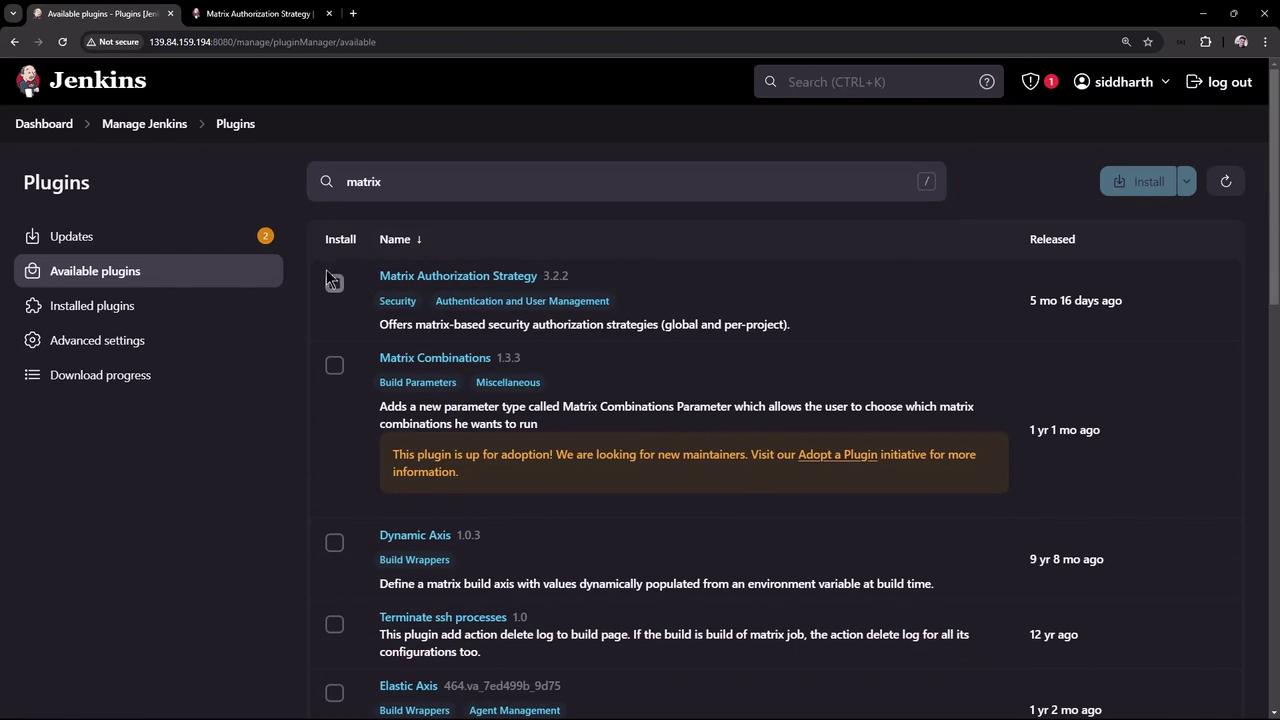
This plugin offers options for both global and project-based access control.
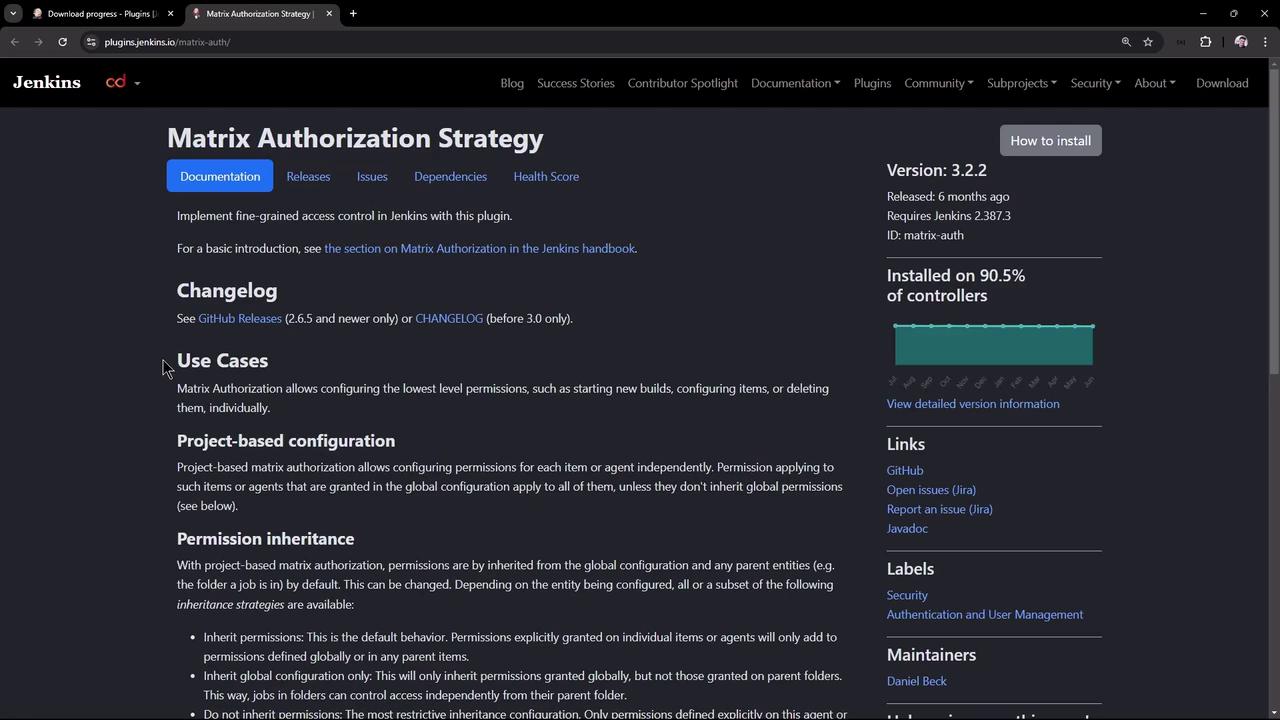
## Configuring Authorization Settings
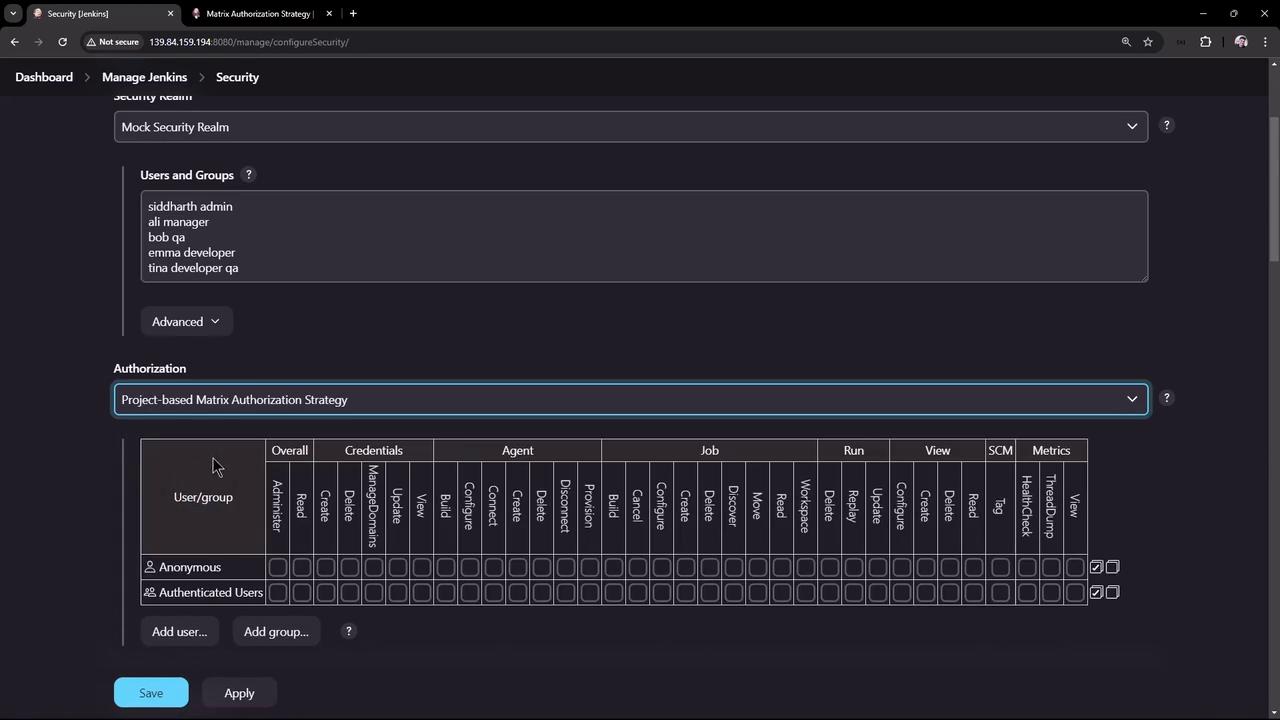
After installing the plugin, return to the Jenkins security section. You will notice two new options:
* **Matrix-based security** (global)
* **Project-based Matrix Authorization Strategy**
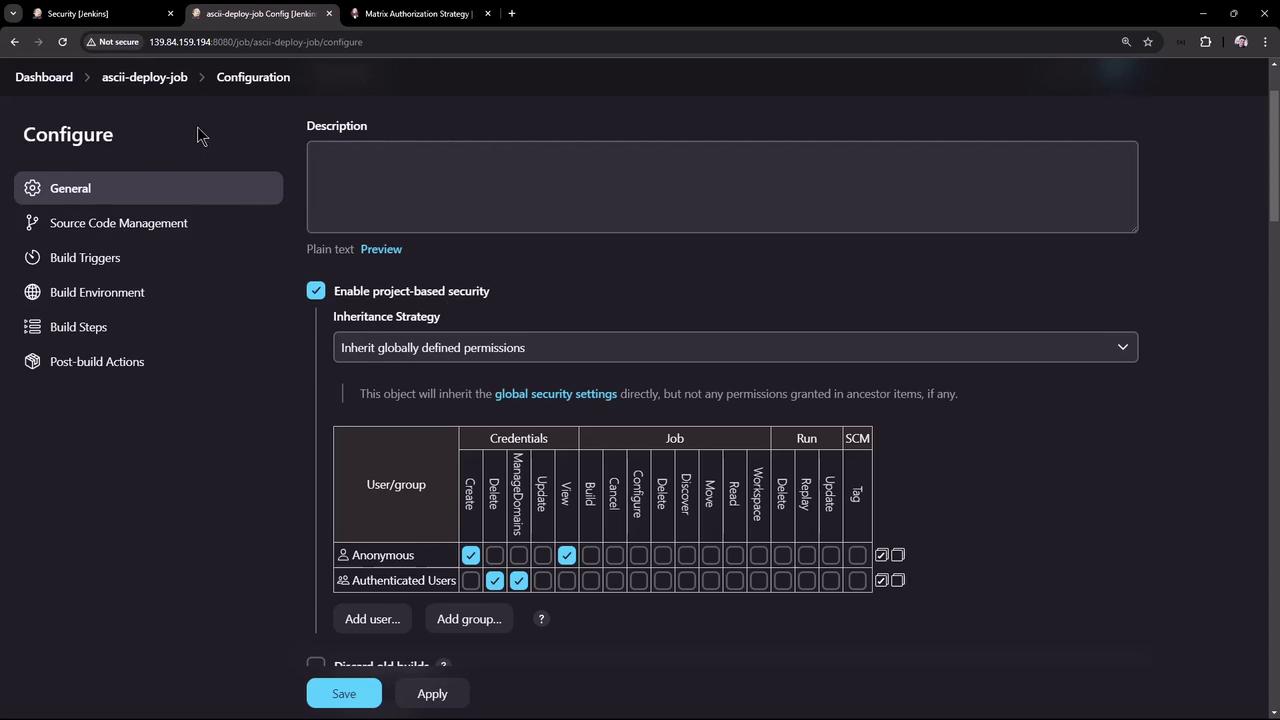
The project-based option provides an extra configuration screen for each project. This allows projects to either inherit global permissions or define their own settings.
For example, open a project like "ASCII deploy job" and click **Configure**. You will see options to enable project-based security, which lets you select between inheriting global permissions or customizing them for that project.
If you prefer to manage permissions at the global level, simply ignore the project-based option. In the global matrix, the left side lists users and groups while the top displays various permissions, such as credentials management, agent management, job control, SCM, and more.
It is recommended not to grant any permissions to anonymous users. Even for authenticated users, consider limiting initial permissions to read-only until further access adjustments are made.
## Defining User Groups and Permissions
Define user groups and assign permissions according to your project needs. Below is a summary table of recommended configurations:
| Group | Access Level | Key Permissions |
| --------- | --------------------------------------- | -------------------------------------------------------------------------------------------- |
| admin | Full administrative privileges | All permissions including job deletion, configuration, and credentials management. |
| manager | Read-only with additional view access | Overall read, job/view reading, and metrics viewing (logs and metrics only). |
| QA | Limited access for testing | Read and build jobs only (no create or delete permissions). |
| developer | Expanded access for pipeline management | Read, create/update credentials, provision agents, and most job permissions (except delete). |
### Admin Group
Create the **admin** group and assign all administrative permissions. Hover over any permission in the matrix to see a brief description that clarifies its purpose.
### Manager Group
Add the **manager** group with overall read access. This group should also have permissions to read jobs, views, and metrics. Managers are restricted from performing build, delete, or configuration actions.
### QA Group
For the **QA** group, grant only the minimum necessary permissions. Users in this group typically need only to read and build jobs. Ensure that they are not allowed to create or delete jobs.
### Developer Group
Create a **developer** group with broad access to support pipeline and agent management. Grant them read access, credentials management (create, update, and view), and most job-related permissions except job deletion. Developers can also create and view new views and use SCM options.
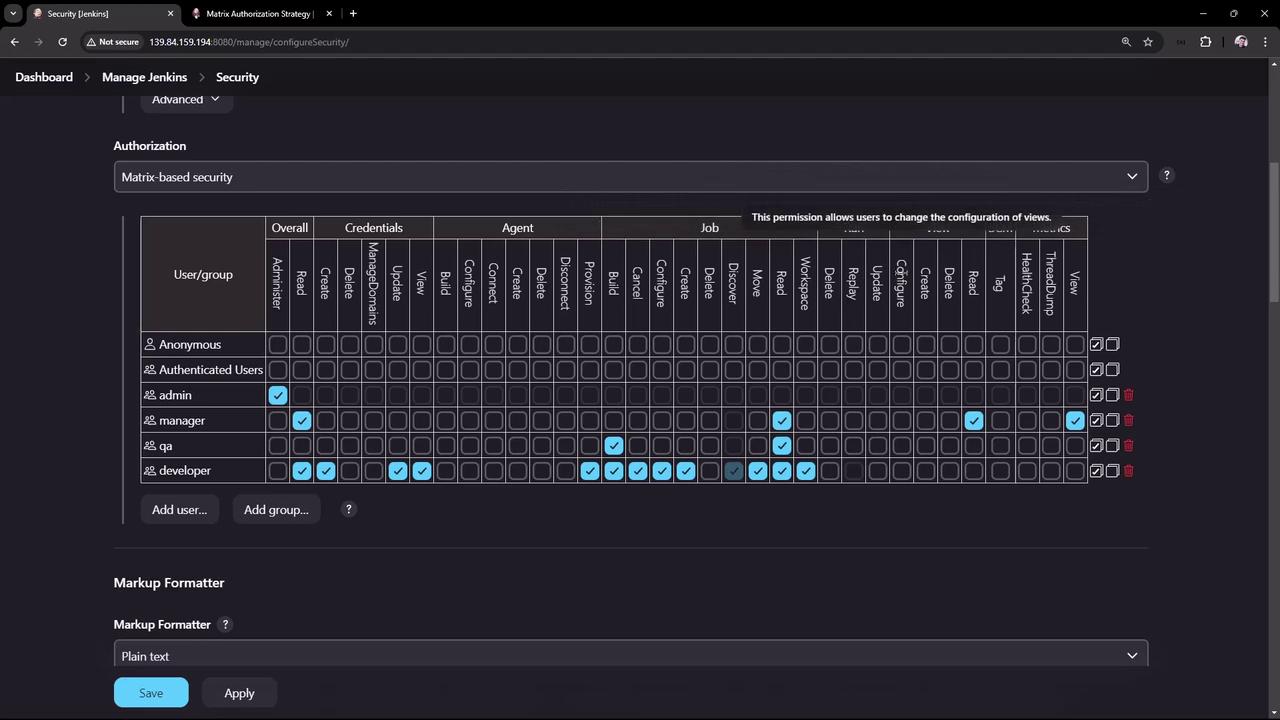
After configuring the groups, apply your changes to enforce the new permissions.
## Verifying the Configuration with Different Users
### Admin User Verification
Log in as the admin user to verify full access, including deletion privileges for any project. Keep the admin session open for testing.
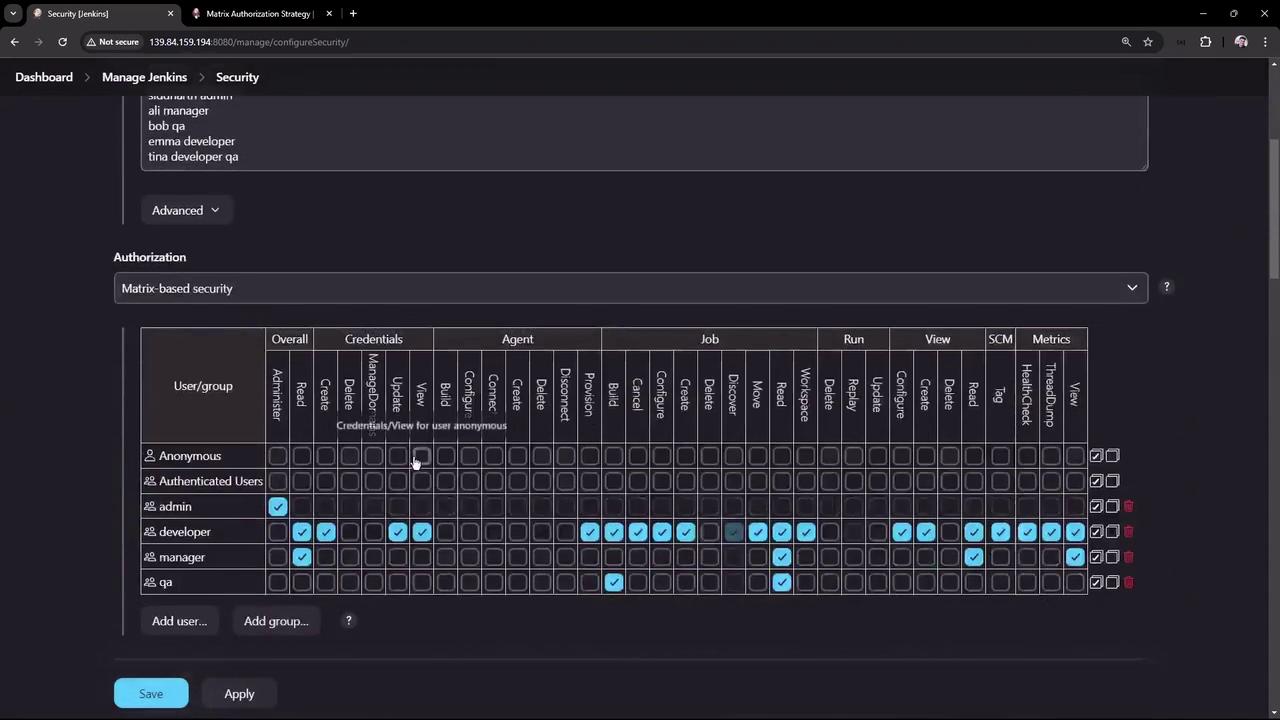
### Testing with Tina
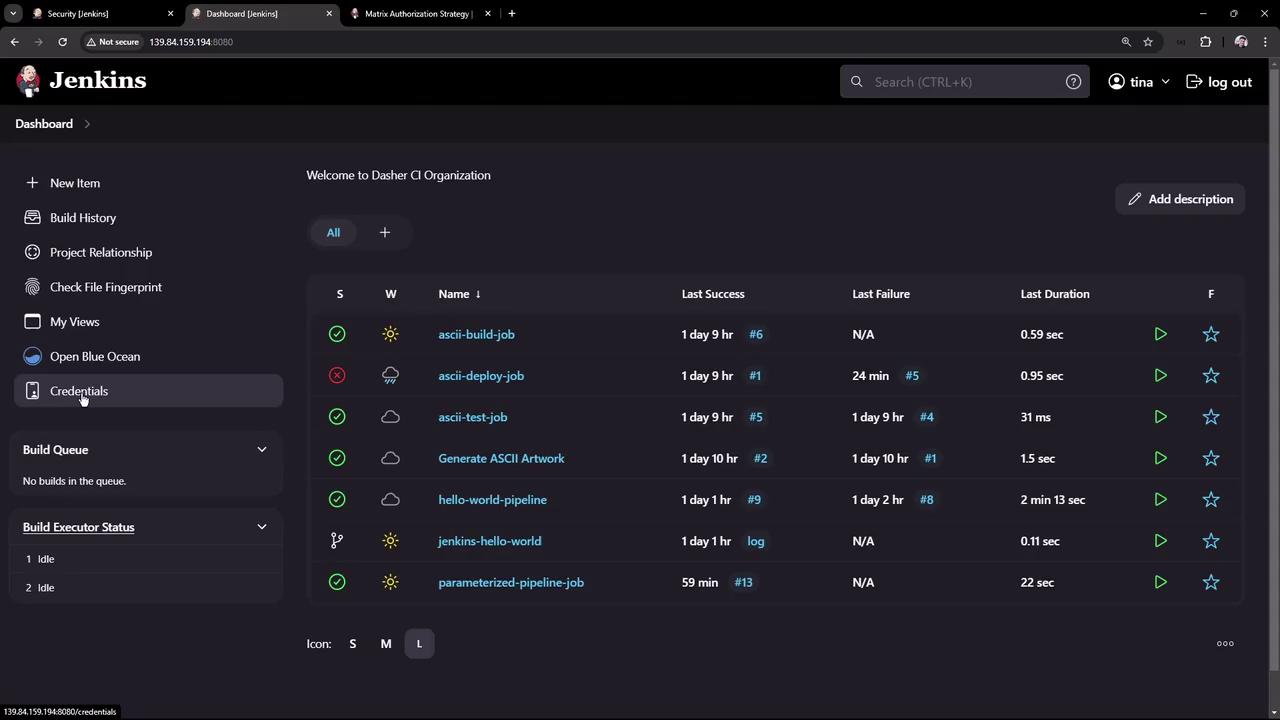
Log out and log in as Tina, who belongs to both the QA and developer groups. Notice that the delete option is disabled because neither group is granted deletion permissions. However, as a developer, Tina can create, view, and update credentials from the dashboard.
### Testing with Bob
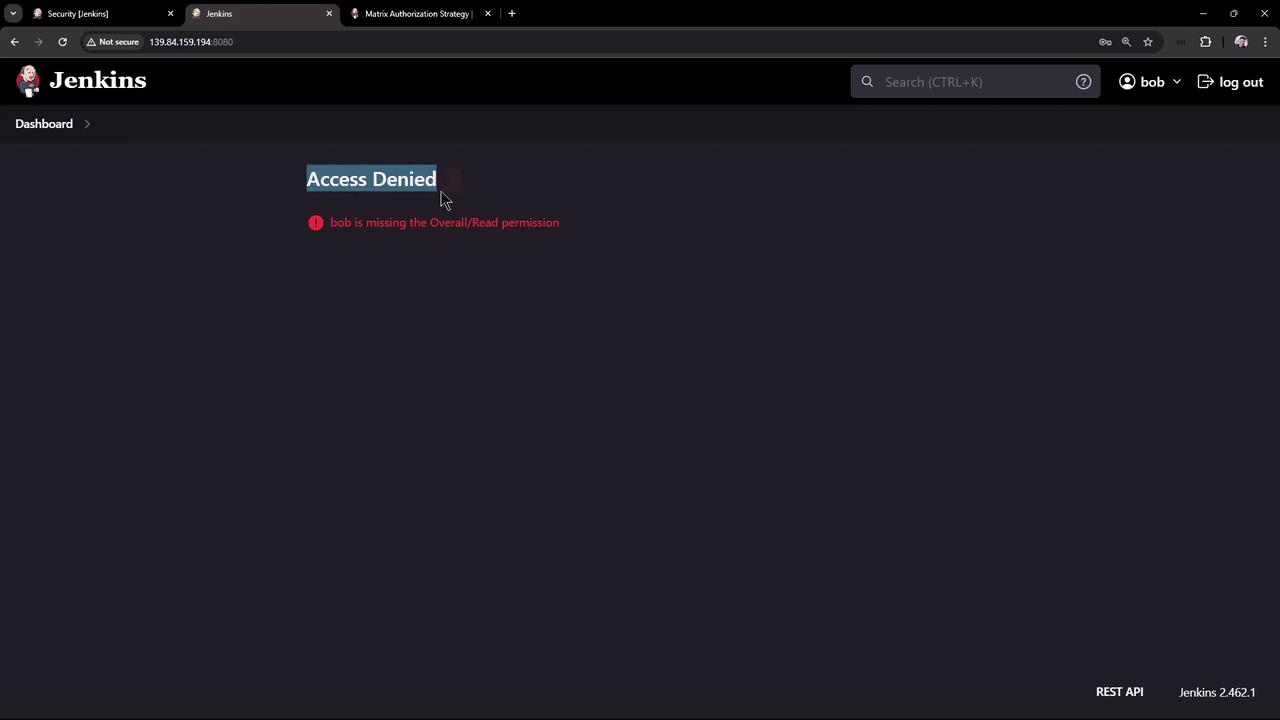
Next, test the settings with Bob, a user only in the QA group. Initially, Bob may encounter an "Access Denied" error due to the missing overall read permission. Update the QA group settings to include this access, then have Bob log out and log back in. Once updated, Bob can view jobs but cannot access credentials or delete jobs.
### Testing with Ali
Finally, log in as Ali from the manager group. Confirm that Ali can view the dashboard and job information due to overall read and job read permissions. Managers, however, are restricted to viewing logs and metrics without the ability to build or configure jobs.
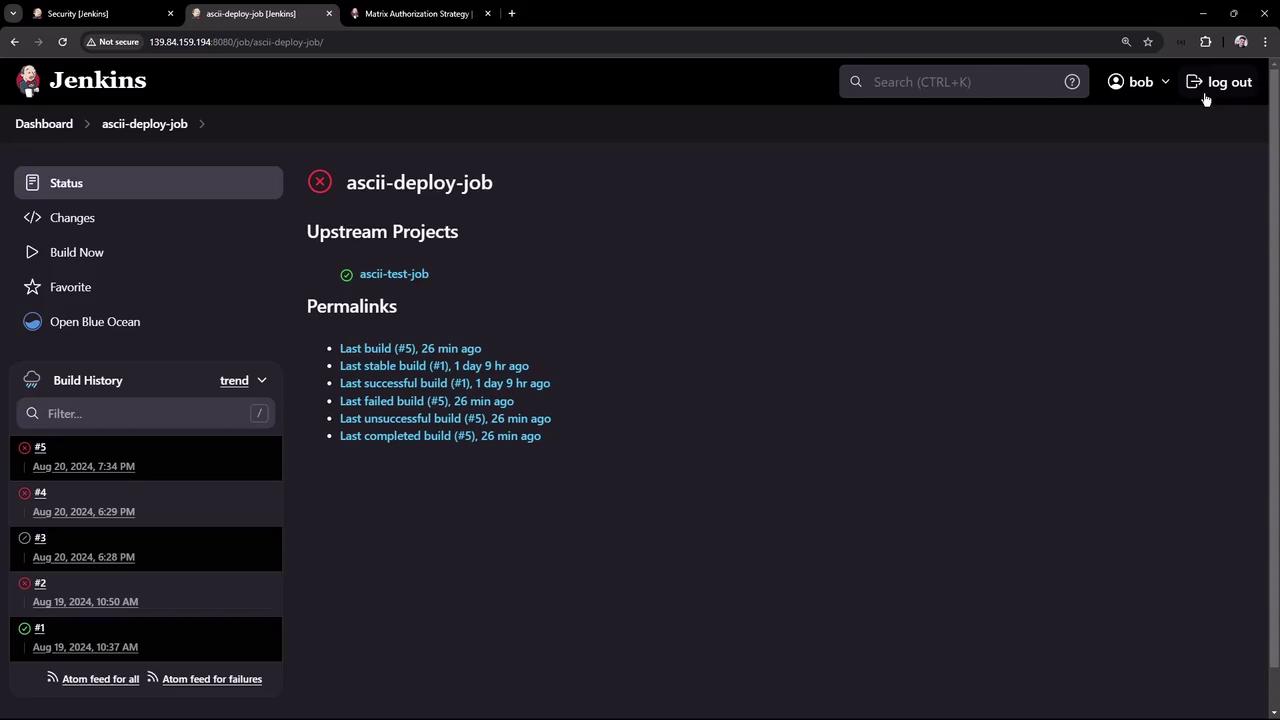
Always verify your configuration with multiple user accounts to ensure that permissions are correctly applied and that sensitive actions remain restricted.
## Summary
The Matrix Authorization Strategy in Jenkins offers a flexible way to manage user permissions both globally and at the project level. By creating tailored groups for admins, managers, QA personnel, and developers, you can secure your Jenkins environment effectively—granting full administrative control where needed while limiting access to essential functions for other users.
Thank you for following this guide on configuring Jenkins authorization. For more information on Jenkins security and best practices, visit the [Jenkins Documentation](https://www.jenkins.io/doc/).