> ## Documentation Index
> Fetch the complete documentation index at: https://notes.kodekloud.com/llms.txt
> Use this file to discover all available pages before exploring further.
# Jenkins CLI Build a job
> Learn to use the Jenkins CLI for building jobs from your shell, including downloading the CLI jar and executing commands.
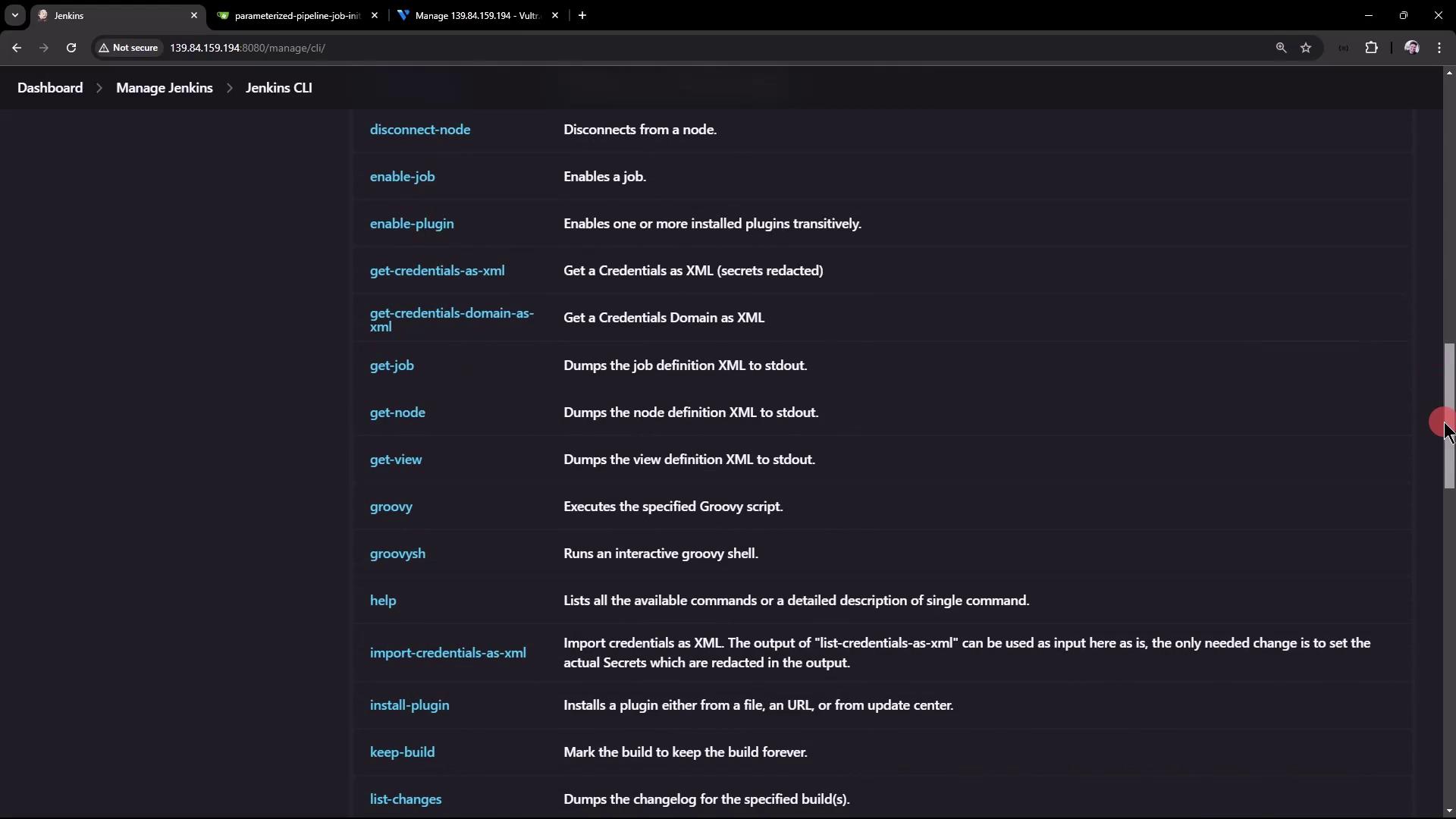
In this guide, you'll learn how to use the Jenkins CLI to build a job from your shell. The Jenkins CLI jar file is downloadable directly from your Jenkins instance. Navigate to Manage Jenkins, scroll down to the Jenkins CLI section, and follow the provided instructions. For additional details, refer to the official Jenkins documentation.
You can start using the Jenkins CLI by downloading the CLI jar file from your Jenkins server. Simply copy the download URL and use it on your virtual machine.
!!! note "Explore CLI Commands"
To explore available CLI commands, you can run the following command, which displays an overview of all commands and options:
```bash theme={null}
java -jar jenkins-cli.jar -s http://139.84.159.194:8080/ help
```
This command connects to your Jenkins instance at the specified URL using the downloaded jar file. The Jenkins CLI supports numerous commands similar to those available in the UI. If you're unsure about a particular command, click it in the Jenkins UI to see additional examples and details.

For instance, to enable a job, the CLI documentation suggests using:
```bash theme={null}
java -jar jenkins-cli.jar -s http://139.84.159.194:8080/ enable-job NAME
```
Replace NAME with the actual job name you wish to enable.
Similarly, to build a project and review its parameters, use:
```bash theme={null}
java -jar jenkins-cli.jar -s http://139.84.159.194:8080/ build JOB [-c] [-f] [-p] [-r N] [-s] [-v] [-w]
```
## Downloading the Jenkins CLI
Download the Jenkins CLI jar file using wget. First, change to the root directory of your virtual machine and run:
```bash theme={null}
wget http://139.84.159.194:8080/jnlpJars/jenkins-cli.jar
```
The output should resemble:
```plaintext theme={null}
--2024-08-19 19:36:26-- http://139.84.159.194:8080/jnlpJars/jenkins-cli.jar
Resolving 139.84.159.194... connected.
HTTP request sent, awaiting response... 200 OK
Length: 3638838 (3.5M) [application/java-archive]
Saving to: ‘jenkins-cli.jar’
jenkins-cli.jar 100%[===========================================>] 3.47M --.-KB/s in 0.009s
2024-08-19 19:36:26 (397 MB/s) - ‘jenkins-cli.jar’ saved [3638838/3638838]
```
After downloading, verify its presence with:
```bash theme={null}
ls
```
Expected output:
```plaintext theme={null}
docker-compose.yml
gitea jenkins-cli.jar
```
## Running Basic CLI Commands
Once you have the jar file, you can run commands directly from the terminal or copy commands from the Jenkins UI. For example, to display all available CLI options, run:
```bash theme={null}
java -jar jenkins-cli.jar -s http://139.84.159.194:8080/ help
```
This command shows usage options such as `-s`, `-webSocket`, `-http`, `-ssh`, and more.
A helpful command is `who-am-i`, which reports your current authentication status:
```bash theme={null}
java -jar jenkins-cli.jar -s http://139.84.159.194:8080/ who-am-i
```
Sample output:
```plaintext theme={null}
Authenticated as: anonymous
Authorities:
anonymous
```
Attempting to list jobs without the necessary permissions results in an error:
```bash theme={null}
java -jar jenkins-cli.jar -s http://139.84.159.194:8080/ list-jobs
```
Output:
```plaintext theme={null}
ERROR: anonymous is missing the Overall/Read permission
```
This error occurs because you're accessing Jenkins as an anonymous user who lacks the required permissions.
## Authenticating with the Jenkins CLI
To access protected data, authenticate with your username and password (or API token) using the `-auth` parameter:
```bash theme={null}
java -jar jenkins-cli.jar -s http://139.84.159.194:8080/ -auth admin:password list-jobs
```
If the credentials are valid and the user has required permissions, the command lists your Jenkins jobs:
```plaintext theme={null}
ascii-build-job
ascii-deploy-job
ascii-test-job
Generate ASCII Artwork
hello-world-pipeline
jenkins-hello-world
parameterized-pipeline-job
```
You can also verify your authentication status:
```bash theme={null}
java -jar jenkins-cli.jar -s http://139.84.159.194:8080/ -auth admin:password who-am-i
```
Output:
```plaintext theme={null}
Authenticated as: admin
Authorities:
authenticated
```
!!! note "Authentication Tip"
Always ensure you are using secure credentials. For improved security, consider using API tokens instead of plain-text passwords.
## Building a Parameterized Pipeline Job
Building a project using the CLI is straightforward. The `build` command supports several options:
* `-c` : Check for SCM changes before initiating the build.
* `-f` : Follow the build progress.
* `-p` : Pass build parameters in key-value format.
* `-s` : Wait until the build completes or aborts.
* `-v` : Display the console output.
* `-w` : Wait until the build begins.
For example, to build a parameterized pipeline job with a branch parameter, use:
```bash theme={null}
java -jar jenkins-cli.jar -s http://139.84.159.194:8080/ -auth admin:password build parameterized-pipeline-job -f -p BRANCH_NAME=test
```
The command output may look like:
```plaintext theme={null}
Started parameterized-pipeline-job #4
Completed parameterized-pipeline-job #4 : SUCCESS
```
If you want to monitor the console output in real time, include the `-v` flag.
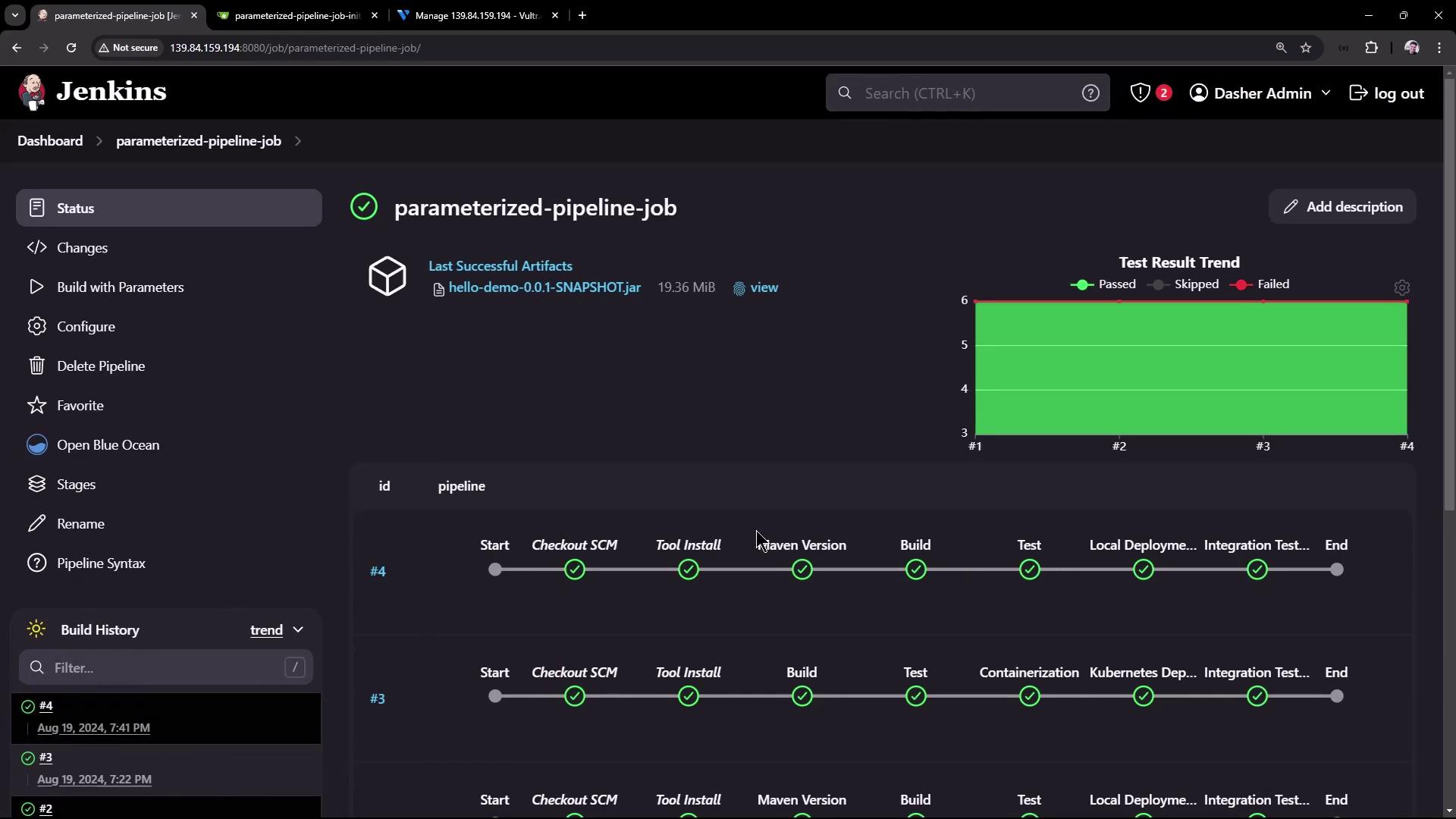
While the shell logs progress messages, you might see output similar to:
```plaintext theme={null}
[INFO] Total time: 3.452 s
[INFO] Finished at: 2024-08-19T19:42:29Z
[INFO] ---------------------< com.kodekloud:hello-demo >---------------------
[INFO] Building hello-demo 0.0.1-SNAPSHOT
[INFO] from pom.xml
[INFO] ------------------------------[ jar ]-------------------------------
```
After the build process, additional stages (such as integration tests) will run with logs output directly in the terminal.
## Summary of Commands
Below is a table summarizing the most commonly used Jenkins CLI commands:
| Command | Description | Example |
| ------------------------ | ------------------------------------------------- | --------------------------------------------------------------------------------------------------------------------------------------- |
| List Jobs | Lists all jobs in Jenkins | `java -jar jenkins-cli.jar -s http://139.84.159.194:8080/ -auth admin:password list-jobs` |
| Who Am I | Displays your current authentication status | `java -jar jenkins-cli.jar -s http://139.84.159.194:8080/ -auth admin:password who-am-i` |
| Build Job with Parameter | Triggers a build for a parameterized pipeline job | `java -jar jenkins-cli.jar -s http://139.84.159.194:8080/ -auth admin:password build parameterized-pipeline-job -f -p BRANCH_NAME=test` |
In addition, you can run scripts or other CLI commands from your shell directory for further automation. For example, you might execute a shell script that calls:
```sh theme={null}
curl -s http://localhost:6767/hello
```
which returns:
```plaintext theme={null}
Hello, KodeKloud community!
```
This guide only scratches the surface of what you can achieve with the Jenkins CLI—there are many more commands to explore. Experiment with different commands to get full control over your Jenkins instance.
Thank you for reading this article!