> ## Documentation Index
> Fetch the complete documentation index at: https://notes.kodekloud.com/llms.txt
> Use this file to discover all available pages before exploring further.
# Controller Failure Pipeline Project
> This article explores the impact of Jenkins controller failure on Pipeline Projects and demonstrates how to simulate and handle such failures.
In this article, we explore the impact of a Jenkins controller failure on a Pipeline Project compared to a Freestyle Project. You'll learn how to modify a Hello World Pipeline to simulate a long-running stage and observe how the pipeline resumes execution after a controller restart.
## Modifying the Pipeline
To simulate a delay during the unit test stage, open your GitHub repository and edit the pipeline script. The goal is to introduce a 60-second pause using a for loop before executing the Maven test command.
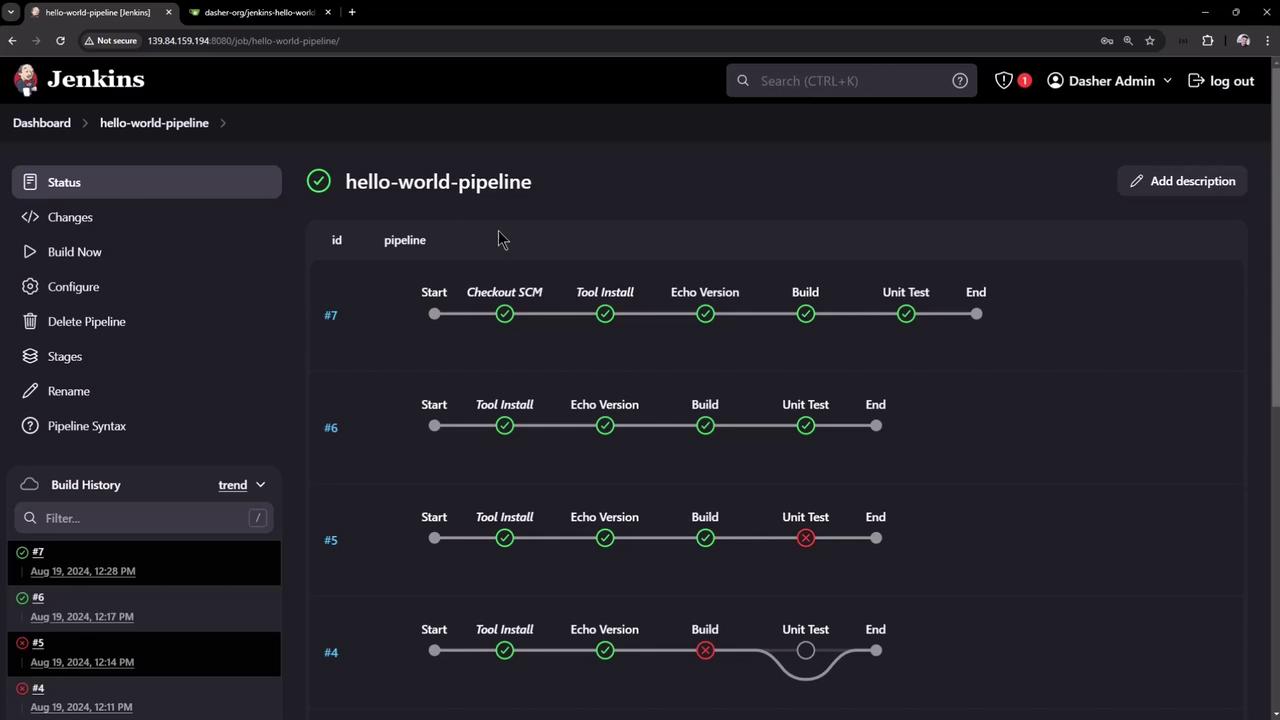
Initially, you might attempt to insert the for loop directly into the steps block as shown below:
```groovy theme={null}
// Get some code from a Gitea repository
// git branch: 'main', url: 'http://139.84.159.194:5555/dasher-org/jenkins-hello-world.git'
// Run Maven Package command
sh "mvn clean package -DskipTests=true"
stage('Unit Test') {
steps {
for (int i = 0; i < 60; i++) {
echo "${i + 1}"
sleep 1
}
}
sh "mvn test"
}
```
In a Declarative Pipeline, complex Groovy logic (like loops) must be wrapped inside a `script` block. Failing to do so will cause the pipeline to fail.
The corrected version of the pipeline stage places the for loop within a `script` block:
```groovy theme={null}
stage('Build') {
// Get some code from a Gitea repository
// git branch: 'main', url: 'http://139.84.159.194:5555/dasher-org/jenkins-hello-world.git'
// Run Maven Package command
sh "mvn clean package -DskipTests=true"
}
stage('Unit Test') {
steps {
script {
for (int i = 0; i < 60; i++) {
echo "${i + 1}"
sleep 1
}
sh "mvn test"
}
}
}
```
After committing these changes to the main branch, trigger a new pipeline build. Initially, if the for loop is outside the `script` block, the build may fail. Once corrected, the pipeline will correctly pause for 60 seconds before executing the Maven test command.
## Simulating a Controller Failure
With the revised pipeline in place, start a new build. As the unit test stage runs, the for loop begins echoing numbers every second. To simulate a controller failure, follow these steps:
1. While the pipeline is running (e.g., displaying output like below):
```plaintext theme={null}
[Pipeline] sleep
Sleeping for 1 sec
[Pipeline] echo
14
[Pipeline] sleep
Sleeping for 1 sec
[Pipeline] echo
15
…
[Pipeline] echo
38
```
2. Open a terminal connected to your Jenkins controller and execute the commands to stop the Jenkins service:
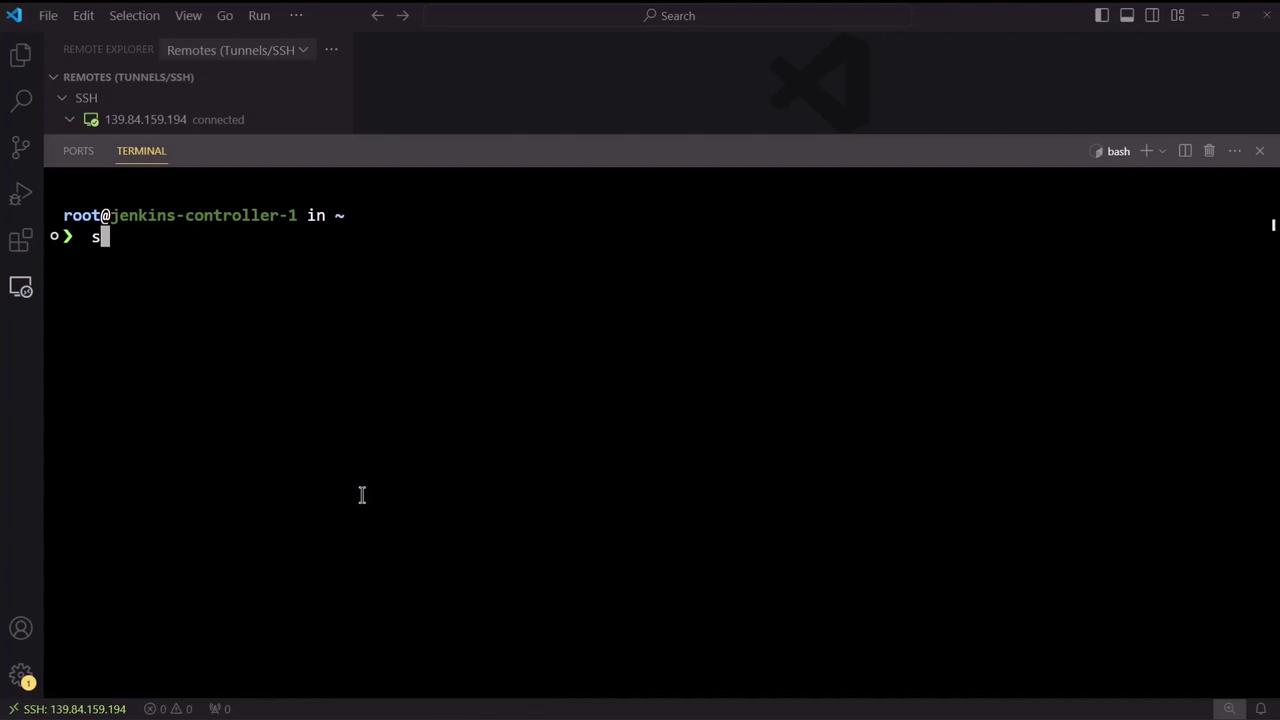
```bash theme={null}
systemctl stop jenkins
systemctl status jenkins
```
The command output confirms that Jenkins has been stopped:
```plaintext theme={null}
● jenkins.service - Jenkins Continuous Integration Server
Loaded: loaded (/usr/lib/systemd/system/jenkins.service; enabled; preset: enabled)
Active: inactive (dead) since Mon 2024-08-19 17:59:24 UTC; 7s ago
Duration: 7h 7min 58.180s
Process: 37656 ExecStart=/usr/bin/jenkins (code=exited, status=143)
Main PID: 37656 (code=exited, status=143)
Status: "Jenkins stopped"
CPU: 4min 23.428s
Aug 19 17:59:23 jenkins-controller-1 jenkins[37656]: 2024-08-19 17:59:23.962+0000 [id=26] INFO jenkins.model.Jenk...
Aug 19 17:59:24 jenkins-controller-1 jenkins[37656]: 2024-08-19 17:59:24.007+0000 [id=26] INFO jenkins.model.Jenk...
```
After confirming the controller has stopped, restart Jenkins with the following command:
```bash theme={null}
systemctl restart jenkins
```
Once Jenkins is back online, refresh the Jenkins UI and log in again.
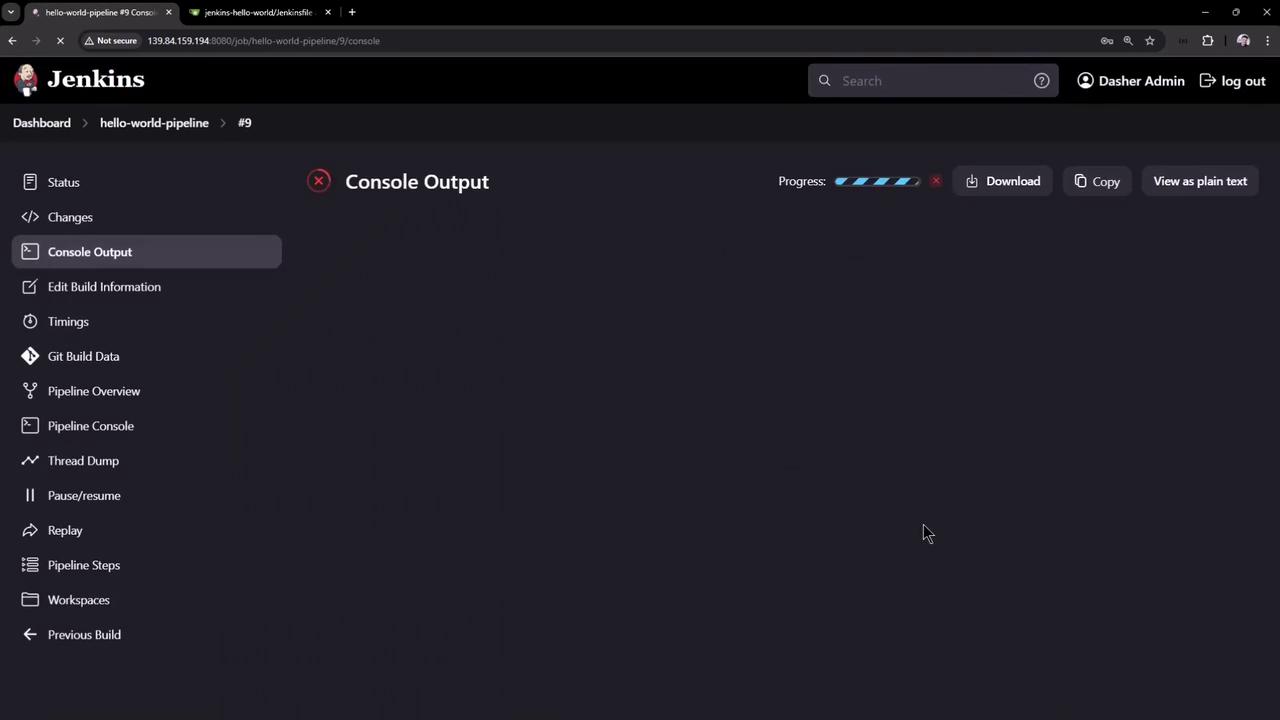
The pipeline resumes from where it halted, and the output continues:
```plaintext theme={null}
* mvn test
[INFO] Scanning for projects...
[INFO] -----------------------< com.kodekloud:hello-demo >-----------------------
[INFO] Building hello-demo 0.0.1-SNAPSHOT
[INFO] from pom.xml
[INFO] -------------------------------[ jar ]--------------------------------
[INFO]
[INFO] --- resources:3.3.1:resources (default-resources) @ hello-demo ---
[INFO] Copying 1 resource from src/main/resources to target/classes
…
[INFO] --- surefire:2.3.2:test (default-test) @ hello-demo ---
```
This behavior demonstrates that, unlike a Freestyle Project—which terminates upon a controller failure—a Pipeline Project resumes execution after Jenkins is restarted.
## Configuring Pipeline Resume Behavior
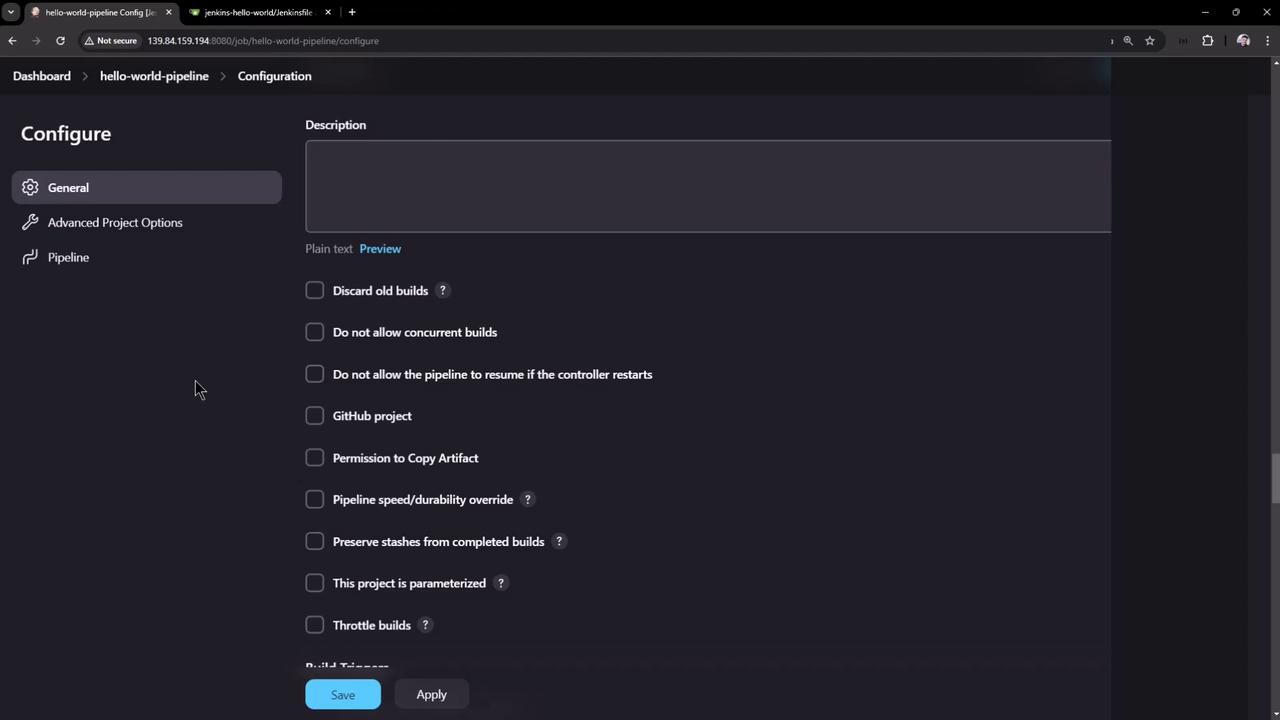
It is important to note that the resume behavior of your pipeline is configurable. Within the pipeline configuration settings, you can choose whether the job should resume after a controller restart. Disabling this feature causes the job to fail immediately upon a restart instead of resuming.
Review your pipeline configuration settings in Jenkins to ensure the desired resume behavior is enabled or disabled based on your project requirements.
Thank you for reading this article. Enjoy exploring the resilience of Jenkins Pipeline Projects in handling controller failures.