> ## Documentation Index
> Fetch the complete documentation index at: https://notes.kodekloud.com/llms.txt
> Use this file to discover all available pages before exploring further.
# Manual Lambda Deployment
> Guide to manually package a Node.js Express app, upload ZIP to S3, and update an existing AWS Lambda function, including handler setup and testing via Function URL.
In this guide you'll manually deploy a Node.js Express application to AWS Lambda (Node.js 20.x). We will package the app, upload the ZIP to S3, and update an existing Lambda function. In a follow-up lesson we'll automate this with [Jenkins Pipelines](https://learn.kodekloud.com/user/courses/jenkins-pipelines).
Below are the AWS objects created for this deployment and their purposes.
| Resource Type | Name / Identifier | Purpose |
| --------------: | -------------------------- | ----------------------------------------- |
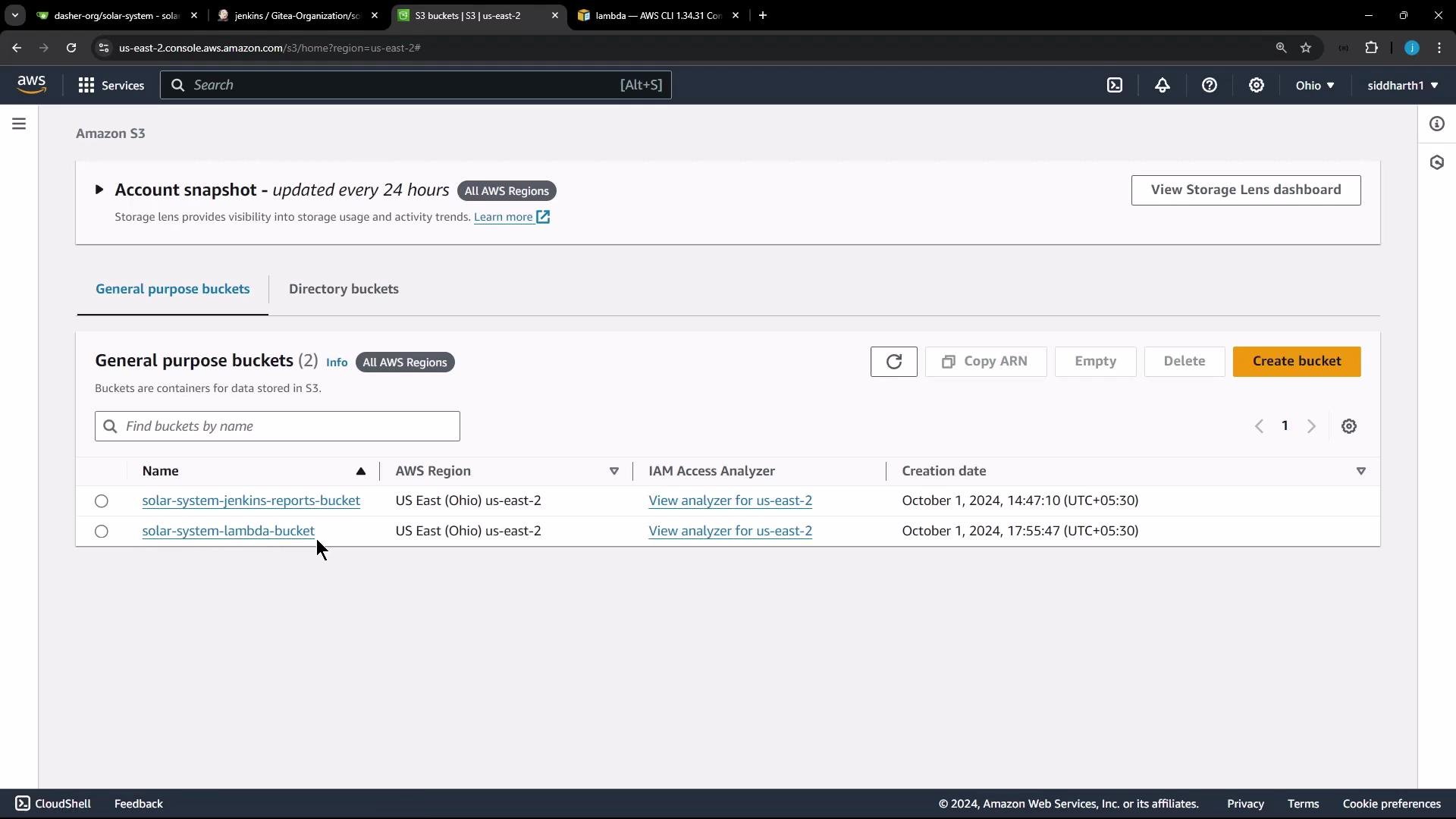
| S3 Bucket | solar-system-lambda-bucket | Store the deployment ZIP for Lambda |
| Lambda Function | solar-system-function | The existing function we will update |
| Function URL | (Lambda Function URL) | Public endpoint to verify UI and behavior |
We will create a ZIP archive of the minimal application artifacts, upload it to the S3 bucket above, and use `aws lambda update-function-code` to point the Lambda function to that S3 object. The Lambda function already exists; we will update it instead of creating a new function.
Key Lambda details:
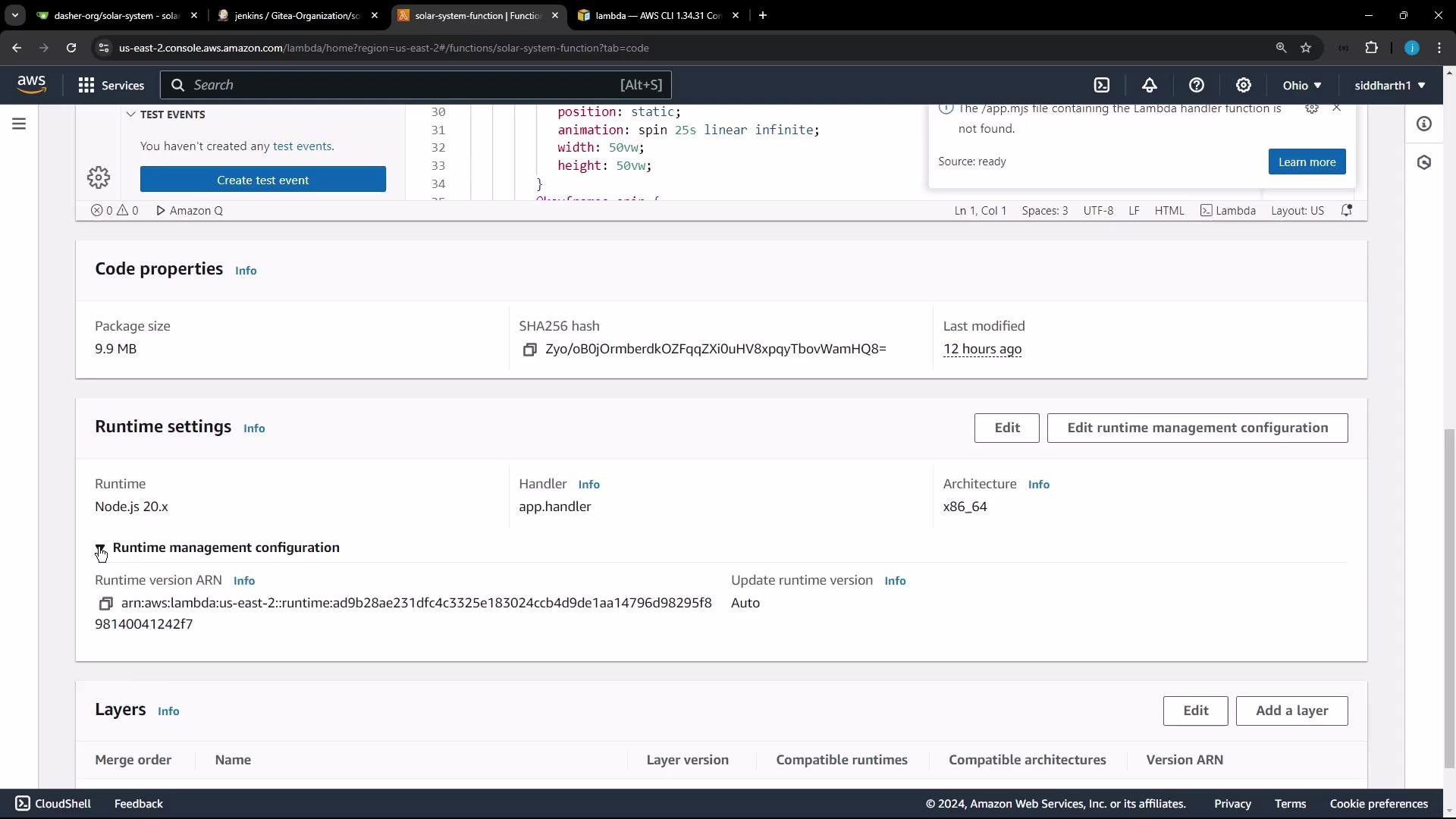
* Runtime: Node.js 20.x
* Handler: app.handler (project uses app.js)
* Current package size: \~10 MB
The packaged application contains server-side JavaScript plus static assets (HTML, CSS, images). Example static HTML snippet found in the repo:
```html theme={null}
Solar System - Sidd
```
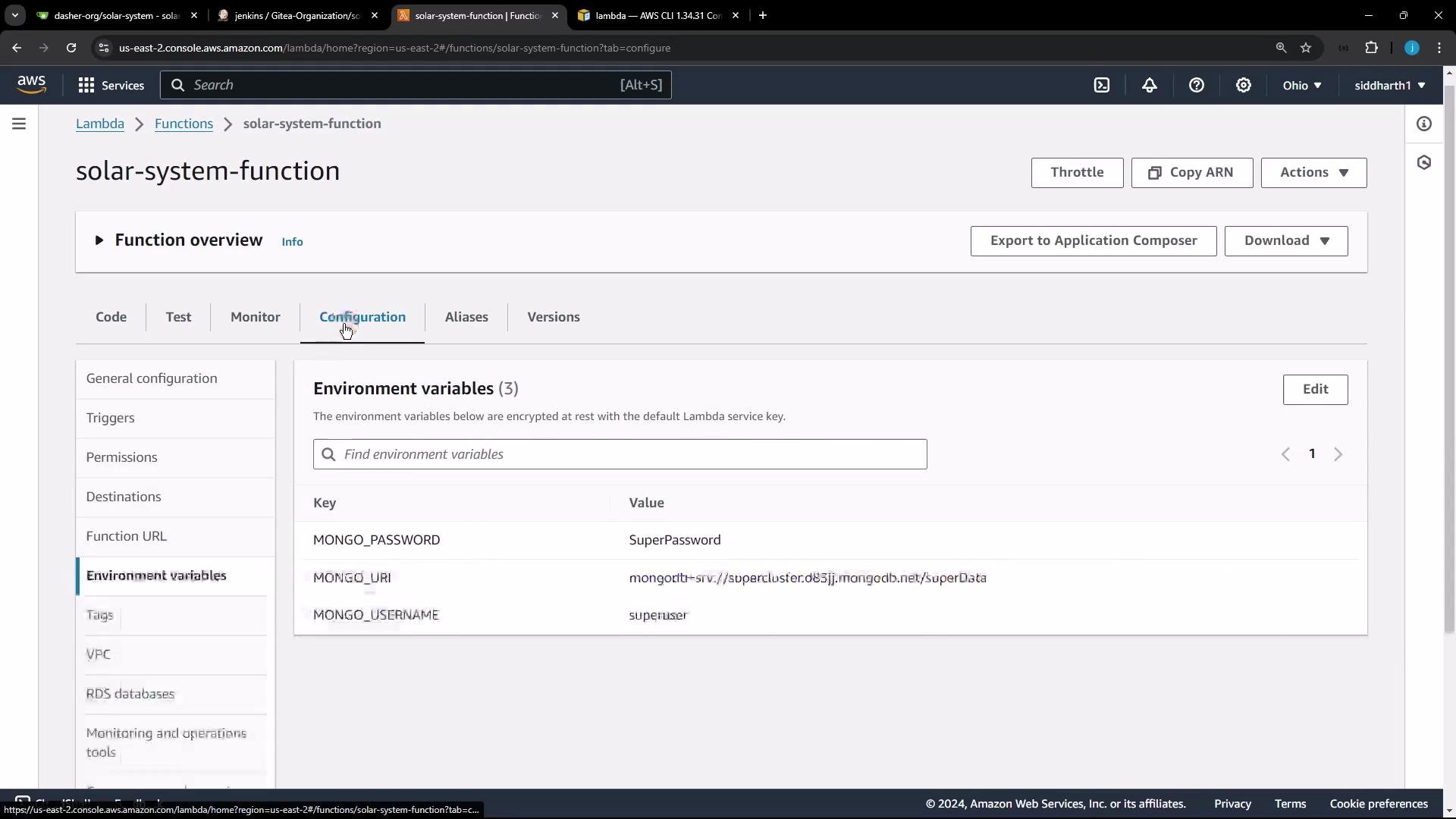
Important: the deployed Lambda currently has MongoDB credentials stored as plaintext environment variables.
Do not store sensitive secrets in plain environment variables for production. Use a secrets manager and grant the Lambda execution role least privilege.
For production deployments, avoid hardcoding sensitive values. Use [AWS Secrets Manager](https://docs.aws.amazon.com/secretsmanager/latest/userguide/intro.html) or [AWS Systems Manager Parameter Store (SSM)](https://docs.aws.amazon.com/systems-manager/latest/userguide/systems-manager-parameter-store.html) and grant the Lambda role least privilege to retrieve secrets.
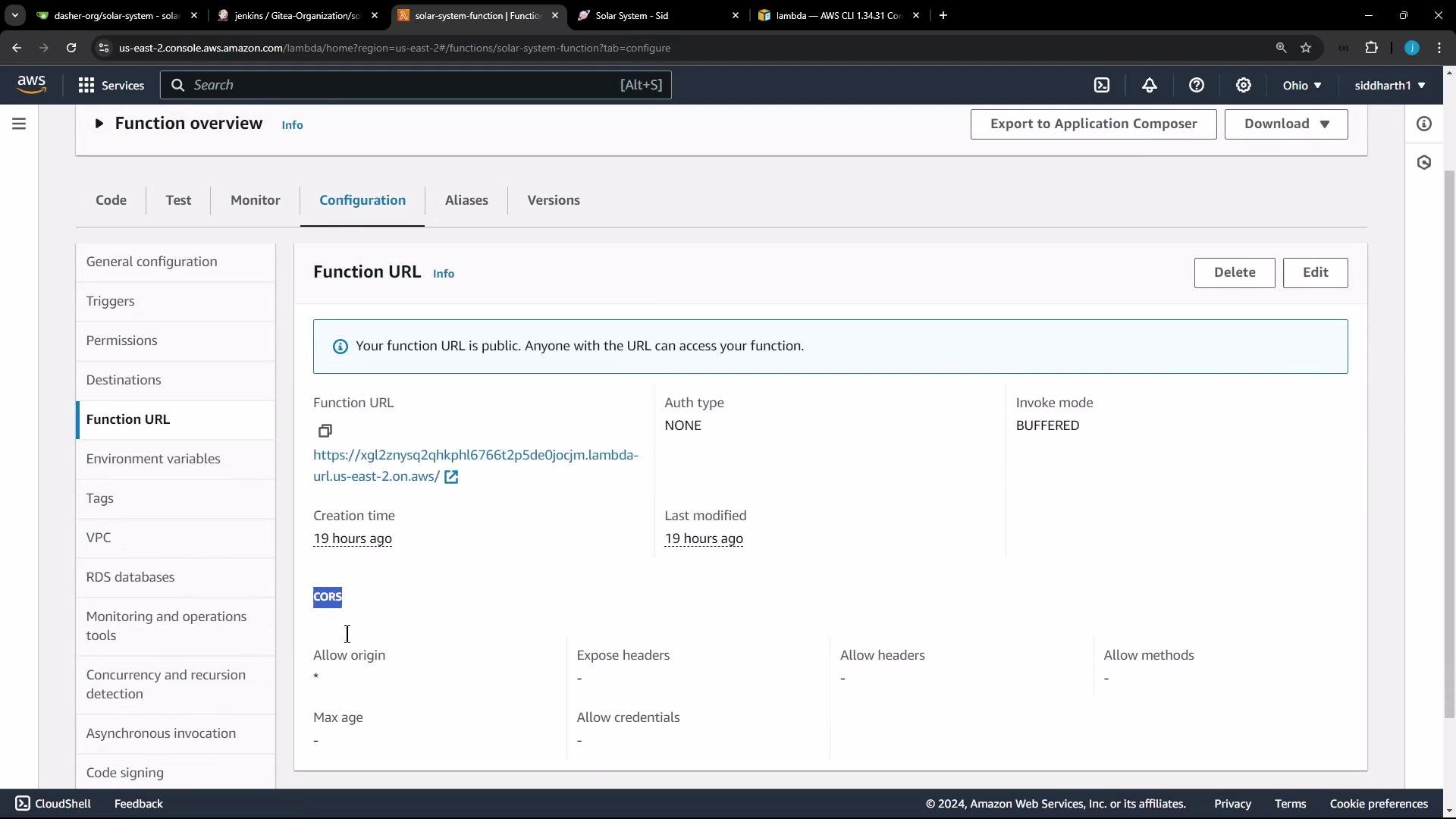
The Lambda function is exposed with a Function URL (you can view and test this in the Lambda console).
Preparing the local workspace and packaging the app
Project details and Node.js serverless setup:
* The app uses serverless-http to wrap an Express app for Lambda.
* The handler export should be: module.exports.handler = serverless(app)
* If running locally with app.listen, those lines must be commented/removed for Lambda.
Example package.json dependencies (serverless-http included):
```json theme={null}
{
"nyc": {
"check-coverage": true,
"lines": 90
},
"dependencies": {
"@babel/traverse": "^7.23.2",
"cors": "^2.8.5",
"express": "^4.18.2",
"mocha-junit-reporter": "^2.2.1",
"mongoose": "5.13.20",
"nyc": "^15.1.0",
"serverless-http": "^3.2.0"
},
"devDependencies": {
"chai": "*",
"chai-http": "*",
"mocha": "*"
}
}
```
Relevant excerpt from app.js showing serverless-http usage and MongoDB env var consumption:
```javascript theme={null}
const path = require('path');
const fs = require('fs');
const express = require('express');
const os = require('os');
const bodyParser = require('body-parser');
const mongoose = require('mongoose');
const cors = require('cors');
const serverless = require('serverless-http');
const app = express();
app.use(bodyParser.json());
app.use(express.static(path.join(__dirname, '/')));
app.use(cors());
mongoose.connect(process.env.MONGO_URI, {
user: process.env.MONGO_USERNAME,
pass: process.env.MONGO_PASSWORD,
useNewUrlParser: true,
useUnifiedTopology: true
}, function(err) {
if (err) {
console.error('MongoDB connection error:', err);
}
});
// If running locally, the app might have these lines:
// app.listen(3000, () => { console.log("Server successfully running on port - " + 3000); })
// module.exports = app;
// For Lambda we must export the serverless handler:
module.exports.handler = serverless(app);
```
Deployment checklist (high-level)
1. Clone the repository and install dependencies.
2. Apply any app changes to verify deployment (e.g., bump a visible version string).
3. Remove or comment local server start code (app.listen) and ensure the Lambda handler export is present.
4. Zip the minimal files required by Lambda (app files, package.json, index.html, node\_modules).
5. Upload the ZIP to S3.
6. Update the Lambda function using the S3 object via AWS CLI.
7. Retrieve and test the Function URL.
Recommended shell commands (run from a workspace/sandbox):
```bash theme={null}
# clone and enter repo (example)
git clone https://gitlab.com/dasher-org/solar-system.git
cd solar-system
# install dependencies (creates node_modules)
npm install
# update index.html version (example using sed)
# (This is just an example change to indicate a new version in the UI)
sed -i 's/SOLAR SYSTEM 3.0/SOLAR SYSTEM 4.0/' index.html
# Modify app.js for Lambda:
# Comment any local app.listen line and module.exports = app;
sed -i 's/^app\.listen(3000.*$/\/\/&/' app.js
sed -i 's/^module\.exports = app;/\/\/&/' app.js
# Ensure the serverless handler line is uncommented:
sed -i 's/^\/\/module\.exports\.handler/module.exports.handler/' app.js
# Verify the last 5 lines to confirm changes
tail -n 5 app.js
# Create the deployment ZIP with the needed files (app*, package*, index.html, node*)
zip -qr solar-system-lambda.zip app* package* index.html node*
# Upload the ZIP to S3
aws s3 cp solar-system-lambda.zip s3://solar-system-lambda-bucket/solar-system-lambda.zip
# Update the Lambda function from the S3 object
aws lambda update-function-code --function-name solar-system-function --s3-bucket solar-system-lambda-bucket --s3-key solar-system-lambda.zip
# Retrieve function URL config to get the FunctionUrl
aws lambda get-function-url-config --function-name solar-system-function
```
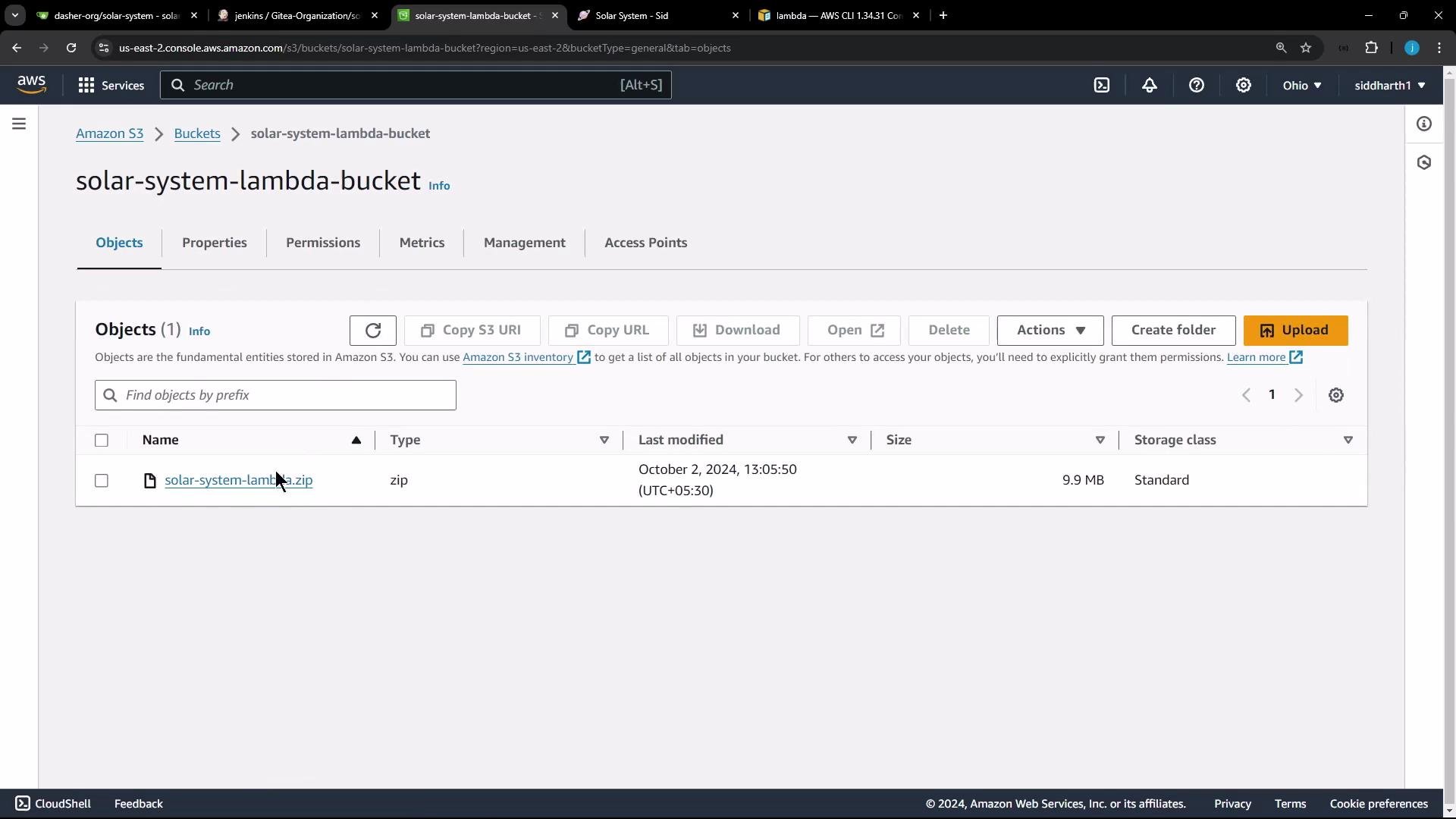
After uploading the ZIP, verify the S3 object exists in the console.
When the CLI update completes, it returns function metadata (JSON) including LastModified, CodeSize, and the environment variables currently configured. Example (truncated):
```json theme={null}
{
"FunctionName": "solar-system-function",
"Runtime": "nodejs20.x",
"Handler": "app.handler",
"CodeSize": 10332446,
"LastModified": "2024-10-02T07:36:54.000+0000",
"Version": "$LATEST",
"Environment": {
"Variables": {
"MONGO_USERNAME": "superuser",
"MONGO_PASSWORD": "SuperPassword",
"MONGO_URI": "mongodb+srv://supercluster.d83jj.mongodb.net/superData"
}
}
}
```
To obtain the Function URL programmatically:
```bash theme={null}
aws lambda get-function-url-config --function-name solar-system-function
```
Example response (truncated):
```json theme={null}
{
"FunctionUrl": "https://jkg12znysg2qhkphl6766t2p5de0jocjm.lambda-url.us-east-2.on.aws/",
"AuthType": "NONE",
"Cors": {
"AllowOrigins": ["*"]
},
"InvokeMode": "BUFFERED"
}
```
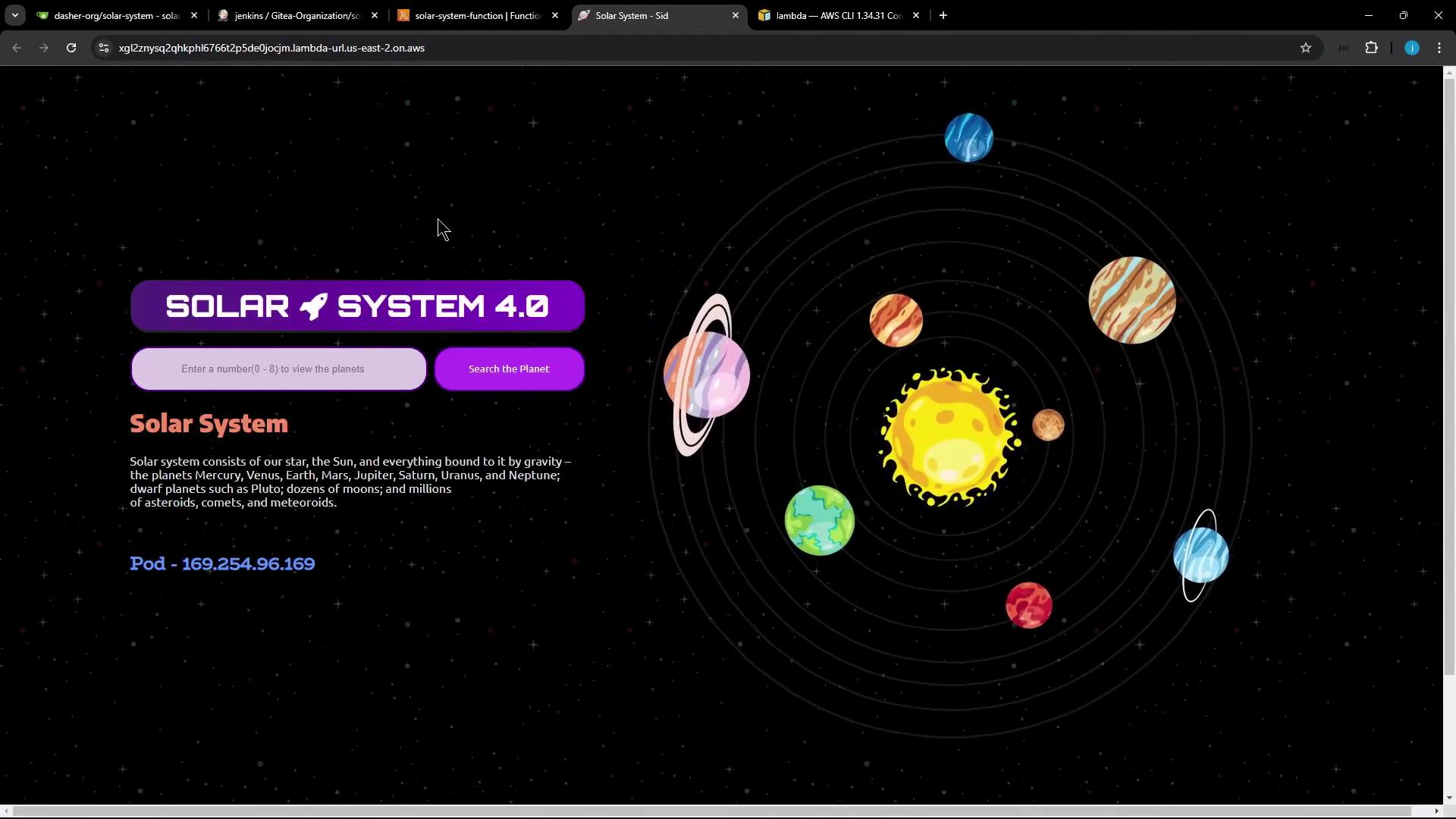
Open that Function URL (or refresh in the browser) to verify the deployment and any UI changes you made (the example uses "SOLAR SYSTEM 4.0").
Concise summary of the manual deployment steps:
* Ensure app exports a Lambda-compatible handler (module.exports.handler = serverless(app)) and remove local app.listen lines.
* Install dependencies with npm install.
* Create a ZIP containing only the files Lambda needs.
* Upload the ZIP to an S3 bucket.
* Update the Lambda function with aws lambda update-function-code referencing the S3 bucket and key.
* Confirm deployment by retrieving the Function URL and testing the endpoint.
Links and references
* [AWS Lambda Function URLs](https://docs.aws.amazon.com/lambda/latest/dg/lambda-urls.html)
* [AWS Secrets Manager](https://docs.aws.amazon.com/secretsmanager/latest/userguide/intro.html)
* [AWS Systems Manager Parameter Store](https://docs.aws.amazon.com/systems-manager/latest/userguide/systems-manager-parameter-store.html)
* [AWS CLI Lambda Commands](https://docs.aws.amazon.com/cli/latest/reference/lambda/index.html)
* [serverless-http on npm](https://www.npmjs.com/package/serverless-http)
Next lesson: Automate these steps and make deployments repeatable and secure with [Jenkins Pipelines](https://learn.kodekloud.com/user/courses/jenkins-pipelines).
 We will create a ZIP archive of the minimal application artifacts, upload it to the S3 bucket above, and use `aws lambda update-function-code` to point the Lambda function to that S3 object. The Lambda function already exists; we will update it instead of creating a new function.
 Key Lambda details:
* Runtime: Node.js 20.x
* Handler: app.handler (project uses app.js)
* Current package size: \~10 MB
The packaged application contains server-side JavaScript plus static assets (HTML, CSS, images). Example static HTML snippet found in the repo:
```html theme={null}
Key Lambda details:
* Runtime: Node.js 20.x
* Handler: app.handler (project uses app.js)
* Current package size: \~10 MB
The packaged application contains server-side JavaScript plus static assets (HTML, CSS, images). Example static HTML snippet found in the repo:
```html theme={null}
 Preparing the local workspace and packaging the app
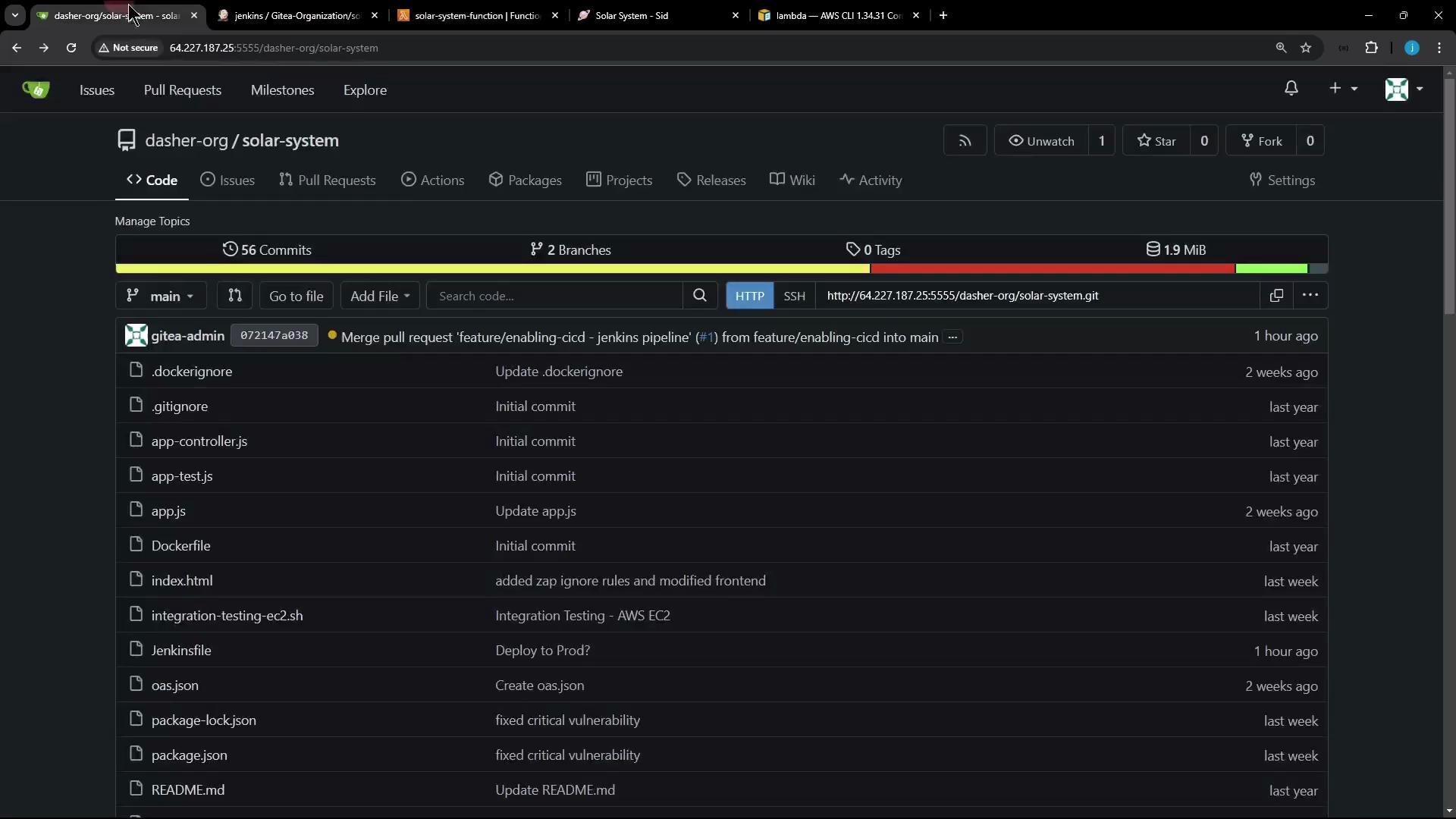 Project details and Node.js serverless setup:
* The app uses serverless-http to wrap an Express app for Lambda.
* The handler export should be: module.exports.handler = serverless(app)
* If running locally with app.listen, those lines must be commented/removed for Lambda.
Example package.json dependencies (serverless-http included):
```json theme={null}
{
"nyc": {
"check-coverage": true,
"lines": 90
},
"dependencies": {
"@babel/traverse": "^7.23.2",
"cors": "^2.8.5",
"express": "^4.18.2",
"mocha-junit-reporter": "^2.2.1",
"mongoose": "5.13.20",
"nyc": "^15.1.0",
"serverless-http": "^3.2.0"
},
"devDependencies": {
"chai": "*",
"chai-http": "*",
"mocha": "*"
}
}
```
Relevant excerpt from app.js showing serverless-http usage and MongoDB env var consumption:
```javascript theme={null}
const path = require('path');
const fs = require('fs');
const express = require('express');
const os = require('os');
const bodyParser = require('body-parser');
const mongoose = require('mongoose');
const cors = require('cors');
const serverless = require('serverless-http');
const app = express();
app.use(bodyParser.json());
app.use(express.static(path.join(__dirname, '/')));
app.use(cors());
mongoose.connect(process.env.MONGO_URI, {
user: process.env.MONGO_USERNAME,
pass: process.env.MONGO_PASSWORD,
useNewUrlParser: true,
useUnifiedTopology: true
}, function(err) {
if (err) {
console.error('MongoDB connection error:', err);
}
});
// If running locally, the app might have these lines:
// app.listen(3000, () => { console.log("Server successfully running on port - " + 3000); })
// module.exports = app;
// For Lambda we must export the serverless handler:
module.exports.handler = serverless(app);
```
Deployment checklist (high-level)
1. Clone the repository and install dependencies.
2. Apply any app changes to verify deployment (e.g., bump a visible version string).
3. Remove or comment local server start code (app.listen) and ensure the Lambda handler export is present.
4. Zip the minimal files required by Lambda (app files, package.json, index.html, node\_modules).
5. Upload the ZIP to S3.
6. Update the Lambda function using the S3 object via AWS CLI.
7. Retrieve and test the Function URL.
Recommended shell commands (run from a workspace/sandbox):
```bash theme={null}
# clone and enter repo (example)
git clone https://gitlab.com/dasher-org/solar-system.git
cd solar-system
# install dependencies (creates node_modules)
npm install
# update index.html version (example using sed)
# (This is just an example change to indicate a new version in the UI)
sed -i 's/SOLAR SYSTEM 3.0/SOLAR SYSTEM 4.0/' index.html
# Modify app.js for Lambda:
# Comment any local app.listen line and module.exports = app;
sed -i 's/^app\.listen(3000.*$/\/\/&/' app.js
sed -i 's/^module\.exports = app;/\/\/&/' app.js
# Ensure the serverless handler line is uncommented:
sed -i 's/^\/\/module\.exports\.handler/module.exports.handler/' app.js
# Verify the last 5 lines to confirm changes
tail -n 5 app.js
# Create the deployment ZIP with the needed files (app*, package*, index.html, node*)
zip -qr solar-system-lambda.zip app* package* index.html node*
# Upload the ZIP to S3
aws s3 cp solar-system-lambda.zip s3://solar-system-lambda-bucket/solar-system-lambda.zip
# Update the Lambda function from the S3 object
aws lambda update-function-code --function-name solar-system-function --s3-bucket solar-system-lambda-bucket --s3-key solar-system-lambda.zip
# Retrieve function URL config to get the FunctionUrl
aws lambda get-function-url-config --function-name solar-system-function
```
After uploading the ZIP, verify the S3 object exists in the console.
Project details and Node.js serverless setup:
* The app uses serverless-http to wrap an Express app for Lambda.
* The handler export should be: module.exports.handler = serverless(app)
* If running locally with app.listen, those lines must be commented/removed for Lambda.
Example package.json dependencies (serverless-http included):
```json theme={null}
{
"nyc": {
"check-coverage": true,
"lines": 90
},
"dependencies": {
"@babel/traverse": "^7.23.2",
"cors": "^2.8.5",
"express": "^4.18.2",
"mocha-junit-reporter": "^2.2.1",
"mongoose": "5.13.20",
"nyc": "^15.1.0",
"serverless-http": "^3.2.0"
},
"devDependencies": {
"chai": "*",
"chai-http": "*",
"mocha": "*"
}
}
```
Relevant excerpt from app.js showing serverless-http usage and MongoDB env var consumption:
```javascript theme={null}
const path = require('path');
const fs = require('fs');
const express = require('express');
const os = require('os');
const bodyParser = require('body-parser');
const mongoose = require('mongoose');
const cors = require('cors');
const serverless = require('serverless-http');
const app = express();
app.use(bodyParser.json());
app.use(express.static(path.join(__dirname, '/')));
app.use(cors());
mongoose.connect(process.env.MONGO_URI, {
user: process.env.MONGO_USERNAME,
pass: process.env.MONGO_PASSWORD,
useNewUrlParser: true,
useUnifiedTopology: true
}, function(err) {
if (err) {
console.error('MongoDB connection error:', err);
}
});
// If running locally, the app might have these lines:
// app.listen(3000, () => { console.log("Server successfully running on port - " + 3000); })
// module.exports = app;
// For Lambda we must export the serverless handler:
module.exports.handler = serverless(app);
```
Deployment checklist (high-level)
1. Clone the repository and install dependencies.
2. Apply any app changes to verify deployment (e.g., bump a visible version string).
3. Remove or comment local server start code (app.listen) and ensure the Lambda handler export is present.
4. Zip the minimal files required by Lambda (app files, package.json, index.html, node\_modules).
5. Upload the ZIP to S3.
6. Update the Lambda function using the S3 object via AWS CLI.
7. Retrieve and test the Function URL.
Recommended shell commands (run from a workspace/sandbox):
```bash theme={null}
# clone and enter repo (example)
git clone https://gitlab.com/dasher-org/solar-system.git
cd solar-system
# install dependencies (creates node_modules)
npm install
# update index.html version (example using sed)
# (This is just an example change to indicate a new version in the UI)
sed -i 's/SOLAR SYSTEM 3.0/SOLAR SYSTEM 4.0/' index.html
# Modify app.js for Lambda:
# Comment any local app.listen line and module.exports = app;
sed -i 's/^app\.listen(3000.*$/\/\/&/' app.js
sed -i 's/^module\.exports = app;/\/\/&/' app.js
# Ensure the serverless handler line is uncommented:
sed -i 's/^\/\/module\.exports\.handler/module.exports.handler/' app.js
# Verify the last 5 lines to confirm changes
tail -n 5 app.js
# Create the deployment ZIP with the needed files (app*, package*, index.html, node*)
zip -qr solar-system-lambda.zip app* package* index.html node*
# Upload the ZIP to S3
aws s3 cp solar-system-lambda.zip s3://solar-system-lambda-bucket/solar-system-lambda.zip
# Update the Lambda function from the S3 object
aws lambda update-function-code --function-name solar-system-function --s3-bucket solar-system-lambda-bucket --s3-key solar-system-lambda.zip
# Retrieve function URL config to get the FunctionUrl
aws lambda get-function-url-config --function-name solar-system-function
```
After uploading the ZIP, verify the S3 object exists in the console.
 When the CLI update completes, it returns function metadata (JSON) including LastModified, CodeSize, and the environment variables currently configured. Example (truncated):
```json theme={null}
{
"FunctionName": "solar-system-function",
"Runtime": "nodejs20.x",
"Handler": "app.handler",
"CodeSize": 10332446,
"LastModified": "2024-10-02T07:36:54.000+0000",
"Version": "$LATEST",
"Environment": {
"Variables": {
"MONGO_USERNAME": "superuser",
"MONGO_PASSWORD": "SuperPassword",
"MONGO_URI": "mongodb+srv://supercluster.d83jj.mongodb.net/superData"
}
}
}
```
To obtain the Function URL programmatically:
```bash theme={null}
aws lambda get-function-url-config --function-name solar-system-function
```
Example response (truncated):
```json theme={null}
{
"FunctionUrl": "https://jkg12znysg2qhkphl6766t2p5de0jocjm.lambda-url.us-east-2.on.aws/",
"AuthType": "NONE",
"Cors": {
"AllowOrigins": ["*"]
},
"InvokeMode": "BUFFERED"
}
```
Open that Function URL (or refresh in the browser) to verify the deployment and any UI changes you made (the example uses "SOLAR SYSTEM 4.0").
When the CLI update completes, it returns function metadata (JSON) including LastModified, CodeSize, and the environment variables currently configured. Example (truncated):
```json theme={null}
{
"FunctionName": "solar-system-function",
"Runtime": "nodejs20.x",
"Handler": "app.handler",
"CodeSize": 10332446,
"LastModified": "2024-10-02T07:36:54.000+0000",
"Version": "$LATEST",
"Environment": {
"Variables": {
"MONGO_USERNAME": "superuser",
"MONGO_PASSWORD": "SuperPassword",
"MONGO_URI": "mongodb+srv://supercluster.d83jj.mongodb.net/superData"
}
}
}
```
To obtain the Function URL programmatically:
```bash theme={null}
aws lambda get-function-url-config --function-name solar-system-function
```
Example response (truncated):
```json theme={null}
{
"FunctionUrl": "https://jkg12znysg2qhkphl6766t2p5de0jocjm.lambda-url.us-east-2.on.aws/",
"AuthType": "NONE",
"Cors": {
"AllowOrigins": ["*"]
},
"InvokeMode": "BUFFERED"
}
```
Open that Function URL (or refresh in the browser) to verify the deployment and any UI changes you made (the example uses "SOLAR SYSTEM 4.0").
 Concise summary of the manual deployment steps:
* Ensure app exports a Lambda-compatible handler (module.exports.handler = serverless(app)) and remove local app.listen lines.
* Install dependencies with npm install.
* Create a ZIP containing only the files Lambda needs.
* Upload the ZIP to an S3 bucket.
* Update the Lambda function with aws lambda update-function-code referencing the S3 bucket and key.
* Confirm deployment by retrieving the Function URL and testing the endpoint.
Links and references
* [AWS Lambda Function URLs](https://docs.aws.amazon.com/lambda/latest/dg/lambda-urls.html)
* [AWS Secrets Manager](https://docs.aws.amazon.com/secretsmanager/latest/userguide/intro.html)
* [AWS Systems Manager Parameter Store](https://docs.aws.amazon.com/systems-manager/latest/userguide/systems-manager-parameter-store.html)
* [AWS CLI Lambda Commands](https://docs.aws.amazon.com/cli/latest/reference/lambda/index.html)
* [serverless-http on npm](https://www.npmjs.com/package/serverless-http)
Next lesson: Automate these steps and make deployments repeatable and secure with [Jenkins Pipelines](https://learn.kodekloud.com/user/courses/jenkins-pipelines).
Concise summary of the manual deployment steps:
* Ensure app exports a Lambda-compatible handler (module.exports.handler = serverless(app)) and remove local app.listen lines.
* Install dependencies with npm install.
* Create a ZIP containing only the files Lambda needs.
* Upload the ZIP to an S3 bucket.
* Update the Lambda function with aws lambda update-function-code referencing the S3 bucket and key.
* Confirm deployment by retrieving the Function URL and testing the endpoint.
Links and references
* [AWS Lambda Function URLs](https://docs.aws.amazon.com/lambda/latest/dg/lambda-urls.html)
* [AWS Secrets Manager](https://docs.aws.amazon.com/secretsmanager/latest/userguide/intro.html)
* [AWS Systems Manager Parameter Store](https://docs.aws.amazon.com/systems-manager/latest/userguide/systems-manager-parameter-store.html)
* [AWS CLI Lambda Commands](https://docs.aws.amazon.com/cli/latest/reference/lambda/index.html)
* [serverless-http on npm](https://www.npmjs.com/package/serverless-http)
Next lesson: Automate these steps and make deployments repeatable and secure with [Jenkins Pipelines](https://learn.kodekloud.com/user/courses/jenkins-pipelines).