> ## Documentation Index
> Fetch the complete documentation index at: https://notes.kodekloud.com/llms.txt
> Use this file to discover all available pages before exploring further.
# Integration Testing AWS EC2
> This guide explains how to perform integration testing on AWS EC2 by dynamically retrieving instance details for a flexible Jenkins pipeline.
In this guide, we explore how to perform integration testing on an AWS EC2 instance by dynamically retrieving the instance’s public IP address or DNS name. This approach removes the need for hard-coded URLs in your Jenkins pipeline, ensuring a more flexible and secure deployment process.
## Overview
Previously, our Docker image was deployed to an [Amazon Elastic Compute Cloud (EC2)](https://learn.kodekloud.com/user/courses/amazon-elastic-compute-cloud-ec2) instance. Now, we improve upon that setup by integrating dynamic fetching of instance details using the AWS CLI. This enables our Jenkins pipeline to extract the correct endpoint and validate our application's responsiveness through automated tests.
## Testing the Running Docker Container
Before proceeding with dynamic integration testing, you might want to confirm that your Docker container is running on the EC2 instance. Execute the following command on your instance:
```bash theme={null}
ubuntu@ip-172-31-25-250:~$ sudo docker ps
CONTAINER ID IMAGE NAMES
cab883634d99 siddharth67/solar-system:537efda2bdf4113ff4f77c5ecaf solar-system
0.0.0.0:3000->3000/tcp solar-system
```
This output shows that the container is active and its port mapping is correct.
## Static vs. Dynamic Configuration
In earlier Jenkins pipeline configurations, the deployment stages used static details:
```groovy theme={null}
stage('Code Coverage') {
}
stage('SAST - SonarQube') {
}
stage('Build Docker Image') {
}
stage('Trivy Vulnerability Scanner') {
}
stage('Push Docker Image') {
}
stage('Deploy - AWS EC2') {
when {
branch 'feature/*'
}
}
```
To enhance this process, we now use a shell script that fetches EC2 instance details dynamically. This adjustment not only adds flexibility but also minimizes manual errors.
## Creating the Shell Script for Integration Testing
Within your Git repository's root directory, create a new shell script named `integration-testing-ec2.sh` and paste one of the versions below.
Ensure that you have AWS CLI version 2.17.56 or later and the `jq` command-line JSON processor installed on your system.
### Version 1: Fetching Using Network Interface Details
```bash theme={null}
#!/bin/bash
echo "Integration test......."
aws --version
Data=$(aws ec2 describe-instances)
echo "Data - $Data"
URL=$(aws ec2 describe-instances | jq -r '.Reservations[].Instances[] | select(.Tags[].Value == "dev-deploy") | .NetworkInterfaces[].Association.PublicIp')
echo "URL Data - $URL"
if [[ "$URL" != '' ]]; then
http_code=$(curl -s -o /dev/null -w "%{http_code}" http://$URL:3000/live)
echo "http_code - $http_code"
planet_data=$(curl -s -XPOST http://$URL:3000/planet -H "Content-Type: application/json" -d '{"id": "3"}')
echo "planet_data - $planet_data"
planet_name=$(echo $planet_data | jq .name -r)
echo "planet_name - $planet_name"
if [[ "$http_code" -eq 200 && "$planet_name" == "Earth" ]]; then
echo "HTTP Status Code and Planet Name Tests Passed"
else
echo "One or more test(s) failed"
exit 1
fi
else
echo "Could not fetch a token/URL; Check/Debug line 6"
exit 1
fi
```
### Version 2: Fetching Using the Public IP Address Directly
```bash theme={null}
#!/bin/bash
echo "Integration test........"
aws --version
Data=$(aws ec2 describe-instances)
echo "Data - $Data"
URL=$(aws ec2 describe-instances | jq -r '.Reservations[].Instances[] | select(.Tags[].Value == "dev-deploy") | .PublicIpAddress')
echo "URL Data - $URL"
if [[ "$URL" != '' ]]; then
http_code=$(curl -s -o /dev/null -w "%{http_code}" http://$URL:3000/live)
echo "http_code - $http_code"
planet_data=$(curl -s -XPOST http://$URL:3000/planet -H "Content-Type: application/json" -d '{"id": "3"}')
echo "planet_data - $planet_data"
planet_name=$(echo $planet_data | jq -r .name)
echo "planet_name - $planet_name"
if [[ "$http_code" -eq 200 && "$planet_name" == "Earth" ]]; then
echo "HTTP Status Code and Planet Name Tests Passed"
else
echo "One or more test(s) failed"
exit 1
fi
fi
```
## How the Script Operates
1. **AWS CLI Execution**\
The script initiates by running the `aws ec2 describe-instances` command to retrieve details about the instances.
2. **Parsing Instance Information**\
It then filters for the EC2 instance tagged as `"dev-deploy"` using `jq` to extract either the public IP address or DNS name.
3. **Endpoint Testing**\
Once the URL is identified, two tests follow:
* A GET request to `/live` verifies service availability.
* A POST request to `/planet` with JSON data (`{"id": "3"}`) retrieves planet data.
4. **Validation**\
The script examines whether the HTTP status code is `200` and if the retrieved planet name is `"Earth"`. If both conditions are met, the tests pass; otherwise, the script exits with an error.
### Sample JSON Response
Below is a representative JSON response from the `describe-instances` command. Although the response contains multiple details, only the public DNS or public IP is used in our script:
```json theme={null}
{
"PrivateDnsName": "ip-10-0-0-157.us-east-2.compute.internal",
"PrivateIpAddress": "10.0.0.157",
"ProductCodes": [],
"PublicDnsName": "ec2-34-253-223-13.us-east-2.compute.amazonaws.com",
"PublicIpAddress": "34.253.223.13",
"State": {
"Code": 16,
"Name": "running"
},
"StateTransitionReason": "",
"SubnetId": "subnet-04c361d18e83fcab",
"VpcId": "vpc-123456789abcdef0",
"Architecture": "x86_64",
...
"NetworkInterfaces": [
{
"Association": {
"PublicDnsName": "ec2-34-253-223-13.us-east-2.compute.amazonaws.com"
}
}
]
}
```
## Invoking the Shell Script via Jenkins Pipeline
Integrate the testing script into your Jenkins pipeline by adding a dedicated stage. Update your Jenkinsfile as follows:
```groovy theme={null}
stage('Integration Testing - AWS EC2') {
when {
branch 'feature/*'
}
steps {
// Optionally print environment variables to verify branch details
sh 'printenv | grep -i branch'
// Use the AWS Pipeline Steps plugin to set AWS credentials and region
withAWS(credentials: 'aws-s3-ec2-lambda-creds', region: 'us-east-2') {
sh '''
bash integration-testing-ec2.sh
'''
}
}
}
```
Make sure that your Jenkins controller node has the necessary AWS credentials and that the AWS CLI is properly configured with the correct region. You can verify the installation by running `aws --version`.
## AWS CLI Authentication and Jenkins Credentials
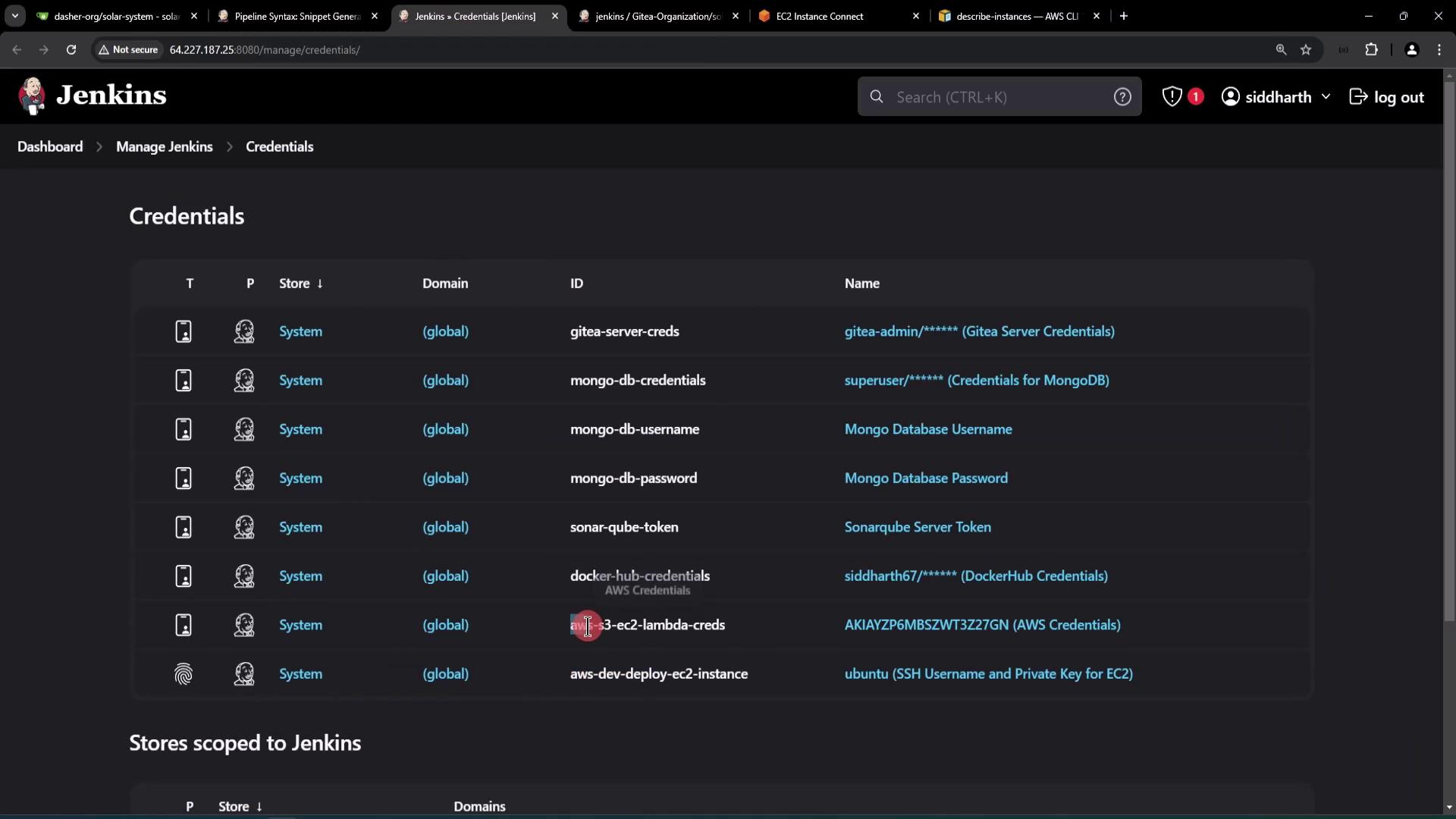
The AWS CLI requires a valid AWS Access Key, Secret Key, and defined region. Credentials can be managed on the Jenkins Dashboard. Additionally:
* In Jenkins, view stored credentials for services (e.g., MongoDB, Gitea, DockerHub).
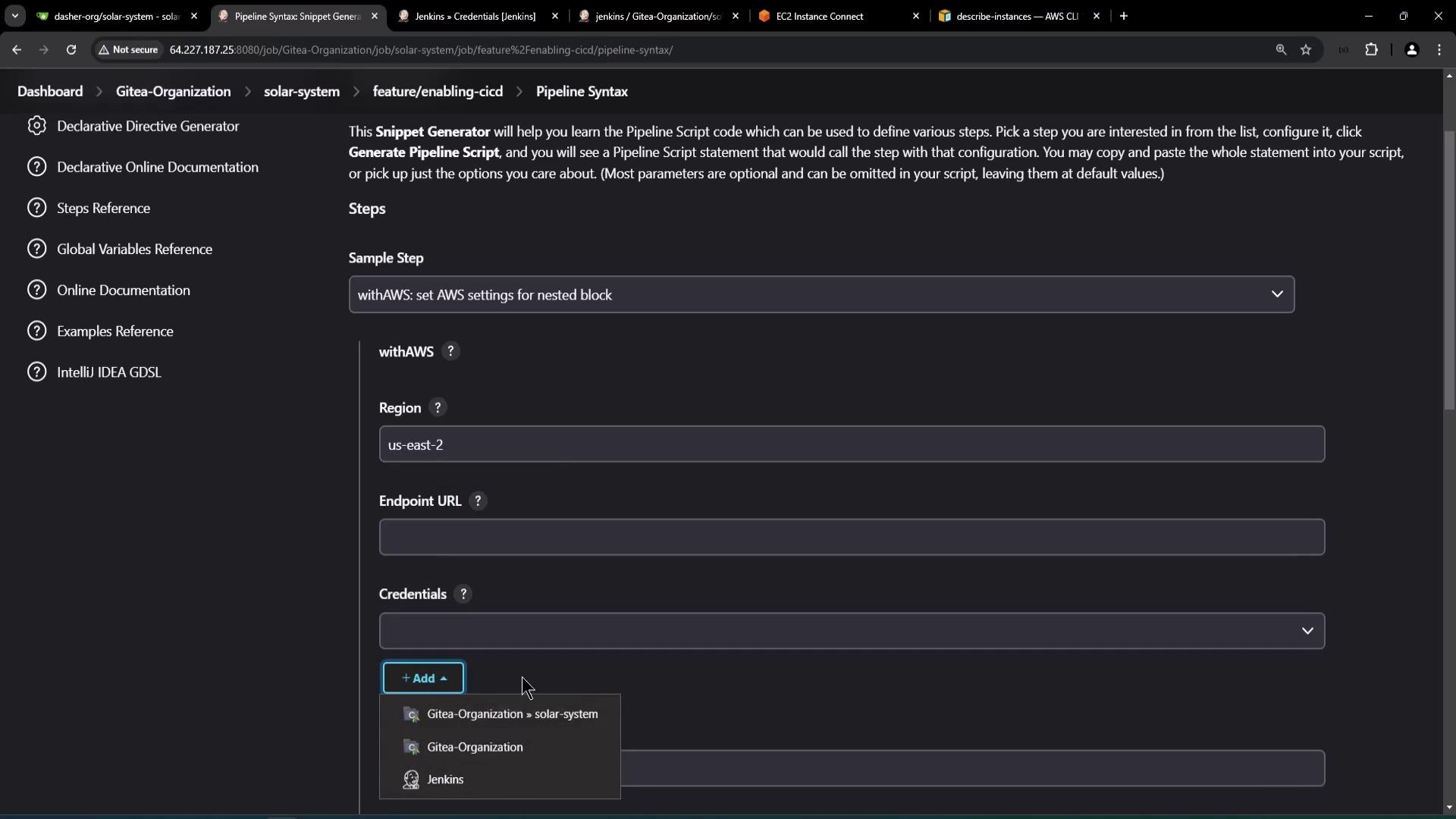
* Use a snippet generator for configuring AWS Pipeline Settings, specifying your region (e.g., `us-east-2`).
## Pipeline Execution and Log Verification
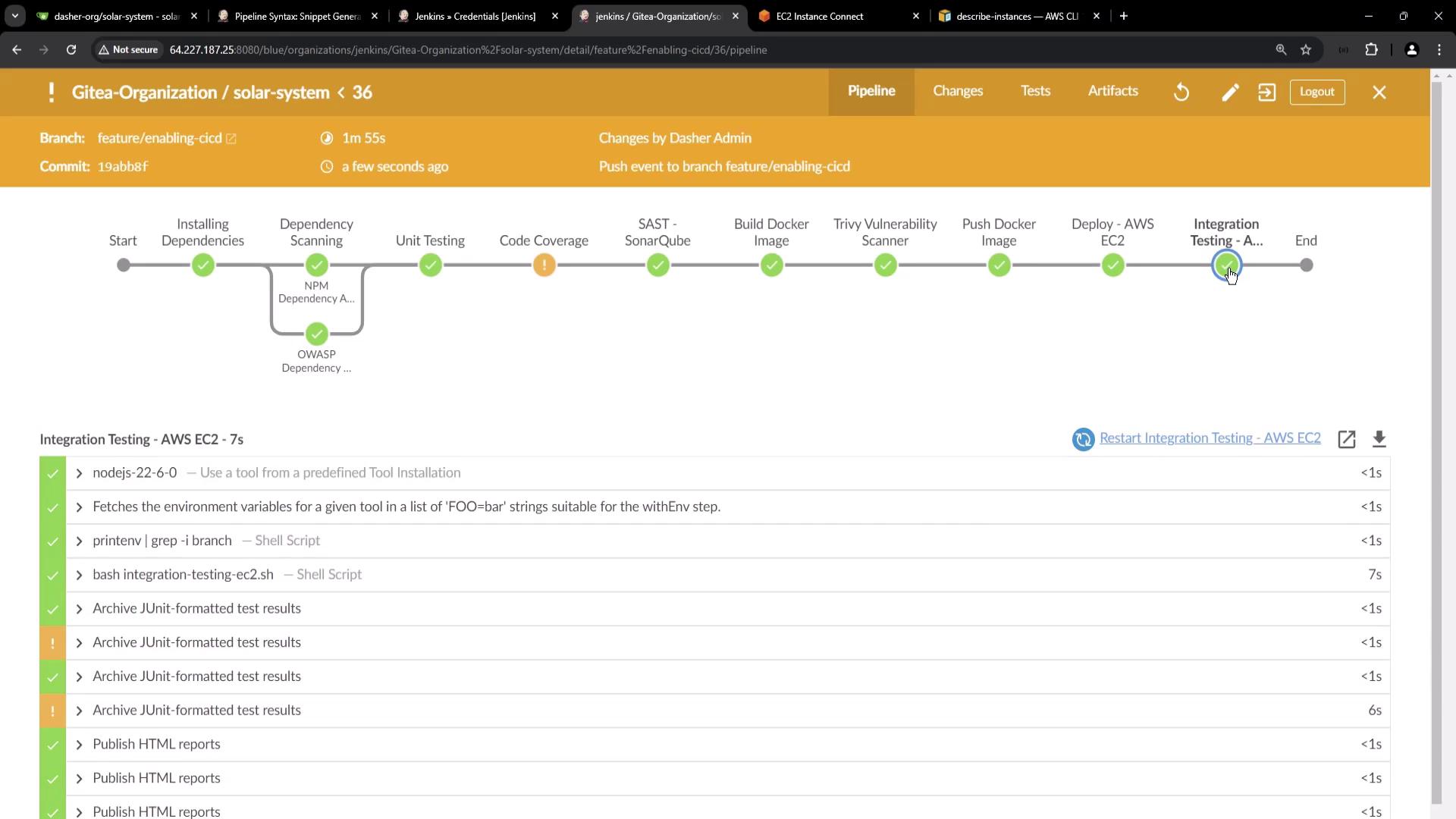
When the Jenkins pipeline runs, it will build the Docker image, deploy it to the AWS EC2 instance, and execute the integration tests. The console logs might contain output similar to:
```bash theme={null}
+ printenv
+ grep -i branch
GIT_BRANCH=feature/enabling-cid
BRANCH_NAME=feature/enabling-cid
+ bash integration-testing-ec2.sh
Integration test...
aws --cli/ 17.56 Python/3.12.6 Linux/6.8.0-45generic ...
Data : { "Reservations" : [ ... ] }
...
planet_data = {"id":"64de122465abc63a2e104d6","name":"Earth", ...}
planet_name = Earth
HTTP Status Code and Planet Name Tests Passed
```
This confirms that:
* The integration test retrieves instance details dynamically.
* The `/live` endpoint returns a `200` HTTP status code.
* The `/planet` POST request returns data with `"name": "Earth"`.
* The tests pass, verifying a successful integration process.
## Documentation and References
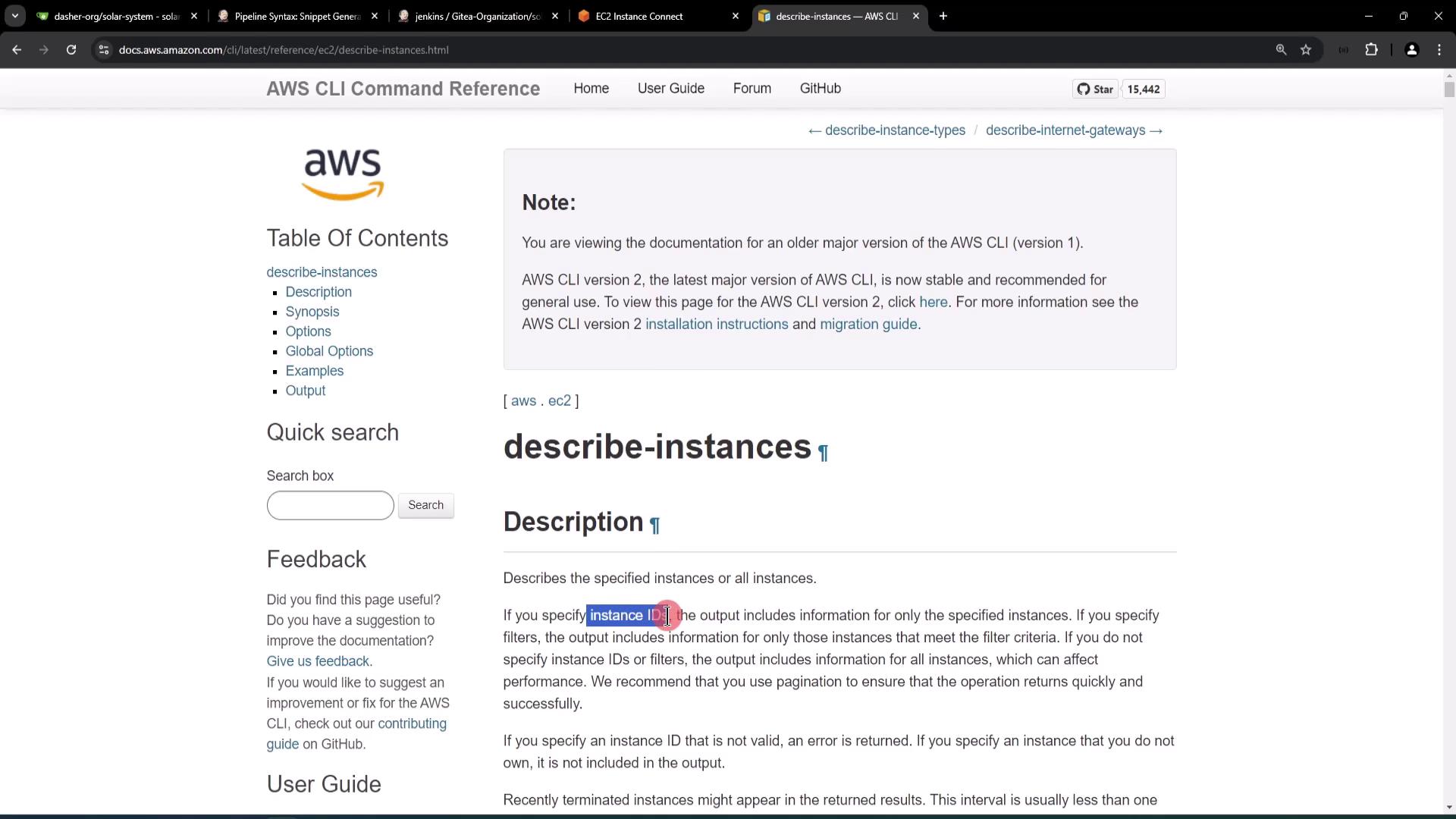
For further details on the AWS CLI `describe-instances` command, refer to the [official AWS CLI Command Reference documentation](https://docs.aws.amazon.com/cli/latest/reference/ec2/describe-instances.html).
## Visual References
## Conclusion
By dynamically fetching your AWS EC2 instance details using the AWS CLI and validating service endpoints via automated tests, you can significantly streamline your integration testing process. This setup enhances security by removing hard-coded URLs and ensures that your Jenkins pipeline accurately reflects the current state of your deployed environment.
Thank you for exploring this integration testing approach on AWS EC2.