> ## Documentation Index
> Fetch the complete documentation index at: https://notes.kodekloud.com/llms.txt
> Use this file to discover all available pages before exploring further.
# Send Slack Notification
> This tutorial explains how to modify a Jenkinsfile to send Slack notifications based on build status.
In this tutorial, we demonstrate how to modify your Jenkinsfile to send Slack notifications based on build status. By following these steps, you can integrate Slack alerts without affecting your main branch.
## Step 1: Create a Feature Branch
Before making any changes, create a new branch to work on Slack notifications safely. For example, create a branch named `feature/enabling-slack`:
```bash theme={null}
root@jenkins-controller-1 in solar-system on 🌿 main via 🦕 v20.16.0 on 🌍 (us-east-2)
➜ git checkout -b feature/enabling-slack
Switched to a new branch 'feature/enabling-slack'
root@jenkins-controller-1 in solar-system on 🌿 feature/enabling-slack via 🦕 v20.16.0 on 🌍 (us-east-2)
➜
```
## Step 2: Modify the Jenkinsfile to Configure Slack Notifications
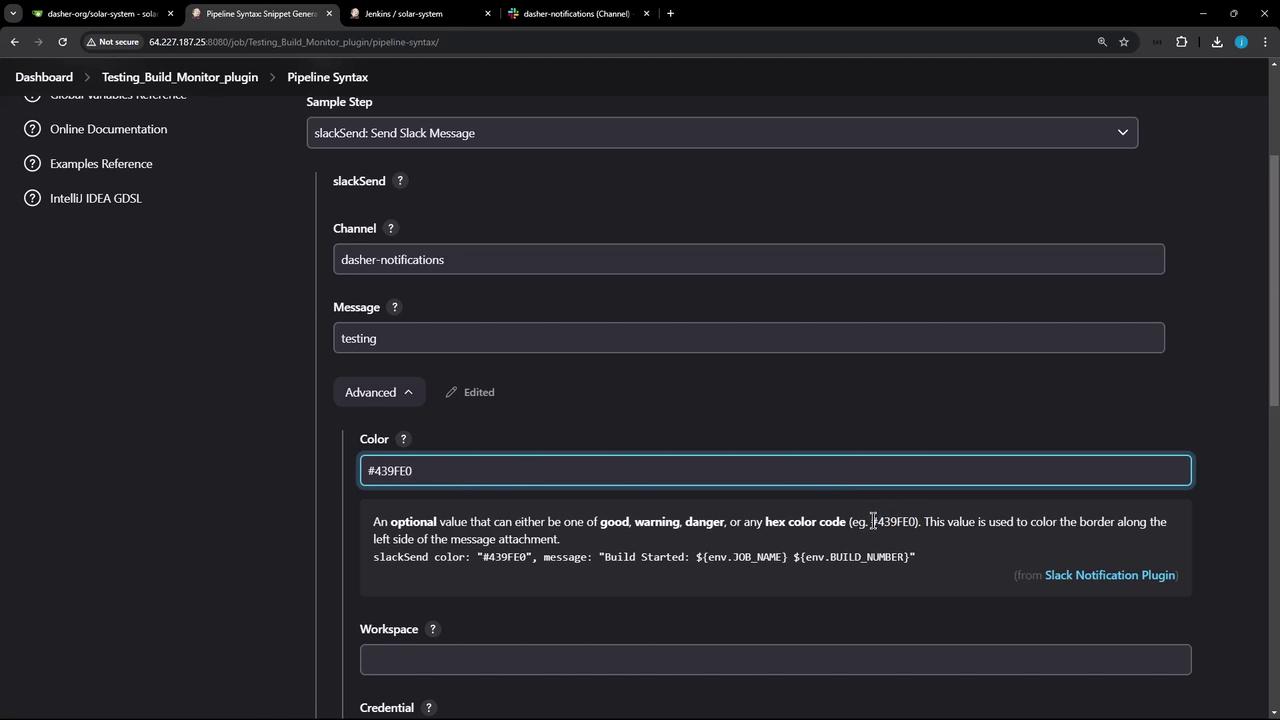
Update your Jenkinsfile to include Slack notifications. Open the Pipeline Syntax Generator and search for Slack commands like `slackSend`, `slackUploadFile`, or those used for user ID resolution. In this guide, we focus on the `slackSend` command.
You will need to specify:
* The Slack channel (e.g., "dasher-notifications")
* A message (e.g., "Testing")
* An optional color based on the build result (green for success, red for failure)
Below is a screenshot of the Jenkins Pipeline configuration screen:
After configuring the options, your command may look similar to the following:
```groovy theme={null}
stage('DAST - OWASP ZAP') {
}
stage('Upload - AWS S3') {
}
stage('Deploy to Prod?') {
}
stage('Lambda - S3 Upload & Deploy') {
}
stage('Lambda - Invoke Function') {
}
```
```bash theme={null}
root@jenkins-controller-1 in solar-system on 💻 main via v20.16.0 on ☁️ (us-east-2)
```
## Step 3: Implement Slack Notifications in the Post Section
Add the Slack notification command in the `post` block of your stages to handle conditions like success, failure, aborted, or unstable builds. For example:
```groovy theme={null}
post {
unstable {
slackSend botUser: true, channel: 'dasher-notifications', color: '#439FE0', message: 'Build Started: ${env.JOB_NAME} ${env.BUILD_NUMBER}'
}
aborted {
slackSend botUser: true, channel: 'dasher-notifications', color: '#439FE0', message: 'Build Started: ${env.JOB_NAME} ${env.BUILD_NUMBER}'
}
success {
slackSend botUser: true, channel: 'dasher-notifications', color: '#439FE0', message: 'Build Started: ${env.JOB_NAME} ${env.BUILD_NUMBER}'
}
failure {
slackSend botUser: true, channel: 'dasher-notifications', color: '#439FE0', message: 'Build Started: ${env.JOB_NAME} ${env.BUILD_NUMBER}'
}
}
```
```bash theme={null}
git checkout -b feature/enabling-slack
Switched to a new branch 'feature/enabling-slack'
```
To simplify maintenance when working with many stages (20 or more), consider creating a reusable Groovy method for sending Slack notifications rather than adding duplicate post blocks in every stage.
## Step 4: Create a Reusable Groovy Notification Method
Add the following Groovy method before the pipeline block in your Jenkinsfile. This method accepts an optional build status (defaulting to 'STARTED'), determines the notification color, and constructs a message using the job details.
```groovy theme={null}
def slackNotificationMethod(String buildStatus = 'STARTED') {
buildStatus = buildStatus ?: 'SUCCESS'
def color
if (buildStatus == 'SUCCESS') {
color = '#47ec05'
} else if (buildStatus == 'UNSTABLE') {
color = '#d5ee0d'
} else {
color = '#ec2805'
}
def msg = "${buildStatus}: *${env.JOB_NAME}* #${env.BUILD_NUMBER}:\n${env.BUILD_URL}"
slackSend(color: color, message: msg)
}
```
```bash theme={null}
git checkout -b feature/enabling-slack
Switched to a new branch 'feature/enabling-slack'
root@jenkins-controller-1 in solar-system on 📦 feature/enabling-slack via 🦊 v20.16.0 on ☁️ (us-east-2)
```
## Step 5: Integrate the Notification Method into Your Pipeline
Invoke the reusable notification method in the `post always` section of your pipeline to ensure that a notification is sent regardless of build outcome:
```groovy theme={null}
def slackNotificationMethod(String buildStatus = 'STARTED') {
buildStatus = buildStatus ?: 'SUCCESS'
def color
if (buildStatus == 'SUCCESS') {
color = '#47ec05'
} else if (buildStatus == 'UNSTABLE') {
color = '#d5ee0d'
} else {
color = '#ec2805'
}
def msg = "${buildStatus}: `${env.JOB_NAME}` *#${env.BUILD_NUMBER}*:\n${env.BUILD_URL}"
slackSend(color: color, message: msg)
}
pipeline {
agent any
tools {
// Add tool configurations if necessary.
}
post {
always {
slackNotificationMethod("${currentBuild.result}")
}
}
}
```
```bash theme={null}
git checkout -b feature/enabling-slack
Switched to a new branch 'feature/enabling-slack'
root@jenkins-controller-1 in solar-system on feature/enabling-slack
```
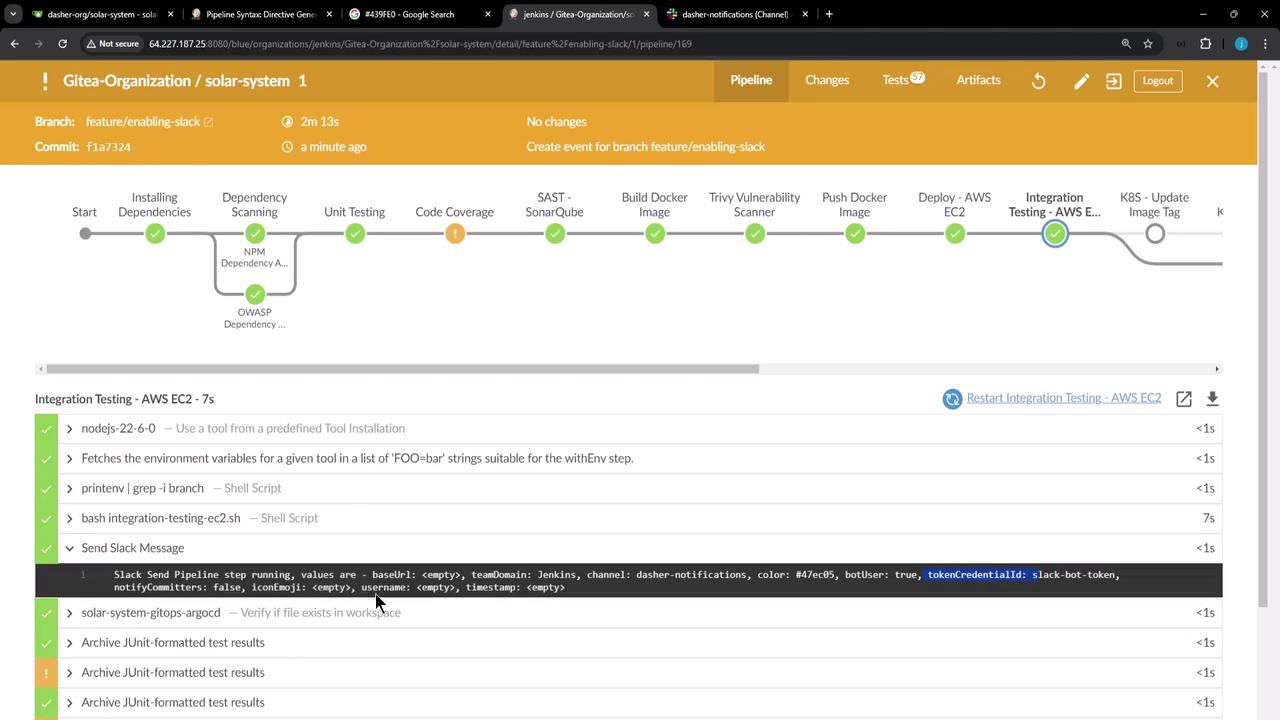
With this configuration, no matter which stage fails, the `post always` block will invoke the `slackNotificationMethod`, sending a Slack notification with details like the build ID, URL, and job name. Jenkins is preconfigured with the necessary channel and token credentials, so you don't have to manually set them in your script.
### Example: Stage with Post Block
This is an example of a stage with its corresponding post block that includes Slack notifications and additional cleanup steps:
```groovy theme={null}
stage('Lambda - S3 Upload & Deploy') {
// Stage steps go here.
}
stage('Lambda - Invoke Function') {
// Stage steps go here.
}
post {
always {
slackNotificationMethod("${currentBuild.result}")
script {
if (fileExists('solar-system-gitops-argocd')) {
sh 'rm -rf solar-system-gitops-argocd'
}
}
junit allowEmptyResults: true, testResults: 'test-results.xml'
junit allowEmptyResults: true, testResults: 'dependency-check-junit.xml'
junit allowEmptyResults: true, testResults: 'trivy-image-CRITICAL-results.xml'
junit allowEmptyResults: true, testResults: 'trivy-image-MEDIUM-results.xml'
publishHTML([
allowMissing: true,
alwaysLinkToLastBuild: true,
keepAll: true,
reportDir: './',
reportFiles: 'zap_report.html',
reportName: 'DAST - OWASP ZAP Report'
])
}
}
```
```bash theme={null}
git checkout -b feature/enabling-slack
Switched to a new branch 'feature/enabling-slack'
```
When a build is initiated on the `feature/enabling-slack` branch, the pipeline executes all stages and sends Slack notifications with detailed build information. You might notice console logs similar to:
```text theme={null}
SUCCESS: Gitea-Organization/solar-system/feature/%252Fenabling-slack #1:
http://64.227.187.25:8080/job/Gitea-Organization/job/solar-system/job/feature%252Fenabling-slack/1/
```
## Step 6: Handling Specific Build Scenarios
In your Jenkinsfile for code coverage, a `catchError` block can be used to adjust the build result, ensuring that the Slack notification method receives the correct parameter:
```groovy theme={null}
stage('Code Coverage') {
steps {
catchError(buildResult: 'SUCCESS', message: 'Oops! It will be fixed in future releases',
stageResult: 'UNSTABLE') {
sh 'npm run coverage'
}
}
}
```
```bash theme={null}
git checkout -b feature/enabling-slack
Switched to a new branch 'feature/enabling-slack'
root@jenkins-controller-1 in solar-system on ⏣ feature/enabling-slack via ⬢ v20.16.0 on (us-east-2)
```
To simulate a failure, you can add an `exit 1` command in a stage. For example:
```groovy theme={null}
pipeline {
agent any,
tools {
// Define any required tools here.
}
environment {
MONGO_URI = "mongodb+srv://supercluster.d83jj.mongodb.net/superData"
MONGO_DB_CREDS = credentials('mongo-db-credentials')
MONGO_USERNAME = credentials('mongo-db-username')
MONGO_PASSWORD = credentials('mongo-db-password')
SONAR_SCANNER_HOME = tool 'sonarqube-scanner-610'
GITEA_TOKEN = credentials('gitea-api-token')
}
stages {
stage('Installing Dependencies') {
options { timestamps() }
steps {
sh 'npm install --no-audit'
sh 'exit 1'
}
}
}
}
```
```bash theme={null}
git checkout -b feature/enabling-slack
Switched to a new branch 'feature/enabling-slack'
root@jenkins-controller-1 in solar-system on feature/enabling-slack via v20.16.0 on (us-east-2)
```
In this case, the `post always` block will trigger a failure notification with the corresponding red color.
Below is the final version of the reusable Groovy method used throughout the Jenkinsfile:
```groovy theme={null}
def slackNotificationMethod(String buildStatus = 'STARTED') {
buildStatus = buildStatus ?: 'SUCCESS'
def color
if (buildStatus == 'SUCCESS') {
color = '#47ec05'
} else if (buildStatus == 'UNSTABLE') {
color = '#d5ee0d'
} else {
color = '#ec2805'
}
def msg = "${buildStatus}: `${env.JOB_NAME}` #${env.BUILD_NUMBER}:\n${env.BUILD_URL}"
slackSend(color: color, message: msg)
}
pipeline {
agent any
tools {
// Add your tool configurations here.
}
}
```
```bash theme={null}
git checkout -b feature/enabling-slack
Switched to a new branch 'feature/enabling-slack'
root@jenkins-controller-1 in solar-system on ⬢ feature/enabling-slack via 🐱 v20.16.0 on 💬 (us-east-2)
```
## Conclusion
In larger environments, consider using shared libraries to reuse common methods (like the Slack notification method) across multiple Jenkinsfiles. This approach maintains consistency while reducing duplicated code and simplifying maintenance.
That concludes our guide on integrating Slack notifications in a Jenkins pipeline. Happy automating!