> ## Documentation Index
> Fetch the complete documentation index at: https://notes.kodekloud.com/llms.txt
> Use this file to discover all available pages before exploring further.
# Run and Test NodeJS App on Local Machine
> Guide to running, testing, and collecting coverage for a Node.js Solar System app locally, plus Docker, tests, OpenAPI, and CI/CD considerations
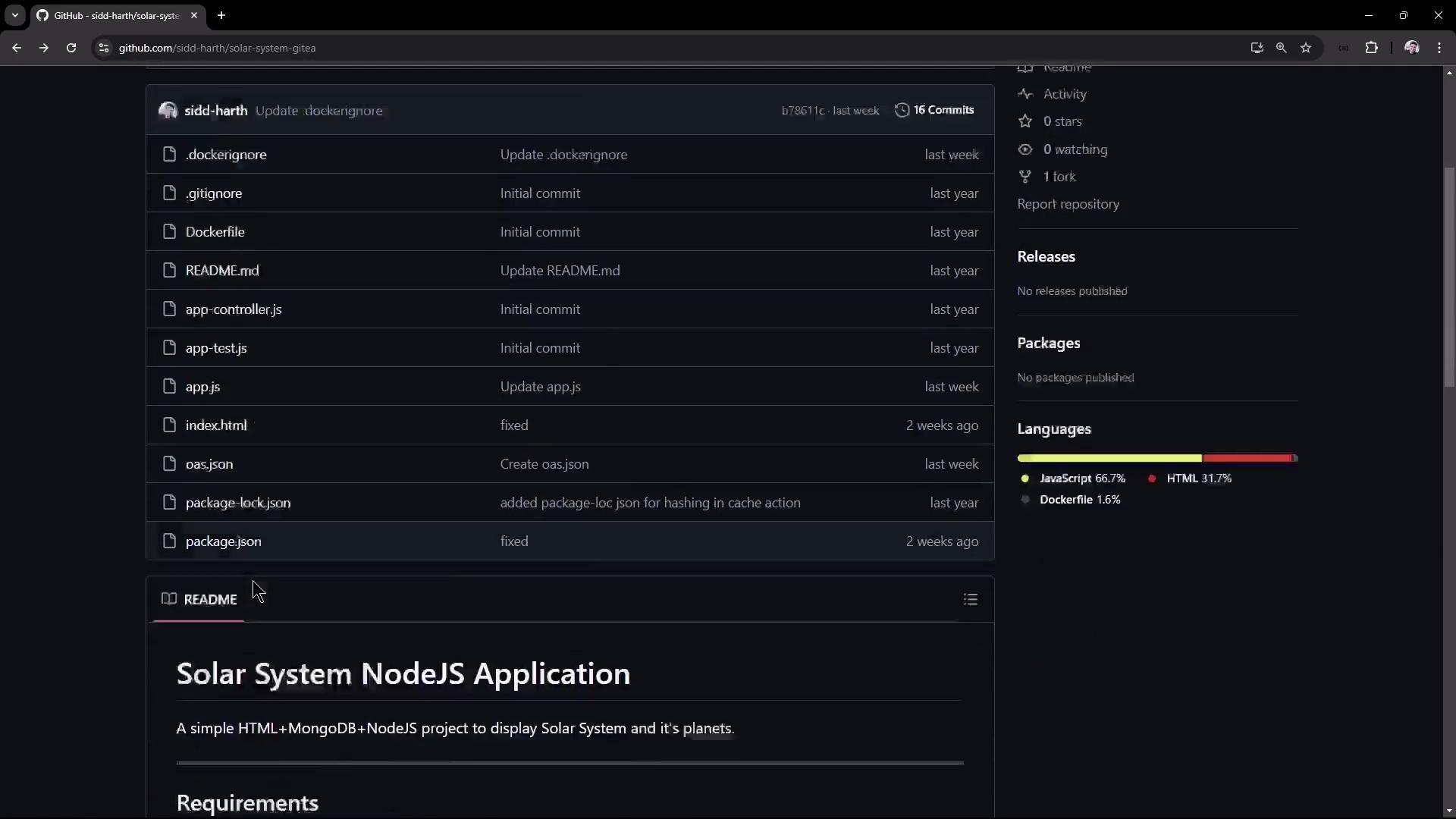
In this lesson you'll run the Solar System Node.js application on your local machine or VM, inspect its structure, execute tests, collect coverage, and observe runtime behavior. Later lessons will show how to automate these same steps using Jenkins CI/CD.
This repository contains:
* A small HTML frontend
* Server startup code (app.js)
* Controller logic and Mongoose model (app.controller.js)
* Frontend client script (client.js)
* Unit tests (app-test.js)
* Dockerfile for containerization
* OpenAPI 3.0 spec for the API
 ## Prerequisites (quick checks)
Ensure Node.js and npm are installed and available on your PATH:
```bash theme={null}
$ node --version
v8.11.3
$ npm --version
6.1.0
```
Common npm commands used in this project:
| Command | Purpose |
| ---------------: | --------------------------------------------------------- |
| npm install | Install dependencies and create node\_modules |
| npm test | Run Mocha tests (mocha-junit-reporter produces JUnit XML) |
| npm run coverage | Run nyc to collect coverage reports |
| npm start | Start the Express server (app.js) |
Clone the repository:
```bash theme={null}
$ git clone https://github.com/sidd-harth/solar-system-gitea.git
$ cd solar-system-gitea
```
Useful references:
* [Node.js](https://nodejs.org/)
* [npm documentation](https://docs.npmjs.com/)
* [Mongoose](https://mongoosejs.com/)
* [Mocha](https://mochajs.org/) and [Chai](https://www.chaijs.com/)
## package.json — scripts & coverage policy
The project defines start, test, and coverage scripts. NYC enforces a minimum of 90% line coverage via package.json:
```json theme={null}
{
"name": "Solar System",
"version": "6.7.6",
"author": "Siddharth Barahalikar ",
"homepage": "https://www.linkedin.com/in/barahalikar-siddharth/",
"license": "MIT",
"scripts": {
"start": "node app.js",
"test": "mocha app-test.js --timeout 10000 --reporter mocha-junit-reporter --exit",
"coverage": "nyc --reporter cobertura --reporter lcov --reporter text --reporter json-summary mocha app-test.js"
},
"nyc": {
"check-coverage": true,
"lines": 90
},
"dependencies": {
"cors": "^2.8.5",
"express": "^4.18.2",
"mocha-junit-reporter": "^2.2.1",
"mongoose": "5.13.20",
"nyc": "^15.1.0",
"serverless-http": "^3.2.0"
},
"devDependencies": {
"chai": "*",
"chai-http": "*",
"mocha": "*"
}
}
```
## app.js — server startup and MongoDB connection
app.js boots Express and connects to MongoDB using Mongoose. At runtime the app expects these environment variables:
* MONGO\_URI
* MONGO\_USERNAME
* MONGO\_PASSWORD
Below is a corrected minimal excerpt showing required imports and proper mongoose.connect usage:
```javascript theme={null}
const express = require("express");
const path = require("path");
const OS = require("os");
const bodyParser = require("body-parser");
const mongoose = require("mongoose");
const cors = require("cors");
const serverless = require("serverless-http");
const app = express();
app.use(bodyParser.json());
app.use(express.static(path.join(__dirname, "/")));
app.use(cors());
mongoose.connect(
process.env.MONGO_URI,
{
user: process.env.MONGO_USERNAME,
pass: process.env.MONGO_PASSWORD,
useNewUrlParser: true,
useUnifiedTopology: true,
},
function (err) {
if (err) {
console.log("MongoDB connection error: " + err);
} else {
// Connection successful
}
},
);
// ... other app routes and server startup ...
```
Ensure MONGO\_URI, MONGO\_USERNAME, and MONGO\_PASSWORD are provided in your
environment before running tests or starting the server. Without a valid
MONGO\_URI, mongoose.connect will fail with "The `uri` parameter to `openUri()`
must be a string, got 'undefined'".
## app.controller.js — data model and API endpoints
The application uses a Mongoose Schema for planets and exposes several endpoints. Example model and routes (simplified):
```javascript theme={null}
var Schema = mongoose.Schema;
var dataSchema = new Schema({
name: String,
id: Number,
description: String,
image: String,
velocity: String,
distance: String,
});
var planetModel = mongoose.model("planets", dataSchema);
// Example endpoints (simplified)
app.post("/planet", function (req, res) {
// Fetch planet by id or name from MongoDB
});
app.get("/", async (req, res) => {
// Serve index page or data
});
app.get("/os", function (req, res) {
res.json({ os: OS.hostname() }); // returns host/pod name
});
app.get("/live", function (req, res) {
res.json({ status: "live" });
});
app.get("/ready", function (req, res) {
res.json({ status: "ready" });
});
```
## client.js — frontend behavior and fetch handling
The client script fetches /os on window load and writes the host/pod name into the page. The snippet below demonstrates robust fetch handling and wiring the click handler:
```javascript theme={null}
console.log("We are inside client.js");
/* on page Load */
window.onload = function () {
const planet_id = document.getElementById("planetID")
? document.getElementById("planetID").value
: "";
console.log("onLoad - Request Planet ID - " + planet_id);
fetch("/os", {
method: "GET",
})
.then(function (res) {
if (res.ok) {
return res.json();
}
throw new Error("Request failed");
})
.then(function (data) {
document.getElementById("hostname").innerHTML = `Pod - ${data.os}`;
// document.getElementById('environment').innerHTML = `Env - ${data.env}`;
})
.catch(function (error) {
console.log(error);
});
};
const btn = document.getElementById("submit");
if (btn) {
btn.addEventListener("click", function () {
// submit handler
});
}
```
## app-test.js — Mocha + Chai (integration style)
Tests use chai-http to exercise endpoints. The test suite shows how the API is validated and how mocha-junit-reporter produces JUnit XML for CI:
```javascript theme={null}
let mongoose = require("mongoose");
let server = require("./app");
let chai = require("chai");
let chaiHttp = require("chai-http");
// Assertion
chai.should();
chai.use(chaiHttp);
describe("Planets API Suite", () => {
describe("Fetching Planet Details", () => {
it("it should fetch a planet named Mercury", (done) => {
let payload = { id: 1 };
chai
.request(server)
.post("/planet")
.send(payload)
.end((err, res) => {
res.should.have.status(200);
res.body.should.have.property("id").eql(1);
res.body.should.have.property("name").eql("Mercury");
done();
});
});
});
it("it should fetch a planet named Venus", (done) => {
// additional test
done();
});
});
```
## Dockerfile — containerize the app
A sample Dockerfile used for building images:
```dockerfile theme={null}
FROM node:18-alpine3.17
WORKDIR /usr/app
COPY package*.json /usr/app/
RUN npm install
COPY . .
ENV MONGO_URI=uriPlaceholder
ENV MONGO_USERNAME=usernamePlaceholder
ENV MONGO_PASSWORD=passwordPlaceholder
EXPOSE 3000
CMD [ "npm", "start" ]
```
## OpenAPI snippet
The repo includes an OpenAPI 3.0 specification for the API (partial):
```json theme={null}
{
"openapi": "3.0.0",
"info": {
"title": "Solar System API",
"version": "1.0"
},
"paths": {
"/": {
"get": {
"responses": {
"200": {
"description": "",
"content": {
"text/plain": {
"schema": {
"example": "Example",
"type": "string"
}
}
}
}
}
}
},
"/live": {
"get": {
"responses": {
"200": {
"description": ""
}
}
}
}
}
}
```
## Install dependencies
Install modules locally:
```bash theme={null}
$ npm install
added 365 packages, and audited 366 packages in 3s
44 packages are looking for funding
run `npm fund` for details
8 vulnerabilities (2 moderate, 5 high, 1 critical)
To address all issues, run:
npm audit fix
Run `npm audit` for details.
```
## Running tests — common failure mode and mitigation
If you run npm test without MONGO\_URI set, app.js will try to connect to MongoDB and Mongoose will throw an error during startup:
```bash theme={null}
$ npm test
> Solar System@6.7.6 test
> mocha app-test.js --timeout 10000 --reporter mocha-junit-reporter --exit
MongooseError: The `uri` parameter to `openUri()` must be a string, got "undefined". Make sure the first parameter to `mongoose.connect()` or `mongoose.createConnection()` is a string.
at Connection.openUri (...node_modules/mongoose/lib/connection.js:694:11)
...
```
To run tests locally you can:
* Provide real environment variables (MONGO\_URI, MONGO\_USERNAME, MONGO\_PASSWORD), or
* Mock the database connection in tests (recommended for CI), or
* Use a local MongoDB instance, or
* Temporarily hardcode a connection string (not recommended—see warning below).
Never commit real credentials. If you must hardcode a connection string for
local debugging, ensure it is removed before committing and never store
production secrets in source control.
Example of a hardcoded connection (for demo only — do not commit):
```javascript theme={null}
mongoose.connect(
"mongodb+srv://superuser:SuperPassword@supercluster.d83jj.mongodb.net/superData",
{
useNewUrlParser: true,
useUnifiedTopology: true,
},
function (err) {
if (err) {
console.log("MongoDB connection error: " + err);
}
},
);
```
## Successful test run and JUnit report
When the DB connection is satisfied (or tests are mocked), mocha exits with code 0 and produces a JUnit XML via mocha-junit-reporter, which CI systems can consume:
```bash theme={null}
$ npm test
# ... mocha runs tests ...
$ echo $?
0
```
## Code coverage with NYC
Running coverage uses nyc and enforces the threshold defined in package.json. If coverage is below the threshold, the command exits non-zero—useful to fail or gate CI pipelines:
```bash theme={null}
$ npm run coverage
# runs tests + nyc, then outputs a summary
-------------------------------|---------|----------|---------|---------|-------------------
File | % Stmts | % Branch | % Funcs | % Lines | Uncovered Line #s
-------------------------------|---------|----------|---------|---------|-------------------
All files | 79.54 | 33.33 | 70 | 79.06 |
app.js | 79.54 | 33.33 | 70 | 79.06 | 23,49-50,58,62-67
-------------------------------|---------|----------|---------|---------|-------------------
$ echo $?
1
```
This intentional failure is often used in CI to demonstrate how to stop or continue pipeline execution on coverage failures; Jenkins automation will show patterns for handling such failures.
## Start the application locally
Start the server:
```bash theme={null}
$ npm start
> Solar System@6.7.6 start
> node app.js
Server successfully running on port - 3000
(node:83049) [DEP0170] DeprecationWarning: The URL mongodb://... is invalid. Future versions of Node.js will throw an error.
(Use `node --trace-deprecation ...` to show where the warning was created)
```
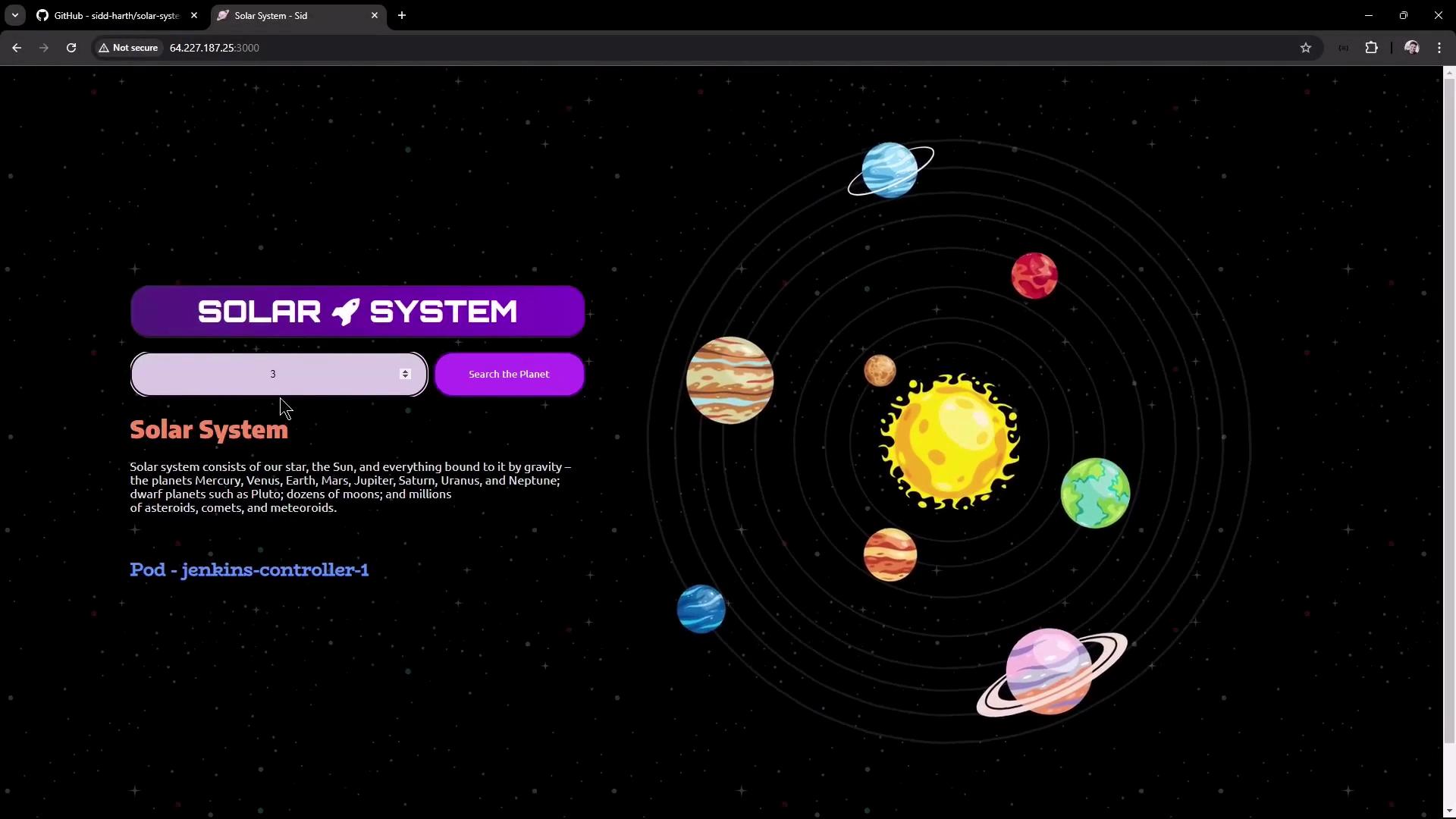
The app listens on port 3000 by default. Access it locally via [http://localhost:3000](http://localhost:3000) or on your VM using its IP and port 3000.
## Web UI screenshot
Open the UI to search planets and inspect the host/pod name displayed:
## Prerequisites (quick checks)
Ensure Node.js and npm are installed and available on your PATH:
```bash theme={null}
$ node --version
v8.11.3
$ npm --version
6.1.0
```
Common npm commands used in this project:
| Command | Purpose |
| ---------------: | --------------------------------------------------------- |
| npm install | Install dependencies and create node\_modules |
| npm test | Run Mocha tests (mocha-junit-reporter produces JUnit XML) |
| npm run coverage | Run nyc to collect coverage reports |
| npm start | Start the Express server (app.js) |
Clone the repository:
```bash theme={null}
$ git clone https://github.com/sidd-harth/solar-system-gitea.git
$ cd solar-system-gitea
```
Useful references:
* [Node.js](https://nodejs.org/)
* [npm documentation](https://docs.npmjs.com/)
* [Mongoose](https://mongoosejs.com/)
* [Mocha](https://mochajs.org/) and [Chai](https://www.chaijs.com/)
## package.json — scripts & coverage policy
The project defines start, test, and coverage scripts. NYC enforces a minimum of 90% line coverage via package.json:
```json theme={null}
{
"name": "Solar System",
"version": "6.7.6",
"author": "Siddharth Barahalikar ",
"homepage": "https://www.linkedin.com/in/barahalikar-siddharth/",
"license": "MIT",
"scripts": {
"start": "node app.js",
"test": "mocha app-test.js --timeout 10000 --reporter mocha-junit-reporter --exit",
"coverage": "nyc --reporter cobertura --reporter lcov --reporter text --reporter json-summary mocha app-test.js"
},
"nyc": {
"check-coverage": true,
"lines": 90
},
"dependencies": {
"cors": "^2.8.5",
"express": "^4.18.2",
"mocha-junit-reporter": "^2.2.1",
"mongoose": "5.13.20",
"nyc": "^15.1.0",
"serverless-http": "^3.2.0"
},
"devDependencies": {
"chai": "*",
"chai-http": "*",
"mocha": "*"
}
}
```
## app.js — server startup and MongoDB connection
app.js boots Express and connects to MongoDB using Mongoose. At runtime the app expects these environment variables:
* MONGO\_URI
* MONGO\_USERNAME
* MONGO\_PASSWORD
Below is a corrected minimal excerpt showing required imports and proper mongoose.connect usage:
```javascript theme={null}
const express = require("express");
const path = require("path");
const OS = require("os");
const bodyParser = require("body-parser");
const mongoose = require("mongoose");
const cors = require("cors");
const serverless = require("serverless-http");
const app = express();
app.use(bodyParser.json());
app.use(express.static(path.join(__dirname, "/")));
app.use(cors());
mongoose.connect(
process.env.MONGO_URI,
{
user: process.env.MONGO_USERNAME,
pass: process.env.MONGO_PASSWORD,
useNewUrlParser: true,
useUnifiedTopology: true,
},
function (err) {
if (err) {
console.log("MongoDB connection error: " + err);
} else {
// Connection successful
}
},
);
// ... other app routes and server startup ...
```
Ensure MONGO\_URI, MONGO\_USERNAME, and MONGO\_PASSWORD are provided in your
environment before running tests or starting the server. Without a valid
MONGO\_URI, mongoose.connect will fail with "The `uri` parameter to `openUri()`
must be a string, got 'undefined'".
## app.controller.js — data model and API endpoints
The application uses a Mongoose Schema for planets and exposes several endpoints. Example model and routes (simplified):
```javascript theme={null}
var Schema = mongoose.Schema;
var dataSchema = new Schema({
name: String,
id: Number,
description: String,
image: String,
velocity: String,
distance: String,
});
var planetModel = mongoose.model("planets", dataSchema);
// Example endpoints (simplified)
app.post("/planet", function (req, res) {
// Fetch planet by id or name from MongoDB
});
app.get("/", async (req, res) => {
// Serve index page or data
});
app.get("/os", function (req, res) {
res.json({ os: OS.hostname() }); // returns host/pod name
});
app.get("/live", function (req, res) {
res.json({ status: "live" });
});
app.get("/ready", function (req, res) {
res.json({ status: "ready" });
});
```
## client.js — frontend behavior and fetch handling
The client script fetches /os on window load and writes the host/pod name into the page. The snippet below demonstrates robust fetch handling and wiring the click handler:
```javascript theme={null}
console.log("We are inside client.js");
/* on page Load */
window.onload = function () {
const planet_id = document.getElementById("planetID")
? document.getElementById("planetID").value
: "";
console.log("onLoad - Request Planet ID - " + planet_id);
fetch("/os", {
method: "GET",
})
.then(function (res) {
if (res.ok) {
return res.json();
}
throw new Error("Request failed");
})
.then(function (data) {
document.getElementById("hostname").innerHTML = `Pod - ${data.os}`;
// document.getElementById('environment').innerHTML = `Env - ${data.env}`;
})
.catch(function (error) {
console.log(error);
});
};
const btn = document.getElementById("submit");
if (btn) {
btn.addEventListener("click", function () {
// submit handler
});
}
```
## app-test.js — Mocha + Chai (integration style)
Tests use chai-http to exercise endpoints. The test suite shows how the API is validated and how mocha-junit-reporter produces JUnit XML for CI:
```javascript theme={null}
let mongoose = require("mongoose");
let server = require("./app");
let chai = require("chai");
let chaiHttp = require("chai-http");
// Assertion
chai.should();
chai.use(chaiHttp);
describe("Planets API Suite", () => {
describe("Fetching Planet Details", () => {
it("it should fetch a planet named Mercury", (done) => {
let payload = { id: 1 };
chai
.request(server)
.post("/planet")
.send(payload)
.end((err, res) => {
res.should.have.status(200);
res.body.should.have.property("id").eql(1);
res.body.should.have.property("name").eql("Mercury");
done();
});
});
});
it("it should fetch a planet named Venus", (done) => {
// additional test
done();
});
});
```
## Dockerfile — containerize the app
A sample Dockerfile used for building images:
```dockerfile theme={null}
FROM node:18-alpine3.17
WORKDIR /usr/app
COPY package*.json /usr/app/
RUN npm install
COPY . .
ENV MONGO_URI=uriPlaceholder
ENV MONGO_USERNAME=usernamePlaceholder
ENV MONGO_PASSWORD=passwordPlaceholder
EXPOSE 3000
CMD [ "npm", "start" ]
```
## OpenAPI snippet
The repo includes an OpenAPI 3.0 specification for the API (partial):
```json theme={null}
{
"openapi": "3.0.0",
"info": {
"title": "Solar System API",
"version": "1.0"
},
"paths": {
"/": {
"get": {
"responses": {
"200": {
"description": "",
"content": {
"text/plain": {
"schema": {
"example": "Example",
"type": "string"
}
}
}
}
}
}
},
"/live": {
"get": {
"responses": {
"200": {
"description": ""
}
}
}
}
}
}
```
## Install dependencies
Install modules locally:
```bash theme={null}
$ npm install
added 365 packages, and audited 366 packages in 3s
44 packages are looking for funding
run `npm fund` for details
8 vulnerabilities (2 moderate, 5 high, 1 critical)
To address all issues, run:
npm audit fix
Run `npm audit` for details.
```
## Running tests — common failure mode and mitigation
If you run npm test without MONGO\_URI set, app.js will try to connect to MongoDB and Mongoose will throw an error during startup:
```bash theme={null}
$ npm test
> Solar System@6.7.6 test
> mocha app-test.js --timeout 10000 --reporter mocha-junit-reporter --exit
MongooseError: The `uri` parameter to `openUri()` must be a string, got "undefined". Make sure the first parameter to `mongoose.connect()` or `mongoose.createConnection()` is a string.
at Connection.openUri (...node_modules/mongoose/lib/connection.js:694:11)
...
```
To run tests locally you can:
* Provide real environment variables (MONGO\_URI, MONGO\_USERNAME, MONGO\_PASSWORD), or
* Mock the database connection in tests (recommended for CI), or
* Use a local MongoDB instance, or
* Temporarily hardcode a connection string (not recommended—see warning below).
Never commit real credentials. If you must hardcode a connection string for
local debugging, ensure it is removed before committing and never store
production secrets in source control.
Example of a hardcoded connection (for demo only — do not commit):
```javascript theme={null}
mongoose.connect(
"mongodb+srv://superuser:SuperPassword@supercluster.d83jj.mongodb.net/superData",
{
useNewUrlParser: true,
useUnifiedTopology: true,
},
function (err) {
if (err) {
console.log("MongoDB connection error: " + err);
}
},
);
```
## Successful test run and JUnit report
When the DB connection is satisfied (or tests are mocked), mocha exits with code 0 and produces a JUnit XML via mocha-junit-reporter, which CI systems can consume:
```bash theme={null}
$ npm test
# ... mocha runs tests ...
$ echo $?
0
```
## Code coverage with NYC
Running coverage uses nyc and enforces the threshold defined in package.json. If coverage is below the threshold, the command exits non-zero—useful to fail or gate CI pipelines:
```bash theme={null}
$ npm run coverage
# runs tests + nyc, then outputs a summary
-------------------------------|---------|----------|---------|---------|-------------------
File | % Stmts | % Branch | % Funcs | % Lines | Uncovered Line #s
-------------------------------|---------|----------|---------|---------|-------------------
All files | 79.54 | 33.33 | 70 | 79.06 |
app.js | 79.54 | 33.33 | 70 | 79.06 | 23,49-50,58,62-67
-------------------------------|---------|----------|---------|---------|-------------------
$ echo $?
1
```
This intentional failure is often used in CI to demonstrate how to stop or continue pipeline execution on coverage failures; Jenkins automation will show patterns for handling such failures.
## Start the application locally
Start the server:
```bash theme={null}
$ npm start
> Solar System@6.7.6 start
> node app.js
Server successfully running on port - 3000
(node:83049) [DEP0170] DeprecationWarning: The URL mongodb://... is invalid. Future versions of Node.js will throw an error.
(Use `node --trace-deprecation ...` to show where the warning was created)
```
The app listens on port 3000 by default. Access it locally via [http://localhost:3000](http://localhost:3000) or on your VM using its IP and port 3000.
## Web UI screenshot
Open the UI to search planets and inspect the host/pod name displayed:
 ## API endpoints (summary)
| Endpoint | Method | Purpose | Sample Response |
| -------: | :----: | ----------------------------- | ----------------------------------- |
| /os | GET | Return hostname/pod name | `{"os":"jenkins-controller-1"}` |
| /live | GET | Liveness probe | `{"status":"live"}` |
| /ready | GET | Readiness probe | `{"status":"ready"}` |
| /planet | POST | Query planet by id/name (DB) | `{ "id":1, "name":"Mercury", ... }` |
| / | GET | Serve index page or plaintext | `"Example"` |
Example JSON responses:
* GET /os
```json theme={null}
{
"os": "jenkins-controller-1"
}
```
* GET /live
```json theme={null}
{
"status": "live"
}
```
* GET /ready
```json theme={null}
{
"status": "ready"
}
```
## Wrap-up
You have now:
* Examined the repository structure and key files (app.js, app.controller.js, client.js, tests, Dockerfile, OpenAPI)
* Installed dependencies and run tests locally
* Learned common failure modes (missing MONGO\_URI) and mitigations
* Collected code coverage using nyc
* Started the app and verified the UI and basic endpoints
Next steps: automate these commands in a Jenkins pipeline to run installs, tests, coverage checks, and builds so you can validate the application automatically as part of CI/CD.
## API endpoints (summary)
| Endpoint | Method | Purpose | Sample Response |
| -------: | :----: | ----------------------------- | ----------------------------------- |
| /os | GET | Return hostname/pod name | `{"os":"jenkins-controller-1"}` |
| /live | GET | Liveness probe | `{"status":"live"}` |
| /ready | GET | Readiness probe | `{"status":"ready"}` |
| /planet | POST | Query planet by id/name (DB) | `{ "id":1, "name":"Mercury", ... }` |
| / | GET | Serve index page or plaintext | `"Example"` |
Example JSON responses:
* GET /os
```json theme={null}
{
"os": "jenkins-controller-1"
}
```
* GET /live
```json theme={null}
{
"status": "live"
}
```
* GET /ready
```json theme={null}
{
"status": "ready"
}
```
## Wrap-up
You have now:
* Examined the repository structure and key files (app.js, app.controller.js, client.js, tests, Dockerfile, OpenAPI)
* Installed dependencies and run tests locally
* Learned common failure modes (missing MONGO\_URI) and mitigations
* Collected code coverage using nyc
* Started the app and verified the UI and basic endpoints
Next steps: automate these commands in a Jenkins pipeline to run installs, tests, coverage checks, and builds so you can validate the application automatically as part of CI/CD.