> ## Documentation Index
> Fetch the complete documentation index at: https://notes.kodekloud.com/llms.txt
> Use this file to discover all available pages before exploring further.
# Parameters
> This article explores how Jenkins parameters enhance CI/CD pipelines by allowing dynamic configuration through key-value pairs for customizable pipeline behavior.
In this lesson, we explore how Jenkins parameters enhance your CI/CD pipelines by allowing dynamic configuration through key-value pairs. By introducing parameters, you can customize pipeline behavior, control stage execution, and adjust logic based on input values at build time.
For example, you can use parameters to dictate the deployment environment (e.g., staging or production) or to decide whether tests should be executed. The diagram below illustrates a typical Jenkins pipeline with stages and parameters such as "ENVIRONMENT=Staging" and "RUN\_TESTS=True."

Jenkins parameters enable you to control pipeline behavior without altering your Jenkinsfile code, making your builds flexible and environment-specific.
## Defining Parameters in a Jenkinsfile
The Jenkinsfile below demonstrates how to define and use parameters:
```groovy theme={null}
pipeline {
agent any
parameters {
string(name: 'ENVIRONMENT', defaultValue: 'dev', description: 'Specify the deployment environment')
booleanParam(name: 'RUN_TESTS', defaultValue: true, description: "Toggle test execution in the pipeline")
}
stages {
stage('Test') {
when {
expression {
params.RUN_TESTS == true
}
}
steps {
echo "Testing application"
}
}
stage('Deploy') {
steps {
echo "Deploying to ${params.ENVIRONMENT} environment"
}
}
}
}
```
In this example:
* The **ENVIRONMENT** parameter is a string with a default value of "dev", indicating the target deployment environment.
* The **RUN\_TESTS** parameter is a Boolean that decides whether the "Test" stage should run.
Within the Jenkinsfile, you reference these parameters using `${params.PARAMETER_NAME}`. For instance, the condition:
```groovy theme={null}
when {
expression {
params.RUN_TESTS == true
}
}
```
ensures that the "Test" stage is executed only when the **RUN\_TESTS** parameter is set to true.
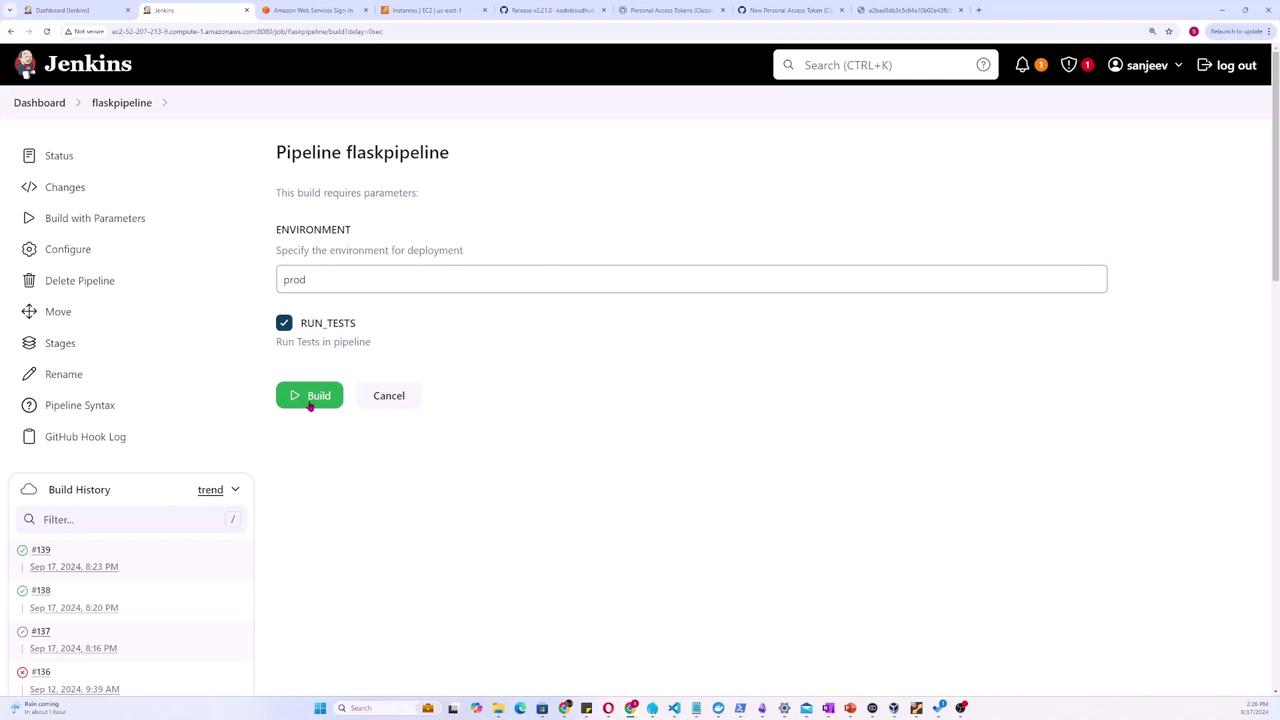
When triggering a build manually from the Jenkins GUI via the "Build with Parameters" option, you can override the default values. For example, you might set **ENVIRONMENT** to "production" and choose whether to run tests by toggling the **RUN\_TESTS** option.
The interface diagram below shows where you can specify these parameters:
## Expanding Parameter Types
Jenkins supports various parameter types to suit different needs. The example below introduces additional parameter types like text, choice, and password:
```groovy theme={null}
pipeline {
agent any
parameters {
string(name: 'PERSON', defaultValue: 'Mr Jenkins', description: 'Who should I say hello to?')
text(name: 'BIOGRAPHY', defaultValue: '', description: 'Enter detailed information about the person')
booleanParam(name: 'TOGGLE', defaultValue: true, description: 'Switch this value on or off')
choice(name: 'CHOICE', choices: ['One', 'Two', 'Three'], description: 'Select one of the available options')
password(name: 'PASSWORD', defaultValue: 'SECRET', description: 'Input a secure password')
}
}
```
Key highlights of these parameter types:
* **Text Parameter:** Allows multi-line input for detailed information.
* **Choice Parameter:** Offers a predefined set of options.
* **Password Parameter:** Ensures secure handling of sensitive information.
## Revisiting a Simplified Example
Let's revisit the earlier example highlighting the **ENVIRONMENT** and **RUN\_TESTS** parameters:
```groovy theme={null}
pipeline {
agent any
parameters {
string(name: 'ENVIRONMENT', defaultValue: 'dev', description: 'Specify the deployment environment')
booleanParam(name: 'RUN_TESTS', defaultValue: true, description: "Toggle test execution")
}
stages {
stage('Test') {
when {
expression {
params.RUN_TESTS == true
}
}
steps {
echo "Testing application"
}
}
stage('Deploy') {
steps {
echo "Deploying to ${params.ENVIRONMENT} environment"
}
}
}
}
```
In this configuration:
* The **Test** stage executes only if **RUN\_TESTS** is true.
* The **Deploy** stage uses the **ENVIRONMENT** parameter to indicate the target deployment environment.
When a build is manually triggered with parameters (for example, setting **ENVIRONMENT** to "production" and **RUN\_TESTS** to true), the pipeline adjusts its flow accordingly. This ensures that your deployment and test stages run based on dynamic input values.
## Sample Build Console Output
After triggering a build with specific parameter values, the console output might resemble the following:
```text theme={null}
/usr/bin/git config remote.origin.url https://github.com/kodekloudhub/course-jenkins-project # timeout=10
/usr/bin/git --version # timeout=10
git --version 'git version 2.48.1'
/usr/bin/git fetch --tags --force --progress -- https://github.com/kodekloudhub/course-jenkins-project +refs/heads/*:refs/remotes/origin/* # timeout=10
/usr/bin/git rev-parse refs/remotes/origin/main
Commit message: "a"
/usr/bin/git config core.sparsecheckout # timeout=10
/usr/bin/git rev-list --no-walk f0a33f83d55f35cf324232578e6f3d7b6c1943 # timeout=10
[Pipeline] // stage
[Pipeline] withEnv
[Pipeline] // stage
[Pipeline] stage
[Pipeline] { (Test)
[Pipeline] echo
Testing application
[Pipeline] // stage
[Pipeline] stage
[Pipeline] { (Deploy)
[Pipeline] echo
Deploying to prod environment
[Pipeline] // stage
[Pipeline] // withEnv
[Pipeline] node
[Pipeline] End of Pipeline
Finished: SUCCESS
```
This output confirms that the "Test" stage ran (since **RUN\_TESTS** was true) and the pipeline subsequently deployed to the specified environment.
## Summary
Jenkins parameters bring flexibility to your pipeline configurations by enabling dynamic behavior based on user input. Whether you are setting up a simple build or a complex deployment process, parameters help you control each stage precisely and adapt to varying conditions without changing the core pipeline code.
For further reading on Jenkins and CI/CD best practices, consider exploring these resources:
* [Jenkins Documentation](https://www.jenkins.io/doc/)
* [Jenkins Pipeline Syntax](https://www.jenkins.io/doc/book/pipeline/syntax/)
* [Continuous Integration with Jenkins](https://www.jenkins.io/solutions/continuous-integration/)
By integrating parameters effectively, you can streamline your CI/CD workflows and ensure your deployments adapt to your specific requirements.