> ## Documentation Index
> Fetch the complete documentation index at: https://notes.kodekloud.com/llms.txt
> Use this file to discover all available pages before exploring further.
# Demo SAM Serverless Application Model
> This article demonstrates how to develop, deploy, and manage AWS Lambda functions using the AWS Serverless Application Model (SAM) CLI.
In this guide, we explore how AWS Lambda functions can be developed, deployed, and managed using the AWS Serverless Application Model (SAM). Learn how SAM’s CLI streamlines the entire process—from bootstrapping your code to updating your live application—with simple commands.
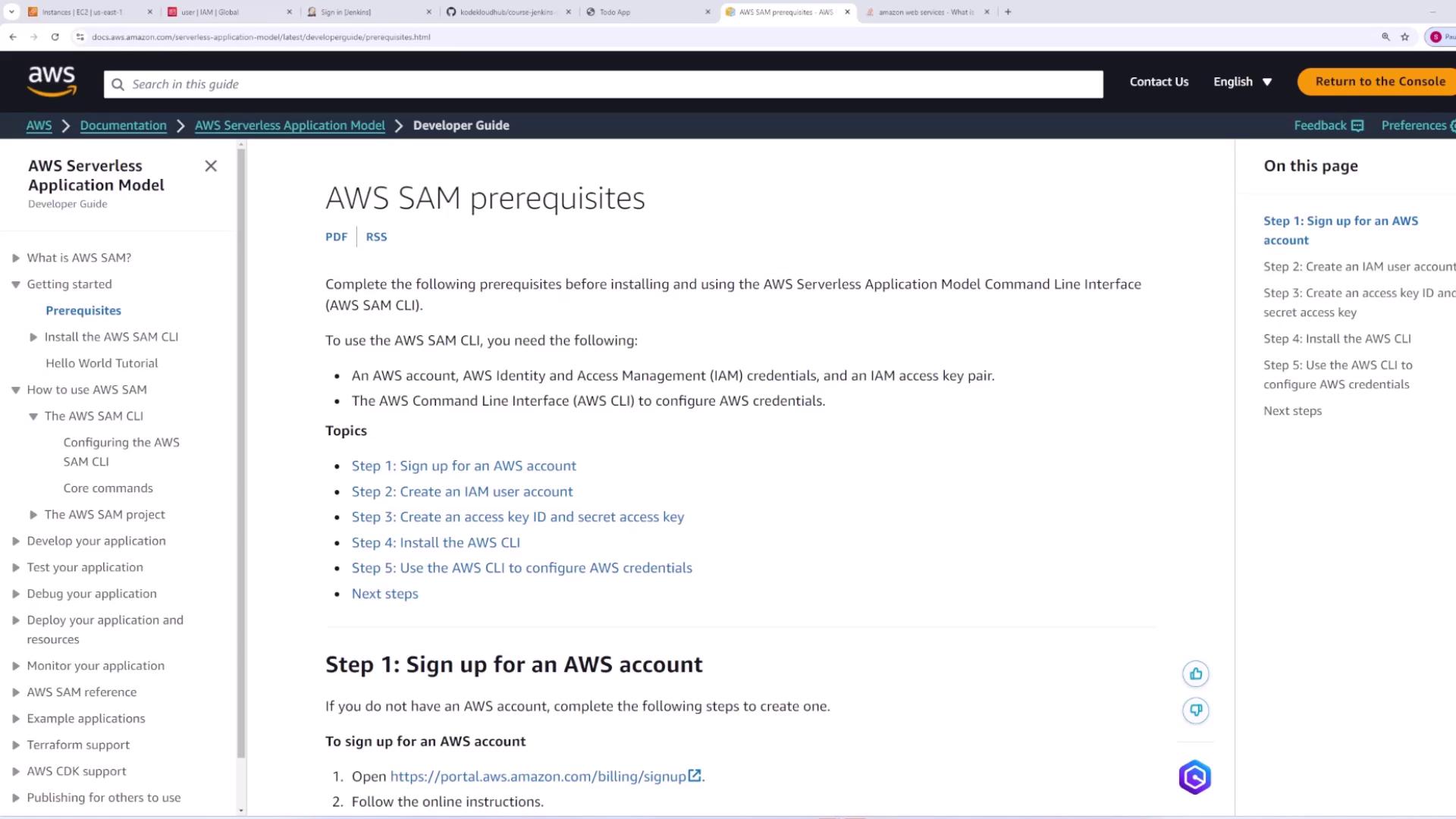
SAM simplifies working with Lambda functions, especially when integrated into a CI/CD pipeline (for example, using Jenkins). With SAM, testing your code and deploying updates is as straightforward as running a single command like `sam deploy`.
***
## Prerequisites and Installation
Before you begin, ensure you have the AWS CLI installed. For detailed instructions, refer to the [AWS CLI installation documentation](https://docs.aws.amazon.com/cli/latest/userguide/install-cliv2.html).
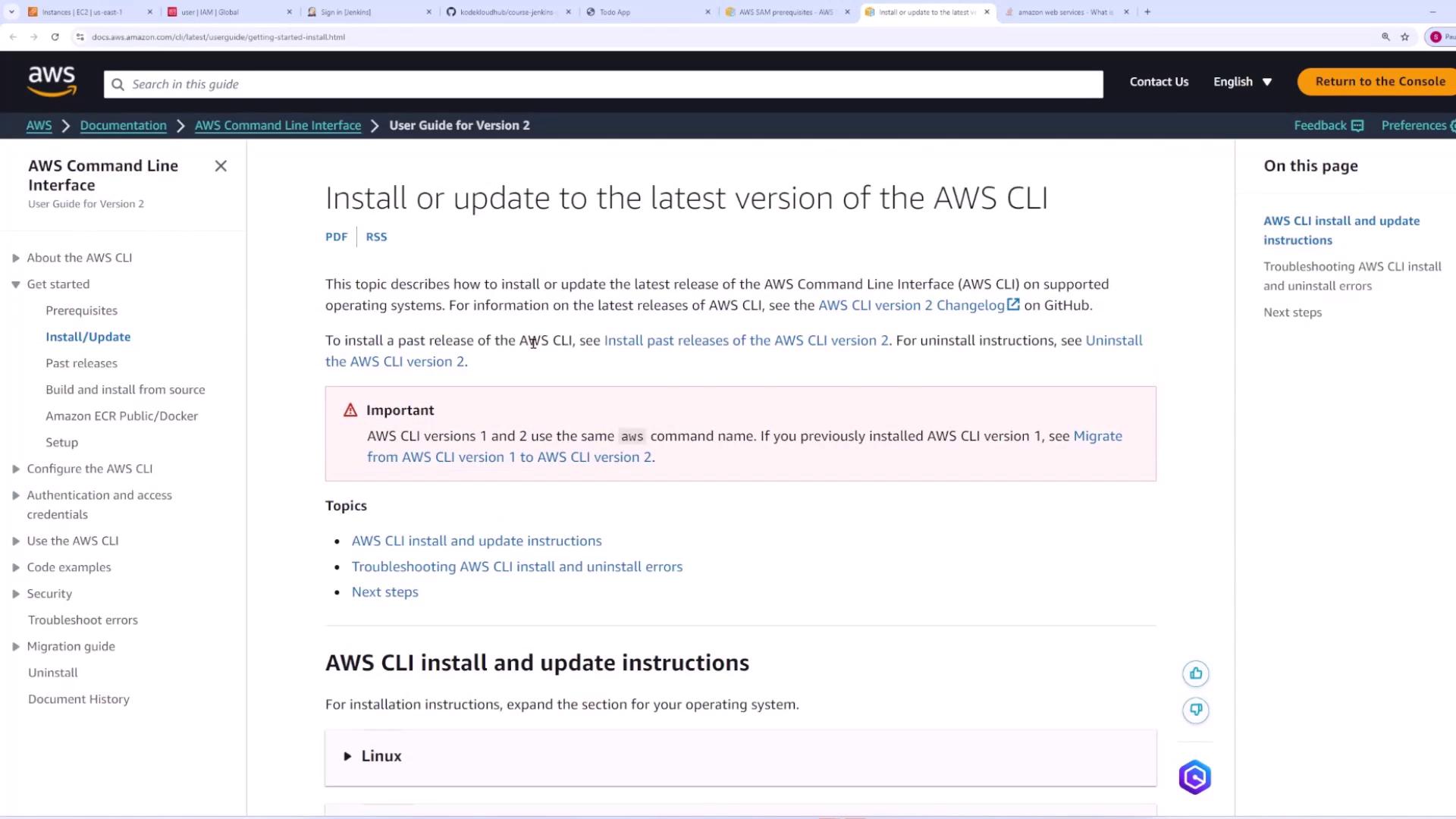
After installing the AWS CLI, proceed with installing the AWS SAM CLI. The [AWS SAM documentation](https://docs.aws.amazon.com/serverless-application-model/latest/developerguide/install-sam-cli.html) offers guidance, including options like Homebrew for macOS users.
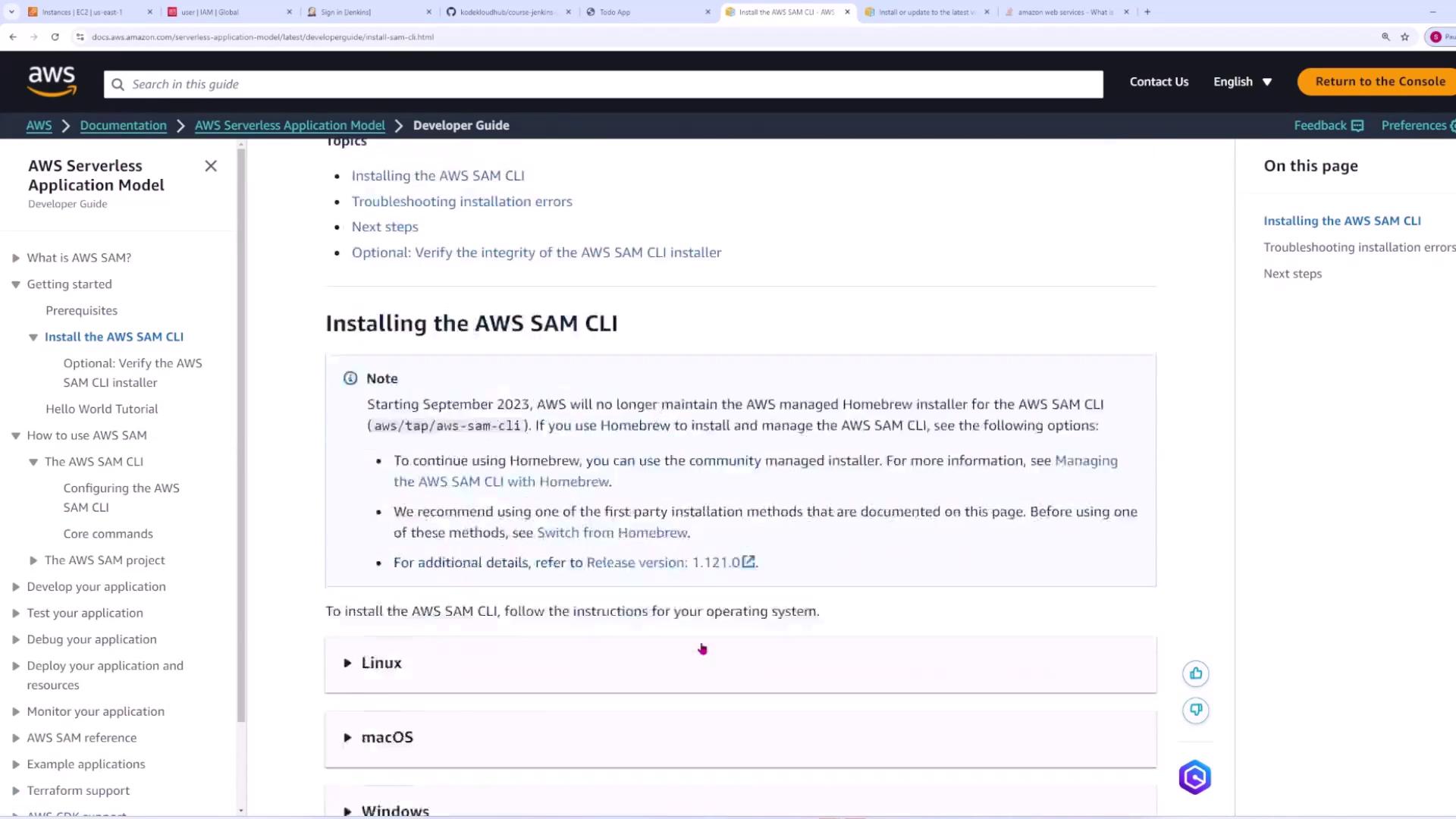
Once the SAM CLI is installed, verify the version using:
```plaintext theme={null}
C:\Users\sanje\code\lambda-scratch>sam --version
SAM CLI, version 1.114.0
```
***
## Initializing a SAM Application
Initialize your SAM project to generate base configuration files for your Lambda function. This process creates boilerplate code and configuration options that help kickstart your application.
Run the following command in your terminal:
```plaintext theme={null}
C:\Users\sanje\code\lambda-scratch>sam init
```
During the initialization process, the SAM CLI will display a menu. For example, select the AWS Quick Start Templates and choose the Hello World example:
```text theme={null}
Which template source would you like to use?
1 - AWS Quick Start Templates
2 - Custom Template Location
Choice: 1
Choose an AWS Quick Start application template:
1 - Hello World Example
2 - Data processing
3 - Hello World Example with Powertools for AWS Lambda
...
Template: 1
```
Next, confirm the runtime and package type (choose Python and zip packaging) by answering “y”:
```text theme={null}
Use the most popular runtime and package type? (Python and zip) [y/N]: y
Would you like to enable X-Ray tracing on the function(s) in your application? [y/N]:
```
You can disable X-Ray tracing and CloudWatch monitoring for this demonstration. Finally, opt for structured JSON logging and provide a project name (keeping the default `sam-app` is acceptable).
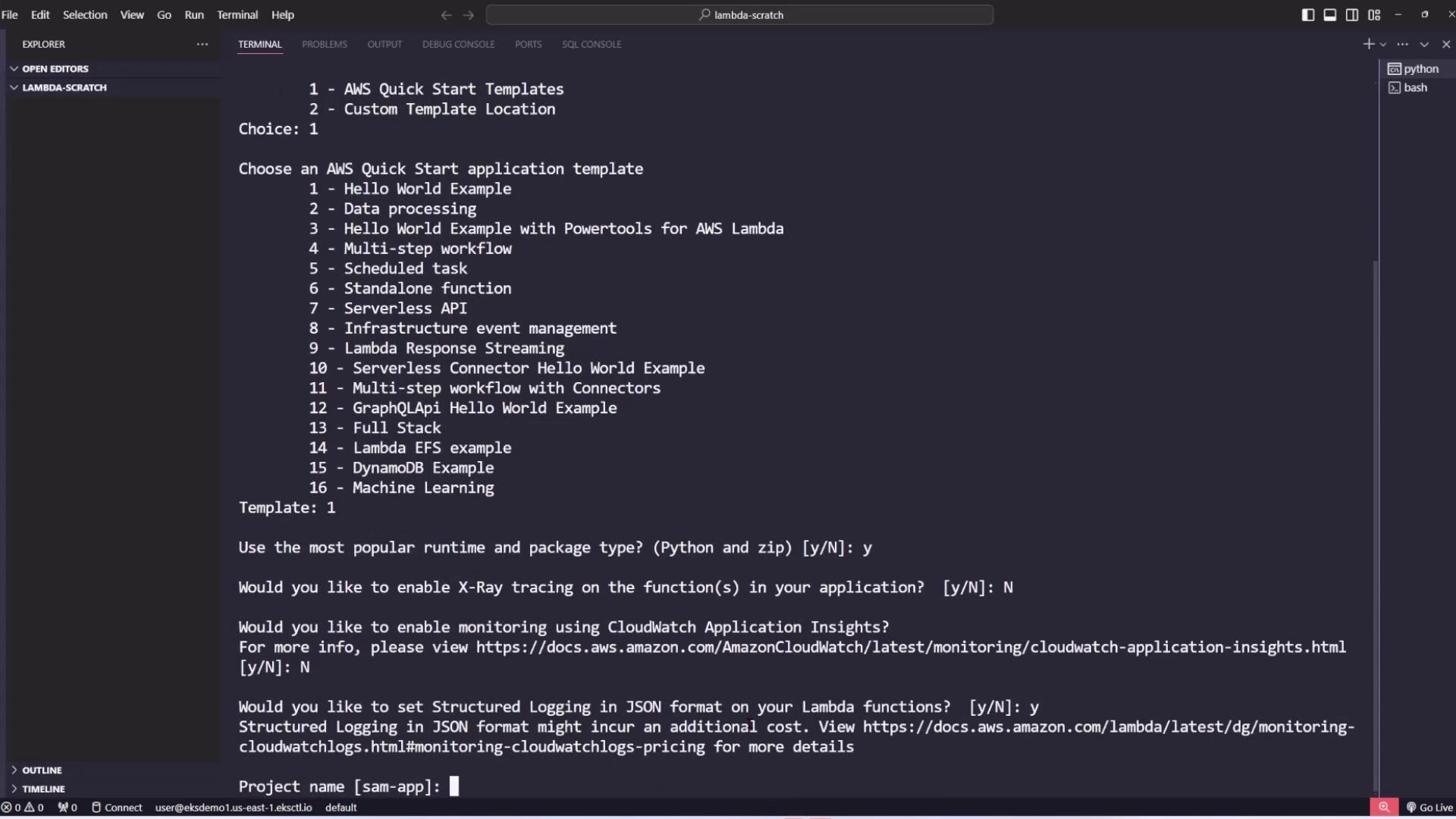
After confirmation, SAM CLI creates a new directory (e.g., `sam-app`) with the project structure, including the crucial `template.yaml` file that defines AWS resources. Below is an example of a simplified `template.yaml`:
```yaml theme={null}
Resources:
HelloWorldFunction:
Type: AWS::Serverless::Function
Properties:
CodeUri: hello_world/
Handler: app.lambda_handler
Runtime: python3.9
Architectures:
- x86_64
Events:
HelloWorld:
Type: Api
Properties:
Path: /hello
Outputs:
HelloWorldApi:
Description: API Gateway endpoint URL for Prod stage for Hello World function
Value: !Sub "https://${ServerlessRestApi}.execute-api.${AWS::Region}.amazonaws.com/Prod/hello/"
```
> **Note:** Additional global configurations such as logging and timeouts can be specified in the `Globals` section:
```yaml theme={null}
Globals:
Function:
Timeout: 3
MemorySize: 128
LoggingConfig:
LogFormat: JSON
```
The project structure also includes:
* A basic Python file (`app.py`) with a simple Lambda handler that returns a "hello world" message.
* A `requirements.txt` file to manage dependencies.
* Folders for unit and integration tests.
* A `samconfig.toml` file that holds build and deployment configuration parameters.
A sample Lambda function in `app.py` might look like this:
```python theme={null}
import json
def lambda_handler(event, context):
# Uncomment and modify the following if external requests become necessary
# try:
# ip = requests.get("http://checkip.amazonaws.com/")
# except requests.RequestException as e:
# print(e)
# raise e
return {
"statusCode": 200,
"body": json.dumps({
"message": "hello world"
}),
}
```
***
## Building and Deploying the SAM Application
After initializing your project, navigate to the application directory (where `template.yaml` resides) and build your code using:
```bash theme={null}
C:\Users\sanje\code\lambda-scratch\sam-app>sam build
```
This command compiles your application and creates a build artifact directory (typically `.aws-sam/build`). Once the build completes successfully, you can deploy your application.
### Deploying Your Application
Deploy the application by running:
```bash theme={null}
C:\Users\sanje\code\lambda-scratch\sam-app>sam deploy --guided
```
During the guided deployment, SAM CLI will prompt for:
* CloudFormation stack name
* AWS region
* S3 bucket for packaging
* IAM capabilities
> **Warning:** If you see errors such as:
>
> ```plaintext theme={null}
> Error: Failed to create managed resources: An error occurred (InvalidClientTokenId) when calling the CreateChangeSet operation: The security token included in the request is invalid.
> ```
>
> this indicates that your AWS credentials are not correctly configured.
After confirming the CloudFormation change set (by entering `y`), SAM CLI deploys the necessary AWS resources and outputs details like IAM roles, API Gateway endpoints, and Lambda function ARNs.
For example, the output might include:
```plaintext theme={null}
Deploying with following values
=============================
Stack name : sam-app
Region : us-east-1
Capabilities : ["CAPABILITY_IAM"]
...
Initiating deployment
```
And, upon successful deployment, you will see the API endpoint:
```plaintext theme={null}
Key HelloWorldApi
Description API Gateway endpoint URL for Prod stage for Hello World function
Value https://al4hc8vz31.execute-api.us-east-1.amazonaws.com/Prod/hello/
```
Test the endpoint in a browser or use a tool like curl:
```json theme={null}
{"message": "hello world"}
```
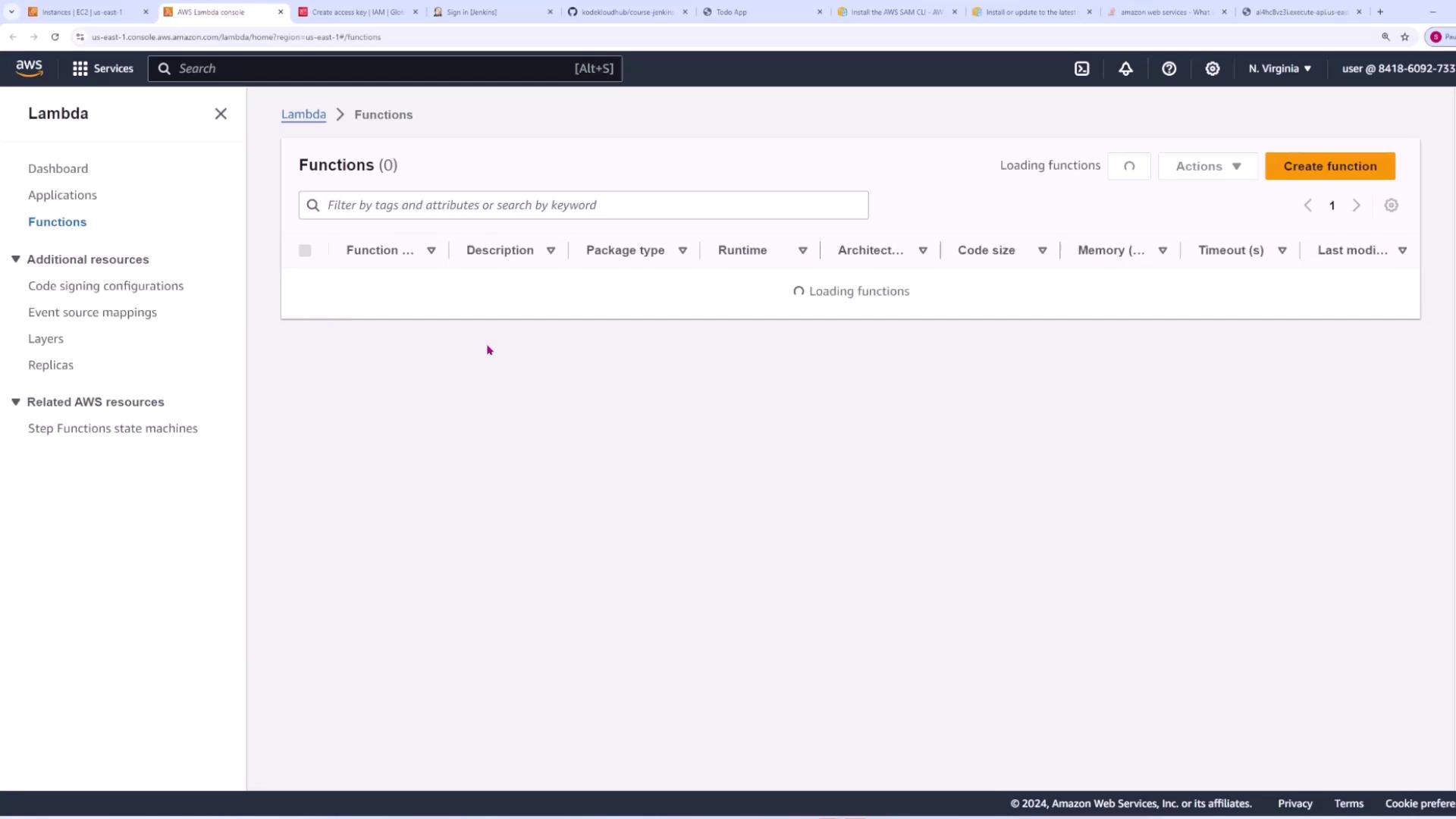
You can also verify the deployment in the AWS Lambda console:
***
## Configuring AWS Credentials
To deploy your application, ensure that your AWS credentials are configured on your local machine. Use the AWS CLI command:
```bash theme={null}
C:\Users\sanje\code\lambda-scratch\sam-app>aws configure
```
Enter your AWS access key, secret access key, preferred region (e.g., us-east-1), and output format when prompted. These credentials are used by both the AWS CLI and SAM CLI.
If you need to create or manage these credentials, log in to the AWS Management Console, navigate to IAM → Users → \[Your User] → Security credentials, and create a new access key.
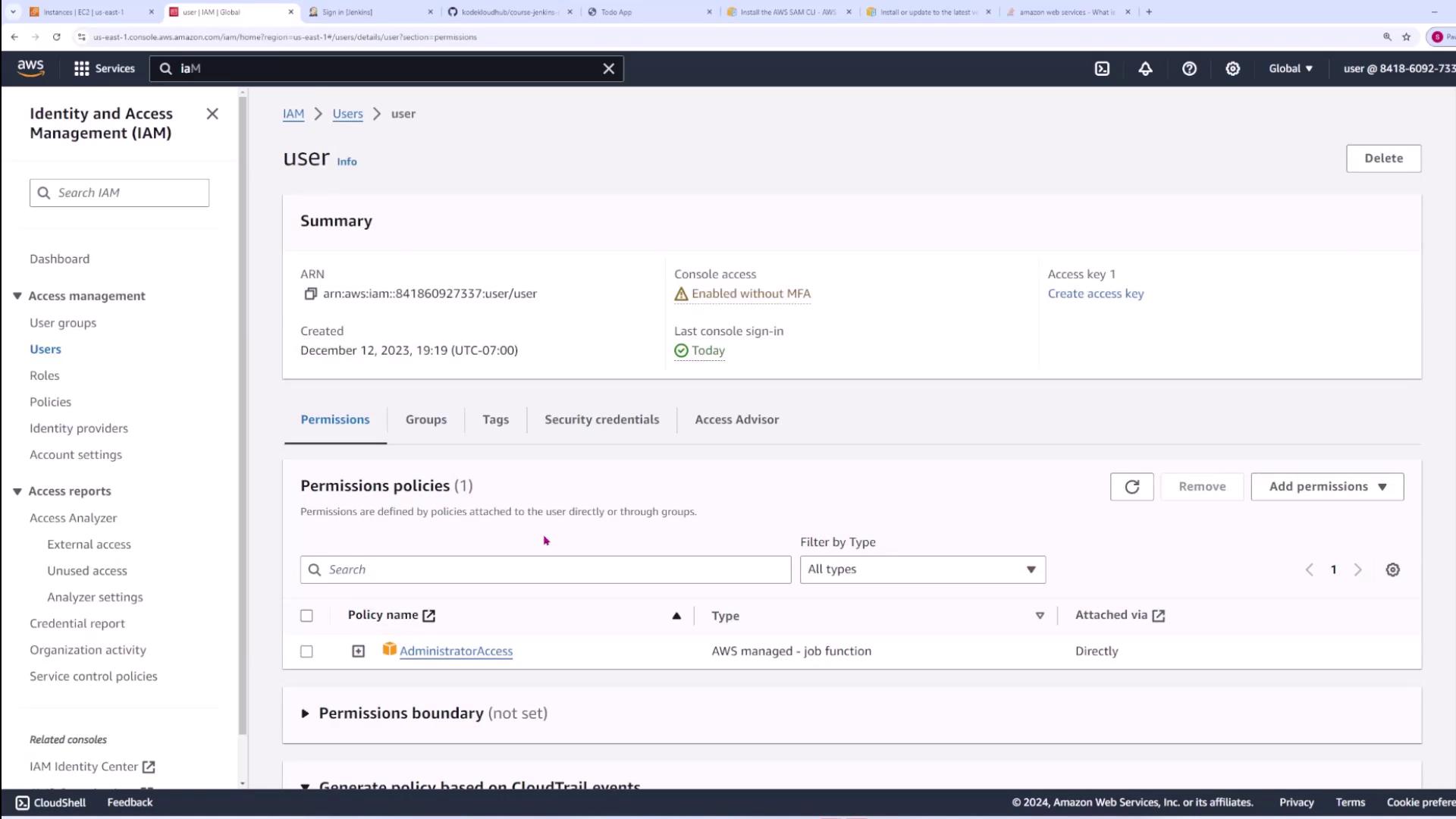
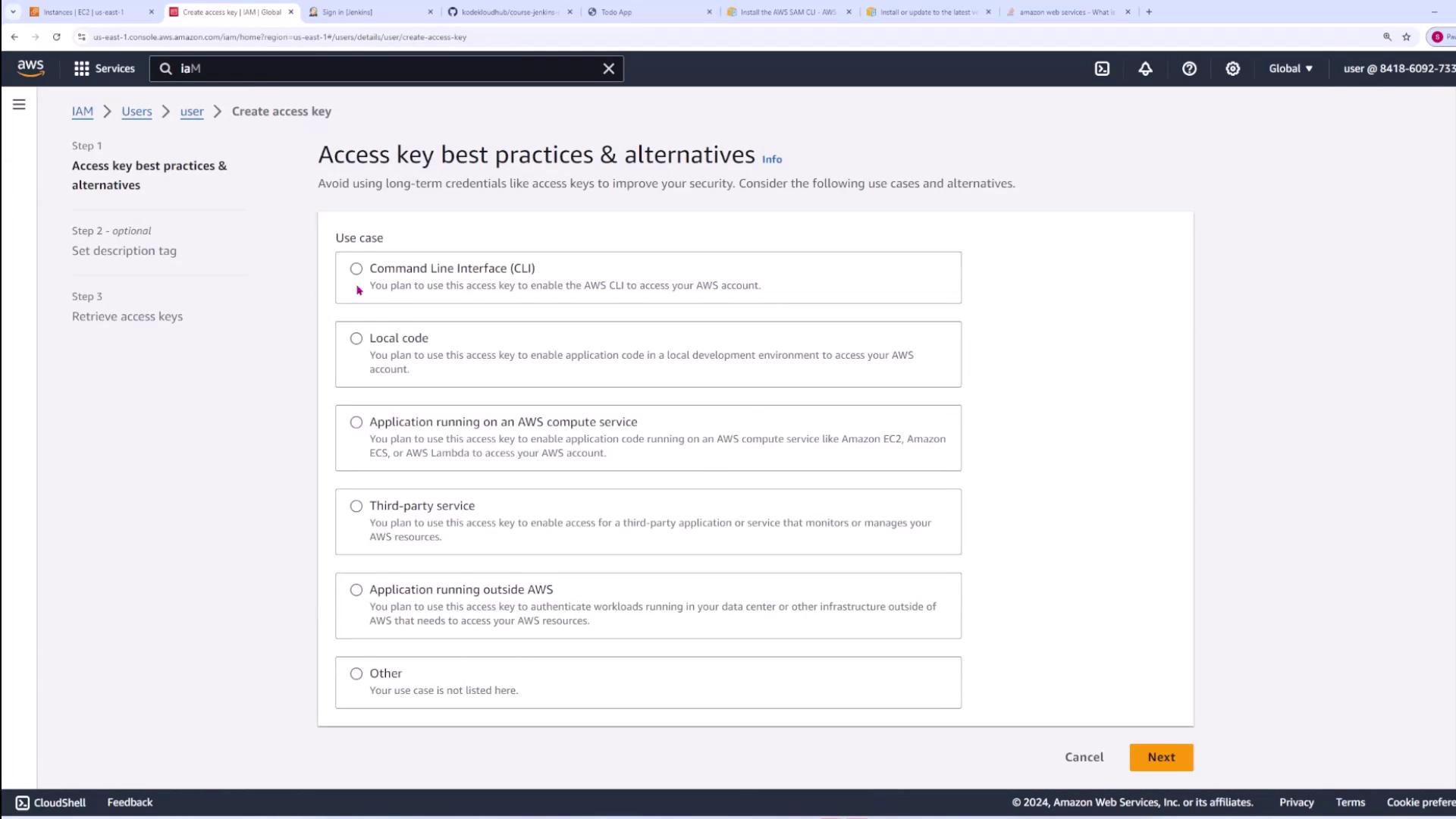
Follow the on-screen instructions to generate a new access key:
After configuring your credentials, rerun `sam deploy` to complete the deployment process.
***
## Updating and Deleting the Stack
Once your SAM application is deployed, you can update it at any time by modifying your source code or the `template.yaml` configuration and repeating the build and deploy steps.
To delete the deployed stack and remove all associated resources, run:
```bash theme={null}
C:\Users\sanje\code\lambda-scratch\sam-app>sam delete
Are you sure you want to delete the stack sam-app in the region us-east-1 ? [y/N]: y
```
Make sure to confirm deletion of S3 objects when prompted. SAM CLI will then remove both the CloudFormation stack and all related resources.
***
## Building a CI/CD Pipeline Example
For demonstration purposes, consider creating a simple application named `lambda-app` that serves as the foundation for your CI/CD pipeline. This project’s structure closely resembles the one created earlier with SAM, and the `template.yaml` file defines a Lambda function and an API Gateway.
Below is an example snippet from `template.yaml`:
```yaml theme={null}
Globals:
Function:
LoggingConfig:
LogFormat: JSON
Resources:
HelloWorldFunction:
Type: AWS::Serverless::Function
Properties:
DeploymentPreference:
Type: AllAtOnce
AutoPublishAlias: live
CodeUri: hello_world/
Handler: app.lambda_handler
Runtime: python3.9
Architectures:
- x86_64
Events:
HelloWorld:
Type: Api
# More info about API Event Source: https://github.com/awslabs/serverless-application-model/blob/master/versions/2016-10-31.md#api
```
The Lambda function in `app.py` may be modified to include versioning within its response:
```python theme={null}
import json
def lambda_handler(event, context):
return {
"statusCode": 200,
"body": json.dumps({
"message": "hello world v1"
}),
}
```
After making changes, use the following commands from your project root. Note the use of the `-T` flag to specify the location of `template.yaml`:
```bash theme={null}
C:\Users\sanje\Documents\Jenkins-demo> sam build -T lambda-app\template.yaml
```
Once the build completes successfully, deploy with:
```bash theme={null}
C:\Users\sanje\Documents\Jenkins-demo> sam deploy --guided -t lambda-app\template.yaml
```
After deployment, SAM CLI provides the updated API Gateway endpoint. For example:
```plaintext theme={null}
Key HelloworldApi
Description API Gateway endpoint URL for Prod stage for Hello World function
Value https://l1jlov11ff.execute-api.us-east-1.amazonaws.com/Prod/hello/
```
Accessing the endpoint should return the updated message:
```json theme={null}
{"message": "hello world v1"}
```
With this configuration, integrating SAM deployment commands into a Jenkins-based CI/CD pipeline becomes seamless. Simply include the SAM CLI installation, `sam build`, and `sam deploy` steps in your pipeline configuration.
***
This article demonstrates how the AWS SAM CLI can simplify the development, deployment, and updating of serverless applications. With consistent commands for both local environments and CI/CD pipelines, managing Lambda-based applications has never been easier.