> ## Documentation Index
> Fetch the complete documentation index at: https://notes.kodekloud.com/llms.txt
> Use this file to discover all available pages before exploring further.
# Using the New Build Agent for a CICD Pipeline
> This guide demonstrates configuring and utilizing a dedicated build agent within a Jenkins-based CICD pipeline for specific operating systems.
In this guide, we will demonstrate how to configure and utilize a dedicated build agent within a Jenkins-based CICD pipeline. This setup is especially beneficial for scenarios involving applications that require specific operating systems, such as macOS apps or Linux-based testing environments.
## Creating a New Pipeline Project
To start, log in to Jenkins and click on **New Item**. Provide a project name (for example, "Ubuntu Test Pipeline") and then select the **Freestyle project** option.
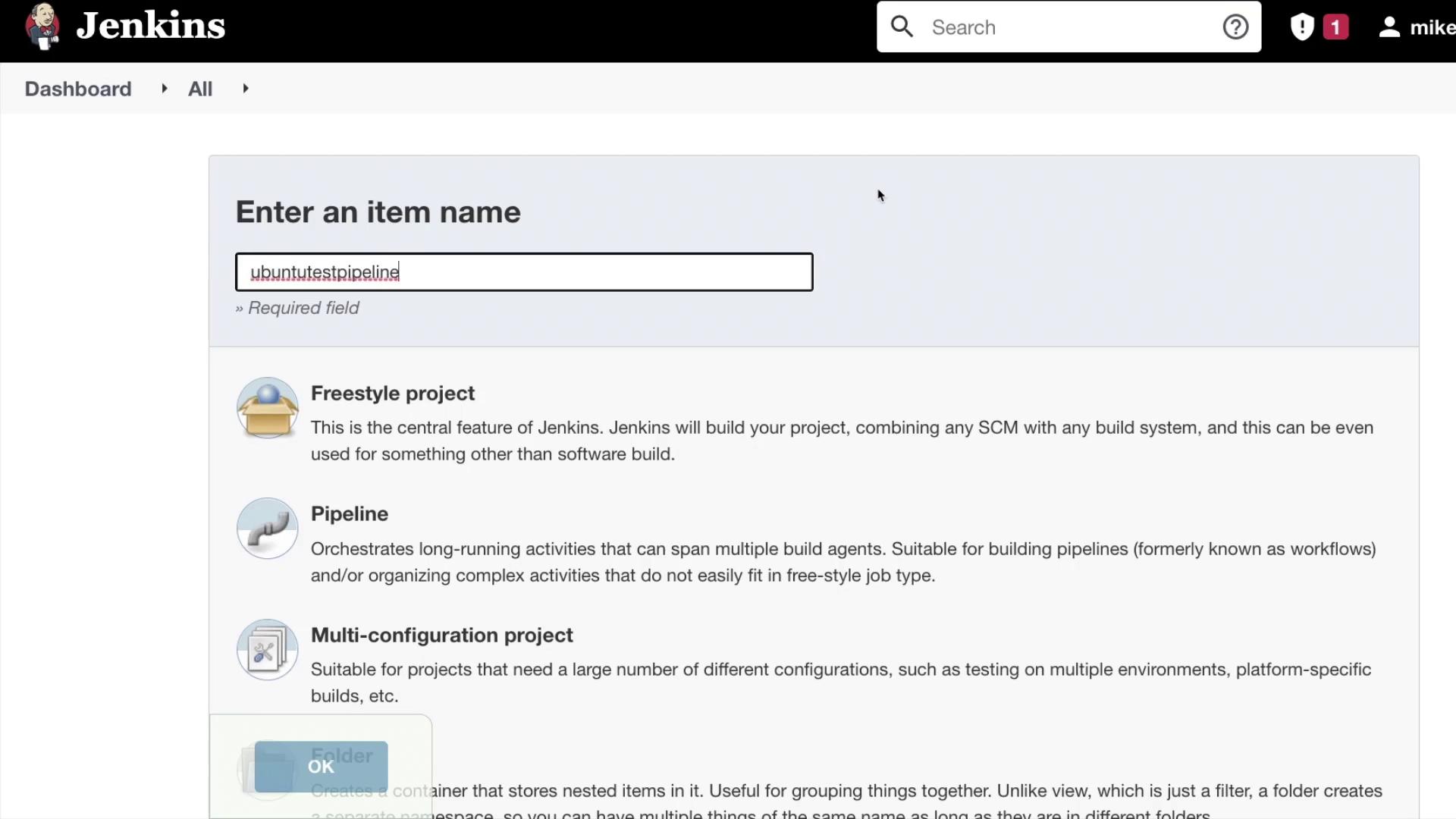
After selecting the project type, click **OK** to proceed.
## Restricting the Project to a Specific Build Agent
In the project configuration page, enable the option **Restrict where this project can be run**. Enter the build agent name on which you want to execute the project. Jenkins will help by indicating if it finds a matching agent as you type.

Ensure you enter the exact agent identifier. If an unrecognized name is entered, Jenkins will display a message such as "no agent matches."
For example, by entering "Ubuntu Agent" (or the exact matching identifier), Jenkins will confirm the availability of the agent for your project.
## Configuring a Build Step
Next, test the build agent by adding a build step:
1. Scroll down to the **Build** section.
2. Select **Execute shell** as the build step.
3. Insert the following simple command to verify the functionality:
```bash theme={null}
echo "testing to confirm the build agent works"
```
Once the build step is configured, click **Save** and then trigger the build by selecting **Build Now**.
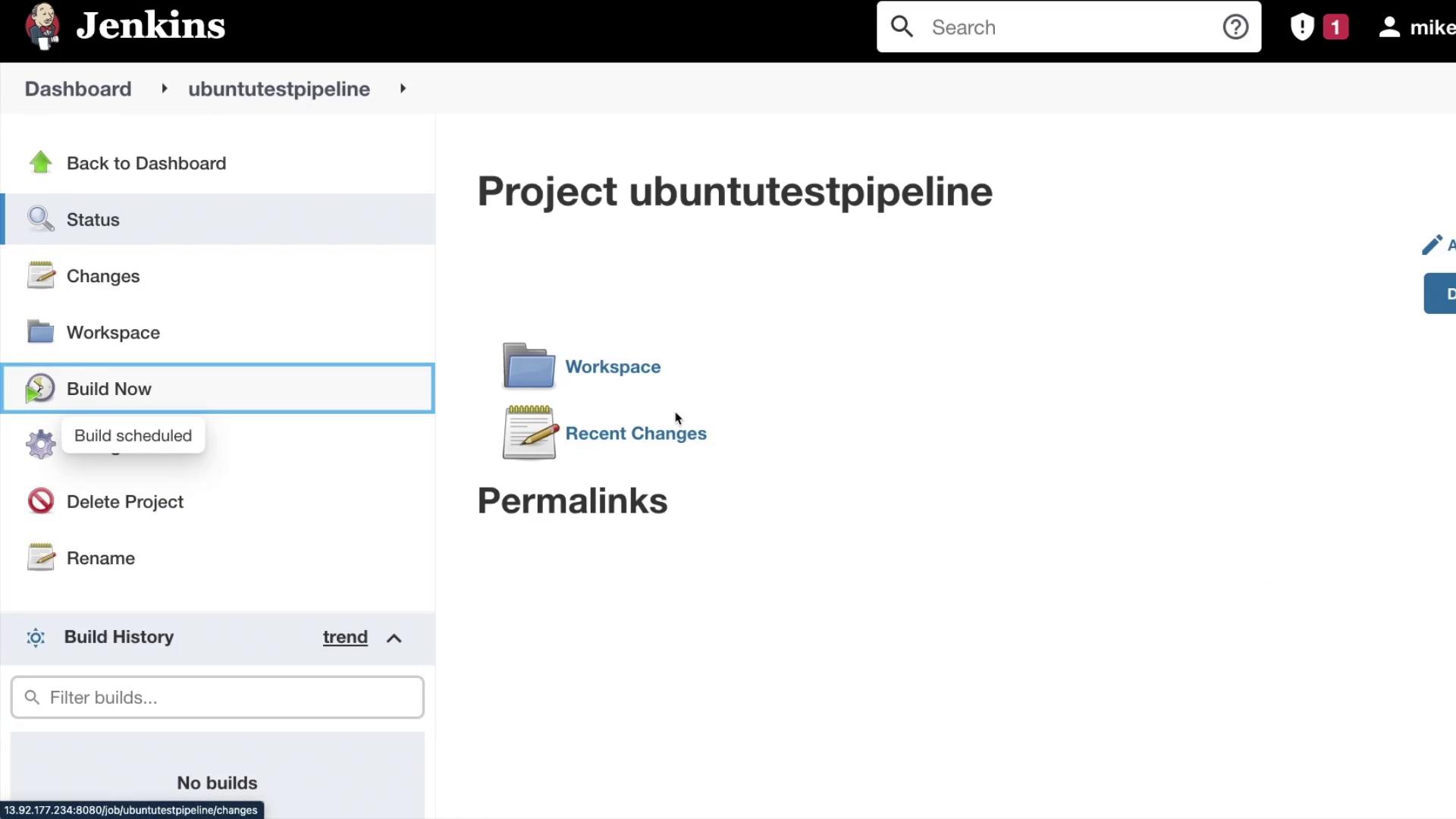
## Verifying the Build Outcome
After the build is initiated, inspect the console output to verify that the build executed on your designated "Ubuntu Agent." The console output should resemble the following:
```bash theme={null}
Started by user mike
Running as SYSTEM
Building remotely on ubuntuagent in workspace /home/newuser/workspace/ubuntutestpipeline
[ubuntutestpipeline] $ /bin/sh -xe /tmp/jenkins1094049092160565796.sh
+ echo "testing to confirm the build agent works"
testing to confirm the build agent works
Finished: SUCCESS
```
This output confirms that the build agent is correctly configured and functioning as expected.
Continue exploring the power of build agents in CICD pipelines by experimenting with additional configurations and practical exercises.