> ## Documentation Index
> Fetch the complete documentation index at: https://notes.kodekloud.com/llms.txt
> Use this file to discover all available pages before exploring further.
# Restore Jenkins
> This guide explains how to restore a Jenkins server from a backup using the Thin Backup plugin.
After creating a backup of your Jenkins server, you may need to restore it from a previous backup. In this guide, we will walk you through the restoration process using the Thin Backup plugin.
## Verifying Your Jenkins Backup
Before you begin the restoration, ensure that your Jenkins backup exists. For example, run the following command to list the backups:
```bash theme={null}
mike@jenkins01:~/jenkinsbackup$ ls
FULL-2022-01-03_19-52
mike@jenkins01:~/jenkinsbackup$
```
## Initiating the Restore Process
1. Open the Thin Backup plugin interface in your Jenkins dashboard.
2. Click on the **Restore** button.
3. You should see an option labeled **Restore from this backup**.
Before proceeding with the restoration process, it is recommended that you create an additional backup.
## Creating an Additional Backup
1. Navigate to the **Settings** menu.
2. Scroll down to the backup options.
3. Ensure that all necessary components are selected for backup.
4. Click **Save**.
5. Click **Backup** to create a new backup.
Once completed, you will notice that the interface lists three backups available for restoration.
## Selecting the Backup to Restore
1. Click on the **Restore** button again.
2. The interface will display all three backups along with their respective timestamps.
3. For this demonstration, select the latest backup.
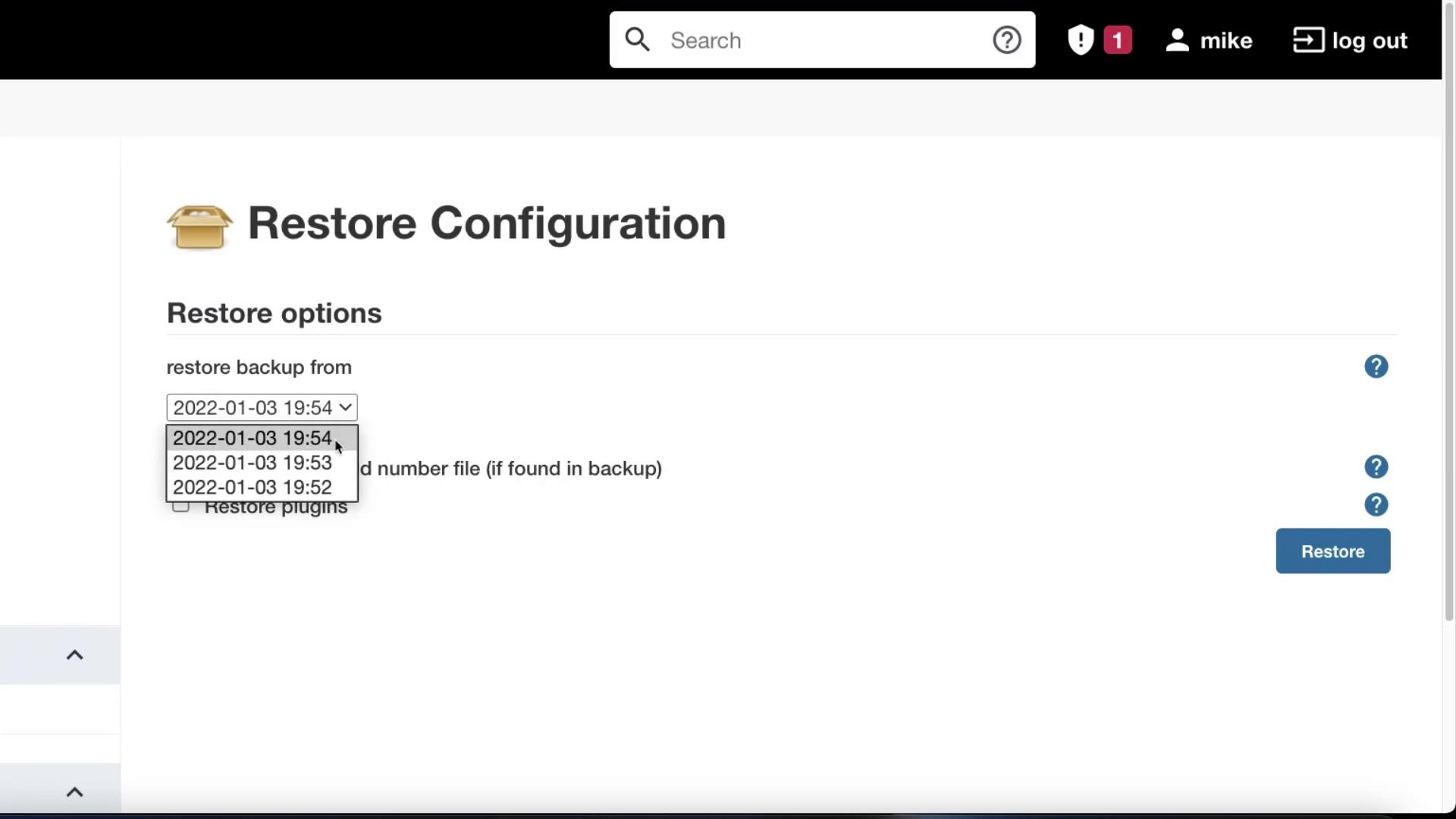
4. Click **Restore** to initiate the restoration process.
Jenkins will then be restored to its previous state. Since this server does not have an extensive configuration, the restoration completes quickly.
## Conclusion
Congratulations! You have successfully restored your Jenkins server. This guide demonstrated how to verify your backup, create an additional backup as a precaution, and restore Jenkins using the Thin Backup plugin.
We hope this step-by-step guide helps ease your Jenkins maintenance routines. Look out for our next article covering more advanced Jenkins topics.
***
## Related Resources
* [Jenkins Documentation](https://www.jenkins.io/doc/)
* [Thin Backup Plugin Information](https://plugins.jenkins.io/thin-backup/)
* [Jenkins Community Forums](https://www.jenkins.io/community/)
Happy building!