> ## Documentation Index
> Fetch the complete documentation index at: https://notes.kodekloud.com/llms.txt
> Use this file to discover all available pages before exploring further.
# Demo KAgent Exploration
> Step-by-step guide to install and configure KAgent on Kubernetes, manage ModelConfig and provider secrets, enable tools and k8s-agent, and interact via UI and kagent CLI.
This guide walks through a progressive installation and configuration of KAgent on Kubernetes. You'll learn how to:
* Install KAgent CRDs and the KAgent Helm chart.
* Store LLM provider secrets and create a ModelConfig CRD.
* Install KAgent with a minimal configuration, then enable the built-in tools and the `k8s-agent`.
* Interact with the Kubernetes agent via the KAgent UI and the `kagent` CLI.
* Inspect controller logs and observe agent-driven actions (e.g., creating manifests).
Prerequisites, example commands, and troubleshooting tips are included. Ensure you have a Kubernetes cluster, `kubectl`, `helm`, and the `kagent` CLI (if invoking agents from the terminal). Also set any referenced environment variables (for example, `OPENAI_API_KEY`) in your shell.
***
## Prerequisites
| Requirement | Purpose | Example / Notes |
| --------------------- | --------------------------- | -------------------------------------------- |
| Kubernetes cluster | Run KAgent components | Minikube, Kind, or managed cluster |
| kubectl | Inspect cluster resources | `kubectl version --client` |
| helm | Install KAgent charts | `helm version` |
| kagent CLI (optional) | Invoke agents from CLI | See `kagent invoke` examples below |
| API keys / secrets | LLM provider authentication | `OPENAI_API_KEY` stored as Kubernetes secret |
***
## 1) Install the KAgent CRDs
The KAgent Helm charts are published to an OCI registry on GitHub: `oci://ghcr.io/kagent`. Install the CRDs into the `kagent` namespace (the namespace will be created if missing):
```bash theme={null}
# Adjust the chart path and flags as needed for your environment
helm install kagent-crds oci://ghcr.io/kagent --namespace kagent --create-namespace
```
Verify CRDs were created before continuing:
```bash theme={null}
kubectl get crds | grep kagent
kubectl -n kagent get namespaces
```
***
## 2) Create the OpenAI secret
Store your OpenAI API key in a Kubernetes generic secret in the `kagent` namespace. The examples and ModelConfig below reference the secret name `kagent-openai` and the key `OPENAI_API_KEY`.
```bash theme={null}
export OPENAI_API_KEY="sk-..." # set to your actual key
kubectl create secret generic kagent-openai \
--from-literal=OPENAI_API_KEY="$OPENAI_API_KEY" \
-n kagent
```
Verify the secret exists:
```bash theme={null}
kubectl get secret kagent-openai -n kagent
```
***
## 3) ModelConfig: store LLM provider details
KAgent uses a `ModelConfig` CRD to reference LLM provider credentials and model preferences. Create a `ModelConfig` YAML that points to the secret you created. Example:
```yaml theme={null}
apiVersion: kagent.dev/v1alpha2
kind: ModelConfig
metadata:
name: default-model-config
namespace: kagent
labels:
app.kubernetes.io/managed-by: Helm
annotations:
meta.helm.sh/release-name: kagent
meta.helm.sh/release-namespace: kagent
spec:
apiKeySecret: "kagent-openai"
apiKeySecretKey: "OPENAI_API_KEY"
model: "openai/gpt-4.1-mini"
provider: OpenAI
openAI:
baseUrl: "https://kodekey.ai.kodekloud.com"
```
Key notes:
* `apiKeySecret` must match the Kubernetes secret name.
* `apiKeySecretKey` must match the key inside that secret (e.g., `OPENAI_API_KEY`).
* `openAI.baseUrl` is optional. Omit it to use the public OpenAI endpoint or set it when using a proxy/private host.
Apply the ModelConfig and confirm it was created:
```bash theme={null}
kubectl apply -f default-model-config.yaml
kubectl -n kagent get modelconfigs
```
If you are using OpenAI's public API, you can omit `openAI.baseUrl`. Use `baseUrl` only when routing through a proxy or private endpoint.
***
## 4) Install KAgent with a minimal values file
Start with a minimal Helm values file that disables optional agents, tools, and MCP servers so you can enable them progressively. Save this as `01-values.min.yaml`:
```yaml theme={null}
# 01-values.min.yaml
agents:
argo-rollouts-agent:
enabled: false
cilium-debug-agent:
enabled: false
cilium-manager-agent:
enabled: false
cilium-policy-agent:
enabled: false
helm-agent:
enabled: false
istio-agent:
enabled: false
k8s-agent:
enabled: false
kgateway-agent:
enabled: false
observability-agent:
enabled: false
promql-agent:
enabled: false
kmcp:
enabled: false
kagent-tools:
enabled: false
tools:
grafana-mcp:
enabled: false
querydoc:
enabled: false
```
Install or upgrade KAgent using that minimal configuration:
```bash theme={null}
helm upgrade --install kagent oci://ghcr.io/kagent \
-n kagent --create-namespace -f 01-values.min.yaml
```
Check services in the `kagent` namespace:
```bash theme={null}
kubectl -n kagent get svc
```
You should see at least the controller and UI services (typically `ClusterIP` by default).
***
## 5) Expose the KAgent UI (NodePort)
To access the KAgent UI from your workstation in this lab, change the `kagent-ui` Service type to `NodePort` and bind a node port (e.g., `3080`).
Edit the service:
```bash theme={null}
kubectl -n kagent edit svc kagent-ui
```
Modify the `spec` to include a `nodePort` and set `type: NodePort`. Example fragment:
```yaml theme={null}
spec:
ports:
- name: ui
port: 8080
protocol: TCP
targetPort: 8080
nodePort: 3080
type: NodePort
```
After saving the edit, open the UI at `http://localhost:3080` or `http://:3080` depending on your cluster networking.
***
## 6) Inspect available provider ModelConfig examples
KAgent supports multiple providers (Anthropic, OpenAI, Groq, and more). Example snippets:
Anthropic minimal example:
```yaml theme={null}
apiVersion: kagent.dev/v1alpha2
kind: ModelConfig
metadata:
name: anthropic-minimal
namespace: kagent
spec:
provider: Anthropic
model: claude-3-5-sonnet-20241022
apiKeySecret: kagent-anthropic
apiKeySecretKey: ANTHROPIC_API_KEY
anthropic:
maxTokens: 4096
```
OpenAI full configuration example:
```yaml theme={null}
apiVersion: kagent.dev/v1alpha2
kind: ModelConfig
metadata:
name: openai-full-config
namespace: kagent
spec:
provider: OpenAI
model: gpt-4o
apiKeySecret: kagent-openai
apiKeySecretKey: OPENAI_API_KEY
openAI:
baseUrl: "https://api.openai.com/v1"
organization: "org_YOUR_ORG_ID"
temperature: "0.7"
topP: "0.9"
maxTokens: 2000
```
Note: Some CRD schemas expect `temperature` and `topP` as strings — keep them quoted if required.
***
## 7) Enable KAgent built-in tools
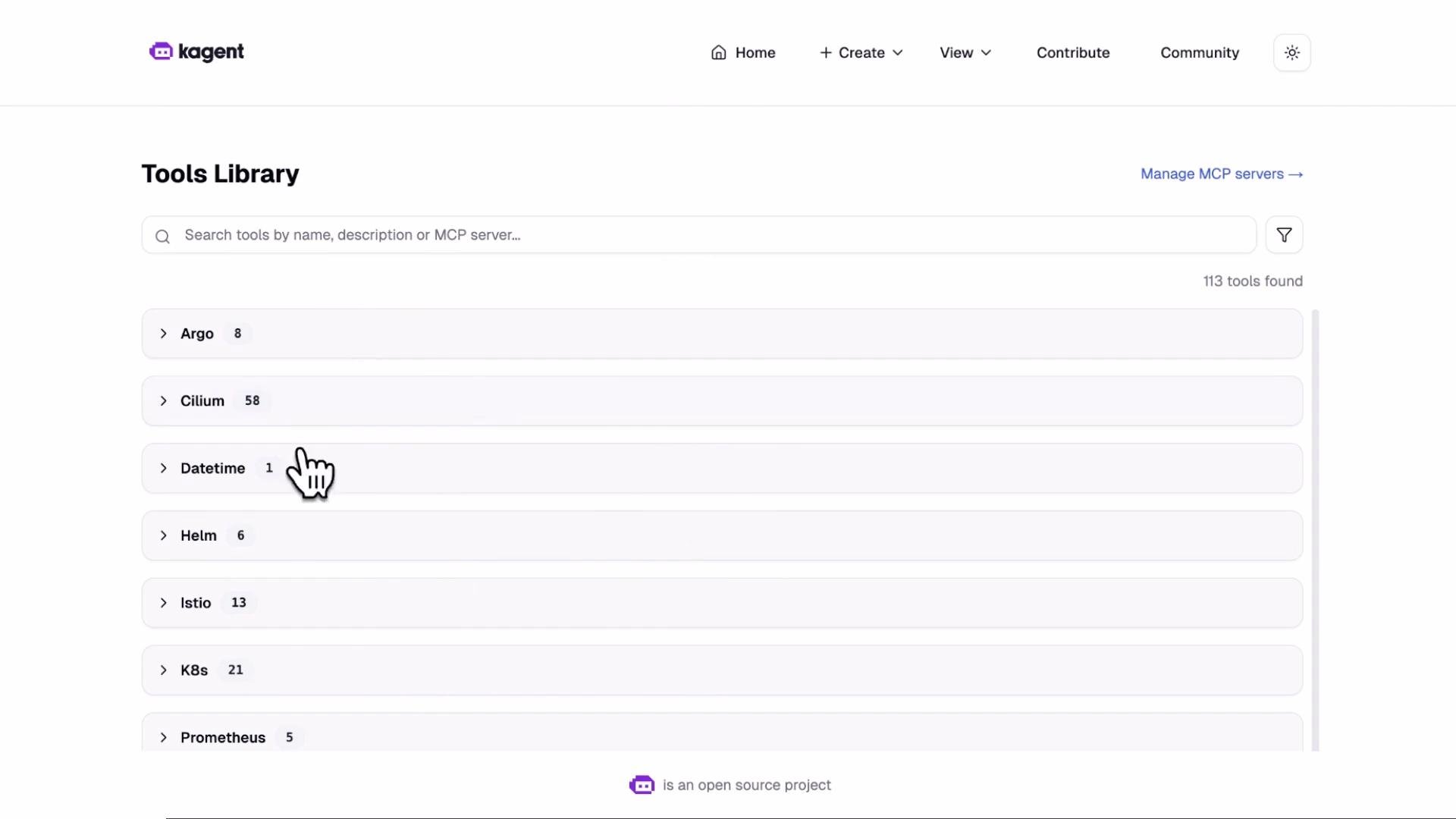
Enable the Tools Library by setting `kagent-tools.enabled: true` in a values file (for example, `02-values-tools.yaml`) and upgrading the release:
```yaml theme={null}
# 02-values-tools.yaml
kagent-tools:
enabled: true
```
Upgrade the release:
```bash theme={null}
helm upgrade kagent oci://ghcr.io/kagent -n kagent -f 02-values-tools.yaml
```
After the upgrade, the Tools Library in the UI should list many tools. Wait a few seconds and refresh the UI while pods start.
 ***
## 8) Enable the k8s-agent
Enable the `k8s-agent` to add Kubernetes troubleshooting capabilities. Example values file `04-values-enable-agents.yaml`:
```yaml theme={null}
agents:
argo-rollouts-agent:
enabled: false
cilium-debug-agent:
enabled: false
cilium-manager-agent:
enabled: false
cilium-policy-agent:
enabled: false
helm-agent:
enabled: false
istio-agent:
enabled: false
k8s-agent:
enabled: true
kgateway-agent:
enabled: false
observability-agent:
enabled: false
promql-agent:
enabled: false
kmcp:
enabled: false
kagent-tools:
enabled: true
tools:
grafana-mcp:
enabled: false
querydoc:
enabled: false
```
Apply the change:
```bash theme={null}
helm upgrade kagent oci://ghcr.io/kagent -n kagent -f 04-values-enable-agents.yaml
```
Watch pods start in the `kagent` namespace:
```bash theme={null}
kubectl -n kagent get pods
```
Sample output while the k8s-agent initializes:
```text theme={null}
NAME READY STATUS RESTARTS AGE
k8s-agent-78897dccc9-s82sg 0/1 ContainerCreating 0 14s
kagent-controller-... 1/1 Running 0 10m
kagent-tools-... 1/1 Running 0 4m
kagent-ui-... 1/1 Running 0 10m
```
After initialization the agent pod becomes `Running`:
```text theme={null}
NAME READY STATUS RESTARTS AGE
k8s-agent-78897dccc9-s82sg 1/1 Running 0 36s
kagent-controller-... 1/1 Running 0 10m
kagent-tools-... 1/1 Running 0 5m
kagent-ui-... 1/1 Running 0 10m
```
Verify configured agents:
```bash theme={null}
kubectl -n kagent get agents
```
Example output:
```text theme={null}
NAME TYPE READY ACCEPTED
k8s-agent Declarative True True
```
***
## 9) Interact with the K8s agent via UI
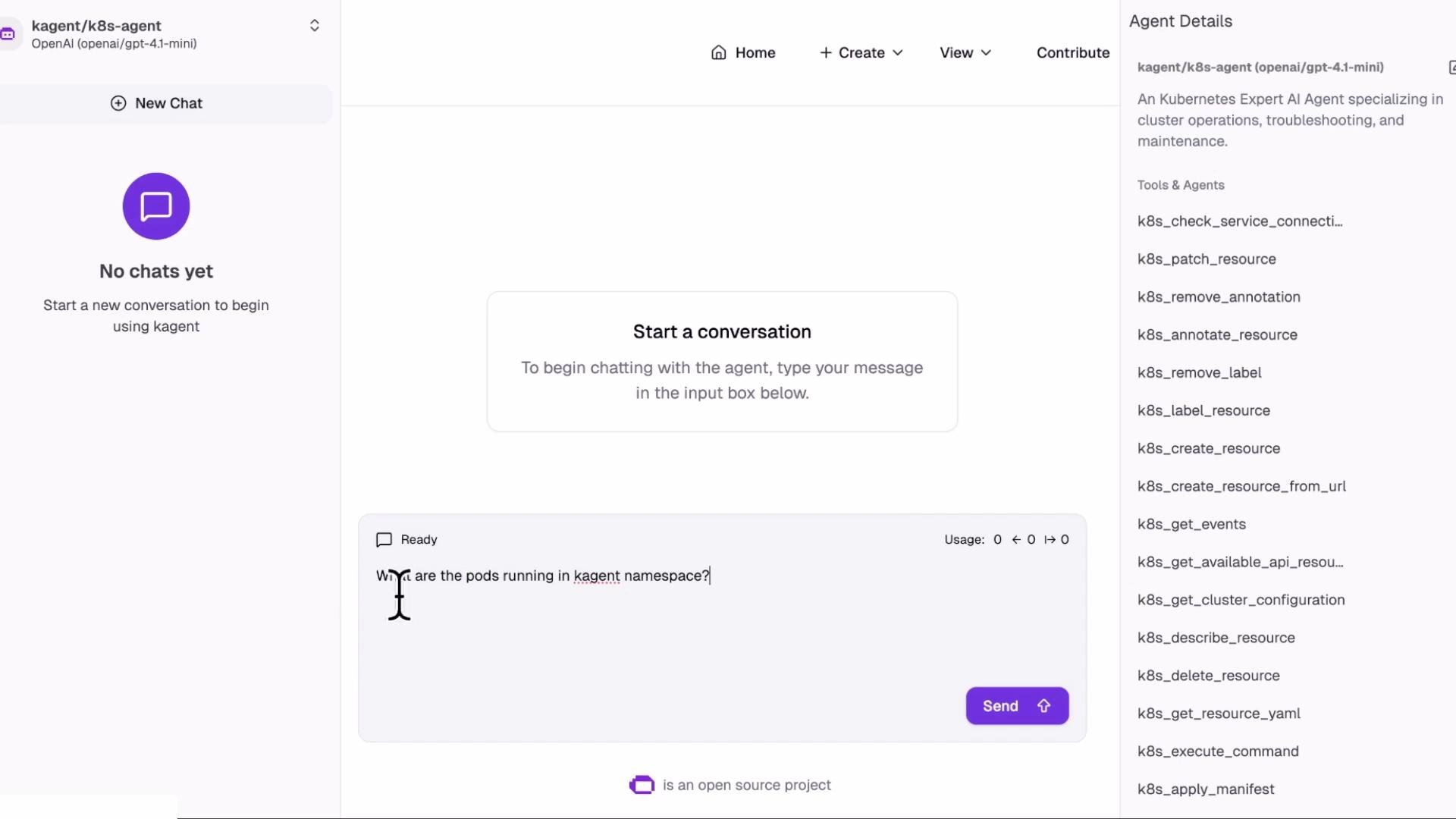
Use the KAgent UI to start a conversation with the `k8s-agent`. The right-side tool pane displays tools the agent may call (for example, `GetResources` which performs `kubectl`-like queries). From the UI ask:
"What are the pods running in kagent namespace?"
The agent will call the `GetResources` tool and return a pod list consistent with `kubectl -n kagent get pods`.
***
## 8) Enable the k8s-agent
Enable the `k8s-agent` to add Kubernetes troubleshooting capabilities. Example values file `04-values-enable-agents.yaml`:
```yaml theme={null}
agents:
argo-rollouts-agent:
enabled: false
cilium-debug-agent:
enabled: false
cilium-manager-agent:
enabled: false
cilium-policy-agent:
enabled: false
helm-agent:
enabled: false
istio-agent:
enabled: false
k8s-agent:
enabled: true
kgateway-agent:
enabled: false
observability-agent:
enabled: false
promql-agent:
enabled: false
kmcp:
enabled: false
kagent-tools:
enabled: true
tools:
grafana-mcp:
enabled: false
querydoc:
enabled: false
```
Apply the change:
```bash theme={null}
helm upgrade kagent oci://ghcr.io/kagent -n kagent -f 04-values-enable-agents.yaml
```
Watch pods start in the `kagent` namespace:
```bash theme={null}
kubectl -n kagent get pods
```
Sample output while the k8s-agent initializes:
```text theme={null}
NAME READY STATUS RESTARTS AGE
k8s-agent-78897dccc9-s82sg 0/1 ContainerCreating 0 14s
kagent-controller-... 1/1 Running 0 10m
kagent-tools-... 1/1 Running 0 4m
kagent-ui-... 1/1 Running 0 10m
```
After initialization the agent pod becomes `Running`:
```text theme={null}
NAME READY STATUS RESTARTS AGE
k8s-agent-78897dccc9-s82sg 1/1 Running 0 36s
kagent-controller-... 1/1 Running 0 10m
kagent-tools-... 1/1 Running 0 5m
kagent-ui-... 1/1 Running 0 10m
```
Verify configured agents:
```bash theme={null}
kubectl -n kagent get agents
```
Example output:
```text theme={null}
NAME TYPE READY ACCEPTED
k8s-agent Declarative True True
```
***
## 9) Interact with the K8s agent via UI
Use the KAgent UI to start a conversation with the `k8s-agent`. The right-side tool pane displays tools the agent may call (for example, `GetResources` which performs `kubectl`-like queries). From the UI ask:
"What are the pods running in kagent namespace?"
The agent will call the `GetResources` tool and return a pod list consistent with `kubectl -n kagent get pods`.
 ***
## 10) Invoke the agent via the kagent CLI
You can invoke the agent from the CLI for scripted or reproducible workflows. Example:
```bash theme={null}
kagent invoke -n kagent \
-a k8s-agent \
-t "list all pods in the kagent namespace" \
-S
```
* `-S` requests a streaming response (controller streams JSON status updates and final results).
* Modify the text prompt to target different namespaces or resources:
```bash theme={null}
kagent invoke -n kagent -a k8s-agent -t "list the pods in default namespace" -S
```
Controller logs will reflect task creation and execution. Example log excerpt:
```json theme={null}
{"level":"info","ts":"2025-12-15T10:28:21Z","logger":"http.tasks-handler","msg":"Successfully created task","operation":"create-task","task_id":"45d63c46-a37a-4c16-9a2a-18693efa8cae"}
{"level":"info","ts":"2025-12-15T10:28:21Z","logger":"http","msg":"Request completed","method":"POST","path":"/api/tasks","status":201}
{"level":"info","ts":"2025-12-15T10:28:21Z","logger":"http","msg":"Request completed","method":"POST","path":"/api/a2a/kagent/k8s-agent/","status":200}
```
***
## 11) Example: Ask agent to create a Service manifest (agent-driven action)
Agents can generate and apply manifests. For example, ask the `k8s-agent` to create a ClusterIP Service (without a selector) in the `default` namespace:
```bash theme={null}
kagent invoke -n kagent -a k8s-agent \
-t "create a service ssdfsdflkjdipin in default namespace of type ClusterIP without any selector" \
-S -o json \
| jq -r 'select(.status? and .status.message? and .status.message.parts?)
| .status.message.parts[]?
| select(.kind=="data" and .data.name!=null)
| .data.name'
```
The above `jq` pipeline extracts tool names used in the response (for example, `k8s_apply_manifest`). After the agent finishes, verify the Service exists:
```bash theme={null}
kubectl get svc -n default
```
Sample output:
```text theme={null}
NAME TYPE CLUSTER-IP EXTERNAL-IP PORT(S) AGE
kubernetes ClusterIP 172.20.0.1 443/TCP 62m
ssdfsdflkjdipin ClusterIP None 28s
```
***
## Useful commands & troubleshooting
Use these commands to inspect KAgent resources, logs, and cluster events while debugging or verifying behavior.
```bash theme={null}
# View kagent resources
kubectl -n kagent get agents,modelconfigs,toolservers,memories
# Get agents
kubectl -n kagent get agents
# View pods
kubectl -n kagent get pods
# View controller logs
kubectl -n kagent logs -l app.kubernetes.io/component=controller -f
# View logs for all kagent components
kubectl -n kagent logs -l app.kubernetes.io/name=kagent -f
# View events (helpful for debugging)
kubectl -n kagent get events --sort-by='.lastTimestamp'
```
Documentation and further examples:
* [https://kagent.dev](https://kagent.dev)
* [Kubernetes Concepts](https://kubernetes.io/docs/concepts/overview/what-is-kubernetes/)
If the UI or agent responses are not immediately available, allow a few seconds for pods to become ready and refresh the UI. Agents and tools often take a short time to initialize after a Helm upgrade.
***
This completes the lab for progressively installing KAgent, adding a ModelConfig, enabling built-in tools and the `k8s-agent`, and interacting via the UI and CLI. Additional topics you can explore next include MCP servers and deploying custom MCP configurations using KAgent.
***
## 10) Invoke the agent via the kagent CLI
You can invoke the agent from the CLI for scripted or reproducible workflows. Example:
```bash theme={null}
kagent invoke -n kagent \
-a k8s-agent \
-t "list all pods in the kagent namespace" \
-S
```
* `-S` requests a streaming response (controller streams JSON status updates and final results).
* Modify the text prompt to target different namespaces or resources:
```bash theme={null}
kagent invoke -n kagent -a k8s-agent -t "list the pods in default namespace" -S
```
Controller logs will reflect task creation and execution. Example log excerpt:
```json theme={null}
{"level":"info","ts":"2025-12-15T10:28:21Z","logger":"http.tasks-handler","msg":"Successfully created task","operation":"create-task","task_id":"45d63c46-a37a-4c16-9a2a-18693efa8cae"}
{"level":"info","ts":"2025-12-15T10:28:21Z","logger":"http","msg":"Request completed","method":"POST","path":"/api/tasks","status":201}
{"level":"info","ts":"2025-12-15T10:28:21Z","logger":"http","msg":"Request completed","method":"POST","path":"/api/a2a/kagent/k8s-agent/","status":200}
```
***
## 11) Example: Ask agent to create a Service manifest (agent-driven action)
Agents can generate and apply manifests. For example, ask the `k8s-agent` to create a ClusterIP Service (without a selector) in the `default` namespace:
```bash theme={null}
kagent invoke -n kagent -a k8s-agent \
-t "create a service ssdfsdflkjdipin in default namespace of type ClusterIP without any selector" \
-S -o json \
| jq -r 'select(.status? and .status.message? and .status.message.parts?)
| .status.message.parts[]?
| select(.kind=="data" and .data.name!=null)
| .data.name'
```
The above `jq` pipeline extracts tool names used in the response (for example, `k8s_apply_manifest`). After the agent finishes, verify the Service exists:
```bash theme={null}
kubectl get svc -n default
```
Sample output:
```text theme={null}
NAME TYPE CLUSTER-IP EXTERNAL-IP PORT(S) AGE
kubernetes ClusterIP 172.20.0.1 443/TCP 62m
ssdfsdflkjdipin ClusterIP None 28s
```
***
## Useful commands & troubleshooting
Use these commands to inspect KAgent resources, logs, and cluster events while debugging or verifying behavior.
```bash theme={null}
# View kagent resources
kubectl -n kagent get agents,modelconfigs,toolservers,memories
# Get agents
kubectl -n kagent get agents
# View pods
kubectl -n kagent get pods
# View controller logs
kubectl -n kagent logs -l app.kubernetes.io/component=controller -f
# View logs for all kagent components
kubectl -n kagent logs -l app.kubernetes.io/name=kagent -f
# View events (helpful for debugging)
kubectl -n kagent get events --sort-by='.lastTimestamp'
```
Documentation and further examples:
* [https://kagent.dev](https://kagent.dev)
* [Kubernetes Concepts](https://kubernetes.io/docs/concepts/overview/what-is-kubernetes/)
If the UI or agent responses are not immediately available, allow a few seconds for pods to become ready and refresh the UI. Agents and tools often take a short time to initialize after a Helm upgrade.
***
This completes the lab for progressively installing KAgent, adding a ModelConfig, enabling built-in tools and the `k8s-agent`, and interacting via the UI and CLI. Additional topics you can explore next include MCP servers and deploying custom MCP configurations using KAgent.