> ## Documentation Index
> Fetch the complete documentation index at: https://notes.kodekloud.com/llms.txt
> Use this file to discover all available pages before exploring further.
# Installing Cilium Overview
> This article explores installation methods and observability options for Cilium on Kubernetes using CLI, Helm, and Hubble.
Before diving into the demo, let’s explore the key tools, installation approaches, and observability options for Cilium on Kubernetes.
## 1. Cilium CLI: Your Primary Management Tool
The [Cilium CLI][cilium-cli] is the go-to command-line utility for installing, managing, and troubleshooting Cilium:
* View the overall status of Cilium components
* Verify network connectivity across endpoints
* Run built-in network tests
* Enable Hubble for deep observability
* Install Cilium and addons
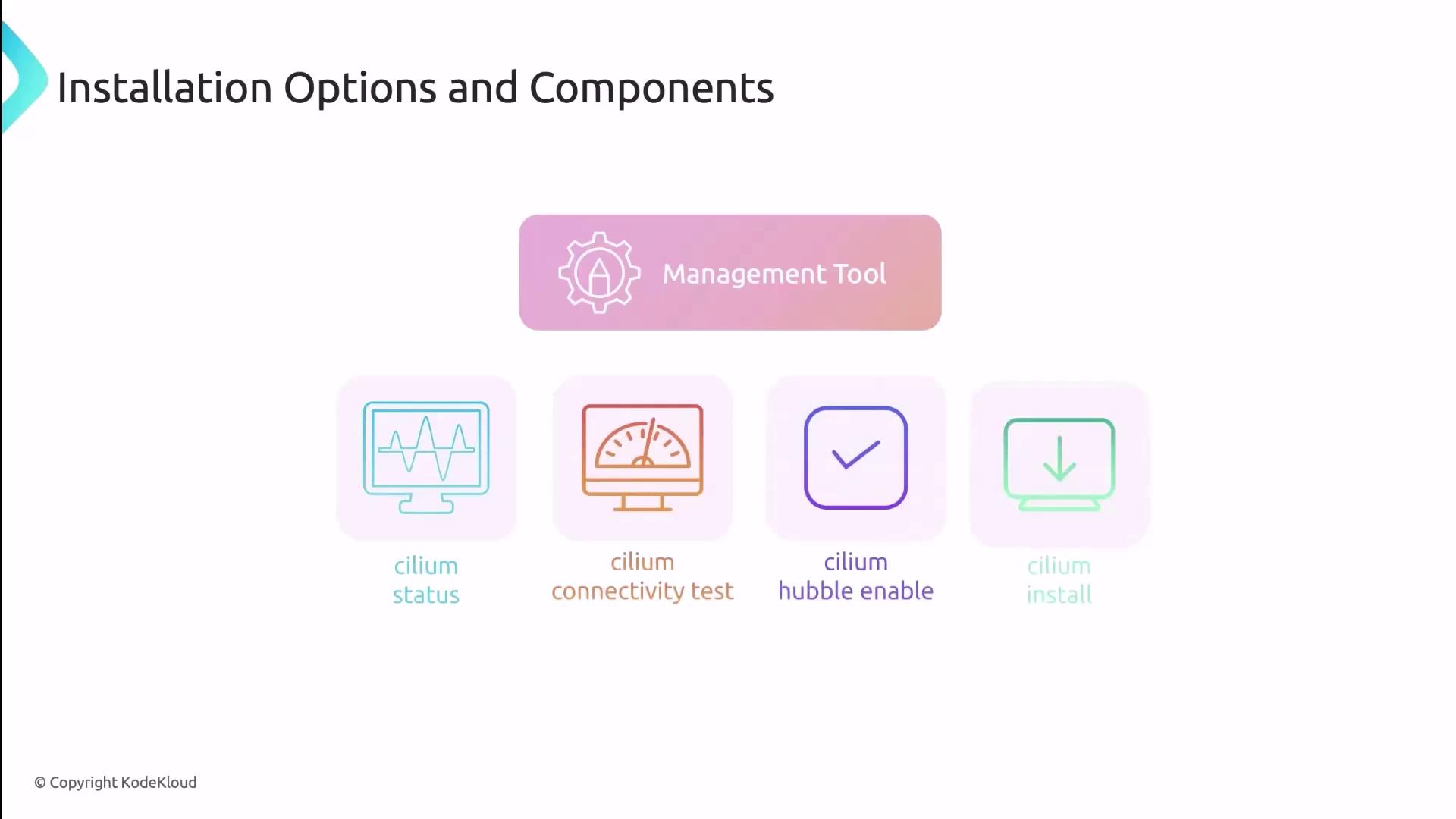
```bash theme={null}
# Check the health of your Cilium cluster
cilium status
# Run a connectivity test between pods
cilium connectivity test
# Enable Hubble for network observability
cilium hubble enable
# Install Cilium into your Kubernetes cluster
cilium install
```
The Cilium CLI v0.14+ supports both direct CLI installs and Helm-style deployments, giving you full flexibility.
## 2. Installation Methods: CLI vs. Helm
Cilium can be installed in two interchangeable ways:
| Installation Method | Command Example | Benefits |
| ------------------- | --------------------------------------------------- | ------------------------------------ |
| Cilium CLI | `cilium install` | All-in-one tool; built-in validation |
| Helm Chart | `helm install cilium cilium/cilium --version 1.x.y` | Familiar Helm workflow; chart config |
In this demo, we’ll walk through both methods side by side.
## 3. Observability with Hubble
[Hubble][hubble-docs] provides real-time visibility into network flows, service dependencies, and security policies. You can enable it:
* **During** Cilium installation:
```bash theme={null}
cilium install --enable-hubble
```
* **After** Cilium is up and running:
```bash theme={null}
cilium hubble enable
```
You must install Cilium before enabling Hubble, as Hubble relies on core Cilium components.
To interact with Hubble:
```bash theme={null}
# Install Hubble CLI
curl -L --remote-name https://github.com/cilium/hubble-cli/releases/latest/download/hubble-linux-amd64.tar.gz
tar xzvf hubble-linux-amd64.tar.gz
sudo mv hubble /usr/local/bin/
# Check Hubble status
hubble status
# Stream live network events
hubble observe
```
***
* [Cilium Documentation][cilium-docs]
* [Cilium CLI Reference][cilium-cli]
* [Hubble Observability][hubble-docs]
* [Helm Charts – Cilium][cilium-helm]
[cilium-docs]: https://docs.cilium.io/
[cilium-cli]: https://docs.cilium.io/cilium-cli/
[hubble-docs]: https://docs.cilium.io/gettingstarted/hubble/
[cilium-helm]: https://docs.cilium.io/gettingstarted/k8s-install-default/