> ## Documentation Index
> Fetch the complete documentation index at: https://notes.kodekloud.com/llms.txt
> Use this file to discover all available pages before exploring further.
# Service Accounts
> This article provides a comprehensive guide on Kubernetes service accounts, their security roles, management, and token handling.
Welcome to this comprehensive guide on Kubernetes service accounts. In this article, we will explore how service accounts work in Kubernetes, their role in security, and how to manage tokens. This guide is especially useful for exam preparation and practical usage. For more advanced security concepts, refer to the [CKA Certification Course - Certified Kubernetes Administrator](https://learn.kodekloud.com/user/courses/cka-certification-course-certified-kubernetes-administrator).
Kubernetes supports two main account types:
* **User Account:** Used by humans, such as administrators and developers.
* **Service Account:** Intended for machine-to-machine interactions; for example, monitoring tools like Prometheus or build tools like Jenkins use service accounts to interact with the Kubernetes API.
## Example Scenario: Python Kubernetes Dashboard
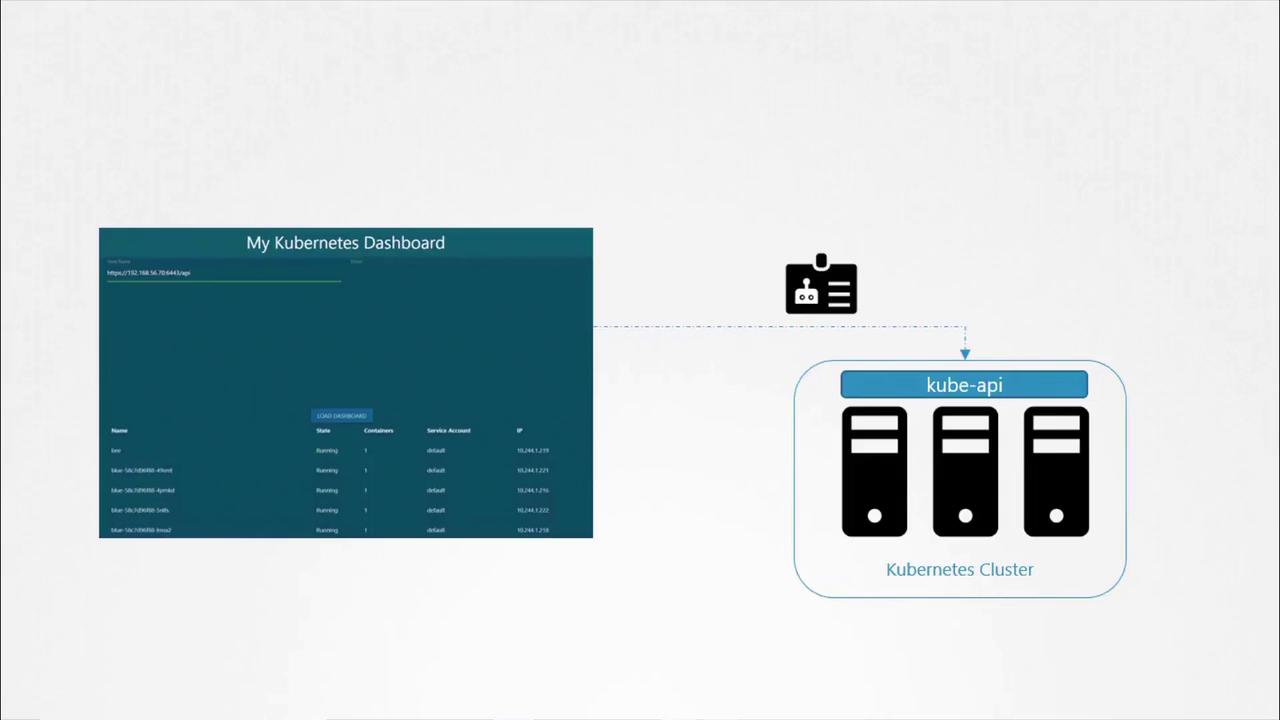
Imagine you have developed a simple Python dashboard application that retrieves a list of pods from your Kubernetes cluster and displays them on a web page. In order for your application to query the Kubernetes API securely, it must authenticate using a service account.
To create a service account named `dashboard-sa`, run the following command. This command not only creates the account but also automatically generates a token for API authentication:
```bash theme={null}
kubectl create serviceaccount dashboard-sa
# Expected output:
# serviceaccount "dashboard-sa" created
```
You can verify the newly created service account with:
```bash theme={null}
kubectl get serviceaccounts
```
Example output:
```plaintext theme={null}
NAME SECRETS AGE
default 1 218d
dashboard-sa 1 4d
```
Describing the service account confirms that a token has been automatically created and stored in a secret object:
```bash theme={null}
kubectl describe serviceaccount dashboard-sa
```
Example output:
```plaintext theme={null}
Name: dashboard-sa
Namespace: default
Labels:
Annotations:
Image pull secrets:
Mountable secrets: dashboard-sa-token-kbbdm
Tokens: dashboard-sa-token-kbbdm
Events:
```
To inspect the token details, view the secret:
```bash theme={null}
kubectl describe secret dashboard-sa-token-kbbdm
```
This token is then used as a bearer token for authentication when making REST calls. For example, using curl:
```bash theme={null}
curl https://192.168.56.70:6443/api --insecure --header "Authorization: Bearer eyJhbG..."
```
## Automatic Token Mounting in Pods
When your application (such as a custom dashboard or Prometheus) is hosted on the Kubernetes cluster, the service account token can be automatically mounted into the pod as a volume. This removes the need to manually manage the token. Every namespace includes a default service account that is automatically used if no other account is specified.
Consider the following simple pod definition that uses your custom Kubernetes dashboard image. Although the pod specification does not explicitly mount the token, Kubernetes automatically mounts the default service account token:
```bash theme={null}
kubectl get serviceaccount
```
Output:
```plaintext theme={null}
NAME SECRETS AGE
default 1 218d
dashboard-sa 1 4d
```
Pod definition:
```yaml theme={null}
apiVersion: v1
kind: Pod
metadata:
name: my-kubernetes-dashboard
spec:
containers:
- name: my-kubernetes-dashboard
image: my-kubernetes-dashboard
```
When you create the pod and inspect it using:
```bash theme={null}
kubectl describe pod my-kubernetes-dashboard
```
You will see a volume automatically created from the secret named `default-token-*`. For example:
```plaintext theme={null}
Name: my-kubernetes-dashboard
Namespace: default
Status: Running
IP: 10.244.0.15
Containers:
nginx:
Image: my-kubernetes-dashboard
Mounts:
/var/run/secrets/kubernetes.io/serviceaccount from default-token-j4hkx (ro)
Volumes:
default-token-j4hkx:
Type: Secret (a volume populated by a Secret)
SecretName: default-token-j4hkx
Optional: false
```
Inside the pod, you can list the contents of the service account directory to verify the token file:
```bash theme={null}
kubectl exec -it my-kubernetes-dashboard -- ls /var/run/secrets/kubernetes.io/serviceaccount
```
Expected output:
```plaintext theme={null}
ca.crt namespace token
```
To view the token:
```bash theme={null}
kubectl exec -it my-kubernetes-dashboard -- cat /var/run/secrets/kubernetes.io/serviceaccount/token
```
The default service account is designed with restricted permissions for basic API queries. To use the custom service account (`dashboard-sa`), modify the pod specification to include the `serviceAccountName` field. Note that you cannot change the service account for an existing pod; it must be deleted and recreated. In deployments, updating the pod definition will trigger a new rollout.
Example pod definition using the `dashboard-sa` service account:
```yaml theme={null}
apiVersion: v1
kind: Pod
metadata:
name: my-kubernetes-dashboard
spec:
containers:
- name: my-kubernetes-dashboard
image: my-kubernetes-dashboard
serviceAccountName: dashboard-sa
```
After recreating the pod, verify that the new service account is in use:
```bash theme={null}
kubectl describe pod my-kubernetes-dashboard
```
You should see the volume associated with `dashboard-sa-token-[...]`.
If you wish to disable automatic mounting of the service account token, set `automountServiceAccountToken` to false in your pod specification:
```yaml theme={null}
apiVersion: v1
kind: Pod
metadata:
name: my-kubernetes-dashboard
spec:
containers:
- name: my-kubernetes-dashboard
image: my-kubernetes-dashboard
automountServiceAccountToken: false
```
Once a pod is created, you cannot change its service account. To apply changes, delete and recreate the pod or update the deployment to trigger a rollout.
***
## Evolving Token Management in Kubernetes: Releases 1.22 and 1.24
### Prior to Kubernetes 1.22
Before Kubernetes 1.22, every service account was automatically associated with a secret that contained a non-expiring token. This token was mounted into pods at `/var/run/secrets/kubernetes.io/serviceaccount`. For example:
```bash theme={null}
kubectl get serviceaccount
```
```plaintext theme={null}
NAME SECRETS AGE
default 1 218d
```
Inspecting a pod shows the static token being used:
```bash theme={null}
kubectl describe pod my-kubernetes-dashboard
```
```plaintext theme={null}
Name: my-kubernetes-dashboard
Namespace: default
Status: Running
IP: 10.244.0.15
Containers:
nginx:
Image: my-kubernetes-dashboard
Mounts:
/var/run/secrets/kubernetes.io/serviceaccount from default-token-j4hkv (ro)
Volumes:
default-token-j4hkv:
Type: Secret (a volume populated by a Secret)
SecretName: default-token-j4hkv
Optional: false
```
These tokens, being static and non-expiring, posed scalability and security challenges.
### Kubernetes 1.22 – Introduction of the Token Request API
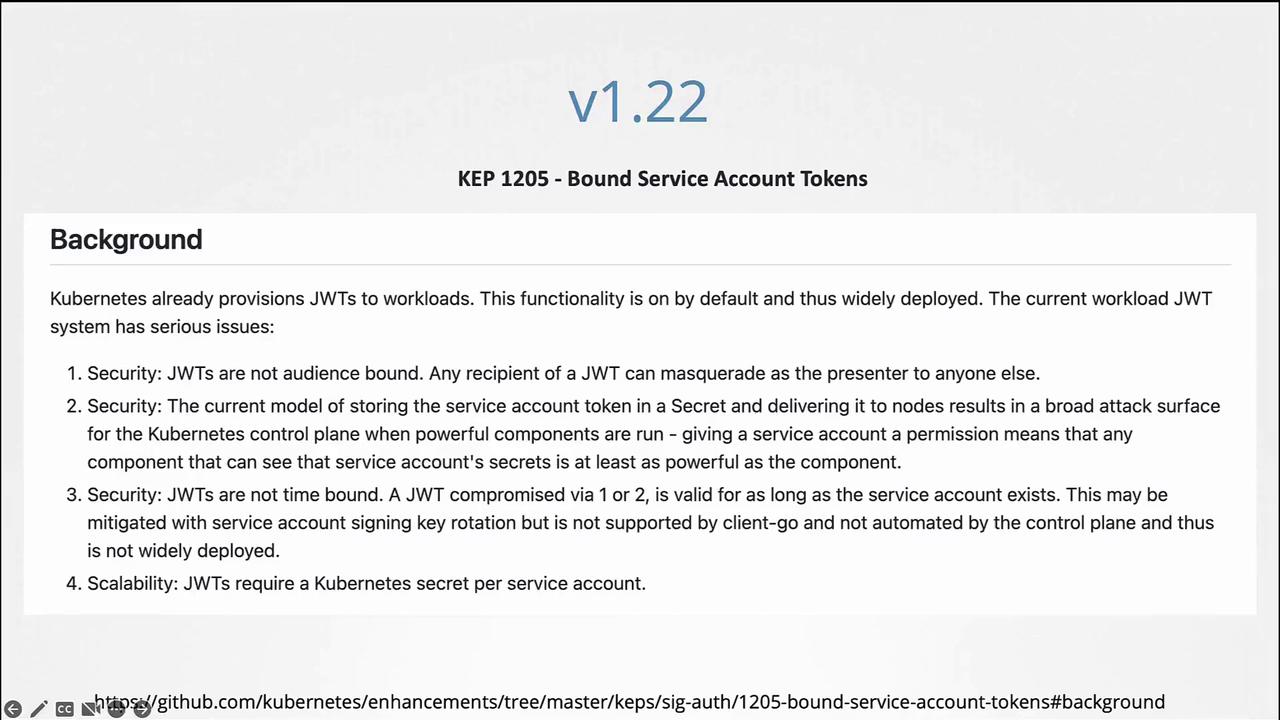
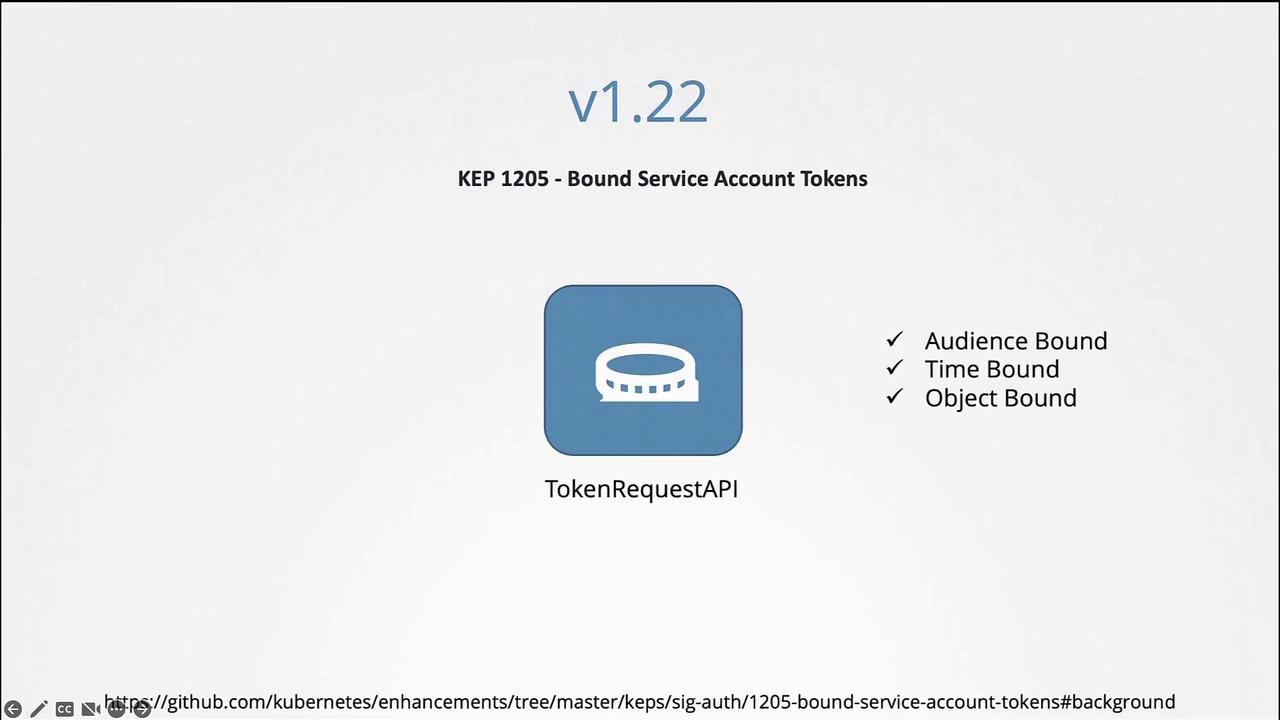
In Kubernetes 1.22, the Token Request API was introduced (KEP 1205). This API generates service account tokens that are audience bound, time bound, and object bound, making them more secure. With this change, a pod created in Kubernetes mounts a token generated by the Token Request API as a projected volume.
Example pod specification using a projected volume token:
```yaml theme={null}
apiVersion: v1
kind: Pod
metadata:
name: nginx
namespace: default
spec:
containers:
- image: nginx
name: nginx
volumeMounts:
- mountPath: /var/run/secrets/kubernetes.io/serviceaccount
name: kube-api-access-6mtg8
readOnly: true
volumes:
- name: kube-api-access-6mtg8
projected:
defaultMode: 420
sources:
- serviceAccountToken:
expirationSeconds: 3607
path: token
- configMap:
name: kube-root-ca.crt
items:
- key: ca.crt
path: ca.crt
- downwardAPI:
items:
- fieldRef:
apiVersion: v1
fieldPath: metadata.annotations
```
### Kubernetes 1.24 – Reducing Secret-Based Tokens
With Kubernetes 1.24, further improvements (KEP 2799) were made to reduce reliance on secret-based service account tokens. In this version, a service account no longer automatically creates a non-expiring secret token. To generate a token for a service account, run:
```bash theme={null}
kubectl create token dashboard-sa
```
This command produces a token with an expiry (typically one hour). You can decode the token using tools like jwt.io or with commands such as:
```bash theme={null}
jq -R 'split(".") | select(length > 0) | .[0],.[1] | @base64d | fromjson' <<<
```
If you prefer the older non-expiring token method, you can manually create a secret object by specifying the type as `kubernetes.io/service-account-token` and annotating it with the service account name:
```yaml theme={null}
apiVersion: v1
kind: Secret
type: kubernetes.io/service-account-token
metadata:
name: mysecretname
annotations:
kubernetes.io/service-account.name: dashboard-sa
```
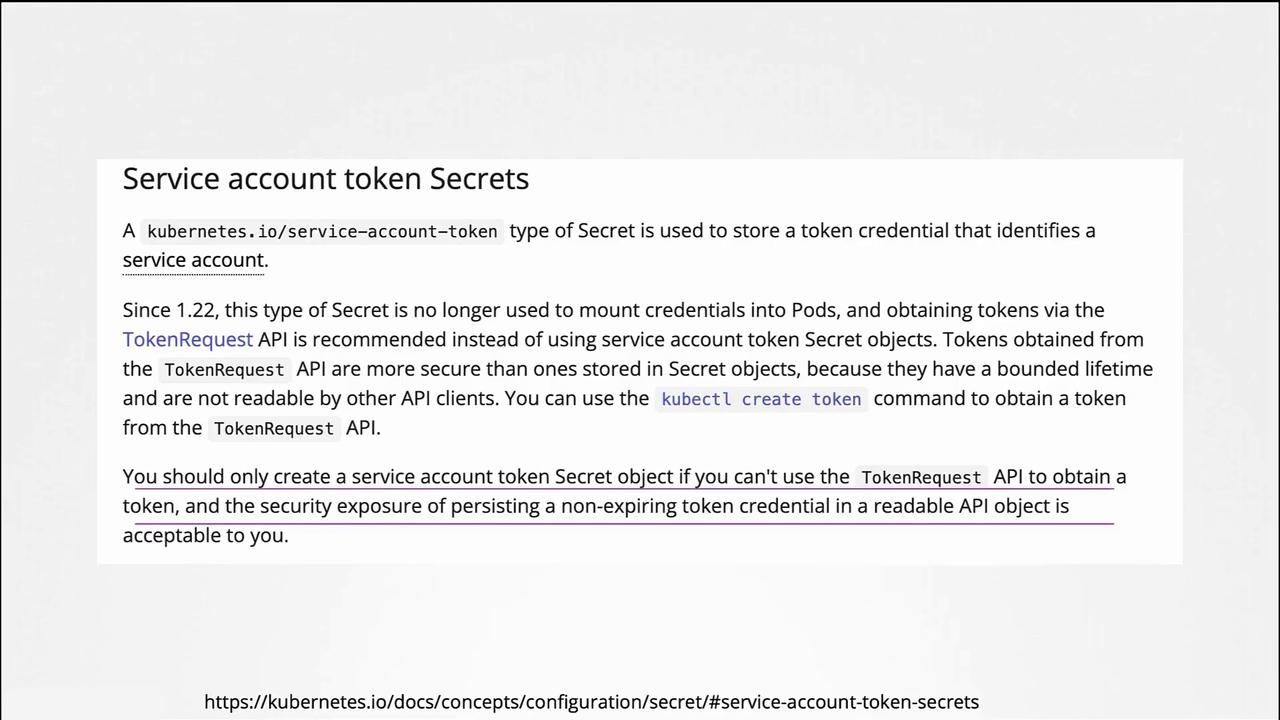
Ensure the service account exists before creating the secret. According to Kubernetes documentation, the Token Request API is the recommended approach due to its improved security features.
To summarize the commands in Kubernetes 1.24:
```bash theme={null}
kubectl create serviceaccount dashboard-sa
# Expected output:
kubectl create token dashboard-sa
# Expected output:
```
Decoding this token (for example, on [jwt.io](https://jwt.io/)) will reveal the expiry date in the payload.
If you still need non-expiring tokens via secret objects, you can create them manually:
```yaml theme={null}
apiVersion: v1
kind: Secret
type: kubernetes.io/service-account-token
metadata:
name: mysecretname
annotations:
kubernetes.io/service-account.name: dashboard-sa
```
Avoid using non-expiring tokens unless absolutely necessary. The Token Request API provides a more secure, time-bound alternative.
This concludes our discussion on Kubernetes service accounts and the evolution of their token management. By understanding these concepts, you can better secure your cluster and manage authentication effectively.