> ## Documentation Index
> Fetch the complete documentation index at: https://notes.kodekloud.com/llms.txt
> Use this file to discover all available pages before exploring further.
# Solution Resource Quotas Limits
> This guide demonstrates Kubernetes resource constraints using example pods to identify requests, diagnose failures, and update specifications.
In this guide, we demonstrate how Kubernetes enforces CPU and memory constraints using two example pods, **rabbit** and **elephant**. You will learn how to:
* Identify resource requests and limits
* Diagnose pod failures caused by insufficient resources
* Update pod specifications to prevent OOM kills
## Pod "rabbit": Identifying CPU Requests
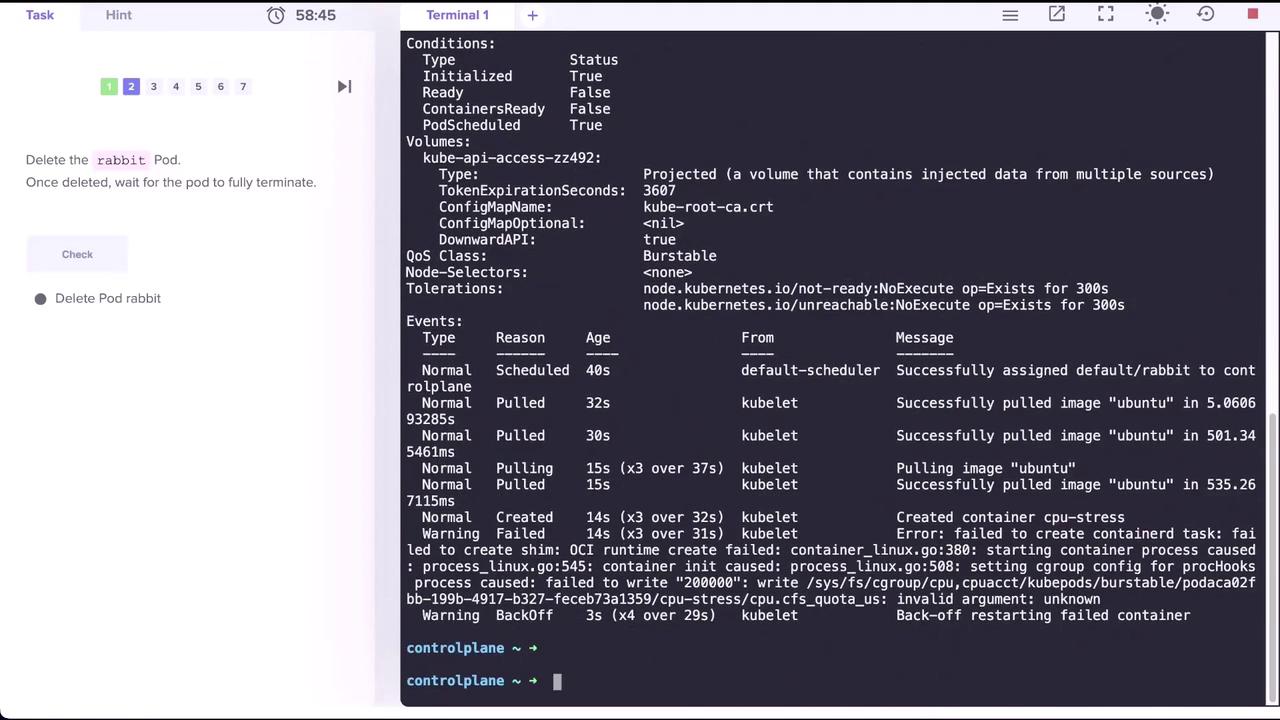
First, confirm that the **rabbit** pod is running and examine its resource settings:
```bash theme={null}
kubectl get pod rabbit
kubectl describe pod rabbit
```
Excerpt from the description shows:
```text theme={null}
Containers:
cpu-stress:
Limits:
cpu: 2
Requests:
cpu: 1
```
Here, the **rabbit** pod requests **1 CPU** and caps at **2 CPUs**.
To clean up:
```bash theme={null}
kubectl delete pod rabbit
# pod "rabbit" deleted
```
***
## Pod "elephant": Diagnosing Memory Issues
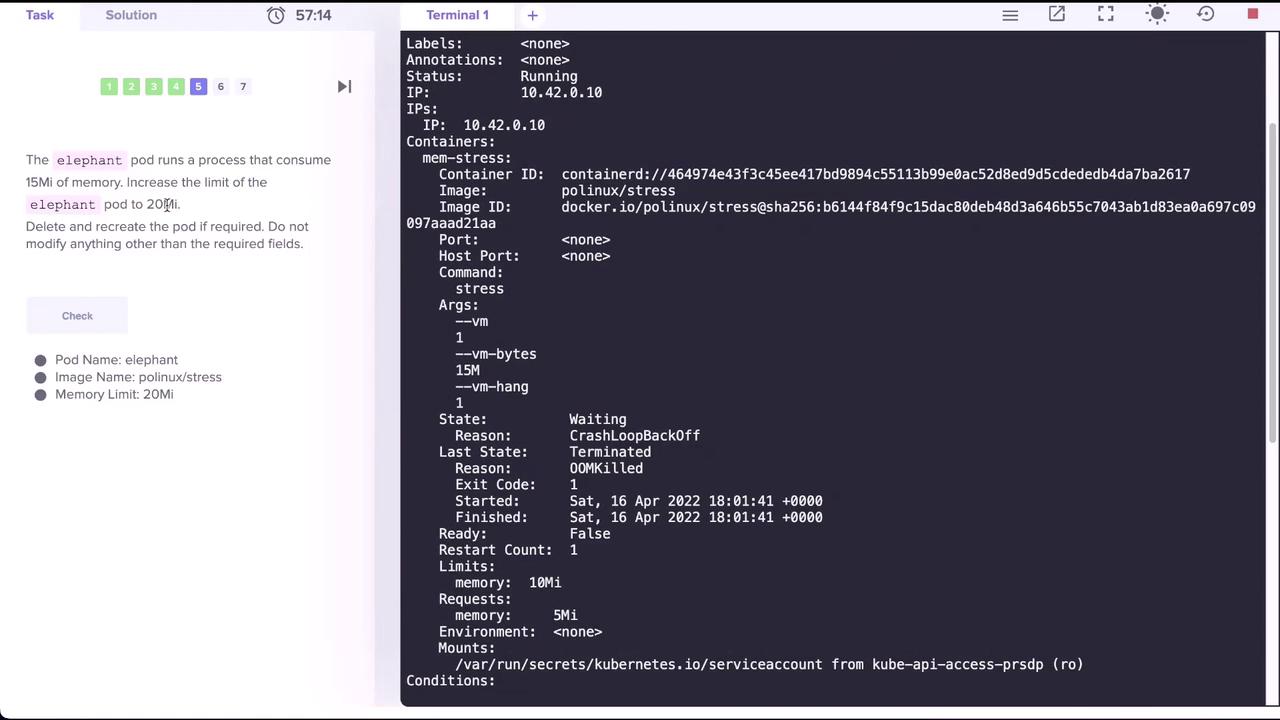
When you deploy the **elephant** pod, it enters a CrashLoopBackOff:
```bash theme={null}
kubectl get pods
NAME READY STATUS RESTARTS AGE
elephant 0/1 CrashLoopBackOff 1 8s
```
Inspect its status and events:
```bash theme={null}
kubectl describe pod elephant
```
Key output sections:
```text theme={null}
Containers:
mem-stress:
State: Waiting
Reason: CrashLoopBackOff
Last State:
Terminated:
Reason: OOMKilled
Exit Code: 1
Limits:
memory: 10Mi
Requests:
memory: 5Mi
...
Events:
Type Reason Age From Message
Normal Scheduled 23s default-scheduler Successfully assigned default/elephant to controlplane
Normal Pulled 20s kubelet Successfully pulled image "polinux/stress"
Normal Started 18s kubelet Started container mem-stress
Normal Back-off 18s kubelet Back-off restarting failed container
```
The pod is **OOMKilled** because it exceeded its **10Mi** memory limit while the `stress` workload uses around **15Mi**.
The CrashLoopBackOff status indicates the container repeatedly failed due to out-of-memory errors. Always ensure your `limits.memory` exceed the actual usage of your application.
***
## Updating the Memory Limit
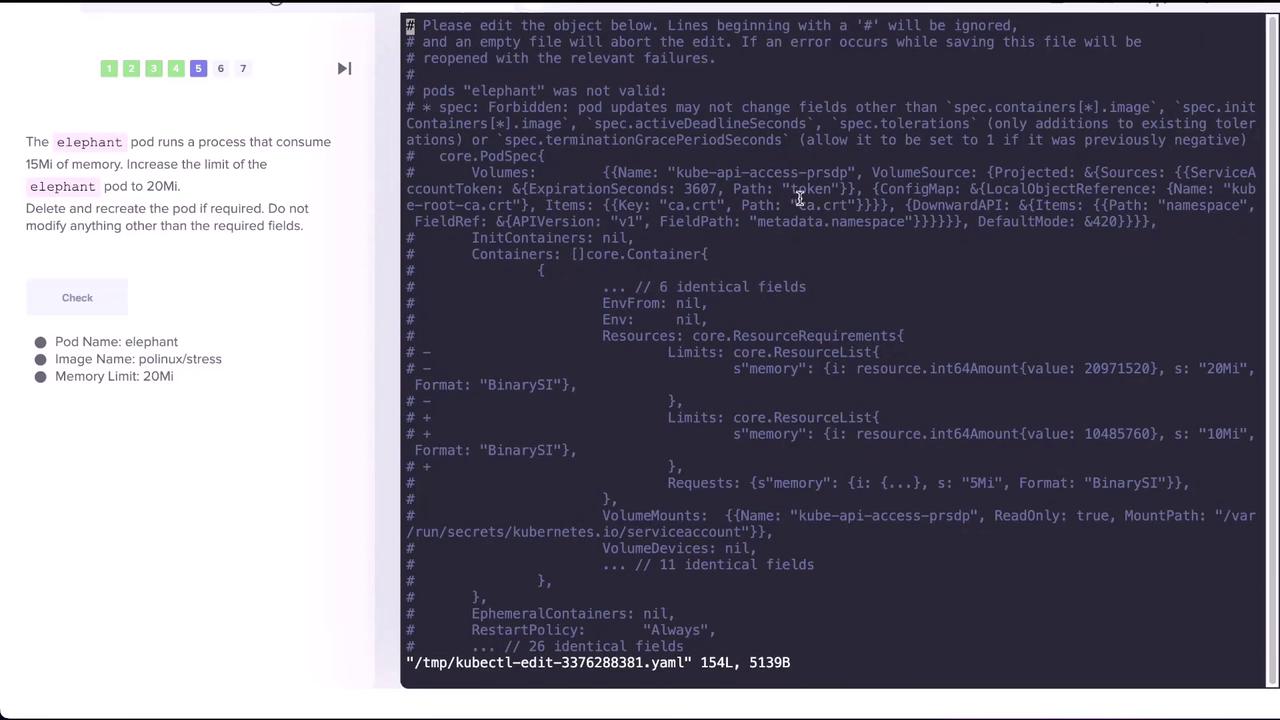
You cannot patch resource limits on a running pod. Instead, edit the pod manifest and recreate it:
```bash theme={null}
kubectl edit pod elephant
```
The YAML editor opens. Find the `resources` section and change:
```yaml theme={null}
spec:
containers:
- name: mem-stress
resources:
limits:
memory: 20Mi
requests:
memory: 5Mi
```
Save and exit. You’ll see an error because live edits to limits are not allowed:
```bash theme={null}
error: pods "elephant" is invalid
A copy of your changes has been stored to "/tmp/kubectl-edit-*.yaml"
error: Edit cancelled, no valid changes were saved.
```
Apply the updated manifest by deleting and recreating the pod:
```bash theme={null}
kubectl replace --force -f /tmp/kubectl-edit-*.yaml
```
Verify the new memory configuration:
```bash theme={null}
kubectl describe pod elephant | grep -A3 "Limits:"
```
Expected output:
```text theme={null}
Limits:
memory: 20Mi
Requests:
memory: 5Mi
...
Ready: True
```
***
## Resource Summary
| Pod | CPU Request | CPU Limit | Memory Request | Memory Limit |
| -------- | ----------- | --------- | -------------- | ------------ |
| rabbit | 1 CPU | 2 CPU | – | – |
| elephant | – | – | 5Mi | 20Mi |
***
## Clean Up
Remove the **elephant** pod to finish the exercise:
```bash theme={null}
kubectl delete pod elephant
# pod "elephant" deleted
```
***
## Further Reading
* [Resource Management for Pods and Containers](https://kubernetes.io/docs/concepts/configuration/manage-resources-containers/)
* [Kubernetes Official Documentation](https://kubernetes.io/docs/)
* [Understanding CrashLoopBackOff](https://kubernetes.io/docs/tasks/debug-application-cluster/debug-application/)