> ## Documentation Index
> Fetch the complete documentation index at: https://notes.kodekloud.com/llms.txt
> Use this file to discover all available pages before exploring further.
# Demo Deployments Update and Rollback
> This guide demonstrates updating and rolling back Kubernetes deployments
In this guide, we demonstrate how to update and rollback Kubernetes deployments through practical examples. You will learn how to create a deployment, verify rollout progress, update container images, and safely rollback to previous revisions when necessary.
Previously, a deployment named "myapp-deployment" was defined in a YAML file located in the project’s deployment directory. Initially, this deployment ran three replicas of an NGINX container. In our updated configuration, the deployment now uses six replicas.
Ensure that your Kubernetes cluster is running and you have the necessary permissions to create, update, and delete deployments.
***
## Creating the Deployment
Start by creating the updated deployment with the following YAML definition:
```yaml theme={null}
apiVersion: apps/v1
kind: Deployment
metadata:
name: myapp-deployment
labels:
tier: frontend
spec:
selector:
matchLabels:
app: myapp
replicas: 6
template:
metadata:
name: nginx-2
labels:
app: myapp
spec:
containers:
- name: nginx
image: nginx
```
Before you create the deployment, confirm that there are no existing objects in your cluster:
```bash theme={null}
admin@ubuntu-server deployments # vi deployment.yaml
admin@ubuntu-server deployments # kubectl get pods
No resources found in default namespace.
admin@ubuntu-server deployments #
```
Create the deployment using the `-f` option:
```bash theme={null}
admin@ubuntu-server deployments # kubectl create -f deployment.yaml
deployment.apps/myapp-deployment created
admin@ubuntu-server deployments #
```
Monitor the rollout progress with:
```bash theme={null}
kubectl rollout status deployment.apps/myapp-deployment
deployment "myapp-deployment" successfully rolled out
```
***
## Verifying Rollout Progress with Replicas
Immediately after creation, you can check the rollout status. As the six replicas are deployed sequentially, the output may display incremental progress:
```bash theme={null}
admin@ubuntu-server deployments $ kubectl delete deployment myapp-deployment
deployment.apps "myapp-deployment" deleted
admin@ubuntu-server deployments $ kubectl create -f deployment.yaml
deployment.apps/myapp-deployment created
admin@ubuntu-server deployments $ kubectl rollout status deployment.apps/myapp-deployment
Waiting for deployment "myapp-deployment" rollout to finish: 0 of 6 updated replicas are available...
Waiting for deployment "myapp-deployment" rollout to finish: 1 of 6 updated replicas are available...
Waiting for deployment "myapp-deployment" rollout to finish: 2 of 6 updated replicas are available...
Waiting for deployment "myapp-deployment" rollout to finish: 3 of 6 updated replicas are available...
Waiting for deployment "myapp-deployment" rollout to finish: 4 of 6 updated replicas are available...
Waiting for deployment "myapp-deployment" rollout to finish: 5 of 6 updated replicas are available...
deployment "myapp-deployment" successfully rolled out
```
Each message indicates the number of updated replicas that have become available. When all six pods are running, the deployment is considered successful.
***
## Viewing Rollout History
After the deployment, you can review the history of your deployment revisions:
```bash theme={null}
kubectl rollout history deployment.apps/myapp-deployment
```
Initially, the output might look like this:
```bash theme={null}
REVISION CHANGE-CAUSE
1 kubectl create --filename=deployment.yaml --record=true
```
To track changes, delete the deployment, wait for the pods to terminate, and then recreate it with the `--record` flag:
```bash theme={null}
kubectl delete deployment myapp-deployment
kubectl get pods
kubectl create -f deployment.yaml --record
deployment.apps/myapp-deployment created
kubectl rollout status deployment.apps/myapp-deployment
```
Running the history command again will now display a recorded change cause.
***
## Updating the Deployment Image
### Step 1: Inspect the Deployment
First, view the details of the existing deployment:
```bash theme={null}
kubectl describe deployment myapp-deployment
```
You will see that the deployment runs six replicas using the "nginx" image.
### Step 2: Update the Image
To update the image with a specific version, edit the deployment using:
```bash theme={null}
kubectl edit deployment myapp-deployment --record
```
Within the editor, change the container image from:
```yaml theme={null}
- image: nginx
```
to
```yaml theme={null}
- image: nginx:1.18
```
The complete snippet after the update should resemble:
```yaml theme={null}
maxUnavailable: 25%
type: RollingUpdate
template:
metadata:
creationTimestamp: null
labels:
app: myapp
name: nginx-2
spec:
containers:
- image: nginx:1.18
imagePullPolicy: Always
name: nginx
resources: {}
terminationMessagePath: /dev/termination-log
terminationMessagePolicy: File
dnsPolicy: ClusterFirst
restartPolicy: Always
schedulerName: default-scheduler
securityContext: {}
terminationGracePeriodSeconds: 30
```
Save and exit using `:wq`. Kubernetes will gradually roll out this update. You can track the update progress with:
```bash theme={null}
kubectl rollout status deployment.apps/myapp-deployment
```
After the new pods are created and the old ones terminated, verify the update by describing the deployment again:
```bash theme={null}
kubectl describe deployment myapp-deployment
```
The image should now appear as "nginx:1.18".
***
## Updating the Image with kubectl set image
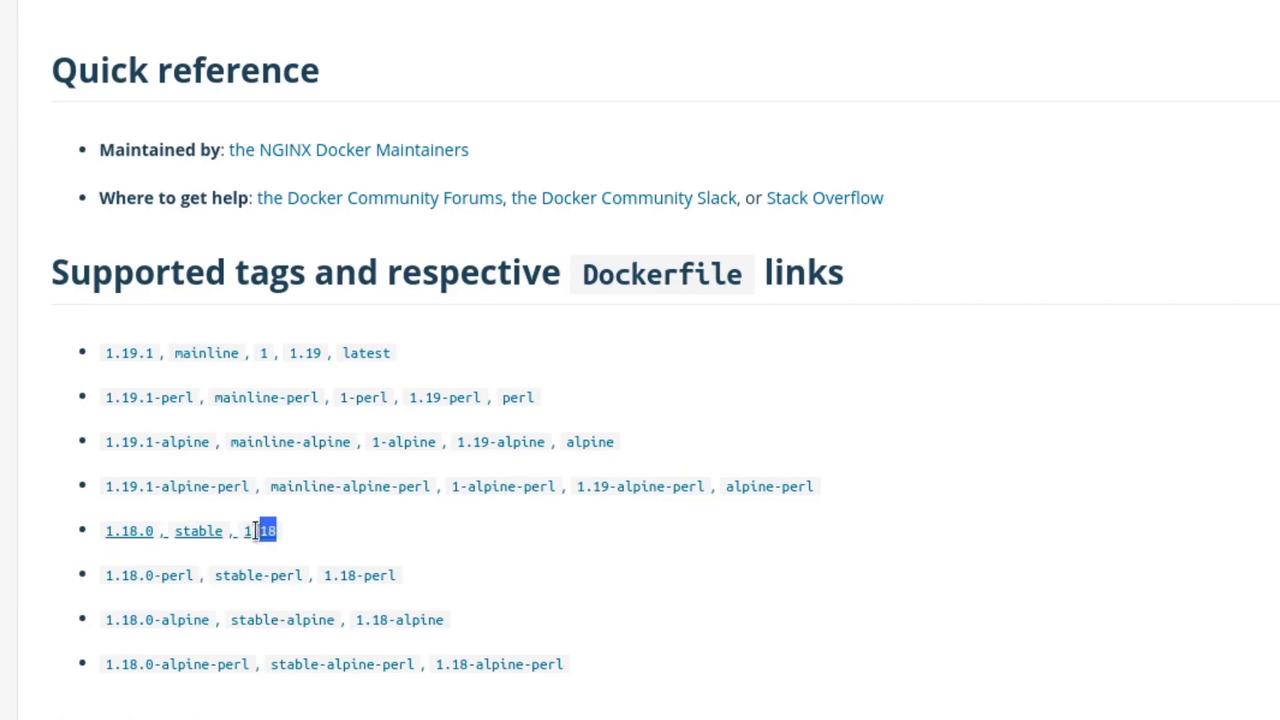
To switch to a different image variant, you can use the `kubectl set image` command. For example, to update to "nginx:1.18-perl", execute:
```bash theme={null}
kubectl set image deployment myapp-deployment nginx=nginx:1.18-perl --record
```
Monitor the rollout status with:
```bash theme={null}
kubectl rollout status deployment/myapp-deployment
```
Example output:
```bash theme={null}
Waiting for deployment "myapp-deployment" rollout to finish: 2 old replicas are pending termination...
Waiting for deployment "myapp-deployment" rollout to finish: 5 of 6 updated replicas are available...
deployment "myapp-deployment" successfully rolled out
```
Review the revision history to confirm the update:
```bash theme={null}
kubectl rollout history deployment/myapp-deployment
```
An example output might be:
```bash theme={null}
REVISION CHANGE-CAUSE
1 kubectl create --filename=deployment.yaml --record=true
2 kubectl edit deployment myapp-deployment --record=true
3 kubectl set image deployment myapp-deployment nginx=nginx:1.18-perl --record=true
```
***
## Rolling Back a Deployment
In the event that the new image ("nginx:1.18-perl") introduces issues, you can rollback to a previous revision. For example, to rollback to revision 2:
```bash theme={null}
kubectl rollout undo deployment myapp-deployment
```
After rolling back, inspect the deployment details:
```bash theme={null}
kubectl describe deployment myapp-deployment
```
You should confirm that the image has reverted to "nginx:1.18". A new revision reflecting the rollback will appear in the history.
***
## Simulating a Failed Update
To simulate a failed rollout, update the deployment with a non-existent image. Modify the YAML as shown below:
```yaml theme={null}
maxUnavailable: 25%
type: RollingUpdate
template:
metadata:
creationTimestamp: null
labels:
app: myapp
name: nginx-2
spec:
containers:
- image: nginx:1.18-does-not-exist
imagePullPolicy: Always
name: nginx
resources: {}
terminationMessagePath: /dev/termination-log
terminationMessagePolicy: File
dnsPolicy: ClusterFirst
restartPolicy: Always
schedulerName: default-scheduler
securityContext: {}
terminationGracePeriodSeconds: 30
```
After saving your changes, check the rollout status:
```bash theme={null}
kubectl rollout status deployment/myapp-deployment
```
You might see messages like:
```bash theme={null}
Waiting for deployment "myapp-deployment" rollout to finish: 3 out of 6 new replicas have been updated...
```
At this point, Kubernetes will fail to pull the invalid image, and new pods will show an error state (e.g., ErrImagePull) while the previously running pods continue to serve traffic.
Inspect the deployment and pod statuses using:
```bash theme={null}
kubectl get deployment myapp-deployment
```
Example output:
```bash theme={null}
NAME READY UP-TO-DATE AVAILABLE AGE
myapp-deployment 5/6 3 5 8m15s
```
And list the pods with:
```bash theme={null}
kubectl get pods
```
Example output:
```bash theme={null}
NAME READY STATUS RESTARTS AGE
myapp-deployment-789c649f95-9xs8q 1/1 Running 0 5m28s
myapp-deployment-789c649f95-dkfm4 1/1 Running 0 5m30s
myapp-deployment-789c649f95-qtngw 1/1 Running 0 5m31s
myapp-deployment-789c649f95-rktrd 1/1 Running 0 5m31s
myapp-deployment-789c649f95-xj95f 1/1 Running 0 5m27s
myapp-deployment-84cfd5697c-5f7tg 0/1 ErrImagePull 0 69s
myapp-deployment-84cfd5697c-wtsjz 0/1 ErrImagePull 0 69s
myapp-deployment-84cfd5697c-xjgmp 0/1 ErrImagePull 0 69s
```
The pods experiencing ErrImagePull indicate that the non-existent image is causing the failed update, while the old pods continue to handle traffic.
Review the updated revision history with:
```bash theme={null}
kubectl rollout history deployment/myapp-deployment
```
A sample output could be:
```bash theme={null}
REVISION CHANGE-CAUSE
1 kubectl create --filename=deployment.yaml --record=true
3 kubectl set image deployment myapp-deployment nginx=nginx:1.18-perl --record=true
4 kubectl edit deployment myapp-deployment --record=true
5 kubectl edit deployment myapp-deployment --record=true
```
***
## Undoing the Faulty Update
To recover from the failed update, rollback to the previous stable revision (e.g., from revision 5 to revision 4) by running:
```bash theme={null}
kubectl rollout undo deployment/myapp-deployment
```
Monitor the rollout status after the rollback:
```bash theme={null}
kubectl rollout status deployment/myapp-deployment
```
Finally, verify that the deployment now uses the correct image ("nginx:1.18"):
```bash theme={null}
kubectl get pods
```
And check the deployment details:
```bash theme={null}
kubectl describe deployment myapp-deployment
```
All six pods should be running the stable image with the faulty pods replaced.
***
## Final Notes
Kubernetes deployments employ a rolling update strategy designed to ensure continuous application availability during updates. New replicas are only promoted when they are confirmed healthy, reducing downtime and mitigating risks even when faulty updates occur.
This concludes our demonstration on handling updates and rollbacks in Kubernetes deployments. In upcoming segments, we will explore advanced deployment patterns and troubleshooting techniques for more complex scenarios.