> ## Documentation Index
> Fetch the complete documentation index at: https://notes.kodekloud.com/llms.txt
> Use this file to discover all available pages before exploring further.
# Setting up Environment
> Guide to setting up LangChain environment, installing specific package versions, configuring OpenAI API key, and learning model calls, prompt engineering, and response parsing
Welcome to this lesson on interacting with large language models using LangChain. In this module we'll focus on the Model I/O component — the part of LangChain responsible for invoking models and handling their inputs and outputs. You'll learn how to call models, design effective prompts, and format or parse model responses for your applications.
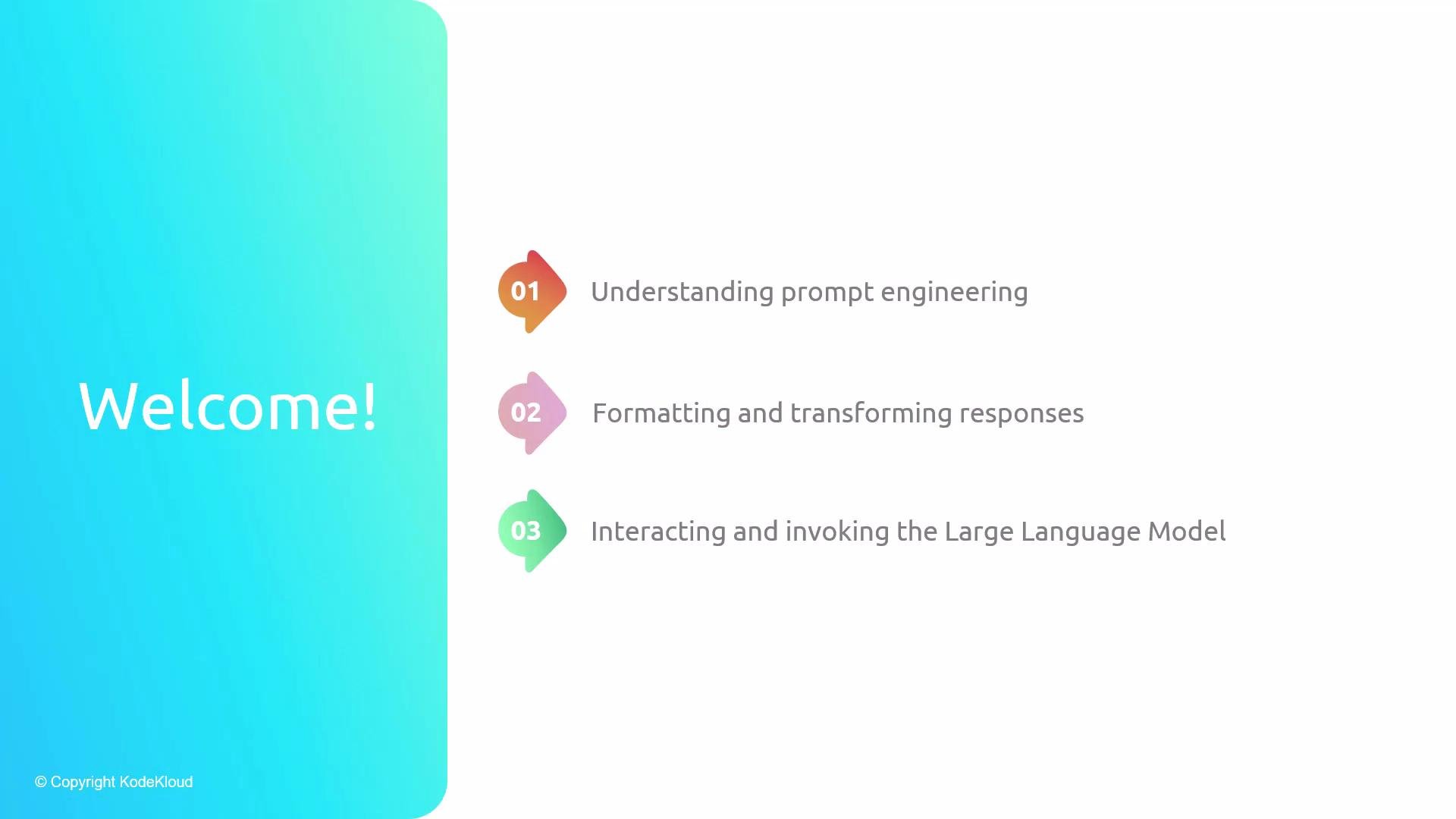 What this lesson covers:
* How to invoke a model (model calls).
* How to craft prompts that get reliable outputs (prompt engineering).
* How to format, parse, and transform model responses to suit your app.
By the end of this lesson you will be able to make model calls with LangChain, apply foundational prompt engineering techniques, and parse responses to integrate them cleanly into your application workflows.
What this lesson covers:
* How to invoke a model (model calls).
* How to craft prompts that get reliable outputs (prompt engineering).
* How to format, parse, and transform model responses to suit your app.
By the end of this lesson you will be able to make model calls with LangChain, apply foundational prompt engineering techniques, and parse responses to integrate them cleanly into your application workflows.
 Prerequisites
Before you begin, install the required Python packages and pin the package versions used in these examples. LangChain and related libraries evolve quickly; using the exact versions below helps avoid API and behavioral differences that can break examples.
| Requirement | Purpose | Example / Command |
| --------------- | --------------------------------------- | ---------------------------------------------- |
| Python packages | Install LangChain and OpenAI client | `pip install langchain==0.1.10 openai==1.13.3` |
| OpenAI API key | Authenticate requests to the OpenAI API | `export OPENAI_API_KEY=YOUR_OPENAI_API_KEY` |
Use the exact package versions listed to match the code and APIs in this lesson. Version mismatches are a common source of errors.
Install and configure
Run these commands to install the packages and set your OpenAI API key as an environment variable:
```bash theme={null}
pip install langchain==0.1.10 openai==1.13.3
export OPENAI_API_KEY=YOUR_OPENAI_API_KEY
```
Security best practices
Never commit API keys to source control. Store secrets in environment variables or a secrets manager. If you use a `.env` file during development, load it securely (for example with `python-dotenv`) and ensure the file is excluded from version control.
Verify your environment
Check that the `OPENAI_API_KEY` environment variable is set before running the examples:
```bash theme={null}
# Check if OPENAI_API_KEY is set
echo "$OPENAI_API_KEY"
```
* If the command prints a value, your key is already set and you can continue.
* If it prints nothing, run the `export` command above (or set the key in your environment management tool).
In some managed KodeKloud workspaces the API key may already be configured. Confirm the variable before re-exporting.
Quick troubleshooting
* If you see import errors, confirm you installed the pinned versions.
* If you receive authentication or rate-limit errors from OpenAI, confirm your API key is valid and has sufficient quota.
Next steps
With the environment ready, proceed to the next lesson sections to:
* Build prompt-driven interactions using LangChain.
* Make model calls and inspect raw outputs.
* Parse, validate, and transform model responses for use in downstream application code.
Links and references
* [LangChain course on KodeKloud](https://learn.kodekloud.com/user/courses/langchain)
* [OpenAI API keys](https://platform.openai.com/account/api-keys)
* [python-dotenv (for local dev secrets)](https://pypi.org/project/python-dotenv/)
Prerequisites
Before you begin, install the required Python packages and pin the package versions used in these examples. LangChain and related libraries evolve quickly; using the exact versions below helps avoid API and behavioral differences that can break examples.
| Requirement | Purpose | Example / Command |
| --------------- | --------------------------------------- | ---------------------------------------------- |
| Python packages | Install LangChain and OpenAI client | `pip install langchain==0.1.10 openai==1.13.3` |
| OpenAI API key | Authenticate requests to the OpenAI API | `export OPENAI_API_KEY=YOUR_OPENAI_API_KEY` |
Use the exact package versions listed to match the code and APIs in this lesson. Version mismatches are a common source of errors.
Install and configure
Run these commands to install the packages and set your OpenAI API key as an environment variable:
```bash theme={null}
pip install langchain==0.1.10 openai==1.13.3
export OPENAI_API_KEY=YOUR_OPENAI_API_KEY
```
Security best practices
Never commit API keys to source control. Store secrets in environment variables or a secrets manager. If you use a `.env` file during development, load it securely (for example with `python-dotenv`) and ensure the file is excluded from version control.
Verify your environment
Check that the `OPENAI_API_KEY` environment variable is set before running the examples:
```bash theme={null}
# Check if OPENAI_API_KEY is set
echo "$OPENAI_API_KEY"
```
* If the command prints a value, your key is already set and you can continue.
* If it prints nothing, run the `export` command above (or set the key in your environment management tool).
In some managed KodeKloud workspaces the API key may already be configured. Confirm the variable before re-exporting.
Quick troubleshooting
* If you see import errors, confirm you installed the pinned versions.
* If you receive authentication or rate-limit errors from OpenAI, confirm your API key is valid and has sufficient quota.
Next steps
With the environment ready, proceed to the next lesson sections to:
* Build prompt-driven interactions using LangChain.
* Make model calls and inspect raw outputs.
* Parse, validate, and transform model responses for use in downstream application code.
Links and references
* [LangChain course on KodeKloud](https://learn.kodekloud.com/user/courses/langchain)
* [OpenAI API keys](https://platform.openai.com/account/api-keys)
* [python-dotenv (for local dev secrets)](https://pypi.org/project/python-dotenv/)