> ## Documentation Index
> Fetch the complete documentation index at: https://notes.kodekloud.com/llms.txt
> Use this file to discover all available pages before exploring further.
# Scaling Jobs and Resource Limits
> Guidance on scaling Nomad jobs safely by setting appropriate CPU and memory reservations, measuring usage, using nomad job scale, and ensuring service discovery and autoscaler integration.
One Tuesday morning, a customer uploaded a 2 GB spreadsheet. For a few minutes, every other Tidepool customer watched their dashboards spin. Nothing crashed and nothing was rescheduled — there was simply one copy of the API doing one large job, and everyone else waited in line behind it.
Maya fixed this by increasing the number of API instances in the job group from one to three and re-submitting the job:
```hcl theme={null}
count = 3
```
A few seconds later there were three copies of the API running. That’s all scaling a `count` change does — but only if the `resources` block beneath it is accurate.
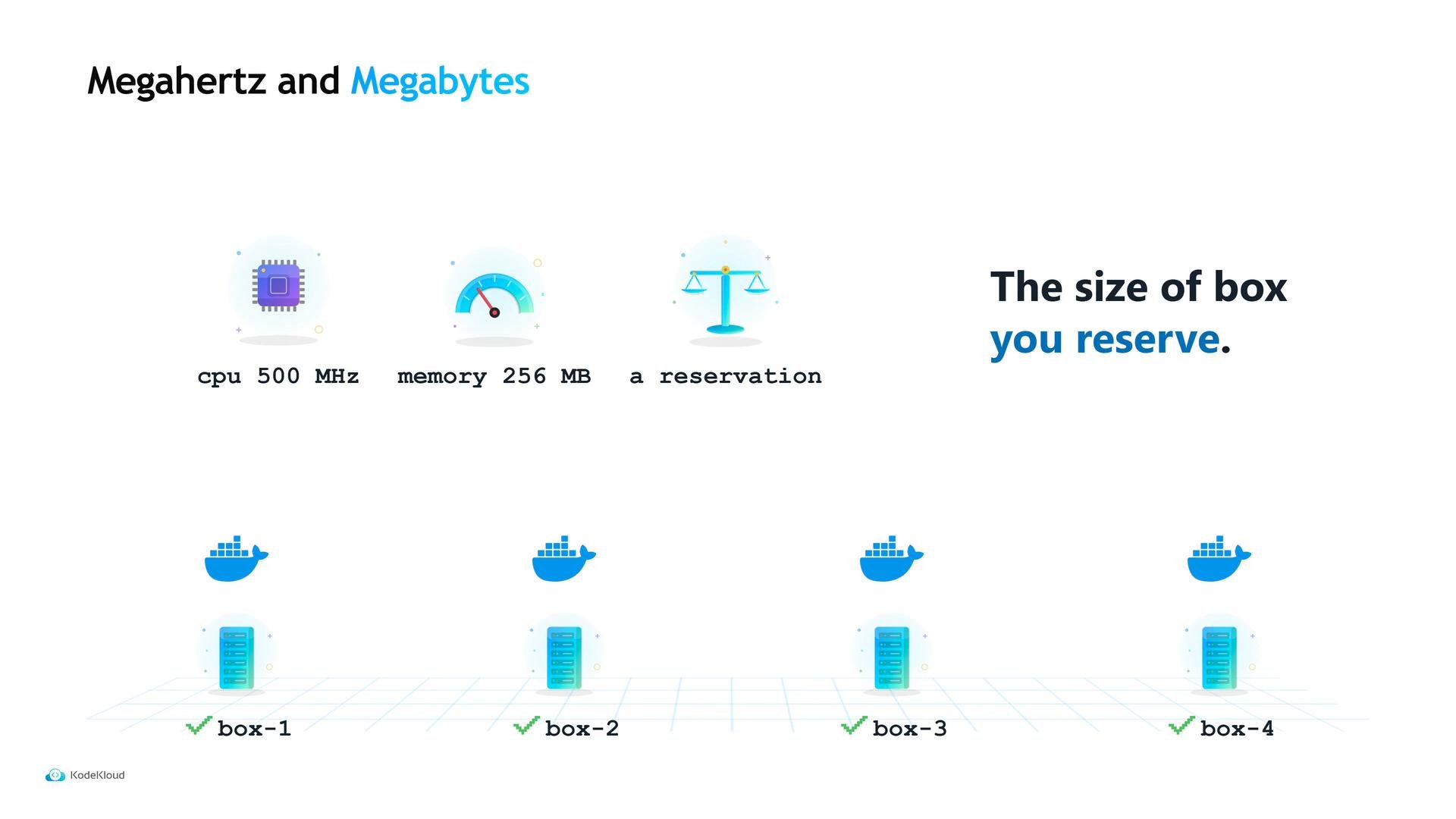
Recall the two key resource values used in job specifications: CPU (in megahertz) and memory (in megabytes). These numbers represent the size of the “box” the app is asking the scheduler to reserve. The scheduler uses these values to filter nodes and pack allocations tightly.
 Getting reservation values wrong harms density and reliability in two ways:
* If Maya declares `512 MB` when the API actually uses only `128 MB`, every machine looks fuller than it really is. The cluster fits fewer copies than it could, and she pays for wasted capacity.
* If she declares `128 MB` when the API actually needs `512 MB`, the allocation is placed but the process may be killed by the kernel for exceeding memory (OOM). Because this is a service job, Nomad restarts it and it can enter a crash loop that looks like an application bug but is actually a bad memory estimate.
How to find the right numbers:
* Start with conservative (slightly larger) reservations.
* Run the service under real traffic.
* Inspect the allocation’s actual CPU and memory usage versus the reservation.
* After observing steady-state usage for a day or more, tighten reservations toward the measured values to increase density safely.
| Step | Action | Example / Command |
| - | - | - |
| Start generous | Give the allocation a comfortable margin | `memory = 512` |
| Measure | Observe actual usage from allocations | `nomad alloc status ` |
| Tune | Reduce reservation toward observed steady-state | Update job file and re-submit |
Start with conservative resource reservations, measure actual CPU and memory usage from allocations, then reduce reservations to the observed steady-state requirements to improve density safely.
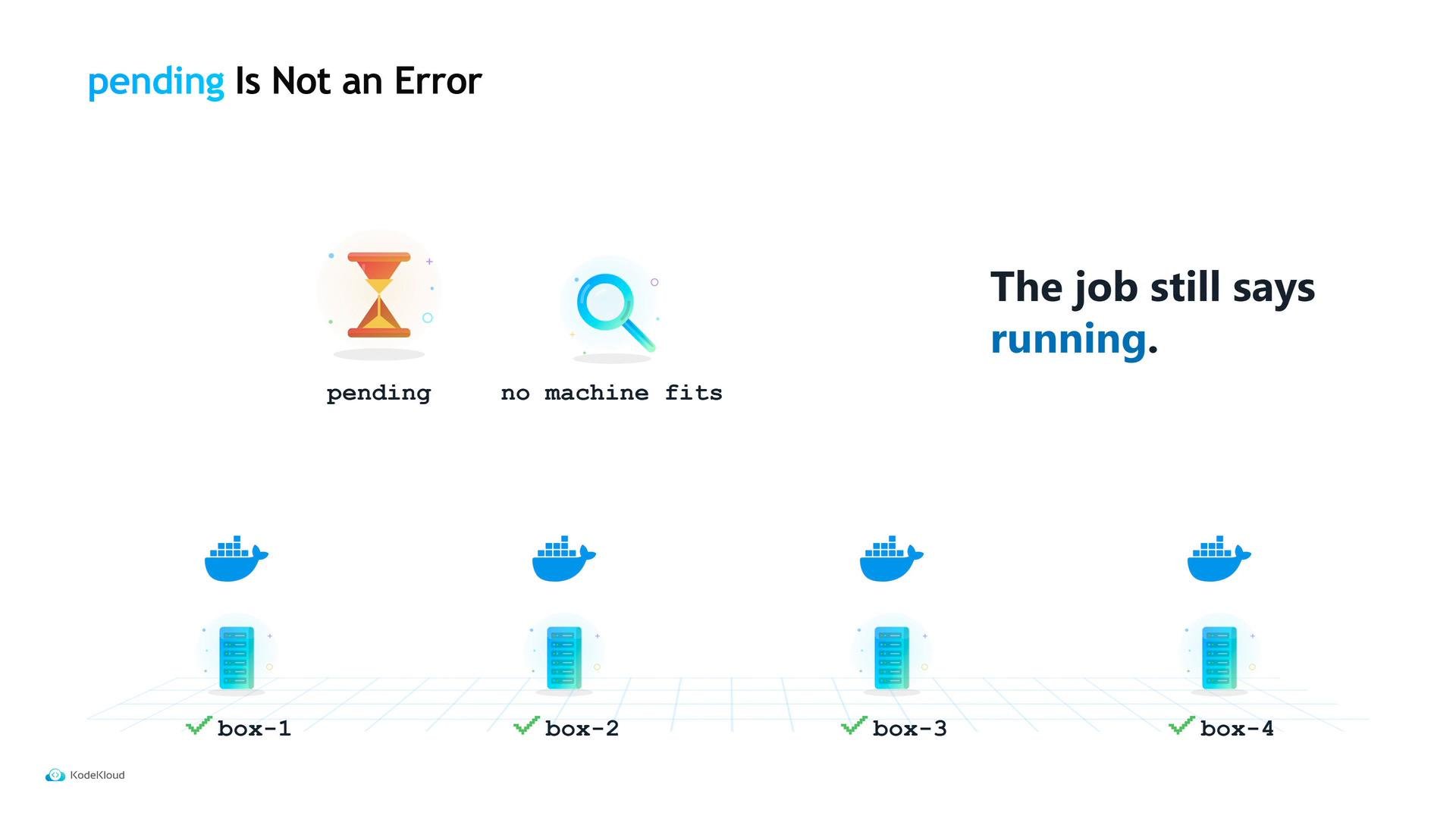
What happens when you request more copies than the cluster can hold? If Maya asks for 20 replicas, Nomad will place as many as fit and leave the remainder in `pending` until capacity frees up. This is not an error — the job is still considered running, but it has fewer allocations than requested.
Getting reservation values wrong harms density and reliability in two ways:
* If Maya declares `512 MB` when the API actually uses only `128 MB`, every machine looks fuller than it really is. The cluster fits fewer copies than it could, and she pays for wasted capacity.
* If she declares `128 MB` when the API actually needs `512 MB`, the allocation is placed but the process may be killed by the kernel for exceeding memory (OOM). Because this is a service job, Nomad restarts it and it can enter a crash loop that looks like an application bug but is actually a bad memory estimate.
How to find the right numbers:
* Start with conservative (slightly larger) reservations.
* Run the service under real traffic.
* Inspect the allocation’s actual CPU and memory usage versus the reservation.
* After observing steady-state usage for a day or more, tighten reservations toward the measured values to increase density safely.
| Step | Action | Example / Command |
| - | - | - |
| Start generous | Give the allocation a comfortable margin | `memory = 512` |
| Measure | Observe actual usage from allocations | `nomad alloc status ` |
| Tune | Reduce reservation toward observed steady-state | Update job file and re-submit |
Start with conservative resource reservations, measure actual CPU and memory usage from allocations, then reduce reservations to the observed steady-state requirements to improve density safely.
What happens when you request more copies than the cluster can hold? If Maya asks for 20 replicas, Nomad will place as many as fit and leave the remainder in `pending` until capacity frees up. This is not an error — the job is still considered running, but it has fewer allocations than requested.
 Inspect the placement summary to see how many allocations are pending and why:
* `nomad job status ` (or the UI) shows a placement summary with counts for running and pending allocations.
* If you scale up and traffic doesn’t improve, check that placement/summary before assuming something else is wrong.
There’s a faster way to change `count` than editing the job file: use `nomad job scale`. It accepts a job name, a group name, and a target count — and applies it immediately.
```bash theme={null}
$ nomad job scale tidepool-api api 5
Scaled to 5
# note: the job file in git still says count = 3
```
Important workflow note: the job file in version control still says `count = 3`, while the cluster now runs 5 copies. If someone later re-submits the job file from git, the cluster will be scaled back to 3 and that change may cause an outage. Best practice:
* Use `nomad job scale` for quick, operational scaling during spikes.
* Immediately update the job file in version control to match the desired state so future deploys are consistent.
You can declare autoscaling intent directly in a job with a `scaling` block (minimum, maximum, and policy). However, Nomad only stores that declaration — it does not automatically act on it. To have policies enforced automatically, run the Nomad Autoscaler (a separate program).
The `scaling` block in a job file is a declaration only. Install and run the Nomad Autoscaler to make scaling policies act automatically: [https://github.com/hashicorp/nomad-autoscaler](https://github.com/hashicorp/nomad-autoscaler)
Finally, remember that replicas run on nodes Nomad chose and bind to ports Nomad assigned. If your clients (for example, Tidepool’s web frontend) still point at a single fixed backend address, scaling won’t help — requests may still go to a copy that no longer exists. Ensure your service discovery or load balancing follows your Nomad deployments. Common solutions include the Nomad service registry, Consul, or an external load balancer so clients route to current allocations.
## Quick reference: common commands and checks
| Purpose | Command |
| - | - |
| View job status & placement | `nomad job status ` |
| Scale a group immediately | `nomad job scale ` |
| Inspect allocation details | `nomad alloc status ` |
| View logs for debugging | `nomad alloc logs ` |
## Links and references
* Nomad Autoscaler: [https://github.com/hashicorp/nomad-autoscaler](https://github.com/hashicorp/nomad-autoscaler)
* Consul (service discovery): [https://www.consul.io/](https://www.consul.io/)
* Nomad documentation: [https://www.nomadproject.io/docs](https://www.nomadproject.io/docs)
This documentation is built and hosted on [Mintlify](https://mintlify.com), a developer documentation platform.
Inspect the placement summary to see how many allocations are pending and why:
* `nomad job status ` (or the UI) shows a placement summary with counts for running and pending allocations.
* If you scale up and traffic doesn’t improve, check that placement/summary before assuming something else is wrong.
There’s a faster way to change `count` than editing the job file: use `nomad job scale`. It accepts a job name, a group name, and a target count — and applies it immediately.
```bash theme={null}
$ nomad job scale tidepool-api api 5
Scaled to 5
# note: the job file in git still says count = 3
```
Important workflow note: the job file in version control still says `count = 3`, while the cluster now runs 5 copies. If someone later re-submits the job file from git, the cluster will be scaled back to 3 and that change may cause an outage. Best practice:
* Use `nomad job scale` for quick, operational scaling during spikes.
* Immediately update the job file in version control to match the desired state so future deploys are consistent.
You can declare autoscaling intent directly in a job with a `scaling` block (minimum, maximum, and policy). However, Nomad only stores that declaration — it does not automatically act on it. To have policies enforced automatically, run the Nomad Autoscaler (a separate program).
The `scaling` block in a job file is a declaration only. Install and run the Nomad Autoscaler to make scaling policies act automatically: [https://github.com/hashicorp/nomad-autoscaler](https://github.com/hashicorp/nomad-autoscaler)
Finally, remember that replicas run on nodes Nomad chose and bind to ports Nomad assigned. If your clients (for example, Tidepool’s web frontend) still point at a single fixed backend address, scaling won’t help — requests may still go to a copy that no longer exists. Ensure your service discovery or load balancing follows your Nomad deployments. Common solutions include the Nomad service registry, Consul, or an external load balancer so clients route to current allocations.
## Quick reference: common commands and checks
| Purpose | Command |
| - | - |
| View job status & placement | `nomad job status ` |
| Scale a group immediately | `nomad job scale ` |
| Inspect allocation details | `nomad alloc status ` |
| View logs for debugging | `nomad alloc logs ` |
## Links and references
* Nomad Autoscaler: [https://github.com/hashicorp/nomad-autoscaler](https://github.com/hashicorp/nomad-autoscaler)
* Consul (service discovery): [https://www.consul.io/](https://www.consul.io/)
* Nomad documentation: [https://www.nomadproject.io/docs](https://www.nomadproject.io/docs)
This documentation is built and hosted on [Mintlify](https://mintlify.com), a developer documentation platform.