> ## Documentation Index
> Fetch the complete documentation index at: https://notes.kodekloud.com/llms.txt
> Use this file to discover all available pages before exploring further.
# Filesystem Hierarchy
> This article explores the Linux filesystem hierarchy, detailing the structure and purpose of various directories.
In this article, we explore the Linux filesystem hierarchy, detailing the structure and purpose of various directories. Dave explains the layout while Bob listens attentively.
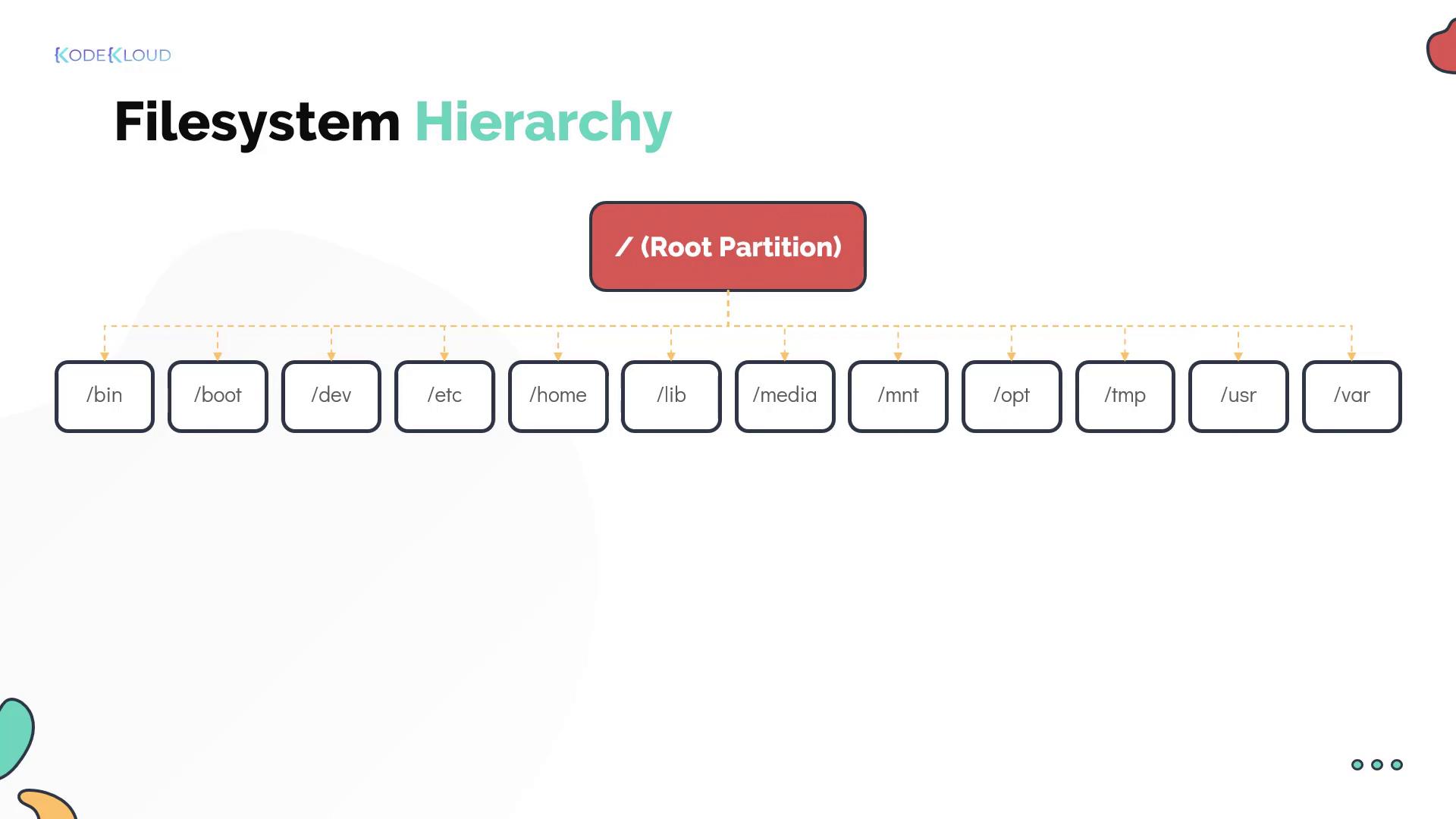
## Key Directories and Their Purposes
• **/home**\
This directory holds the home directories for all users except the root user. The root user’s home directory is located at **/root**.
• **/opt**\
Third-party programs are typically installed here. For example, if you are deploying the web application for Project Mercury, **/opt** is the ideal installation location.
• **/mnt** and **/tmp**\
When setting up Bob’s laptop, Dave recommends installing security-mandated software. The software packages are stored in a repository on the company's network share. Dave mounts this repository temporarily at **/mnt** using the `mount` command, then copies the necessary packages to **/tmp**.
**/mnt** is used for temporarily mounting filesystems, whereas **/tmp** is reserved for storing temporary data.
After the installation, Dave unmounts the network share from **/mnt** and deletes the temporary files in **/tmp**.
• **/media**\
Bob notices that when he plugs in a USB drive, Linux automatically mounts it under **/media** (unlike Windows, which might assign it a drive letter like G:). This directory is reserved for all external media.
• **/dev**\
The **/dev** directory contains special block and character device files. These files represent hardware devices such as external hard disks, mice, keyboards, and more.
• **/bin** and **/etc**\
Dave explains that essential programs and binaries (like `cp`, `mv`, `mkdir`, and `date`) reside in **/bin**. Meanwhile, **/etc** is crucial because it stores the majority of Linux configuration files.
• **/lib** and **/lib64**\
These directories store shared libraries required by programs during runtime.
• **/usr**\
Modern Linux systems use **/usr** to store userland applications and their data. Historically, user home directories were located here. This directory contains software such as the Thunderbird mail client, Mozilla Firefox, and the vi editor.
• **/var**\
When system or application issues arise, logs and cached data stored in **/var** can provide essential troubleshooting insights.
Always check the **/var** directory for log files and other system-generated information when diagnosing issues.
## Inspecting Mounted Filesystems
To view details about each mounted filesystem, Dave demonstrates the `df` command. The following example shows the command output:
```bash theme={null}
[~]$ df -hP
Filesystem Size Used Avail Use% Mounted on
udev 3.8G 0 3.8G 0% /dev
tmpfs 783M 1.6M 781M 1% /run
/dev/sda3 43G 36G 7.3G 84% /
tmpfs 3.9G 128K 3.9G 1% /dev/shm
tmpfs 5.0M 4.0K 5.0M 1% /run/lock
/dev/sda5 20G 1G 19G 5% /home
/dev/sda4 10G 5G 5G 50% /var
/dev/sdb1 5G 1G 4G 20% /media/usb
```
In this output, Bob observes that his USB drive is mounted under **/media** and is referenced by the device path **/dev/sdb1**.
Before moving on, let's put these concepts into practice and solidify your understanding of the Linux filesystem hierarchy.