> ## Documentation Index
> Fetch the complete documentation index at: https://notes.kodekloud.com/llms.txt
> Use this file to discover all available pages before exploring further.
# Troubleshooting
> This guide details diagnostic steps to resolve connection issues with the caleston-repo-01 repository server.
In this guide, we detail the diagnostic steps taken to resolve a connection problem with the caleston-repo-01 repository server. During a troubleshooting session, Jackie discovered that an incorrect URL had been used initially. After correcting the URL to caleston-repo-01, a connection timeout error was encountered. Possible causes for this error include:
* The local network interface being disconnected.
* Failure of the host to resolve the correct IP address.
* Routing issues to the server.
* Server-side problems, such as connectivity issues or an inactive service.
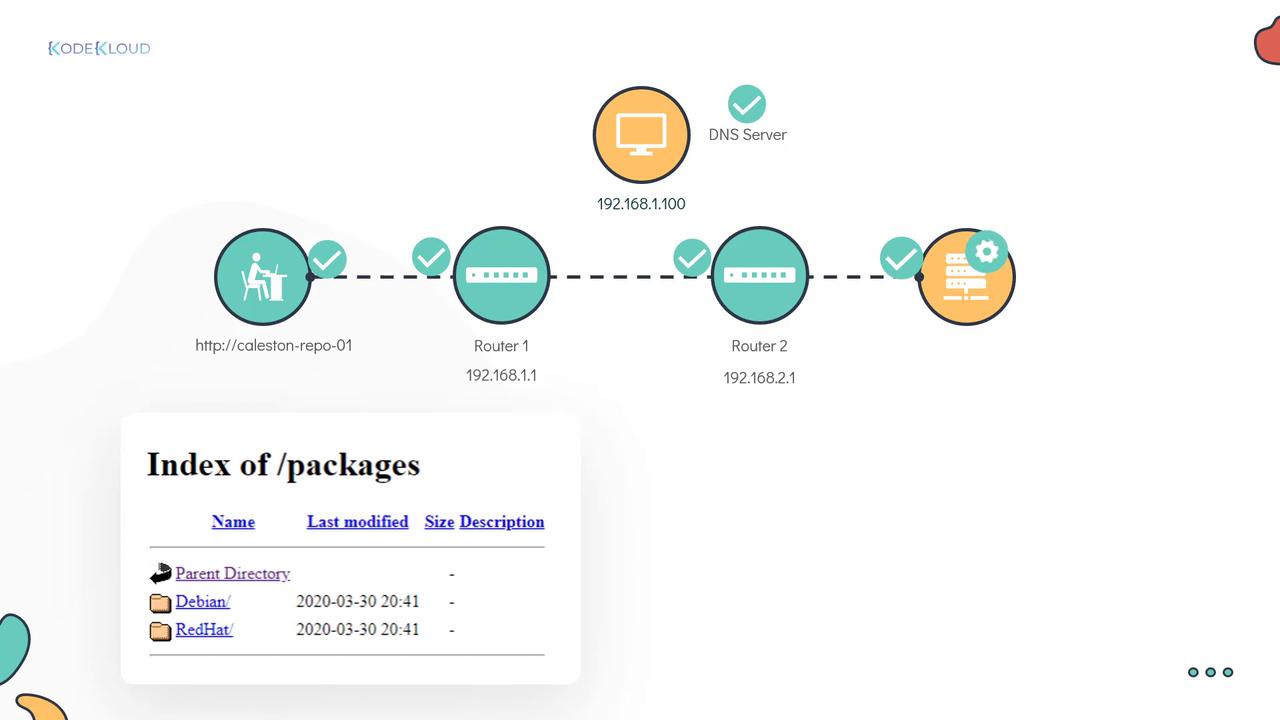
This troubleshooting guide covers verifying local connectivity, confirming DNS resolution, testing remote connectivity, tracing the network route, and diagnosing the repository server settings.
## Step 1: Verify Local Network Interface
Begin by confirming that your local network interface is active. Use the `ip link` command to check its status. In this example, the interface in use is `enp1s0f1`.
```bash theme={null}
[$] ip link
1: lo: mtu 65536 qdisc noqueue state UNKNOWN mode DEFAULT group default qlen 1000
link/loopback 00:00:00:00:00:00 brd 00:00:00:00:00:00
2: enp1s0f1: mtu 1500 qdisc fq_codel state UP mode DEFAULT group default qlen 1000
link/ether 08:97:98:6e:55:4d brd ff:ff:ff:ff:ff:ff
```
Since `enp1s0f1` is marked as UP, you can be confident that the local connectivity is functioning correctly.
## Step 2: Confirm DNS Resolution
Next, ensure that the hostname `caleston-repo-01` resolves to the correct IP address. The `nslookup` command verifies whether the DNS server at 192.168.1.100 returns the proper address.
```bash theme={null}
[$] nslookup caleston-repo-01
Server: 192.168.1.100
Address: 192.168.1.100#53
Non-authoritative answer:
Name: caleston-repo-01
Address: 192.168.2.5
```
The DNS resolution confirms that the hostname maps to IP address 192.168.2.5.
## Step 3: Test Remote Connectivity
To further isolate the issue, Jackie used the `ping` command to test remote connectivity to the server.
```bash theme={null}
[~]$ ping caleston-repo-01
PING caleston-repo-01 (192.168.2.5) 56(84) bytes of data.
^C
--- localhost ping statistics ---
3 packets transmitted, 0 received, 100% packet loss, time 2034ms
```
Though some networks disable ICMP echo requests (ping), a 100% packet loss suggests a potential issue along the network route.
## Step 4: Trace the Network Route
Jackie then employed the `traceroute` command to pinpoint where connectivity fails. This tool outlines the route from the source (the laptop) to the repository server and highlights any problematic hops.
The traceroute result revealed two routers:
* The first router: 192.168.1.1
* The second router: 192.168.2.1
Both routers responded correctly. However, the connection timed out after the second router, indicating that the issue is closer to the repository server.
## Step 5: Troubleshoot the Repository Server
To diagnose the issue further on the server side, Jackie initiated a screen-sharing session with the Linux support team. Although Dave was unavailable, Jackie proceeded with the following steps:
1. **Check HTTP Process:**\
Verify if the HTTP service is running on port 80 using `netstat`:
```bash theme={null}
[caleston-repo-01: ~]$ netstat -an | grep 80 | grep -i LISTEN
tcp6 0 0 :::80 LISTEN
```
This confirms that port 80 is open and the web server is active.
2. **Inspect Network Interfaces:**\
Examine the state of the network interfaces:
```bash theme={null}
[caleston-repo-01: ~]$ ip link
1: lo: mtu 65536 qdisc noqueue state UNKNOWN mode DEFAULT group default qlen 1000
link/loopback 00:00:00:00:00:00 brd 00:00:00:00:00:00
2: enp1s0f1: mtu 1500 qdisc fq_codel state DOWN mode DEFAULT group default qlen 1000
link/ether 08:97:98:34:52:12 brd ff:ff:ff:ff:ff:ff
```
Since the interface `enp1s0f1` was down, Jackie brought it up with the following command:
```bash theme={null}
[caleston-repo-01: ~]$ ip link set dev enp1s0f1 up
```
Re-check the interface to ensure it is now operational:
```bash theme={null}
[caleston-repo-01: ~]$ ip link
1: lo: mtu 65536 qdisc noqueue state UNKNOWN mode DEFAULT group default qlen 1000
link/loopback 00:00:00:00:00:00 brd 00:00:00:00:00:00
2: enp1s0f1: mtu 1500 qdisc fq_codel state UP mode DEFAULT group default qlen 1000
link/ether 08:97:98:34:52:12 brd ff:ff:ff:ff:ff:ff
```
With the network interface now active, the root cause of the connectivity issue was identified and resolved.
## Final Verification
After these corrective steps, Jackie re-tested the URL. Both she and Bob were now able to successfully access the repository server.
Bob expressed his gratitude for the effective troubleshooting, marking the successful resolution of the problem.