> ## Documentation Index
> Fetch the complete documentation index at: https://notes.kodekloud.com/llms.txt
> Use this file to discover all available pages before exploring further.
# SYSTEMD Tools
> This article explores essential systemd tools for managing services, querying logs, and gathering system state information, focusing on systemctl and journalctl.
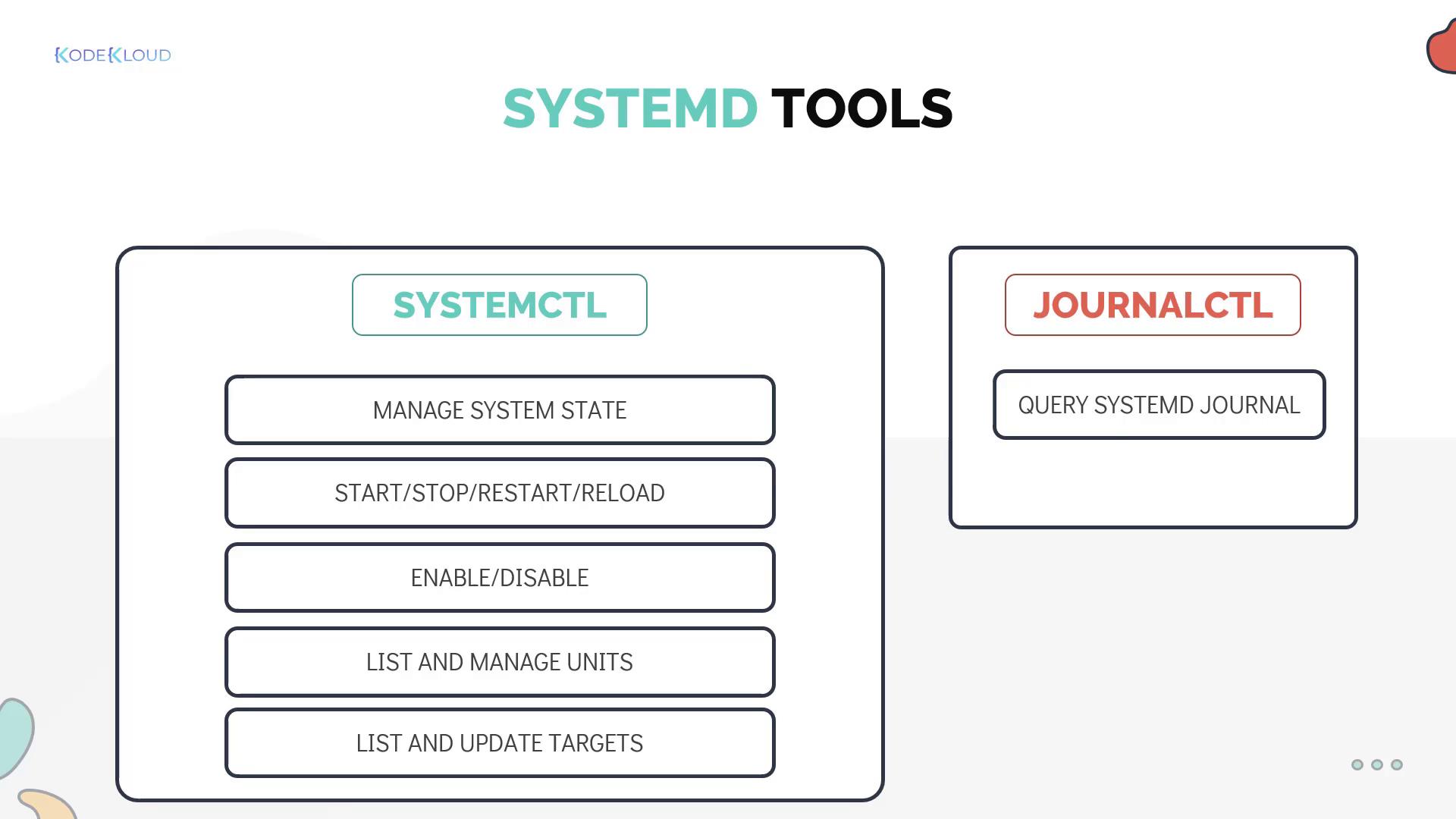
Now that your application is running as a service, let's explore essential systemd tools that let you manage services, work with system targets, query logs, and gather overall system state information. In this guide, we focus on two primary utilities: **systemctl** and **journalctl**.
## Managing Services with systemctl
The **systemctl** command is the main utility for managing services on systems using systemd. You can start, stop, restart, reload, enable, disable, and check the status of any service. Previously, we demonstrated listing and changing the system's default target. Now, we will use *Docker* as an example service.
### Common Commands
Below are some frequently used commands:
* To **start** a service:
```bash theme={null}
[~]$ systemctl start docker
```
* To **stop** a service:
```bash theme={null}
[~]$ systemctl stop docker
```
* To **restart** a service (this stops and then starts the service again):
```bash theme={null}
[~]$ systemctl restart docker
```
* To **reload** a service without interrupting its normal functionality:
```bash theme={null}
[~]$ systemctl reload docker
```
* To **enable** a service so that it starts automatically at boot:
```bash theme={null}
[~]$ systemctl enable docker
```
* To **disable** a service (preventing it from starting automatically at boot):
```bash theme={null}
[~]$ systemctl disable docker
```
* To check the **status** of a service:
```bash theme={null}
[~]$ systemctl status docker
```
The output of `systemctl status docker` should indicate whether the service is running as expected. For example, an "active (running)" state confirms success. Below is a sample output:
```text theme={null}
● docker.service - Docker Application Container Engine
Loaded: loaded (/lib/systemd/system/docker.service; enabled; vendor preset: enabled)
Active: active (running) since Sat 2020-03-21 00:45:22 EDT; 43s ago
Docs: https://docs.docker.com
Main PID: 23340 (dockerd)
Tasks: 18
CGroup: /system.slice/docker.service
└─23340 /usr/bin/dockerd -H fd:// --container=/run/containerd/containerd.sock
Mar 21 00:45:21 bob-Bionic dockerd[23340]: time="2020-03-21T00:45:21.628503806-04:00" level=warning msg="Your kernel does not ...
Mar 21 00:45:21 bob-Bionic dockerd[23340]: time="2020-03-21T00:45:21.628577159-04:00" level=warning msg="Your kernel does not ...
Mar 21 00:45:21 bob-Bionic dockerd[23340]: time="2020-03-21T00:45:21.629107909-04:00" level=info msg="Loading containers: sta...
Mar 21 00:45:22 bob-Bionic dockerd[23340]: time="2020-03-21T00:45:21.827198916-04:00" level=info msg="Default bridge (docker0 ...
Mar 21 00:45:22 bob-Bionic dockerd[23340]: time="2020-03-21T00:45:22.134167143-04:00" level=info msg="Loading containers: don...
Mar 21 00:45:22 bob-Bionic dockerd[23340]: time="2020-03-21T00:45:22.140095943-04:00" level=info msg="Docker daemon" commit=6...
Mar 21 00:45:22 bob-Bionic dockerd[23340]: time="2020-03-21T00:45:22.188341543-04:00" level=info msg="API listen on /var/run/...
Mar 21 00:45:22 bob-Bionic systemd[1]: Started Docker Application Container Engine.
```
In addition to the "active" state, be aware of:
* **Inactive (dead)**: The service is stopped.
* **Activating/Deactivating**: Transitory states while a service is starting or stopping.
* **Failed**: Indicates an error, usually due to issues with the service's command or configuration.
### Reloading Systemd Configuration
Whenever you modify a unit file, reload the system manager configuration to apply changes:
```bash theme={null}
[~]$ systemctl daemon-reload
```
For editing unit files, you can use the `systemctl edit` command. For example, to fully replace the configuration for the Project Mercury service:
```bash theme={null}
[~]$ systemctl edit project-mercury.service --full
```
After saving your changes, systemd immediately applies them without requiring an additional daemon reload.
## Working with System Targets
Systemd targets (similar to runlevels) define the state of the machine. You can view or change the default target with `systemctl`.
* To view the current default target:
```bash theme={null}
[~]$ systemctl get-default
```
* To change the default target (for example, to multi-user mode):
```bash theme={null}
[~]$ systemctl set-default multi-user.target
```
Additionally, list all units (both loaded and attempted) using:
```bash theme={null}
[~]$ systemctl list-units --all
```
A snippet of the output might appear as follows:
```text theme={null}
UNIT
network.target
nss-lookup.target
nss-user-lookup.target
paths.target
remote-fs-pre.target
remote-fs.target
rescue.target
shutdown.target
LOAD ACTIVE SUB JOB DESCRIPTION
loaded active active - Network
loaded active active - Host and Network Name Lookup
loaded active active - User and Group Name Lookup
loaded inactive dead - Paths
loaded active active - Remote File Systems (Pre)
loaded inactive dead - Remote File Systems
loaded inactive dead - Rescue Mode
loaded inactive dead - Shutdown
```
To view only active units, run `systemctl list-units` without the `--all` flag.
## Querying Logs with journalctl
The **journalctl** command is an essential troubleshooting tool for querying the systemd journal logs. By default, running journalctl displays all log entries from the oldest to the newest.
* To view logs for a specific unit, such as Docker:
```bash theme={null}
[~]$ journalctl -u docker.service
```
A sample output may look like:
```text theme={null}
-- Logs begin at Fri 2020-03-13 19:47:51 EDT, end at Sat 2020-03-21 02:29:48 EDT. --
Mar 19 17:43:21 systemd[1]: Starting Docker Application Container Engine...
Mar 19 17:43:22 dockerd[2590]: level=info msg="Starting up"
Mar 19 17:43:22 dockerd[2590]: level=info msg="ClientConn switching bal"
Mar 19 17:43:22 dockerd[2590]: level=warning msg="[graphdriver] WARNING"
Mar 19 17:43:22 dockerd[2590]: level=warning msg="Usage of loopback dev"
Mar 19 17:43:22 dockerd[2590]: level=warning msg="Base device already e"
Mar 19 17:43:22 dockerd[2590]: level=info msg="Default bridge (docker0)"
Mar 19 17:43:23 dockerd[2590]: level=info msg="Loading containers: done"
Mar 19 17:43:23 dockerd[2590]: level=info msg="Docker daemon" commit=63
Mar 19 17:43:23 dockerd[2590]: level=info msg="Daemon has completed ini"
Mar 19 17:43:23 dockerd[2590]: level=info msg="API listen on /var/run/d"
Mar 19 17:43:23 systemd[1]: Started Docker Application Container Engine.
```
Using `journalctl` can help diagnose configuration issues or failed services by providing detailed log entries.
## Conclusion
With the commands and examples provided above, you now have a solid foundation in managing services with **systemctl** and troubleshooting them using **journalctl**. Bob's working Project Mercury service on his laptop is just one example of how systemd can simplify system administration tasks.
Practice these commands further by creating your own systemd service and applying these management and troubleshooting techniques.
For additional resources, consider exploring:
* [Kubernetes Documentation](https://kubernetes.io/docs/)
* [Docker Hub](https://hub.docker.com/)
* [Terraform Registry](https://registry.terraform.io/)