> ## Documentation Index
> Fetch the complete documentation index at: https://notes.kodekloud.com/llms.txt
> Use this file to discover all available pages before exploring further.
# Basic Linux Commands
> Learn essential Linux commands for navigating the file system and managing files and directories through practical exercises.
In this guide, you'll learn essential Linux commands for navigating the file system and managing files and directories. We'll walk through exercises that involve building a directory structure using Linux shell commands.
The top-level directory (/home/Michael) already exists since it is Michael’s home directory. You will create subdirectories inside it manually. In this exercise, we create four continent directories (Asia, Europe, Africa, and America) under /home/Michael. Under each continent, country directories—and for some, city directories—are added. Each bullet point in the description below represents a directory.
When you log in as the user Michael, your starting point is the home directory (/home/Michael). To confirm your current location, run the following command:
```bash theme={null}
pwd
```
Expected output:
```bash theme={null}
/home/michael
```
To list the contents of the home directory, use:
```bash theme={null}
ls
```
If no output is returned, the directory is empty.
## Creating Directories
Begin by creating the continent directories. The `mkdir` (make directory) command can create one or more directories in a single command:
```bash theme={null}
mkdir Asia Europe Africa America
```
After running this command, use `ls` to verify that the directories have been created successfully.
### Creating Country and City Directories
Next, create the country directories. For example, to add countries in Asia:
1. Change into the Asia directory:
```bash theme={null}
cd Asia
```
2. Confirm your current directory:
```bash theme={null}
pwd
```
Expected output:
```bash theme={null}
/home/michael/Asia
```
3. Create country directories, such as China and India:
```bash theme={null}
mkdir China India
```
There are several ways to create a city directory (for instance, Mumbai under India). You can either change into the India directory and then create the city directory:
```bash theme={null}
cd India
mkdir Mumbai
```
Or, you can create the city directory from within the Asia directory using a relative path:
```bash theme={null}
mkdir India/Mumbai
```
If the parent directory (India) does not exist and must be created along with the city directory, add the `-p` option:
```bash theme={null}
mkdir -p India/Mumbai
```
## Navigating the File System
To move up one level (for example, from the Asia directory back to `/home/Michael`), use:
```bash theme={null}
cd ..
```
Running `cd` without arguments will return you to your home directory:
```bash theme={null}
cd
```
You can also navigate by specifying the entire path:
```bash theme={null}
cd /home/michael
```
Bob follows the same steps on his laptop to replicate this directory structure in his home directory (`/home/Bob`).
## Absolute vs. Relative Paths
When moving around the file system, you have two options: absolute paths and relative paths. For example, if you're in `/home/Michael` and want to navigate to the Asia directory:
* Using an absolute path:
```bash theme={null}
cd /home/Michael/Asia
```
* Using a relative path:
```bash theme={null}
cd Asia
```
An absolute path begins from the root directory (`/`) and provides the full location, whereas a relative path is based on your current working directory.
For enhanced navigation, the `pushd` command changes directories while saving your previous location in a stack. Later, you can return using `popd`:
Example:
```bash theme={null}
pushd /etc
popd
```
## Modifying the Directory Structure
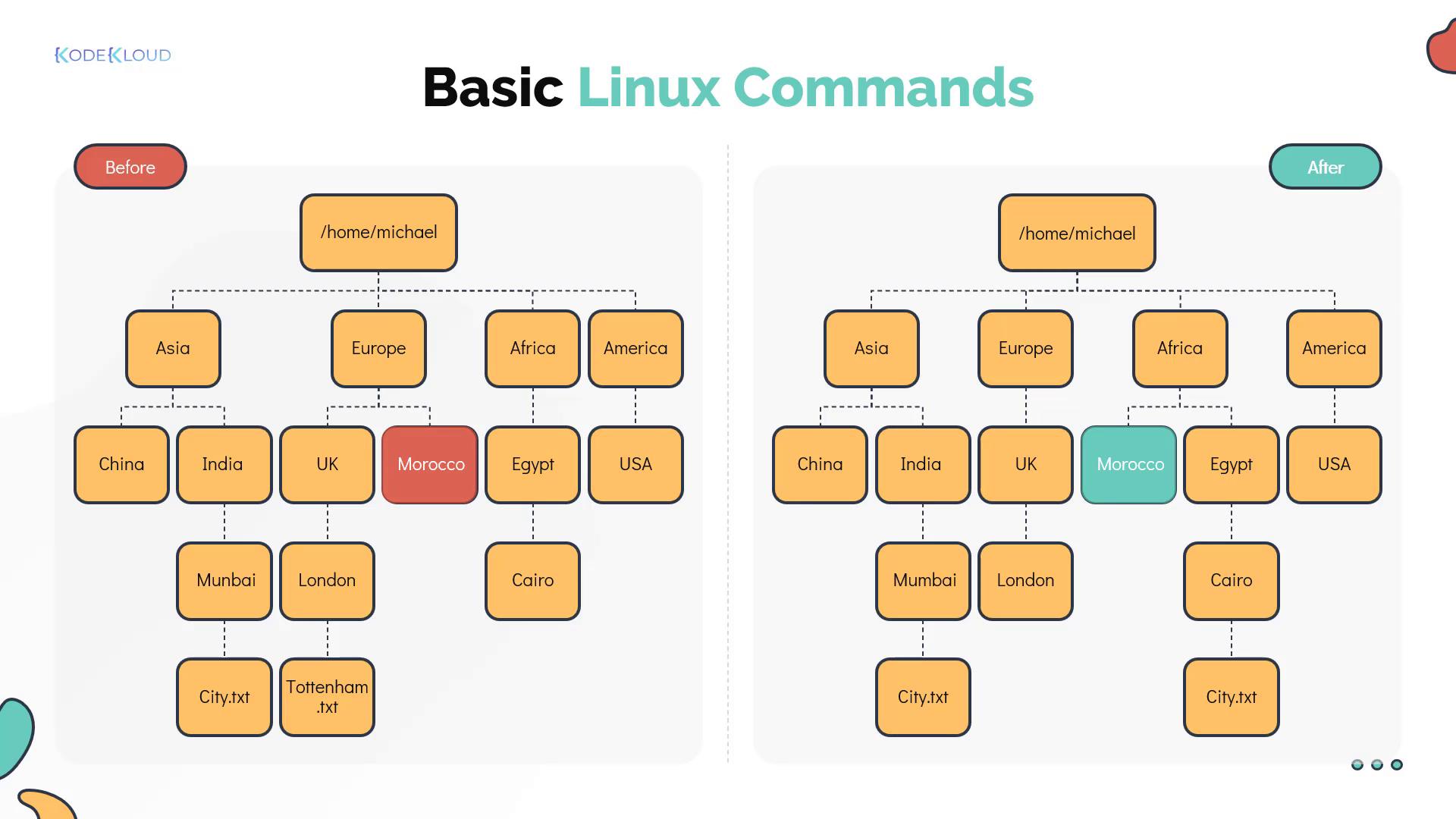
The exercise also involves modifying the directory layout to meet specific requirements. An earlier error involved creating the "Morocco" directory under Europe instead of Africa. The correct organization places Morocco under Africa. The image below illustrates the comparison between the original and the desired directory structures:

Other required modifications include:
* Fixing a typo in the Mumbai directory name.
* Copying the file `city.txt` from the Mumbai directory to the Cairo directory.
* Removing the file `Tottenham.txt` from the London directory.
An additional image confirms these changes:
### Moving Directories
To relocate the Morocco directory from Europe to Africa, use the `mv` command. When using absolute paths:
```bash theme={null}
mv /home/michael/Europe/Morocco /home/michael/Africa/
```
Or, if you are already in `/home/michael`, employ relative paths:
```bash theme={null}
mv Europe/Morocco Africa/
```
### Renaming Directories
If the directory name "Mumbai" contains a typo, rename it using the `mv` command:
```bash theme={null}
mv Asia/India/Mumbai Asia/India/MumbaiCorrected
```
Replace "MumbaiCorrected" with the intended directory name.
### Copying Files
To copy the `city.txt` file from the Mumbai directory to the Cairo directory (located in Africa/Egypt), use:
```bash theme={null}
cp Asia/India/Mumbai/City.txt Africa/Egypt/Cairo/
```
### Deleting Files
To remove the file `Tottenham.txt` from the London directory (in Europe), use:
```bash theme={null}
rm Europe/UnitedKingdom/London/Tottenham.txt
```
Ensure you have the correct file paths when copying or deleting files. To copy or delete directories recursively, remember to include the `-r` option with `cp` or `rm`.
## Working with Files
### Reading File Contents
To display the contents of a file—such as `city.txt` in the Mumbai directory—use the `cat` command:
```bash theme={null}
cat Asia/India/Mumbai/City.txt
```
Expected output:
```bash theme={null}
Mumbai
```
### Writing to Files
To replace the content of a file, like updating the Cairo version of `city.txt`, use redirection with `cat`:
```bash theme={null}
cat > Africa/Egypt/Cairo/City.txt
```
After executing the command, type the new content. Press Ctrl+D when finished to save and exit.
### Creating an Empty File
To create an empty file—such as `country.txt` in the China directory—use the `touch` command:
```bash theme={null}
touch /home/michael/Asia/China/Country.txt
```
## Viewing Files with Pagers
For a more manageable view of file contents, you can use pagers like `more` and `less`.
Using `more`:
```bash theme={null}
more new_file.txt
```
Key controls for more:
* Space: scrolls one screen.
* Enter: scrolls one line.
* b: scrolls back one full screen.
* /: begins a text search.
* q: quits the viewer.
Using `less` offers additional navigation controls:
```bash theme={null}
less new_file.txt
```
Key controls for less:
* Up Arrow: scrolls up one line.
* Down Arrow: scrolls down one line.
* /: begins a text search.
* q: quits the viewer.
More powerful text editors are available for advanced file manipulation and will be covered in a dedicated section later.
## Listing Files
The `ls` command lists the contents of directories. For a basic listing, use:
```bash theme={null}
ls
```
For a detailed view showing file permissions, ownership, and timestamps, add the `-l` option:
```bash theme={null}
ls -l
```
Example output:
```bash theme={null}
total 0
-rw-rw-r-- 1 bob bob 0 Mar 13 11:30 File.txt
-rw-rw-r-- 1 bob bob 0 Mar 13 11:30 index.html
-rw-rw-r-- 1 bob bob 0 Mar 13 11:30 caleston
```
To include hidden files (those starting with a dot), use:
```bash theme={null}
ls -a
```
Example output:
```bash theme={null}
. .. File.txt index.html caleston .test
```
Here, `.` refers to the current directory and `..` to the parent directory.
To sort files by modification time (newest first), use:
```bash theme={null}
ls -lt
```
For a list from oldest to newest, use:
```bash theme={null}
ls -ltr
```
This guide covered fundamental Linux commands for effectively navigating and manipulating your file system. With these basics, you can work more efficiently and manage your directories and files with ease.
## Additional Resources
* [Linux Command Line Basics](https://linuxcommand.org/)
* [Linux Documentation](https://www.kernel.org/doc/html/latest/)
Happy learning and exploring Linux!