> ## Documentation Index
> Fetch the complete documentation index at: https://notes.kodekloud.com/llms.txt
> Use this file to discover all available pages before exploring further.
# Deploying an application to LKE intro
> This guide explains how to deploy a stateless Nginx web server to a Linode Kubernetes Engine cluster.
In this guide, you’ll deploy a stateless Nginx web server to your Linode Kubernetes Engine (LKE) cluster. We’ll use the official `nginx:latest` Docker image, scale it to two replicas, and expose it externally via a LoadBalancer service.
## Prerequisites
* An active LKE cluster with at least one node
* `kubectl` configured to target your LKE cluster
* Basic familiarity with Kubernetes concepts
***
## 1. Define Your Deployment and Service
Create a manifest file named `nginx.yaml`:
```yaml theme={null}
apiVersion: apps/v1
kind: Deployment
metadata:
name: nginx-deployment
spec:
replicas: 2
selector:
matchLabels:
app: nginx-deployment
template:
metadata:
labels:
app: nginx-deployment
spec:
containers:
- name: nginx
image: nginx:latest
ports:
- containerPort: 80
---
apiVersion: v1
kind: Service
metadata:
name: nginxservice
spec:
selector:
app: nginx-deployment
ports:
- protocol: TCP
port: 80
targetPort: 80
type: LoadBalancer
```
The `LoadBalancer` service type on LKE provisions a cloud load balancer and assigns it an external IP automatically.
***
## 2. Verify Your Context and Apply the Manifest
1. Confirm you’re connected to the correct cluster:
```bash theme={null}
kubectl config current-context
```
2. List your nodes to ensure they’re **Ready**:
```bash theme={null}
kubectl get nodes
```
```bash theme={null}
NAME STATUS ROLES AGE VERSION
lke61875-96182-628e15174c4b Ready 15m v1.23.6
```
3. Deploy the Nginx resources:
```bash theme={null}
kubectl apply -f nginx.yaml
```
```bash theme={null}
deployment.apps/nginx-deployment created
service/nginxservice created
```
***
## 3. Monitor Your Deployment
Use these commands to check the status of your pods, deployments, and service:
| Command | Description |
| ------------------------- | ------------------------------ |
| `kubectl get pods` | List all pods and their status |
| `kubectl get deployments` | Show deployment rollout status |
| `kubectl get svc` | Display service endpoints |
Example output:
```bash theme={null}
kubectl get pods
NAME READY STATUS RESTARTS AGE
nginx-deployment-588c8d7b4b2jvf6 1/1 Running 0 30s
nginx-deployment-588c8d7b4b4975w 1/1 Running 0 30s
kubectl get deployments
NAME READY UP-TO-DATE AVAILABLE AGE
nginx-deployment 2/2 2 2 45s
```
***
## 4. Retrieve the External IP
```bash theme={null}
kubectl get svc nginxservice
```
You should see output similar to:
```bash theme={null}
NAME TYPE CLUSTER-IP EXTERNAL-IP PORT(S) AGE
nginxservice LoadBalancer 10.128.88.229 104.200.23.238 80:31279/TCP 17s
```
It can take a minute or two for the `EXTERNAL-IP` to provision. If `` appears, wait a bit and run the command again.
***
## 5. Access Nginx in Your Browser
Open your web browser and navigate to:
```text theme={null}
http://104.200.23.238
```
You should see the default Nginx welcome page, confirming your application is live behind a cloud load balancer.
***
## 6. Inspect via the Kubernetes Dashboard
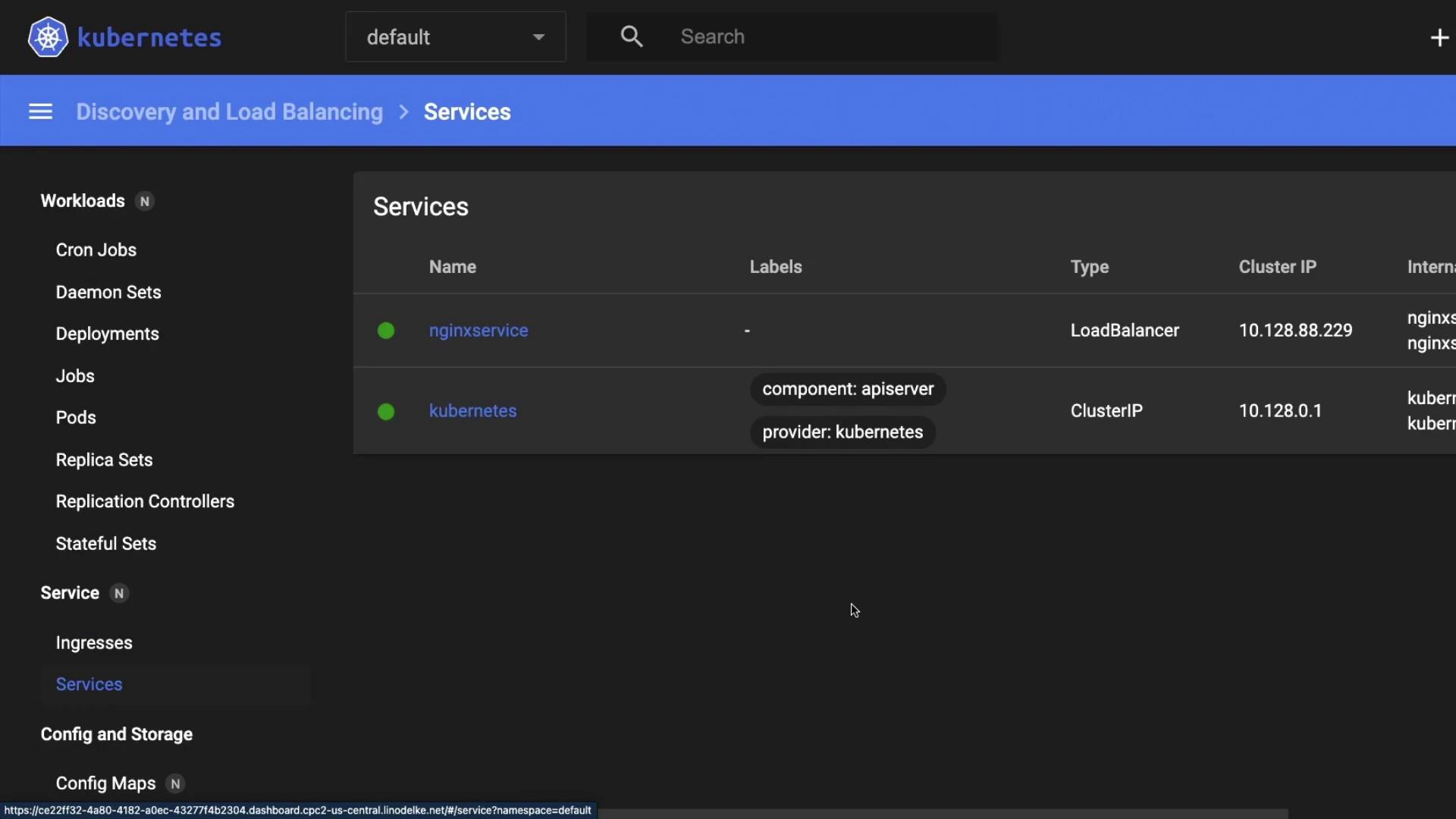
You can also verify the deployment and service in the Kubernetes Dashboard.
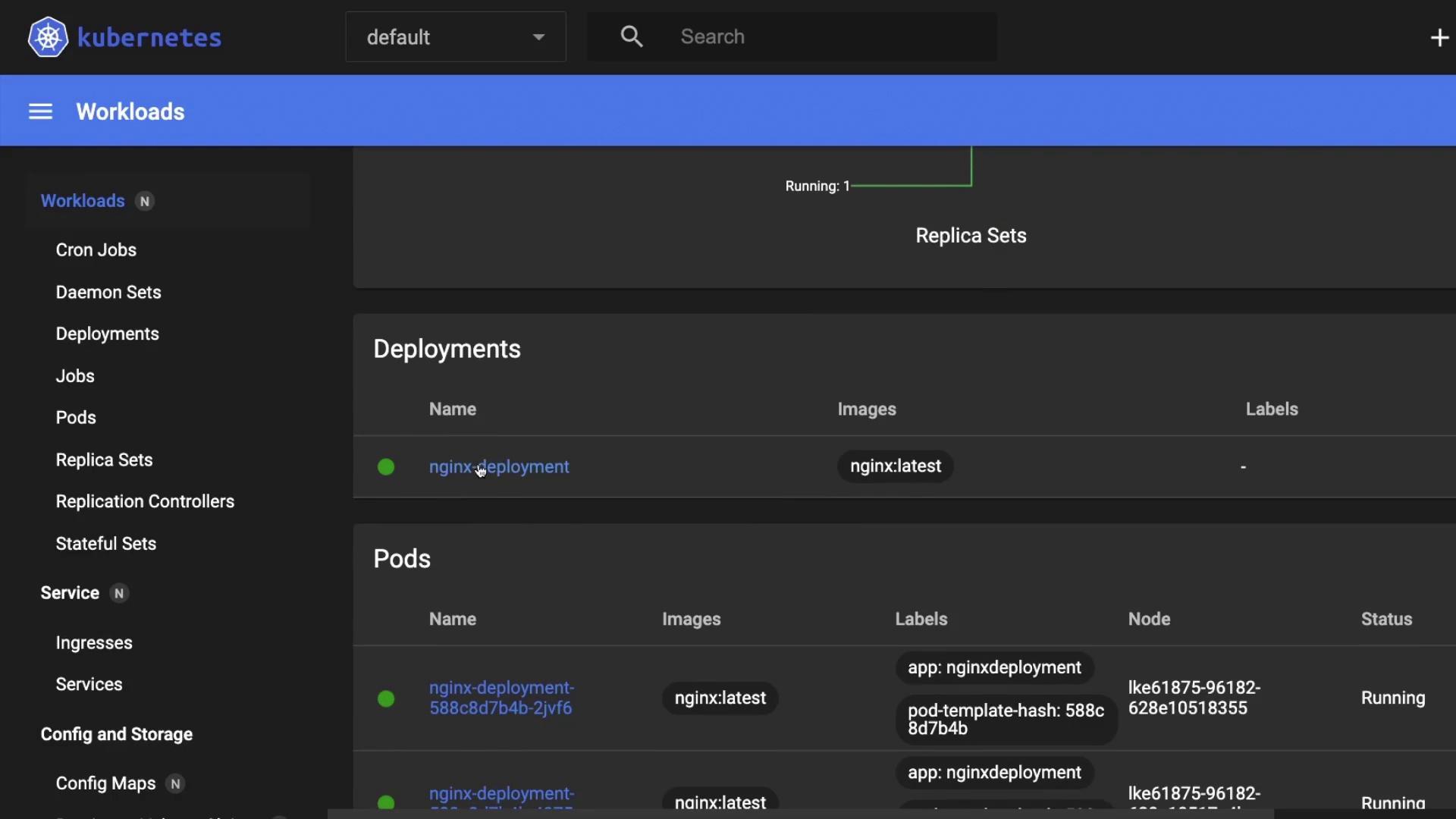
Here you’ll find the **nginx-deployment** with two Pods and a ReplicaSet.
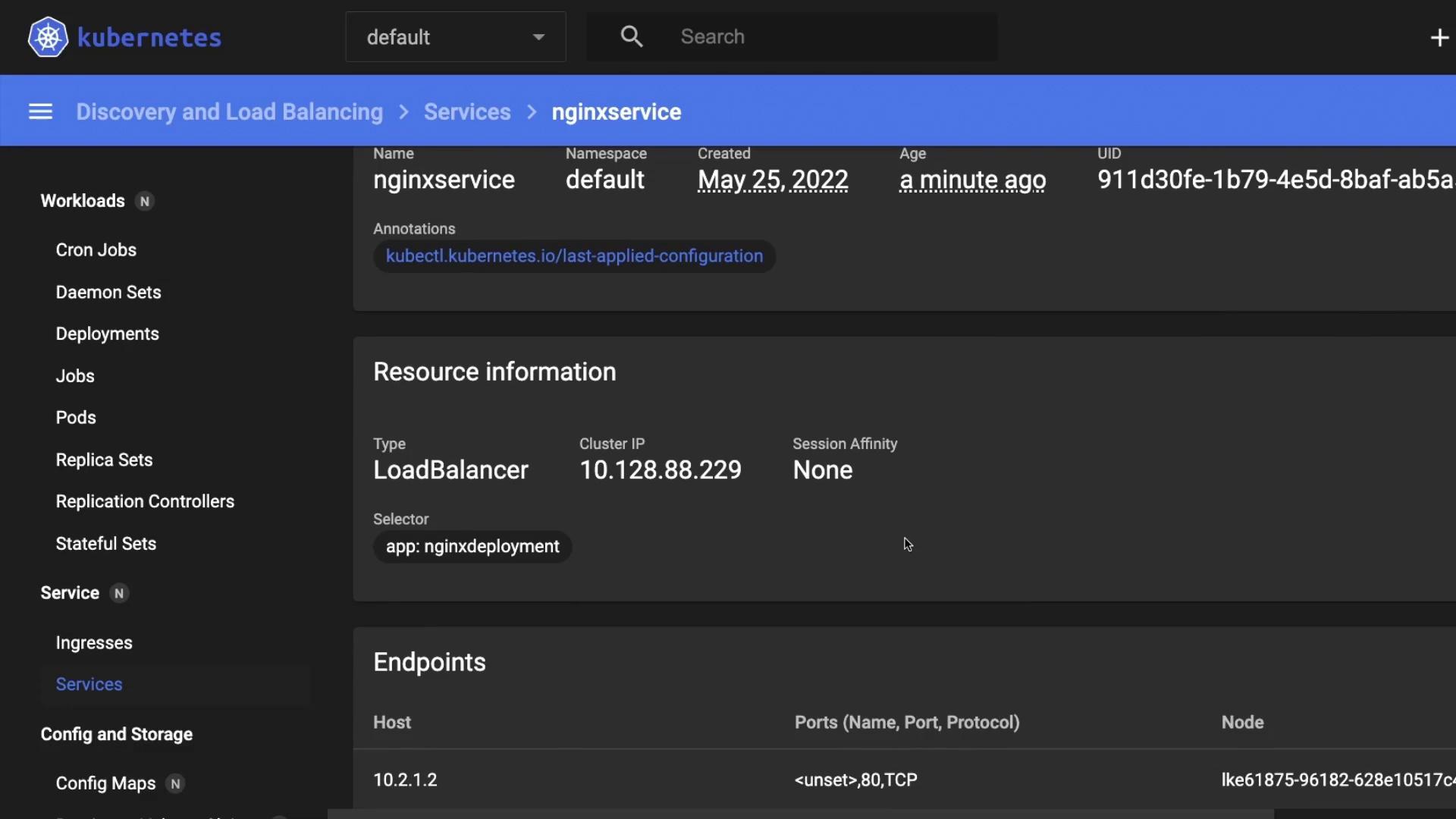
Inspect the **nginxservice** object to confirm it’s of type LoadBalancer with the correct cluster IP and external endpoints.
***
## Links and References
* [Linode Kubernetes Engine Documentation](https://www.linode.com/docs/kubernetes/)
* [Kubernetes Concepts: Services](https://kubernetes.io/docs/concepts/services-networking/service/)
* [Nginx Docker Image on Docker Hub](https://hub.docker.com/_/nginx)