> ## Documentation Index
> Fetch the complete documentation index at: https://notes.kodekloud.com/llms.txt
> Use this file to discover all available pages before exploring further.
# Scaling clusters
> This article explains how to manually scale a Kubernetes cluster on Linode Kubernetes Engine, covering autoscaling, resizing, and adding node pools.
In this lesson, we’ll cover how to manually scale your Kubernetes cluster on Linode Kubernetes Engine (LKE) before automating with tools like Terraform. Understanding these steps is essential for one-off adjustments, troubleshooting, and verifying your infrastructure changes.
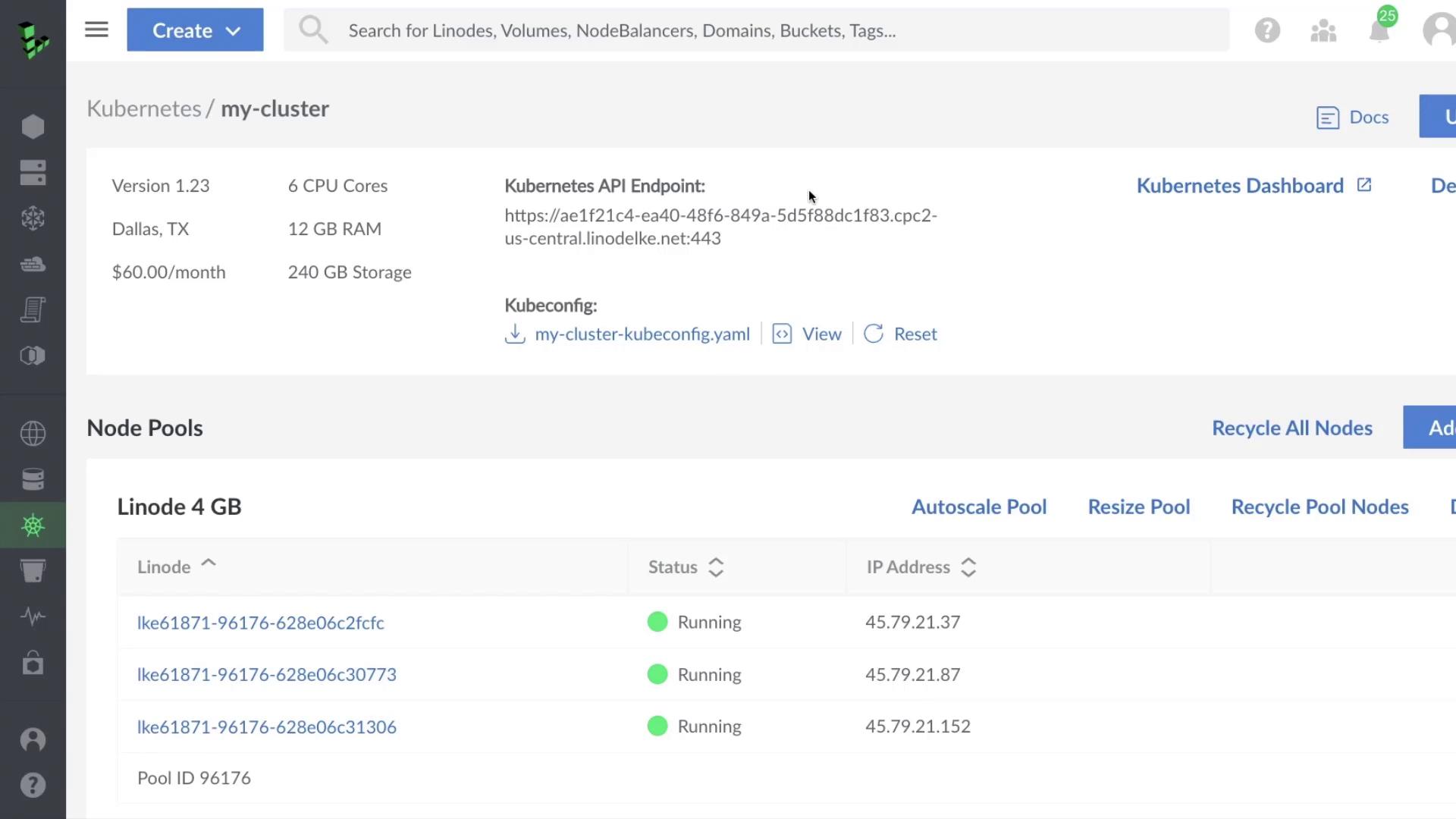
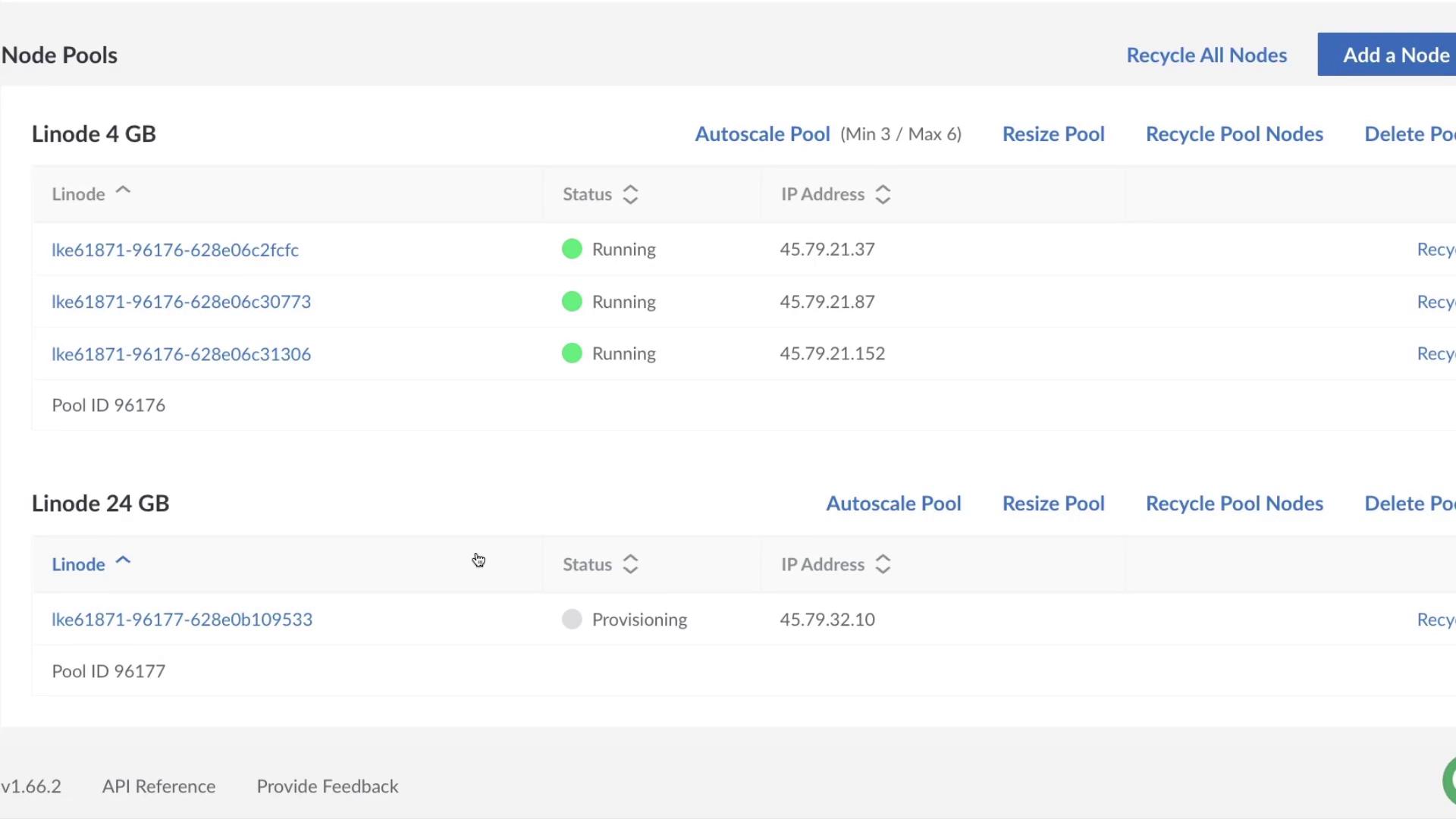
Under the **Node Pools** section, you have three main actions:
* Enable autoscaling for a pool
* Resize an existing pool
* Add a new node pool
## 1. Autoscaling a Node Pool
To configure horizontal autoscaling:
1. Click **Autoscale Pool**.
2. In the **Autoscale Pool** dialog, check **Autoscaler**.
3. Set the **Min** and **Max** worker node counts (for example, Min = 3, Max = 6).
4. Click **Save**.
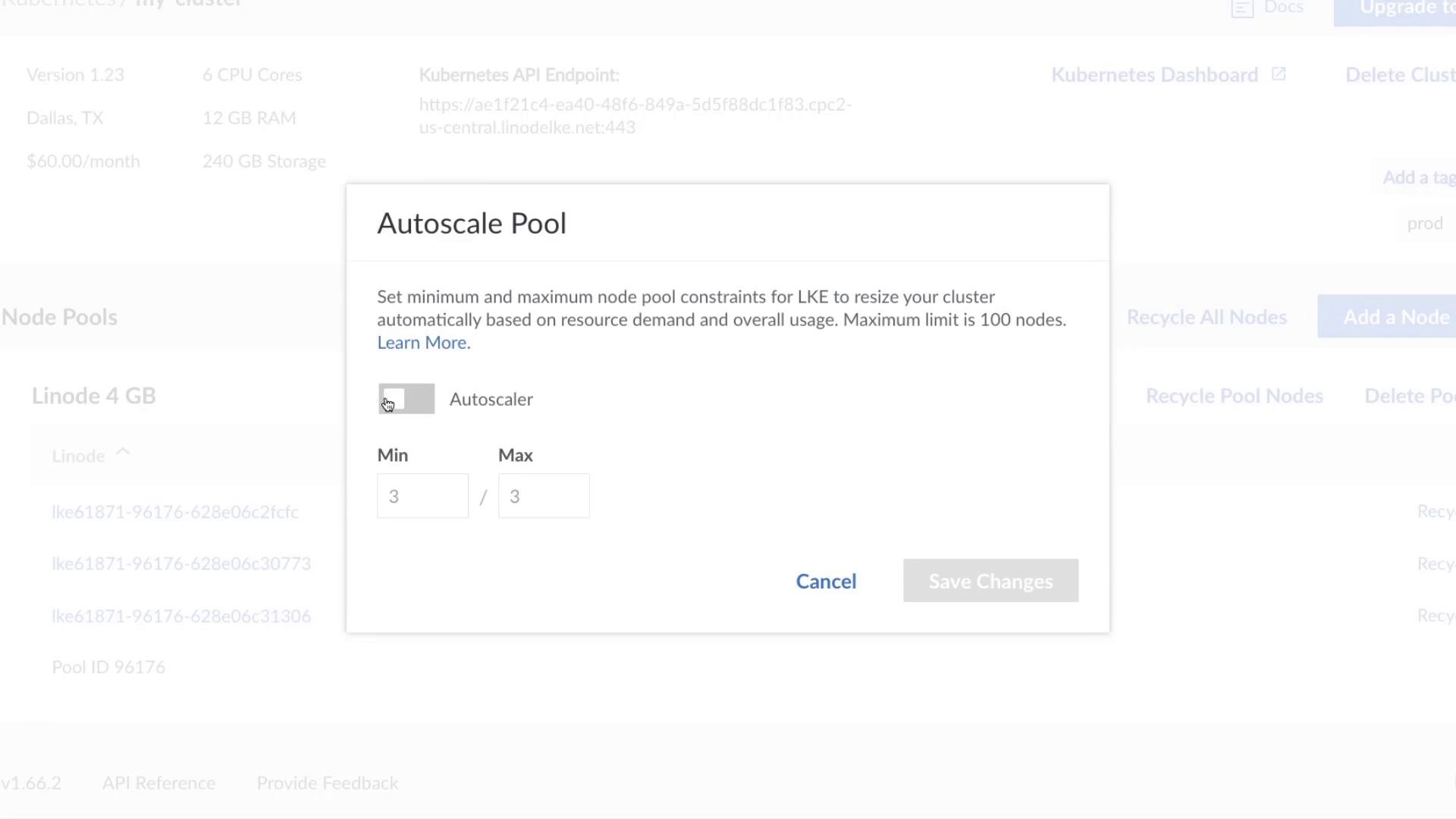
You can automate this step with Terraform using the `linode_lke_node_pool` resource. See [Terraform LKE Provider](https://registry.terraform.io/providers/linode/linode/latest/docs/resources/lke_node_pool) for details.
With autoscaling enabled, LKE will automatically adjust the number of nodes based on your cluster’s scheduling demands.
## 2. Resizing a Node Pool
To manually change the node count:
1. Click **Resize Pool** for your target pool.
2. Enter the desired number of nodes (e.g., increase from 3 to 4).
3. Optionally, select **Recycle Pool** to replace all nodes.
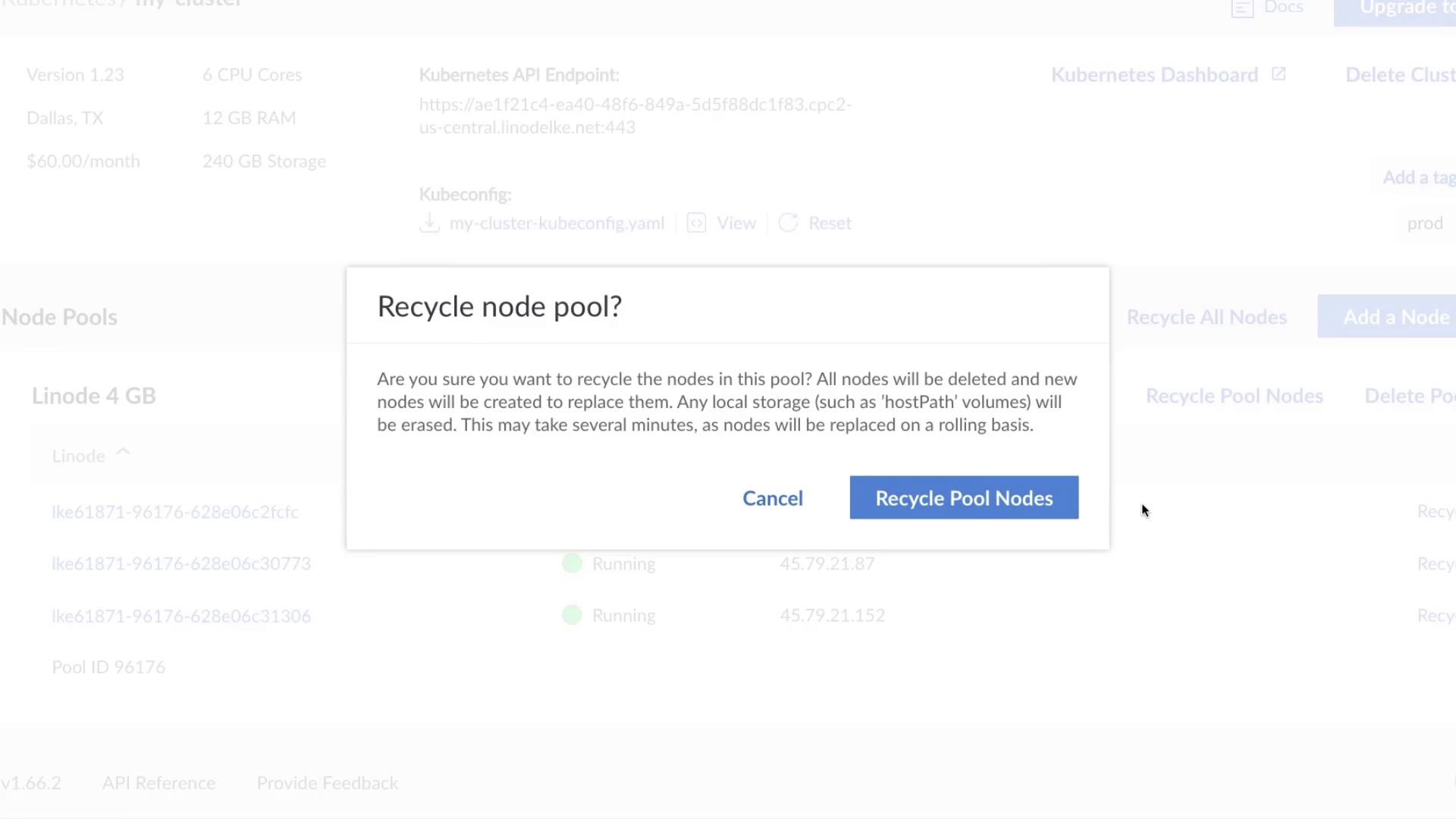
Recycling a pool deletes and re-provisions all nodes, which can cause downtime for pods running on those nodes. Schedule this during maintenance windows.
## 3. Adding a New Node Pool
For specialized workloads—such as high-memory or GPU-intensive applications—you can add a separate node pool:
1. Click **Add Pool**.
2. Choose the plan that fits your requirements.
3. Click **Add Pool** to provision the nodes.
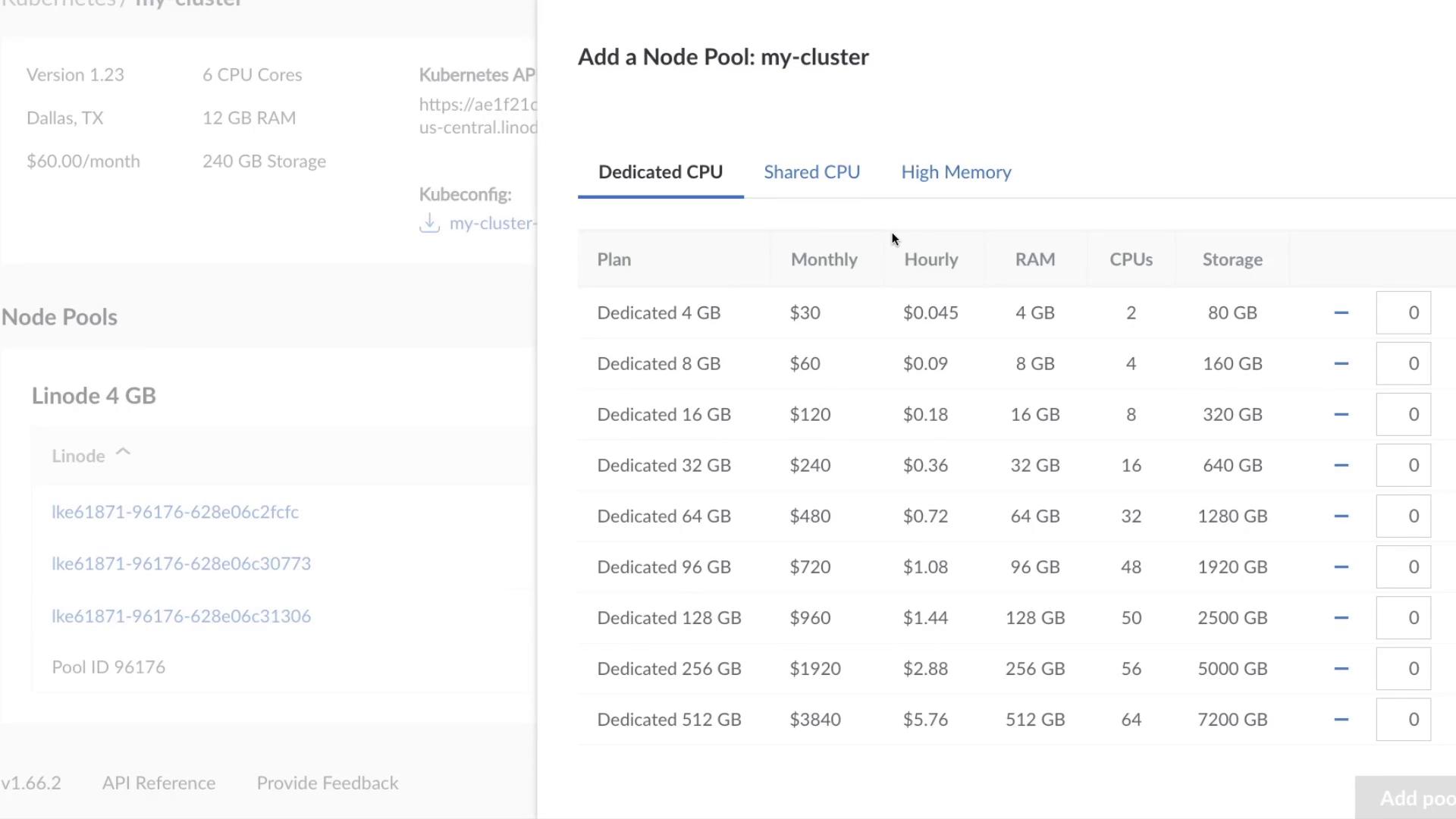
Once provisioned, both pools appear in your dashboard, showing status and IP addresses.
## Scaling Options Overview
| Action | Use Case | Description |
| -------------- | ------------------------ | ------------------------------------------- |
| Autoscale Pool | Dynamic workloads | Automatically adjusts node count (Min/Max). |
| Resize Pool | Predictable scaling | Manually set the node count. |
| Recycle Pool | Updates or recovery | Deletes and re-provisions all nodes. |
| Add Pool | Mixed-instance workloads | Create additional pools with new specs. |
## Links and References
* [Linode Kubernetes Engine (LKE)](https://www.linode.com/kubernetes/)
* [Terraform | Infrastructure as Code](https://www.terraform.io/)
* [Kubernetes Autoscaling](https://kubernetes.io/docs/tasks/run-application/horizontal-pod-autoscale/)
* [Terraform LKE Node Pool Resource](https://registry.terraform.io/providers/linode/linode/latest/docs/resources/lke_node_pool)