> ## Documentation Index
> Fetch the complete documentation index at: https://notes.kodekloud.com/llms.txt
> Use this file to discover all available pages before exploring further.
# Using the k8s dashboard on LKE
> This article explains how to use the Kubernetes Dashboard for managing and troubleshooting workloads on Linode Kubernetes Engine.
There will come a time when you need a live visualization of your Kubernetes clusters—seeing deployments, pods, secrets, monitoring metrics, and more. The **Kubernetes Dashboard** offers an intuitive web UI to manage and troubleshoot your workloads on Linode Kubernetes Engine (LKE).
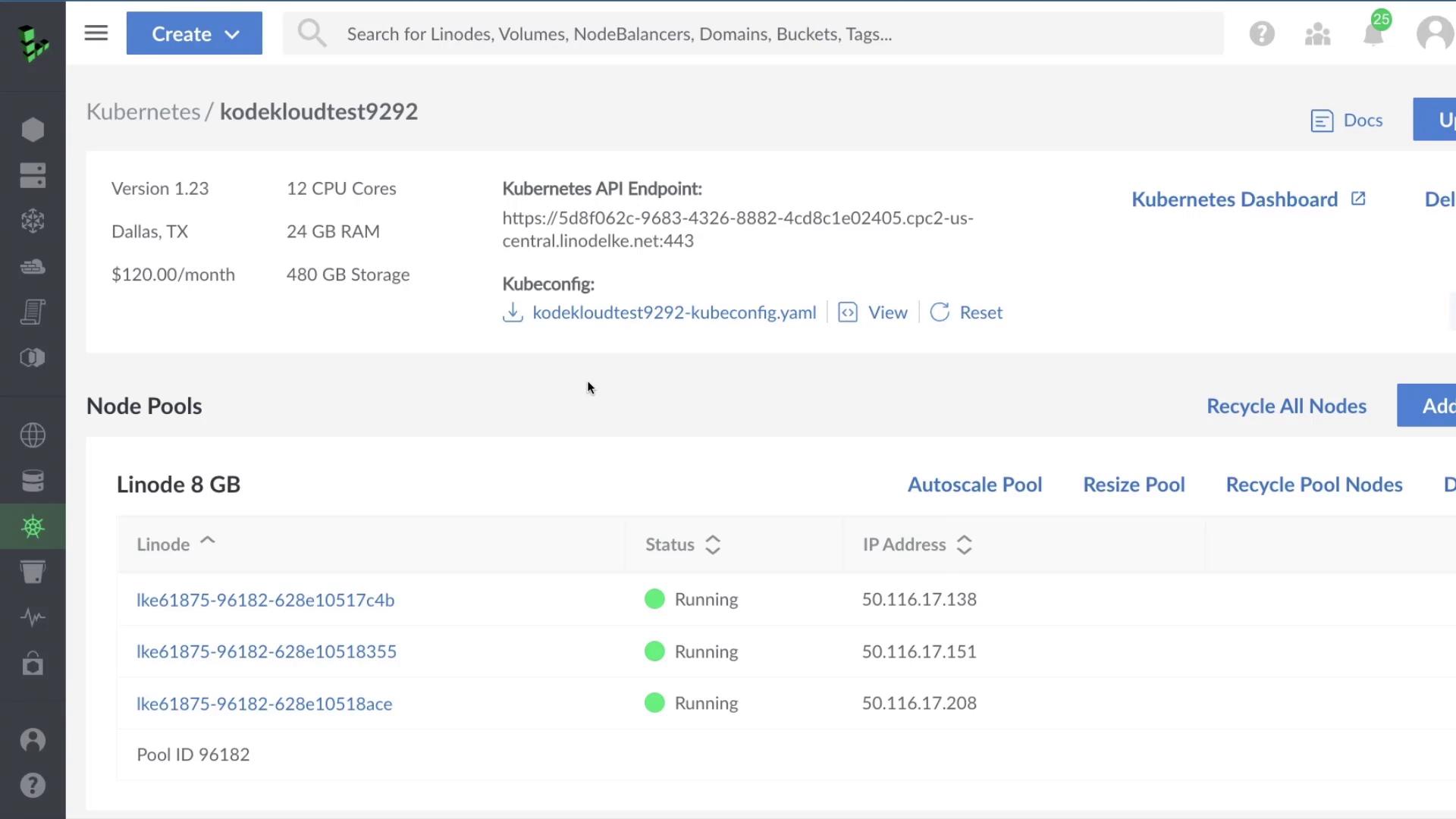
From this single pane of glass, you can:
* Deploy or edit containerized applications
* Monitor pod and deployment status
* View logs and resource usage
* Troubleshoot issues with real-time metrics
## 1. Accessing the Dashboard
1. Log in to the [Linode Cloud Manager](https://cloud.linode.com/).
2. Navigate to **Kubernetes** and select your cluster.
3. Click **Kubernetes Dashboard**.
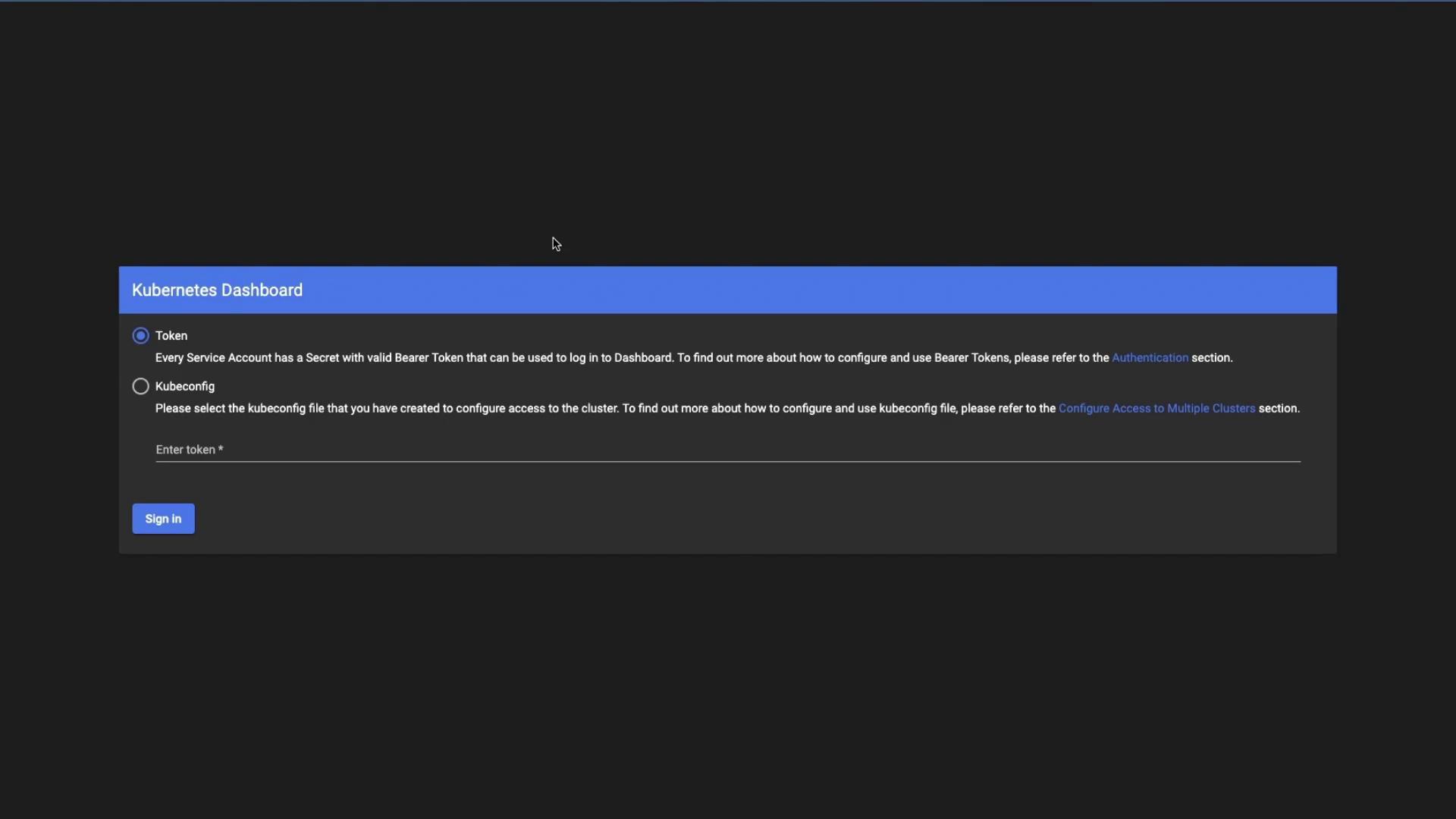
You’ll be redirected to the login screen:
### Authentication Methods
| Method | Steps |
| ---------- | ------------------------------------------------------------------------------------- |
| kubeconfig | Click the ⋮ menu, upload your local `kubeconfig` file, then **Sign In**. |
| Token | Copy the bearer token from Cloud Manager and paste it into the **Token** field below. |
```yaml theme={null}
apiVersion: v1
kind: Config
clusters:
- name: lke61875
cluster:
server: https://5d8f062c-9683-4326-8882-4cd8c1e02405.cpc-...
certificate-authority-data: LS0tLS1CRUdJTiBDRVJJVUS...
users:
- name: lke61875-admin
user:
token: eyJhbGciOiJSUzI...
contexts:
- name: lke61875-ctx
context:
cluster: lke61875
namespace: default
user: lke61875-admin
current-context: lke61875-ctx
```
```plaintext theme={null}
/HQTFVZEVRUU8KTUF50QNtDFZbV5YmlWFpYTxdEUVlKS29aWh2Y05BUUVMQ
```
Tokens are scoped by RBAC rules. Ensure your service account has the correct role bindings to view the resources you need.
Click **Sign In** to open the dashboard.
## 2. Dashboard Overview
Upon first login (in the `default` namespace), you may see an empty view:
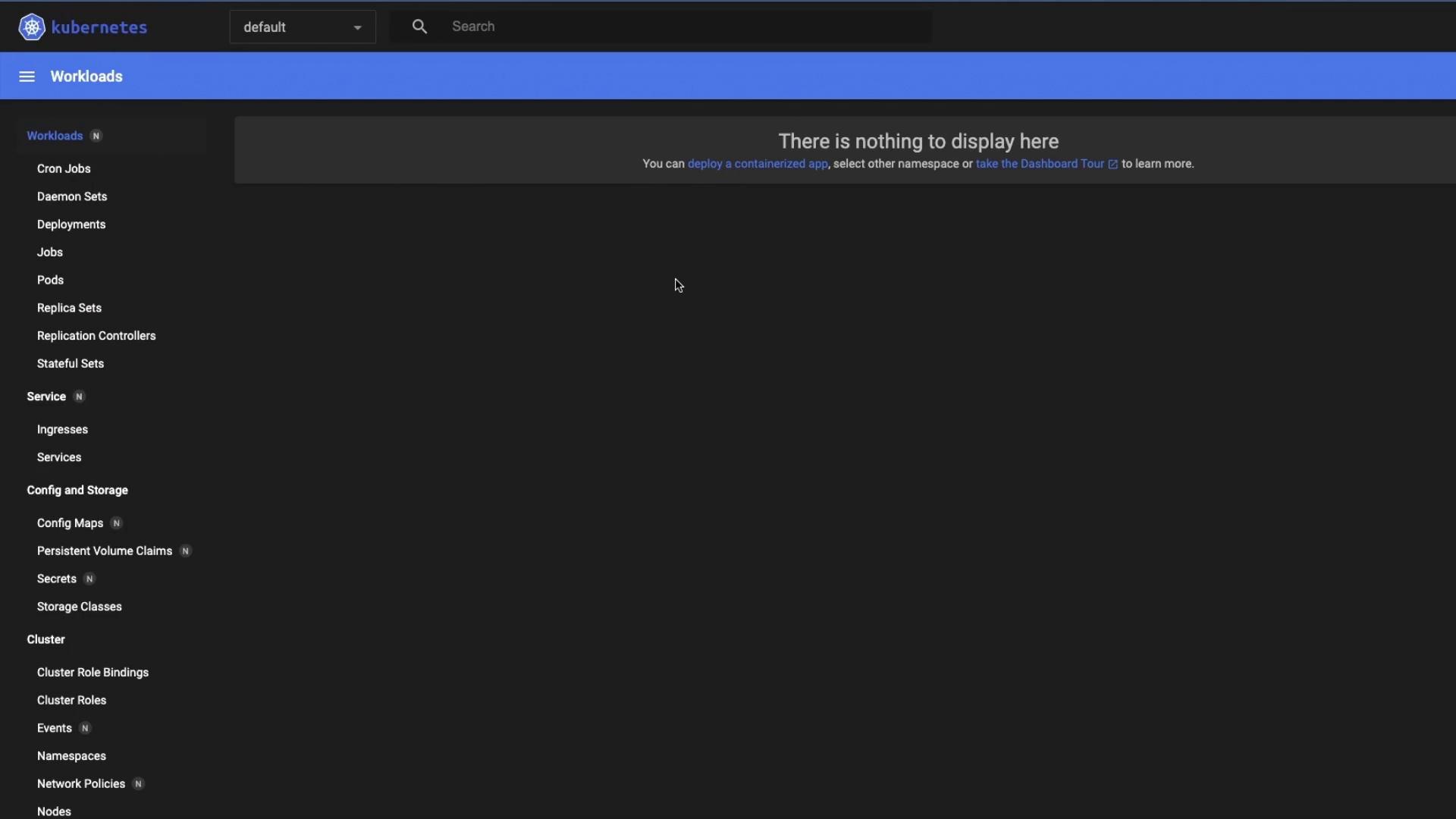
If you leave the dashboard exposed without proper authentication, anyone with the URL and token can view or modify your cluster. Always secure access.
### Switching Namespaces
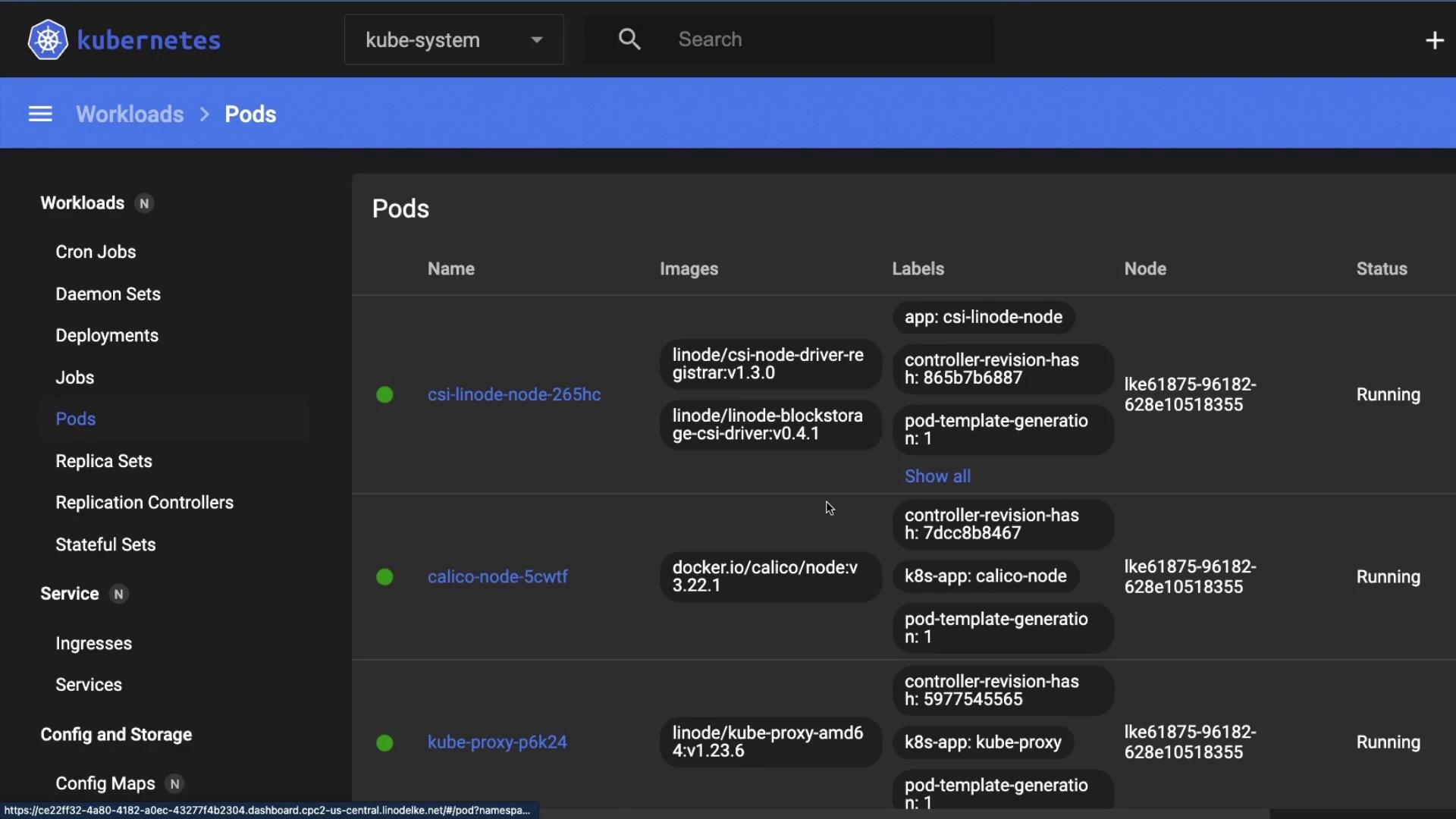
Use the namespace dropdown in the top-right corner to choose **kube-system** and inspect core components:
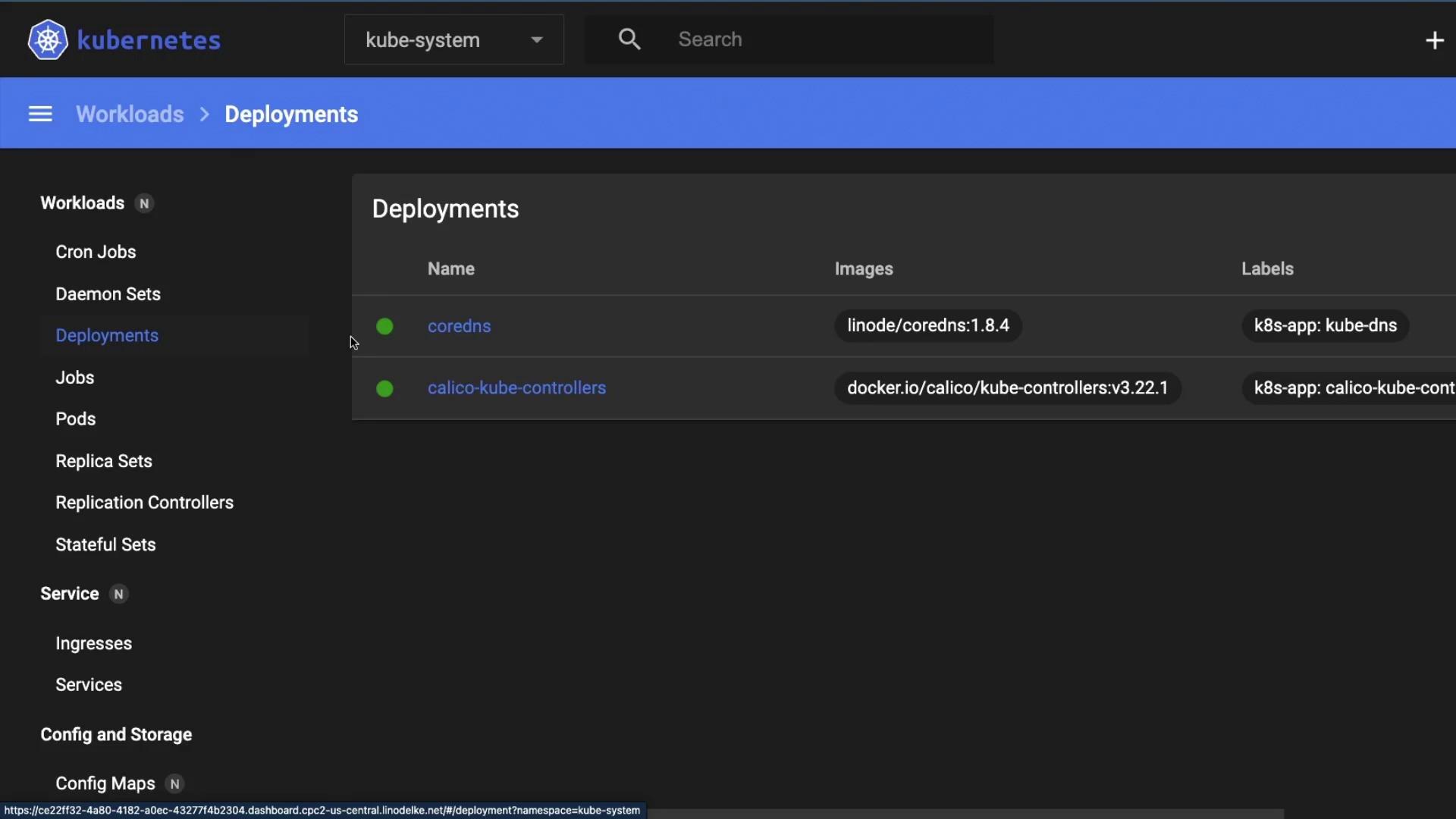
## 3. Inspecting Deployments
Select **Deployments** under **Workloads** to view system controllers like CoreDNS and Calico:
## 4. Workloads Overview
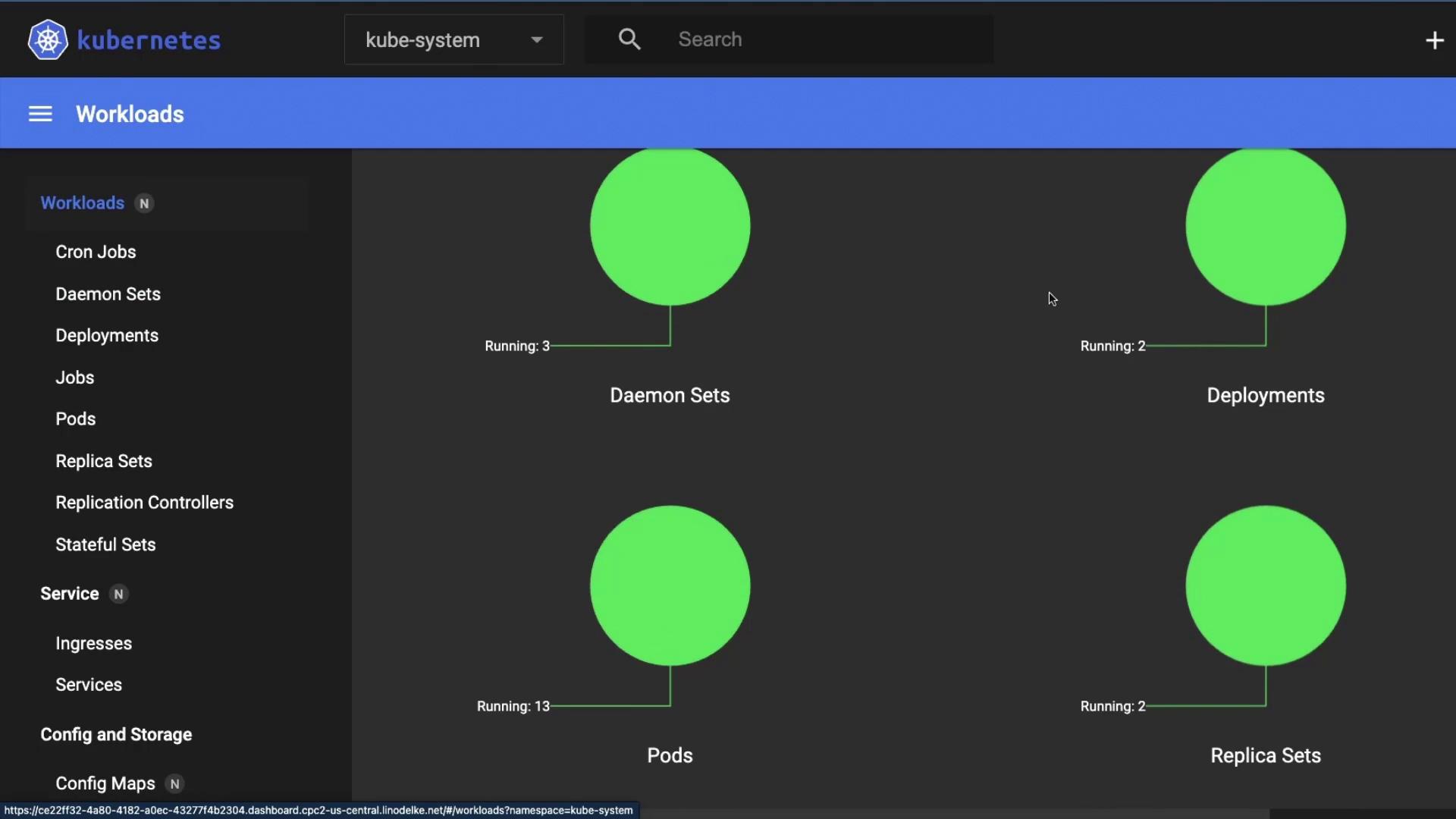
Under **Workloads**, you can monitor all controllers:
| Workload Type | Description |
| ------------- | --------------------------------------- |
| Daemon Sets | Run one pod per node (e.g., kube-proxy) |
| Deployments | Declarative updates & scaling |
| Replica Sets | Maintain a stable set of replicas |
| Pods | The smallest deployable unit |
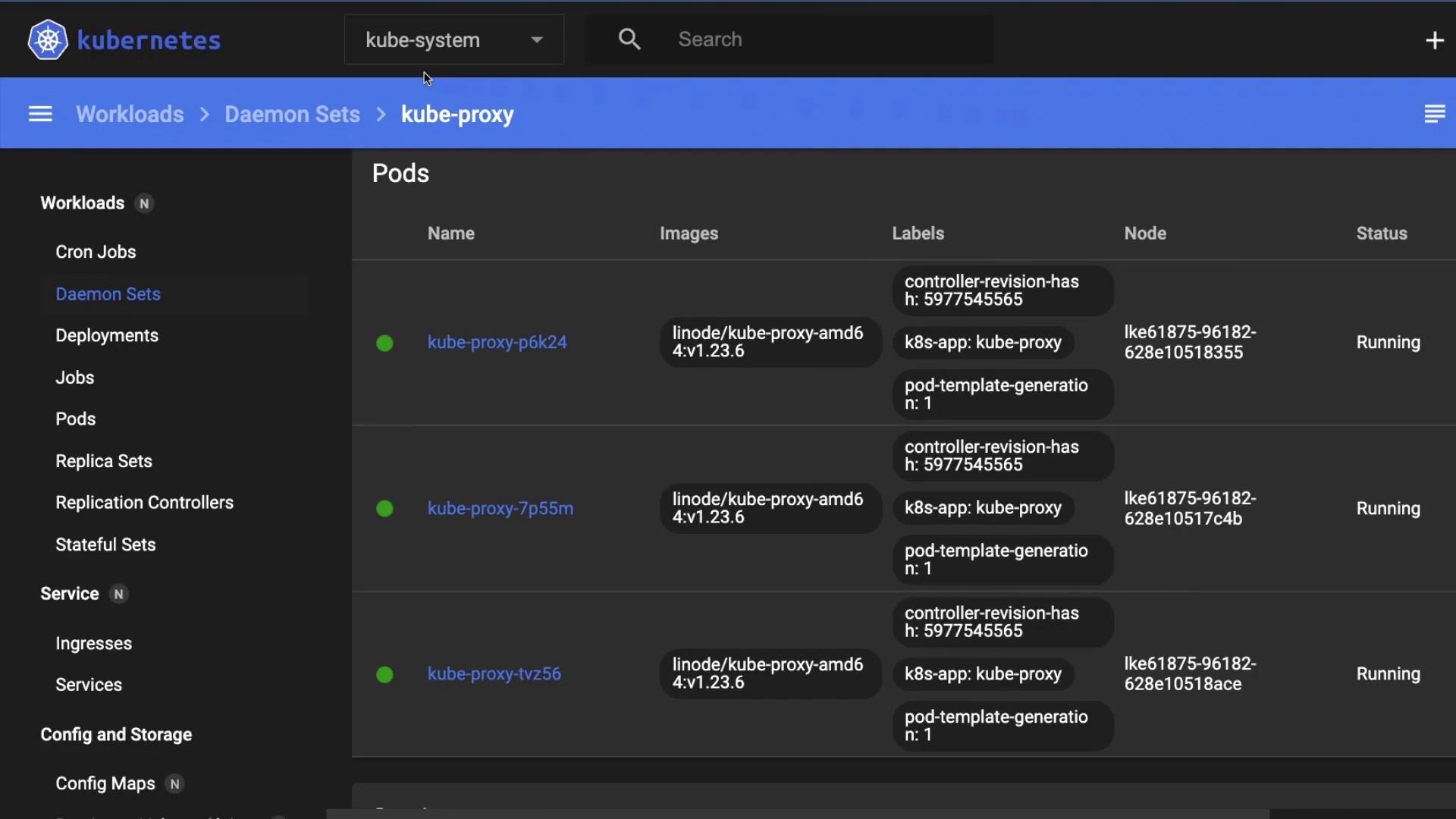
Click on any workload—for example, the **kube-proxy** DaemonSet—to inspect pod details:
## 5. Services, Config & Storage
Beyond workloads, the sidebar lets you explore:
* **Services**: ClusterIP, NodePort, LoadBalancer endpoints
* **Config and Storage**: ConfigMaps, Secrets, PersistentVolumes, PVCs
* **Access Control**: Roles, RoleBindings, ServiceAccounts
## 6. Additional Resources
* [Kubernetes Dashboard Official Guide](https://github.com/kubernetes/dashboard)
* [Linode Kubernetes Engine Documentation](https://www.linode.com/docs/products/kubernetes/)
* [Kubernetes RBAC](https://kubernetes.io/docs/reference/access-authn-authz/rbac/)