> ## Documentation Index
> Fetch the complete documentation index at: https://notes.kodekloud.com/llms.txt
> Use this file to discover all available pages before exploring further.
# Create Partitions and Filesystems Manage MBR and GPT partition tables
> Linux allows partitioning of disks for separate filesystems and operating systems management.
Linux lets you divide a physical disk into multiple partitions, each with its own filesystem. For example, on a 2 TB SSD you might allocate 1 TB for Windows (NTFS) and 1 TB for Linux (ext4). Partitioning keeps filesystems separate and lets each OS manage its space independently.
## Why Partition a Disk?
* Separate operating systems (e.g., Windows vs. Linux)
* Isolate data, swap, and boot partitions
* Use different partition table formats: MBR (DOS) vs. GPT (modern systems)
Leaving 1 MiB unallocated at the start of the disk is a best practice. Many bootloaders require this alignment for optimal performance.
## 1. Viewing Existing Partitions
Use `lsblk` to list block devices and their partitions:
```bash theme={null}
lsblk
```
Only entries with TYPE `part` are actual partitions:
```bash theme={null}
$ lsblk
NAME MAJ:MIN RM SIZE RO TYPE MOUNTPOINT
sda 8:0 0 20G 0 disk
├─sda1 8:1 0 1G 0 part /boot
├─sda2 8:2 0 19G 0 part
│ ├─cs-root 253:0 0 17G 0 lvm /
│ └─cs-swap 253:1 0 2G 0 lvm [SWAP]
sdb 8:16 0 10G 0 disk
sr0 11:0 1 1024M 0 rom
```
| Column | Meaning |
| ---------- | ---------------------------------- |
| NAME | Device name (`sda`, `sdb`, etc.) |
| SIZE | Disk or partition size |
| TYPE | `disk`, `part`, or `lvm` |
| MOUNTPOINT | Where it’s mounted (if applicable) |
## 2. Inspecting the Partition Table with fdisk
To view the partition table on `/dev/sda`, run:
```bash theme={null}
sudo fdisk --list /dev/sda
```
Sample output:
```bash theme={null}
Disk /dev/sda: 20 GiB, 21474836480 bytes, 41943040 sectors
Units: sectors of 1 * 512 = 512 bytes
Sector size (logical/physical): 512 bytes / 512 bytes
I/O size (minimum/optimal): 512 bytes / 512 bytes
Disklabel type: dos
Disk identifier: 0xb65442dd
Device Boot Start End Sectors Size Id Type
/dev/sda1 * 2048 2099199 2097152 1G 83 Linux
/dev/sda2 2099200 41943039 39843840 19G 8e Linux LVM
```
* `Disklabel type: dos` indicates an MBR partition table.
* `Start` and `End` are measured in 512-byte sectors.
## 3. Creating and Modifying Partitions with cfdisk
`cfdisk` offers an ncurses interface for partitioning. It’s especially helpful on servers without a GUI.
### Steps to Partition `/dev/sdb`
1. Attach the disk (e.g., `sdb`) and launch:
```bash theme={null}
sudo cfdisk /dev/sdb
```
2. **Select a label**:
* GPT for modern UEFI systems.
* DOS for legacy MBR.
3. **Create partitions**:
* Navigate to **Free Space** → **New** → enter `8G` → **Enter**.
* Repeat in remaining free space with `2G`.
4. **Resize or split** (optional):
* Highlight a partition → **Resize** → enter new size (e.g., `4G`).
* Use freed space to create another partition.
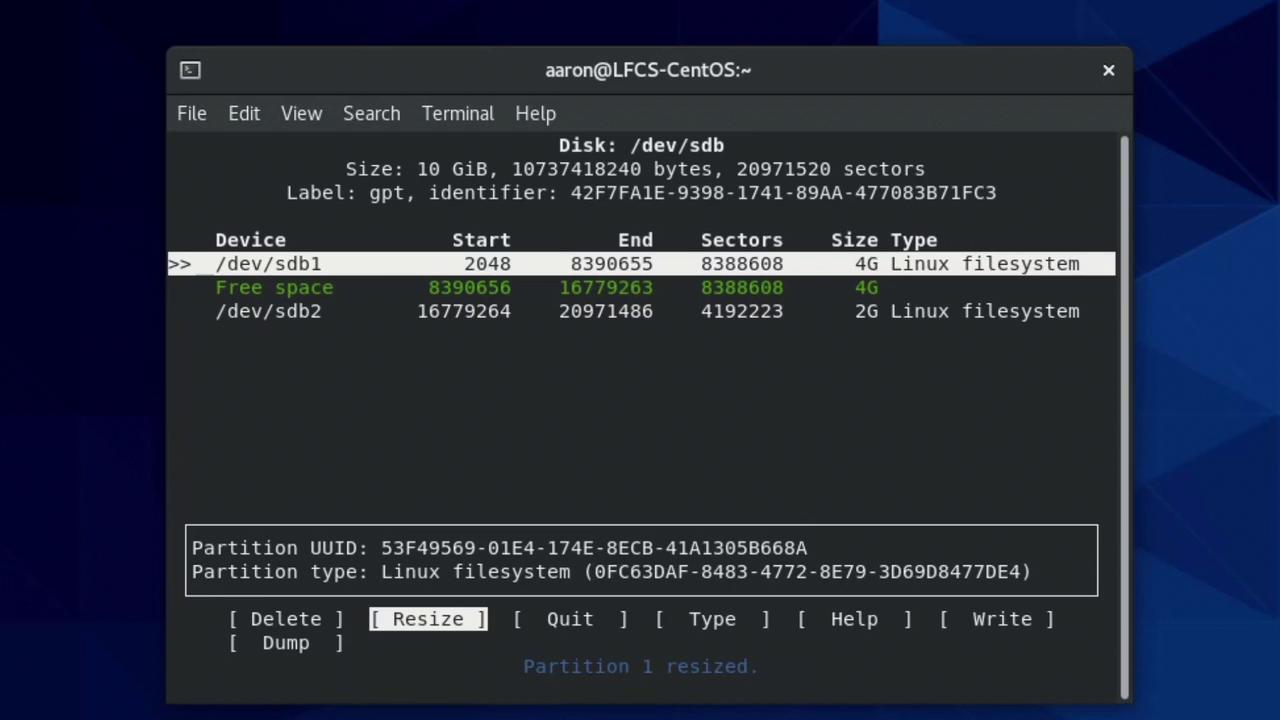
```bash theme={null}
Disk: /dev/sdb
Size: 10 GiB, 10737418240 bytes, 20971520 sectors
Label: gpt, identifier: 42F7FA1E-9398-1741-89AA-477083B71FC3
Device Start End Sectors Size Type
/dev/sdb1 2048 8390655 8388608 4G Linux filesystem
/dev/sdb2 8390656 16779263 8388608 4G Linux filesystem
/dev/sdb3 16779264 20971486 4192223 2G Linux filesystem
```
### 3.1 Setting a Partition Type
The default type is “Linux filesystem.” To mark `/dev/sdb3` as swap:
* Highlight **sdb3** → **Type** → select **Linux swap** → **Enter**.
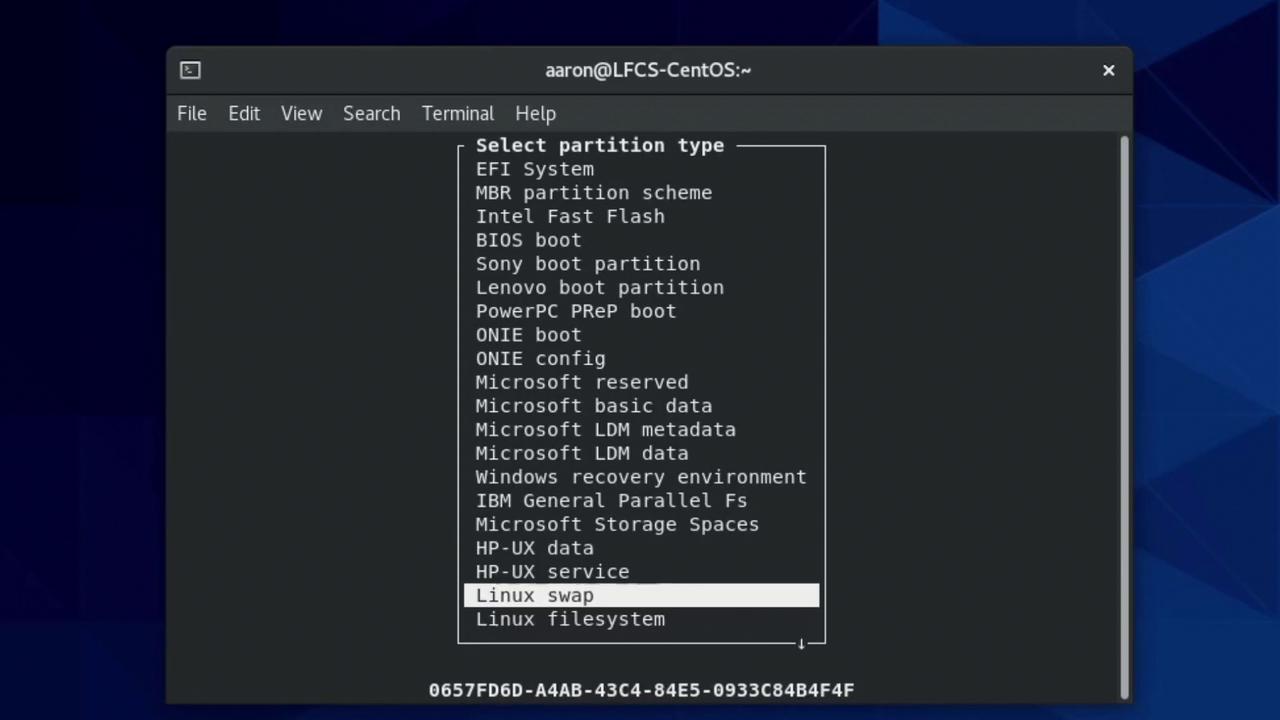
You can also choose types like **EFI System** for UEFI boot partitions or **Microsoft reserved** for Windows.

When you **Write** changes in `cfdisk`, all partition modifications become permanent. Double-check before confirming.
### 3.2 Writing and Quitting
1. Select **Write**, type `yes`, and press Enter.
2. Select **Quit** to exit `cfdisk`.
## 4. Verifying the New Partitions
Back in the shell, confirm with `lsblk`:
```bash theme={null}
lsblk
```
```bash theme={null}
NAME MAJ:MIN RM SIZE RO TYPE MOUNTPOINT
sda 8:0 0 20G 0 disk
├─sda1 8:1 0 1G 0 part /boot
├─sda2 8:2 0 19G 0 part
│ ├─cs-root 253:0 0 17G 0 lvm /
│ └─cs-swap 253:1 0 2G 0 lvm [SWAP]
sdb 8:16 0 10G 0 disk
├─sdb1 8:17 0 4G 0 part
├─sdb2 8:18 0 4G 0 part
└─sdb3 8:19 0 2G 0 part
sr0 11:0 1 1024M 0 rom
```
Now `/dev/sdb` has three partitions: two 4 GiB data partitions and one 2 GiB swap.
***
## Summary of Common Commands
| Command | Purpose | Example |
| -------------------------- | --------------------------------- | ------------------------ |
| lsblk | List block devices and partitions | `lsblk` |
| sudo fdisk --list /dev/sdX | Show partition table | `sudo fdisk -l /dev/sda` |
| sudo cfdisk /dev/sdX | Interactive disk partitioning | `sudo cfdisk /dev/sdb` |
## Links and References
* [lsblk(8) — list block devices](https://man7.org/linux/man-pages/man8/lsblk.8.html)
* [fdisk(8) — partition table manipulator](https://man7.org/linux/man-pages/man8/fdisk.8.html)
* [cfdisk(8) — curses-based partition editor](https://man7.org/linux/man-pages/man8/cfdisk.8.html)
* [GPT vs. MBR Partition Tables](https://en.wikipedia.org/wiki/GUID_Partition_Table)