> ## Documentation Index
> Fetch the complete documentation index at: https://notes.kodekloud.com/llms.txt
> Use this file to discover all available pages before exploring further.
# Create Monitor and Kill Processes
> This article explains how to create, monitor, and manage processes in Linux using various commands and techniques.
Understanding how to manage processes is fundamental for any Linux administrator. A process is simply a running instance of a program, from short-lived commands like `ls` to long-running services.
## 1. Launching a Process
For example, running:
```bash theme={null}
[aaron@LFCS-CentOS ~]$ ls
absolute_picture_shortcut all_output.txt archive.tar archive.zip Desktop
Documents Downloads file1 file1.gz file2
file2.bz2 file3 file3.xz fstab_shortcut Music
nomachine_7.7.4_1_x86_64.rpm Pictures Public shortcut_to_directory
script.sh Templates testfile videos
[aaron@LFCS-CentOS ~]$
```
creates a short-lived `ls` process that exits once the directory contents are shown.
***
## 2. Inspecting Processes with `ps`
The `ps` command lists active processes. It has two distinct option styles:
| Syntax Style | Example | Description |
| ------------ | -------- | ------------------------------------- |
| UNIX-style | `ps -e` | Show every process |
| BSD-style | `ps axu` | All processes in user-oriented format |
To view all processes in a user-friendly layout, combine `a` (others’ processes), `x` (no controlling terminal), and `u` (user format):
```bash theme={null}
ps aux
```
```text theme={null}
USER PID %CPU %MEM VSZ RSS TTY STAT START TIME COMMAND
root 1 0.0 0.3 241296 14000 ? Ss Mar23 0:01 /usr/lib/systemd/systemd
aaron 6601 6.2 4.8 3142460 185096 ? S 10:27 0:06 gnome-shell
… more …
```
### 2.1 Exploring `ps` Options
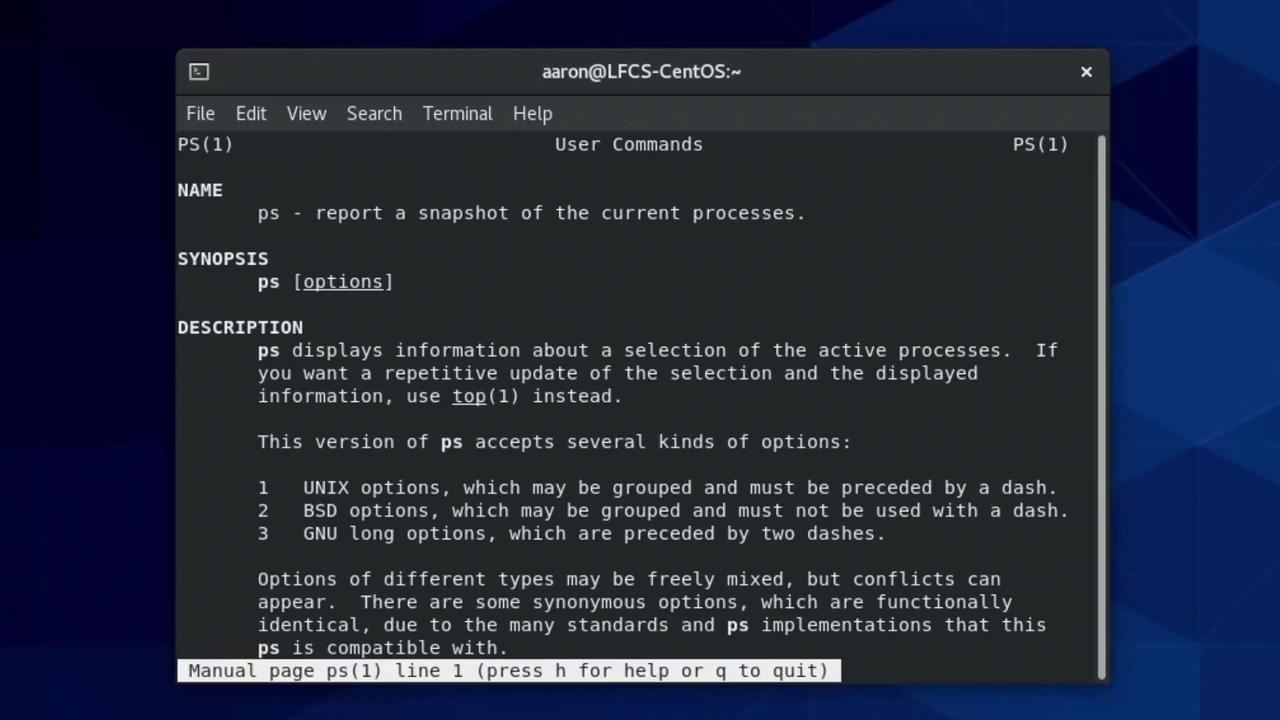
Common invocations from the manual:
* **Full format**
```bash theme={null}
ps -ef # UNIX full format
ps axu # BSD with user columns
```
* **Process tree**
```bash theme={null}
ps -ejH
ps axjf
```
* **Thread details**
```bash theme={null}
ps -Elf
ps axms
```
### 2.2 Understanding `ps aux` Columns
| Column | Description |
| ------- | ------------------------ |
| USER | Process owner |
| PID | Process ID |
| %CPU | CPU usage at sample time |
| %MEM | Physical memory usage |
| VSZ | Virtual memory size (KB) |
| RSS | Resident Set Size (KB) |
| STAT | Process state |
| START | Start time or date |
| TIME | Cumulative CPU time |
| COMMAND | Command with arguments |
Kernel threads run in kernel space and appear in square brackets, e.g., `[kworker/0:1]`.
***
## 3. Real-Time Monitoring with `top`
To watch processes live:
```bash theme={null}
top
```
```text theme={null}
top - 10:15:42 up 2:31, 1 user, load average: 0.01, 0.05, 0.03
Tasks: 236 total, 1 running, 235 sleeping, 0 stopped, 0 zombie
%Cpu(s): 0.5 us, 0.2 sy, 99.3 id, 0.0 wa, 0.0 hi, 0.0 si, 0.0 st
MiB Mem : 3731.4 total, 1588.9 free, 915.6 used, 1227.1 buff/cache
MiB Swap: 2048.0 total, 2048.0 free, 0.0 used. 2554.1 avail Mem
PID USER PR NI VIRT RES SHR S %CPU %MEM TIME+ COMMAND
6601 aaron 20 0 3142460 185096 104268 S 6.2 4.8 00:06.60 gnome-shell
1 root 20 0 241296 14000 8912 S 0.0 0.4 00:01.26 systemd
…
```
* Use arrow keys or Page Up/Page Down to navigate.
* Press `Q` to quit.
***
## 4. Targeted Process Listings
| Task | Command |
| ---------------------- | ------------------------- |
| By PID | `ps -p 1` or `ps -p 1 -u` |
| By user | `ps -u aaron` |
| By name (with `pgrep`) | `pgrep -a syslog` |
```bash theme={null}
# Find syslog processes:
pgrep -a syslog
# Kill them:
pkill -KILL syslog
```
***
## 5. Managing Process Priority (Niceness)
Niceness spans **-20** (highest priority) to **19** (lowest). Lower niceness → higher scheduling priority.
### 5.1 Launching with `nice`
```bash theme={null}
nice -n 11 bash
```
### 5.2 Viewing Niceness
```bash theme={null}
ps -l | head -n 6
F UID PID PPID PRI NI VSZ RSS WCHAN STAT COMMAND
…
0 1000 6543 6540 20 0 658840 19268 – SL+ /usr/bin/gnome-shell
4 1000 6673 6669 20 11 302924 8516 – Sl bash
```
The **NI** column shows the niceness value.
### 5.3 Changing with `renice`
```bash theme={null}
# Increase niceness (lower priority):
renice 15 6673
# Decrease niceness (requires sudo):
sudo renice -5 6673
```
***
## 6. Signals and `kill`
Linux uses signals to control processes:
| Signal | Number | Description |
| ------- | ------ | ------------------------ |
| SIGHUP | 1 | Hangup/reload |
| SIGINT | 2 | Interrupt (Ctrl+C) |
| SIGTERM | 15 | Graceful shutdown |
| SIGKILL | 9 | Force kill (uncatchable) |
```bash theme={null}
# List all signal names and numbers:
kill -l
```
You can omit the `SIG` prefix:
```bash theme={null}
kill -s KILL 1234
kill -9 1234
kill 1234 # defaults to SIGTERM
```
Using `SIGKILL` (`kill -9`) does not allow cleanup and may leave resources in an inconsistent state. Use `SIGTERM` first.
### Example: Restarting `sshd`
```bash theme={null}
systemctl status sshd.service
sudo kill -SIGHUP 1147
systemctl status sshd.service
# sshd[1147]: Received SIGHUP; restarting.
```
***
## 7. Shell Job Control
| Action | Keystroke or Command |
| ----------------------- | -------------------- |
| Interrupt (SIGINT) | Ctrl+C |
| Pause/Stop (SIGTSTP) | Ctrl+Z |
| Background a command | `sleep 180 &` |
| List jobs | `jobs` |
| Bring job to foreground | `fg %1` |
| Resume in background | `bg %1` |
***
## 8. Open Files with `lsof`
* List files opened by a PID:
```bash theme={null}
lsof -p 8401
```
* Find which process holds a file:
```bash theme={null}
sudo lsof /var/log/messages
```
Use `sudo` when required to avoid permission denied errors.
***
That concludes our guide on creating, monitoring, and killing processes in Linux. Practice these commands in a lab environment to master process management.
## Links and References
* [ps(1) — Linux Manual Page](https://man7.org/linux/man-pages/man1/ps.1.html)
* [top(1) — Linux Manual Page](https://man7.org/linux/man-pages/man1/top.1.html)
* [kill(1) — Linux Manual Page](https://man7.org/linux/man-pages/man1/kill.1.html)
* [lsof(8) — Linux Manual Page](https://linux.die.net/man/8/lsof)