> ## Documentation Index
> Fetch the complete documentation index at: https://notes.kodekloud.com/llms.txt
> Use this file to discover all available pages before exploring further.
# GNU Screen
> GNU Screen is a terminal multiplexer that allows managing multiple shell sessions within a single terminal.
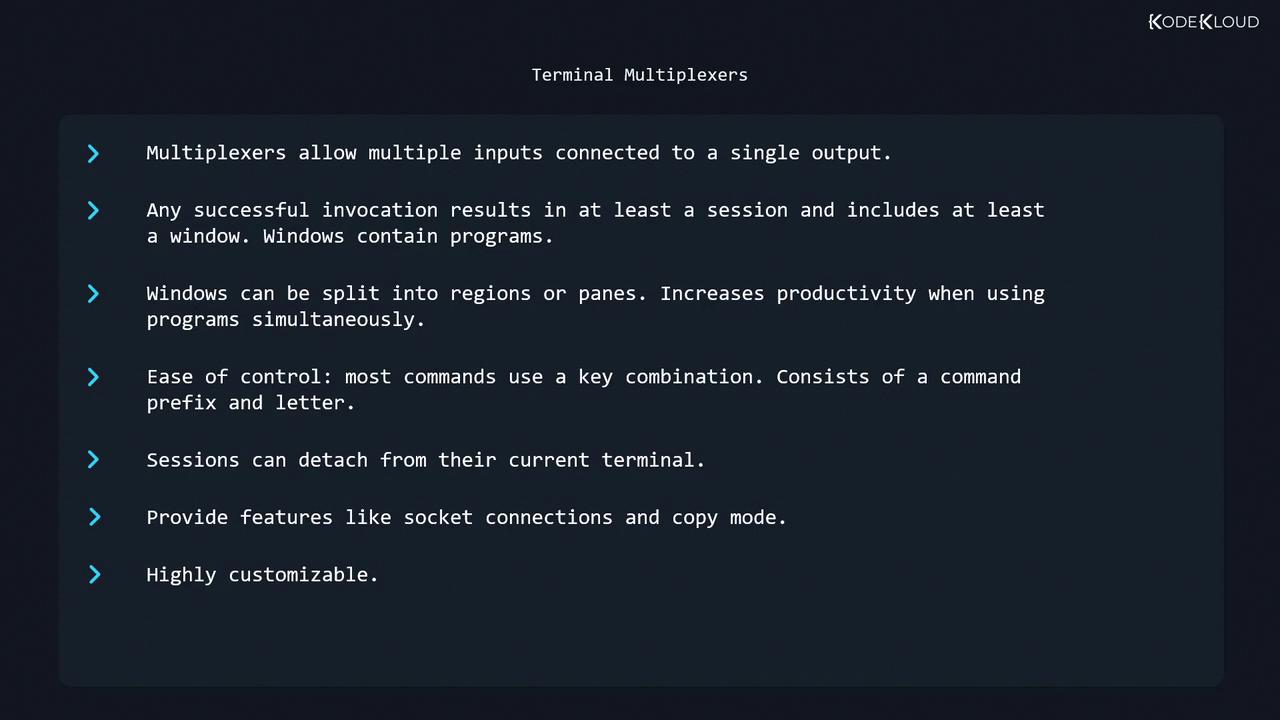
GNU Screen is a **terminal multiplexer** that lets you manage multiple shell sessions within a single terminal. Acting like an electronic MUX, it handles several inputs (shells) to one output (your terminal). Key features include:
* Multiple sessions, each containing one or more windows
* Independent windows running separate programs
* Splitting windows into regions (panes)
* A command prefix (default `Ctrl-a`) followed by command keys
* Detachable sessions that continue running in the background
* Socket connections, copy/scrollback mode, and extensive customization
## Table of Contents
* [History](#history)
* [Getting Started](#getting-started)
* [Prefix & Window Management](#prefix--window-management)
* [Navigating & Closing Windows](#navigating--closing-windows)
* [Splitting into Regions (Panes)](#splitting-into-regions-panes)
* [Sessions: Listing, Naming & Killing](#sessions-listing-naming--killing)
* [Detaching & Reattaching](#detaching--reattaching)
* [Copy/Scrollback Mode](#copyscrollback-mode)
* [Configuration](#configuration)
* [Links & References](#links--references)
***
## History
In the era of physical VT100 terminals (1970s/80s), users had no windowing system. GNU Screen, introduced in **1987**, emulated multiple VT100 sessions on a single terminal, transforming remote and local shell workflows.
***
## Getting Started
To launch a new Screen session:
```bash theme={null}
$ screen
GNU Screen version 4.05.00 (GNU) 10-Dec-16
...
```
Press **Space** or **Enter** to dismiss the welcome message. Behind the scenes, Screen has created **session 0** and **window 0**, presenting you with a familiar shell prompt.
***
## Prefix & Window Management
All Screen commands begin with the **default prefix**: `Ctrl-a` (denoted `C-a`), followed by a command key.
| Action | Key Combination | Alternative Command |
| --------------------- | --------------- | ------------------- |
| List windows | `C-a w` | — |
| Create a new window | `C-a c` | — |
| Rename current window | `C-a A` | — |
| Create named window | — | `screen -t ` |
### Example: Managing Windows
1. In **window 0**, run:
```bash theme={null}
$ ps
PID TTY TIME CMD
974 pts/2 00:00:00 bash
981 pts/2 00:00:00 ps
```
2. Press `C-a c` to create **window 1**, then run `ps` again.
3. Press `C-a w` to view the window list:
```bash theme={null}
Num Name Flags
0 bash $
1 bash *$
```
4. Rename window 1:
* Press `C-a A`
* Enter `ps`
5. Create **window 2** named “yetanotherwindow”:
```bash theme={null}
$ screen -t yetanotherwindow
```
***
## Navigating & Closing Windows
**Switching Windows**
| Action | Key Combination |
| ----------------------- | --------------- |
| Next window | `C-a n` |
| Previous window | `C-a p` |
| Jump to window number N | `C-a N` |
| Choose from list | `C-a "` |
After `C-a "`, use ↑/↓ and **Enter**:
```text theme={null}
Num Name Flags
0 bash $
1 ps $
2 yetanotherwindow $
```
**Closing Windows**
* Exit the shell/program inside the window
* Or press `C-a k`, then confirm with `y`:
```bash theme={null}
Really kill this window [y/n] y
Window 0 (bash) killed.
```
When the **last window** closes, the Screen session terminates automatically.
***
## Splitting into Regions (Panes)
Divide your window into multiple regions for side-by-side workflows.
| Action | Key Combination |
| --------------------- | --------------- |
| Split horizontally | `C-a S` |
| Split vertically | `C-a \|` |
| Move between regions | `C-a Tab` |
| Close current region | `C-a X` |
| Close all but current | `C-a Q` |
> Empty regions display as two hyphens. Closing a region does **not** kill its window; it simply hides the view.
***
## Sessions: Listing, Naming & Killing
### Listing Active Sessions
```bash theme={null}
$ screen -ls
There is a screen on:
1037.pts-0.debian (Attached)
1 Socket in /run/screen/S-user.
```
* **1037**: Session PID
* **pts-0.debian**: Terminal and host
### Naming a New Session
```bash theme={null}
$ screen -S "my session"
```
Now `screen -ls` shows:
```bash theme={null}
There are screens on:
1009.my session (Attached)
1037.pts-0.debian (Attached)
2 Sockets in /run/screen/S-user.
```
### Killing a Session
```bash theme={null}
$ screen -S 1037 -X quit
```
You can use the **session name** instead of the PID.
***
## Detaching & Reattaching
| Action | Command |
| ---------------------------------------------- | ------------------------ |
| Detach (leave session running) | `C-a d` |
| Reattach (single detached session) | `screen -r` |
| Reattach by PID | `screen -r 1009` |
| Reattach by name | `screen -r "my session"` |
| Detach everywhere & reattach here | `screen -d -r` |
| Create if missing, then attach (`strong`) | `screen -RR` |
| Start a session in detached mode (for scripts) | `screen -d -m` |
| Detach remote session & reattach here | `screen -D -r` |
Use `man screen` for the complete list of attach/detach options:
[https://man7.org/linux/man-pages/man1/screen.1.html](https://man7.org/linux/man-pages/man1/screen.1.html)
***
## Copy/Scrollback Mode
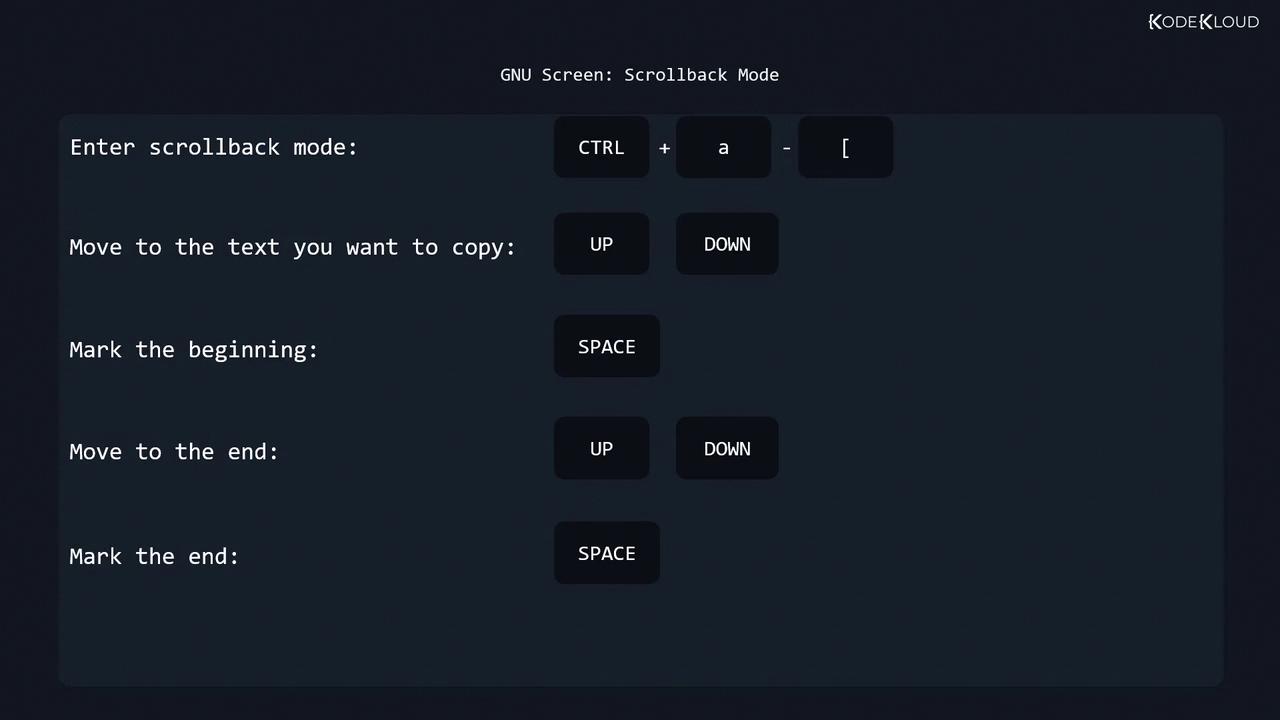
Screen’s scrollback mode allows you to browse history and copy text across windows:
1. Enter mode: `C-a [`
2. Move cursor to the **start** of the text (arrow keys)
3. Press **Space** to begin selection
4. Move to the **end** of the text
5. Press **Space** to complete selection
6. Paste with: `C-a ]`
***
## Configuration
Screen reads two primary config files:
| File | Scope | Typical Content |
| --------------- | ------------- | ------------------------------ |
| `/etc/screenrc` | System-wide | Global defaults and modules |
| `~/.screenrc` | User-specific | Personal key bindings, layouts |
Each config file may include:
1. **General settings**
```text theme={null}
defscrollback 10000
```
2. **Key bindings**
```text theme={null}
bind | split ____
```
3. **Terminal settings**
```text theme={null}
defnonblock 5
```
4. **Startup screens**
```text theme={null}
screen -t top top
```
Edit these files to tailor Screen’s behavior. Consult the [GNU Screen man page](https://man7.org/linux/man-pages/man1/screen.1.html) for a full directive reference.
***
## Links & References
* [GNU Screen Home Page](https://www.gnu.org/software/screen/)
* [Linux Journal: GNU Screen Tutorial](https://www.linuxjournal.com/article/3460)
* [man screen (official)](https://man7.org/linux/man-pages/man1/screen.1.html)