> ## Documentation Index
> Fetch the complete documentation index at: https://notes.kodekloud.com/llms.txt
> Use this file to discover all available pages before exploring further.
# Perform Basic File Management Part 1
> This guide covers essential Linux file operations to streamline your workflow on any Unix-like system.
In this guide, you’ll master essential Linux file operations—listing, creating, copying, moving, and deleting files and directories—to streamline your workflow on any Unix-like system.
## Table of Contents
1. [Key Concepts](#key-concepts)
2. [Listing Files and Directories](#listing-files-and-directories)
3. [Filesystem Structure](#filesystem-structure)
4. [Creating Files and Directories](#creating-files-and-directories)
5. [Copying Files and Directories](#copying-files-and-directories)
6. [Moving and Renaming](#moving-and-renaming)
7. [Deleting Files and Directories](#deleting-files-and-directories)
8. [Summary of Commands](#summary-of-commands)
9. [References](#references)
## Key Concepts
Before you begin, make sure you understand:
* The Linux filesystem tree and hierarchy
* The difference between **absolute paths** and **relative paths**
* How to navigate directories with `cd` and identify your location with `pwd`
Absolute paths start at the root directory `/` while relative paths are based on your current working directory.
## Listing Files and Directories
Use the `ls` command to display directory contents:
```bash theme={null}
$ ls
Documents Desktop Downloads Music Pictures Videos
```
Show hidden files (those starting with a dot) with `-a`:
```bash theme={null}
$ ls -a
. .. .bashrc .profile Documents Desktop Downloads Music Pictures Videos
```
For a detailed (long) listing including permissions, ownership, size, and timestamp, add `-l`:
```bash theme={null}
$ ls -l /var/log
total 4064
drwxr-xr-x 2 root root 4096 Oct 18 22:52 anaconda
drw------- 2 root root 4096 Oct 18 22:53 audit
-rw------- 1 root root 19524 Nov 1 17:56 boot.log
...
```
Combine options to save time:
```bash theme={null}
$ ls -al # same as ls -a -l
$ ls -ahl # human-readable sizes with -h
```
## Filesystem Structure
Linux organizes files in an inverted tree structure:
* Root directory: `/`
* Standard subdirectories: `/home`, `/var`, `/etc`, `/usr`, etc.
* Each folder can contain files and more subdirectories
### Absolute Paths
Absolute paths always begin at `/`.\
Example:
```text theme={null}
/home/aaron/documents/invoice.pdf
```
### Relative Paths
Relative paths depend on your current directory. Check it with:
```bash theme={null}
$ pwd
/home/aaron
```
Change directories using `cd`:
```bash theme={null}
$ cd /var/log # absolute path
$ cd /home/aaron # absolute path
$ cd .. # up one level
$ cd documents # down into current dir’s "documents"
```
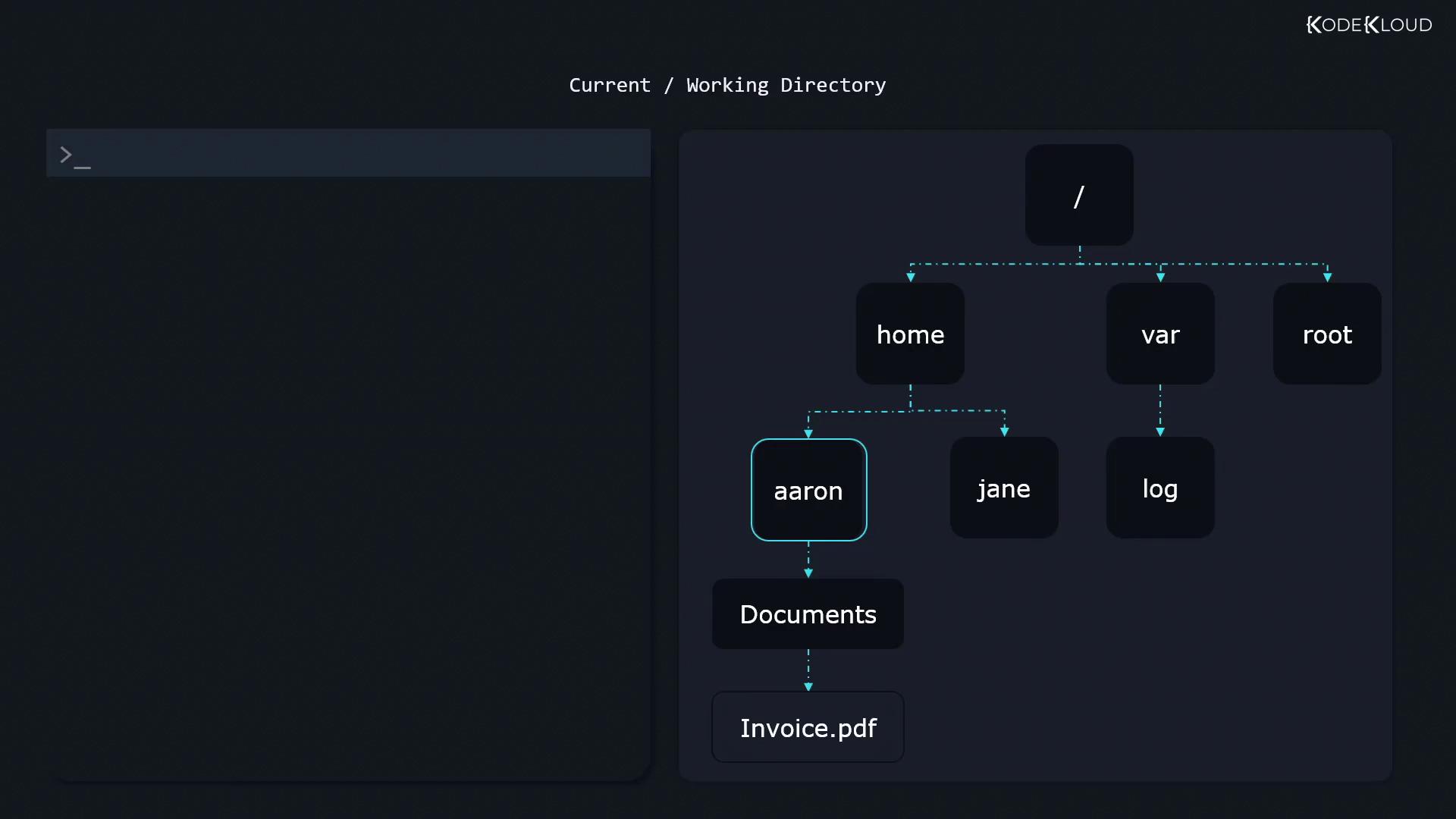
From `/home/aaron`, these relative paths resolve to:
* `documents/invoice.pdf` → `/home/aaron/documents/invoice.pdf`
* `invoice.pdf` → `/home/aaron/invoice.pdf`
* `../invoice.pdf` → `/home/invoice.pdf`
* `../../invoice.pdf` → `/invoice.pdf`
Additional `cd` shortcuts:
```bash theme={null}
$ cd / # go to root
$ cd # go to your home directory
$ cd - # switch to previous directory
```
## Creating Files and Directories
* Create an empty file:
```bash theme={null}
$ touch receipt.pdf
```
* Create a new directory:
```bash theme={null}
$ mkdir receipts
```
## Copying Files and Directories
Use `cp [source] [destination]`:
* Copy a file into a directory:
```bash theme={null}
$ cp receipt.pdf receipts/
```
* Copy and rename:
```bash theme={null}
$ cp receipt.pdf receipts/receipt_copy.pdf
```
* Copy a directory recursively:
```bash theme={null}
$ cp -r receipts/ backup_of_receipts/
```
Ensure `backup_of_receipts` does not already contain a `receipts` subdirectory.
## Moving and Renaming
Use `mv [source] [destination]` to move or rename:
```bash theme={null}
$ mv receipt.pdf receipts/
$ mv receipts/receipt.pdf receipts/old_receipt.pdf
$ mv receipts/ old_receipts/
```
`mv` works seamlessly on both files and directories.
## Deleting Files and Directories
`rm -r` permanently deletes directories and their contents. Use with caution to avoid data loss.
* Remove a file:
```bash theme={null}
$ rm invoice.pdf
```
* Remove a directory recursively:
```bash theme={null}
$ rm -r invoices/
```
Always include `-r` when deleting directories.
## Summary of Commands
| Command | Description | Example |
| ------- | ------------------------------------ | -------------------------- |
| ls | List directory contents | `ls -ahl /var/log` |
| pwd | Print working directory | `pwd` |
| cd | Change directory | `cd /home/aaron/documents` |
| touch | Create an empty file | `touch newfile.txt` |
| mkdir | Create a new directory | `mkdir project` |
| cp | Copy files or directories | `cp -r src/ dest/` |
| mv | Move or rename files and directories | `mv oldname newname` |
| rm | Remove files or directories | `rm -r obsolete_folder/` |
## References
* [GNU Coreutils Manual](https://www.gnu.org/software/coreutils/manual/coreutils.html)
* [Linux File System Basics](https://www.tldp.org/LDP/intro-linux/html/sect_03_01.html)
* [Bash Reference Manual](https://www.gnu.org/software/bash/manual/)