> ## Documentation Index
> Fetch the complete documentation index at: https://notes.kodekloud.com/llms.txt
> Use this file to discover all available pages before exploring further.
# Search Text Files Using Regular Expressions Part 1 Create simple regular expressions containing several notational elements
> Learn to use basic regex operators in Linux to effectively search and filter text in files with `grep`.
In Linux, regular expressions (regex) empower you to locate and filter text in files far beyond simple string matching. In this first part of our series, you will learn basic regex operators and how to craft simple yet powerful patterns with `grep`.
Imagine you need to extract every IPv4 address (e.g., `203.102.3.5`) from hundreds of configuration files. A naive approach that searches for “digit–dot–digit” (`[0-9]\.[0-9]`) would also match incomplete fragments like `1.2`. By combining regex operators, you can define precise constraints and avoid false positives:

In mathematics, we often define a variable *x* by specifying its domain and constraints:
> Let *x* be an integer, *x* > 3, and *x* \< 8.\
> Then *x* ∈ {4, 5, 6, 7}.
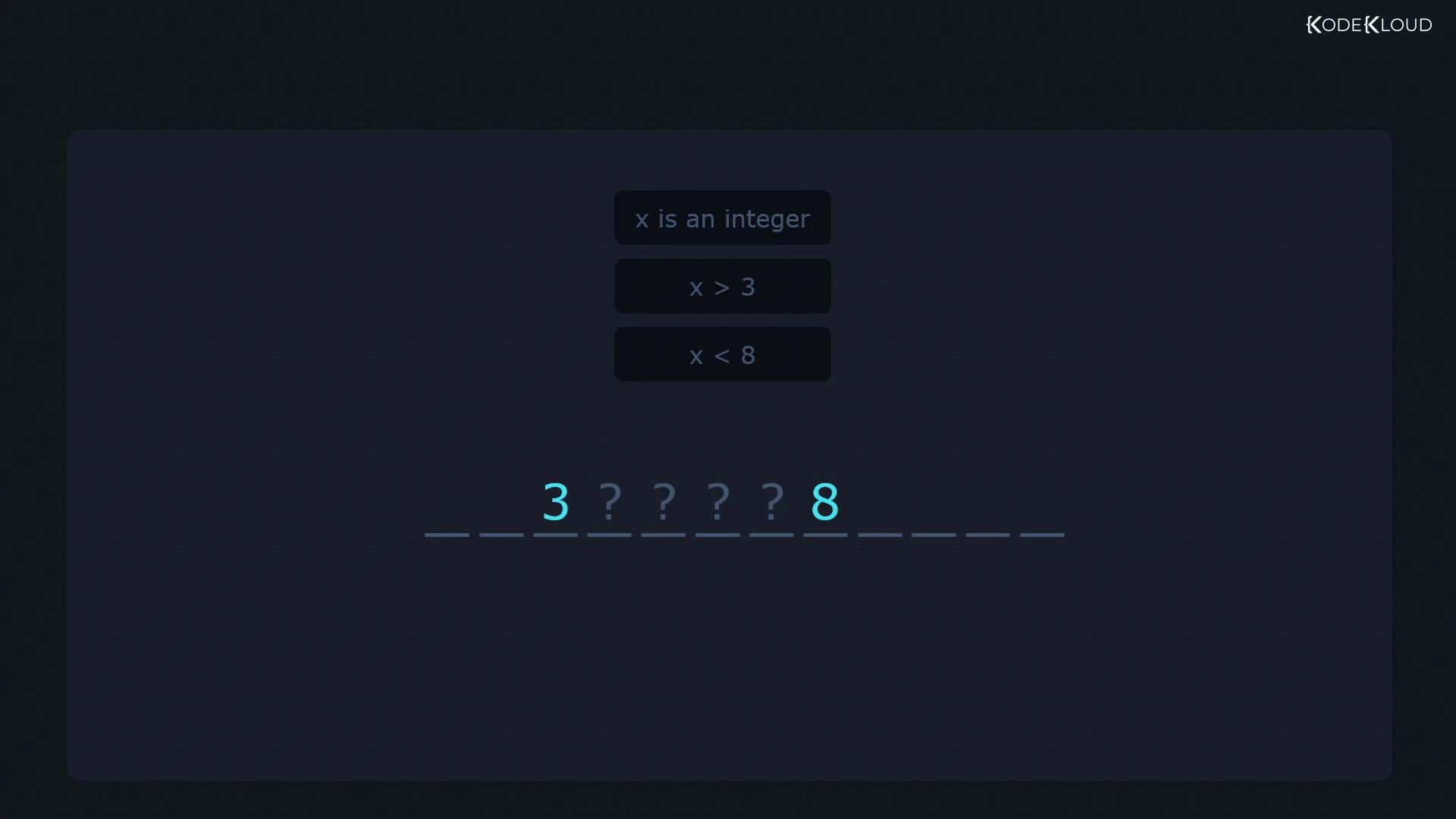
Regular expressions use a similar principle: you combine operators to specify exactly what a match should look like. Below is a quick reference of common regex metacharacters:
| Metacharacter | Meaning | |
| ------------- | ------------------------------------- | ---------------- |
| `^` | Anchor to the start of a line | |
| `$` | Anchor to the end of a line | |
| `.` | Any single character | |
| `*` | Zero or more of the preceding element | |
| `+` | One or more of the preceding element | |
| `{n,m}` | Between *n* and *m* occurrences | |
| `?` | Zero or one occurrence | |
| \` | \` | Alternation (OR) |
| `[]` | Character class | |
| `()` | Grouping | |
| `[^ ]` | Negated character class | |
![The image displays a set of regex operators, including symbols like ^, \$, ., \*, +, \{}, ?, |, \[\], (), and \[^\].](https://kodekloud.com/kk-media/image/upload/v1752881408/notes-assets/images/Linux-Professional-Institute-LPIC-1-Exam-101-Search-Text-Files-Using-Regular-Expressions-Part-1-Create-simple-regular-expressions-containing-several-notational-elements/regex-operators-symbols-set.jpg)
## 1. Matching at the Beginning of a Line (`^`)
Consider a file `names.txt` containing:
```bash theme={null}
$ cat names.txt
adam
adnan
basam
samad
samuel
sheela
ravi
mausami
```
A plain search for `sam` returns any line with that substring:
```bash theme={null}
$ grep 'sam' names.txt
basam
samad
samuel
mausami
```
To match only lines that **start** with `sam`, prefix your pattern with `^`:
```bash theme={null}
$ grep '^sam' names.txt
samad
samuel
```
## 2. Matching at the End of a Line (`$`)
Similarly, to find entries ending in `sam`, append `$` to the pattern:
```bash theme={null}
$ grep 'sam$' names.txt
basam
```
You can also apply this to system files, for example, looking for lines in `/etc/login.defs` that end with the digit `7`:
```bash theme={null}
$ grep '7' /etc/login.defs
# 022 is the default value, but 027, or even 077, could be considered
HOME_MODE 0700
PASS_WARN_AGE 7
$ grep '7$' /etc/login.defs
PASS_WARN_AGE 7
$ grep 'mail$' /etc/login.defs
MAIL_DIR /var/spool/mail
#MAIL_FILE .mail
```
## 3. The Dot (`.`) — Any Single Character
A period in regex matches exactly one character. For instance, `c.t` matches `cat`, `cut`, or `c1t`, but not `ct`.
```bash theme={null}
$ grep -r 'c.t' /etc/
/etc/man_db.conf:# manpath. If no catpath string is used, the catpath will default to the
/etc/man_db.conf:# the database cache for any manpaths not mentioned below unless explicitly
...
```
To restrict matches to whole words, use the `-w` flag:
```bash theme={null}
$ grep -wr 'c.t' /etc/
/etc/brltty/Input/mn/all.txt:Left: append to existing cut buffer from selected character
...
```
### 3.1 Escaping the Dot
If your goal is to match a **literal** dot (`.`), escape it with a backslash:
```bash theme={null}
$ grep '\.' /etc/login.defs
```
## 4. The Asterisk (`*`) — Zero or More
The asterisk applies to the element immediately before it, allowing that element to repeat zero or more times. For example, `let*` matches `le`, `let`, `lett`, `letttt`, etc.:
```bash theme={null}
$ grep -r 'let*' /etc/
/etc/pnm2ppa.conf:#papersize letter # this is the default
/etc/pnm2ppa.conf:#papersize legal
```
You can combine `.` and `*` to match any sequence of characters. For instance, extracting paths enclosed by slashes:
```bash theme={null}
$ grep -r '/.*/' /etc/
/etc/man_db.conf:# before /usr/man.
/etc/man_db.conf:MANDB_MAP /usr/man
...
```
## 5. The Plus (`+`) — One or More
In **basic** `grep`, the `+` is not treated specially unless escaped. Use `\+` to indicate “one or more” of the preceding item:
```bash theme={null}
$ grep -r '0*' /etc/
$ grep -r '0\+' /etc/
/etc/pnm2ppa.conf:#colorshear 0
/etc/pnm2ppa.conf:#blackshear 0
...
```
Basic `grep` requires escaping `?`, `+`, `|`, `(`, and `)`. To leverage these metacharacters without backslashes, switch to **extended** regex mode using `grep -E` or the `egrep` command.
***
By combining these core operators, you can design precise search patterns to sift through logs, configuration files, or any text data on your Linux system.
## Further Reading and References
* [GNU grep Manual](https://www.gnu.org/software/grep/manual/grep.html)
* [Regular Expressions Tutorial](https://www.regular-expressions.info/)
* [Linux `grep` Command Tutorial](https://www.geeksforgeeks.org/grep-command-in-unixlinux/)