> ## Documentation Index
> Fetch the complete documentation index at: https://notes.kodekloud.com/llms.txt
> Use this file to discover all available pages before exploring further.
# Search Text Files Using Regular Expressions Part 1 Understand the differences between basic and extended regular expressions
> This article explains extended regular expressions in Linux, comparing them with basic regex and demonstrating their usage with various tools.
In this lesson, we’ll dive into **extended regular expressions** (ERE) on Linux, compare them with basic regex (BRE), and demonstrate how to leverage powerful metacharacters—without drowning in backslashes. You’ll learn to match repetitions, optional elements, alternation, ranges, sub-expressions, and negations using `grep`, `egrep`, `sed`, and other tools.
## Why Extended Regular Expressions?
Basic regular expressions require backslashes to enable special operators (`\+`, `\?`, `\|`). EREs simplify syntax and unlock built-in support for:
* `+`, `?`, `|`
* Range quantifiers `{m,n}`
* Grouping via `()`
This results in cleaner, more maintainable patterns.
## Enabling ERE in grep
Use `-E` with `grep` or call the `egrep` command directly:
```bash theme={null}
# Search recursively for one or more zeros in /etc
grep -Er '0+' /etc/
/usr/share/example.conf: option0
# Or equivalently:
egrep -r '0+' /etc/
```
Sample output:
```text theme={null}
/etc/pm2ppa.conf:#colorshear 0
/etc/pm2ppa.conf:#blackshear 0
/etc/pm2ppa.conf:#GammaR 1.0 # red enhancement
…
/etc/subuid--charles:23172:65536
```
## Quantifier Cheat Sheet
| Quantifier | Description | Example |
| ---------- | --------------------------- | ------------------------------------- |
| `?` | 0 or 1 occurrence | `colou?r` matches `color` or `colour` |
| `*` | 0 or more occurrences | `a*b` matches `b`, `ab`, `aaab` |
| `+` | 1 or more occurrences | `0+` matches `0`, `00`, `000` |
| `{n}` | Exactly n times | `A{3}` matches `AAA` |
| `{m,}` | At least m times | `0{3,}` matches `000` or more |
| `{,n}` | Up to n times (including 0) | `1{,3}` matches `1`, `11`, `111` |
| `{m,n}` | Between m and n times | `a{2,4}` matches `aa`, `aaa`, `aaaa` |
## Optional Elements with `?`
Make the preceding atom optional:
```bash theme={null}
# Match "disable" or "disabled"
egrep -r 'disabled?' /etc/
```
Because grep matches substrings by default, `disabled?` also finds `disables` unless you anchor (`^`, `$`) or use word boundaries (`\b`).
## Zero or More with `*`
`*` allows the element to repeat any number of times:
```bash theme={null}
# Matches "/dev/" plus any characters
egrep -r '/dev/.*' /etc/
```
Unbounded `.*` is greedy and may overmatch. Constrain it with character classes or quantifiers whenever possible.
## Alternation with `|`
Select between multiple patterns:
```bash theme={null}
# Find "enabled" or "disabled"
egrep -r 'enabled|disabled' /etc/
```
Combine with `?` to catch both forms:
```bash theme={null}
egrep -ri 'enabled?|disabled?' /etc/
```
## Character Classes and Ranges
Define sets of allowed characters with `[]`. Hyphens indicate ranges:
```bash theme={null}
# Match "cat" or "cut"
egrep -r 'c[au]t' /etc/
# Any lowercase letter
egrep -r '[a-z]' /etc/
# Any digit
egrep -r '[0-9]' /etc/
# Specific characters
egrep -r '[ABZ954]' /etc/
```
## Building up a Device-Name Pattern
To match Linux device nodes under `/dev` while avoiding overmatching:
1. Letters only:
```bash theme={null}
egrep -r '/dev/[a-z]*' /etc/
```
2. Append exactly one digit:
```bash theme={null}
egrep -r '/dev/[a-z]*[0-9]' /etc/
```
3. Make the digit optional:
```bash theme={null}
egrep -r '/dev/[a-z]*[0-9]?' /etc/
```
4. Repeat letter+digit segments (e.g., `tty0p0`):
```bash theme={null}
egrep -r '/dev/([a-z]*[0-9]?)+' /etc/
```
5. Allow uppercase letters too:
```bash theme={null}
egrep -r '/dev/(([a-z]|[A-Z])*[0-9]?)+' /etc/
```
Each refinement better aligns with real devices like `/dev/sda`, `/dev/ttyS0`, and `/dev/tty0p0`.
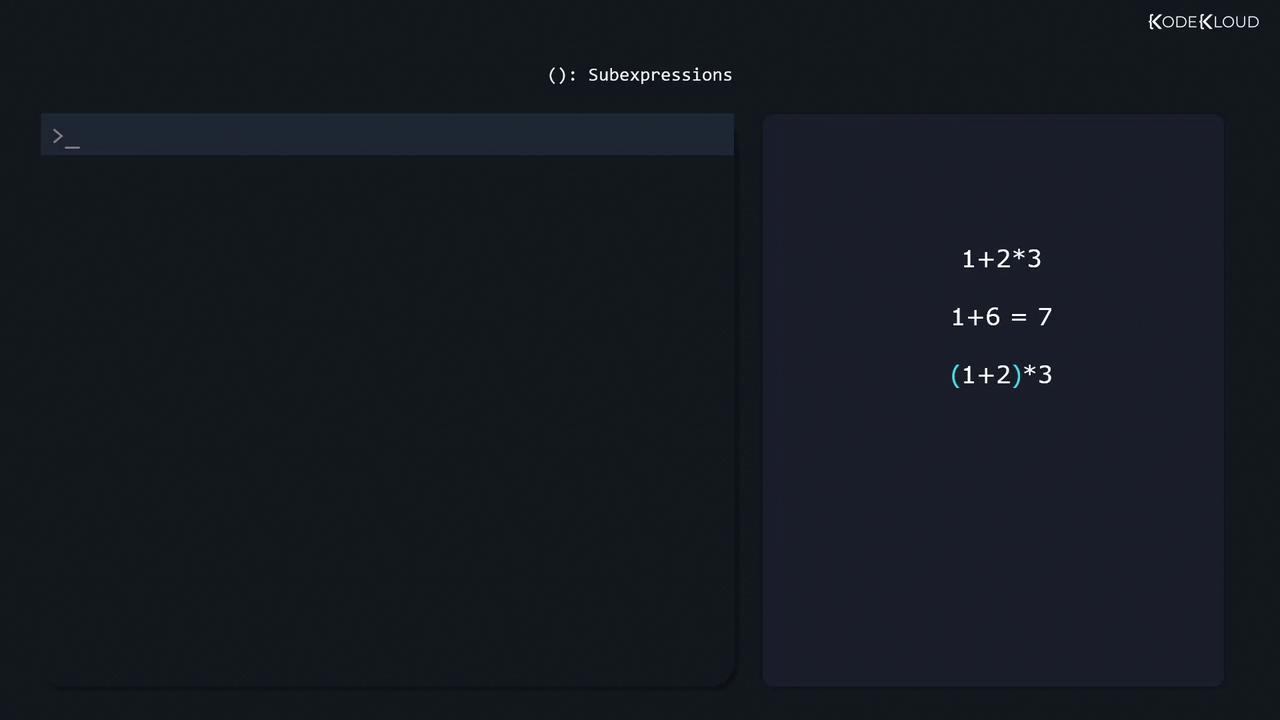
## Sub-Expressions (Grouping)
Group subpatterns with parentheses so quantifiers apply to the entire unit:
```bash theme={null}
egrep -r '/dev/([a-z]*[0-9]?)+ ' /etc/
```
## Negated Character Classes
Start a class with `^` to invert it:
```bash theme={null}
# "http" not followed by "s"
egrep -r 'http[^s]' /etc/
# Slash not followed by a lowercase letter
egrep -r '/[^a-z]' /etc/
```
## Conclusion & Further Reading
Mastering EREs in `grep`, `egrep`, `sed`, and related tools empowers you to craft precise searches and avoid false positives. Practice your patterns interactively:
* [GNU grep Manual](https://www.gnu.org/software/grep/manual/)
* [Regexr – Online Regex Tester](https://regexr.com/)
* [POSIX Regular Expressions](https://pubs.opengroup.org/onlinepubs/9699919799/basedefs/V1_chap09.html)