> ## Documentation Index
> Fetch the complete documentation index at: https://notes.kodekloud.com/llms.txt
> Use this file to discover all available pages before exploring further.
# Use Streams Pipes and Redirects Part 1
> Learn to redirect input and output in Linux to enhance command-line workflows.
In this lesson, you’ll master how to redirect input and output in Linux, making your command-line workflows more powerful and flexible.
## Table of Contents
1. [Standard Streams Overview](#standard-streams-overview)
2. [Redirecting Output](#redirecting-output-)
3. [Appending Output](#appending-output)
4. [Discarding Output](#discarding-output-)
5. [Merging and Redirecting Both Streams](#merging-and-redirecting-both-streams)
6. [Redirecting Input](#redirecting-input-)
7. [Here Documents and Here Strings](#here-documents-and-here-strings)
8. [Pipes and Pipelines](#pipes-and-pipelines)
9. [Quick Reference](#quick-reference)
10. [Links and References](#links-and-references)
***
## Standard Streams Overview
Linux programs communicate using three standard streams:
| Descriptor | Stream Name | Purpose |
| ---------- | ------------------------ | -------------------------------------- |
| 0 | stdin (standard input) | Receives data (keyboard, files) |
| 1 | stdout (standard output) | Sends regular output (terminal, files) |
| 2 | stderr (standard error) | Sends error messages (terminal, files) |
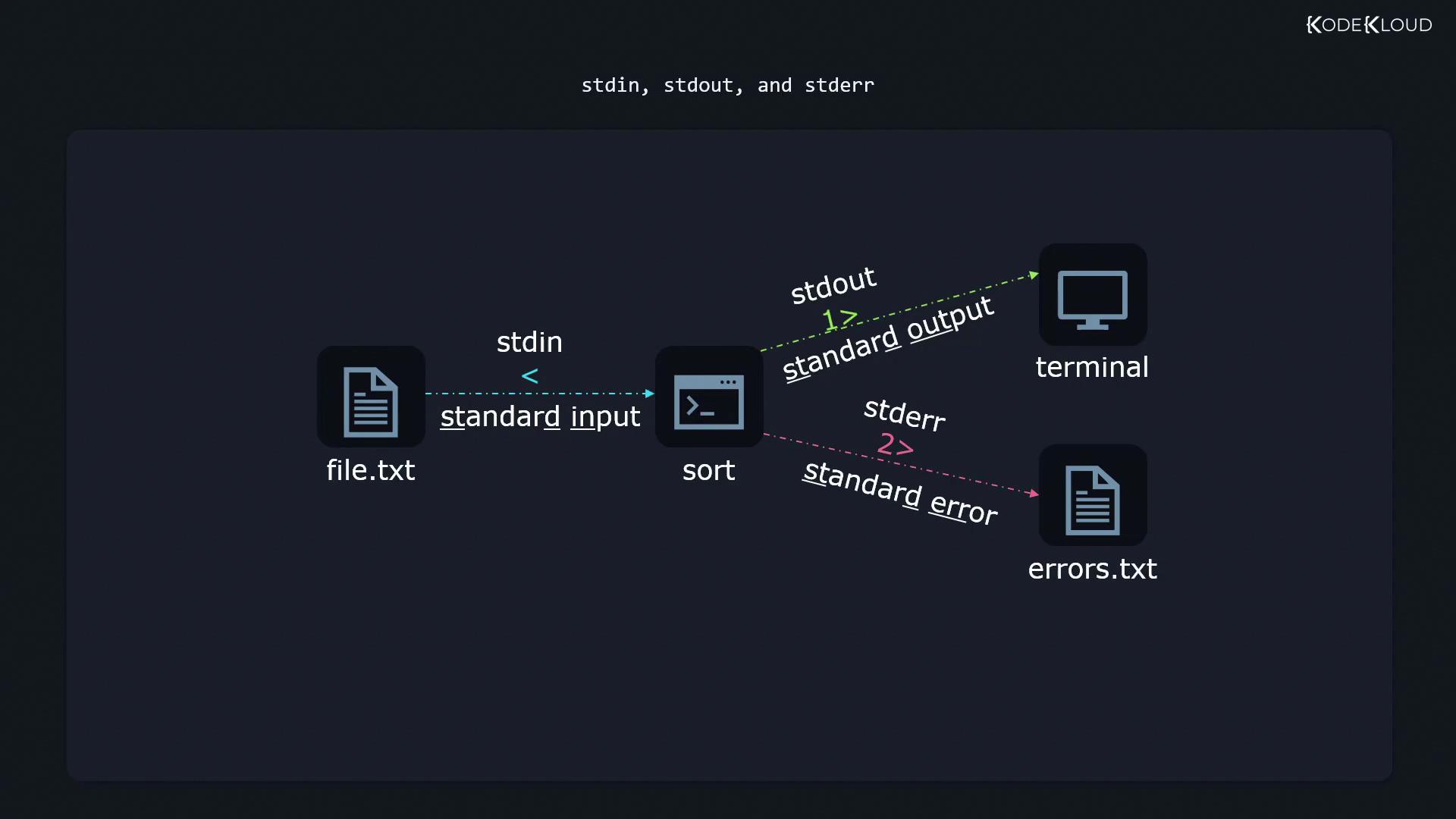
By default, both `stdout` and `stderr` appear on your terminal. You can redirect them separately:
```bash theme={null}
$ command 1>output.txt 2>errors.txt
```
## Redirecting Output (`>`)
To save a command’s output to a file (creating or overwriting it), use the `>` operator.
1. Create a file with unsorted numbers:
```bash theme={null}
$ cat file.txt
6
5
1
3
4
2
```
2. Sort the file and write the result to `sortedfile.txt`:
```bash theme={null}
$ sort file.txt > sortedfile.txt
$ cat sortedfile.txt
1
2
3
4
5
6
```
Using `>` always overwrites the target file. You will lose previous contents!
## Appending Output (`>>`)
To add output to the end of an existing file without erasing its contents, use `>>`:
```bash theme={null}
$ echo "First line" >> file.txt
$ echo "Second line" >> file.txt
$ echo "Third line" >> file.txt
$ cat file.txt
First line
Second line
Third line
```
## Discarding Output (`/dev/null`)
Send unwanted output or errors to `/dev/null`, the “black hole”:
```bash theme={null}
$ grep -r '^The' /etc/ 2>/dev/null
```
This filters matching lines while discarding all error messages.
## Merging and Redirecting Both Streams
* Redirect `stdout` and `stderr` to separate files:
```bash theme={null}
$ grep -r '^The' /etc/ 1>output.txt 2>errors.txt
```
* Append both streams:
```bash theme={null}
$ grep -r '^The' /etc/ 1>>output.txt 2>>errors.txt
```
* Merge `stderr` into `stdout` and write to one file:
```bash theme={null}
$ grep -r '^The' /etc/ > all_output.txt 2>&1
```
Order matters: `> all_output.txt 2>&1` merges error output into the same file, while reversing redirects leaves errors on the console.
## Redirecting Input (`<`)
Some commands read from `stdin` instead of a file argument. Redirect a file into `stdin` like this:
```bash theme={null}
$ sendemail someone@example.com < email_content.txt
```
The contents of `email_content.txt` feed directly into `sendemail`.
## Here Documents and Here Strings
### Here Documents (`<<`)
Embed a block of text as input:
```bash theme={null}
$ sort <` | Redirect stdout, overwrite file | `sort file.txt > sortedfile.txt` | | |
| `>>` | Redirect stdout, append to file | `echo hi >> greetings.txt` | | |
| `<` | Redirect stdin from file | `wc -l < file.txt` | | |
| `2>` | Redirect stderr, overwrite file | `grep foo bar 2>errors.log` | | |
| `/dev/null` | Discard stream | `cmd 2>/dev/null` | | |
| `&>` | Redirect both stdout and stderr | `cmd &> combined.log` | | |
| \` | \` | Pipe stdout into next stdin | \`ls -l | grep '^d'\` |
| `<